Why Puppeteer page.click() Does Not Wait and How to Fix It
Puppeteer’s page.click() waits for the click, not what happens afterward. Choose the right navigation or DOM wait to avoid races and flaky scripts.
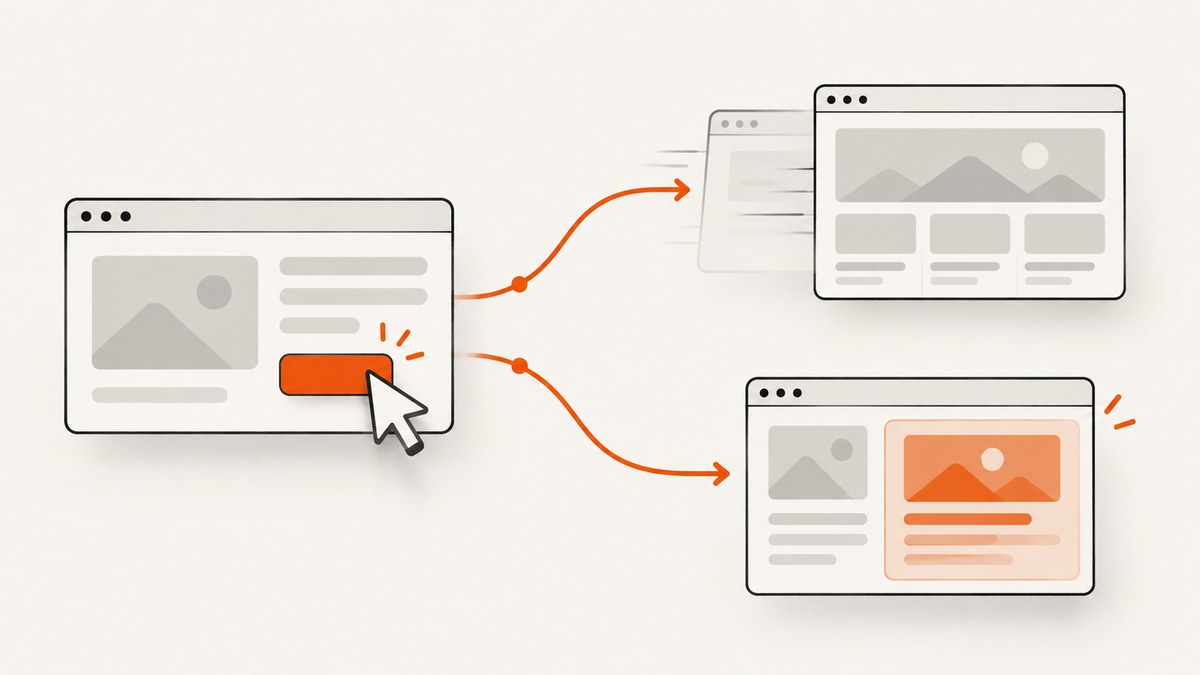
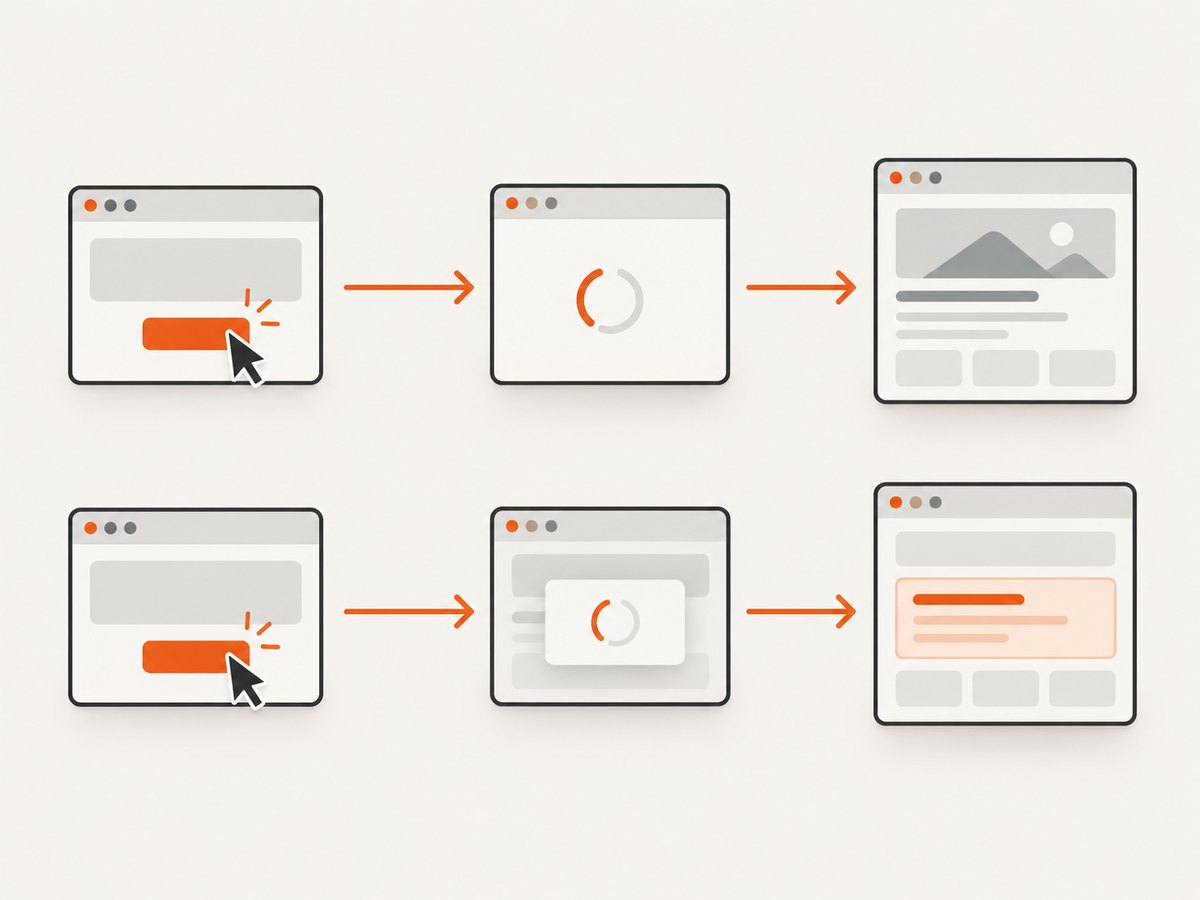
await page.click(selector) waits for Puppeteer to perform the click. It does not wait for a page navigation, reload, or client-side update triggered by that click. To fix the timing, first identify the expected result: start waitForNavigation() alongside the click for navigation, or wait for a specific DOM or application state for an in-page update.
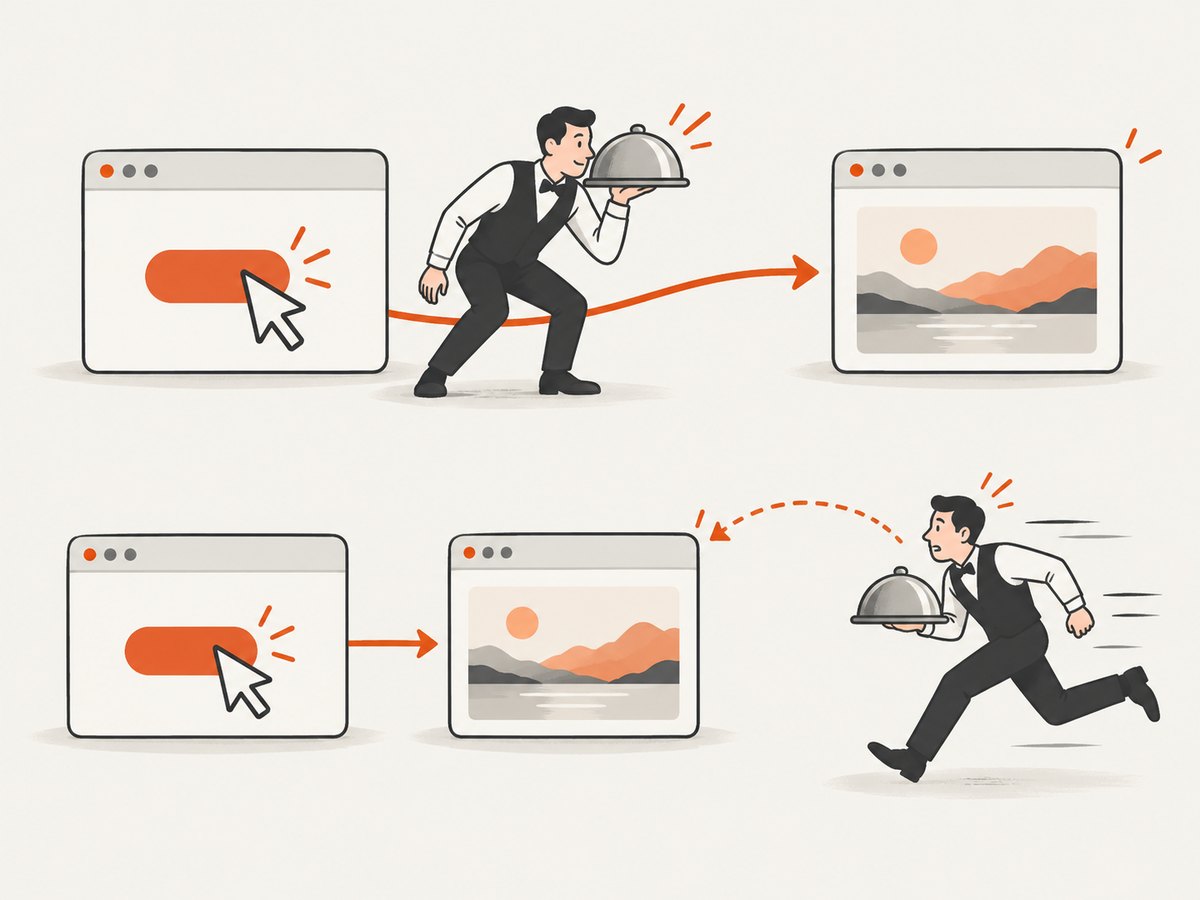
The key distinction is between the action finishing and the result of the action finishing. Puppeteer’s Page.click() finds the element, scrolls it into view if needed, clicks its center, and resolves when the click succeeds. It rejects if no matching element exists. It does not promise that downstream work is complete. See the official Page.click() API.
1. Why Puppeteer page.click() does not wait
A click can trigger several different things: a full document navigation, a reload, a History API or anchor URL change, or an update made by JavaScript without navigation. The click operation itself has no way to know which result your script needs. The code must wait for the signal that corresponds to that result.
For a click that causes navigation, Puppeteer warns that awaiting the click first and registering a navigation waiter afterward can create a race: navigation may start before the waiter exists. The documentation’s recommended pattern starts both promises together:
const [response] = await Promise.all([
  page.waitForNavigation(),
  page.click('a.my-link'),
]);
Promise.all() does not make the operations sequential. Both calls are made while building the array; the navigation waiter is registered as the click begins. The click can then trigger a navigation that the already-running waiter observes. Avoid this sequence for navigation:
await page.click('a.my-link');
await page.waitForNavigation();
By the time the second line runs, a fast navigation may already have happened. Puppeteer describes this race in its Page.click() documentation.
2. Choose the wait that matches the result
| Expected result | Wait for | Important detail |
|---|---|---|
| New document or reload | waitForNavigation() started with the click |
May return the main resource response; redirects resolve with the last response. |
| History API or anchor URL change | waitForNavigation() |
Some History API and anchor navigations resolve with null. |
| In-place application update | waitForSelector() or waitForFunction() |
Wait for a state that proves the update happened, not merely an element that was already present. |
| Element can be acted on | A Puppeteer locator, or an availability wait | Action readiness does not mean the click’s consequence has completed. |
The official waitForNavigation() API covers navigation to a new URL or a reload, including History API URL changes. For client-side changes, use a condition tied to the result, such as a newly visible confirmation or changed text. The waitForSelector() API resolves immediately if the selector is already present, so a selector that existed before the click is not enough to prove that the click succeeded.
3. Runnable examples
Wait for a full navigation or reload
This example assumes the link triggers a document navigation. The response can be null for History API or anchor cases, so do not treat a null value alone as failure.
import puppeteer from 'puppeteer';

const browser = await puppeteer.launch({ headless: true });
try {
  const page = await browser.newPage();
  await page.goto('https://example.com');

  const [response] = await Promise.all([
    page.waitForNavigation({ waitUntil: 'domcontentloaded', timeout: 30_000 }),
    page.click('a.next-page'),
  ]);

  console.log('Current URL:', page.url());
  console.log('Navigation response:', response?.status() ?? 'no main response');
} finally {
  await browser.close();
}
domcontentloaded is one possible navigation milestone. Select the milestone that fits what the next step needs. Navigation completion does not necessarily mean a single-page app has finished fetching all of its data or rendering every late-loading component. If the next step depends on a particular result, wait for that result too.
Wait for an in-page update
Suppose clicking a button adds a confirmation that was not present before. Wait for that new selector rather than a generic page load:
await page.click('button.save');
await page.waitForSelector('[data-testid="save-confirmation"]', {
  visible: true,
  timeout: 10_000,
});
When an existing element changes, wait for the changed value. For example, capture the current text and then wait until it differs:
const oldText = await page.$eval('.status', el => el.textContent?.trim() ?? '');
await page.click('button.refresh-status');

await page.waitForFunction(
  previous => (document.querySelector('.status')?.textContent?.trim() ?? '') !== previous,
  { timeout: 10_000 },
  oldText,
);
The predicate should describe the actual success condition. If the expected value is known, waiting for that value is clearer than merely waiting for any change.
Wait for an actionable element separately
Puppeteer locators help wait until an element is available and in a suitable state for an action. This solves a different problem from waiting for the result. Use the locator for the action, then add an outcome wait if the workflow needs one. See the official page interactions guide.
const saveButton = page.locator('button.save');
await saveButton.click();
await page.waitForSelector('[data-testid="save-confirmation"]', {
  visible: true,
  timeout: 10_000,
});
An availability wait such as waitForSelector() only waits for the element condition. It does not automatically retry a failed click or wait for the result of a click.
4. Configure waits for real pages
Navigation milestones and timeouts
waitForNavigation() accepts navigation wait options, including a timeout and a waitUntil milestone. Set the timeout to fit the workflow and environment rather than hiding a broken condition with a very long value. The right milestone depends on the next action: a script that only needs the document parsed may not need to wait for every resource, while a later step that reads rendered content needs a condition that reflects that content.
For example, you can use the same concurrent pattern with a different milestone:
await Promise.all([
  page.waitForNavigation({ waitUntil: 'load', timeout: 45_000 }),
  page.click('a.report'),
]);
Do not assume that a navigation milestone means every application-specific fetch, animation, or delayed widget has settled. Follow it with a specific result condition when required.
Selector and predicate waits
Use waitForSelector(selector, options) when the result is represented by an element appearing or becoming visible. Use waitForFunction() for a value transition or a condition involving more than a selector. In both cases, a condition should distinguish success from the pre-click state.
- Prefer a confirmation, updated row, or result-specific attribute over a broad page selector.
- If the target might already exist, record its prior state or wait for a known new value.
- Use a finite timeout so a missing result produces a useful failure rather than an indefinite hang.
- When the application can show an explicit error state, account for it in the predicate or inspect it after a timeout.
Why fixed sleeps are a poor default
A delay such as await new Promise(resolve => setTimeout(resolve, 2000)) waits for elapsed time, not for the page condition your workflow needs. A short delay can finish before a slow response; a long one adds unnecessary waiting when the page is fast. This is a practical consequence of using a time-based condition instead of the documented navigation or DOM conditions, not a benchmark claim. Use a sleep only when elapsed time itself is the requirement, such as allowing a known animation interval to pass.
5. Troubleshooting common failures
| Symptom | Likely cause | Fix |
|---|---|---|
| The script continues before the next page is ready. | Only the click was awaited. | Start waitForNavigation() with the click, or wait for the actual in-page result. |
waitForNavigation() times out. |
The click caused an in-place update, the selector did not click the intended control, or navigation was prevented. | Confirm the expected behavior and click target; use a DOM condition for an in-place update. |
| Navigation happens, but the waiter still times out. | The waiter was created after the click and missed a fast navigation. | Put the waiter and click in the same Promise.all(). |
| A selector wait resolves immediately, then stale content is read. | The selector already existed before the click. | Wait for a distinct new element, changed text, updated attribute, or other post-click state. |
The response is null. |
The navigation may have been a History API or anchor URL change without a main resource response. | Check the current URL and expected page state; do not use response presence as the only success test. |
page.click() rejects because no element matches. |
The selector is wrong or the element has not appeared. | Verify the selector and page state; use an availability wait or locator when appropriate. |
| The navigation wait resolves, but required content is absent. | The document navigated, but the application content is loaded or rendered later. | Add a selector or predicate wait for the content the next step consumes. |
When diagnosing a timeout, log the current URL and inspect the state of the relevant element. A timeout says the requested condition was not observed before its limit; it does not by itself identify whether the selector, expected outcome, or application behavior was wrong.
6. Performance, reliability, and cost
For browser automation, synchronization is part of correctness. Waiting on the actual outcome keeps the script from reading stale state and avoids inserting a fixed delay into every run. The right wait can still time out when the site is unavailable, the click is blocked, or the expected condition is wrong; handle that failure at the workflow level and capture enough context to diagnose it.
There is no universal wait timeout or speed figure for every page. Network conditions, page behavior, redirects, and application code differ. Choose a finite timeout based on the job’s own deadline, and report which condition timed out. For repeated jobs, distinguish navigation failures from missing result conditions so retries do not repeat an action that may already have succeeded.
A Puppeteer workflow also has browser setup and runtime costs: it launches and manages a browser and executes the target site. If the actual deliverable is only a screenshot or PDF, a capture API may avoid maintaining that browser workflow. That tradeoff depends on whether the task needs custom browser interaction or just a rendered capture.
7. Or skip the browser setup
If your goal is a screenshot rather than browser interaction, ScreenshotNeo takes a URL in one GET request and returns a screenshot or PDF. See the ScreenshotNeo API documentation for parameters and options.
curl -G "https://api.screenshotneo.com/v1/shot" -d access_key=YOUR_API_KEY --data-urlencode url=https://stripe.com -o shot.webpimport requests
r = requests.get(
"https://api.screenshotneo.com/v1/shot",
params={"access_key": "YOUR_API_KEY", "url": "https://stripe.com"},
timeout=90,
)
open("shot.webp", "wb").write(r.content)const q = new URLSearchParams({ access_key: 'YOUR_API_KEY', url: 'https://stripe.com' });
const res = await fetch(`https://api.screenshotneo.com/v1/shot?${q}`);ScreenshotNeo accepts cookie or consent banners as a visitor and removes more than 60 known consent platforms, newsletter popups, and chat widgets before capture; each step can be turned off. Bot checks, blank pages, failed loads, timeouts, and cache hits are not billed, and response headers report the page verdict and billing status. Its MCP server provides take_screenshot, get_page_info, and capture_pdf tools for Claude, Cursor, and other MCP clients. The free plan includes 1,000 screenshots per month with no card; paid plans start at $5 for 3,000. Sign up for 1,000 free screenshots a month, no card required.
8. FAQ
Does page.click() wait for the element to appear?
No. It attempts to find and click the selected element. Use a locator or an availability wait when the element may not yet be ready.
Does page.click() wait for a single-page app to finish?
No. Wait for a DOM or application state that represents the result you need.
Can I use waitForNavigation() for a URL change?
Yes, it covers History API URL changes and anchor navigation too, though some such cases resolve with a null response.
Should I migrate this code to Playwright?
Playwright documents automatic waiting on locators, but that is a different API contract. Do not assume Playwright locator behavior applies to Puppeteer. See the Playwright migration guide.


