How to Get a Puppeteer Page or Frame Handle After Opening a New Page
Learn how to retain the Page from browser.newPage(), access the main Frame, find iframe handles, and avoid timing and selector errors.
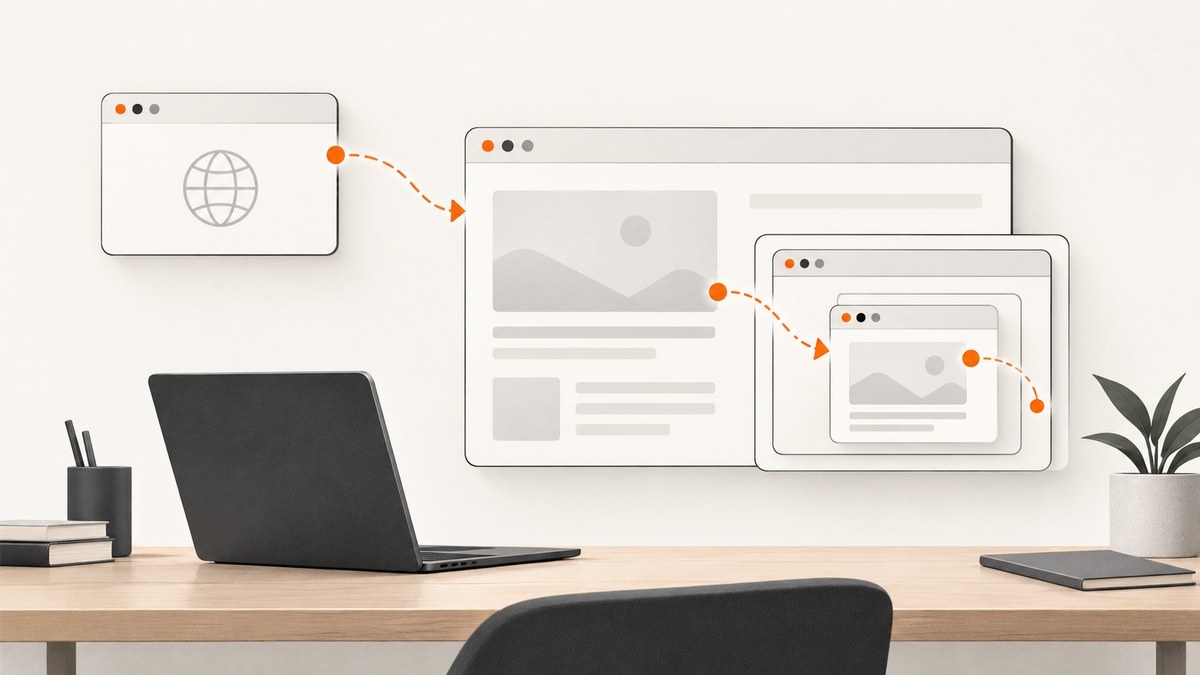
Direct answer: await browser.newPage() and keep the returned value. That value is your Puppeteer Page handle. Call page.mainFrame() to get the top-level Frame. To work with an iframe, inspect page.frames(), identify the attached frame by a stable URL or name, and then call selectors and actions on that frame.
import puppeteer from 'puppeteer';

const browser = await puppeteer.launch();
const page = await browser.newPage();       // Page handle
const mainFrame = page.mainFrame();         // top-level Frame handle

await page.goto('https://example.com');
console.log(page.url());
console.log(mainFrame.url());

await browser.close();
browser.newPage() is asynchronous and resolves to a Promise<Page>. The Page represents a browser tab. A Frame represents a document context inside that tab. The main frame is the top-level document; an iframe is a child frame. Puppeteer’s Browser.newPage API documents page creation, while Page.mainFrame returns the page’s main frame.
1. Keep the Page returned by browser.newPage()
The most common mistake is opening a page without assigning it:
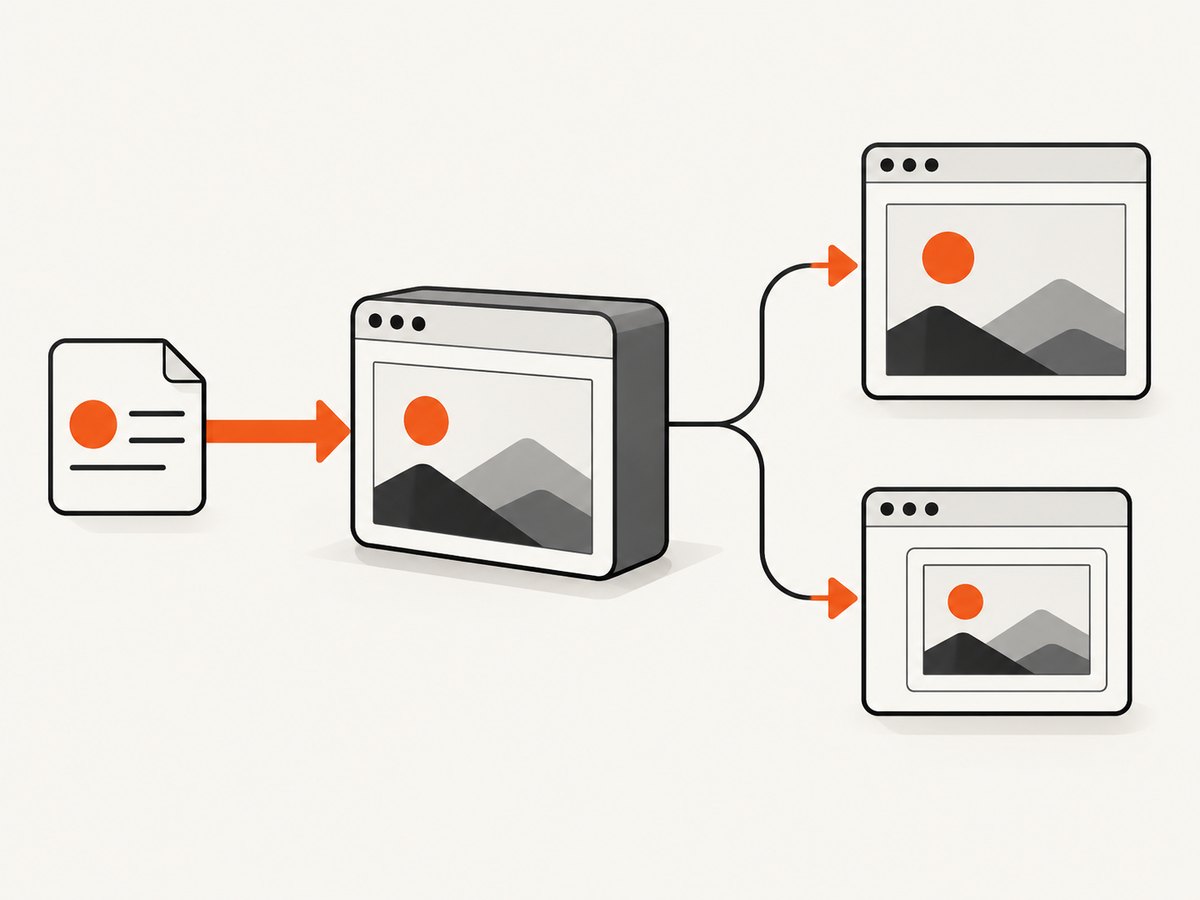
await browser.newPage();
// The Page object is no longer available here.
Assign the promise result to a variable instead:
const page = await browser.newPage();

await page.setViewport({ width: 1440, height: 900 });
await page.goto('https://example.com', { waitUntil: 'domcontentloaded' });
const title = await page.title();
console.log(title);
Use one Page variable for all tab-level operations such as navigation, viewport changes, screenshots, cookies, keyboard input, and event listeners. If your application opens several tabs, store each handle separately or use an array:
const pages = await Promise.all([
  browser.newPage(),
  browser.newPage(),
]);

await pages[0].goto('https://example.com');
await pages[1].goto('https://developer.mozilla.org');
Do not confuse browser.pages() with browser.newPage(). The former returns pages that already exist in the browser context. The latter creates a new tab and returns that newly created Page.
2. Get the top-level Frame with page.mainFrame()
After navigation, the top-level document is available through page.mainFrame():
const page = await browser.newPage();
await page.goto('https://example.com');

const frame = page.mainFrame();
console.log(frame.url());

const heading = await frame.$eval('h1', element => element.textContent);
console.log(heading);
A Page-level selector is effectively a shortcut for a selector on the main frame. These two calls target the same document:
const a = await page.$('h1');
const b = await page.mainFrame().$('h1');
Use the Frame object explicitly when your code needs to make the document context clear, especially in utilities that may receive either the main document or an iframe. The main frame remains the correct context for normal pages that do not embed the target content.
3. Find an iframe with page.frames()
page.frames() returns the frames currently attached to the Page, including the main frame and every iframe descendant. A stable URL prefix is usually safer than relying on array position:
const page = await browser.newPage();
await page.goto('https://example.test');

const widgetFrame = page.frames().find(frame =>
  frame.url().startsWith('https://widgets.example/')
);

if (!widgetFrame) {
  throw new Error('The widget iframe was not attached');
}

await widgetFrame.locator('button.submit').click();
Frame URLs can be empty or change during navigation. You can inspect the complete tree while debugging:
function printFrameTree(frame, depth = 0) {
  console.log(`${'  '.repeat(depth)}${frame.url() || '(no URL)'}`);
  for (const child of frame.childFrames()) {
    printFrameTree(child, depth + 1);
  }
}

printFrameTree(page.mainFrame());
Use frame.childFrames() to traverse descendants from a known parent. This is useful when a third-party widget contains another nested iframe.
4. Wait for dynamically attached frames
An iframe created by JavaScript may not exist immediately after goto(). Querying page.frames() too early returns only the frames attached at that moment. Wait for an application-specific signal, then look up the frame:
await page.goto('https://example.test', { waitUntil: 'domcontentloaded' });
await page.waitForSelector('iframe[data-widget="checkout"]');

const checkoutFrame = page.frames().find(frame =>
  frame.url().includes('/checkout')
);

if (!checkoutFrame) {
  throw new Error('Checkout frame exists in the DOM but is not ready');
}

await checkoutFrame.waitForSelector('input[name="cardnumber"]');
await checkoutFrame.type('input[name="cardnumber"]', '4242424242424242');
For frames that navigate more than once, wait for the condition your application actually guarantees: a known URL, a selector inside the frame, or a page event. There is no universal delay that works for every site. A fixed timeout can be a last resort, but it makes tests slower when the page is fast and flaky when it is slow.
You can also listen for attachment events when you need to react as soon as any frame appears:
page.on('frameattached', frame => {
  console.log('Attached:', frame.url());
});

page.on('framenavigated', frame => {
  console.log('Navigated:', frame.url());
});
5. Select frames by URL, name, or application identity
Prefer an identity that remains stable across deployments. A URL prefix works well for hosted widgets. A frame name can work for your own markup:
const namedFrame = page.frames().find(frame => frame.name() === 'payment');
if (!namedFrame) throw new Error('Payment frame not found');
If your application owns the iframe element, use its attributes to identify it and then match the corresponding Frame. Do not assume page.frames()[1] is always the desired frame: analytics, ads, consent tools, and browser extensions can change ordering.
Cross-origin status does not prevent Puppeteer from operating in an attached frame through its Frame API. The browser’s same-origin restrictions still apply to code executed inside the page, so keep DOM work inside the selected Frame rather than trying to read an iframe’s document from the parent with ordinary page JavaScript.
6. Complete runnable example
This script launches Chromium, opens a Page, prints the main frame, waits for a dynamically available iframe, and clicks inside it when found. Save it as handles.mjs, install Puppeteer with npm install puppeteer, and run node handles.mjs.
import puppeteer from 'puppeteer';

const browser = await puppeteer.launch({ headless: true });
try {
  const page = await browser.newPage();
  await page.setViewport({ width: 1365, height: 768 });
  await page.goto('https://example.test', {
    waitUntil: 'domcontentloaded',
    timeout: 30000,
  });

  const mainFrame = page.mainFrame();
  console.log('Page:', page.url());
  console.log('Main frame:', mainFrame.url());

  await page.waitForSelector('iframe[data-widget]', { timeout: 10000 });
  const frames = page.frames();
  const widget = frames.find(frame =>
    frame.url().startsWith('https://widgets.example/')
  );

  if (!widget) {
    throw new Error(`Widget frame not found. Frames: ${frames.map(f => f.url()).join(', ')}`);
  }

  await widget.waitForSelector('button.submit', { timeout: 10000 });
  await widget.locator('button.submit').click();
  console.log('Clicked submit in iframe');
} finally {
  await browser.close();
}
7. Common errors and fixes
| Error or symptom | Cause | Fix |
|---|---|---|
Cannot read properties of undefined |
The result of newPage() was not assigned, or a variable is out of scope. |
Use const page = await browser.newPage() and pass the handle to the code that needs it. |
| Selector works on Page but not in iframe | Page selectors search the main frame only. | Find the target frame with page.frames() and run frame.locator(), frame.$(), or frame.waitForSelector(). |
Frame lookup returns undefined |
The iframe has not attached, its URL is still blank, or the match is too strict. | Wait for an application-specific signal, log every frame URL, and use a stable URL prefix or frame name. |
| Frame disappears during an action | The iframe navigated or was replaced by the application. | Re-enumerate page.frames() after navigation and reacquire the current Frame handle. |
| Timeout waiting for a selector | The selector belongs to another document, appears after a later state change, or is wrong. | Verify the selected frame, wait for the frame’s own selector, and inspect the rendered DOM. |
| Wrong frame selected by index | Frame ordering changed because another iframe loaded. | Match by URL, name, or an application-specific attribute instead of an array index. |
| Page closes before work finishes | browser.close() runs before awaited operations complete. |
Await navigation and frame actions, then close the browser in a finally block. |
8. Reliability and performance practices
- Retain handles locally: pass the Page or Frame to the function that uses it instead of repeatedly searching global state.
- Wait on state: prefer navigation events and selectors over arbitrary sleeps.
- Reacquire after navigation: a frame can be replaced, so treat a previously stored Frame as invalid after a major navigation.
- Limit concurrency: each Page consumes browser resources. Reuse a browser and create only the tabs needed for concurrent work.
- Set explicit timeouts: choose navigation and selector limits that match your environment, and log the URL and frame tree when they expire.
- Clean up: close Pages when finished and always close the Browser in error paths.
- Capture diagnostics: record
page.url(), frame URLs, and the failing selector. These details usually identify a context or timing bug quickly.
9. Or skip the browser setup
If your goal is a clean screenshot rather than browser automation, ScreenshotNeo provides a single HTTP request. It accepts consent banners like a visitor and removes more than 60 known consent platforms, newsletter popups, and chat widgets before capture. Bot checks, blank pages, timeouts, failed loads, and cache hits are not billed, and the response reports the result with X-Page-Verdict and X-Billed headers. Its MCP server gives Claude, Cursor, and other MCP clients take_screenshot, get_page_info, and capture_pdf tools.

See the ScreenshotNeo API documentation for all options.
cURL
curl -G "https://api.screenshotneo.com/v1/shot" \
  -d access_key=YOUR_API_KEY \
  --data-urlencode url=https://stripe.com \
  -o shot.webp
Python
import requests

r = requests.get(
    "https://api.screenshotneo.com/v1/shot",
    params={"access_key": "YOUR_API_KEY", "url": "https://stripe.com"},
    timeout=90,
)
r.raise_for_status()
open("shot.webp", "wb").write(r.content)
Node.js
const q = new URLSearchParams({ access_key: 'YOUR_API_KEY', url: 'https://stripe.com' });
const res = await fetch(`https://api.screenshotneo.com/v1/shot?${q}`);
if (!res.ok) throw new Error(`Screenshot failed: ${res.status}`);
require('fs').writeFileSync('shot.webp', Buffer.from(await res.arrayBuffer()));
You can still control the capture when needed: full-page screenshots load lazy images; CSS selectors capture one element; device presets, custom viewports, retina scale, dark mode, custom CSS and JavaScript, clicks, selector or network-idle waits, request blocking, headers, cookies, user agents, authorization, timezone, geolocation, transparent backgrounds, resizing, caching TTLs, signed image links, asynchronous jobs with signed webhooks, PDF settings, bulk capture for up to 100 URLs, usage reporting, and an OpenAPI specification are available. Parameter names used by other screenshot APIs also work, which reduces migration effort.
The Free plan includes 1,000 screenshots each month without a card. Paid plans start at $5 for 3,000 shots; Growth is $15 for 15,000, Pro is $39 for 60,000, Scale is $99 for 250,000, and Business is $249 for 1,000,000. Yearly billing provides two months free, and every feature is included on every plan. Create a free ScreenshotNeo account to get started.
10. Cost and operational notes
A local Puppeteer workflow uses your own compute, browser downloads, maintenance time, and retry logic. It is useful when you need arbitrary interaction with a live Page or Frame. A screenshot API shifts browser operation to an HTTP request and makes billing behavior visible in the response. With ScreenshotNeo, only clean shots are billed; failed loads and cache hits are free, which can make retry-heavy pipelines easier to reason about.
FAQ
What does browser.newPage() return?
It returns a promise that resolves to a Puppeteer Page handle for a new tab in the default browser context.
How do I get the main document?
Call page.mainFrame(). The returned Frame is the top-level document context.
Can I use page.$() inside an iframe?
No. Page-level selectors target the main frame. Find the iframe’s Frame and call the selector method on that Frame.
Should I store a Frame forever?
No. A frame can navigate or be replaced. Reacquire it after a navigation or replacement event.
When is an API preferable to Puppeteer?
Use an API when you need repeatable screenshots or PDFs without maintaining Chromium lifecycle, iframe timing, consent cleanup, and retry code. Use Puppeteer when you need custom browser interaction beyond capture.


