How Header and Footer Printing Works in Puppeteer’s page.pdf() API
Add repeating headers, footers, page numbers, dates and URLs to Puppeteer PDFs with templates, margins, print CSS and troubleshooting.
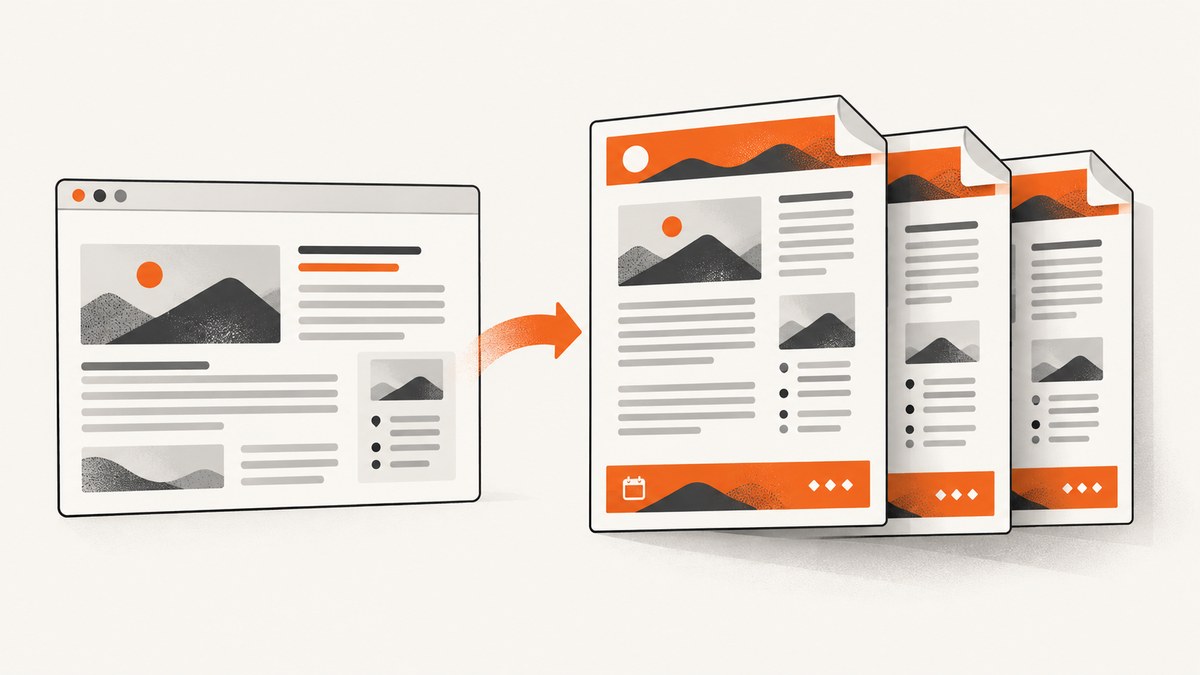
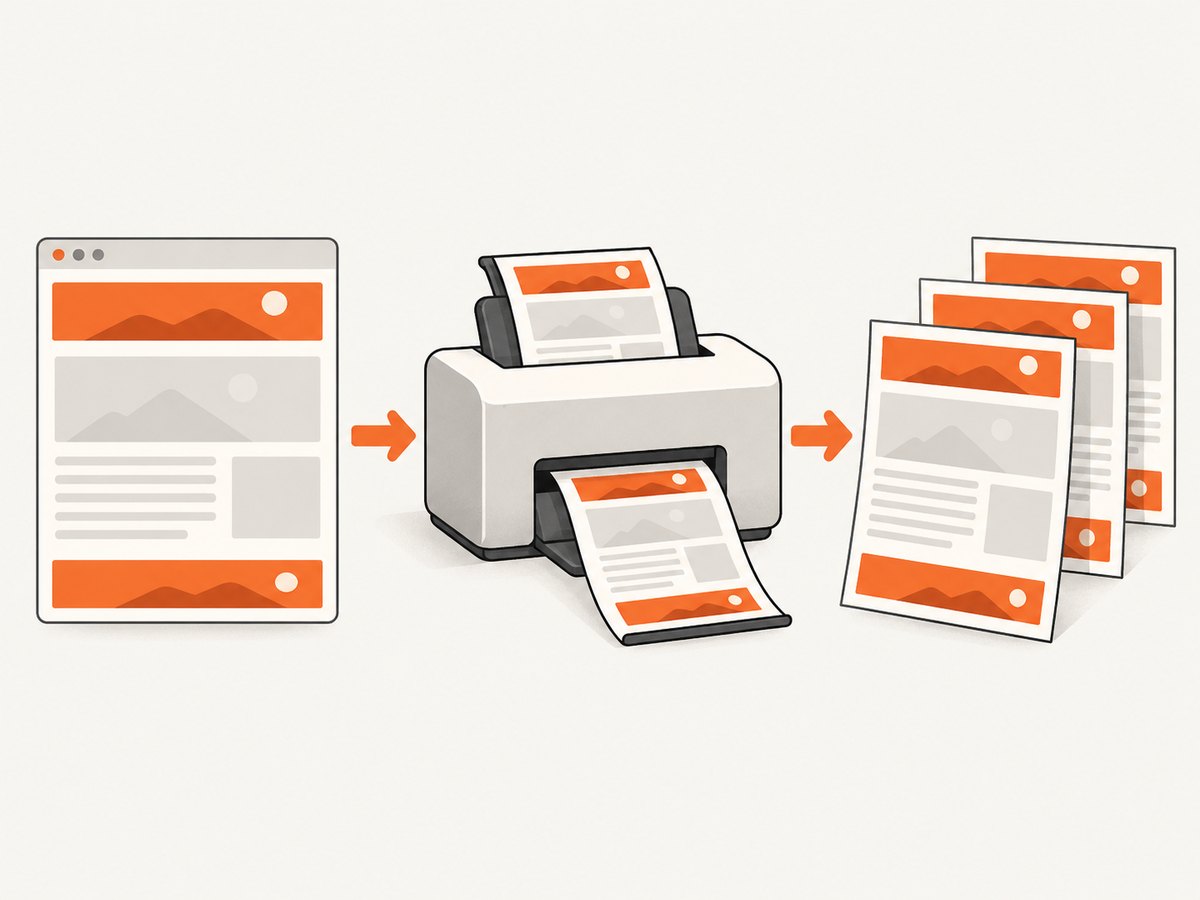
Use Puppeteer’s PDF templates for repeating headers and footers. Set displayHeaderFooter: true, then pass HTML strings through headerTemplate and footerTemplate. Put the documented placeholder classes—date, title, url, pageNumber, and totalPages—inside those templates. Reserve space with margin.top and margin.bottom, because the templates do not automatically push the body down.
page.pdf() renders with the print CSS media type by default. If your screen layout should be printed, call page.emulateMediaType('screen') before generating the PDF. Chromium also adjusts colors for printing unless your CSS requests exact colors with -webkit-print-color-adjust: exact. See the official Puppeteer PDFOptions reference and PDF generation guide for the current API.
Minimal repeating header and footer
This complete Node.js example creates a two-page document, repeats a header and footer, and prints the current page and total page count.
const puppeteer = require('puppeteer');

(async () => {
  const browser = await puppeteer.launch({ headless: true });
  const page = await browser.newPage();

  await page.setContent(`
    <!doctype html>
    <html>
      <head>
        <meta charset="utf-8">
        <style>
          @page { size: A4; }
          body {
            font-family: Arial, sans-serif;
            margin: 0;
            color: #222;
            -webkit-print-color-adjust: exact;
          }
          h1 { color: #17324d; }
          .section { min-height: 900px; page-break-after: always; }
        </style>
      </head>
      <body>
        <section class="section"><h1>Quarterly report</h1><p>First section.</p></section>
        <section class="section"><h1>Details</h1><p>Second section.</p></section>
      </body>
    </html>
  `, { waitUntil: 'networkidle0' });

  await page.pdf({
    path: 'report.pdf',
    format: 'A4',
    displayHeaderFooter: true,
    headerTemplate: `
      <div style="width:100%; font-size:9px; padding:0 20px; color:#555;">
        <span class="title"></span>
        <span style="float:right" class="date"></span>
      </div>`,
    footerTemplate: `
      <div style="width:100%; font-size:9px; padding:0 20px; color:#555; text-align:center;">
        Page <span class="pageNumber"></span> of <span class="totalPages"></span>
      </div>`,
    margin: {
      top: '55px',
      bottom: '45px',
      left: '40px',
      right: '40px'
    }
  });

  await browser.close();
})();
Install and run it with:
npm install puppeteer
node make-pdf.js
The important detail is that displayHeaderFooter defaults to false. Supplying templates alone does not display them.
How template placeholders work
Puppeteer replaces special classes at print time. Use the classes exactly as documented:
| Class | Value inserted by Chromium | Typical use |
|---|---|---|
date |
Formatted print date | Report generation date |
title |
Document title | Report or article name |
url |
Document location | Source URL or audit trail |
pageNumber |
Current page number | “Page 2” |
totalPages |
Total page count | “of 12” |
These values are not ordinary JavaScript variables. Do not try to assign them from page-body scripts or replace them with selectors in the main document. Put the classes in the HTML strings passed to headerTemplate and footerTemplate.
Setting the document title and URL
The title placeholder comes from the document title. Set it explicitly when using setContent:
await page.setContent(`
  <html><head><title>Invoice 1042</title></head>
  <body><h1>Invoice 1042</h1></body></html>`,
  { waitUntil: 'networkidle0' }
);
If you navigate to a real page with page.goto(), the url placeholder reflects that location. With setContent(), use the title reliably and treat URL output as dependent on the document’s location.
Margins, paper size and layout
Headers and footers occupy the margin areas. Set margins large enough for the tallest line, padding and borders in your template:
await page.pdf({
  path: 'invoice.pdf',
  displayHeaderFooter: true,
  format: 'Letter',
  margin: {
    top: '72px',
    bottom: '60px',
    left: '48px',
    right: '48px'
  },
  headerTemplate: '<div style="font-size:10px; width:100%; text-align:right"><span class="title"></span></div>',
  footerTemplate: '<div style="font-size:10px; width:100%; text-align:center"><span class="pageNumber"></span> / <span class="totalPages"></span></div>'
});
Choose either a named paper size such as A4 or Letter, or configure dimensions with PDF options. A CSS @page rule can also influence print layout. Validate both a one-page and a multi-page document: a margin that looks generous on one page can still collide with a two-line footer.
Keep templates self-contained
Use simple markup and inline styles in templates. Treat the header and footer as separate from the page body’s stylesheet. A body selector that styles footer should not be assumed to style footerTemplate output. Keep widths explicit, avoid layout that depends on JavaScript, and test long titles and dates.
Print CSS versus screen CSS
By default, page.pdf() uses the print media type. Rules inside @media print apply, while screen-only rules may not. This is usually right for a document, but it surprises teams exporting a dashboard designed for the screen.

// Use print styles (the default)
await page.pdf({ path: 'print-layout.pdf' });

// Use the screen media rules before exporting
await page.emulateMediaType('screen');
await page.pdf({ path: 'screen-layout.pdf' });
Printing can also change colors. Add this to the page stylesheet when preserving backgrounds and brand colors matters:
html {
  -webkit-print-color-adjust: exact;
  print-color-adjust: exact;
}
Exact color output still depends on the browser and PDF viewer. Compare the generated PDF, not only a screenshot of the page.
Practical patterns
Branding a report
const headerTemplate = `
  <div style="width:100%; border-bottom:1px solid #ddd; padding:0 28px 6px; font-size:10px;">
    <strong>Acme Analytics</strong>
    <span style="float:right" class="title"></span>
  </div>`;

const footerTemplate = `
  <div style="width:100%; border-top:1px solid #ddd; padding:6px 28px 0; font-size:9px;">
    <span class="url"></span>
    <span style="float:right">Page <span class="pageNumber"></span> of <span class="totalPages"></span></span>
  </div>`;
Leaving a section without a header
Puppeteer’s templates repeat on every PDF page. If a cover page needs different branding, generate the cover separately or use page-specific document structure and CSS page breaks. Do not expect a template to conditionally hide itself based on the current page number.
Waiting for content before printing
Wait for navigation, fonts and application data before calling page.pdf(). For client-rendered pages, wait for a selector that proves the report is ready:
await page.goto('https://example.com/report', { waitUntil: 'networkidle0' });
await page.waitForSelector('[data-report-ready]');
await page.evaluate(() => document.fonts.ready);
await page.pdf({
  path: 'report.pdf',
  displayHeaderFooter: true,
  headerTemplate: '<div><span class="title"></span></div>',
  footerTemplate: '<div>Page <span class="pageNumber"></span> / <span class="totalPages"></span></div>',
  margin: { top: '50px', bottom: '45px' }
});
Troubleshooting checklist
| Symptom | Cause | Fix |
|---|---|---|
| Header or footer is missing | displayHeaderFooter is false, its default. |
Set displayHeaderFooter: true. |
| Page numbers show as blank text | The placeholder class is misspelled or placed in the body. | Use pageNumber and totalPages in the template HTML. |
| Body overlaps the footer | Bottom margin is smaller than the footer’s rendered height. | Increase margin.bottom; do the same with margin.top for headers. |
| Colors or layout differ from the browser | PDF generation uses print media and modifies colors. | Call emulateMediaType('screen') when appropriate and use -webkit-print-color-adjust: exact. |
| Title is empty | The HTML has no document <title>. |
Add a title in the head before printing. |
| Last lines are cut off | Content is rendered before fonts or asynchronous data finish. | Wait for the ready selector and document.fonts.ready. |
| Header looks different from body styling | Template markup is isolated from page-body selectors. | Put required styles inline in the template. |
Performance, reliability and cost
Launching Chromium is usually more expensive than creating another page in an existing browser process. Keep one browser process alive for a batch, create a fresh page per job, and close pages in a finally block. Limit concurrency so several large PDFs do not exhaust memory. Reuse authenticated context only when its cookies are intentionally shared.
For reliable output, pin a Puppeteer version in your lockfile, record the Chromium version, and keep a fixture document that spans multiple pages. Recheck behavior after upgrades; the PDFOptions reference currently shows version 25.12.0. Validate page count, placeholder values, margins, fonts and color output in CI.
In-process rendering has no per-page service charge, but your infrastructure pays for browser CPU, memory, storage and queue time. A managed API can be simpler when you need burst capacity, consistent URL fetching, or a separate screenshot service.
Or skip the browser setup
ScreenshotNeo provides a website screenshot and PDF API. It accepts a URL and returns an image or PDF, so your application does not need to launch or maintain Puppeteer. Read the ScreenshotNeo API documentation for the full option set.
curl -G "https://api.screenshotneo.com/v1/shot" -d access_key=YOUR_API_KEY --data-urlencode url=https://stripe.com -o shot.webpimport requests
r = requests.get("https://api.screenshotneo.com/v1/shot", params={"access_key": "YOUR_API_KEY", "url": "https://stripe.com"}, timeout=90)
open("shot.webp", "wb").write(r.content)const q = new URLSearchParams({ access_key: 'YOUR_API_KEY', url: 'https://stripe.com' });
const res = await fetch(`https://api.screenshotneo.com/v1/shot?${q}`);For PDF work, ScreenshotNeo supports paper size, margins, landscape orientation and page ranges. It can also wait for a selector, delay or network idle, set custom headers and cookies, run custom JavaScript and CSS, and capture a selected element or a full page with lazy images loaded.
- Cookie banners, newsletter popups and chat widgets are removed before the shot.
- Bot checks, blank pages, failed loads, timeouts and cache hits are never billed; response headers identify the verdict and billing state.
- An MCP server lets Claude, Cursor and other MCP clients call
take_screenshot,get_page_infoandcapture_pdf. - 1,000 screenshots per month are free with no card; paid plans start at $5 for 3,000 shots.
Create a free ScreenshotNeo account and start with the 1,000 free monthly screenshots.
FAQ
Are headers and footers enabled by default?
No. Set displayHeaderFooter: true for every PDF that should include them.
Can I show the total number of pages?
Yes. Put <span class="totalPages"></span> in the header or footer template.
Why does my PDF use print styles?
That is the default media type for page.pdf(). Call page.emulateMediaType('screen') before printing when the screen stylesheet is the intended design.
How do I stop the footer from covering content?
Increase margin.bottom until it exceeds the footer’s actual height, then verify with a multi-page document.
Can a template run JavaScript?
Templates are intended to be small HTML snippets with inline styling and Puppeteer placeholders. Compute dynamic values in your application and pass the resulting text into the template.


