Can You Use Puppeteer’s page.pdf() in a Browser?
Yes: browser-side Puppeteer can create PDFs by connecting to a remote browser over WebSocket. Here’s how it works, what it cannot do, and when to use native printing instead.
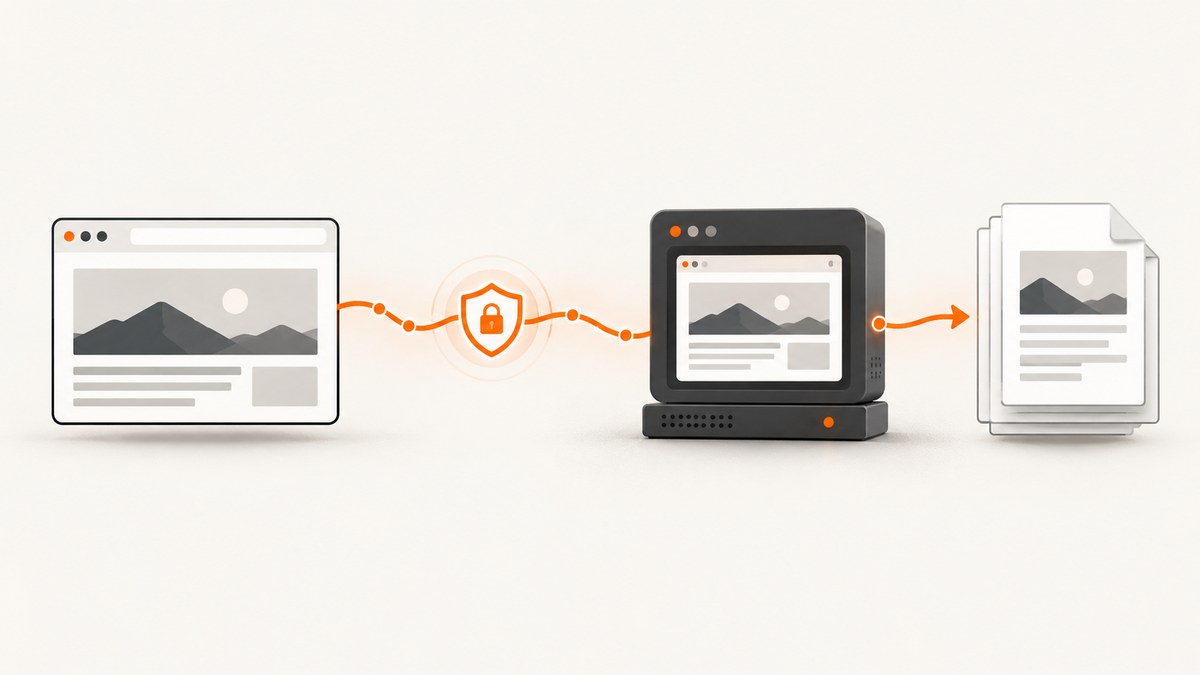
Yes, with an important distinction: a webpage can run Puppeteer’s browser-compatible client and call page.pdf() on a separate browser that it controls over WebSocket. The webpage cannot launch or download that browser itself. For ordinary client-side printing, use the browser’s built-in print flow; use Puppeteer when you need programmable PDF generation from a managed remote browser.
Puppeteer’s browser-running guide documents PDF and screenshot generation for a remote browser, while noting that launching and downloading browsers directly is unsupported in the browser environment because those actions rely on Node.js APIs. Puppeteer: Running Puppeteer in the Browser.
1. Understand what “in a browser” means
There are two processes in this setup. The browser tab runs the Puppeteer client bundle. A separate Chrome instance runs elsewhere, usually on a server or managed browser service. The client connects to that instance’s WebSocket endpoint, controls its pages, and receives the generated PDF bytes.
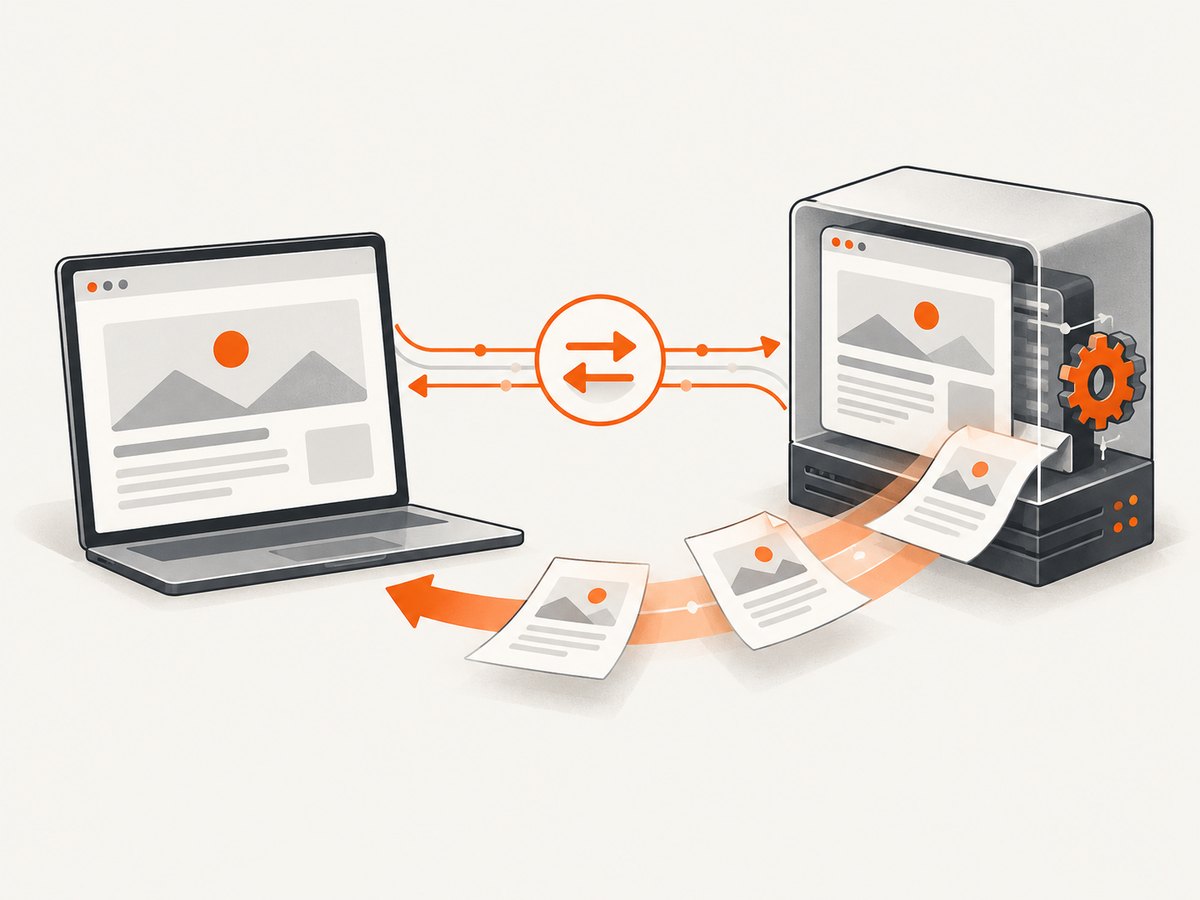
| Task | Where it happens |
|---|---|
| Run browser-compatible Puppeteer code | In the webpage |
| Launch Chrome and manage its lifecycle | Node.js server or managed browser service |
| Render the page and produce the PDF | Remote browser |
| Receive, display, or upload PDF bytes | Browser page or application backend |
This distinction matters because frontend JavaScript cannot use Puppeteer’s Node-only browser installation and process-launch features. A WebSocket connection also grants control over the remote browser, so the endpoint must be protected and exposed only to intended clients. The browser-running guide documents the browser endpoint requirement and the supported remote-control capabilities.
2. Generate a PDF from browser-side JavaScript
Use puppeteer-core’s browser entry point, bundle it for the browser, and connect to a WebSocket endpoint supplied by a server or browser service. The example assumes wsUrl is made available to an authorized client through your application. Do not put a long-lived privileged endpoint in public page code.
import puppeteer from 'puppeteer-core/lib/puppeteer/puppeteer-core-browser.js';

async function createPdf(wsUrl) {
  const browser = await puppeteer.connect({
    browserWSEndpoint: wsUrl,
  });

  try {
    const pages = await browser.pages();
    const page = pages[0] ?? await browser.newPage();

    await page.goto('https://example.com', {
      waitUntil: 'networkidle2',
      timeout: 30_000,
    });

    const pdfBytes = await page.pdf({
      format: 'A4',
      printBackground: true,
    });

    return pdfBytes;
  } finally {
    // Disconnect the client. The remote service owns the browser process.
    browser.disconnect();
  }
}

const bytes = await createPdf(wsUrl);
const pdf = new Blob([bytes], { type: 'application/pdf' });
const link = document.createElement('a');
link.href = URL.createObjectURL(pdf);
link.download = 'page.pdf';
link.click();
URL.revokeObjectURL(link.href);
page.pdf() returns a Promise<Uint8Array>, rather than requiring a server filesystem path. That makes the result suitable for returning from a function, storing, or passing into browser APIs such as Blob. See the Page.pdf() API reference.
Depending on your bundler and Puppeteer release, you may need to configure browser-targeted module resolution and polyfills. Pin the package version, bundle it as part of your app build, and confirm that the browser entry point is available in that version. Keep Node-specific imports and launch code out of the browser bundle.
Server-side Node.js setup
If the frontend does not need direct browser control, keeping the whole operation on a server is simpler. The server launches or connects to Chrome, generates the PDF, and returns the bytes over an application endpoint.
import puppeteer from 'puppeteer';

const browser = await puppeteer.launch();
try {
  const page = await browser.newPage();
  await page.goto('https://example.com', { waitUntil: 'networkidle2' });
  const pdfBytes = await page.pdf({ format: 'A4', printBackground: true });

  // In a web framework, send these bytes with Content-Type: application/pdf.
  // Example return value for a framework handler:
  return new Response(pdfBytes, {
    headers: { 'Content-Type': 'application/pdf' },
  });
} finally {
  await browser.close();
}
This is the normal Node workflow: launch, create or select a page, navigate, call page.pdf(), and close the browser. The official guide shows the same sequence. Puppeteer PDF generation.
cURL, Python, and Node.js: call your own PDF endpoint
cURL, Python, and Node.js do not directly invoke page.pdf() in a browser tab. They can request a PDF from an endpoint you build around the Node example above. The endpoint URL and authentication are application-specific, so replace the example URL with your own route.
# cURL: save the PDF response from your application
curl -fS "https://your-app.example/api/pdf?url=https%3A%2F%2Fexample.com" \
  -H "Authorization: Bearer YOUR_APP_TOKEN" \
  -o page.pdf
# Python: request and save the PDF bytes from your application
import requests
response = requests.get(
"https://your-app.example/api/pdf",
params={"url": "https://example.com"},
headers={"Authorization": "Bearer YOUR_APP_TOKEN"},
timeout=90,
)
response.raise_for_status()
with open("page.pdf", "wb") as output:
output.write(response.content)// Node.js: request and save the PDF bytes from your application
import { writeFile } from 'node:fs/promises';
const url = new URL('https://your-app.example/api/pdf');
url.searchParams.set('url', 'https://example.com');
const response = await fetch(url, {
headers: { Authorization: 'Bearer YOUR_APP_TOKEN' },
});
if (!response.ok) throw new Error(`PDF request failed: ${response.status}`);
await writeFile('page.pdf', new Uint8Array(await response.arrayBuffer()));In all three examples, your application endpoint is responsible for validating the requested target, controlling browser access, setting PDF options, and returning a PDF content type. The placeholder host is not a Puppeteer service.
3. Configure print output deliberately
page.pdf() uses the print CSS media type by default. If the page should use its screen styles, call page.emulateMediaType('screen') before generating the PDF. Puppeteer’s PDF guide says it waits for fonts by default in its documented PDF-generation flow. PDF API details.
await page.emulateMediaType('screen');
const pdfBytes = await page.pdf({
  format: 'A4',
  printBackground: true,
  margin: {
    top: '12mm',
    right: '12mm',
    bottom: '16mm',
    left: '12mm',
  },
});| Option or behavior | When to use it |
|---|---|
format |
Choose a named paper size such as A4 or Letter. |
width / height |
Set custom page dimensions when named paper sizes do not fit. |
margin |
Reserve space around printed content. |
landscape |
Print wide tables, charts, or layouts horizontally. |
printBackground |
Include background colors and images that may otherwise be omitted. |
pageRanges |
Limit output to specified pages when only part of a document is needed. |
displayHeaderFooter, headerTemplate, footerTemplate |
Add print headers and footers; templates can use substitutions such as date, title, URL, page number, and total pages. |
preferCSSPageSize |
Use the page size defined by CSS when that should govern layout. |
Check the PDFOptions reference for the complete option set supported by the version you pin. For closer color matching, the API reference points to CSS -webkit-print-color-adjust. Print layout still follows print styles and pagination, so inspect pages with long tables, fixed elements, large images, and content near page breaks.
4. Choose between Puppeteer and native browser printing
Use native browser printing when a person is already viewing a page and can choose their own printer or save dialog. Use Puppeteer when your application must generate PDFs consistently from code, run captures in a controlled environment, or expose a repeatable backend operation.
When the browser client must generate through Puppeteer, the remote browser has to be available, reachable, and authorized. For most production applications, let a backend broker that access: validate requested URLs, authenticate users, apply quotas, and return PDF bytes. Avoid accepting arbitrary URLs without controls, since a server-side browser can otherwise be directed toward internal resources.
5. Troubleshooting common failures
| Symptom | Likely cause | Fix |
|---|---|---|
| “Launching or downloading browsers is not supported” or Node API errors in the frontend | Node-oriented Puppeteer functionality is in the browser bundle. | Use the browser-compatible puppeteer-core entry point and connect to an existing WebSocket browser. Keep launch and download code on the server. |
| WebSocket connection fails | The endpoint is invalid, expired, unreachable, or blocked by network policy. | Obtain a fresh endpoint from the server or browser service; check network access and endpoint configuration. Do not expose a privileged endpoint publicly. |
page.pdf is missing |
The imported build or package version does not provide the expected browser API. | Verify the browser entry point and pinned Puppeteer version; make sure the connected browser and client versions are compatible. |
| PDF is blank or incomplete | Navigation finished before application content, fonts, or delayed assets were ready. | Wait for a meaningful selector or app-specific readiness signal after navigation. Use an explicit timeout and handle pages that never become idle. |
| Colors or layout differ from the visible page | PDF uses print media by default, and print CSS can change styling. | Use emulateMediaType('screen') if screen styles are desired; enable backgrounds and review print CSS and color adjustment. |
| PDF is returned but cannot be downloaded | The bytes were treated as text or the response used the wrong MIME type. | Keep the value as bytes or a Uint8Array, use application/pdf, and wrap it in a PDF Blob for browser download. |
| Remote browser disappears or concurrent jobs interfere | The client assumes ownership of a shared browser process, or the service has resource limits. | Clarify whether the endpoint is per-job or shared; close pages you create, disconnect clients, and let the process owner manage lifecycle and concurrency. |
6. Performance, reliability, and cost
PDF generation time includes browser availability, page navigation, client-side rendering, font and asset loading, and PDF serialization. Avoid waiting for global network idle when a page has persistent connections; instead wait for the specific content required by the document. Reuse a managed browser where its provider supports safe isolation, but isolate pages and user data between jobs. Apply timeouts to navigation and the overall request, and always close pages or disconnect in cleanup code.
Browser-side control adds a WebSocket round trip and requires a reachable endpoint. A server-side job queue can absorb bursts and limit concurrency; a direct frontend connection is more sensitive to client network loss and tab closure. The Puppeteer docs do not publish a general performance benchmark or fixed operating cost for this workflow. Your cost depends on the browser hosting arrangement, concurrency, page complexity, storage, and how often jobs run. Measure representative pages in your deployment and set resource limits there.
7. Or skip the browser setup
If the goal is a page image or PDF without managing Puppeteer and a remote browser, ScreenshotNeo is a website screenshot API and MCP server from Yorker Media. Its one-call API returns an image or PDF, with parameters for PDF paper size, margins, landscape orientation, and page ranges. See the ScreenshotNeo API documentation.

curl -G "https://api.screenshotneo.com/v1/shot" \
  -d access_key=YOUR_API_KEY \
  --data-urlencode url=https://example.com \
  -d format=pdf \
  -o page.pdf
ScreenshotNeo accepts cookie and consent banners and removes more than 60 known consent platforms, newsletter popups, and chat widgets before capture; each of those steps can be turned off. Bot checks, blank pages, timeouts, failed loads, and cache hits are not billed, and response headers say which verdict and billing outcome applied. Its MCP server gives AI agents tools for screenshots, page information, and PDF capture. The free plan includes 1,000 shots a month with no card; paid plans start at $5 for 3,000 shots.
Create a free ScreenshotNeo account for 1,000 screenshots a month with no card.
8. Frequently asked questions
Can I use Puppeteer to open the system print dialog?
page.pdf() creates PDF bytes through the remote browser; it is not the same as asking a person’s local browser to open its print dialog. Use the browser’s own print command for interactive printing.
Does page.pdf() save a local file in browser JavaScript?
It returns a Uint8Array. Browser code can turn those bytes into a downloadable Blob, while Node code can write them to a server path if that is appropriate for the application.
Can I use screen styles in the generated PDF?
Yes. Emulate the screen media type before calling page.pdf(); otherwise Puppeteer uses print media.
Which package should I install?
Use puppeteer for a Node application that manages a downloaded compatible Chrome. Use puppeteer-core when your application manages the browser or connects to a remote one. See the installation guide.
Which Node version should I deploy?
Check the system requirements for the Puppeteer release you pin. The current documentation line lists Node 22.12 or later, and browser platform requirements also apply. See Puppeteer system requirements.


