Saving a Puppeteer PDF to an Absolute Path
Save Puppeteer PDFs reliably with absolute paths, correct media settings, permissions, troubleshooting, and a no-browser ScreenshotNeo option.
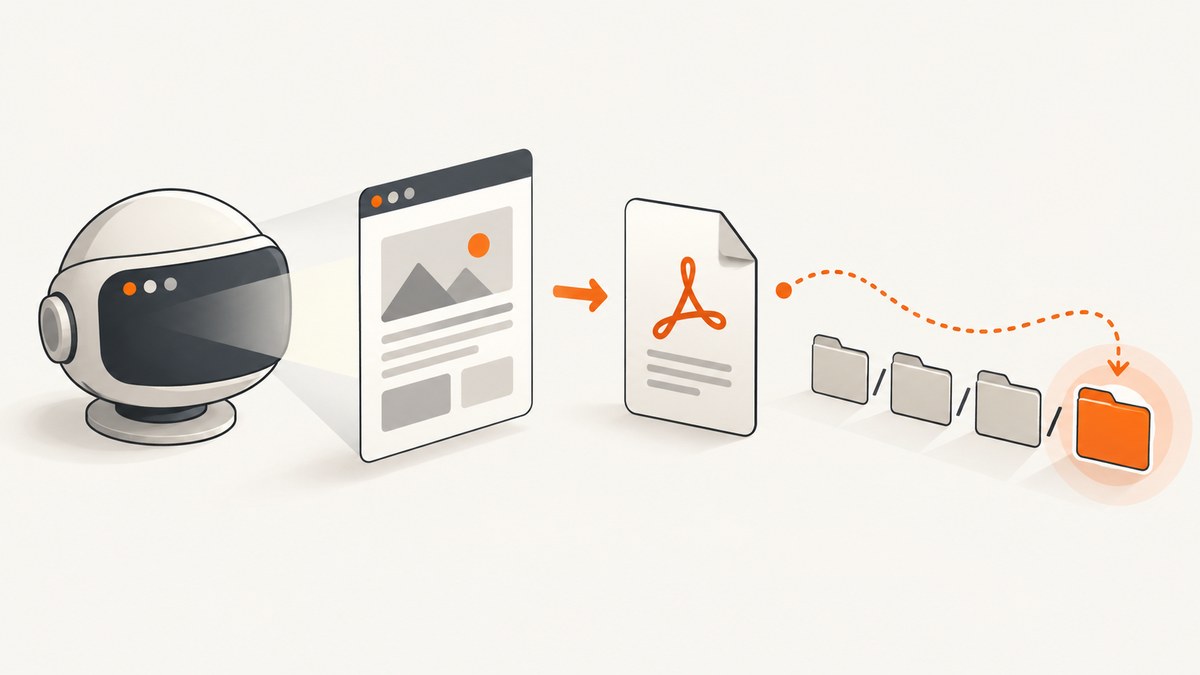
Use the path property in Puppeteer’s page.pdf() call and give it an absolute filesystem path:
await page.pdf({ path: '/absolute/path/output.pdf' });Puppeteer writes the generated PDF to that location after the promise resolves. A relative path is resolved from the Node.js process’s current working directory, which can change depending on how the process was launched. If you omit path, Puppeteer returns PDF bytes instead of writing a file.
This guide explains the complete setup, platform-safe path construction, print and screen rendering, permissions, dynamic filenames, byte-based storage, troubleshooting, performance, and an API alternative when you do not want to operate a browser.
1. Install Puppeteer and create a minimal PDF script
Install Puppeteer in a new Node.js project:
npm install puppeteerThe following complete program creates an output directory, resolves an absolute destination, renders HTML, and waits for PDF generation to finish before closing the browser:
const fs = require('node:fs/promises');
const path = require('node:path');
const puppeteer = require('puppeteer');

async function main() {
  const outputDir = path.resolve(__dirname, 'output');
  await fs.mkdir(outputDir, { recursive: true });

  const outputPath = path.join(outputDir, 'report.pdf');
  const browser = await puppeteer.launch({ headless: true });

  try {
    const page = await browser.newPage();
    await page.setContent(`
      <!doctype html>
      <html>
        <head>
          <meta charset="utf-8">
          <title>Report</title>
          <style>
            body { font-family: Arial, sans-serif; margin: 40px; }
            h1 { color: #1f2937; }
          </style>
        </head>
        <body><h1>Monthly report</h1><p>Generated by Puppeteer.</p></body>
      </html>`, { waitUntil: 'networkidle0' });

    await page.pdf({
      path: outputPath,
      format: 'A4',
      printBackground: true,
      margin: { top: '20mm', right: '15mm', bottom: '20mm', left: '15mm' }
    });

    console.log(`Saved PDF to ${outputPath}`);
  } finally {
    await browser.close();
  }
}

main().catch((error) => {
  console.error(error);
  process.exitCode = 1;
});
path.resolve() converts a relative directory into an absolute path. path.join() then appends a filename using the correct separator for Linux, macOS, or Windows. The destination directory must exist or be created, and the Node process must have write permission.
2. Understand how the PDF path option works
Absolute versus relative paths
An absolute path starts at the filesystem root. Examples include /var/app/reports/invoice.pdf on Unix-like systems and C:\reports\invoice.pdf on Windows. A relative value such as reports/invoice.pdf is interpreted relative to process.cwd(), the directory from which Node was started. That directory may differ when the script runs from a shell, a process manager, a Docker entrypoint, or a test runner.
console.log('Current working directory:', process.cwd());
console.log('Absolute destination:', path.resolve('reports/invoice.pdf'));
Use an absolute path when another service, job, or operator expects a stable location. Keep the path construction in one place so that production and local runs follow the same rule.
What happens when path is omitted
page.pdf() returns a Promise<Uint8Array>. This is useful when the file belongs in object storage, a database, an HTTP response, or an encrypted stream:
const pdfBytes = await page.pdf({ format: 'Letter' });
await fs.writeFile('/absolute/path/output.pdf', pdfBytes);
Do not assume the file exists until the promise has been awaited. Closing the browser before that point can interrupt generation.
3. Choose print or screen CSS deliberately
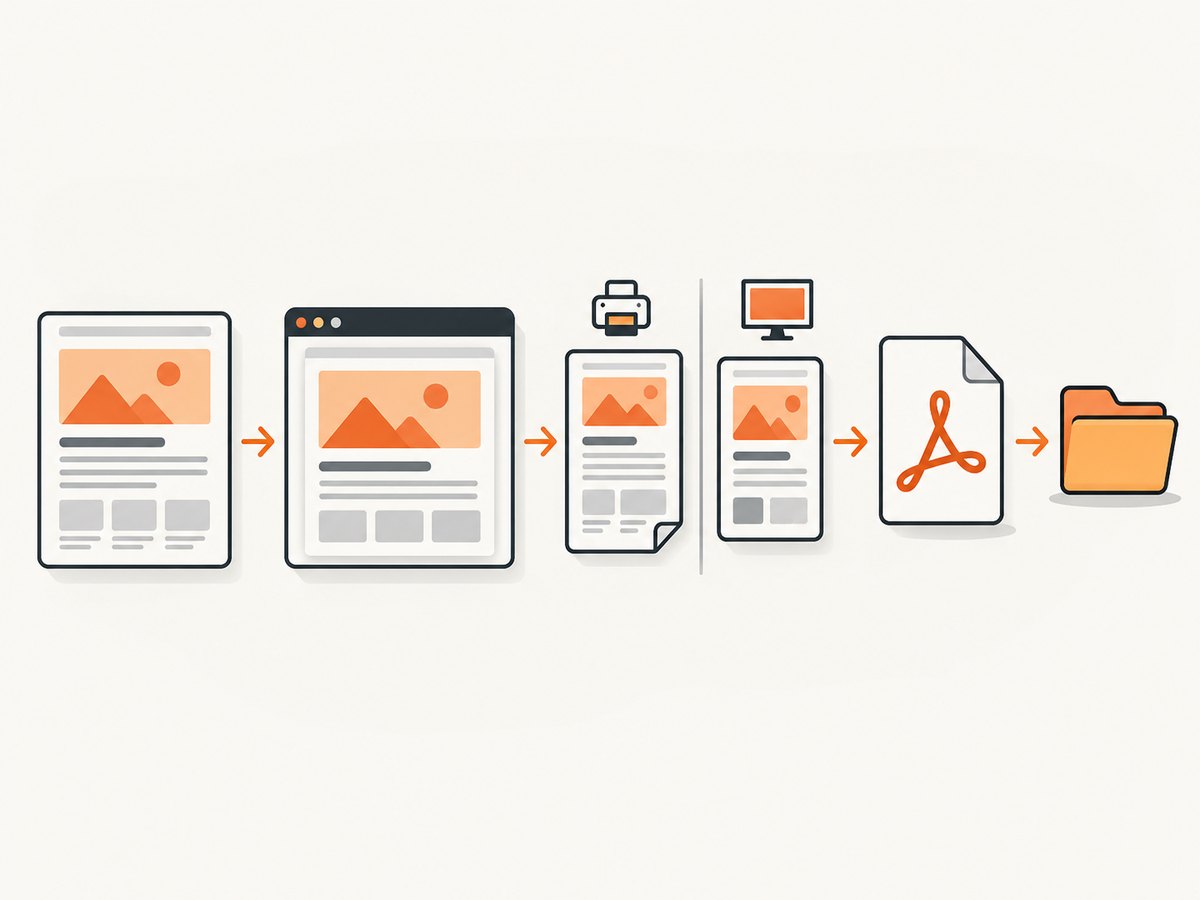
Puppeteer uses the page’s print CSS media type for PDF generation by default. Print styles can hide navigation, change colors, or rearrange layout. If the PDF should match the screen presentation, emulate screen media before calling page.pdf():

await page.emulateMediaType('screen');
await page.pdf({ path: outputPath, printBackground: true });
PDF rendering also modifies colors for printing by default. If exact colors matter, use CSS -webkit-print-color-adjust: exact on the relevant elements. Always set printBackground: true when backgrounds are part of the design.
@media print {
  .no-print { display: none; }
}

.print-color {
  -webkit-print-color-adjust: exact;
  print-color-adjust: exact;
}
4. Configure page size, margins, headers, and content
The path only controls where bytes are written. Other PDFOptions determine the document:
| Option | Purpose |
|---|---|
format |
Preset such as A4, Letter, or Legal. |
width, height |
Custom dimensions when a preset is unsuitable. |
margin |
Top, right, bottom, and left spacing. |
landscape |
Rotate the page orientation. |
printBackground |
Include CSS backgrounds and images. |
displayHeaderFooter |
Enable header and footer templates. |
headerTemplate, footerTemplate |
HTML templates with page-number and date placeholders. |
pageRanges |
Render selected pages, such as 1-3. |
preferCSSPageSize |
Honor CSS @page dimensions. |
For a page that uses CSS-defined paper size:
await page.pdf({
  path: outputPath,
  preferCSSPageSize: true,
  printBackground: true
});
Fonts are awaited by default according to the official guide. For pages that load data asynchronously, wait for a specific selector or application state before generating the PDF.
5. Build safe dynamic absolute filenames
Never concatenate untrusted input directly into a filesystem path. Restrict names to an allowed character set, generate an identifier, and resolve beneath a known directory:
const safeId = String(requestId).replace(/[^a-zA-Z0-9_-]/g, '_');
const outputPath = path.resolve(__dirname, 'output', `${safeId}.pdf`);
const outputRoot = path.resolve(__dirname, 'output');
if (!outputPath.startsWith(outputRoot + path.sep)) {
  throw new Error('Invalid output path');
}
await page.pdf({ path: outputPath });
For concurrent jobs, use unique names rather than allowing workers to overwrite one another. A temporary filename followed by an atomic rename can prevent readers from seeing a partially written file.
6. Wait for the page to be ready
Navigation completion does not always mean that charts, images, or client-side data are ready. Combine a navigation wait with an application-specific condition:
await page.goto('https://example.com/report', { waitUntil: 'networkidle0' });
await page.waitForSelector('[data-report-ready]', { timeout: 30000 });
await page.evaluate(() => document.fonts.ready);
await page.pdf({ path: outputPath, printBackground: true });
Use networkidle0 only when the page eventually becomes quiet. Analytics, WebSockets, or polling can keep a page busy indefinitely; in that case use domcontentloaded and wait for a reliable selector instead.
7. Troubleshooting common failures
ENOENT: no such file or directory
Cause: The parent directory does not exist, or a constructed path contains an unexpected segment.
Fix: Create the directory with fs.mkdir(directory, { recursive: true }), log the resolved path, and verify that the process is running in the environment you expect.
EACCES or permission denied
Cause: The Node user cannot write to the destination. This is common when a container runs as a non-root user or when writing to a read-only deployment directory.
Fix: Select an application-writable directory, correct ownership and permissions, and avoid relying on privileged execution.
The PDF is saved somewhere unexpected
Cause: A relative path is based on process.cwd(), not necessarily the script’s directory.
Fix: Use path.resolve() or construct the destination from __dirname (CommonJS) or import.meta.url (ES modules).
No file appears
Cause: The call was not awaited, an exception occurred earlier, or path was omitted.
Fix: Await page.pdf(), keep browser cleanup in a finally block, and log errors. If you intentionally omitted path, write the returned bytes yourself.
Blank or incomplete pages
Cause: The page was captured before client-side rendering, fonts, images, or lazy content finished.
Fix: Wait for a readiness selector, document.fonts.ready, image completion, or a bounded delay. Avoid an unbounded network-idle wait on pages with persistent connections.
Colors or layout differ from the browser
Cause: PDF uses print media and print color adjustment.
Fix: Call page.emulateMediaType('screen'), enable printBackground, and apply print-color-adjust: exact where required.
8. Performance and reliability considerations
- Reuse a browser process for a batch of jobs, but create a fresh page per job and close pages promptly.
- Set navigation and selector timeouts so a broken site cannot occupy a worker forever.
- Limit concurrency according to available memory; each active page can load substantial JavaScript, images, and fonts.
- Use deterministic output names and retain structured logs containing the URL, resolved path, duration, and error.
- Write to local temporary storage first when downstream readers require complete files, then move the finished file into place.
- For repeated documents, cache stable assets and avoid reloading unnecessary third-party resources.
PDF generation is affected by the page itself: large images, web fonts, animations, external APIs, and anti-bot systems can all increase time or produce different output. Treat the destination path as a filesystem operation and the page render as a networked operation; monitor both separately.
9. Or skip the browser setup
ScreenshotNeo provides a website capture API that can return a PDF from one GET request. See the ScreenshotNeo API documentation for all options.
curl -G "https://api.screenshotneo.com/v1/shot" -d access_key=YOUR_API_KEY --data-urlencode url=https://stripe.com -o shot.pdfimport requests
r = requests.get("https://api.screenshotneo.com/v1/shot", params={"access_key": "YOUR_API_KEY", "url": "https://stripe.com", "format": "pdf"}, timeout=90)
r.raise_for_status()
open("shot.pdf", "wb").write(r.content)const q = new URLSearchParams({ access_key: 'YOUR_API_KEY', url: 'https://stripe.com', format: 'pdf' });
const res = await fetch(`https://api.screenshotneo.com/v1/shot?${q}`);
if (!res.ok) throw new Error(`HTTP ${res.status}`);
require('node:fs').writeFileSync('shot.pdf', Buffer.from(await res.arrayBuffer()));ScreenshotNeo removes cookie and consent banners, newsletter popups, and chat widgets before capture. Bot checks, blank pages, failed loads, timeouts, and cache hits are not billed, and response headers identify the page verdict and billing status. It also offers an MCP server for AI agents, including Claude and Cursor, with take_screenshot, get_page_info, and capture_pdf tools. The free plan includes 1,000 screenshots per month without a card; paid plans start at $5 for 3,000 shots.
Create a free ScreenshotNeo account and start with 1,000 screenshots each month at no charge.
10. FAQ
Does Puppeteer create the directory named in path?
No. Create the parent directory yourself with fs.mkdir(..., { recursive: true }).
Can I use a relative path?
Yes, but it is resolved from the current working directory. Use an absolute path when the location must remain stable across launch environments.
Can I save and return the PDF at the same time?
Use path for Puppeteer’s direct write, or omit it and handle the returned Uint8Array yourself. If you need both, write the returned bytes to your chosen destination.
Why does a PDF look different from the page?
PDF generation uses print media by default. Emulate screen media and enable background printing when the screen appearance is the intended result.
Should I close the browser after saving?
Yes. Await PDF generation first, then close the browser in cleanup code so resources are released without interrupting the write.


