Best Practices for Generating PDFs with Puppeteer
Learn how to generate reliable Puppeteer PDFs with the right readiness checks, print settings, fonts, colors, page ranges, and troubleshooting steps.

Use page.pdf() after the page reaches the application’s real ready state, then define the PDF’s paper size, margins, media type, colors, backgrounds, fonts, and page ranges deliberately. Puppeteer’s navigation finishing does not always mean that charts, images, client-side data, or custom fonts are ready. Treat PDF generation as a print-layout workflow with an explicit output contract.
This guide covers a production-ready workflow, complete Node.js examples, every important PDF option, dynamic-page readiness, print CSS, fonts, browser compatibility, troubleshooting, performance, reliability, and cost considerations.
1. Install Puppeteer and create a PDF
Puppeteer bundles a compatible browser by default. That bundled browser is the version Puppeteer officially guarantees. If you point Puppeteer at a separately installed Chrome or Chromium build, validate that combination in your deployment environment.
npm install puppeteerThe smallest useful program loads a URL, waits for a navigation condition, and writes the PDF to disk:
const puppeteer = require('puppeteer');

(async () => {
  const browser = await puppeteer.launch();
  try {
    const page = await browser.newPage();
    await page.goto('https://example.com', {
      waitUntil: 'networkidle2',
      timeout: 30_000
    });
    await page.pdf({
      path: 'example.pdf',
      format: 'A4',
      printBackground: true,
      margin: {
        top: 'margin-top: 20mm',
        right: '20mm',
        bottom: '20mm',
        left: '20mm'
      }
    });
  } finally {
    await browser.close();
  }
})();
networkidle2 is a starting point, not proof that your application is ready. The official guide uses it as an example, while dynamic applications often need an application-specific condition. See the Puppeteer PDF generation guide and the Page.pdf() API reference.
2. Wait for the page your users will actually print
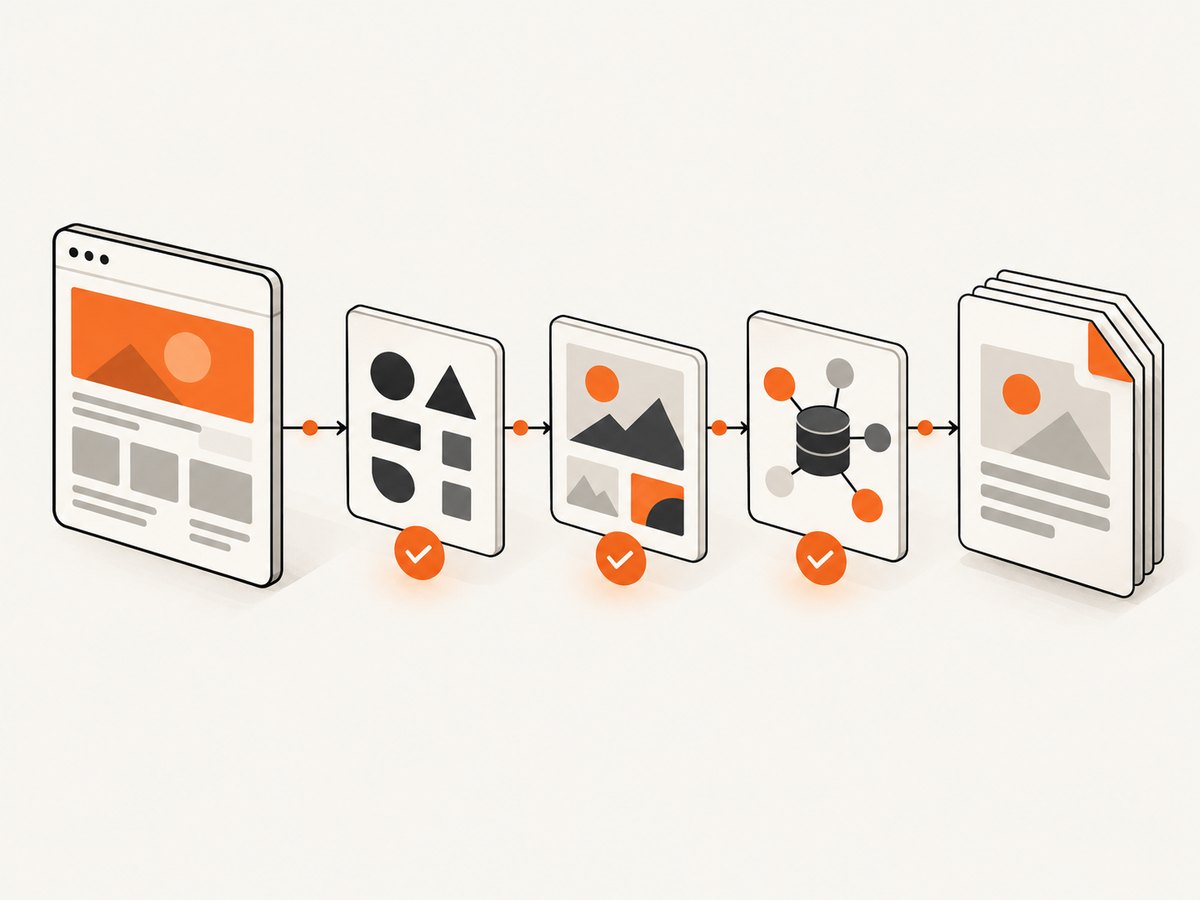
PDF output is only as complete as the DOM and resources available when page.pdf() runs. Pick a readiness strategy that matches the page.
Navigation readiness
await page.goto(url, {
  waitUntil: 'networkidle2',
  timeout: 30_000
});
The supported navigation milestones are useful for different page types:
domcontentloaded: the HTML has been parsed, but images, stylesheets, and application data may still be loading.load: the page’s load event has fired, including resources that participate in that event.networkidle0: there are no active network connections for the quiet window.networkidle2: there are no more than two active network connections for the quiet window.
Analytics, WebSockets, polling, advertisements, and third-party widgets can prevent a strict network-idle condition from being useful. Conversely, a page may become network-idle before a client-side chart or data table is rendered.
Wait for an application marker
Add a stable selector or data attribute when your application has finished rendering:
await page.goto('https://app.example.com/report', {
  waitUntil: 'domcontentloaded',
  timeout: 30_000
});

await page.waitForSelector('[data-report-ready="true"]', {
  visible: true,
  timeout: 30_000
});
A marker is usually more reliable than a fixed delay because it follows the actual application state.
Wait for a known delay only when necessary
await new Promise(resolve => setTimeout(resolve, 1_000));Use a delay for a short animation or a third-party widget that provides no readiness signal. Keep it as a fallback, and combine it with a selector when possible. A long delay increases latency without guaranteeing that the page is complete.
Wait for images and fonts
await page.evaluate(async () => {
  await document.fonts.ready;
  const images = Array.from(document.images);
  await Promise.all(images.map(image => {
    if (image.complete) return Promise.resolve();
    return new Promise(resolve => {
      image.addEventListener('load', resolve, { once: true });
      image.addEventListener('error', resolve, { once: true });
    });
  }));
});
Page.pdf() waits for fonts by default. Puppeteer documents a caveat for pages running in the background: bring the page to the front if font readiness does not resolve.
await page.bringToFront();
await page.evaluate(() => document.fonts.ready);
3. Decide whether the PDF should use print or screen styles
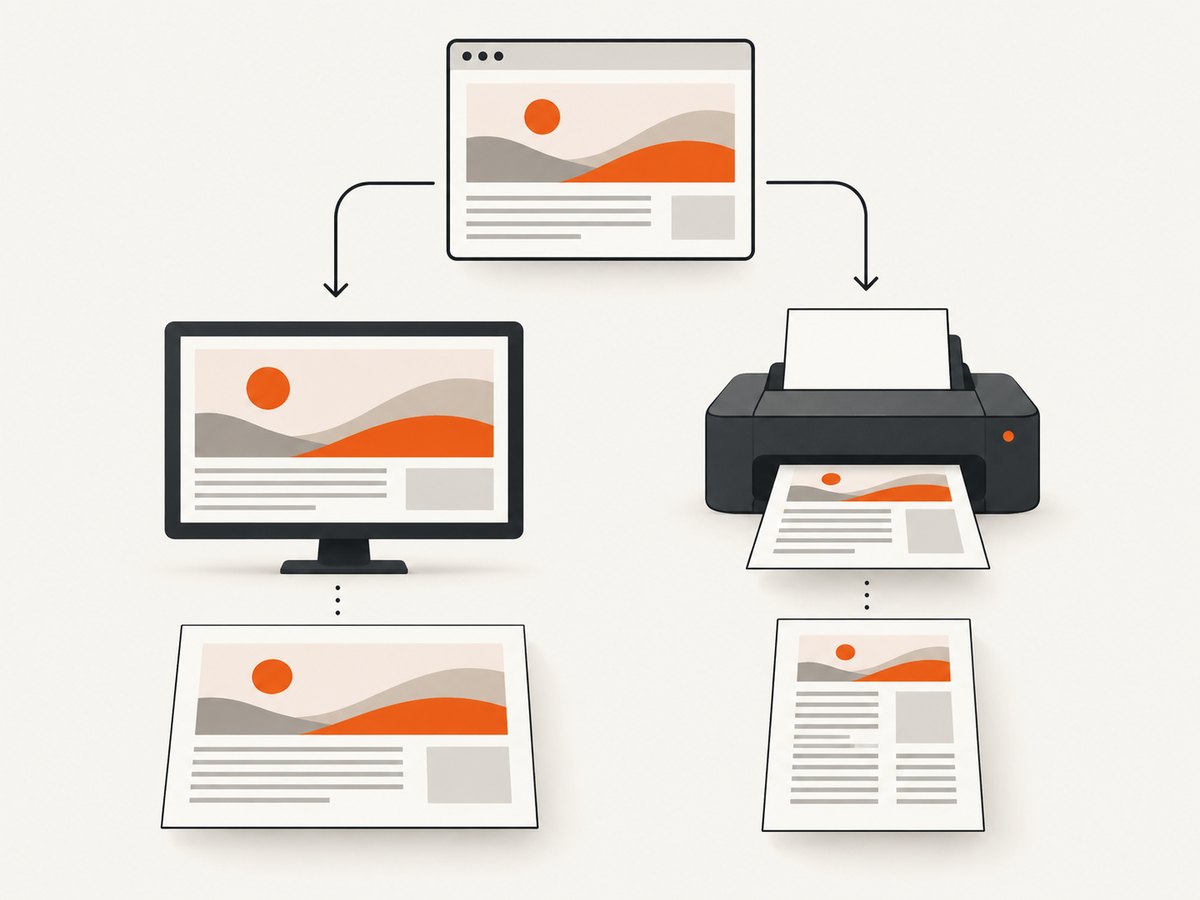
Puppeteer renders PDFs with the print CSS media type by default. This means @media print rules apply and @media screen rules do not. For a PDF that should look like the on-screen page, select screen media before printing:
await page.emulateMediaType('screen');
await page.pdf({
  path: 'screen-styled.pdf',
  format: 'A4',
  printBackground: true
});
For an intentionally print-oriented document, leave the default in place and provide print rules:
<style>
  @media print {
    .app-navigation,
    .toolbar,
    .cookie-banner {
      display: none !important;
    }

    .report {
      break-inside: avoid;
    }
  }
</style>
Choose one media contract and test it with representative pages. Switching media types can change visibility, layout, colors, and page breaks.
4. Set paper size, margins, and CSS page dimensions
Make the physical output explicit. The format option accepts standard paper names such as A4 and Letter. The documented default is Letter. You can also provide width and height; when format is present, it takes priority over those dimensions.
await page.pdf({
  path: 'report.pdf',
  format: 'A4',
  landscape: false,
  margin: {
    top: '18mm',
    right: '16mm',
    bottom: '18mm',
    left: '16mm'
  }
});
CSS can define the page contract too:
@page {
  size: A4 portrait;
  margin: 18mm 16mm;
}

@media print {
  h1, h2, h3 {
    break-after: avoid;
  }

  table, figure {
    break-inside: avoid;
  }
}
Set preferCSSPageSize: true when the document’s CSS @page size should take priority over the API paper setting. Its documented default is false.
await page.pdf({
  path: 'css-sized.pdf',
  preferCSSPageSize: true,
  printBackground: true
});
Use landscape: true for wide tables or dashboards. Measure the printable width after margins: a page that is technically wide enough can still wrap columns if the margins and scale leave too little content space.
5. Preserve backgrounds and colors
printBackground defaults to false. Enable it when cards, charts, colored headers, or shaded table rows are part of the document:
await page.pdf({
  path: 'colored-report.pdf',
  format: 'A4',
  printBackground: true
});
Browsers may adjust colors for printing. If exact CSS colors matter, add:
* {
  -webkit-print-color-adjust: exact;
  print-color-adjust: exact;
}
Color adjustment can increase ink usage on physical printers, so apply it to the elements that need fidelity rather than the entire document when that distinction matters.
6. Use the remaining PDF options deliberately
| Option | Use | Practical note |
|---|---|---|
path |
Write the generated PDF to a file. | Omit it when you want the returned buffer. |
format |
Select a standard paper size. | It takes priority over width and height. |
width, height |
Define custom dimensions. | Use CSS page sizing when documents have their own paper contract. |
landscape |
Rotate the page orientation. | Useful for wide tables. |
margin |
Reserve printable space. | Specify top, right, bottom, and left independently. |
scale |
Scale rendered content. | The documented range is 0.1 through 2. |
pageRanges |
Export selected pages. | Use ranges such as 1-3 when a complete document is unnecessary. |
displayHeaderFooter |
Enable header and footer templates. | Templates use Puppeteer’s documented page-number and date classes. |
headerTemplate, footerTemplate |
Render repeating metadata. | Keep template CSS self-contained. |
timeout |
Set PDF generation timeout. | The documented default is 30,000 ms. |
outline, tagged |
Request outline or tagged output. | These are documented as experimental; validate the output in your deployed version. |
const pdf = await page.pdf({
  format: 'A4',
  landscape: true,
  scale: 0.95,
  printBackground: true,
  pageRanges: '1-4',
  displayHeaderFooter: true,
  headerTemplate: '<div style="font-size:8px;width:100%;text-align:center">Monthly report</div>',
  footerTemplate: '<div style="font-size:8px;width:100%;text-align:center">Page <span class="pageNumber"></span> of <span class="totalPages"></span></div>',
  timeout: 30_000
});
require('fs').writeFileSync('selected-pages.pdf', pdf);
7. A complete production-oriented example
This example combines navigation, an application marker, font readiness, print CSS, paper settings, backgrounds, and a controlled shutdown:
const fs = require('node:fs/promises');
const puppeteer = require('puppeteer');

async function createPdf(url, outputPath) {
  const browser = await puppeteer.launch({
    headless: true
  });

  try {
    const page = await browser.newPage();
    await page.setViewport({ width: 1440, height: 900, deviceScaleFactor: 1 });

    await page.goto(url, {
      waitUntil: 'domcontentloaded',
      timeout: 30_000
    });

    await page.waitForSelector('[data-report-ready="true"]', {
      visible: true,
      timeout: 30_000
    });

    await page.evaluate(async () => {
      await document.fonts.ready;
      await Promise.all(Array.from(document.images).map(image => {
        if (image.complete) return Promise.resolve();
        return new Promise(resolve => {
          image.addEventListener('load', resolve, { once: true });
          image.addEventListener('error', resolve, { once: true });
        });
      }));
    });

    await page.pdf({
      path: outputPath,
      format: 'A4',
      preferCSSPageSize: true,
      printBackground: true,
      margin: {
        top: '18mm',
        right: '16mm',
        bottom: '18mm',
        left: '16mm'
      },
      displayHeaderFooter: true,
      headerTemplate: '<span></span>',
      footerTemplate: '<div style="font-size:8px;width:100%;text-align:center">Page <span class="pageNumber"></span> / <span class="totalPages"></span></div>'
    });
  } finally {
    await browser.close();
  }
}

createPdf('https://example.com/report', 'report.pdf').catch(error => {
  console.error(error);
  process.exitCode = 1;
});
8. Troubleshooting common PDF problems
The PDF is blank or missing application data
Cause: printing began after navigation but before client-side rendering finished.
Fix: wait for a page-specific selector, status attribute, or data event. Use networkidle2 as a starting point, not the only readiness test.
Fonts are missing or substituted
Cause: the font request failed, the page remained in the background, or printing began before the font became ready.
Fix: check font URLs and browser logs, call await page.bringToFront(), and await document.fonts.ready. Keep the bundled browser aligned with your Puppeteer version.
Background colors do not appear
Cause: printBackground defaults to false.
Fix: set printBackground: true. If colors still differ, use -webkit-print-color-adjust: exact for the affected elements.
The PDF layout differs from the browser screenshot
Cause: PDF rendering uses print media by default, and print CSS may hide or rearrange content.
Fix: inspect @media print rules. Call page.emulateMediaType('screen') when the output contract requires screen styling.
Content is clipped or unexpectedly wrapped
Cause: paper dimensions, margins, orientation, or scale leave less usable width than expected.
Fix: calculate the content width, switch to landscape for wide content, reduce margins, or tune scale. Avoid solving every layout issue with extreme scaling because very small text harms readability.
page.pdf() times out
Cause: a page is waiting on a never-ending resource, a background tab is delaying font readiness, or the document is unusually complex.
Fix: bring the page to the front, inspect pending requests, wait for an application marker instead of indefinite network idle, and set a timeout appropriate for the page. Do not remove timeouts entirely in a service.
Custom Chrome works locally but fails in production
Cause: Puppeteer officially guarantees compatibility with its bundled browser, while separately installed browser builds require independent validation.
Fix: deploy the browser version supported by your Puppeteer release or pin and test the external browser image as part of your build.
9. Performance, reliability, and cost
- Reuse browser processes carefully. Launching a browser is expensive. A worker can reuse one browser and create isolated pages, but close pages after each job and limit concurrency.
- Set explicit timeouts. Navigation, readiness waits, and PDF generation should have bounded time. Record which stage timed out.
- Reduce unnecessary work. Disable nonessential animations in print CSS, avoid waiting for analytics, and use page ranges when only part of a long report is needed.
- Control resource behavior. Large images, web fonts, and client-side charts dominate rendering time more often than the PDF call itself. Serve appropriately sized assets.
- Make jobs repeatable. Pin Puppeteer, use the bundled browser where practical, and keep representative fixtures for pages with tables, charts, long text, and custom fonts.
- Track output quality. Check page count, file size, expected markers, and whether required text exists before delivering a PDF.
For a hosted workflow, cost also includes browser infrastructure, concurrency, retries, storage, and operational maintenance. A managed screenshot API can be simpler when you need occasional PDFs or many unrelated target sites.
10. Or skip the browser setup
ScreenshotNeo provides a website capture API and MCP server. One GET request can return a clean screenshot or PDF, while options cover full-page capture, element selection, device and viewport settings, print paper size, margins, landscape mode, page ranges, custom CSS and JavaScript, waiting conditions, headers, cookies, user agents, caching, asynchronous jobs, bulk capture, and signed links. See the ScreenshotNeo documentation for the current parameter reference.
cURL:
curl -G "https://api.screenshotneo.com/v1/shot" -d access_key=YOUR_API_KEY --data-urlencode url=https://stripe.com -o shot.webpPython:
import requests
r = requests.get("https://api.screenshotneo.com/v1/shot", params={"access_key": "YOUR_API_KEY", "url": "https://stripe.com"}, timeout=90)
open("shot.webp", "wb").write(r.content)
Node.js:
const q = new URLSearchParams({ access_key: 'YOUR_API_KEY', url: 'https://stripe.com' }); const res = await fetch(`https://api.screenshotneo.com/v1/shot?${q}`);Cookie banners, newsletter popups, and chat widgets are removed before the shot. Bot checks, blank pages, failed loads, timeouts, and cache hits are not billed, and response headers identify the page verdict and billing status. The MCP server lets Claude, Cursor, and other MCP clients call take_screenshot, get_page_info, and capture_pdf. The free plan includes 1,000 screenshots each month with no card; paid plans start at $5 for 3,000. Create a free ScreenshotNeo account.
11. FAQ
Does Puppeteer generate a PDF from the screen or print layout?
It uses print media by default. Call page.emulateMediaType('screen') before page.pdf() when screen styles are required.
Should I always use networkidle2?
No. It is a useful navigation starting point, but a page-specific readiness marker is more dependable for dynamic applications.
Why is my PDF missing colors?
Enable printBackground: true. For exact CSS colors, apply print color adjustment to the relevant elements.
Which browser should run in production?
Puppeteer guarantees compatibility with its bundled browser. Separately installed browser builds require your own compatibility testing.
How can I make a wide report fit?
Use landscape orientation, set realistic margins, define the paper size explicitly, and tune scale only after checking readability.


