How to Get a PDF Page as a Buffer or File with Puppeteer
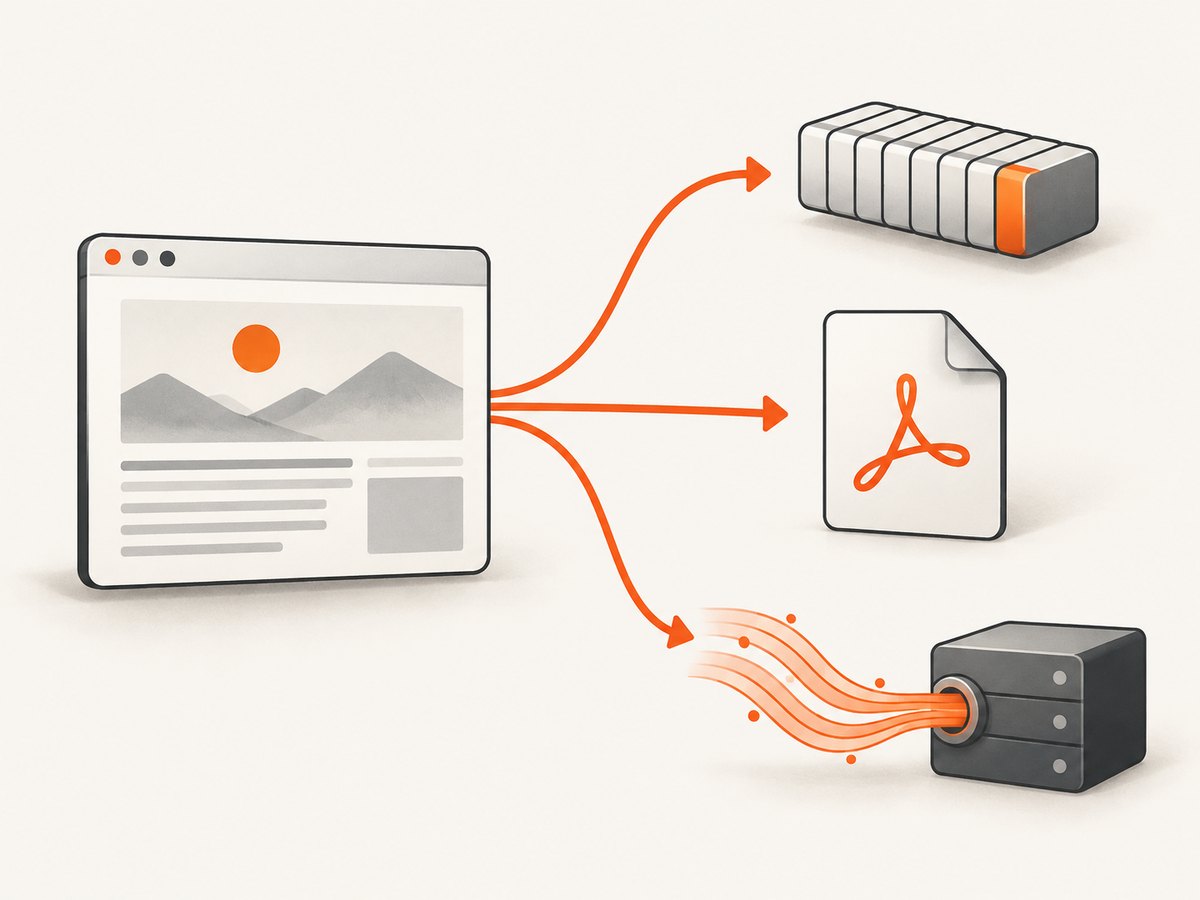
Use Puppeteer’s page.pdf() to create PDF bytes, convert them to a Node.js Buffer, save directly to disk, or return a PDF stream.

await page.pdf() creates a PDF and resolves to a Uint8Array. If the next Node.js API requires a Buffer, convert the result with Buffer.from(pdfBytes). To save directly to disk, pass a path option: await page.pdf({ path: 'output.pdf' }). If the consumer accepts a readable stream, Puppeteer also provides page.createPDFStream().
The right choice depends on what you do with the PDF next: bytes or a Buffer for an upload or response, a path for a file, and a stream for a streaming consumer. Puppeteer’s documented page.pdf() return type is Promise<Uint8Array>; Buffer conversion is a Node.js step, not Puppeteer’s return type. See the [Puppeteer API reference](https://pptr.dev/api/puppeteer.page.pdf) and [PDF guide](https://pptr.dev/guides/pdf-generation).
1. Choose the output your application needs
| Output | How | Use it when |
|---|---|---|
| In-memory bytes | await page.pdf() |
The next step accepts a Uint8Array. |
| Node.js Buffer | Buffer.from(await page.pdf()) |
A library explicitly expects a Node.js Buffer. |
| File on disk | await page.pdf({ path: 'output.pdf' }) |
You want Puppeteer to write the PDF to a path. |
| Readable stream | await page.createPDFStream() |
The downstream API accepts a ReadableStream<Uint8Array>. |
These are different interfaces. A Uint8Array contains the generated PDF bytes but is not, by itself, a Node.js Buffer. Convert only when the receiving code needs one. The documentation describes path as file output; do not assume one call with path also gives you a second, usable in-memory result unless you verify that behavior for your installed version.
2. Generate a PDF as bytes or a Buffer
First navigate to the page you want to print. Then await PDF generation. The following complete CommonJS example saves the result in memory and writes it to a file using Node.js filesystem APIs:
const puppeteer = require('puppeteer');
const fs = require('node:fs/promises');

async function main() {
  const browser = await puppeteer.launch();

  try {
    const page = await browser.newPage();
    await page.goto('https://example.com', { waitUntil: 'networkidle2' });

    // page.pdf() resolves to a Uint8Array.
    const pdfBytes = await page.pdf({ format: 'A4', printBackground: true });

    // Convert only if the next API specifically expects a Node.js Buffer.
    const pdfBuffer = Buffer.from(pdfBytes);
    console.log(`Generated ${pdfBuffer.length} PDF bytes`);

    // Optional: write the in-memory result to a file yourself.
    await fs.writeFile('output.pdf', pdfBuffer);
  } finally {
    await browser.close();
  }
}

main().catch((error) => {
  console.error(error);
  process.exitCode = 1;
});
The conversion is straightforward because a Buffer can be created from the returned byte array. If you only need to pass the PDF to an API that accepts Uint8Array, use pdfBytes directly and avoid creating an additional representation.
Send the Buffer from an HTTP route
For a server route, set a PDF content type and send the bytes. This Express example uses the in-memory output so the response can be sent without first choosing an output file:
const express = require('express');
const puppeteer = require('puppeteer');

const app = express();

app.get('/report.pdf', async (_req, res, next) => {
  let browser;
  try {
    browser = await puppeteer.launch();
    const page = await browser.newPage();
    await page.goto('https://example.com', { waitUntil: 'networkidle2' });

    const pdfBytes = await page.pdf({ format: 'A4', printBackground: true });
    const pdfBuffer = Buffer.from(pdfBytes);

    res.setHeader('Content-Type', 'application/pdf');
    res.setHeader('Content-Disposition', 'inline; filename="report.pdf"');
    res.send(pdfBuffer);
  } catch (error) {
    next(error);
  } finally {
    await browser?.close();
  }
});

app.listen(3000);
Use attachment in the content-disposition value if your route should prompt a download. In production, consider reusing browser processes or managing them through a worker pool instead of launching a browser for every request; the example keeps lifecycle handling explicit for clarity.
3. Save the PDF directly to a file
Pass a path in the options object when the intended output is a file:
const puppeteer = require('puppeteer');

async function main() {
  const browser = await puppeteer.launch();
  try {
    const page = await browser.newPage();
    await page.goto('https://example.com', { waitUntil: 'networkidle2' });

    await page.pdf({
      path: 'output.pdf',
      format: 'A4',
      printBackground: true,
    });
  } finally {
    await browser.close();
  }
}

main().catch(console.error);
A relative path such as output.pdf is resolved from the Node.js process’s current working directory, not automatically from the source file’s directory. If a job runs under a service manager, container, or test runner, make the destination unambiguous with an absolute path or resolve it from a known directory. Ensure the process has permission to write there and that the containing directory exists.
For a complete working path, create the directory first:
const path = require('node:path');
const fs = require('node:fs/promises');

const outputDir = path.resolve(process.cwd(), 'generated-pdfs');
await fs.mkdir(outputDir, { recursive: true });
const outputPath = path.join(outputDir, 'report.pdf');
await page.pdf({ path: outputPath, format: 'A4' });
4. Use a PDF stream when the consumer accepts one
page.createPDFStream() resolves to a ReadableStream<Uint8Array>. It is useful when an API is designed to consume a stream. Puppeteer’s reference documents this return type, but does not promise that stream output is faster or uses less memory than page.pdf() for a given workload. Check the needs of your destination and measure your own workload before choosing based on resource use.
const stream = await page.createPDFStream({
  format: 'A4',
  printBackground: true,
});

// Pass `stream` to a consumer that accepts a Web ReadableStream.
// For example, use the destination's documented Web Streams interface.
Do not treat this Web ReadableStream as interchangeable with every Node.js stream type. If a library specifically requires a Node.js Readable, use the conversion supported by your Node.js version or the library’s documented adapter, and handle errors and backpressure according to that interface.
5. Set page appearance and PDF options
Puppeteer generates PDFs using print CSS media by default. That means print-specific styles such as @media print and @page can affect the output. If you need the screen version’s media rules instead, set the page media type before generating the PDF:

await page.emulateMediaType('screen');
const pdfBytes = await page.pdf({ format: 'A4', printBackground: true });
The most useful PDF options in the current API reference include:
| Option | What it controls | Documented default or note |
|---|---|---|
path |
File destination | Optional. Relative paths resolve from the current working directory. |
format |
Paper format | letter by default. |
printBackground |
Whether to include CSS background graphics | false by default; enable it when backgrounds matter to the design. |
preferCSSPageSize |
Whether CSS @page dimensions take priority |
false by default. |
waitForFonts |
Whether to wait for fonts before printing | true by default in the current reference. |
timeout |
PDF generation timeout in milliseconds | 30,000 ms by default in the current reference. |
margin |
Page margins | Set per side to match the document layout. |
landscape |
Orientation | Use for wide tables or landscape reports. |
pageRanges |
Pages to include | Useful for extracting a range from a rendered document. |
scale |
Rendered content scale | Use carefully; it changes the size of the page content. |
Defaults can change between releases. Confirm the options and defaults in the documentation for the Puppeteer version installed in your project. The official [PDF options reference](https://pptr.dev/api/puppeteer.pdfoptions) is the source for the current documented defaults.
Example with margins, page ranges, and orientation
const pdfBytes = await page.pdf({
  format: 'A4',
  landscape: true,
  printBackground: true,
  preferCSSPageSize: true,
  margin: {
    top: '12mm',
    right: '10mm',
    bottom: '12mm',
    left: '10mm',
  },
  pageRanges: '1-3',
  scale: 1,
  timeout: 30_000,
});
Choose either page dimensions from CSS or a paper format intentionally. For example, preferCSSPageSize: true is appropriate when the page’s @page rule defines the intended paper size. Use an explicit format when the report should follow a standard paper size regardless of the page’s CSS. Check how the combination behaves in your installed version and with your page’s print styles.
6. Make navigation and rendering predictable
PDF generation happens after the page is rendered, but successful navigation does not guarantee that every application has finished its own asynchronous work. A page may fetch report data after load, lazy-load content as it scrolls, or use fonts and images that arrive later. Choose a navigation condition that fits the site, then wait for any page-specific ready signal your application provides.
await page.goto('https://example.com/report', { waitUntil: 'networkidle2' });
await page.waitForSelector('[data-report-ready="true"]');
await page.evaluate(() => document.fonts.ready);
const pdfBytes = await page.pdf({ format: 'A4', printBackground: true });
A network-idle condition is not universally suitable: pages with persistent connections or continuous background requests may never become idle. In that case, use a less strict navigation condition such as domcontentloaded, then wait for a specific selector or application-ready condition. Avoid arbitrary long sleeps where a deterministic signal is available.
7. Troubleshooting common problems
| Symptom | Likely cause | Fix |
|---|---|---|
pdfBytes is not accepted as a Buffer |
The consumer requires Node’s Buffer class, while Puppeteer returns a Uint8Array. |
Use Buffer.from(pdfBytes) before passing it to that consumer. |
| No file appears | path was omitted, the path is relative to an unexpected working directory, the folder is missing, or the process lacks write permission. |
Pass a path, resolve it from a known directory, create the folder, and check process permissions. |
| Background colors or images are missing | printBackground defaults to false. |
Set printBackground: true. Confirm the page’s print CSS also preserves the desired colors. |
| PDF looks different from the browser view | PDF generation uses print media by default, or print CSS, paper size, margins, and scaling change layout. | Use page.emulateMediaType('screen') for screen media, or adjust print styles and PDF options. |
| PDF is missing late-loading content | The page had not finished its application-specific rendering when PDF generation began. | Wait for a stable selector, data-ready state, required fonts, or images before calling page.pdf(). |
| Navigation or PDF operation times out | The site is slow, the chosen network-idle condition is never reached, or PDF rendering exceeds the configured timeout. | Use a suitable navigation condition and explicit readiness signal; raise the PDF timeout only when longer rendering is expected. |
| Only some pages are present | A page range was supplied or the page layout produced a different pagination than expected. | Check pageRanges, paper size, margins, and CSS page breaks. |
| Stream cannot be passed to an API | The destination expects a Node.js stream or bytes rather than a Web ReadableStream. | Use the destination’s Web Streams adapter, or generate bytes and convert to the accepted type. |
| Browser process is left running after an error | Browser cleanup does not run when an exception occurs. | Put browser.close() in a finally block, including in server handlers and workers. |
8. Performance, reliability, and cost considerations
PDF generation requires a browser page, navigation, page rendering, and PDF creation. The dossier does not establish a speed or memory ranking among bytes, path output, and stream output. Pick the return shape that matches your next step and benchmark representative pages if latency or memory is important. Large pages and complex layouts can take longer to render and produce larger output.
For reliability, close browser resources in a finally block, set timeouts that reflect the page and document, and wait for a meaningful readiness condition. When handling multiple jobs, limit concurrency according to the memory and CPU capacity of the environment; opening too many browser pages at once can make jobs compete for resources. These operational choices depend on your workload and deployment.
Cost is primarily the infrastructure required to run the browser and serve or store the resulting files. Puppeteer’s API documentation does not provide a per-PDF charge. Account for browser compute, storage, network transfer, and any infrastructure or third-party services your application uses; measure your own typical document sizes and generation rates rather than relying on a generic estimate.
9. When a screenshot or hosted PDF API fits better
Use Puppeteer when you need control over the browser lifecycle, page preparation, or PDF options in your own Node.js application. If your task is simply to request a website capture or PDF without managing browser setup, [ScreenshotNeo](https://screenshotneo.com) offers a website screenshot API and MCP server. Its PDF options include paper size, margins, landscape, and page ranges. The example below follows the required API request pattern; consult the [ScreenshotNeo API documentation](https://screenshotneo.com/docs/) for current request details.
Or skip the browser setup
One GET request can return a PDF for a URL. For PDF output, use the PDF parameter and options documented for the API:
curl -G "https://api.screenshotneo.com/v1/shot" \
  -d access_key=YOUR_API_KEY \
  --data-urlencode url=https://stripe.com \
  -d format=pdf \
  -o page.pdf
ScreenshotNeo removes cookie banners, newsletter popups, and chat widgets before the shot. Bot checks, blank pages, and failed loads are never billed. Its MCP server lets AI agents take screenshots, and 1,000 screenshots a month are free with no card; paid plans start at $5 for 3,000. Create a free ScreenshotNeo account to get started.
10. FAQ
Does page.pdf() return a Buffer?
The current documented return type is Promise<Uint8Array>. In Node.js, use Buffer.from(await page.pdf()) when a Buffer is required.
Should I use a file path or in-memory output?
Use path when the desired result is a file. Leave it out when the next step consumes the bytes directly. Use a stream when the consumer accepts Puppeteer’s Web ReadableStream type.
Can I get bytes and save to a file in one call?
The documentation describes the returned bytes when no path is supplied and the file path option for disk output. It does not explicitly confirm both outputs from one call, so generate bytes and write them yourself if you require both results.
Which media does Puppeteer use for a PDF?
Print media is used by default. Call page.emulateMediaType('screen') before PDF generation when you want screen media rules.
Where do relative output paths go?
They resolve from the Node.js process’s current working directory. Use an absolute path or a known resolved directory when the runtime working directory may vary.


