How to Generate a Puppeteer PDF from a CSS Selector
Puppeteer’s PDF API prints a page, not a selector. Learn how to isolate selected content, preserve its styles and assets, and configure reliable PDF output.
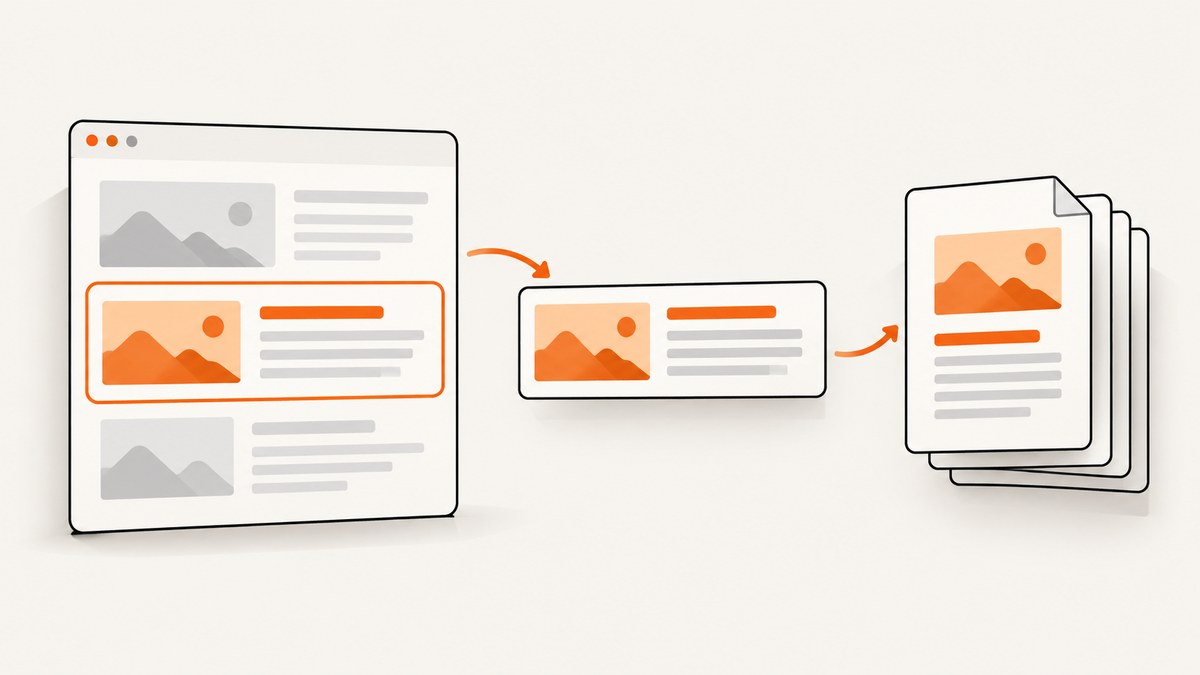
Direct answer: Puppeteer does not provide a selector-scoped page.pdf() method. CSS selectors let you find and inspect elements; page.pdf() prints the page using print CSS. To make a PDF of one selected element, prepare a print view containing that element, then call page.pdf().
For complex content, the most reliable approach is a dedicated print route or template that renders just the desired content with its required styles and assets. For a simple, self-contained element, you can copy its markup into a new page and print that page. The example below uses that second approach and makes its limitations explicit.
1. Choose how to prepare the selected content
There are two separate operations: selecting a DOM element and printing a document. Puppeteer’s page.$(selector) finds the first matching element and returns null if none exists. page.$$(selector) finds all matching elements and returns an empty array when there are no matches. The selection itself does not change what page.pdf() prints.

| Approach | Best for | Watch out for |
|---|---|---|
| Dedicated print route or template | Reports and production exports | Keep the print layout and application data in sync with the source. |
| Print stylesheet on the existing page | Pages designed to hide surrounding chrome for print | Test print media rules, page breaks, and hidden elements. |
| Copy selected markup into a fresh page | Simple, mostly self-contained content | Inherited styles, relative URLs, event-driven state, and shadow DOM may be lost. |
| Temporarily isolate the element in the live DOM | Cases where its existing computed styles matter | Restoring the page and preserving layout dependencies adds complexity. |
Use $eval() when you need to inspect or read from the first match; it throws if there is no match. Use $$eval() when you want a function to operate on all matches. Neither method turns the selector into a PDF scope. These are DOM-query APIs, while page.pdf() creates a PDF of the page.
2. Runnable Node.js example: copy one element into a print page
Install Puppeteer in a Node.js project with npm install puppeteer. Save the following as selector-to-pdf.js, change PAGE_URL and SELECTOR, and run node selector-to-pdf.js. Puppeteer’s PDF generation guide and Page.pdf() API reference describe the documented printing behavior and options.
const puppeteer = require('puppeteer');

const PAGE_URL = 'https://example.com/report';
const SELECTOR = '.report';
const OUTPUT_PATH = 'selected-content.pdf';

(async () => {
  const browser = await puppeteer.launch({ headless: true });
  try {
    const page = await browser.newPage();
    await page.goto(PAGE_URL, { waitUntil: 'networkidle2', timeout: 60000 });

    // Wait for the target only if this page is expected to render it asynchronously.
    await page.waitForSelector(SELECTOR, { timeout: 15000 });

    const fragment = await page.$eval(SELECTOR, element => element.outerHTML);
    const baseUrl = new URL(PAGE_URL).origin;

    // This minimal document preserves absolute URLs and basic typography.
    // A dedicated print route is safer when the fragment depends on app styles.
    const printPage = await browser.newPage();
    await printPage.setContent(`
      <!doctype html>
      <html>
        <head>
          <base href="${baseUrl}/">
          <meta charset="utf-8">
          <style>
            body { font: 12pt/1.5 Arial, sans-serif; margin: 18mm; }
            img { max-width: 100%; height: auto; }
            pre, table { max-width: 100%; }
            @page { margin: 18mm; }
          </style>
        </head>
        <body>${fragment}</body>
      </html>`,
      { waitUntil: 'load', timeout: 30000 });

    // Fonts and images can have their own loading timing.
    await printPage.evaluate(async () => {
      if (document.fonts) await document.fonts.ready;
      await Promise.all(Array.from(document.images, image => {
        if (image.complete) return Promise.resolve();
        return new Promise(resolve => {
          image.addEventListener('load', resolve, { once: true });
          image.addEventListener('error', resolve, { once: true });
        });
      }));
    });

    await printPage.pdf({
      path: OUTPUT_PATH,
      format: 'A4',
      printBackground: true,
      preferCSSPageSize: true,
      margin: { top: '18mm', right: '18mm', bottom: '18mm', left: '18mm' }
    });
    console.log(`Wrote ${OUTPUT_PATH}`);
  } finally {
    await browser.close();
  }
})().catch(error => {
  console.error(error);
  process.exitCode = 1;
});
The <base> element helps resolve relative image and link URLs against the source origin; it does not reproduce the source page’s CSS. If the selected element uses site styles, fetch or construct the appropriate stylesheet links, inline required styles, or use a dedicated print template. Treat source-page content as untrusted if it can contain scripts or markup you do not control. A production print route avoids interpolating arbitrary content into a new HTML document.
Use the existing page and print CSS when layout matters
If the application owns the page, its print stylesheet can hide navigation and other unrelated elements while retaining the target’s layout. Call page.pdf() on the source page after confirming that its print media rules leave only the desired section visible. This is often more faithful than copying outerHTML, because the original document still has its styles, loaded fonts, and application state.
await page.emulateMediaType('print');
await page.waitForSelector('.report');
await page.pdf({ path: 'report.pdf', printBackground: true });
Here the print stylesheet must do the isolation, for example with rules that hide site chrome and reveal the report. If the page’s print stylesheet is outside your control, create a print-specific route or prepare the document deliberately. Calling emulateMediaType('screen') before printing is appropriate only when you need screen-media styling; PDF generation otherwise uses print CSS media.
3. Configure the PDF output
Choose paper dimensions and print behavior intentionally. The current PDF options reference is the authority for the Puppeteer version installed in your project; details can change across versions.
| Option | Behavior and practical choice |
|---|---|
path |
Writes the PDF to a file. Omit it to receive PDF bytes (Uint8Array) and store or return them yourself. |
format |
Paper preset such as 'A4' or 'Letter'. Defaults to Letter. |
width, height |
Set custom dimensions when a preset is not suitable. Avoid relying on conflicting size settings. |
margin |
Sets page margins. The default is no margins; specify values when content needs a print gutter. |
landscape |
Uses landscape orientation where the output should be wider than tall. |
printBackground |
Defaults to false. Set it to true when colored backgrounds or background graphics matter. |
preferCSSPageSize |
Defaults to false. When true, CSS @page size takes priority over format, width, or height. |
pageRanges |
Limits output to selected page ranges after pagination. It does not select DOM elements. |
scale |
Scales printed content. Use sparingly because it can affect readability and pagination. |
displayHeaderFooter, headerTemplate, footerTemplate |
Adds repeating header or footer content. Check template requirements in the versioned API reference. |
timeout |
Controls the PDF operation timeout. Set it to fit the job, while also imposing an overall job deadline in your application. |
waitForFonts |
Defaults to true and waits for document.fonts.ready. This does not guarantee that application data or every image is ready. |
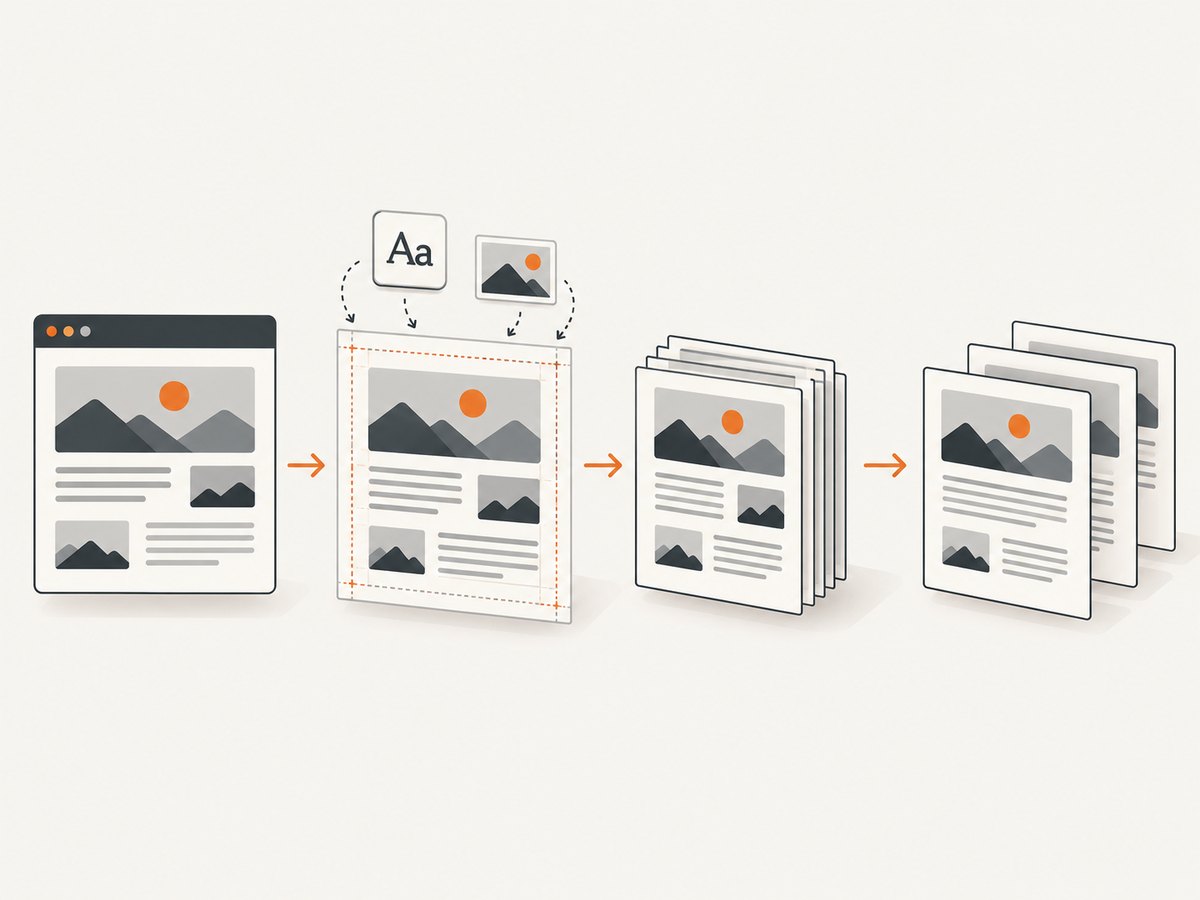
For an element PDF, pagination also depends on the selected content’s own CSS: table row breaks, long code blocks, oversized images, and fixed-height containers can produce awkward pages. Add print rules such as break-inside: avoid selectively for blocks that should stay together, and inspect results with long and short content.
4. Python and cURL alternatives
Puppeteer is a Node.js library. Python and cURL do not invoke Puppeteer directly. If your application exposes a Node.js export endpoint, these clients can call that endpoint. The following is a minimal example of a local service contract: POST a URL and selector, then return the PDF bytes. Build authentication, input validation, URL restrictions, and job limits before exposing such an endpoint publicly.
# Python client for a Node.js PDF service you control
import requests

response = requests.post(
    'http://localhost:3000/pdf',
    json={'url': 'https://example.com/report', 'selector': '.report'},
    timeout=90,
)
response.raise_for_status()
with open('selected-content.pdf', 'wb') as pdf:
    pdf.write(response.content)
curl --fail --show-error --silent \
-X POST http://localhost:3000/pdf \
-H 'Content-Type: application/json' \
--data '{"url":"https://example.com/report","selector":".report"}' \
-o selected-content.pdfThese clients require an endpoint that you implement; Puppeteer itself does not provide this HTTP API. If you want a hosted screenshot or PDF API rather than operating a browser service, ScreenshotNeo offers a one-request API. Its PDF options and parameters are in the ScreenshotNeo documentation.
5. Wait for the right content and handle edge cases
- Selector appears late: wait for the specific selector or application condition. A navigation event alone does not prove that client-rendered data is ready.
- Selector matches more than once:
$eval()uses the first match. Choose a unique selector or intentionally collect all matches with$$eval()and compose the desired print content. - Selector missing: fail with a useful message or define whether an empty document is acceptable. Do not silently generate a misleading PDF.
- Lazy-loaded images: scrolling the target into view or using a dedicated print route may be needed to trigger them. Wait for image completion and decide how broken images should be handled.
- Relative assets: copying markup changes document context. Resolve image and link URLs against the original page, or retain the original page and styles.
- Fonts:
page.pdf()waits for fonts by default, but verify custom fonts load successfully and use the intended CSS. - Shadow DOM or canvas:
outerHTMLdoes not capture rendered shadow contents or canvas pixels as ordinary markup. Keep the original page or add an application-owned export representation. - Cross-origin or protected content: the browser may be unable to load assets without the required credentials or permissions. Use the application’s authenticated print route and avoid leaking session data.
- Very long content: watch memory, pagination, and runtime. Split exports into bounded jobs if a single document becomes too large.
6. Troubleshooting
| Symptom | Likely cause | Fix |
|---|---|---|
Waiting for selector failed |
The selector is wrong, content is delayed, or navigation reached a different page. | Check the selector in the actual rendered DOM, confirm the final URL, and wait for the application’s readiness condition. |
$eval throws |
No element matched the selector. | Use page.$() and check for null, or handle the expected absence explicitly. |
| PDF includes the whole site | A selector query was mistaken for PDF scoping. | Use a print route, print stylesheet, or isolated document containing only the intended content. |
| Styles disappear in copied fragment | The new page did not inherit source styles or CSS variables. | Include the required stylesheets and variables, or print the original page with a print stylesheet. |
| Colors or backgrounds are missing | Print media differs from screen media, or background printing is disabled. | Adjust print CSS and set printBackground: true if needed. |
| Wrong paper size or unexpected clipping | @page, preset dimensions, margins, and preferCSSPageSize conflict. |
Choose one sizing source and set margins deliberately; check the rendered page dimensions. |
| Blank or partial images | Images were lazy-loaded, not complete, blocked, or had broken relative URLs. | Trigger loading, resolve URLs, wait for image completion, and inspect failures before printing. |
| Export hangs or times out | Navigation, scripts, fonts, or external assets never settle. | Use a page-specific wait condition, impose navigation and job timeouts, and avoid waiting for global network idle on pages with persistent requests. |
| Browser fails to launch in a container | Missing browser dependencies or unsuitable runtime configuration. | Use a supported deployment image with Chromium dependencies and follow Puppeteer’s official installation guidance for the installed version. |
7. Performance, reliability, and cost
Generating PDFs means running a browser, loading a page, waiting for the relevant content, laying it out for print, and producing bytes. Runtime varies with page complexity, assets, fonts, and document length; there is no universal duration to assume. Reuse browser processes where your service architecture allows it, but create isolated pages and close them after each job. Bound concurrent jobs to the memory available, and clean up browsers in a finally path after failures.
For reliable output, use a stable print template, explicit paper settings, and application-level readiness checks. Record the source URL, selector, chosen print options, and failure stage in operational logs, while excluding secrets and sensitive page data. Set separate limits for navigation and whole-job execution. Retry only transient failures; a deterministic missing selector or invalid URL will not improve with repeated attempts.
Self-hosted cost includes the compute and memory used by browser workers, maintenance of browser dependencies, and engineering time spent on failures and output changes. Estimate it from your own workload and infrastructure; the research sources provide no benchmark or universal per-PDF cost. If you prefer a hosted API, compare the service’s billing rules, output options, and failure handling against your traffic. ScreenshotNeo bills only clean shots: bot checks or CAPTCHAs, blank pages, timeouts, failed loads, and cache hits cost nothing, and responses identify the verdict and billing status in headers.
Or skip the browser setup
ScreenshotNeo is a website screenshot API and MCP server. A single GET request can return a screenshot or PDF; for this article’s selector workflow, use its element capture option with your selector. See the API documentation for the PDF and selector parameters.
curl -G "https://api.screenshotneo.com/v1/shot" \
  -d access_key=YOUR_API_KEY \
  --data-urlencode url=https://stripe.com \
  --data-urlencode selector=.report \
  -d format=pdf \
  -o report.pdf
Cookie banners, popups, and chat widgets are removed before the shot. Bot checks, blank pages, and failed loads are never billed. An MCP server lets AI agents use screenshot tools. The free plan includes 1,000 screenshots a month with no card; paid plans start at $5 for 3,000. Create a free account and get 1,000 screenshots a month with no card.
Frequently asked questions
Can I pass a CSS selector directly to page.pdf()?
No. Prepare a page or print view containing the target, then call page.pdf().
Does page.pdf() return a file?
With path, it writes the PDF there. Without path, it returns PDF bytes.
Should I use page.$() or page.$eval()?
Use page.$() when you need to check whether a match exists. Use $eval() to run a function on the first match and handle its missing-match exception.
Why does my screen layout look different in the PDF?
PDF output uses print CSS media by default. Set print rules for the desired layout or explicitly emulate screen media when that is the intended output.


