How to Set Different Margins for Puppeteer-Generated PDFs
Set independent top, right, bottom and left margins in Puppeteer, understand print CSS, and troubleshoot page size, media and pagination issues.
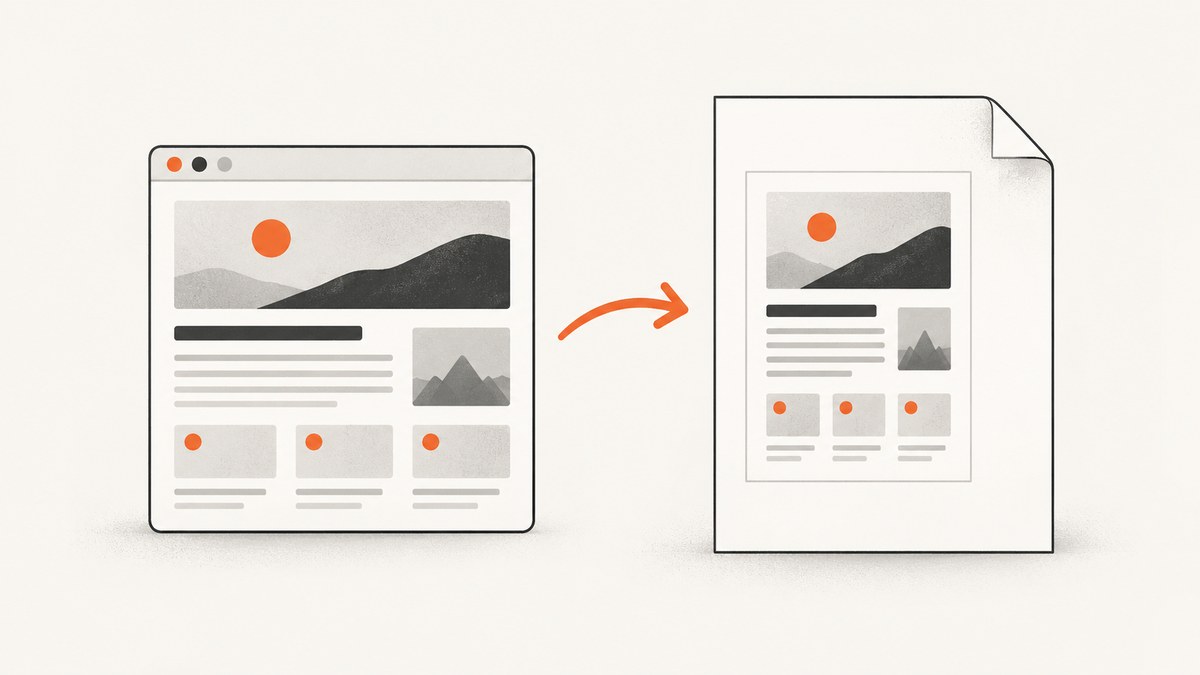
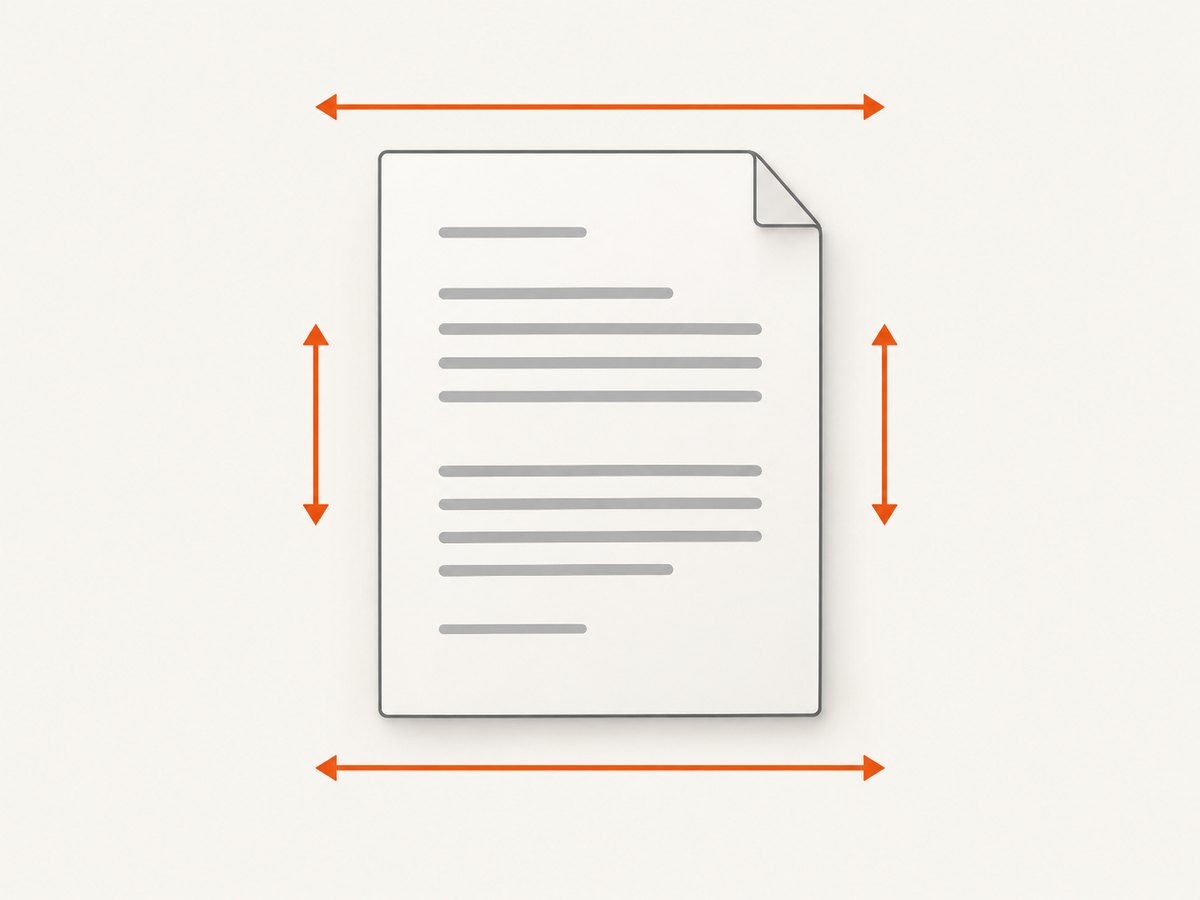
Use the margin object in page.pdf() to assign each PDF edge independently. Puppeteer accepts separate top, right, bottom and left values, such as 20mm, 15mm, 25mm and 15mm.
await page.pdf({
  path: 'output.pdf',
  margin: {
    top: '20mm',
    right: '15mm',
    bottom: '25mm',
    left: '15mm'
  }
});
The PDFOptions reference documents margin as a per-call setting. Each side is optional and accepts a string or number through Puppeteer’s PDFMargin interface. If you omit margin, Puppeteer sets no PDF margins.
1. Create a PDF with asymmetric margins
Install Puppeteer, open a page, wait for its content, and pass the four sides to page.pdf(). This complete Node.js example writes a PDF with a larger top and bottom margin for a report header and footer.
import puppeteer from 'puppeteer';

const browser = await puppeteer.launch({
  headless: true
});

try {
  const page = await browser.newPage();
  await page.goto('https://example.com/report', {
    waitUntil: 'networkidle0'
  });

  await page.pdf({
    path: 'report.pdf',
    format: 'A4',
    printBackground: true,
    margin: {
      top: '22mm',
      right: '14mm',
      bottom: '24mm',
      left: '14mm'
    }
  });
} finally {
  await browser.close();
}
With CommonJS, use const puppeteer = require('puppeteer') and place the code in an async function. Keep the margin values as unit-bearing strings when you mean physical dimensions. The API also accepts numbers, but strings such as 12mm, 0.5in or 24px make the intended unit explicit.
Reuse margin profiles
Margin objects are ordinary JavaScript values, so an application can define profiles for different document types.
const margins = {
  report: {
    top: '18mm',
    right: '14mm',
    bottom: '22mm',
    left: '14mm'
  },
  cover: {
    top: '8mm',
    right: '8mm',
    bottom: '8mm',
    left: '8mm'
  }
};

await page.pdf({
  path: 'report.pdf',
  format: 'A4',
  margin: margins.report
});

await page.pdf({
  path: 'cover.pdf',
  format: 'A4',
  margin: margins.cover
});
2. Choose the right units and page size
A margin is measured inside the selected paper size. Set the page size with format, or supply explicit width and height. Puppeteer’s PDF options include formats such as A4 and Letter.
| Requirement | Recommended setting | Reason |
|---|---|---|
| Physical print layout | '12mm', '0.5in' |
Readers and printers can interpret the intended physical size. |
| Screen-oriented output | '24px' |
Useful when the design is specified in CSS pixels. |
| Standard European paper | format: 'A4' |
Uses the standard A4 page dimensions. |
| US office paper | format: 'Letter' |
Uses the standard Letter page dimensions. |
| Exact custom sheet | width and height |
Lets the application define both dimensions directly. |
Do not confuse margin values with page size. A larger margin reduces the content area available on the selected sheet; it does not enlarge the sheet. If a heading wraps or a table moves to another page after changing margins, that is usually a consequence of the smaller content box.
3. Decide between PDF options and print CSS
There are two valid places to express print layout:
PDFOptions.margin: best when each generated document needs different settings, or when a job’s layout is controlled by application data.- CSS
@page: best when the stylesheet owns the document’s print design and the same rules should apply whenever the page is printed or converted.
Puppeteer’s Page.pdf() documentation says PDF generation uses the print CSS media type by default. A stylesheet can therefore contain:
<style>
  @page {
    size: A4;
    margin: 20mm 15mm 25mm 15mm;
  }

  @media print {
    .screen-only {
      display: none;
    }
  }
</style>
The four-value CSS shorthand follows the same order as the PDF object: top, right, bottom, left. You can also write each side separately:
@page {
  margin-top: 20mm;
  margin-right: 15mm;
  margin-bottom: 25mm;
  margin-left: 15mm;
}
Keep margin control in one place when possible. Puppeteer documents preferCSSPageSize as the switch that gives a CSS @page size priority over width, height or format; its documented default is false. That option concerns page size. The reviewed API references do not define a precedence rule for conflicting CSS margins and the PDF margin option, so avoid depending on an undocumented conflict.
Use screen media intentionally
If the page was designed for screen media and you want that styling in the PDF, call page.emulateMediaType('screen') before page.pdf().
await page.emulateMediaType('screen');
await page.pdf({
  path: 'screen-styled.pdf',
  format: 'A4',
  margin: {
    top: '10mm',
    right: '10mm',
    bottom: '10mm',
    left: '10mm'
  }
});
If you do not call this method, print media remains active. That means print-specific rules, including @page, can affect the result.
4. A production-oriented Puppeteer example
This example shows a few settings commonly needed for reports: print backgrounds, explicit page format, a CSS page size, and independent margins.
import puppeteer from 'puppeteer';

const browser = await puppeteer.launch({ headless: true });

try {
  const page = await browser.newPage();
  await page.setViewport({ width: 1280, height: 900, deviceScaleFactor: 1 });

  await page.goto('https://example.com/invoice/123', {
    waitUntil: 'networkidle0',
    timeout: 60_000
  });

  await page.emulateMediaType('print');

  await page.pdf({
    path: 'invoice-123.pdf',
    format: 'A4',
    printBackground: true,
    preferCSSPageSize: true,
    margin: {
      top: '18mm',
      right: '12mm',
      bottom: '20mm',
      left: '12mm'
    }
  });
} finally {
  await browser.close();
}
Use preferCSSPageSize: true only when the page’s CSS intentionally defines the page size. If the application should always enforce the format supplied in JavaScript, omit it or leave it at its documented default.
5. Headers, footers and the usable content area
Margins reserve space around the page content. If you add PDF header or footer templates, account for their height in the top and bottom margins. A template that is taller than the reserved area can overlap the document or be clipped.
For a predictable report, define the layout as a group:
await page.pdf({
  path: 'report.pdf',
  format: 'A4',
  displayHeaderFooter: true,
  headerTemplate: '<div style="font-size:9px;width:100%;text-align:center">Report</div>',
  footerTemplate: '<div style="font-size:9px;width:100%;text-align:center">Page <span class="pageNumber"></span> of <span class="totalPages"></span></div>',
  margin: {
    top: '24mm',
    right: '14mm',
    bottom: '24mm',
    left: '14mm'
  }
});
Check the resulting PDF visually when changing header content, fonts or margins. Pagination depends on the final rendered dimensions.
6. Fonts, pagination and layout edge cases
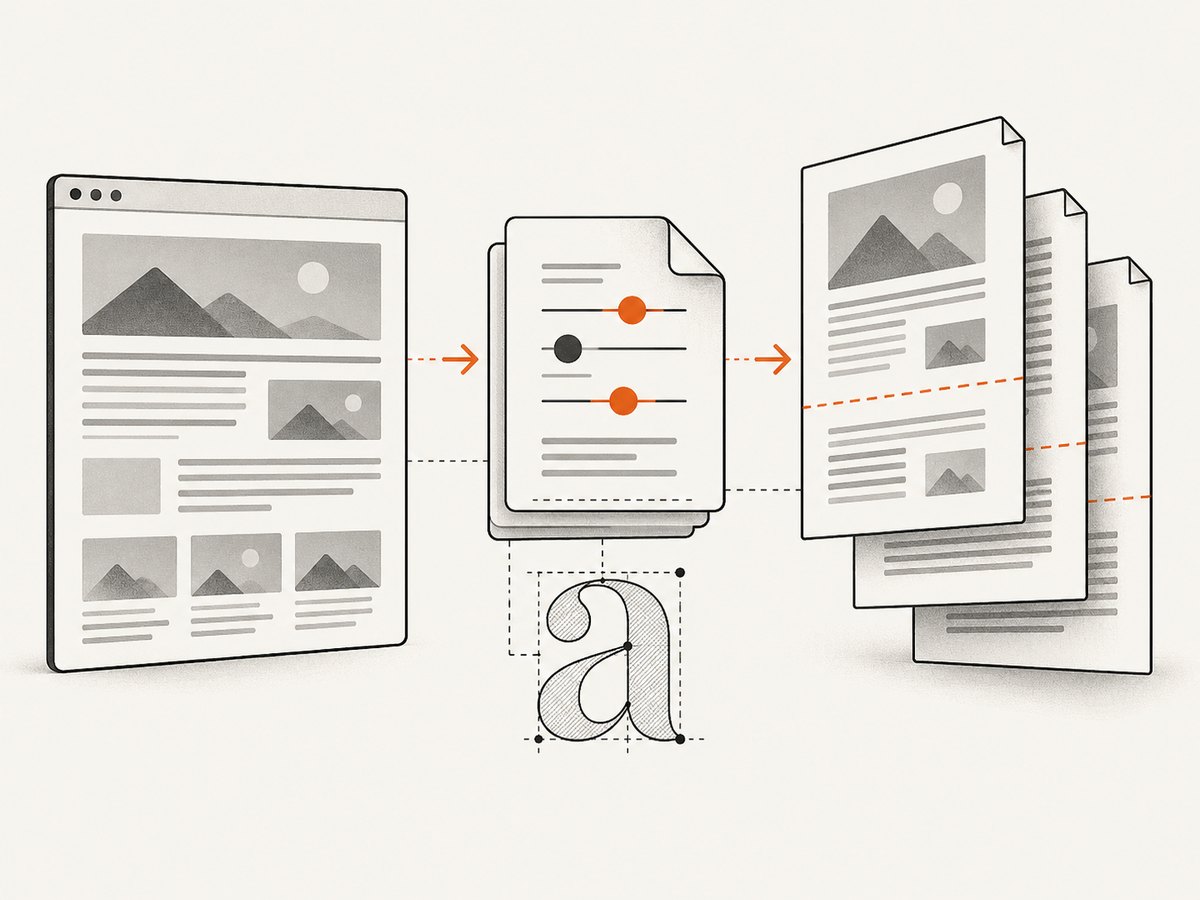
Puppeteer’s PDF guide notes that PDF generation waits for fonts by default. Font readiness can change glyph widths, line wrapping and page breaks, so a document can paginate differently when a web font is unavailable or loads late.
- Wait for the page’s data and images before generating the PDF.
- Use stable font files and verify that the browser can access them.
- Expect a narrower content area when left and right margins increase.
- Use print CSS to control page breaks for headings, tables and cards.
- Keep long unbroken strings, code blocks and wide tables in mind; they can overflow even when margins are correct.
- Render a representative document, including the longest table and largest heading, after changing margins.
7. Troubleshooting different margins
All four sides look the same
Check that the object is nested under margin, that each property is spelled correctly, and that the generated PDF is the file from the current run. A valid structure is margin: { top, right, bottom, left }.
Margins appear to be ignored
Look for an @page rule and confirm which layout source your application intends to control. Also confirm that the PDF options object passed to page.pdf() is not being replaced later. Remove competing declarations while diagnosing the output.
The page size is unexpected
Inspect format, width, height and preferCSSPageSize. The latter controls priority for CSS page size, not a documented margin precedence rule.
The PDF uses the wrong colors or layout
Puppeteer renders with print media by default. Add await page.emulateMediaType('screen') when the screen stylesheet is intended, or add explicit print rules when print output is the goal. Set printBackground: true when backgrounds are part of the design.
Content is clipped after increasing margins
Increasing margins reduces the available width or height. Reduce oversized elements, allow text to wrap, adjust table columns, or choose a larger page format. Do not compensate by placing negative offsets on content unless the layout is deliberately designed for that.
Page breaks change between runs
Check font loading, asynchronous data, image dimensions and late JavaScript layout changes. Wait for the relevant selector or network activity before calling page.pdf(), then generate with the same viewport, media type and assets each time.
The browser process is slow or unreliable
Reuse a browser process where appropriate, create a fresh page for isolated jobs, close pages in a finally block, and set navigation timeouts. Heavy pages, third-party requests and large images affect total rendering time independently of the margin values.
8. Performance, reliability and cost considerations
Margin calculation itself is small compared with launching Chromium, loading the page, executing JavaScript, downloading assets and waiting for fonts. For batch generation, keep a controlled browser pool and avoid launching a new browser for every document. Use deterministic inputs and record the Puppeteer version because documentation versions and browser behavior can change.
For reliability, make page readiness explicit. networkidle0 can wait indefinitely on applications that keep connections open, while a fixed delay can be too early or unnecessarily slow. Prefer a selector that signals the report is ready, combined with a sensible timeout. Validate that the output file exists and has a nonzero size before publishing it.
Self-hosted Puppeteer costs come from compute, memory, storage and engineering time. Rendering a large number of PDFs also means maintaining Chromium versions, sandbox settings, fonts and network access. If you need a managed capture path, ScreenshotNeo provides PDF capture through one API request and exposes PDF options including paper size, margins, landscape mode and page ranges.
9. Or skip the browser setup
ScreenshotNeo can create a PDF without you managing Puppeteer or Chromium. Its API accepts a URL and supports PDF paper size, margins, landscape mode and page ranges. See the ScreenshotNeo API documentation for the available parameters.
curl -G "https://api.screenshotneo.com/v1/shot" \
  -d access_key=YOUR_API_KEY \
  --data-urlencode url=https://example.com/report \
  -d format=pdf \
  -d margin_top=20mm \
  -d margin_right=15mm \
  -d margin_bottom=25mm \
  -d margin_left=15mm \
  -o report.pdf
import requests
r = requests.get(
"https://api.screenshotneo.com/v1/shot",
params={
"access_key": "YOUR_API_KEY",
"url": "https://example.com/report",
"format": "pdf",
"margin_top": "20mm",
"margin_right": "15mm",
"margin_bottom": "25mm",
"margin_left": "15mm"
},
timeout=90
)
r.raise_for_status()
open("report.pdf", "wb").write(r.content)const q = new URLSearchParams({
access_key: 'YOUR_API_KEY',
url: 'https://example.com/report',
format: 'pdf',
margin_top: '20mm',
margin_right: '15mm',
margin_bottom: '25mm',
margin_left: '15mm'
});
const res = await fetch(`https://api.screenshotneo.com/v1/shot?${q}`);
if (!res.ok) throw new Error(`HTTP ${res.status}`);
const pdf = Buffer.from(await res.arrayBuffer());
await import('node:fs/promises').then(fs => fs.writeFile('report.pdf', pdf));ScreenshotNeo removes cookie and consent banners, newsletter popups and chat widgets before capture; each step can be turned off. Bot checks or CAPTCHAs, blank pages, timeouts, failed loads and cache hits are not billed, and the response identifies the result with X-Page-Verdict and X-Billed headers. It also has an MCP server with take_screenshot, get_page_info and capture_pdf tools for Claude, Cursor and other MCP clients. The Free plan includes 1,000 shots per month without a card; paid plans start at $5 for 3,000 shots. Create a free ScreenshotNeo account.
10. FAQ
Can I set only one margin?
Yes. Each property is optional. For example, provide only top: '20mm'. For a documented, repeatable layout, specifying all four sides is clearer.
Should I use millimeters or pixels?
Use millimeters or inches when the PDF will be printed. Use pixels when the design is defined in screen units and physical size is not the requirement.
Does preferCSSPageSize override PDF margins?
The documented option controls CSS page size versus JavaScript page size settings. Puppeteer’s reviewed references do not define a margin precedence rule, so keep margin declarations in one place.
Why does a PDF look different from the browser tab?
PDF generation uses print media by default. Print CSS, font loading, page dimensions and pagination can all differ from a screen rendering.
Can I generate multiple PDFs with different margins from one page?
Yes. Reuse the page and call page.pdf() with a different margin object for each output, provided the page content and layout state are ready for each document.
11. Quick checklist
- Put independent values under
page.pdf({ margin: { ... } }). - Use explicit units such as
mmorinfor physical layouts. - Choose one owner for margins: PDF options or CSS
@page. - Remember that PDF generation uses print media unless you emulate screen media.
- Use
preferCSSPageSizefor the documented page-size interaction only. - Allow for fonts, images and asynchronous content when diagnosing pagination.
- Reserve enough top and bottom space for headers and footers.
- Render a representative document after every margin change.
The essential implementation remains simple: pass a four-sided margin object to page.pdf(), then make page size, media type and CSS rules consistent with that choice.


