Why Puppeteer PDF File Sizes Increased After Version 12
Tagged PDF output is a plausible cause of some large files after Puppeteer upgrades. Learn how to compare versions and test PDF options safely.
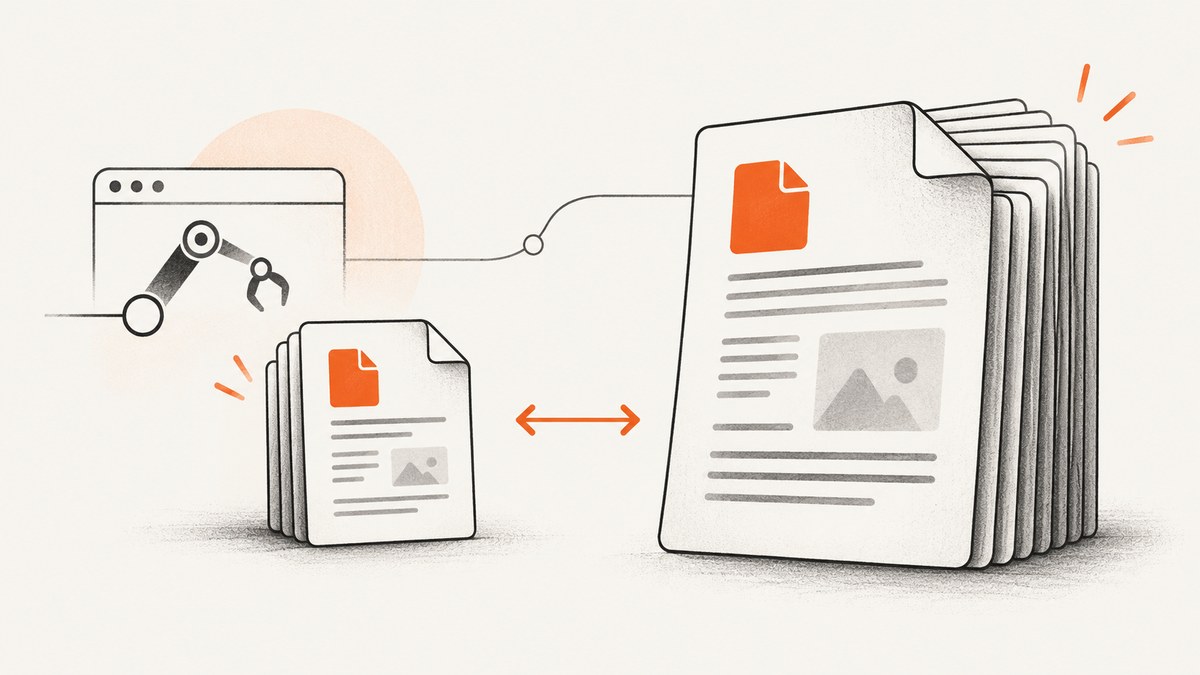
Short answer: Tagged PDF output is the strongest documented explanation for some large files reported after Puppeteer upgrades, but the available evidence does not establish a universal Puppeteer 12 size regression. Puppeteer issue reports describe tagged export enabled by default in v11 and a larger v12 PDF containing a /StructRootTree. Current Puppeteer documentation exposes a tagged PDF option, documented with a default of true. Test the same input with tagging on and off, if your installed release supports that option, and compare browser versions and headless modes before assigning a cause.
The practical tradeoff matters: tagged structure supports accessible PDFs. If the document needs that structure, keep it enabled and investigate other contributors. Do not treat a smaller output as the only measure of success.
1. What the version reports actually show
Two historical reports are often conflated into the claim that Puppeteer 12 universally made PDFs larger. They establish that particular users saw large changes, not that every document or installation will.
| Report | Observed size | What it can support |
|---|---|---|
| Puppeteer issue #8100 | 539-page file: 1.5 MB before v11.0.0 and 45.7 MB in v11.0.0 | The reporter connected the change to tagged export enabled by default and described tags as accessibility support. |
| Puppeteer issue #9124 | 3 MB before and 16 MB after a reported v12.0.0 upgrade | The reporter observed /StructRootTree in the larger file. The issue was closed as not planned; it did not confirm a universal root cause. |
These are user-reported examples, not independently reproduced benchmarks or a representative multiplier. Your increase may have a different cause or several causes at once. The primary references are Puppeteer issue #8100 and issue #9124.
2. Why tagged output can change PDF size
A tagged PDF includes structural information that describes content relationships, such as document structure and reading order, for assistive technology. That structure adds data to the file. Its size impact depends on the document and its content; the reports do not provide a reliable formula for predicting it.
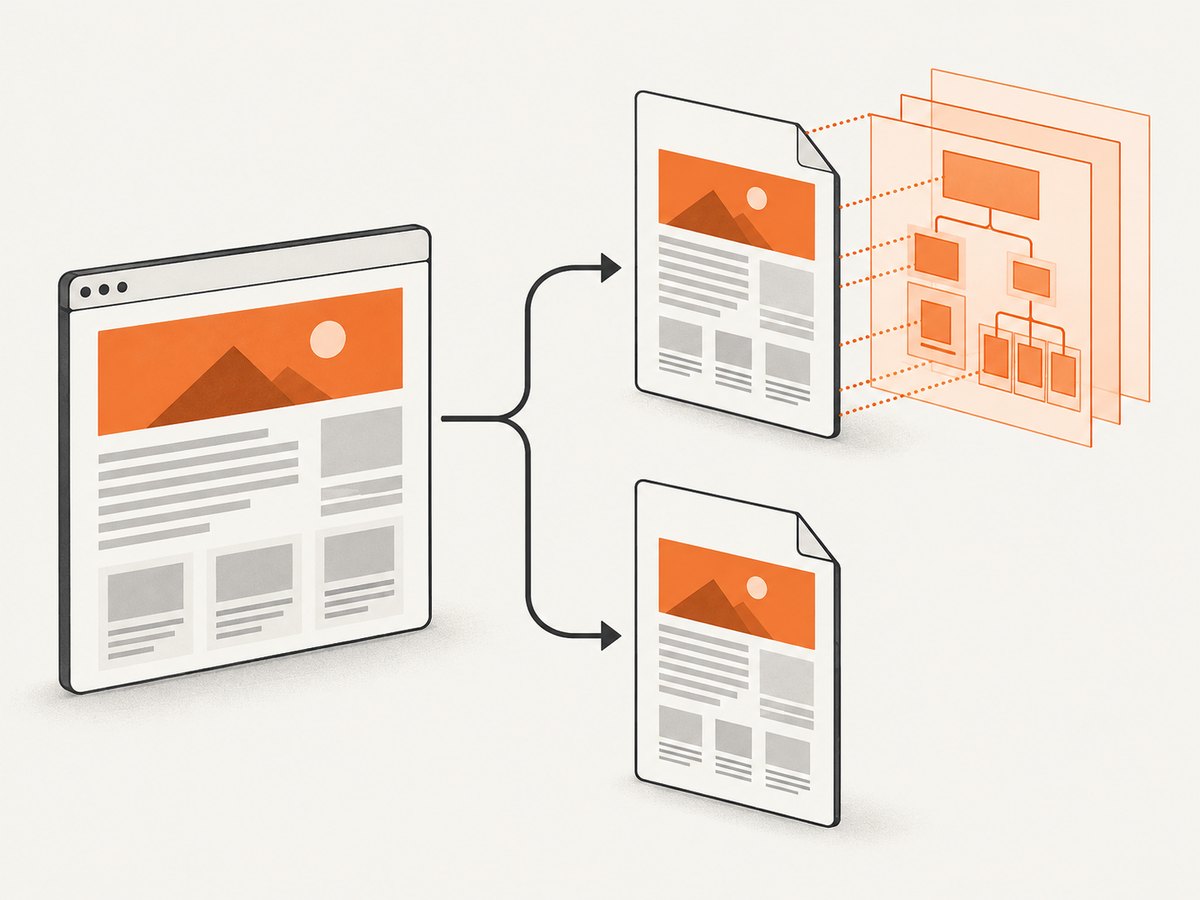
The current Puppeteer PDFOptions documentation lists tagged as an experimental option for generating tagged, accessible PDFs and documents its default as true. Check the documentation for your installed Puppeteer release: current documentation may not describe exactly what an older release accepted or defaulted to.
When the API version you have installed supports it, explicitly setting tagged: false is a useful diagnostic and a possible output choice when tags are not required. It removes tagged structure, so it can reduce accessibility. Choose it based on the PDF’s requirements rather than as an unconditional optimization.
3. Compare versions with a controlled reproduction
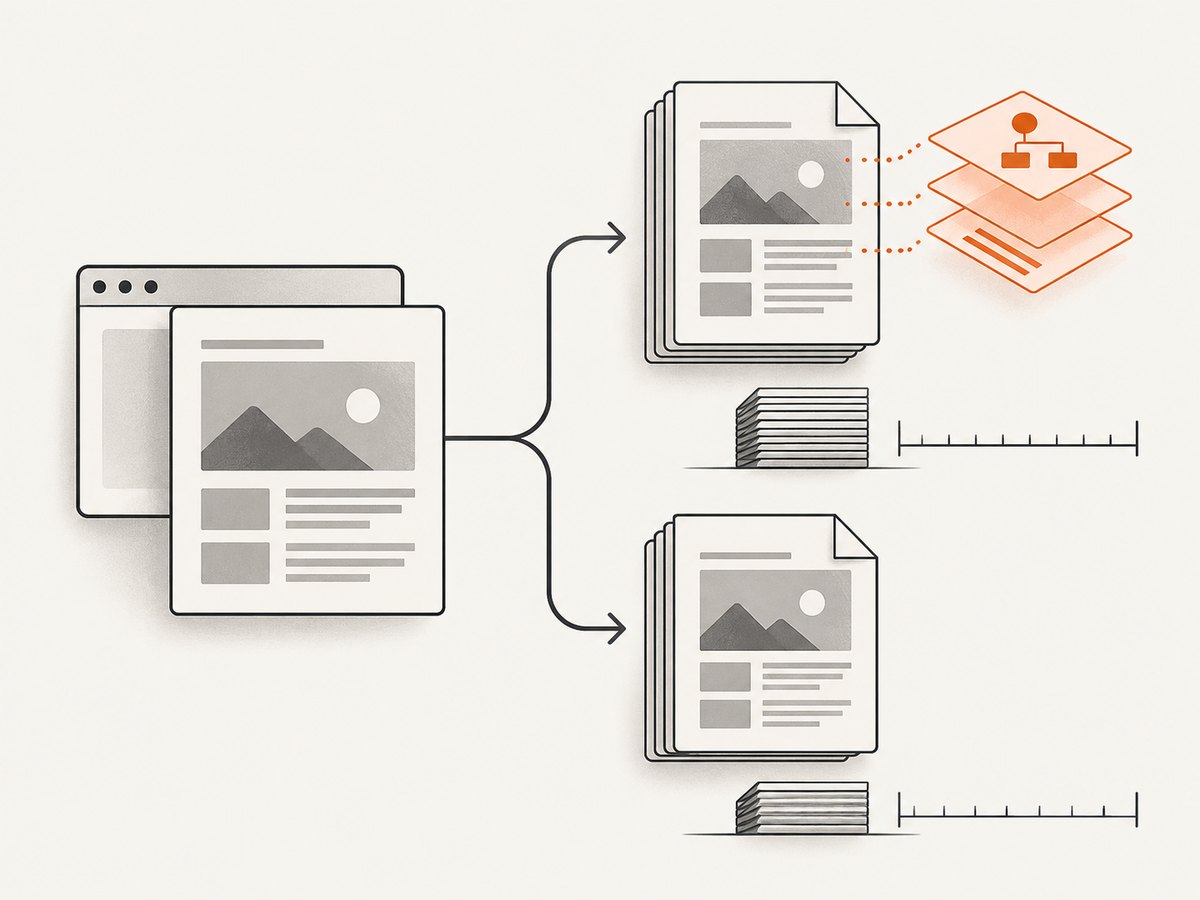
Before changing production settings, build a small comparison using the same HTML, assets, fonts, PDF options, operating system, browser binary, and headless mode. Change one variable at a time. Puppeteer normally installs a specific Chrome version, and it can also use a different executable path; record which browser actually ran. See the Puppeteer configuration guide.
Step 1: record the environment
Save the Puppeteer package version, the browser version, executable path, Node.js version, operating system, headless setting, page count, and PDF options beside each output. Use the same lockfile and assets for repeat runs.
import puppeteer from 'puppeteer';

const browser = await puppeteer.launch({ headless: true });
console.log('Puppeteer:', puppeteer.version());
console.log('Browser:', await browser.version());
console.log('Executable:', browser.process()?.spawnargs[0]);
await browser.close();
The exact version property exposed by Puppeteer can vary across releases. If puppeteer.version() is unavailable in your installed package, record the dependency version from your package manager’s lockfile or package metadata.
Step 2: generate matched PDFs
Use a fixed local page or stable test URL. Wait for the same readiness condition, then write one tagged and one untagged PDF. This example assumes your installed release accepts tagged; consult its version-specific API if TypeScript or runtime validation rejects it.
import puppeteer from 'puppeteer';
import { stat } from 'node:fs/promises';

const browser = await puppeteer.launch({ headless: true });
try {
  const page = await browser.newPage();
  await page.goto('http://127.0.0.1:8080/fixture.html', {
    waitUntil: 'networkidle0',
    timeout: 30000,
  });

  const common = { format: 'A4', printBackground: true };
  for (const tagged of [true, false]) {
    const path = `output-tagged-${tagged}.pdf`;
    await page.pdf({ ...common, tagged, path });
    const { size } = await stat(path);
    console.log({ path, tagged, bytes: size });
  }
} finally {
  await browser.close();
}
Run this comparison against the exact fixture and browser version that produced the problem. A live page can change between runs because of personalized content, remote fonts, animation, ads, or delayed resources. For diagnosis, prefer a stable fixture with local assets.
Step 3: inspect and interpret the outputs
- If the tagged output is much larger under the same setup, tagged structure is a plausible contributor for this document.
- If both outputs are similarly large, investigate browser version, fonts, embedded images, print styles, and page count.
- If changing only Puppeteer or Chromium changes the result, repeat with the browser binary pinned before drawing a conclusion.
- Keep the accessible tagged output if the PDF’s audience or requirements need it; investigate content-specific size contributors instead.
4. Other variables to hold constant
Tagged output is the best-supported explanation in the historical reports, but it is not the only variable worth checking. A later report described larger files after changing headless behavior. A maintainer explained that headless: 'new' corresponded to headful browser behavior in that setup, while headless: 'shell' selected old headless mode. This is a separate possible variable, not proof about the v12 report; see the related Puppeteer issue.
| Variable | Why it matters in the comparison | What to record or control |
|---|---|---|
| Puppeteer release | Defaults and supported options can change. | Exact package version and lockfile. |
| Chrome or Chromium | Different browser builds can produce different output. | Browser version and executable path. |
| Headless mode | Modes may select different browser behavior. | Exact headless value. |
| Input and assets | Changed images, fonts, scripts, or page content change the PDF. | Same fixture, network responses, fonts, and page count. |
| Print settings | Backgrounds, paper size, margins, and scaling affect rendered pages and output. | Same page.pdf() options. |
| Tagged structure | It adds accessibility structure and may contribute to size. | Compare explicit tagged: true and false when supported. |
5. Choosing a safe fix
Use this decision sequence rather than applying a Chromium launch-argument workaround by default:
- Confirm the installed API. Check the PDFOptions documentation matching your Puppeteer version. Current docs list
tagged; older releases may differ. - Reproduce with explicit settings. Set
tagged: trueand thentagged: falsewhile keeping everything else fixed. - Check the accessibility requirement. If consumers rely on document tags, retain tagged output and optimize elsewhere.
- Pin the browser during diagnosis. Avoid comparing different bundled or system browser versions at the same time.
- Measure more than bytes. Record page count, generation time, and whether the output renders and meets accessibility needs.
The v11 reporter mentioned removing --export-tagged-pdf via ignoreDefaultArgs as a workaround. That is historical issue guidance, not a universal current fix. Prefer the documented tagged option when the installed release supports it, and verify behavior against that release’s documentation.
6. Troubleshooting common problems
| Symptom | Likely cause | Fix |
|---|---|---|
tagged is rejected or has no effect |
Your Puppeteer version may not expose the current option, or you may be reading docs for another release. | Open the version-matched PDFOptions docs, check the installed package types, and test a minimal fixture. |
File remains large with tagged: false |
Tags are not the main contributor, or the option was ignored. | Verify the resulting PDF behavior and inspect images, fonts, page count, backgrounds, and browser version. |
| Size changes between runs | The page or assets are dynamic, or browser settings differ. | Use a fixed fixture and local assets; log browser version, headless mode, and PDF options. |
| PDF content is missing | Capture occurred before page content, fonts, or images finished loading. | Wait for a page-specific selector or readiness signal; avoid relying on a generic network-idle condition when the page keeps connections open. |
| Smaller file is inaccessible | Tagged structure was disabled. | Restore tagging when accessibility structure is required and address other size contributors. |
| Different result after deployment | Production uses a different Chrome executable, container, fonts, or headless mode. | Record and pin the runtime environment; compare the deployed browser binary with the local one. |
7. Performance, reliability, and cost considerations
PDF size is only one output measure. A larger file can affect storage, transfer time, and downstream processing, but the supplied historical reports do not quantify those costs or establish a general size increase. Measure your own representative documents. Track bytes per page, generation duration, failures, and whether fonts and images render correctly.
For reliable comparisons, pin the browser executable and use a stable fixture. Keep artifacts from both runs with their environment notes; that makes regressions easier to reproduce after a dependency or container update. If you disable tagged output, document the accessibility decision so a later change does not silently reverse it.
If your actual task is producing a website screenshot or a PDF capture through an API rather than debugging Puppeteer’s PDF output, ScreenshotNeo is a separate option. It is a website screenshot API and MCP server; its PDF feature exposes paper size, margins, landscape, and page ranges. It does not replace Puppeteer’s local rendering diagnostics.
8. Or skip the browser setup
For a website capture, ScreenshotNeo takes a URL and returns an image or PDF. See the ScreenshotNeo API documentation for request options.
curl -G "https://api.screenshotneo.com/v1/shot" \
  -d access_key=YOUR_API_KEY \
  --data-urlencode url=https://stripe.com \
  -o shot.webp
import requests
r = requests.get(
"https://api.screenshotneo.com/v1/shot",
params={"access_key": "YOUR_API_KEY", "url": "https://stripe.com"},
timeout=90,
)
open("shot.webp", "wb").write(r.content)const q = new URLSearchParams({ access_key: 'YOUR_API_KEY', url: 'https://stripe.com' });
const res = await fetch(`https://api.screenshotneo.com/v1/shot?${q}`);ScreenshotNeo accepts cookie and consent banners and removes more than 60 known consent platforms, newsletter popups, and chat widgets before capture; those steps can be turned off. Bot checks and CAPTCHAs, blank pages, timeouts, failed loads, and cache hits are not billed, and response headers report the page verdict and billing status. An MCP server lets AI agents use take_screenshot, get_page_info, and capture_pdf. The free plan includes 1,000 screenshots a month with no card; paid plans start at $5 for 3,000.
Sign up free for 1,000 screenshots a month, with no card required.
9. FAQ
Was Puppeteer 12 definitely responsible?
The reports establish individual before-and-after observations, not a universal v12 bug. The v11 report and the tag tree observation make tagged output a plausible explanation worth testing.
Does a larger PDF mean the page was printed at higher quality?
Not by itself. File size alone does not tell you whether rendering quality or accessibility improved. Compare output content and settings as well as bytes.
Should I turn off tagged PDFs in production?
Only if untagged output meets your document’s accessibility needs. Otherwise retain tags and investigate other contributors.
Do I need to switch screenshot tools to solve this?
No. First diagnose the Puppeteer and browser configuration that generates the PDF. A screenshot API is relevant when your goal is capturing a website without managing a browser installation.
Sources
- Puppeteer issue #8100 — historical report about file size and tagged export.
- Puppeteer issue #9124 — reported size increase after v12 and observed structure tree.
- Puppeteer PDFOptions — current documented PDF options.
- Puppeteer configuration — browser installation and executable configuration.
- Puppeteer headless-mode issue — separate report discussing headless behavior.


