How to Fetch a PDF with Puppeteer and Upload It Directly to Google Drive
Fetch an existing PDF or print a rendered page with Puppeteer, then upload its bytes to Google Drive without writing a local file.
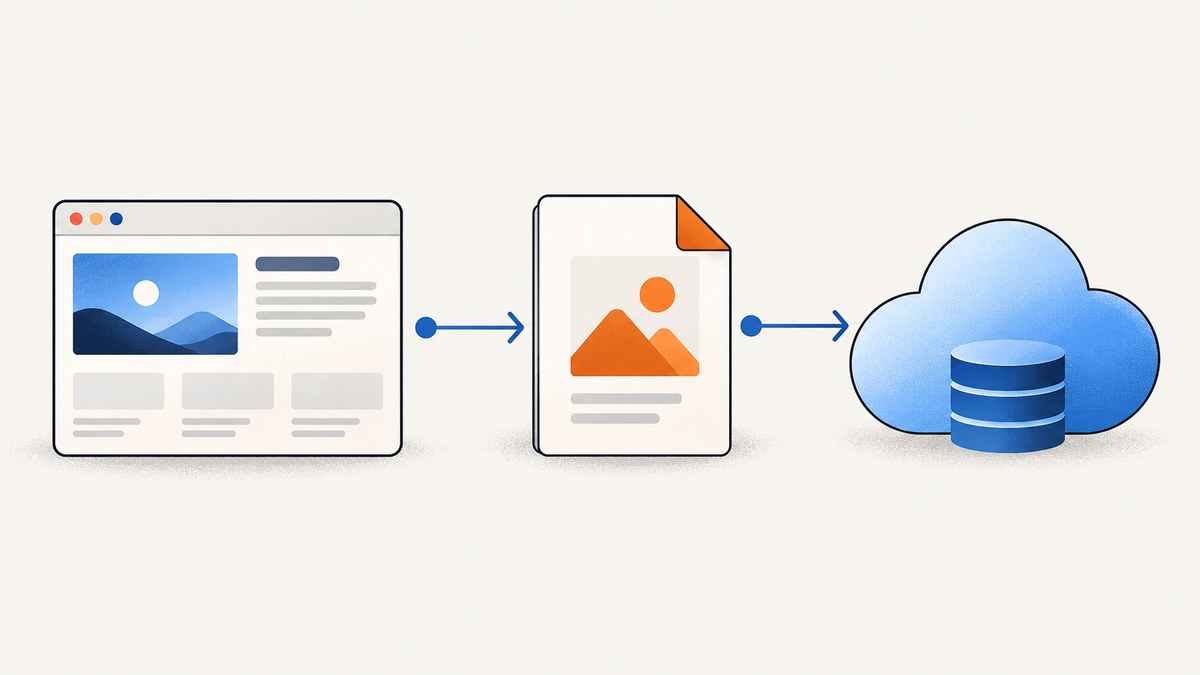
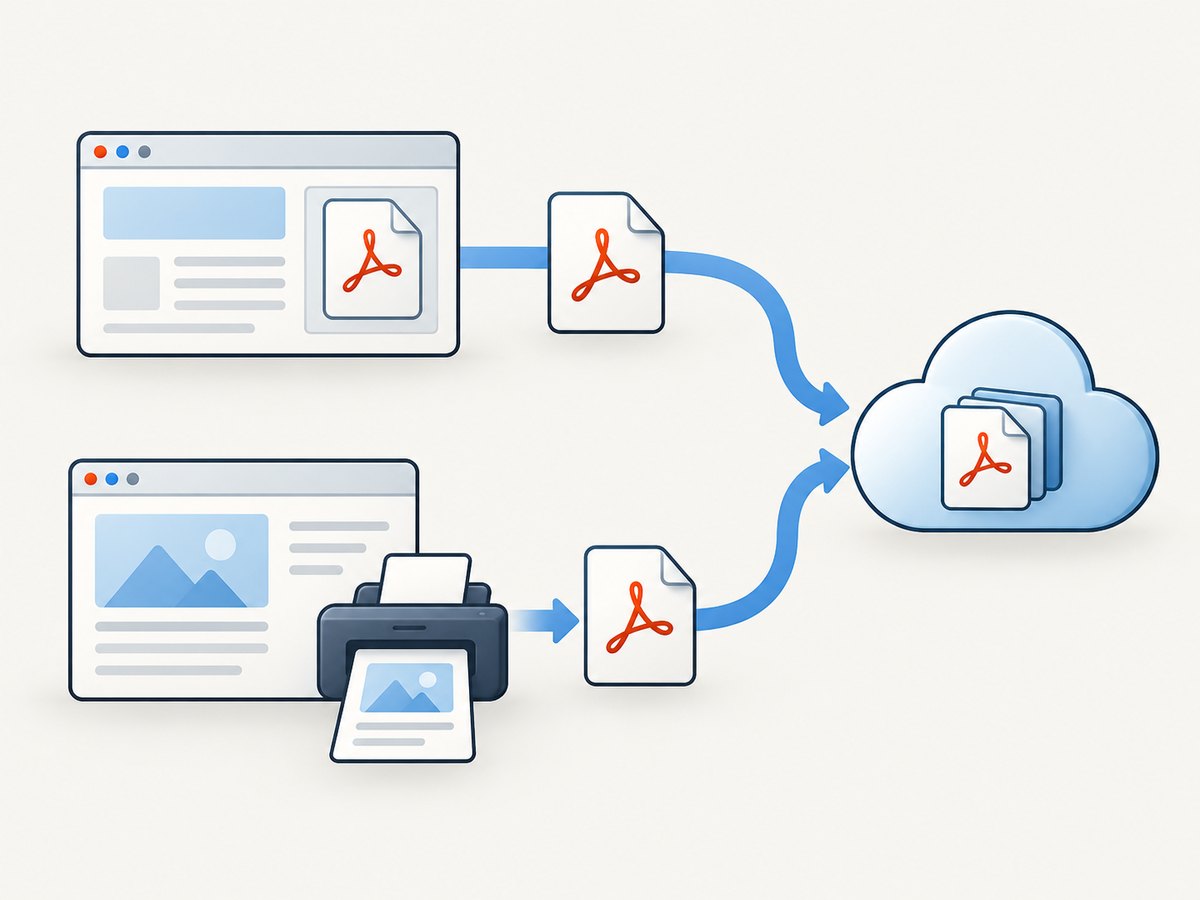
To send a PDF to Google Drive without saving it to disk, keep its bytes in memory and pass them to the Drive API. First choose the right source: if a site already serves a PDF, fetch that PDF’s response bytes; if you want a PDF of the page as rendered, use Puppeteer’s page.pdf(). These are different operations. page.pdf() returns a Uint8Array, which you can upload with Drive API v3.
This guide uses Node.js, Puppeteer, and the Google API client. It covers both workflows, Drive upload modes, credentials, failure handling, and the cases where a browser is not needed. The official [Puppeteer Files guide](https://pptr.dev/guides/files) says it does not currently provide a programmatic way to handle file downloads. That does not prevent Puppeteer from generating PDFs.
1. Choose: fetch an existing PDF or generate one
Use the existing-PDF path when the target page links to a PDF or returns one after an action. Use the generated-PDF path when you want to print the page’s rendered content. In either case, the final step is to upload binary data through Drive’s files.create method.
| Need | Approach | PDF source |
|---|---|---|
| Copy a PDF already hosted by a site | Find the actual PDF URL or response, then fetch its bytes with the necessary cookies or authorization | Remote HTTP response |
| Save the page as a PDF | Navigate, wait for the desired page state, then call page.pdf() |
Puppeteer print output |
Do not treat a browser download event as if Puppeteer automatically hands the downloaded file to Drive. Its file guide describes the download handling limitation. When a page starts a download, identify the URL or response and retrieve the resource yourself, or use another download mechanism that fits the site’s authentication and transfer behavior.
2. Set up Node.js and Drive authentication
Install Puppeteer and Google’s Node.js API client in your project. You also need a Google Cloud project with the Drive API enabled and credentials suitable for the deployment. The exact setup and permissions depend on whether the app uses user OAuth, a service account, or another supported auth flow. The Drive API’s [create and manage files guide](https://developers.google.com/drive/api/guides/manage-files) describes client initialization; use the narrowest scope and credential approach that fits your app.
npm install puppeteer googleapisThe example below assumes Application Default Credentials are configured in the runtime and can create files in the target Drive. For a service account, the target folder may need to be shared with that identity. In a user OAuth flow, the file is created in the authenticated user’s Drive context. Do not put credential JSON or access tokens in source control.
3. Generate a PDF from the rendered page
This is the common “print this page to PDF” workflow. Puppeteer’s page.pdf() uses print CSS media by default and returns a Uint8Array. If the design should reflect screen media instead, emulate it before generating the PDF. Wait for the specific content you need before printing; a navigation event alone does not guarantee that a client-rendered page or its images are ready.
import puppeteer from 'puppeteer';
import { google } from 'googleapis';

const pageUrl = 'https://example.com/report';
const folderId = process.env.DRIVE_FOLDER_ID; // optional

if (!process.env.DRIVE_FOLDER_ID) {
  // Folder is optional; omit parents in the create request if not set.
}

const auth = new google.auth.GoogleAuth({
  scopes: ['https://www.googleapis.com/auth/drive.file'],
});
const drive = google.drive({ version: 'v3', auth });
const browser = await puppeteer.launch({ headless: true });

try {
  const page = await browser.newPage();
  await page.goto(pageUrl, { waitUntil: 'networkidle2', timeout: 60_000 });
  await page.waitForSelector('main', { timeout: 15_000 });

  // Remove this line to use the default print media styling.
  // await page.emulateMediaType('screen');
  const pdfBytes = await page.pdf({
    format: 'A4',
    printBackground: true,
    preferCSSPageSize: true,
  });

  const metadata = {
    name: 'report.pdf',
    mimeType: 'application/pdf',
    ...(folderId ? { parents: [folderId] } : {}),
  };
  const result = await drive.files.create({
    requestBody: metadata,
    media: { mimeType: 'application/pdf', body: Buffer.from(pdfBytes) },
    fields: 'id,name,mimeType,webViewLink',
  });
  console.log(result.data);
} finally {
  await browser.close();
}
Replace https://example.com/report, the selector, and output name. The networkidle2 wait can be unsuitable for pages with persistent network activity; in those cases wait for a meaningful selector and any application-specific readiness condition. Set printBackground when background colors or images matter. CSS page rules may control dimensions when preferCSSPageSize is enabled. Puppeteer documents the full options on its [PDF method reference](https://pptr.dev/api/puppeteer.page.pdf).
4. Fetch a PDF that already exists
Use Puppeteer to reach the page or observe the request if the PDF URL is not obvious. The Page API documents navigation and request/response waiting methods. Once you know the resource URL, request it and validate the response before upload. The following version handles a public PDF URL with Node’s built-in fetch; it buffers the response in memory.
import { google } from 'googleapis';

const pdfUrl = 'https://example.com/files/report.pdf';
const response = await fetch(pdfUrl, { signal: AbortSignal.timeout(60_000) });
if (!response.ok) {
  throw new Error(`PDF request failed: HTTP ${response.status}`);
}
const contentType = response.headers.get('content-type') || '';
if (!contentType.toLowerCase().includes('application/pdf')) {
  throw new Error(`Expected application/pdf, received ${contentType || 'no content type'}`);
}
const bytes = Buffer.from(await response.arrayBuffer());
if (bytes.length < 5 || bytes.subarray(0, 5).toString('ascii') !== '%PDF-') {
  throw new Error('Response body does not begin with a PDF signature');
}

const auth = new google.auth.GoogleAuth({
  scopes: ['https://www.googleapis.com/auth/drive.file'],
});
const drive = google.drive({ version: 'v3', auth });
const result = await drive.files.create({
  requestBody: { name: 'report.pdf', mimeType: 'application/pdf' },
  media: { mimeType: 'application/pdf', body: bytes },
  fields: 'id,name,mimeType,webViewLink',
});
console.log(result.data);
Some servers mislabel PDFs or omit the content type, so a production implementation can accept an absent type if the body signature is valid. Do not silently accept an HTML login page or error page as a PDF. A protected download may require carrying cookies, headers, or authorization from the browser context. A signed URL can expire between discovery and retrieval; request it promptly and handle redirects deliberately.
5. Pick a Drive upload mode
Drive API v3 provides simple media, multipart, and resumable uploads through files.create. See Google’s [upload file data guide](https://developers.google.com/drive/api/guides/manage-uploads) for the upload patterns and current API details.
| Mode | Use it when | Tradeoff |
|---|---|---|
| Simple media | You only need to send content and metadata is unimportant | Content-only transfer; use a generated or default name as appropriate |
| Multipart | You want a specific filename, MIME type, or parent folder at creation | Metadata and media are sent together |
| Resumable | Transfer interruption recovery matters, especially for larger files or unreliable connections | More steps to initiate and continue the upload |
The example with requestBody metadata and media is the client-library multipart pattern. The Google Node.js client accepts a Node Readable for media.body, which can help avoid holding the whole payload in a buffer. Puppeteer’s page.createPDFStream() instead returns a Web ReadableStream<Uint8Array>. Those stream types are not interchangeable by assumption: convert the Web stream to a Node stream where supported by your Node runtime, then confirm compatibility with the installed client. Do not claim a zero-memory pipeline without validating the actual behavior.
6. Puppeteer and Drive options that matter
Navigation and readiness
waitUntilcontrols which navigation milestone allowsgototo resolve. Pick a state that matches the page; a single-page app may need a selector or application signal afterward.- Use
waitForSelectorfor a known element, or wait for a specific response when the PDF is fetched as a browser request. - Set explicit navigation and selector timeouts so a hung page does not hold a worker indefinitely.
- Authenticated pages may need context cookies or headers before navigation. Keep secrets out of logs and avoid reusing one user’s session across unrelated jobs.
PDF output
formatselects a paper format; usewidthandheightwhen you need custom dimensions.landscapechanges orientation, and margins can be set per side.printBackgroundincludes CSS backgrounds;preferCSSPageSizerespects page sizing in CSS.- Use
pageRangeswhen only certain pages should be included. Check the resulting document when the page has unusual print CSS or dynamic content. - Use
emulateMediaType('screen')beforepage.pdf()if the PDF should use screen rather than default print styling.
The official [createPDFStream reference](https://pptr.dev/api/puppeteer.page.createpdfstream) offers a stream-oriented generation option. For the simplest reliable integration, generate bytes with page.pdf() and pass a Buffer as shown above.
7. Troubleshooting
| Symptom | Likely cause | Fix |
|---|---|---|
| Drive returns 401 or 403 | Credentials are missing, expired, lack scope, or cannot create in the target location | Check the runtime auth setup, requested scope, API enablement, and folder sharing/ownership context. |
| Uploaded file is HTML or unreadable | The source returned a login page, challenge, or error instead of the PDF | Check HTTP status, content type, and the leading %PDF- signature. Recreate the authenticated request context if needed. |
page.goto times out |
Long-running requests, a slow site, or a wait condition that never occurs | Choose a suitable waitUntil, set a deliberate timeout, then wait for the required selector or response separately. |
| PDF omits content or images | Capture started before the content was ready, lazy content remained unloaded, or print CSS hides it | Wait for the relevant content and image readiness; inspect print styles or emulate screen media. |
| Backgrounds or layout differ | Default print rendering or page CSS changes output | Set printBackground, review margins and CSS page rules, and use screen media if appropriate. |
| Stream type error | A Web ReadableStream was passed where the client expects a Node Readable | Convert with the supported Web-to-Node stream adapter in your Node version, or use the byte-buffer approach. |
| Duplicate files after retry | A retry created another file after the first request succeeded but its response was lost | Record the returned Drive file ID when available and design retries to reconcile uncertain outcomes before creating again. |
8. Performance, reliability, and cost
Generating a PDF requires browser work; fetching a remote PDF does not require printing the page at all. Reuse a managed browser process across jobs when your deployment model permits, but isolate pages and user data appropriately. Always close pages or the browser in a finally block, cap concurrent jobs to the memory and CPU available, and set timeouts for navigation and source fetches.
The byte-buffer examples hold the complete PDF in process memory, in addition to browser and upload overhead. That is straightforward for modest files. For larger files or constrained workers, use a stream or resumable upload path, while verifying stream compatibility and cleanup behavior. Google documents resumable uploads for transfer recovery; the sources used here do not establish a universal size threshold, so select based on file size, connection reliability, and operational requirements rather than an invented cutoff.
Drive API usage and browser compute are separate parts of operating this pipeline. Check the current Drive API quotas and your hosting costs for the deployment you choose. Avoid unnecessary repeated captures: cache source results where appropriate, and make retries bounded with backoff for transient network or service failures. Do not retry permanent authorization or validation errors without fixing their cause.
9. Or skip the browser setup
If your goal is a screenshot or PDF capture of a web page rather than archiving an existing PDF, ScreenshotNeo can return the capture through one GET request. It is a website screenshot API and MCP server from Yorker Media. Its API documentation lists the request options, including PDF output.

curl -G "https://api.screenshotneo.com/v1/shot" \
  -d access_key=YOUR_API_KEY \
  --data-urlencode url=https://stripe.com \
  -d format=pdf -o page.pdf
For a rendered page capture, ScreenshotNeo removes cookie banners, newsletter popups, and chat widgets before the shot. Bot checks, blank pages, and failed loads are never billed. Its MCP server lets AI agents use screenshot tools. The free plan includes 1,000 screenshots a month with no card; paid plans start at $5 for 3,000. This is for capturing a page, not fetching a PDF file already hosted by a site.
Sign up for 1,000 free screenshots a month, with no card required.
10. Frequently asked questions
Can Puppeteer download a PDF directly into Google Drive?
There is no built-in Puppeteer download-to-Drive operation. Retrieve the existing PDF response yourself, or generate a page PDF and upload the resulting bytes through the Drive API.
Does page.pdf() fetch a PDF from a URL?
No. It prints the current rendered page into a PDF. Fetch a remote PDF with an HTTP request after identifying its resource URL.
Can I upload without ever writing a temporary file?
Yes. The examples keep content in memory and send it directly to Drive. Memory use still scales with the buffered document; stream or resumable patterns need explicit stream handling and validation.
Where does the uploaded file appear?
That depends on the authenticated identity and whether you specify a parent folder. Verify folder access and ownership behavior for the credential type used by your deployment.


