How to Add a Background Color to Puppeteer PDF Headers and Footers
Make Puppeteer PDF header and footer backgrounds render reliably with print color settings, margins, templates, debugging steps, and complete code.
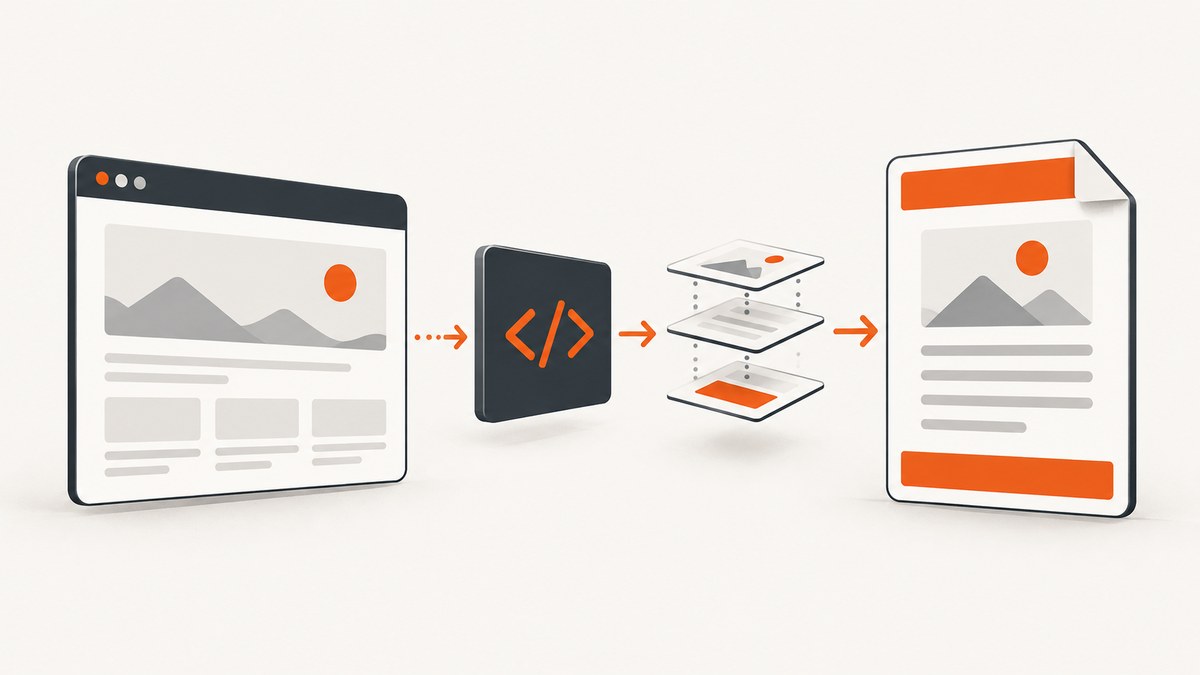
Puppeteer can render colored PDF headers and footers, but two independent settings commonly hide the color: PDF printing disables background graphics by default, and print color management may alter or omit CSS colors. The reliable pattern is to enable displayHeaderFooter, enable printBackground, put background-color on an element inside the template, and request exact print colors with -webkit-print-color-adjust: exact inside each template.
This complete example creates a blue header and footer, reserves space for both with PDF margins, and adds page numbers using Puppeteer’s supported template classes:
import puppeteer from 'puppeteer';

const browser = await puppeteer.launch();
const page = await browser.newPage();

await page.setContent(`
  <main>
    <h1>Quarterly report</h1>
    <p>Content that spans enough pages to demonstrate the footer.</p>
  </main>
`);

await page.pdf({
  path: 'report.pdf',
  format: 'A4',
  displayHeaderFooter: true,
  printBackground: true,
  margin: {
    top: '64px',
    bottom: '64px',
    left: '40px',
    right: '40px'
  },
  headerTemplate: `
    <style>
      html { -webkit-print-color-adjust: exact; }
    </style>
    <div style="width:100%; background-color:#2457a7; color:#fff; padding:8px 12px; font-size:10px;">
      Quarterly report
    </div>
  `,
  footerTemplate: `
    <style>
      html { -webkit-print-color-adjust: exact; }
    </style>
    <div style="width:100%; background-color:#2457a7; color:#fff; padding:8px 12px; font-size:10px;">
      Page <span class="pageNumber"></span> of <span class="totalPages"></span>
    </div>
  `
});

await browser.close();
The relevant options and template behavior are documented in Puppeteer’s PDFOptions reference. The setting that forces exact color rendering is also described in Puppeteer’s PDF generation guidance.
Why header and footer colors disappear
PDF output uses the print CSS media type. Printing has its own color rules, so a color that is visible in a normal browser screenshot can be changed for paper-style output. Puppeteer documents -webkit-print-color-adjust as the way to request exact colors.
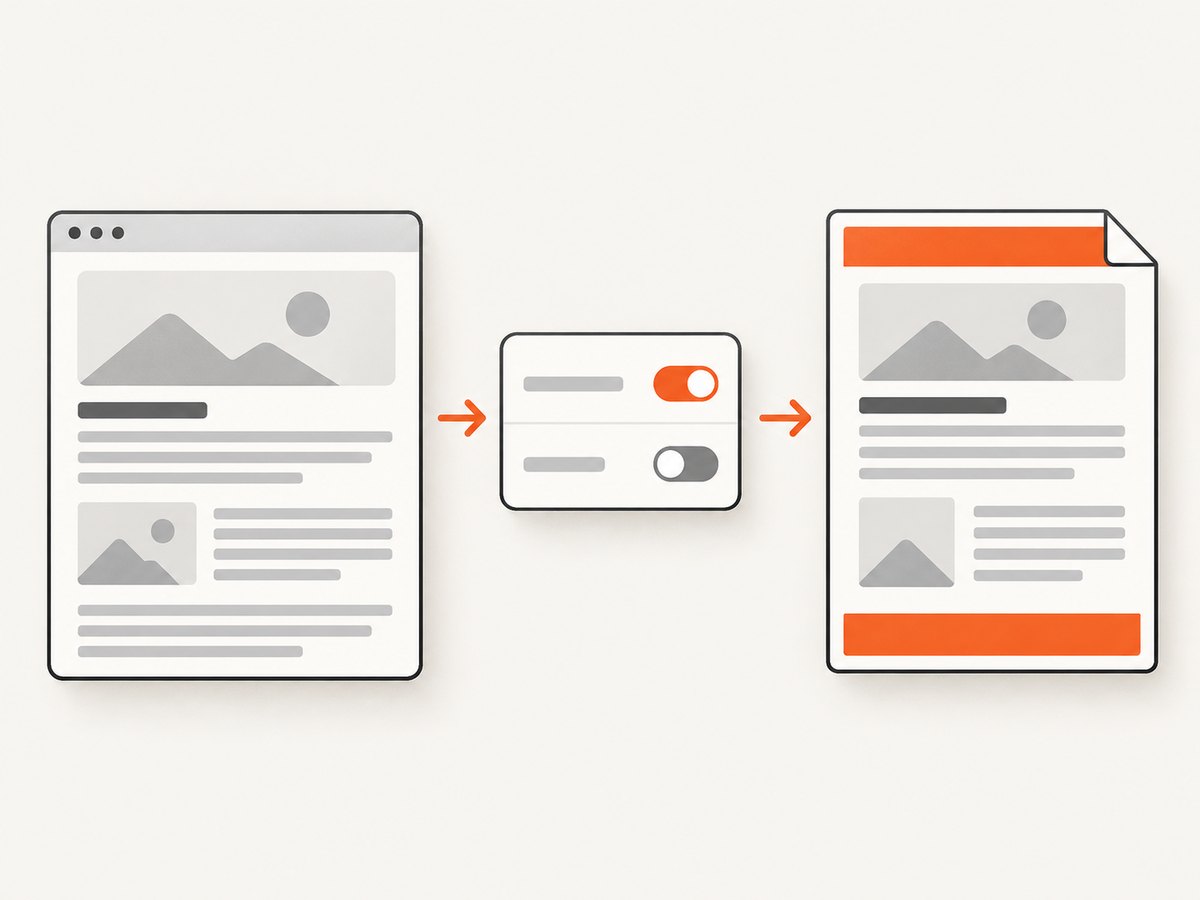
There is a second switch: printBackground. It controls whether background graphics are printed and defaults to false. A CSS background on a header or footer is a background graphic, so omitting this option can leave the template with its text but no colored band.
Header and footer templates are separate HTML fragments. Styles from the page body should not be expected to style them. Put the color, sizing, and print-color rule directly in the template string. This also makes the template portable when the page is rendered from a different document or URL.
The four settings that matter
| Setting | Purpose | Common mistake |
|---|---|---|
displayHeaderFooter |
Turns template rendering on. | Defining templates while leaving this at its default false. |
headerTemplate / footerTemplate |
Provide the HTML for each printed region. | Setting a background on page content instead of on a template element. |
printBackground |
Prints CSS background graphics. | Assuming a visible browser background is printed automatically. |
-webkit-print-color-adjust: exact |
Requests exact CSS colors in print rendering. | Adding it only to the page stylesheet and not inside the template. |
Puppeteer supports special classes in templates, including date, title, url, pageNumber, and totalPages. For example, <span class="pageNumber"></span> is replaced with the current page number. Keep these spans inside an element that has enough width and readable contrast.
Build a reusable colored template
Inline styles are the safest starting point because the template is an isolated fragment. You can still define a small style block for shared rules:
const brand = {
  background: '#172554',
  foreground: '#ffffff',
  padding: '10px 16px',
  fontSize: '10px'
};

const headerTemplate = `
  <style>
    html {
      -webkit-print-color-adjust: exact;
      print-color-adjust: exact;
    }
    .bar {
      width: 100%;
      box-sizing: border-box;
      padding: ${brand.padding};
      background: ${brand.background};
      color: ${brand.foreground};
      font-size: ${brand.fontSize};
      font-family: Arial, sans-serif;
    }
  </style>
  <div class="bar">
    <span>Acme reports</span>
    <span style="float:right"><span class="date"></span></span>
  </div>
`;
print-color-adjust is the standard property name, while the WebKit-prefixed form is the setting specifically documented for Chromium print rendering. Including both is reasonable when you control the template, with the prefixed declaration retained for Puppeteer’s Chromium path.
Size margins for the template
Header and footer content occupies the page margin areas. A colored element can be clipped or overlap body content when the corresponding margin is too small. There is no universal margin value: measure the template’s padding, font size, and line height, then add some room.
- Estimate the rendered height of the bar, including vertical padding.
- Set
margin.topat least that high for the header. - Set
margin.bottomat least that high for the footer. - Generate a multi-page PDF and inspect the first, middle, and last pages.
For a 10px font with 8px vertical padding, a margin around 50–64px is a useful starting point, but the correct value depends on the font and template content. Increase it when text is cut off; decrease it only after checking that body content still has adequate separation.
Complete Express endpoint
This server accepts HTML and returns a PDF. In production, validate the input and apply a timeout so a page that never finishes loading cannot hold a browser indefinitely.
import express from 'express';
import puppeteer from 'puppeteer';

const app = express();
app.use(express.json({ limit: '1mb' }));

app.post('/pdf', async (req, res) => {
  const browser = await puppeteer.launch();
  try {
    const page = await browser.newPage();
    await page.setContent(req.body.html, { waitUntil: 'networkidle0', timeout: 30000 });

    const pdf = await page.pdf({
      format: 'A4',
      displayHeaderFooter: true,
      printBackground: true,
      preferCSSPageSize: true,
      margin: { top: '64px', bottom: '64px', left: '40px', right: '40px' },
      headerTemplate: `
        <style>html { -webkit-print-color-adjust: exact; }</style>
        <div style="width:100%;background:#2457a7;color:white;padding:8px 12px;font:10px Arial">Report</div>`,
      footerTemplate: `
        <style>html { -webkit-print-color-adjust: exact; }</style>
        <div style="width:100%;background:#2457a7;color:white;padding:8px 12px;font:10px Arial">
          Page <span class="pageNumber"></span> / <span class="totalPages"></span>
        </div>`
    });

    res.type('application/pdf').send(pdf);
  } catch (error) {
    res.status(500).json({ error: 'PDF generation failed' });
  } finally {
    await browser.close();
  }
});

app.listen(3000);
Variants and layout details
Use a solid color or a gradient
A solid background-color is easiest to diagnose. If you use a gradient, keep printBackground: true enabled because gradients are also background graphics. Test gradients separately from the basic color case so a layout problem is not confused with a print-color problem.
Make the bar span the printable width
Set width:100% and box-sizing:border-box. The template width is the available printable region, which can be narrower than the physical paper after left and right margins. Avoid positioning the bar with viewport units; they can behave unexpectedly in the small header or footer frame.
Keep content readable
Set the text color explicitly. A dark background with inherited dark text can look like a missing template when the bar is actually present. Set a font family and size as well, because the template does not necessarily inherit the page’s typography.
Landscape and custom paper
format: 'A4', landscape: true, or explicit width and height determine the page geometry. Recheck margins after changing orientation. The same header CSS may need a different line length or font size on a narrow custom page.
Troubleshooting checklist
| Symptom | Likely cause | Fix |
|---|---|---|
| No header or footer at all | displayHeaderFooter is missing or false. |
Set displayHeaderFooter: true and put markup in the matching template. |
| Text appears but the color does not | Background graphics are disabled. | Set printBackground: true. |
| Color is pale, changed, or inconsistent | Print color adjustment is changing CSS colors. | Add <style>html { -webkit-print-color-adjust: exact; }</style> inside the template. |
| Bar is clipped | Top or bottom margin is smaller than the template. | Increase the matching PDF margin and reduce padding if needed. |
| Body overlaps the header | The body starts inside the header’s reserved area. | Increase margin.top; do not rely on body padding alone. |
| Page numbers are blank | Wrong class spelling or unsupported custom markup. | Use the documented classes exactly: pageNumber and totalPages. |
| Page CSS looks right but template does not | Template styles are isolated from page styles. | Move required CSS into each template string. |
| Works locally but differs in deployment | Different Puppeteer or bundled Chromium versions. | Record the versions, generate a minimal PDF, and compare the actual files. |
When diagnosing, reduce the template to one div with an inline background, white text, and no external assets. Once that renders correctly, add fonts, page counters, logos, and more complex layout one change at a time.
Reliability and performance considerations
- Reuse a browser process. Launching Chromium for every request adds startup cost. Keep a controlled browser instance and create or close pages per job.
- Set navigation and PDF timeouts. Remote images, fonts, and scripts can delay
networkidle0. Use a finite timeout and return a useful error. - Wait for visual readiness. If content is populated by JavaScript, wait for a selector or application-ready signal before calling
page.pdf(). - Limit concurrency. Several large PDFs can consume substantial memory. Queue jobs and cap simultaneous pages.
- Prefer local, deterministic assets. External fonts and images can fail independently of the header color. Inline critical styles when reproducibility matters.
- Inspect the PDF artifact. A successful Promise only means Chromium produced a file. Check page count, file size, and representative pages in CI or a staging workflow.
Or skip the browser setup
If you need a screenshot or PDF endpoint instead of maintaining Chromium, ScreenshotNeo provides a single GET request for website captures. Its API can return PNG, JPEG, WebP, or PDF, and its PDF options cover paper size, margins, landscape mode, and page ranges.
For a direct capture, follow the ScreenshotNeo API documentation:
curl -G "https://api.screenshotneo.com/v1/shot" \
  -d access_key=YOUR_API_KEY \
  --data-urlencode url=https://stripe.com \
  -o shot.webp
import requests
r = requests.get(
"https://api.screenshotneo.com/v1/shot",
params={"access_key": "YOUR_API_KEY", "url": "https://stripe.com"},
timeout=90,
)
r.raise_for_status()
open("shot.webp", "wb").write(r.content)const q = new URLSearchParams({ access_key: 'YOUR_API_KEY', url: 'https://stripe.com' });
const res = await fetch(`https://api.screenshotneo.com/v1/shot?${q}`);
if (!res.ok) throw new Error(`Screenshot failed: ${res.status}`);
const bytes = Buffer.from(await res.arrayBuffer());
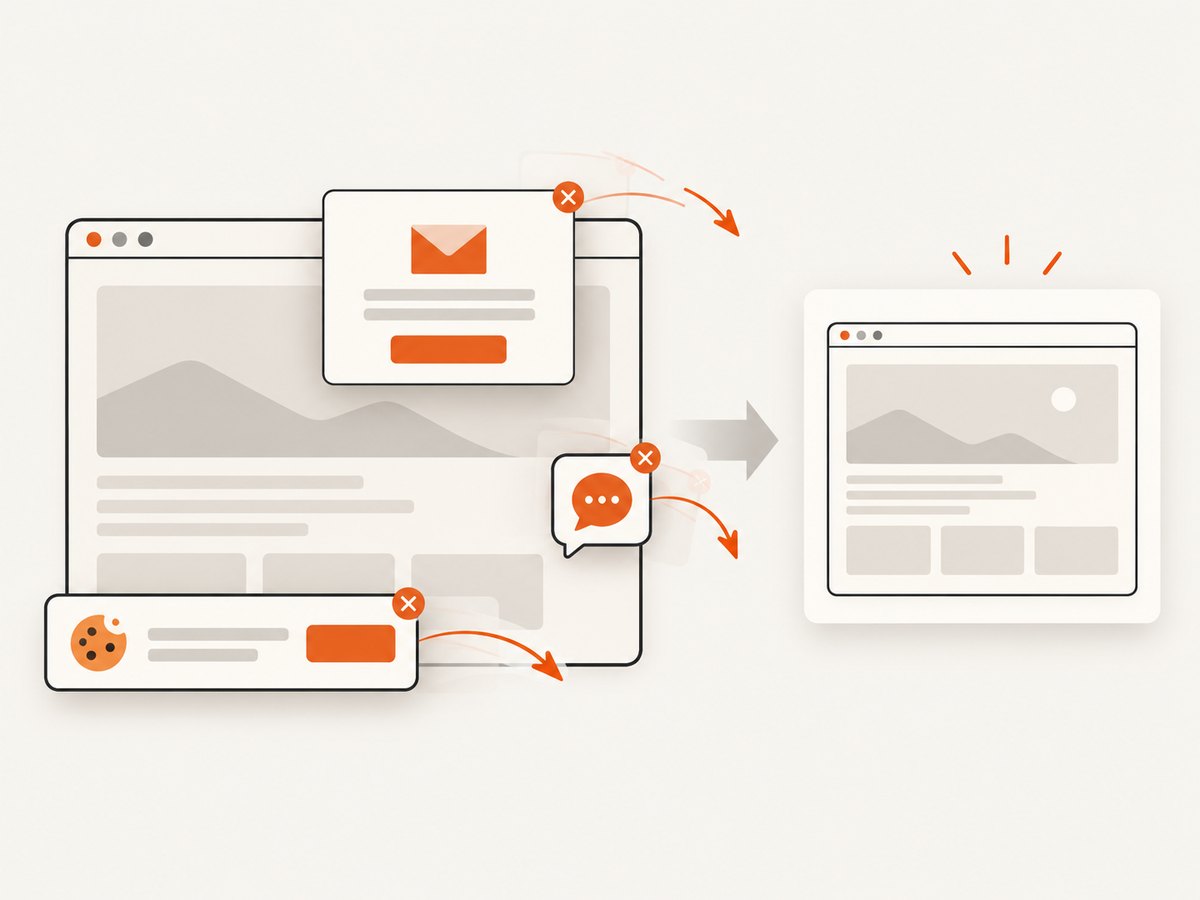
await import('node:fs/promises').then(fs => fs.writeFile('shot.webp', bytes));Cookie banners, newsletter popups, and chat widgets are removed before the shot. Bot checks, blank pages, failed loads, timeouts, and cache hits cost nothing, and response headers identify the page verdict and whether the request was billed. ScreenshotNeo also includes an MCP server so Claude, Cursor, and other MCP clients can take screenshots, inspect page information, and capture PDFs. The free plan includes 1,000 screenshots each month with no card; paid plans start at $5 for 3,000 shots. Create a free ScreenshotNeo account.
Frequently asked questions
Does printBackground replace -webkit-print-color-adjust?
No. printBackground enables background graphics. The color-adjust rule requests exact print colors. Use both for a colored template.
Can I style the header from the page’s CSS file?
Do not rely on it. Put the necessary style rules in the headerTemplate or footerTemplate HTML.
Why does the header need a large top margin?
The margin reserves printable space for the template. Without enough space, Chromium can clip the template or let body content overlap it.
Can templates contain page numbers?
Yes. Use Puppeteer’s supported pageNumber and totalPages classes in spans inside the footer or header.
Should I use a background color on the page body instead?
Use the template for a repeating header or footer. Use page content for a one-time banner or body section. They have different layout and pagination behavior.
Final implementation checklist
- Set
displayHeaderFooter: true. - Put a colored element directly in the selected template.
- Set
printBackground: true. - Include
-webkit-print-color-adjust: exactinside the template. - Reserve enough top and bottom margin for the rendered bars.
- Set text color, font, padding, and width explicitly.
- Verify page counters with a multi-page PDF.
- Check the generated artifact using the Puppeteer and Chromium versions deployed in production.
With those settings, Puppeteer has the information it needs to render a colored PDF header and footer consistently. If the color still fails, reduce the template to a single inline-styled element and work through the troubleshooting table before adding other layout features.


