How to Fix Puppeteer PDF Header and Footer Templates
Puppeteer PDF headers and footers are off by default. Enable them, add the right template classes, and check spacing, page size, and print CSS.
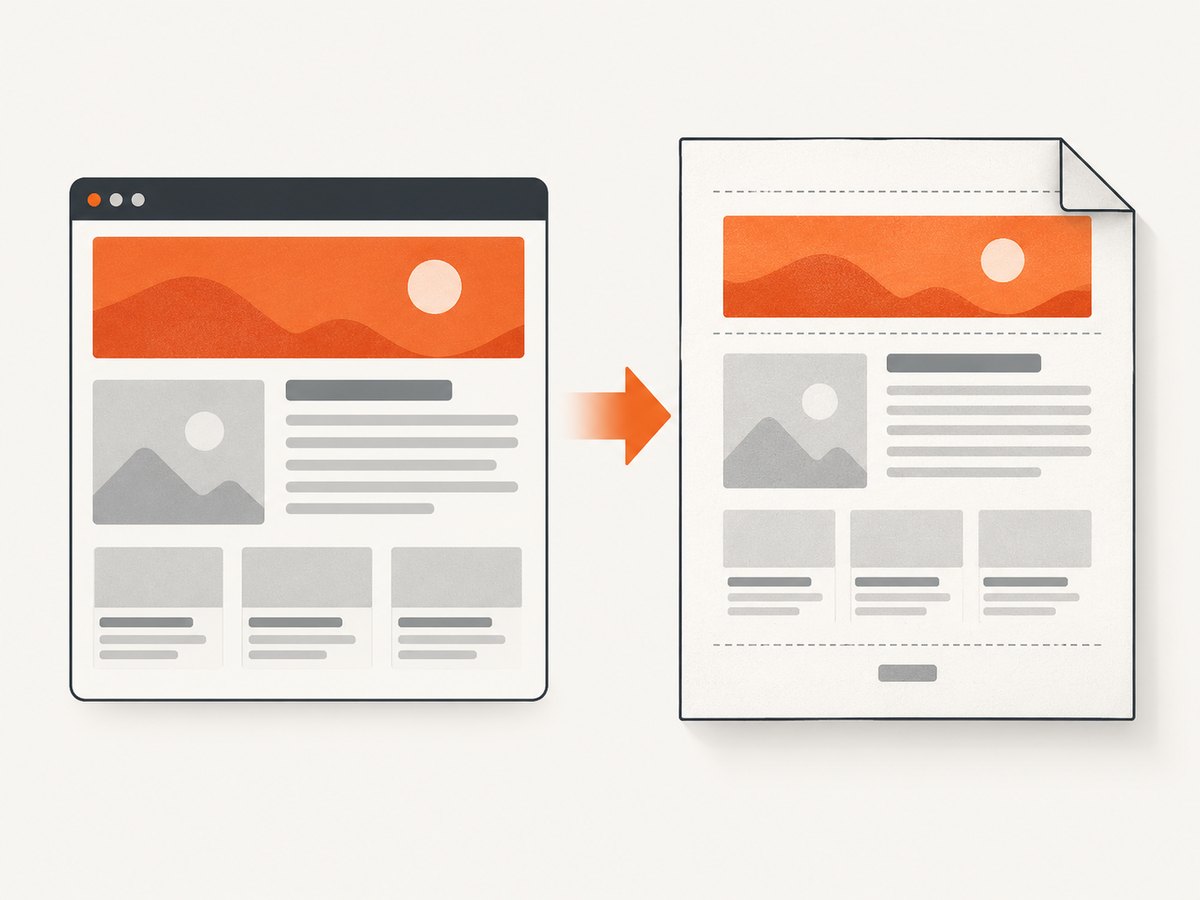
Puppeteer PDF headers and footers are hidden by default. To show them, set displayHeaderFooter: true in page.pdf() and provide an HTML string in headerTemplate, footerTemplate, or both. If they appear clipped or overlap the page, check the top and bottom margins, page-size settings, and print CSS.
Puppeteer’s documented template classes include date, title, url, pageNumber, and totalPages. The examples below use those classes. See the Puppeteer PDFOptions reference and its PDF generation guide for the current API details.
1. Enable the templates and reserve space
Here is a complete runnable Node.js example. It opens a page, generates a PDF, enables the header and footer, and reserves room for them. Save it as pdf-header.js, install Puppeteer with npm install puppeteer, then run node pdf-header.js.
const puppeteer = require('puppeteer');

(async () => {
  const browser = await puppeteer.launch({ headless: true });
  try {
    const page = await browser.newPage();
    await page.setContent(`
      <!doctype html>
      <html>
        <head>
          <meta charset="utf-8">
          <title>Quarterly Report</title>
          <style>
            body { font: 16px Arial, sans-serif; line-height: 1.5; }
            h1 { margin-top: 0; }
          </style>
        </head>
        <body>
          <h1>Quarterly Report</h1>
          <p>Replace this sample with the page you need to print.</p>
        </body>
      </html>
    `, { waitUntil: 'networkidle0' });

    await page.pdf({
      path: 'output.pdf',
      format: 'A4',
      printBackground: true,
      displayHeaderFooter: true,
      headerTemplate: `
        <div style="width:100%; font-size:9px; padding:0 20mm; color:#555;">
          <span class="title"></span>
        </div>`,
      footerTemplate: `
        <div style="width:100%; font-size:9px; padding:0 20mm; color:#555; text-align:right;">
          Page <span class="pageNumber"></span> of
          <span class="totalPages"></span>
        </div>`,
      margin: { top: '20mm', right: '15mm', bottom: '20mm', left: '15mm' },
    });
  } finally {
    await browser.close();
  }
})();
The template strings contain HTML. Keep the initial diagnostic markup simple: plain text, inline styling, and the documented classes. The reference documents those classes for inserted values; it does not guarantee that arbitrary page stylesheets, external assets, or the page’s CSS will be applied to template content.
Run through this checklist
- Set
displayHeaderFooter: true. Its documented default isfalse. - Pass a non-empty string to the correct option:
headerTemplateorfooterTemplate. - Use documented classes where you want Puppeteer-inserted values:
date,title,url,pageNumber, andtotalPages. - Set top and bottom margins when the header or footer needs reserved room.
- Open the resulting PDF and inspect more than the first page. Check for clipping, overlap, and page-number behavior.
2. Diagnose a missing, clipped, or unexpected header
Header or footer is completely missing
First inspect the options passed to the actual page.pdf() call. A template string by itself does not enable printing it; displayHeaderFooter must be true. Confirm that you have not accidentally populated one template option while expecting the other to appear.
await page.pdf({
  path: 'output.pdf',
  displayHeaderFooter: true,
  headerTemplate: '<div>Report</div>',
  footerTemplate: '<div><span class="pageNumber"></span></div>',
});
If this minimal case appears but your styled template does not, add your markup and styling back in small steps. This isolates whether the problem is the option wiring or something in the template. Puppeteer’s reference describes templates as HTML strings and documents the special classes, but does not promise support for every styling or asset technique.
Template is clipped or overlaps the document
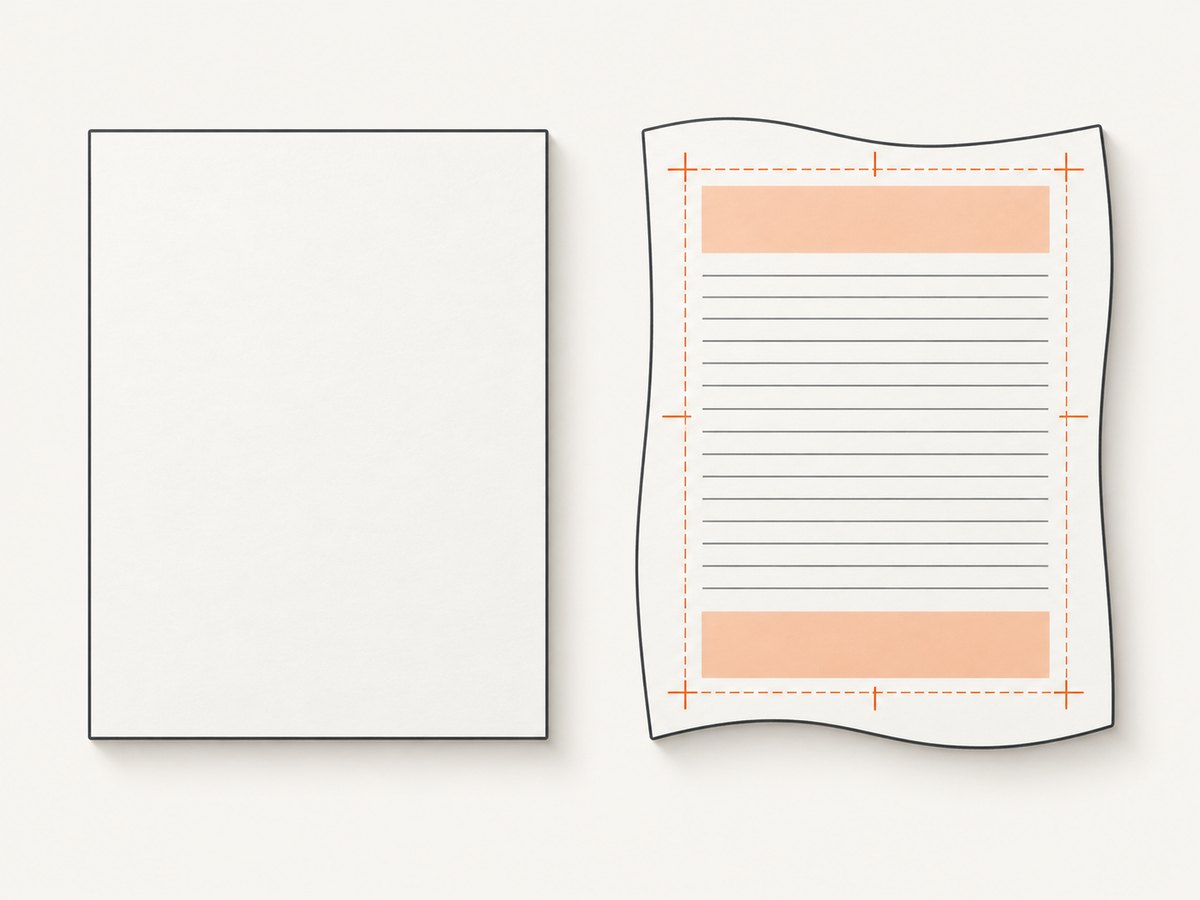
When margin is omitted, Puppeteer documents that no margins are set. Give the header and footer room by adding explicit top and bottom margins. Start with values appropriate to your design, generate the PDF, and adjust after inspecting it. The margin values in the example are starting points, not a universal layout guarantee.
Also inspect the template’s own padding and the page content’s spacing. A large header combined with a small top margin can collide with the body; adding a margin may shift the content and change pagination. Check several pages, since a layout that looks acceptable on page one may overlap when the content flows onto later pages.
Injected values are blank
Check spelling and letter case. Use the class names exactly as documented: pageNumber, totalPages, date, title, or url. These are class names on elements in the template, such as <span class="pageNumber"></span>. Ordinary text in the template can help distinguish an empty template from a value that was not inserted.
The PDF layout differs from the browser view
page.pdf() renders using the print CSS media type by default. Print styles can change visibility, spacing, and colors compared with screen rendering. If you specifically need screen media, Puppeteer documents calling page.emulateMediaType('screen') before generating the PDF:
await page.emulateMediaType('screen');
await page.pdf({ path: 'screen-style.pdf', displayHeaderFooter: true });
This changes the page’s emulated media type. It does not remove the need to enable the PDF templates or set appropriate margins. For print colors, the guide documents -webkit-print-color-adjust as a way to force exact color adjustment. Check the generated PDF because print output can differ from the screen rendering.
3. Make page size and margins agree
Unexpected scaling or pagination can come from competing page-size declarations. Puppeteer documents these precedence rules:
| Setting | Effect to check |
|---|---|
format |
Takes precedence over width and height. |
width and height |
Specify dimensions when you are not using a higher-priority format. |
preferCSSPageSize: true |
Gives CSS @page size priority over width, height, or format. |
preferCSSPageSize: false |
The documented default; Puppeteer scales page content to fit the paper size. |
Choose one page-size source where practical, then verify the output dimensions and wrapping. If the site sets an @page rule but your PDF options also specify a format, decide deliberately whether the CSS page size should take priority. Margin settings reserve space around the printed content; they are separate from choosing the paper size.
4. Add templates safely to an existing PDF job
When modifying an established capture script, keep the change localized. Add displayHeaderFooter, the desired template string, and margins to the existing page.pdf() options. Avoid changing unrelated rendering settings until you have a baseline PDF to compare. This makes it easier to identify whether a difference came from the template, page sizing, print media, or another change.
For typography issues, Puppeteer’s PDF guide says that Page.pdf() waits for fonts to load by default. That fact is useful context, but it does not prove that font loading explains a missing header or footer. Inspect the produced file and the page’s font and asset behavior if type looks wrong. For dynamically rendered pages, wait for the page state your application requires before generating the PDF; the appropriate selector or readiness condition depends on the site.
5. Troubleshooting common errors
| Symptom | Likely setting to inspect | Practical fix |
|---|---|---|
| No header and no footer | displayHeaderFooter omitted or false |
Set it to true in the PDF options actually being used. |
| Only one appears | Only one template option has content | Populate headerTemplate, footerTemplate, or both as required. |
| Page number is empty | Incorrect class name or malformed element | Use the documented pageNumber or totalPages class exactly. |
| Header is cut off | Insufficient top margin or template spacing | Set an explicit top margin and inspect the result; tune for the actual template height. |
| Footer collides with text | Insufficient bottom margin | Reserve bottom space and check the final page as well as earlier pages. |
| Page size or wrapping is unexpected | Conflicting format, dimensions, or CSS @page |
Review precedence and use preferCSSPageSize intentionally. |
| Colors or visibility differ | PDF uses print media by default | Review print CSS; emulate screen media only if that is the intended output. |
| Typography differs | Font or rendering behavior in the produced PDF | Inspect the generated file and font loading. Fonts are awaited by default according to the PDF guide, but case-specific issues still require investigation. |
These checks narrow down common configuration problems, but no single margin, CSS rule, or template structure is guaranteed to fix every PDF. The official references establish the option behavior; the exact cause in a particular job depends on its markup and output.
6. Performance, reliability, and cost considerations
Generating PDFs requires a browser page and a print operation. Keep the page lifecycle clear: wait for the content your document depends on, generate the file, and close the browser in a cleanup path such as finally. The runnable example follows that pattern so the browser is closed even if PDF generation fails. If a job runs in a service, capture and report the error from the operation that failed, and avoid treating a partially produced file as a successful result.
PDF size and generation time depend on the page, assets, and output settings; the research sources provide no benchmark for a particular workload. For repeatable output, keep the page-size source, media type, and margins explicit, and inspect representative short and long documents. This catches pagination and footer issues that a single-page sample may miss.
With a self-hosted Puppeteer workflow, account for the browser runtime and the infrastructure that runs it. There is no per-screenshot service price in the Puppeteer options documentation, so actual costs depend on your hosting and workload. If you want a managed screenshot or PDF API instead, ScreenshotNeo offers a one-request API, usage options, and paid plans; details and parameters are in the ScreenshotNeo documentation.
7. Or skip the browser setup
For a managed capture, ScreenshotNeo accepts a URL and returns a screenshot or PDF. Here is the cURL call using the API endpoint and parameters:
curl -G "https://api.screenshotneo.com/v1/shot" \
  -d access_key=YOUR_API_KEY \
  --data-urlencode url=https://stripe.com \
  -o shot.webp
Equivalent Python:
import requests

r = requests.get(
    "https://api.screenshotneo.com/v1/shot",
    params={"access_key": "YOUR_API_KEY", "url": "https://stripe.com"},
    timeout=90,
)
open("shot.webp", "wb").write(r.content)
Equivalent Node.js:
const q = new URLSearchParams({
  access_key: 'YOUR_API_KEY',
  url: 'https://stripe.com'
});
const res = await fetch(`https://api.screenshotneo.com/v1/shot?${q}`);
Use the documented PDF options when requesting PDF output; the API supports PDF as well as PNG, JPEG, and WebP. ScreenshotNeo removes cookie banners, newsletter popups, and chat widgets before capture. Bot checks, blank pages, and failed loads are never billed. Its MCP server lets AI agents take screenshots, and the Free plan includes 1,000 screenshots a month with no card; paid plans start at $5 for 3,000. See ScreenshotNeo and the API documentation for setup and available options.
Create a free ScreenshotNeo account for 1,000 screenshots a month with no card.
8. FAQ
What is the minimum option needed to show a Puppeteer footer?
Set displayHeaderFooter: true and provide a non-empty footerTemplate HTML string.
Which classes insert page numbers?
Use pageNumber for the current page and totalPages for the document page count.
Does Puppeteer use screen CSS for PDFs?
No. PDF generation uses print media by default. Call page.emulateMediaType('screen') before page.pdf() when screen media is specifically desired.
Do PDF fonts need a manual wait?
The Puppeteer PDF guide says Page.pdf() waits for fonts by default. If typography is still wrong, inspect the generated PDF and the page’s rendering conditions.


