Adding Headers to Each Page of a PDF in Node.js With Puppeteer
Add a repeating header and page numbers to Puppeteer PDFs with headerTemplate, correct margins, runnable Node.js code, and fixes for common print issues.

To add a header to every page of a PDF generated with Puppeteer, pass displayHeaderFooter: true and a valid HTML string as headerTemplate to page.pdf(). Reserve room with margin.top; use footerTemplate and margin.bottom for page numbers or other repeating footer content. The header template belongs to Chromium’s print layout, so it repeats as content flows across pages.
This guide covers a runnable Node.js implementation, page numbering, margins and print options, common failures, and an API alternative when you do not want to manage a browser process. See the Puppeteer PDF API documentation and the ScreenshotNeo API docs alongside the examples.
1. Install Puppeteer and generate a PDF
Install Puppeteer in a Node.js project. The standard Puppeteer package downloads a compatible Chrome for Testing browser during installation. If your deployment provides its own browser, configure the executable path and verify compatibility with your installed Puppeteer version.
npm install puppeteerSave the following as pdf-with-header.mjs and run it with node pdf-with-header.mjs. It creates a multi-page PDF with a repeated header and page count footer:
import puppeteer from 'puppeteer';

const html = `
  <!doctype html>
  <html>
    <head>
      <meta charset="utf-8">
      <style>
        body { font: 14px Arial, sans-serif; line-height: 1.5; }
        h1 { font-size: 24px; }
        .section { break-inside: avoid; margin: 0 0 18px; }
      </style>
    </head>
    <body>
      <h1>Quarterly Report</h1>
      ${Array.from({ length: 30 }, (_, i) =>
        `<div class="section"><h2>Section ${i + 1}</h2><p>Report content for section ${i + 1}. Add enough content to flow onto multiple printed pages.</p></div>`
      ).join('')}
    </body>
  </html>`;

const browser = await puppeteer.launch({ headless: true });
try {
  const page = await browser.newPage();
  await page.setContent(html, { waitUntil: 'networkidle0' });

  await page.pdf({
    path: 'report.pdf',
    format: 'A4',
    displayHeaderFooter: true,
    headerTemplate: `
      <div style="width:100%; margin:0 30px; font:9px Arial,sans-serif; color:#444; border-bottom:1px solid #bbb; padding-bottom:4px;">
        Quarterly Report
      </div>`,
    footerTemplate: `
      <div style="width:100%; margin:0 30px; text-align:center; font:9px Arial,sans-serif; color:#444;">
        Page <span class="pageNumber"></span> of <span class="totalPages"></span>
      </div>`,
    margin: {
      top: '60px',
      bottom: '45px',
      left: '30px',
      right: '30px'
    },
    printBackground: true
  });
} finally {
  await browser.close();
}
The HTML above is deliberately self-contained. In a real app, replace the sample report with your generated markup. The finally block closes Chrome even if page setup or PDF generation throws, which matters in a server handling repeated jobs.
2. Make the header repeat and leave room for it
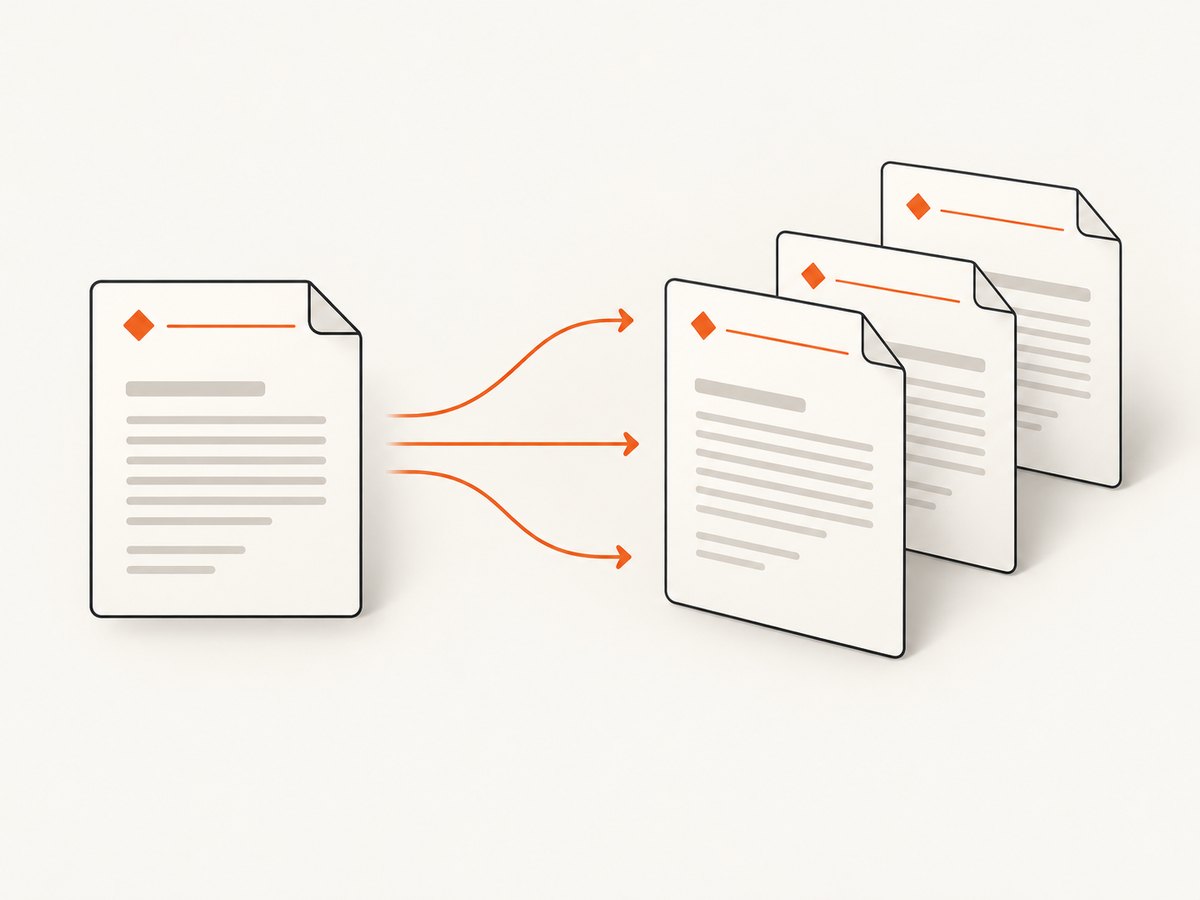
Puppeteer’s page.pdf() uses Chromium’s print rendering. A header template is printed in the page’s header area as each PDF page is laid out. It is not a normal element placed once at the top of your document body. That is why a body-level <header> usually appears once, while headerTemplate is designed for repeating page furniture.
Three settings work together:
displayHeaderFooter: trueenables the header and footer areas. Its default isfalse, so omitting it hides both templates.headerTemplatesupplies the header HTML.footerTemplatesupplies the footer HTML.margin.topandmargin.bottomreserve printable space for those areas. Increase them if content crowds, clips, or overlaps the header or footer.
There is no universal correct margin: it depends on template height, font size, and page dimensions. Start with enough room, generate a PDF containing several pages, then adjust while checking the first, middle, and last pages. Margins are page geometry, not padding on the template itself.
Use the built-in page and metadata classes
Puppeteer supports these replacement classes in header and footer templates:
| Class | Rendered value | Example use |
|---|---|---|
date |
Print date | Document generation date |
title |
Page title | Report or web page title |
url |
Page URL | Source attribution |
pageNumber |
Current page number | “Page 2” |
totalPages |
Total page count | “of 12” |
headerTemplate: `<div style="width:100%;font:9px Arial;text-align:right">
  <span class="title"></span>
</div>`,
footerTemplate: `<div style="width:100%;font:9px Arial;text-align:center">
  <span class="pageNumber"></span> / <span class="totalPages"></span>
</div>`
Use the class names exactly as documented. To include an application-specific label, put literal text in the template or escape and insert a trusted value when constructing the template. Treat user-supplied HTML as untrusted; do not interpolate it into markup without appropriate escaping.
3. Style templates for print output
Keep header and footer markup small, valid, and self-contained. Inline CSS is a predictable choice because the template is separate from the document’s normal body styles. Set explicit font size, alignment, width, and color. Avoid depending on external stylesheets, scripts, or page selectors to style the template.
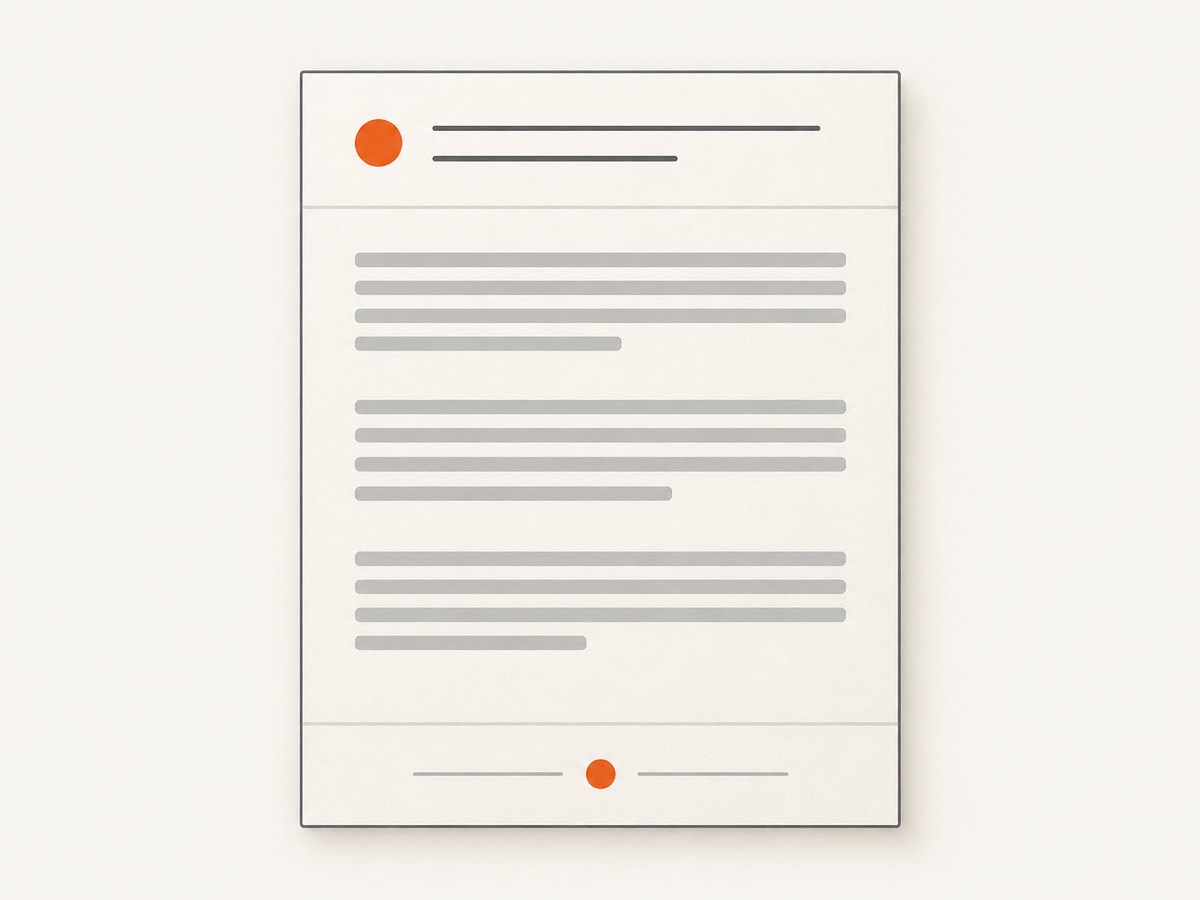
Use simple HTML such as div, span, and basic inline styles. A long title can wrap and consume more vertical room than expected; shorten it, reduce its font size, or increase the reserved margin. If the header needs a rule, use a border on its container and check that the line stays inside the printable width.
Print media, colors, and backgrounds
page.pdf() renders with the print CSS media type. If your layout has screen-only CSS and the PDF should match that presentation, call await page.emulateMediaType('screen') before producing the PDF. Conversely, leave the default print mode in place when print styles and page breaks are intentional.
Chromium may adjust colors for printing. For exact CSS color reproduction, Puppeteer documents using -webkit-print-color-adjust: exact. Put it in the relevant document styles, for example * { -webkit-print-color-adjust: exact; }. This can affect ink-heavy backgrounds, so use it only when the designed colors matter. Set printBackground: true when background graphics should be included; otherwise they may be omitted.
4. Control paper size, scale, and page selection
Header templates are only one part of PDF layout. Choose page geometry and print options deliberately:
| Option | What it controls | When to use it |
|---|---|---|
format |
Standard paper size, such as A4 or Letter |
Typical reports and printable documents |
width, height |
Custom page dimensions | Labels or a fixed custom sheet |
preferCSSPageSize |
Whether CSS @page dimensions take priority |
When document CSS owns the paper size |
pageRanges |
Pages included in the output | Exporting a subset of a long report |
scale |
Print content scale, from 0.1 to 2 | Small adjustments to fit content |
printBackground |
Whether background graphics are printed | Colored sections or designed backgrounds |
For example, format: 'Letter' selects Letter paper. Custom dimensions can be provided with width and height. If the page’s CSS defines @page { size: ... }, set preferCSSPageSize: true so that CSS takes priority over API dimensions. Avoid changing scale to compensate for a wrong margin; fix page geometry first.
Keep document content from breaking awkwardly
Page headers do not prevent headings, table rows, or cards from splitting badly. Use print CSS such as break-inside: avoid on compact blocks and break-before: page where a deliberate new page is required. Very tall blocks cannot fit intact on one page, so browsers may still fragment them. Test the result at the actual paper size, with the actual fonts and representative long content.
5. Alternative: CSS page margin boxes
Chrome 131 introduced generated content in print margin boxes. CSS can define counters in an @page rule, for example an @bottom-right box using counter(page) for the current page and the pages counter for the total. This lets a stylesheet own page numbering and margin content.
@page {
  @bottom-right {
    content: counter(page) " / " counter(pages);
    font: 9px Arial, sans-serif;
  }
}
This depends on the Chromium version available in the deployed environment. Confirm that version supports the feature and check output in production-like conditions. Puppeteer’s documented headerTemplate and footerTemplate options are the more direct choice when you need the API’s explicit template mechanism.
6. Or skip the browser setup
If you need a PDF from a page and do not want to install, launch, and maintain Puppeteer and Chromium, ScreenshotNeo provides a screenshot and PDF API. It accepts a URL and can return a PDF; see the API documentation for PDF options and other parameters.
curl -G "https://api.screenshotneo.com/v1/shot" \
  -d access_key=YOUR_API_KEY \
  --data-urlencode url=https://stripe.com \
  -d format=pdf \
  -o page.pdf
import requests
r = requests.get(
"https://api.screenshotneo.com/v1/shot",
params={"access_key": "YOUR_API_KEY", "url": "https://stripe.com", "format": "pdf"},
timeout=90,
)
r.raise_for_status()
open("page.pdf", "wb").write(r.content)const q = new URLSearchParams({
access_key: 'YOUR_API_KEY',
url: 'https://stripe.com',
format: 'pdf'
});
const res = await fetch(`https://api.screenshotneo.com/v1/shot?${q}`);
if (!res.ok) throw new Error(`ScreenshotNeo returned ${res.status}`);
await import('node:fs/promises').then(fs => fs.writeFile('page.pdf', Buffer.from(await res.arrayBuffer())));ScreenshotNeo accepts cookie and consent banners like a visitor and removes more than 60 known consent platforms, newsletter popups, and chat widgets before capture; each step can be turned off. Bot checks and CAPTCHAs, blank pages, timeouts, failed loads, and cache hits cost nothing, and the response identifies the page verdict and billing status in headers. Its MCP server gives AI agents tools for screenshots, page information, and PDF capture. The free plan includes 1,000 shots a month without a card; paid plans start at $5 for 3,000 shots, and every feature is available on every plan. Learn more at ScreenshotNeo and the docs. Sign up for 1,000 free screenshots a month, with no card required.
7. Troubleshooting
| Symptom | Likely cause | Fix |
|---|---|---|
| No header or footer appears | displayHeaderFooter is missing or false |
Set it to true in the page.pdf() options. |
| Header appears only on the first page | A normal body element is being used as the header | Move the repeating markup into headerTemplate. |
| Text overlaps the header | Top margin does not reserve enough space | Increase margin.top; similarly increase bottom margin for footer overlap. |
| Template looks unstyled | It relies on document styles or external assets | Use simple valid template HTML with inline styles. |
| Page number is blank | Replacement class is misspelled or nested incorrectly | Use the documented pageNumber and totalPages class names on spans. |
| PDF colors differ from browser view | Print media and print color adjustment apply | Check print CSS, use printBackground for backgrounds, and apply -webkit-print-color-adjust: exact if exact colors are needed. |
| CSS page size is ignored | API format or dimensions take precedence | Set preferCSSPageSize: true and confirm the CSS @page rule. |
| Page breaks changed unexpectedly | Content, fonts, scale, or margins changed print layout | Inspect a multipage output and tune print-specific break rules and page geometry. |
8. Reliability, performance, and cost considerations
PDF creation consumes a browser process and time for page loading, fonts, and layout. Reuse browser processes carefully for batches rather than launching one Chrome per document, and isolate pages or contexts according to your workload. Always close pages and browsers when jobs finish, including error paths. Set an application-level timeout and return a useful failure when navigation or rendering does not complete; a navigation timeout is distinct from a malformed PDF template.
Wait for the condition your page actually needs. networkidle0 is convenient for a self-contained static report, but pages with analytics, long polling, or persistent requests may never become idle. If you control the content, wait for a known selector or explicit readiness signal instead, then produce the PDF. Ensure remote fonts and images have loaded before capture when they affect pagination.
For cost, self-hosting means accounting for compute, memory, browser installation, and maintenance in your own deployment; the exact amount depends on document size and infrastructure. A hosted API trades that setup for per-plan usage. ScreenshotNeo’s published plans are Free 1,000/month, Starter $5 for 3,000, Growth $15 for 15,000, Pro $39 for 60,000, Scale $99 for 250,000, and Business $249 for 1,000,000; yearly billing gives two months free. All features are on every plan. Choose based on expected successful captures and required control, and inspect billing headers when using the API.
9. Frequently asked questions
Can the header contain an image or logo?
The header template accepts HTML. Any image adds a dependency on its availability and sizing during print rendering, so keep the asset reachable and test its loading and alignment in the generated PDF. The template does not need an image for a text header.
Can I show “Page X of Y”?
Yes. Put <span class="pageNumber"></span> and <span class="totalPages"></span> in the footer template, with displayHeaderFooter: true.
Can I make the header different on the first page?
The documented Puppeteer template is applied as print page furniture. For different first-page design requirements, consider laying out the first page separately or use a browser-supported CSS print technique after verifying the Chromium version and output.
Does setting a header affect page count?
Reserving header and footer space reduces the body area on each sheet and can change where content breaks, which may change the total number of pages. Recheck page ranges and page counts after margin or template changes.


