How to Show Puppeteer PDF Headers on Every Page
Repeat headers, footers, dates, URLs, and page numbers in Puppeteer PDFs with working code, margin guidance, troubleshooting, and a hosted alternative.

To show a header or footer on every Puppeteer PDF page, enable displayHeaderFooter: true and provide HTML in headerTemplate and/or footerTemplate. Add top and bottom margins large enough for those templates. For page numbers, use the documented pageNumber and totalPages classes.
import puppeteer from 'puppeteer';

const browser = await puppeteer.launch();
const page = await browser.newPage();

await page.setContent(`
  <article>
    <h1>Quarterly report</h1>
    <p>Your document content goes here.</p>
    <div style="height: 1800px"></div>
    <p>The document continues on another page.</p>
  </article>
`, { waitUntil: 'networkidle0' });

await page.pdf({
  path: 'report.pdf',
  format: 'A4',
  printBackground: true,
  displayHeaderFooter: true,
  headerTemplate: `
    <div style="width:100%; font-size:10px; padding:0 24px; color:#555;">
      Quarterly report
    </div>`,
  footerTemplate: `
    <div style="width:100%; font-size:10px; padding:0 24px; text-align:center; color:#555;">
      Page <span class="pageNumber"></span> of <span class="totalPages"></span>
    </div>`,
  margin: {
    top: '0.75in',
    bottom: '0.75in',
    left: '0.6in',
    right: '0.6in'
  }
});

await browser.close();
The Puppeteer PDF options API documents displayHeaderFooter as the switch that controls whether headers and footers are shown. Its default is false, so supplying a template without enabling the switch does not display anything.
How repeated PDF headers work
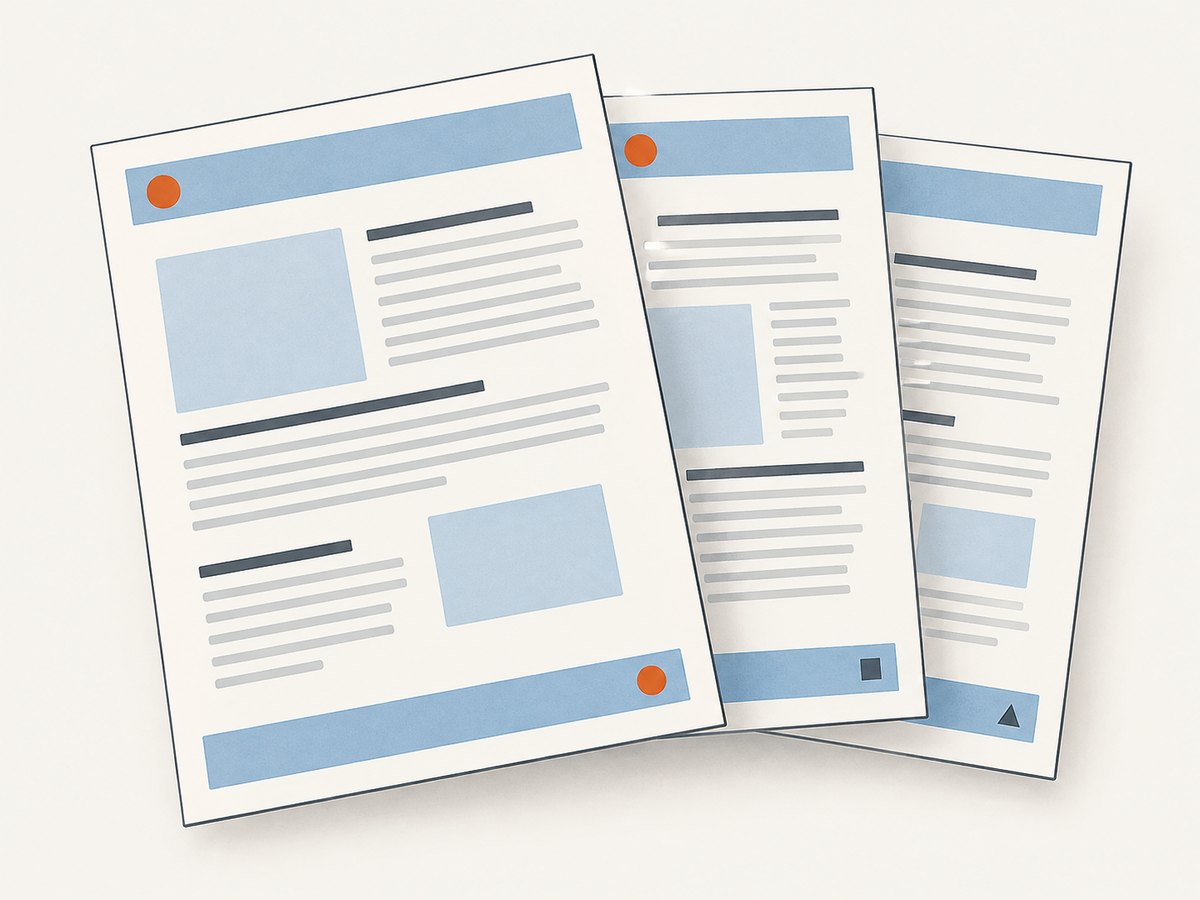
Puppeteer asks Chromium to print the page. The header and footer are separate HTML template strings that Chromium places in the printable area of every page. They are not ordinary elements in your document flow. A heading inside the page body repeats only if you build a separate layout mechanism; a headerTemplate is the built-in way to repeat it during PDF generation.
The relevant options are:
| Option | Purpose | Default or behavior |
|---|---|---|
displayHeaderFooter |
Turns repeated header and footer rendering on. | false |
headerTemplate |
HTML string rendered at the top of every page. | None |
footerTemplate |
HTML string rendered at the bottom of every page. | None |
margin |
Reserves printable space around the document. | No margins when undefined |
path |
Saves the generated PDF to a file. | Optional |
format, width, height |
Controls page dimensions. | Use one sizing approach appropriate to the document. |
Step-by-step setup
1. Install Puppeteer
npm install puppeteerPuppeteer downloads or uses a compatible Chromium browser according to the version you install. Keep the Puppeteer package and browser revision consistent in deployment so PDF output is reproducible.

2. Create the page content
You can navigate to a URL, set HTML directly, or render an application route. Wait for the content and assets that must appear in the PDF.
await page.goto('https://example.com/report', {
  waitUntil: 'networkidle0'
});
For a client-rendered application, also wait for an application-specific selector or promise:
await page.waitForSelector('#report-ready');3. Enable the repeated regions
Set displayHeaderFooter: true. Then put compact, self-contained markup into the templates. Inline styles are the safest choice because the template is rendered separately from the page’s main DOM and stylesheet.
4. Reserve space with margins
Margins determine where the document body can be printed. If the top margin is shorter than the header’s visual height, the header can overlap the first lines of content or appear clipped. The same applies to the footer and bottom margin. The values in the example are starting points; measure your actual template and adjust them.
5. Add dynamic values
Puppeteer supports special classes in the templates. Put the class on an element where you want the value:
footerTemplate: `
  <div style="width:100%; text-align:center; font-size:9px;">
    <span class="title"></span>
    · <span class="pageNumber"></span>/<span class="totalPages"></span>
  </div>`
The documented substitutions include date, title, url, pageNumber, and totalPages. Use pageNumber and totalPages for pagination. If a value is empty, check that the page has a title or URL and that the class name is exact.
Complete reusable implementation
This Node.js script accepts a URL and writes a PDF with a branded header, source URL, generation date, and page numbering. It also demonstrates a reliable wait for page content.
import puppeteer from 'puppeteer';

const target = process.argv[2] ?? 'https://example.com';
const browser = await puppeteer.launch({
  // In many Linux containers Chromium needs these flags.
  args: ['--no-sandbox', '--disable-setuid-sandbox']
});

try {
  const page = await browser.newPage();
  await page.setViewport({ width: 1280, height: 900, deviceScaleFactor: 1 });
  await page.goto(target, { waitUntil: 'networkidle0', timeout: 60000 });
  await page.emulateMediaType('print');

  await page.pdf({
    path: 'output.pdf',
    format: 'A4',
    printBackground: true,
    preferCSSPageSize: true,
    displayHeaderFooter: true,
    headerTemplate: `
      <div style="box-sizing:border-box; width:100%; padding:0 28px;
                  font-family:Arial,sans-serif; font-size:9px; color:#555;">
        <span class="title"></span>
      </div>`,
    footerTemplate: `
      <div style="box-sizing:border-box; width:100%; padding:0 28px;
                  font-family:Arial,sans-serif; font-size:9px; color:#555;
                  display:flex; justify-content:space-between;">
        <span class="url"></span>
        <span>Page <span class="pageNumber"></span> of
          <span class="totalPages"></span></span>
      </div>`,
    margin: {
      top: '0.8in',
      right: '0.6in',
      bottom: '0.7in',
      left: '0.6in'
    }
  });
} finally {
  await browser.close();
}
Run it with:
node make-pdf.js https://example.com/reportTemplate design details and edge cases
Keep template HTML self-contained
Use inline CSS, simple block elements, and web-safe fonts. Do not assume that your application’s CSS classes, layout framework, or JavaScript is available inside the header template. Test colors and borders with printBackground: true when the design depends on backgrounds.
Headers with logos
Images in a template must be reachable by Chromium at print time. A data URL or an accessible absolute URL is more dependable than a relative path. If an external image is required, wait for it before calling page.pdf() and verify that the deployment environment can resolve the host.
Long titles and URLs
A page title or URL can be longer than the available width. Add CSS such as overflow:hidden; white-space:nowrap; text-overflow:ellipsis;, or omit the dynamic value and provide a short label yourself. Long unbroken strings can increase the template height and cause overlap.
Different first-page behavior
headerTemplate and footerTemplate repeat on every page. If the first page needs a different design, put a one-time cover heading in the document body and use the repeated template for subsequent pages, or generate the cover and body as separate PDFs and merge them with a PDF library.
Landscape and custom sizes
await page.pdf({
  path: 'landscape.pdf',
  landscape: true,
  width: '11in',
  height: '8.5in',
  displayHeaderFooter: true,
  headerTemplate: '<div style="width:100%; text-align:center">Landscape report</div>',
  margin: { top: '0.7in', bottom: '0.7in' }
});
Choose either a named format such as A4 or explicit dimensions when that makes the output easier to control. If your page uses CSS @page rules, test with preferCSSPageSize: true and confirm that the CSS size is intentional.
Print CSS and pagination
The Page.pdf() method generates a PDF with the print CSS media type. Print rules can therefore change visibility, colors, widths, and page breaks. Use an explicit print stylesheet:
@media print {
  .screen-only { display: none !important; }
  .avoid-break { break-inside: avoid; }
}

@page {
  size: A4;
  margin: 18mm 14mm;
}
Remember that CSS page margins and Puppeteer’s PDF margins interact. Pick one clear source of truth and inspect the result for double margins or unexpected clipping.
Troubleshooting
| Symptom | Likely cause | Fix |
|---|---|---|
| Nothing appears | displayHeaderFooter is still false or omitted. |
Set it to true in the same page.pdf() call as the templates. |
| Header overlaps content | Top margin is shorter than the template. | Increase margin.top; repeat for margin.bottom and the footer. |
| Page numbers are blank | Class name is misspelled or placed on an unsuitable element. | Use exact lowercase classes such as pageNumber and totalPages. |
| Header is clipped | Template has too much padding, large text, or an unbroken string. | Reduce its height, allow wrapping, or increase the margin. |
| Styles do not apply | The template is isolated from page CSS. | Move critical styles inline in the template. |
| Images are missing | Relative URL, blocked request, or PDF generated before loading. | Use an absolute URL or data URL and wait for the image/request. |
| Layout differs from the browser | PDF uses print media styles. | Inspect @media print, call emulateMediaType('print') while debugging, and review @page. |
| Only one page is produced | Content did not load or was shorter than expected. | Wait for a meaningful selector and verify the rendered DOM before printing. |
| Chromium fails in a container | Sandbox or missing system dependencies. | Use a supported container image; where your deployment policy permits it, configure the documented container flags and browser dependencies. |
Performance and reliability checklist
- Reuse a browser process for batches of documents, but create a fresh page for each job and close pages in a
finallyblock. - Set navigation and job timeouts so a stalled third-party request cannot hold a worker forever.
- Wait for the application’s ready selector instead of relying only on a generic network-idle event.
- Keep header markup small. Large inline SVGs, remote fonts, and high-resolution images add work to every page.
- Record the Puppeteer and Chromium versions with generated artifacts when output consistency matters.
- Test documents with zero, one, and many pages, long titles, missing images, slow fonts, landscape pages, and content close to a page boundary.
- Use a deterministic timezone, locale, and data snapshot when a date or number in the header must match across runs.
Or skip the browser setup
If you need a clean screenshot or PDF from a URL without maintaining Chromium workers, ScreenshotNeo provides a website capture API and MCP server. Its PDF options include paper size, margins, landscape mode, and page ranges. It also accepts custom CSS and JavaScript when the page needs preparation before capture.
One request is enough:
curl -G "https://api.screenshotneo.com/v1/shot" -d access_key=YOUR_API_KEY --data-urlencode url=https://stripe.com -o shot.webpPython:
import requests
r = requests.get("https://api.screenshotneo.com/v1/shot", params={"access_key": "YOUR_API_KEY", "url": "https://stripe.com"}, timeout=90)
open("shot.webp", "wb").write(r.content)
Node.js:
const q = new URLSearchParams({ access_key: 'YOUR_API_KEY', url: 'https://stripe.com' });
const res = await fetch(`https://api.screenshotneo.com/v1/shot?${q}`);
See the ScreenshotNeo API documentation for authentication and the full option set. Cookie banners, newsletter popups, and chat widgets are removed before the shot. Bot checks, blank pages, failed loads, timeouts, and cache hits are not billed, and response headers identify the page verdict and billing result. An MCP server lets Claude, Cursor, and other MCP clients call take_screenshot, get_page_info, and capture_pdf. The Free plan includes 1,000 screenshots per month with no card; paid plans start at $5 for 3,000 shots. Create a free ScreenshotNeo account.
Cost and capacity considerations
Self-hosting Puppeteer costs compute, storage, browser maintenance, and engineering time. Peak workloads need a queue and concurrency limits so several Chromium instances do not exhaust memory. PDFs with remote assets take longer than static HTML, and repeatedly loading the same URL can waste bandwidth.
ScreenshotNeo bills only clean shots. Its plans are Free (1,000 per month), Starter ($5 for 3,000), Growth ($15 for 15,000), Pro ($39 for 60,000), Scale ($99 for 250,000), and Business ($249 for 1,000,000); yearly billing gives two months free, and every feature is available on every plan. Caching with a chosen TTL, bulk capture for up to 100 URLs per call, asynchronous jobs with signed webhooks, and a usage API can help control repeated work.
FAQ
Does a header template repeat automatically?
No. Set displayHeaderFooter: true. The default is false.
Can I use page numbers without a footer?
Page-number substitutions belong in a header or footer template. Put them in whichever repeated region suits your layout.
Why does my body start underneath the header?
The PDF margin is too small for the template’s height. Increase the top margin and verify print CSS and @page rules.
Can the template use my site’s CSS?
Do not rely on it. Treat the template as isolated and include essential styles inline.
Why is my PDF pagination different from the screen?
Page.pdf() uses print media. Print CSS, page size, margins, fonts, and loaded content can all change pagination.
Can I show a different header on the first page?
The built-in template repeats on every page. Use a body-level cover section or generate separate cover and content PDFs when the first page must differ.


