How to Add Custom Headers and Footers to Puppeteer PDFs
Learn how to add reliable headers, footers, page numbers, print styles, margins, and custom metadata to PDFs generated with Puppeteer.
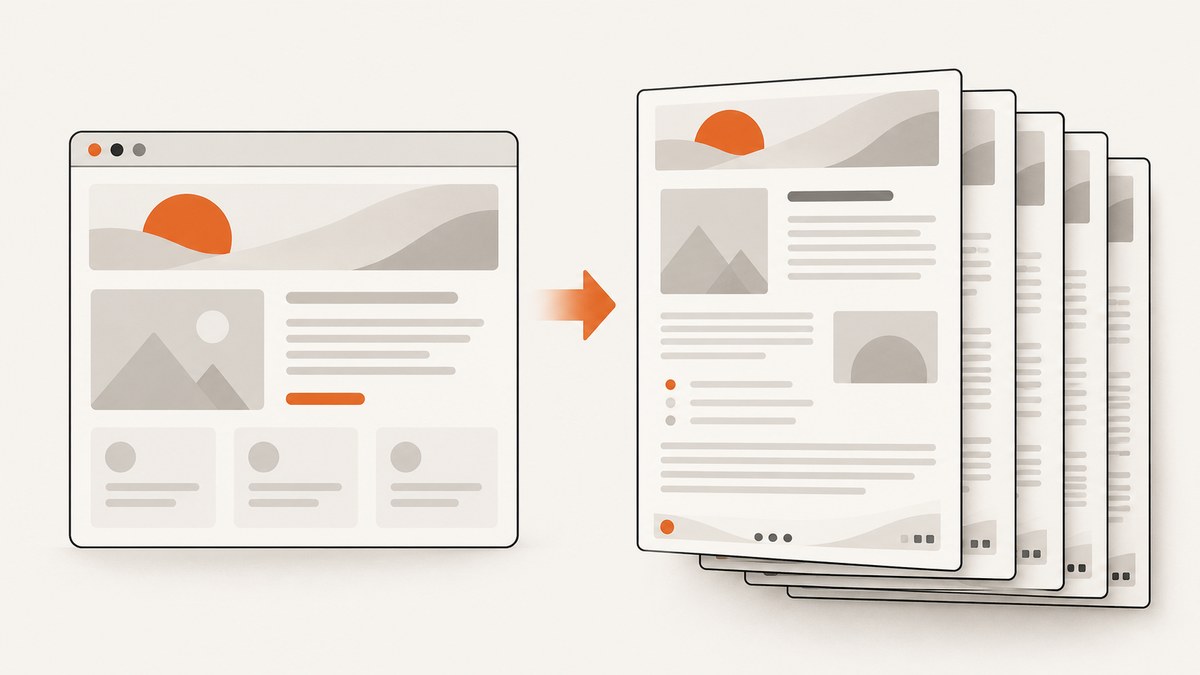
To add repeating headers and footers to a Puppeteer PDF, set displayHeaderFooter: true and provide HTML strings through headerTemplate and footerTemplate. Puppeteer inserts supported values such as the document title, URL, date, current page number, and total page count into elements with special classes.
The smallest working example looks like this:
await page.pdf({
  path: 'output.pdf',
  displayHeaderFooter: true,
  headerTemplate: '<div class="header"><span class="title"></span></div>',
  footerTemplate: '<div class="footer"><span class="pageNumber"></span> / <span class="totalPages"></span></div>',
  margin: {
    top: '60px',
    bottom: '60px'
  }
});
Puppeteer’s PDFOptions documentation lists displayHeaderFooter as false by default. Supplying a template without enabling this flag will not display anything.
Complete Puppeteer example
The following Node.js script opens a page, waits for its content, and writes a PDF with a branded header, footer, page number, total page count, document title, and URL.
import puppeteer from 'puppeteer';

const browser = await puppeteer.launch({
  headless: true
});

try {
  const page = await browser.newPage();
  await page.setTitle('Quarterly report');
  await page.goto('https://example.com/report', {
    waitUntil: 'networkidle0'
  });

  await page.pdf({
    path: 'quarterly-report.pdf',
    format: 'A4',
    printBackground: true,
    displayHeaderFooter: true,
    headerTemplate: `
      <div style="width:100%; font-size:9px; padding:0 24px; color:#555;">
        <span class="title"></span>
        <span style="float:right;"><span class="date"></span></span>
      </div>`,
    footerTemplate: `
      <div style="width:100%; font-size:9px; padding:0 24px; color:#555;">
        <span class="url"></span>
        <span style="float:right;">Page <span class="pageNumber"></span> of <span class="totalPages"></span></span>
      </div>`,
    margin: {
      top: '64px',
      right: '24px',
      bottom: '64px',
      left: '24px'
    }
  });
} finally {
  await browser.close();
}
For a new project, install Puppeteer with npm install puppeteer. The script uses the API documented in the Page.pdf() reference. Adjust the URL, output path, paper format, and template markup for your application.
How header and footer templates work
headerTemplate and footerTemplate are independent HTML snippets. You can supply only one of them, or both. They repeat on every generated page when displayHeaderFooter is enabled.
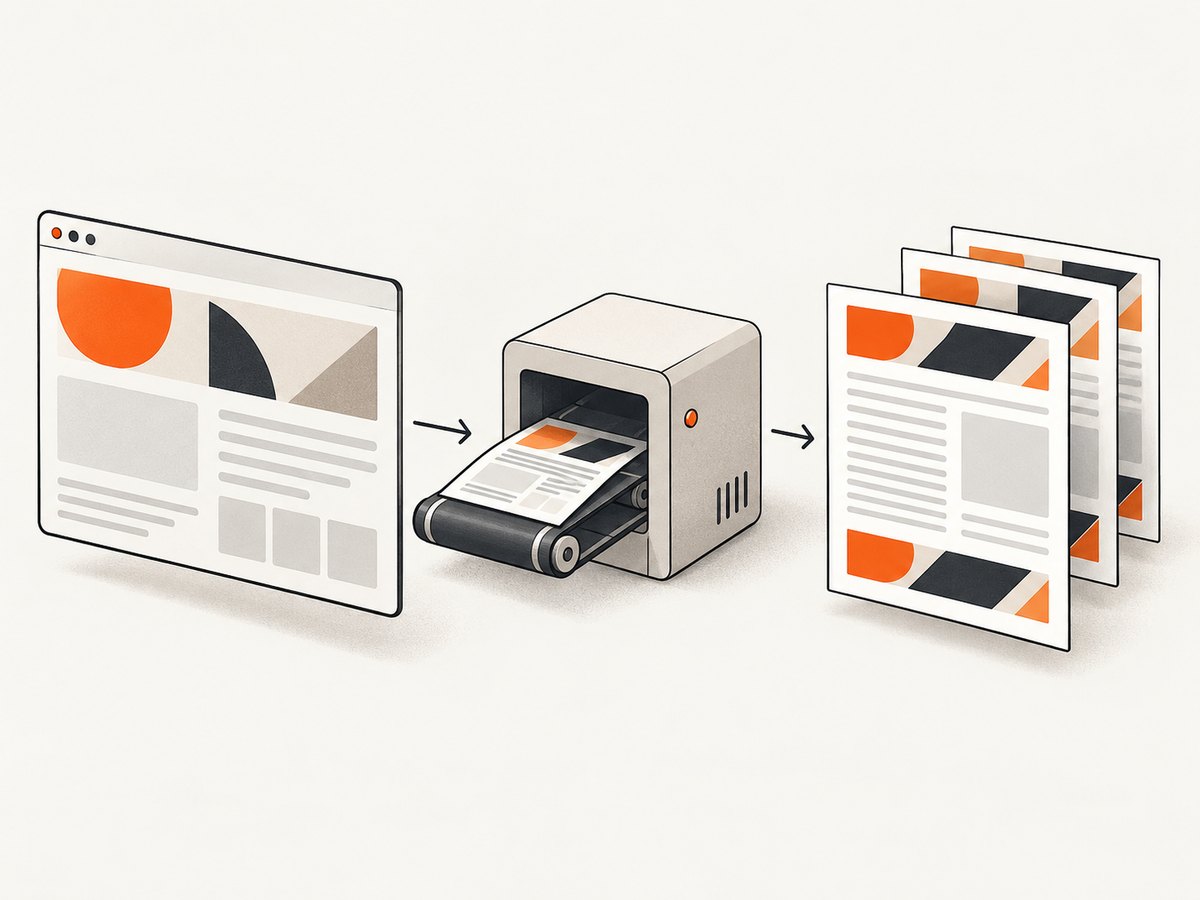
Supported replacement classes
| Class | Value inserted by Puppeteer | Typical use |
|---|---|---|
date |
Formatted print date | Report date or export timestamp |
title |
Document title | Report or page title |
url |
Document location | Source URL or audit trail |
pageNumber |
Current page number | “Page 2” |
totalPages |
Total number of pages | “of 8” |
Use an empty element with one of these classes wherever the value should appear:
<span class="pageNumber"></span>
<span class="totalPages"></span>
The footer has the same template behavior and special-class support as the header. Keep both templates simple. They are print furniture, not a second application page: avoid complex scripts, event handlers, and dependencies on the main document’s component tree.
Reserve space with margins
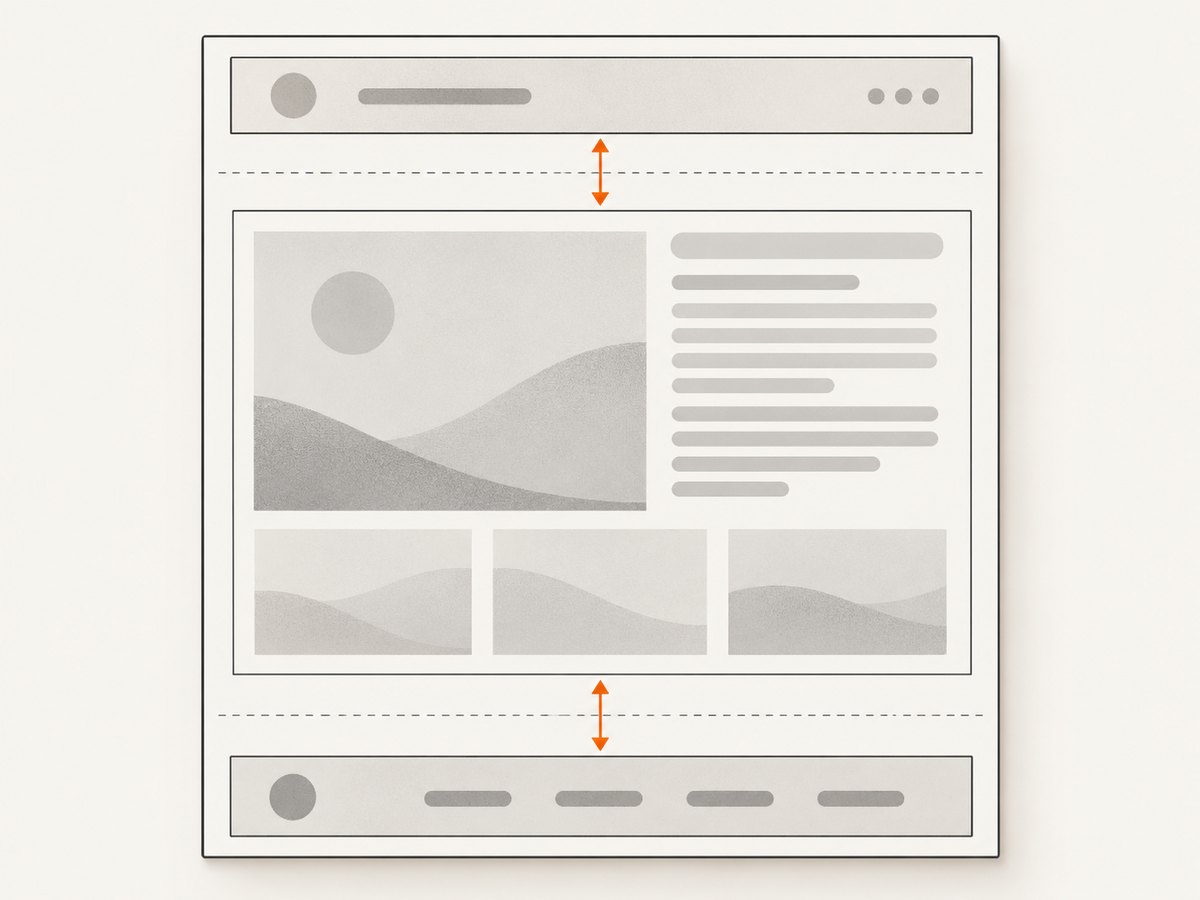
PDF margins are undefined by default. If a header or footer is taller than the available margin, it can overlap the page content or appear clipped. Set margin.top and margin.bottom explicitly, then increase them if your template wraps onto multiple lines.
await page.pdf({
  displayHeaderFooter: true,
  headerTemplate: '<div style="font-size:10px;">Internal report</div>',
  footerTemplate: '<div style="font-size:10px;">Page <span class="pageNumber"></span></div>',
  margin: {
    top: '72px',
    bottom: '72px',
    left: '36px',
    right: '36px'
  }
});
There is no universal correct margin. Header height depends on font size, line wrapping, padding, and paper format. Start with enough room for the largest expected template and inspect pages near content boundaries.
Styling headers and footers
Inline CSS is the safest choice because the template is supplied as an HTML string. Set an explicit font size, color, width, and padding. A full-width wrapper makes alignment predictable.
const headerTemplate = `
  <div style="width:100%; font-family:Arial,sans-serif; font-size:9px; color:#444; padding:0 28px;">
    <span style="font-weight:700;">Acme Documentation</span>
    <span style="float:right;">Version 4.2</span>
  </div>`;

const footerTemplate = `
  <div style="width:100%; font-family:Arial,sans-serif; font-size:8px; color:#666; padding:0 28px;">
    <span>Confidential</span>
    <span style="float:right;">
      <span class="pageNumber"></span> / <span class="totalPages"></span>
    </span>
  </div>`;
For a custom font, make sure the page has loaded it before calling page.pdf(). Puppeteer’s PDF guide documents that PDF generation waits for fonts by default. If exact colors matter, use -webkit-print-color-adjust: exact in the relevant page or template styles, while remembering that print color handling can differ from screen rendering.
Print CSS, screen CSS, and colors
Page.pdf() uses the print CSS media type by default. Rules inside @media print therefore apply to the document. If the PDF must match the screen layout, switch media before generating it:
await page.emulateMediaType('screen');
await page.pdf({
  path: 'screen-style.pdf',
  displayHeaderFooter: true,
  headerTemplate: '<div>Screen export</div>',
  footerTemplate: '<div>Page <span class="pageNumber"></span></div>',
  printBackground: true
});
Use print media when you want a document designed for paper. Use screen media when your existing screen styles are the source of truth. Always check page breaks after switching media because widths, hidden elements, and font metrics can change.
Paper size, orientation, and CSS page size
You can choose a named paper format, explicit dimensions, or landscape orientation:
await page.pdf({
  format: 'Letter',
  landscape: true,
  displayHeaderFooter: true,
  headerTemplate: '<div>Wide report</div>',
  footerTemplate: '<div><span class="pageNumber"></span></div>',
  margin: { top: '56px', bottom: '56px' }
});
The documented default format is Letter. When format is set, it takes priority over width and height. If your site defines @page { size: ... }, set preferCSSPageSize: true when CSS sizing should take priority over PDF option dimensions.
await page.pdf({
  preferCSSPageSize: true,
  displayHeaderFooter: true,
  headerTemplate: '<div>CSS-sized document</div>',
  footerTemplate: '<div>Page <span class="pageNumber"></span></div>'
});
Controlling page breaks and content flow
Headers and footers repeat independently of the document body. To keep headings with their following content, add print rules to the page itself:
<style>
  @media print {
    h2, h3 { break-after: avoid; }
    table, pre { break-inside: avoid; }
    .chapter { break-before: page; }
  }
</style>
Long tables, code blocks, and images can still split when they do not fit on a page. Test the first page, a middle page, and the final page. A footer that looks correct on a short document may collide with content after a large table or an unexpectedly wrapped heading.
Dynamic values in templates
Puppeteer’s special classes cover common document metadata. For application-specific values, interpolate trusted strings before calling page.pdf():
const reportName = 'Finance report';
const revision = 'Revision 7';

const safeHeader = `
  <div style="width:100%; font-size:9px;">
    <span>${reportName}</span>
    <span style="float:right;">${revision}</span>
  </div>`;

await page.pdf({
  path: 'finance.pdf',
  displayHeaderFooter: true,
  headerTemplate: safeHeader,
  footerTemplate: '<div>Page <span class="pageNumber"></span> of <span class="totalPages"></span></div>',
  margin: { top: '60px', bottom: '60px' }
});
Escape user-provided values before placing them in HTML. Do not treat a URL parameter, account name, or report title as trusted markup. A simple HTML escaping function can convert &, <, >, quotes, and apostrophes to entities.
Common errors and fixes
| Symptom | Cause | Fix |
|---|---|---|
| Header or footer is missing | displayHeaderFooter is still false |
Set displayHeaderFooter: true. |
| Content overlaps the header | Top margin is too small | Increase margin.top and check for wrapping. |
| Footer is clipped | Bottom margin does not reserve enough space | Increase margin.bottom. |
| Page number is blank | Wrong class name or malformed HTML | Use exactly class="pageNumber". |
| Total page count is blank | Missing totalPages class |
Add <span class="totalPages"></span>. |
| Colors look washed out | Print color adjustment changed them | Use printBackground: true and consider -webkit-print-color-adjust: exact. |
| Web font is replaced | PDF started before the font loaded | Wait for the page and fonts; retain Puppeteer’s default font waiting behavior. |
| Layout differs from the browser | PDF uses print media | Call page.emulateMediaType('screen') when screen CSS is required. |
| CSS page dimensions are ignored | PDF options take priority | Set preferCSSPageSize: true. |
| Template markup renders unpredictably | Complex scripts or external dependencies | Use small inline HTML and CSS in each template. |
Reliable PDF generation in production
- Wait for the actual content. Use an appropriate
waitUntilvalue and wait for application-specific selectors when data is rendered asynchronously. - Set deterministic dimensions. Choose
formator explicit dimensions, margins, and orientation instead of relying on defaults. - Control external resources. Missing images, blocked fonts, and slow third-party scripts can change pagination.
- Use a stable browser version. Chromium updates can change font metrics and page breaking. Pin dependencies when visual consistency matters.
- Inspect generated files. Check first, middle, and last pages, especially after changing templates or CSS.
- Close pages and browsers. Always use
try/finallyso failed jobs do not leave Chromium processes running.
For high-volume jobs, reuse a browser process carefully, limit concurrent pages, and apply request timeouts. More concurrency is not automatically faster: CPU, memory, fonts, and image decoding can become bottlenecks. Cache stable source pages or generated PDFs when your data freshness rules permit it.
Performance and cost considerations
Header and footer markup itself is usually small; navigation, JavaScript execution, font loading, large images, and page count dominate generation time. Reduce unnecessary third-party requests, avoid oversized images, and wait only for the readiness condition your page actually needs. A fixed delay can be useful for a known animation, but selector or network-based readiness is generally easier to reason about.
PDFs also consume more memory than a single viewport screenshot because Chromium lays out and renders every page. Set job limits, collect failures, and retry only transient navigation or resource errors. Do not blindly retry malformed templates or invalid URLs.
Or skip the browser setup
If you need a hosted screenshot or PDF endpoint instead of maintaining Chromium, ScreenshotNeo provides a GET API and PDF capture options. It removes cookie and consent banners, newsletter popups, and chat widgets before capture; bot checks, blank pages, timeouts, failed loads, and cache hits are not billed. Responses identify the result with X-Page-Verdict and X-Billed headers. Its MCP server provides take_screenshot, get_page_info, and capture_pdf tools for Claude, Cursor, and other MCP clients.
See the ScreenshotNeo documentation for PDF parameters such as paper size, margins, landscape mode, and page ranges.
curl -G "https://api.screenshotneo.com/v1/shot" \
  -d access_key=YOUR_API_KEY \
  --data-urlencode url=https://stripe.com \
  -o shot.webp
import requests
r = requests.get(
"https://api.screenshotneo.com/v1/shot",
params={"access_key": "YOUR_API_KEY", "url": "https://stripe.com"},
timeout=90,
)
r.raise_for_status()
open("shot.webp", "wb").write(r.content)const q = new URLSearchParams({
access_key: 'YOUR_API_KEY',
url: 'https://stripe.com'
});
const res = await fetch(`https://api.screenshotneo.com/v1/shot?${q}`);
if (!res.ok) throw new Error(`HTTP ${res.status}`);
const file = Buffer.from(await res.arrayBuffer());
await import('node:fs/promises').then(fs => fs.writeFile('shot.webp', file));ScreenshotNeo includes full-page capture with lazy images loaded, CSS selector element capture, custom CSS and JavaScript, clicks, waits, blocking controls, headers, cookies, user agents, authorization, timezone and geolocation settings, transparent backgrounds, resizing, caching, signed links, asynchronous jobs with signed webhooks, bulk capture for up to 100 URLs per call, usage reporting, and an OpenAPI specification. Every feature is available on every plan. The Free plan includes 1,000 shots per month with no card; paid plans start at $5 for 3,000 shots.
Create a free ScreenshotNeo account and start with 1,000 screenshots per month at no charge.
FAQ
Can I use only a footer?
Yes. Enable displayHeaderFooter, provide footerTemplate, and omit headerTemplate. Reserve bottom margin for the footer.
Can a header contain page numbers?
Yes. The pageNumber and totalPages classes work in either template.
Why does my PDF use print styles?
Puppeteer generates PDFs with print media by default. Call page.emulateMediaType('screen') before page.pdf() to use screen styles.
Do margins have defaults?
The PDFOptions documentation leaves margins undefined by default. Set them explicitly when using repeating furniture.
How do I make CSS define the paper size?
Define @page rules and set preferCSSPageSize: true so CSS sizing takes priority over PDF option dimensions.
Are headers and footers part of the page body?
No. They are separate repeating templates rendered by the PDF engine. Plan their space with margins and keep their markup self-contained.


