How to Fix Puppeteer PDF’s Invalid “handle” Parameter Error
Diagnose Puppeteer’s IO.read invalid handle error with version checks, minimal reproductions, browser pairing tests, and deployment fixes.
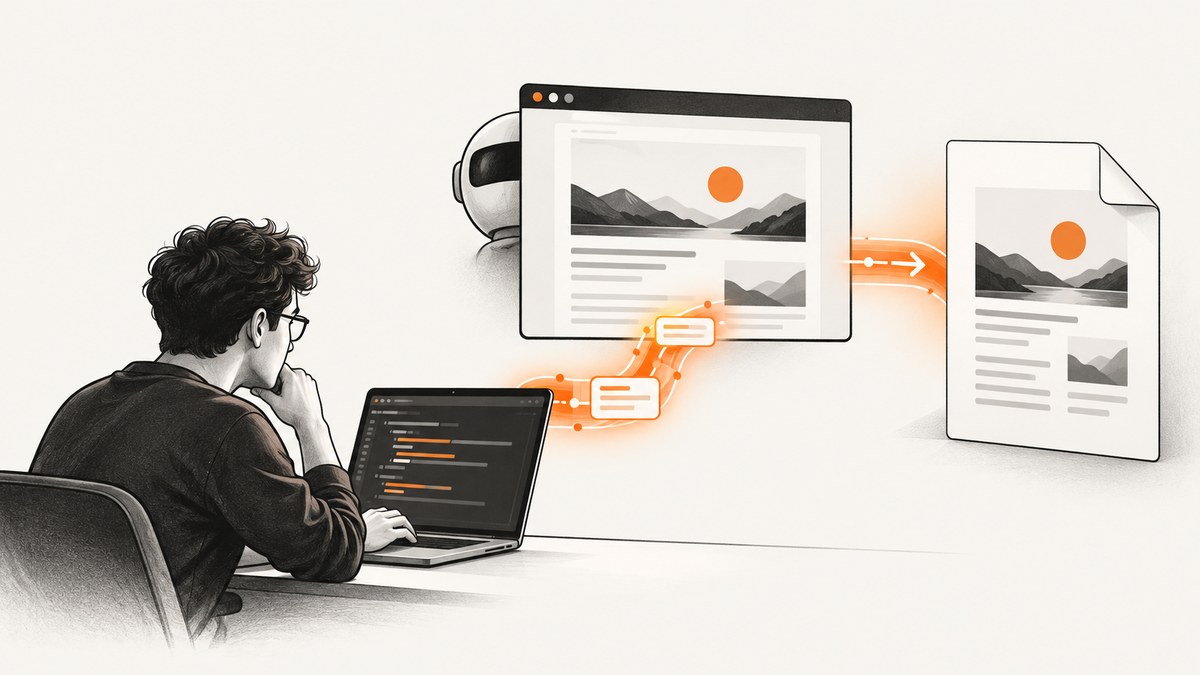
Short answer: Puppeteer’s Protocol error (IO.read): Invalid parameters handle: string value expected error occurs while Puppeteer is reading PDF output through the Chrome DevTools Protocol (CDP). There is no universally confirmed one-line fix for the historical report. Start by recording the exact Puppeteer, browser, Node.js, operating system, and serverless versions; verify that the browser matches the Puppeteer package; then reduce the call to a minimal page.pdf() reproduction and compare local and deployment behavior.
The known report came from Puppeteer 1.18.0 running on AWS Lambda/Amazon Linux with Node.js 8.10. The issue page does not document a maintainer-confirmed root cause or resolution. Treat upgrades, launch flags, and PDF-option changes as experiments to validate against your own reproduction, not guaranteed remedies.
What the “handle” refers to
The word handle is overloaded in Puppeteer. A JSHandle or ElementHandle is a reference to a JavaScript value or DOM element inside a page execution context. The handle in this error is different: it is a CDP IO.StreamHandle, a protocol reference used when streamed output is read from the browser.
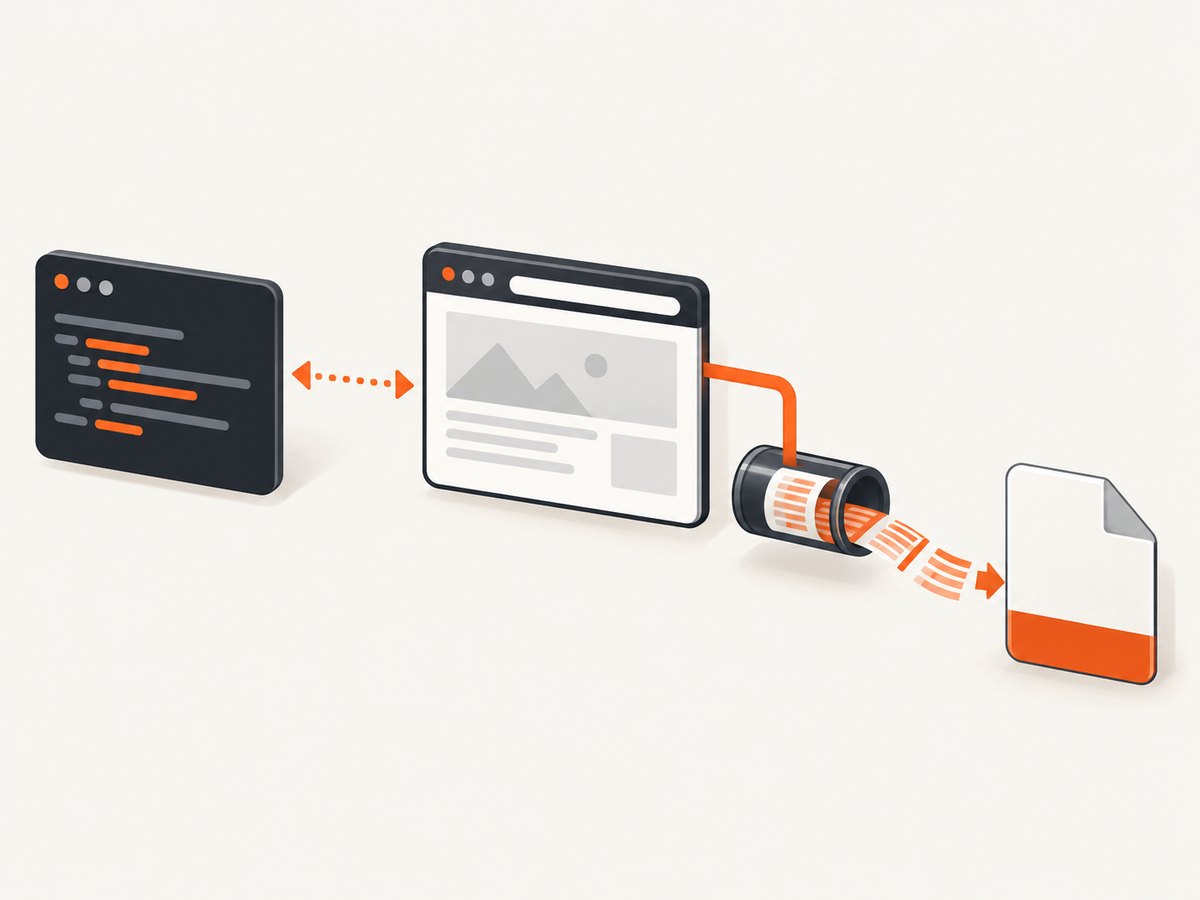
CDP’s Page.printToPDF method can return PDF data or a stream handle. The IO.read method consumes that stream. Because the stack enters IO.read, PDF stream handling is a useful diagnostic area. It does not, by itself, prove whether the cause is a browser/protocol mismatch, a runtime packaging problem, or another deployment-specific condition.
Diagnostic checklist
- Capture the complete environment. Record
puppeteerorpuppeteer-coreversion, the actual Chrome or Chromium executable and version, Node.js version, operating system or container image, CPU architecture, and serverless runtime. - Identify the browser that really starts. With
puppeteer-core, Puppeteer does not install a browser for you. Check the value ofexecutablePath, the remote browser endpoint, or the container image rather than assuming the package’s expected browser is being used. - Build a minimal reproduction. Create a new page, set a short HTML string, and call
page.pdf()with only a path or the defaults. Do not begin with your production page, custom fonts, request interception, or complex margin and header options. - Run the same script locally and in deployment. A local success and deployment failure points toward the deployed browser binary, package installation, architecture, runtime, or launch configuration. A failure in both environments points toward the package/browser pairing or the minimal call itself.
- Add options one at a time. Reintroduce format, margins, CSS page sizing, headers and footers, page ranges, background printing, and other settings separately. Keep a record of the first option that changes the result.
- Preserve the full stack trace. A stack containing
IO.readhelps distinguish stream consumption from unrelated errors involving DOM handles.
Minimal Puppeteer PDF reproduction
Use a fresh directory so application code cannot hide the failure. This script is intentionally small and uses a temporary output file.
const puppeteer = require('puppeteer');

(async () => {
  const browser = await puppeteer.launch({
    // Set executablePath only when your deployment supplies its own browser.
    // executablePath: process.env.CHROME_PATH,
    headless: true
  });

  try {
    const page = await browser.newPage();
    await page.setContent(`<!doctype html>
      <html>
        <head><meta charset="utf-8"><title>PDF test</title></head>
        <body><h1>PDF test</h1><p>Minimal reproduction.</p></body>
      </html>`, { waitUntil: 'load' });

    await page.pdf({
      path: '/tmp/puppeteer-test.pdf',
      format: 'A4',
      printBackground: true
    });

    console.log('PDF created');
  } finally {
    await browser.close();
  }
})();
Run it with:
npm init -y
npm install puppeteer
node pdf-repro.js
If the script works, gradually copy your real page and options into it. If it fails, save the package version and browser version before changing anything.
Verify Puppeteer and browser pairing
First inspect the installed packages:
npm ls puppeteer puppeteer-core
node --version
Then determine the executable that is actually launched. For a system browser, run its version command directly:
google-chrome --version
chromium --version
 chromium-browser --version
Remove the accidental leading space before chromium-browser if you copy that command into a shell.
With puppeteer-core, make the path explicit and log it in the deployment environment:
const puppeteer = require('puppeteer-core');

const executablePath = process.env.CHROME_PATH;
if (!executablePath) throw new Error('CHROME_PATH is required');

const browser = await puppeteer.launch({
  executablePath,
  headless: true
});
Do not infer compatibility solely from a semver range in package.json. A container can contain an older or newer browser than the one used during local development, and a remote browser endpoint can change independently of your Node dependency.
Deployment-specific checks
AWS Lambda and serverless runtimes
The historical report used AWS Lambda, Amazon Linux, and Node.js 8.10. Those details matter because old runtimes, browser bundles, native libraries, and CPU architectures can affect CDP behavior. Compare the deployed artifact with the local one:
- Confirm that the browser executable exists at the path passed to Puppeteer.
- Confirm that the executable has permission to run and that required shared libraries are present.
- Confirm that the function architecture matches the browser package architecture.
- Log the browser version from inside the function, not only from your workstation.
- Check whether a layer, container image, or build step silently replaces the browser.
- Keep the minimal reproduction in the same handler and deployment image as the failing code.
A launch flag should be added only when your runtime’s documented constraints require it. The cited report does not establish that a particular flag fixes the invalid-handle error.
Containers
Pin the base image, browser package, and Node.js version while diagnosing. Rebuild without a stale dependency cache, then print versions during startup. If a minimal PDF works in one image but not another, compare the browser binary, libraries, architecture, and Puppeteer package before changing PDF dimensions or page content.
Reduce PDF options systematically
Once the minimal call works, add options in a controlled order:
format: 'A4'or another standard format.printBackground: true.- Margins and CSS page sizing.
- Header and footer templates.
- Page ranges.
- Custom fonts, images, and long or lazy-loaded pages.
Use a new output path for every run and ensure the process can write there. A filesystem error usually reports a path or permission problem rather than an IO.read handle error, but isolating output removes one variable from the investigation.
Common errors and fixes
| Error or symptom | Likely investigation | Action |
|---|---|---|
Invalid parameters handle: string value expected in IO.read |
PDF stream consumption and browser/protocol pairing | Record versions, verify the executable, and reproduce with the minimal script. |
| Works locally, fails only in Lambda or a container | Different browser binary, architecture, libraries, or runtime | Log the deployed browser version and compare the complete environment. |
Fails after switching to puppeteer-core |
Unexpected or unsupported browser endpoint | Set and log executablePath or the remote endpoint explicitly. |
| Only a complex page fails | Option, resource, or page-state interaction | Start from static HTML and add page content and PDF options incrementally. |
| “No usable browser found” | Missing executable or incorrect path | Install/provide the browser in the deployment artifact and use the correct path. |
| PDF is empty or missing assets | Capture starts before resources finish loading | Wait for the appropriate page state, fonts, images, or application selector before calling page.pdf(). |
| “Target closed” during PDF generation | Browser crash, process termination, or resource exhaustion | Inspect memory and process logs, then retry the minimal reproduction in the same runtime. |
What not to assume
- Do not treat this as a disposed
ElementHandleproblem solely because the message says “handle.” - Do not claim that upgrading Puppeteer definitely fixes the historical report; the issue page does not document that resolution.
- Do not delete browser caches or change paper size at random. Make one controlled change and keep the failing reproduction.
- Do not report only “invalid handle.” Include the complete
IO.readmessage, stack, versions, runtime, and minimal script.
Reliability and performance practices
Keep one browser process warm when your platform allows it, but create a fresh page per job and close pages after use. Set explicit navigation and application-level timeouts so a page cannot consume the entire invocation. Limit concurrent PDF jobs according to available memory, and monitor browser process exits separately from application exceptions.

For repeatable output, pin your Node.js runtime, Puppeteer dependency, browser binary, and container or layer digest. Store the exact environment details with failed jobs. When diagnosing, remove request interception and third-party scripts; restore them only after the basic PDF path is stable.
There is no supported benchmark in the available evidence for a particular browser version, launch flag, or PDF option. Measure your own pages in the deployment environment if latency or memory is a concern.
Or skip the browser setup
If your goal is simply to turn a URL into a PDF or image, ScreenshotNeo provides a website screenshot API and MCP server. It handles the browser layer through one request and supports PDF options such as paper size, margins, landscape mode, and page ranges. See the ScreenshotNeo API documentation for request parameters.
cURL:
curl -G "https://api.screenshotneo.com/v1/shot" \
  -d access_key=YOUR_API_KEY \
  --data-urlencode url=https://stripe.com \
  -o shot.webp
Python:
import requests

r = requests.get(
    "https://api.screenshotneo.com/v1/shot",
    params={"access_key": "YOUR_API_KEY", "url": "https://stripe.com"},
    timeout=90,
)
r.raise_for_status()
open("shot.webp", "wb").write(r.content)
Node.js:
const q = new URLSearchParams({ access_key: 'YOUR_API_KEY', url: 'https://stripe.com' });
const res = await fetch(`https://api.screenshotneo.com/v1/shot?${q}`);
if (!res.ok) throw new Error(`Screenshot failed: ${res.status}`);
const data = Buffer.from(await res.arrayBuffer());
require('fs').writeFileSync('shot.webp', data);
ScreenshotNeo removes cookie and consent banners, newsletter popups, and chat widgets before capture. Bot checks, blank pages, failed loads, timeouts, and cache hits are not billed, and response headers identify the page verdict and billing status. Its MCP server lets Claude, Cursor, and other MCP clients call take_screenshot, get_page_info, and capture_pdf. The Free plan includes 1,000 shots each month without a card; paid plans start at $5 for 3,000 shots. Create a free ScreenshotNeo account.
How to report a reproducible failure
Include:
- The exact error and complete stack trace.
- Puppeteer and
puppeteer-coreversions fromnpm ls. - Chrome or Chromium version and executable path.
- Node.js version, operating system, architecture, and serverless runtime.
- The smallest script that still fails.
- Whether the same script succeeds locally.
- The PDF options present when the error appears.
This information separates a protocol-stream failure from unrelated page, filesystem, or deployment errors and makes an issue actionable.
FAQ
Is this caused by a bad DOM element handle?
Usually you should not assume that. DOM handles and CDP IO stream handles are different types. The IO.read location points toward PDF output consumption.
Should I immediately upgrade Puppeteer?
Check the pairing first and test an upgrade in a minimal reproduction. The historical issue does not record a confirmed upgrade-based fix.
Can changing format or margins fix it?
Only if your reproduction shows that a specific option triggers the failure. Start with defaults and add options individually.
Why does it happen only in production?
Production may use a different browser binary, architecture, runtime, library set, or launch configuration. Log those values inside the deployment environment.
Can ScreenshotNeo return PDFs instead of images?
Yes. Its API supports PDF capture with paper size, margins, landscape mode, and page ranges; consult the documentation for the exact request parameters.


