How to Generate and Download PDFs With Puppeteer in NestJS and React
Build a reliable Puppeteer PDF endpoint in NestJS, preserve React styling, stream downloads, and handle authentication, errors, and large files.

To generate a PDF with Puppeteer in NestJS, render the document in a server-side Chromium page, wait for data, fonts and images, call page.pdf(), and return the resulting bytes with Content-Type: application/pdf. In React, request the endpoint as binary data, create a Blob URL, click a temporary download link, and revoke the URL.
This architecture keeps browser automation on the server while the React app remains responsible for user interaction. It also gives you one place to enforce authorization, select print settings, control CSS media, and decide whether to buffer, stream or persist the generated file.
1. Request-to-download architecture
A typical report download follows these steps:
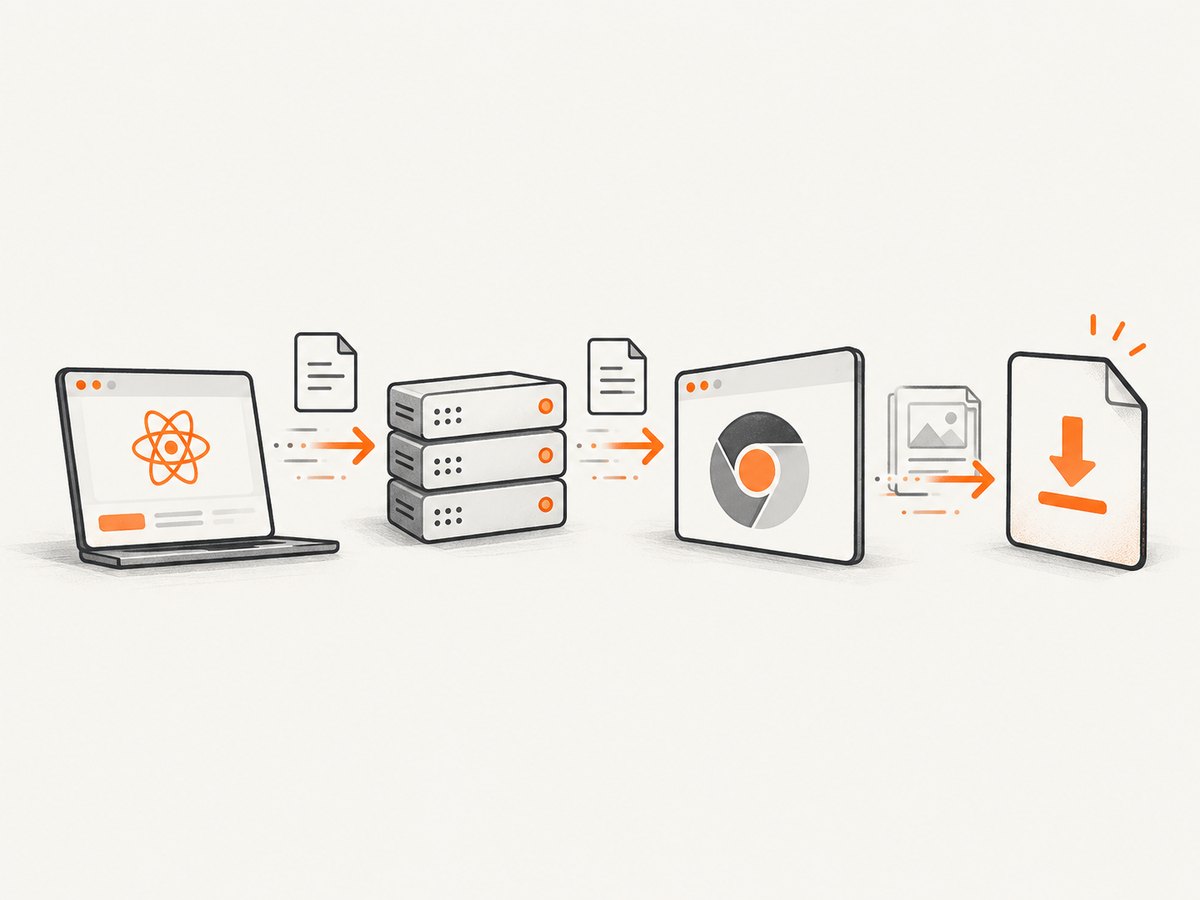
- React calls
GET /reports/:id/pdf, or sends aPOSTwhen the PDF depends on submitted form data. - NestJS validates the report ID, the authenticated user and any input.
- A PDF service launches Puppeteer, opens a page and loads a stable URL or an HTML string.
- The service waits for application data, images and fonts, then calls
page.pdf(). - The controller returns a
StreamableFilewith PDF headers. - React receives the response as a Blob and starts a browser download.
Puppeteer documents Page.pdf() as the PDF generation primitive. It renders with the print CSS media type by default and returns a Promise<Uint8Array>. See the Puppeteer PDF guide and Page.pdf API reference.
2. Install Puppeteer in NestJS
npm install puppeteer
npm install -D @types/node
The standard puppeteer package downloads a compatible browser during installation. In a container or restricted deployment, you may instead use a system Chromium binary and pass its executable path to puppeteer.launch(). The correct launch flags depend on that environment, so keep them in configuration rather than scattering them through application code.
3. Create the PDF service
The service below accepts HTML, waits for network activity and fonts, enables background colors, and closes the browser even when rendering fails. preferCSSPageSize lets an @page rule control the physical page size when your document defines one.
import puppeteer from 'puppeteer';

export async function renderPdf(html: string): Promise<Uint8Array> {
  const browser = await puppeteer.launch();
  try {
    const page = await browser.newPage();

    await page.setContent(html, { waitUntil: 'networkidle0' });
    await page.evaluate(() => document.fonts.ready);

    return await page.pdf({
      format: 'A4',
      printBackground: true,
      preferCSSPageSize: true,
      margin: {
        top: '16mm',
        right: '14mm',
        bottom: '16mm',
        left: '14mm',
      },
    });
  } finally {
    await browser.close();
  }
}
For a React route, replace setContent with page.goto(url, { waitUntil: 'networkidle0' }). Only render a URL that the server can access and that contains the data needed for the report. If the route requires a session, use a controlled authentication mechanism such as a short-lived token or server-side HTML generation; never place a user’s long-lived secret in page markup.
Use screen styles when the PDF should match the app
PDF generation uses print media by default. If your design is written for the screen, select screen media before generating the file:
await page.emulateMediaType('screen');
await page.pdf({
  format: 'A4',
  printBackground: true,
  preferCSSPageSize: true,
});
For exact colors, add print-color-adjust to the relevant rules:
.invoice-header {
  background: #17324d;
  color: white;
  print-color-adjust: exact;
  -webkit-print-color-adjust: exact;
}
Use @media print for print-only adjustments, and avoid relying on hover, animation or viewport-only interactions. A PDF captures the rendered state at the moment page.pdf() runs.
4. Page size, margins and layout options
Choose either a named format such as A4 or explicit dimensions. If the document owns its page dimensions, define them in CSS and set preferCSSPageSize: true:
@page {
  size: A4;
  margin: 16mm 14mm;
}

@media print {
  .page-break {
    break-before: page;
  }
  .avoid-split {
    break-inside: avoid;
  }
}
The main options you will use are:
| Option | Purpose |
|---|---|
format |
Named paper size such as A4 or Letter. |
width, height |
Custom page dimensions. |
landscape |
Rotate the page orientation. |
margin |
Top, right, bottom and left margins. |
printBackground |
Include CSS backgrounds and colors. |
preferCSSPageSize |
Prefer the document’s @page size. |
displayHeaderFooter |
Enable HTML header and footer templates. |
headerTemplate, footerTemplate |
Supply markup for repeated headers and footers. |
pageRanges |
Generate selected pages, for example 1-3. |
outline |
Request a document outline where supported by your Puppeteer version. |
Keep header and footer templates self-contained. They have limited styling support and do not share normal page layout state. Reserve enough top or bottom margin for the template or it can overlap body content.
5. Return a PDF from a NestJS controller
NestJS’s StreamableFile can send a Buffer, Uint8Array or stream with type, disposition and length metadata. The following controller validates the route parameter in the service layer and returns an attachment:
import {
  Controller,
  Get,
  Param,
  StreamableFile,
} from '@nestjs/common';

@Controller('reports')
export class ReportsController {
  constructor(private readonly reportsService: ReportsService) {}

  @Get(':id/pdf')
  async download(@Param('id') id: string): Promise<StreamableFile> {
    const pdf = await this.reportsService.render(id);

    return new StreamableFile(pdf, {
      type: 'application/pdf',
      disposition: `attachment; filename="report-${id}.pdf"`,
      length: pdf.byteLength,
    });
  }
}
NestJS documents these StreamableFile options in its streaming files documentation. Use a safe filename derived from a validated identifier. Do not copy arbitrary user input directly into Content-Disposition.
Buffer versus stream
A Uint8Array is straightforward for ordinary reports. It keeps the whole PDF in memory, which is acceptable for small documents but can become expensive when several renders run concurrently.
For a large upstream PDF or a persisted file, request it as a stream and pass that stream to StreamableFile. NestJS’s HTTP client documentation shows the responseType: 'stream' pattern:
const upstream = await firstValueFrom(
  this.httpService.get(fileUrl, { responseType: 'stream' }),
);

return new StreamableFile(upstream.data, {
  type: 'application/pdf',
  disposition: 'attachment; filename="report.pdf"',
});
Streaming reduces buffering in your application, but Chromium still has to render a generated PDF before a generated response can begin. If users repeatedly download the same report, persist the result and serve it from storage with an expiring signed URL.
6. Download the PDF in React
export async function downloadReport(id: string) {
  const response = await fetch(`/api/reports/${encodeURIComponent(id)}/pdf`, {
    credentials: 'include',
  });

  if (!response.ok) {
    throw new Error(`PDF request failed: ${response.status}`);
  }

  const blob = await response.blob();
  const url = URL.createObjectURL(blob);
  const anchor = document.createElement('a');
  anchor.href = url;
  anchor.download = `report-${id}.pdf`;
  document.body.appendChild(anchor);
  anchor.click();
  anchor.remove();
  URL.revokeObjectURL(url);
}
Call this function from a button and show progress or a disabled state while it runs. The browser’s download name comes from the React download attribute; the server’s Content-Disposition remains important for direct navigation and other clients.
For a cross-origin API, configure CORS for the exact frontend origin. If cookies are used, enable credentials on both sides and use an appropriate cookie policy. Do not expose an unauthenticated endpoint that accepts arbitrary URLs or report identifiers.
7. Rendering a React page reliably
There are two practical approaches:
- Render a dedicated server route. Puppeteer navigates to a route that loads the report data and applies the same CSS as the app.
- Render a server-built HTML document. NestJS creates an HTML template from validated data and passes it to
page.setContent().
A dedicated route is convenient, but it must be reachable from the NestJS process and must have deterministic authentication. HTML generation gives tighter control over secrets and dependencies.
Wait for application-specific readiness rather than relying only on network idle:
await page.goto(reportUrl, { waitUntil: 'domcontentloaded' });
await page.waitForSelector('[data-pdf-ready]', { timeout: 30000 });
await page.evaluate(() => document.fonts.ready);
await page.pdf({ format: 'A4', printBackground: true });
Mark the page ready only after data has loaded and important images are complete. If you use lazy-loaded images, scroll the page or load those assets explicitly before capture. Keep external fonts and images accessible to the server and use absolute URLs when rendering from HTML.
8. Authentication, authorization and data safety
- Authorize the report before launching Chromium. Do not spend render resources on requests the user cannot access.
- Validate IDs and submitted filters with DTOs or equivalent schema validation.
- Use a short-lived, scoped token for a private render route, or construct the HTML in NestJS.
- Do not put API keys, session cookies or internal URLs in visible HTML.
- Escape user-controlled text before inserting it into HTML. Treat user content as data, not markup.
- Set a safe filename and avoid CRLF characters in response headers.
9. Troubleshooting common failures
| Symptom | Likely cause | Fix |
|---|---|---|
| PDF is blank | Rendering ran before React populated the page. | Wait for a readiness selector, data promise or explicit application event. |
| Colors or backgrounds are missing | Print CSS disables them. | Set printBackground: true and use print-color-adjust: exact. |
| Layout differs from the browser | Puppeteer uses print media by default. | Call page.emulateMediaType('screen'), then add print-specific rules. |
| Fonts fall back | Font requests are blocked or the PDF starts too early. | Make font URLs reachable, wait for document.fonts.ready, and check CSP. |
| Images are absent | Lazy loading or relative URLs. | Use absolute URLs, wait for image completion and trigger lazy content before capture. |
| Navigation times out | Third-party requests never settle or the route is inaccessible. | Use a deliberate timeout, remove unnecessary dependencies and verify server-to-server access. |
| Browser process crashes | Concurrent Chromium processes exhaust memory. | Limit concurrency, reuse a controlled browser strategy and monitor memory. |
| Download opens as text | Incorrect response headers. | Send application/pdf and a valid Content-Disposition. |
| 401 or 403 during navigation | The render page has no valid session. | Use a scoped render token or generate HTML inside NestJS. |
| Filename is unsafe | Unvalidated user input entered the header. | Use a fixed pattern such as report-${validatedId}.pdf. |
Always close the browser in a finally block. If an error occurs before headers are sent, return a clear 4xx or 5xx response. Once a response has begun, the client may receive an incomplete file, so log the render ID and duration for diagnosis.
10. Performance, reliability and cost
Chromium startup and page rendering are the expensive parts of this design. Keep report HTML small, avoid unnecessary third-party scripts, and do not render more pages than the user needs. A queue with a bounded worker count prevents traffic spikes from launching unlimited browsers. Set navigation and render timeouts that match your deployment instead of allowing requests to hang indefinitely.
For repeat downloads, cache or persist a PDF keyed by report version, locale and relevant filters. Invalidate it when source data changes. For very large files, stream persisted content and support range requests through your storage layer. Capture structured logs for authorization result, navigation time, render time, byte size and failure reason.
Exact limits depend on your hosting environment: memory, CPU, Chromium version, document complexity and concurrency all matter. Measure with your own reports before selecting worker counts or request limits.
11. Or skip the browser setup
ScreenshotNeo provides a website capture API and MCP server. It can produce a PDF from a URL while handling the browser service for you. The API accepts the same common screenshot parameters many services use, which helps when switching.

curl -G 'https://api.screenshotneo.com/v1/shot' \
  -d access_key=YOUR_API_KEY \
  --data-urlencode url=https://stripe.com \
  -o report.pdf
import requests
r = requests.get(
'https://api.screenshotneo.com/v1/shot',
params={'access_key': 'YOUR_API_KEY', 'url': 'https://stripe.com'},
timeout=90,
)
r.raise_for_status()
open('report.pdf', 'wb').write(r.content)const q = new URLSearchParams({
access_key: 'YOUR_API_KEY',
url: 'https://stripe.com',
});
const res = await fetch(`https://api.screenshotneo.com/v1/shot?${q}`);
if (!res.ok) throw new Error(`ScreenshotNeo request failed: ${res.status}`);
const pdf = Buffer.from(await res.arrayBuffer());See the ScreenshotNeo API documentation for PDF parameters such as paper size, margins, landscape mode and page ranges. It also supports custom CSS and JavaScript, custom headers and cookies, user agents, authorization, timezone and geolocation, waiting for selectors or network idle, and bulk capture.
Before capture, ScreenshotNeo accepts cookie or consent banners and removes more than 60 known consent platforms, newsletter popups and chat widgets; each step can be disabled. Bot checks and CAPTCHAs, blank pages, timeouts, failed loads and cache hits cost nothing, and the response reports the page verdict and billing status in X-Page-Verdict and X-Billed headers. Its MCP server exposes take_screenshot, get_page_info and capture_pdf for Claude, Cursor and other MCP clients.
The Free plan includes 1,000 shots per month with no card. Paid plans start at $5 for 3,000 shots, and every feature is available on every plan. Create a free ScreenshotNeo account and try the PDF endpoint.
12. Practical implementation checklist
- Validate authorization before starting Puppeteer.
- Use a stable URL or deterministic HTML.
- Wait for data, fonts, images and a readiness marker.
- Select screen or print media intentionally.
- Enable backgrounds when the design needs them.
- Set page size and margins with CSS or explicit PDF options.
- Close the browser in
finally. - Return correct PDF headers and a safe filename.
- Use Blob handling and URL cleanup in React.
- Bound concurrency and set timeouts.
- Cache or persist repeated, expensive documents.
- Log enough context to diagnose failed renders without logging secrets.
13. FAQ
Does Puppeteer generate a PDF from the current browser screen?
It generates a PDF from the rendered page, using print media by default. Select screen media when the PDF should follow screen-oriented CSS.
Should the endpoint be GET or POST?
Use GET for a stable report identified by a URL-safe ID. Use POST when the document depends on a submitted payload or complex filters.
Can React generate the PDF itself?
React can print a page, but server-side Puppeteer gives you consistent Chromium rendering and keeps PDF generation away from the user’s device.
When should I stream?
Stream persisted or proxied large files. For a freshly generated ordinary report, a Uint8Array with StreamableFile is usually simpler.
Why does the PDF have different page breaks?
PDF layout follows print pagination. Define @page, use break-before or break-inside, and test content at the target paper size.


