How to Make Puppeteer PDF Page Breaks Match HTML Exactly
Control Puppeteer PDF page breaks with print CSS, fixed page geometry, and stable assets. Learn what you can make repeatable—and what CSS leaves to Chromium.
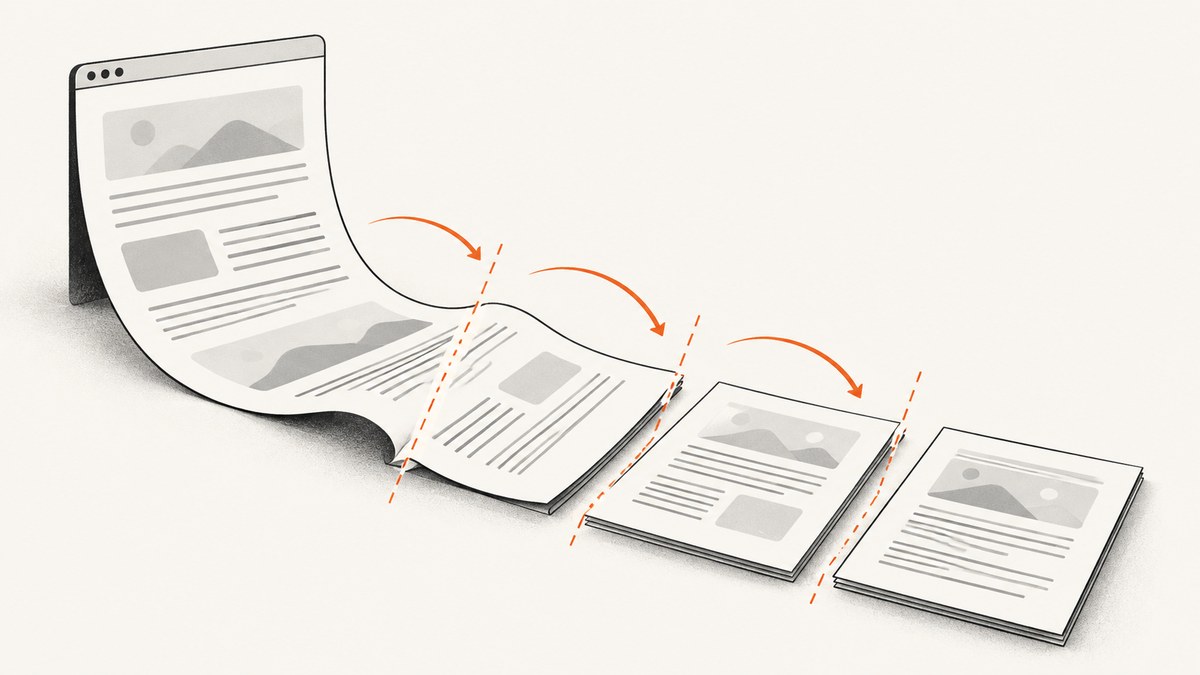
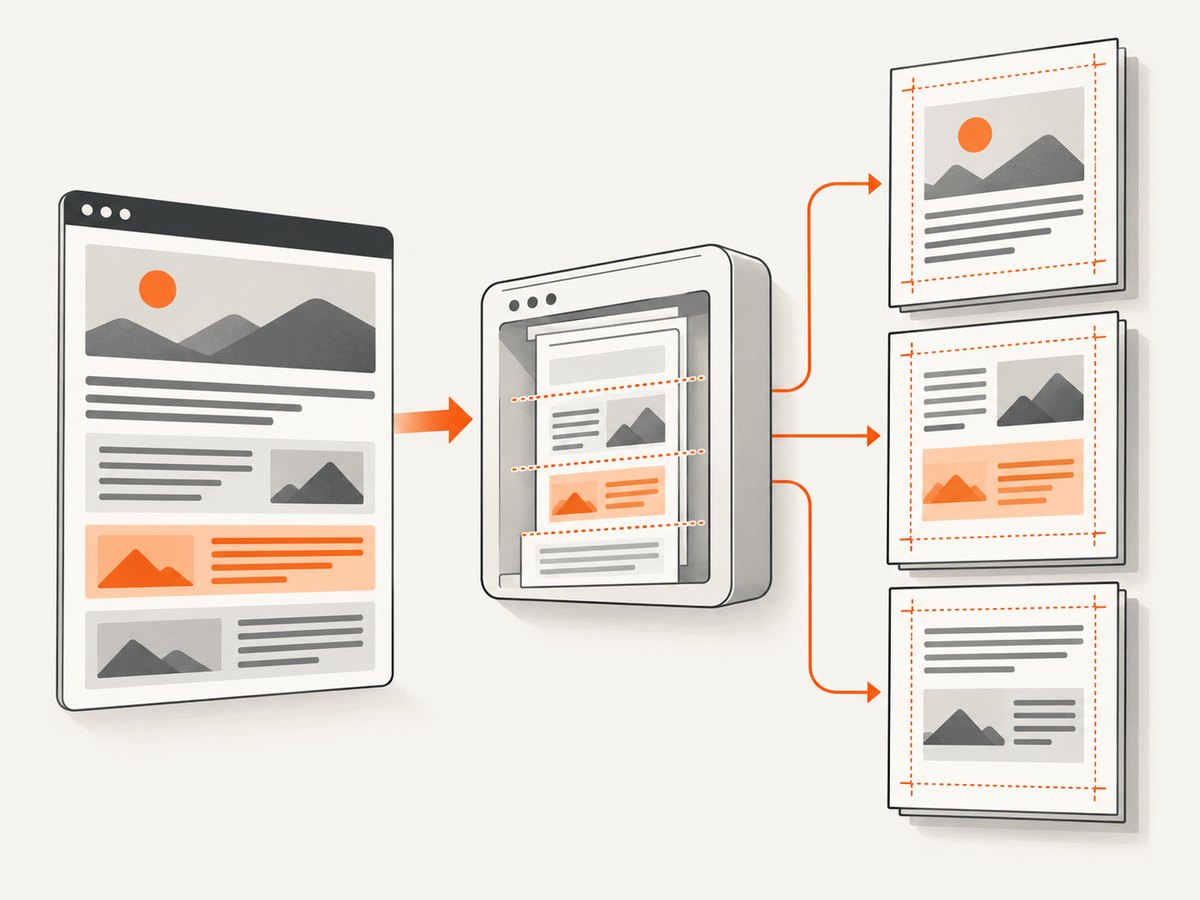
Direct answer: define your paper size and margins in print CSS with @page, generate the PDF with Puppeteer’s preferCSSPageSize: true, and use break-before, break-after, and break-inside at deliberate block boundaries. Wait for your data, fonts, and images before calling page.pdf(). These steps make page breaks repeatable for a given document and browser version; they cannot guarantee identical pagination across browser engines or changing content.
Puppeteer generates PDFs using the print media type. A PDF is paged output, not a screen capture of a continuous page, and CSS allows the browser to select among some valid break points. The practical goal is to control the inputs, force the boundaries you care about, and validate the result using the same Chromium and Puppeteer versions you ship. Puppeteer Page.pdf API · W3C paged media rules
1. Set print CSS and one source of page geometry
Choose a single place to define paper dimensions. For CSS-owned geometry, put size and margins in @page and set preferCSSPageSize: true. Otherwise Puppeteer may use its PDF paper options, whose defaults or explicit values can scale the content relative to your CSS page size. The option gives a CSS @page size priority over format, width, and height. Avoid defining conflicting geometry in both places.
/* print.css */
@page {
  size: A4 portrait;
  margin: 16mm 14mm 18mm;
}

@media print {
  html {
    font-family: Arial, sans-serif;
    font-size: 10pt;
  }

  body {
    margin: 0;
    color: #111;
  }

  .page-start {
    break-before: page;
    page-break-before: always; /* legacy compatibility */
  }

  .keep-together {
    break-inside: avoid;
    page-break-inside: avoid; /* legacy compatibility */
  }

  .report-section {
    break-after: auto;
  }
}
break-before: page forces the following box to start on a new page. Use break-after: page when the preceding box should end at a page boundary instead. break-inside: avoid discourages breaks inside a component that should stay together, such as a figure and caption or a short callout. The modern break-* properties are preferred; the older page-break-* properties are compatibility aliases. See MDN’s break-inside reference.
2. Generate the PDF after the page is ready
This complete Node.js example assumes Node.js and Puppeteer are installed in your project, and that the page exposes an application-specific promise named window.reportReady once its content is rendered. Replace that promise with your own readiness signal. Waiting for networkidle alone is not a reliable substitute for knowing that application data has finished rendering.
// save as make-pdf.mjs
import puppeteer from 'puppeteer';

const browser = await puppeteer.launch({ headless: true });
try {
  const page = await browser.newPage();
  await page.setViewport({ width: 1280, height: 900 });
  await page.goto('https://example.com/report', {
    waitUntil: 'networkidle0',
    timeout: 60_000,
  });

  // Replace with the readiness signal your application actually provides.
  await page.waitForFunction(() => window.reportReady === true, {
    timeout: 30_000,
  });
  await page.emulateMediaType('print');
  await page.evaluate(async () => {
    await document.fonts.ready;
    await Promise.all(
      Array.from(document.images, image => {
        if (image.complete) return Promise.resolve();
        return new Promise(resolve => {
          image.addEventListener('load', resolve, { once: true });
          image.addEventListener('error', resolve, { once: true });
        });
      }),
    );
  });

  await page.pdf({
    path: 'report.pdf',
    preferCSSPageSize: true,
    printBackground: true,
    waitForFonts: true,
    timeout: 60_000,
  });
} finally {
  await browser.close();
}
For a static page without an application readiness promise, remove the waitForFunction call and still wait for relevant assets. page.pdf() waits for fonts by default, but explicitly awaiting document.fonts.ready makes the readiness sequence clear. The Puppeteer PDF guide describes its font-wait behavior: PDF generation guide.
If you need screen media rules in the PDF for a specific reason, call await page.emulateMediaType('screen') before page.pdf(). That changes which media rules apply; it does not turn the PDF into a continuous screen image. For conventional print styling, leave print media active or explicitly select it as in the example. Puppeteer notes that printed colors may be adjusted; use -webkit-print-color-adjust: exact on the relevant elements when exact CSS colors matter.
@media print {
  .brand-color {
    -webkit-print-color-adjust: exact;
    print-color-adjust: exact;
  }
}
3. Place page breaks on elements that can break
Attach a forced break to a real element that generates a box in normal flow. A break rule on an empty element or a display: none element cannot create a useful page boundary. For example, make the section heading or its containing section the break target:
<section class="report-section page-start">
  <h2>Quarterly results</h2>
  <p>This section begins on a new page.</p>
</section>
A forced break may interact with break rules on adjacent elements and the containing element. CSS considers break-after on the preceding box, break-before on the next box, and break-inside on their container. Forced values take precedence over avoid values; when multiple forced values meet, the one later in document flow takes precedence. Inspect all three locations when a break seems ignored or appears in an unexpected place. MDN break-before
4. Keep bounded components together, but let long content flow
Use break-inside: avoid selectively on components that reasonably fit on one page. Typical candidates include a short summary card, a chart with its caption, or a heading and brief introductory paragraph. Avoid putting it on a large article, an entire report, or a table that can exceed the printable page height.
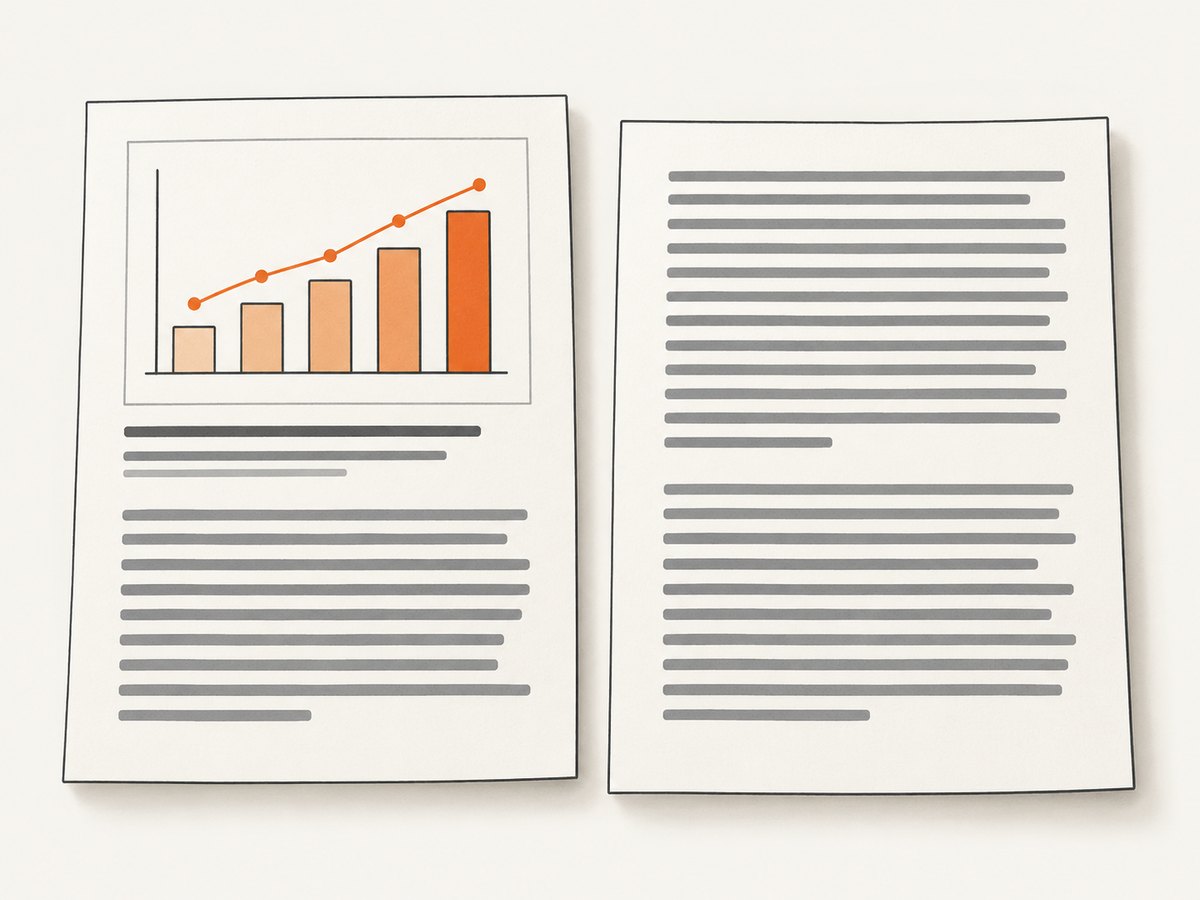
An avoid rule is a preference where the layout has a legal alternative; it cannot squeeze a component larger than the page onto one sheet. The W3C print profile specifies that an overlong element continues on subsequent pages so its content is preserved. Remove the expectation that a very tall element will remain intact, or split it into smaller logical blocks. W3C CSS Print Profile
Keep the main printable content in ordinary block flow where possible. Flex and grid layouts, transforms, absolute positioning, fixed heights, and overflow clipping can make page fragmentation harder to reason about. They are not categorically unusable, but test those structures in the actual Chromium version that generates your PDFs. Avoid fixed heights when text length varies; a font substitution or slightly different line wrap can otherwise clip content or move later boundaries.
5. Options that can change pagination
| Option or input | How it affects output | Practical choice |
|---|---|---|
preferCSSPageSize |
Controls whether CSS @page size takes priority over Puppeteer paper settings. |
Set true when CSS owns paper size. |
format, width, height |
Set paper geometry when CSS page size is not taking priority. | Choose one geometry source and keep it consistent. |
margin |
Sets PDF margins and changes usable content height and width. | Define margins in @page or the PDF options, not competing values in both. |
landscape |
Changes page orientation. | Match the CSS page orientation and the document’s intended layout. |
scale |
Scales rendered content, which can change fitting and visual size. | Keep at 1 while diagnosing pagination. |
printBackground |
Includes background graphics; it usually does not change flow, but can affect visual comparison. | Enable it when backgrounds are part of the intended design. |
waitForFonts |
Waits for fonts before PDF generation; enabled by default. | Keep enabled and make sure the page is active if font readiness stalls. |
pageRanges |
Selects which generated pages appear in the output. | Use after pagination is stable; it does not repair a bad break. |
| Print CSS and content | Font metrics, image dimensions, loaded data, and print-only styles change line wrapping and page height. | Make assets and typography deterministic before capture. |
The current Puppeteer PDFOptions reference documents defaults and supported options, including format, margins, page ranges, scale, and font waiting. Check the versioned documentation for the Puppeteer version in your lockfile; available settings can evolve.
6. Make repeatability measurable
- Wait for final content. Await your data-render promise rather than relying only on a fixed sleep. If the report includes lazy images, make them load before printing or provide stable dimensions.
- Stabilize fonts and images. Await
document.fonts.readyand image completion. Handle failed images deliberately so a missing asset does not leave the page waiting forever. - Freeze print inputs. Use explicit print typography, paper dimensions, margins, and orientation. Avoid ambiguous competing rules.
- Force only meaningful boundaries. Add page breaks before major sections, not after every arbitrary block. Apply avoid rules to compact components.
- Pin the rendering environment. Keep Puppeteer and its Chromium version consistent between development and production. Browser changes can affect layout and break selection.
- Review the output. Compare page count and the content around each page boundary for representative short, typical, and long documents. Keep a small set of known input documents as regression cases.
CSS does not define a single mandatory choice among every allowed page-break point. The W3C specification explicitly leaves that choice to the user agent. Exact visual repeatability therefore means stable inputs plus a controlled browser version and validation; a stylesheet alone cannot promise identical pagination from every engine. W3C CSS 2.2 paged media
7. Troubleshooting common page-break problems
| Symptom | Likely cause | Fix |
|---|---|---|
| A section starts halfway down a page. | The break rule is missing, attached to a non-box, or overridden by unexpected layout structure. | Put break-before: page on the section or its heading, confirm it is visible and in normal flow, then inspect neighboring break rules. |
break-inside: avoid seems ignored. |
The box is taller than the available page area, or an ancestor/layout structure constrains fragmentation. | Let long content split; reserve avoid for elements that fit. Check overflow, fixed heights, and ancestor break rules. |
| Pages use the wrong size or content is scaled. | Puppeteer paper options and CSS @page disagree, or CSS page size is not preferred. |
Choose a single geometry source; set preferCSSPageSize: true for CSS-owned sizing. |
| Breaks differ from the browser preview. | The preview uses screen styles, while page.pdf() uses print styles. |
Inspect @media print and test the same media type as PDF generation. Use screen emulation only intentionally. |
| Later pages shift between runs. | Late data, images, or fonts change line wrapping after capture begins. | Wait for application rendering, fonts, and relevant images; use explicit image dimensions and a stable data snapshot. |
| Background colors disappear. | PDF background printing is disabled or print color adjustment changes colors. | Set printBackground: true and use -webkit-print-color-adjust: exact where exact colors are needed. |
| PDF generation times out. | Navigation, app readiness, fonts, or PDF generation exceeds the configured timeout. | Find which readiness step is waiting; fix stalled requests and set a timeout appropriate to the document rather than disabling timeouts without diagnosis. |
| Repeated blank space appears before sections. | Both adjacent elements force breaks, or a prior forced break already starts the next section. | Keep one deliberate break rule at the section boundary and inspect break-before and break-after together. |
8. Performance, reliability, and cost
Pagination work is mostly layout and rendering. Large documents, high-resolution images, complex styles, and slow external assets can increase generation time and memory use. Keep print styles focused, reduce unnecessary assets, and wait on specific application readiness signals. A fixed delay adds latency on fast runs and may still be too short on slow ones.
For reliable output, make each PDF from a stable content snapshot and handle missing or late assets explicitly. Use a bounded timeout and surface failures to the caller; silently returning a partial document makes downstream review harder. Pin the Puppeteer/Chromium version in production if predictable output matters, then compare page count and boundaries when updating it.
Self-hosted cost depends on your compute, concurrency, document size, and operational needs; the supplied sources publish no benchmark for this workload, so there is no responsible universal per-PDF cost estimate. Measure representative documents in your own deployment before setting throughput or latency expectations.
Or skip the browser setup
If your job is to capture a web page as an image or PDF rather than control a custom Puppeteer print template, ScreenshotNeo provides a website screenshot API and MCP server. Its one-call API example:
curl -G "https://api.screenshotneo.com/v1/shot" -d access_key=YOUR_API_KEY --data-urlencode url=https://stripe.com -o shot.webpSee the ScreenshotNeo API documentation for its options and request format. Cookie banners, popups, and chat widgets are removed before the shot. Bot checks, blank pages, and failed loads are never billed. Its MCP server lets AI agents take screenshots. The free plan includes 1,000 screenshots a month with no card; paid plans start at $5 for 3,000. Sign up for free.
FAQ
Does Puppeteer use print CSS for PDFs by default?
Yes. page.pdf() uses the print media type. Select screen media with page.emulateMediaType('screen') only when that is the intended PDF styling.
Should I use page-break-before or break-before?
Use break-before in new print CSS. The older page-break property is a compatibility alias and can accompany it when supporting older stylesheets or environments.
Can I make every PDF page identical across browsers?
No stylesheet can guarantee that across all engines. Control the print inputs and browser version, then validate the output in the engine that generates the production PDF.
Why does break-inside: avoid split my element?
The element may be too tall for the available page. Avoid rules cannot preserve a component intact when it cannot fit; let it continue across pages or divide it into smaller units.


