How to Generate Puppeteer PDFs with Different Page Sizes
Choose a named paper format, custom dimensions, or CSS @page for Puppeteer PDFs. Learn how orientation, margins, print styles, and scaling affect the result.
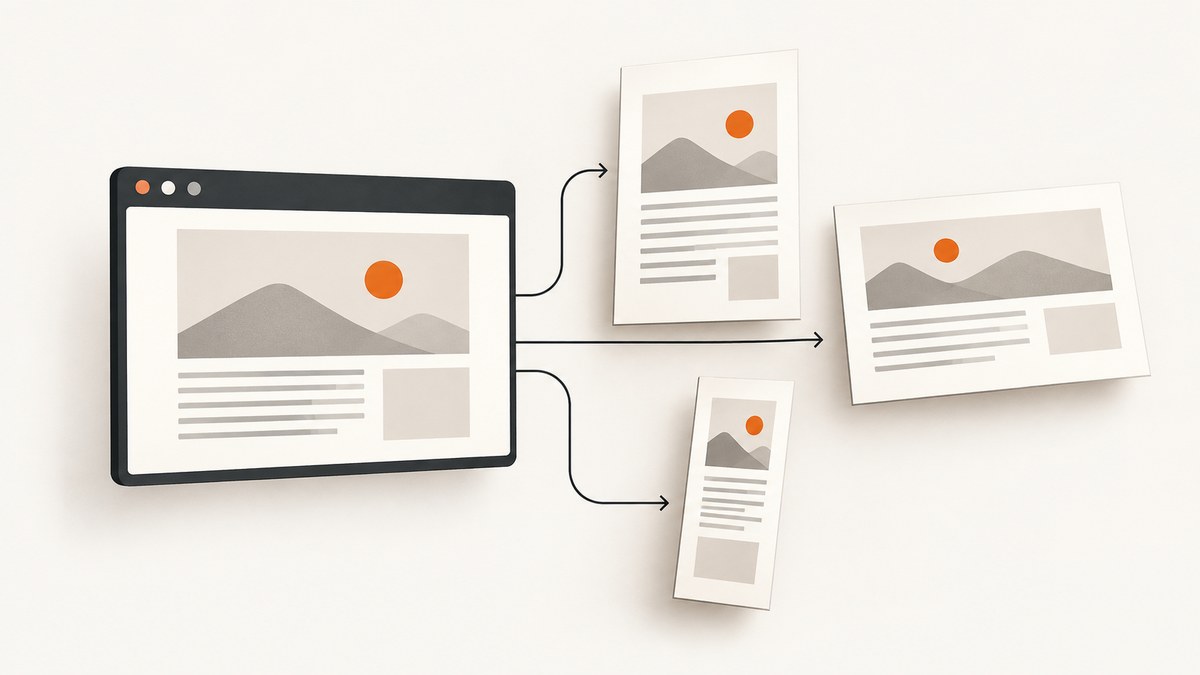
Use Puppeteer’s page.pdf() options to set PDF page dimensions. Choose format for a named paper size such as A4 or Letter, or use width and height for custom dimensions. If the document’s CSS @page rule should control the paper size, set preferCSSPageSize: true. Puppeteer renders PDFs with print CSS by default. See the PDFOptions reference for the supported settings and their behavior.
This guide shows runnable examples, explains which setting takes priority, and covers orientation, margins, print styling, pagination, and common problems.
1. Choose where page size comes from
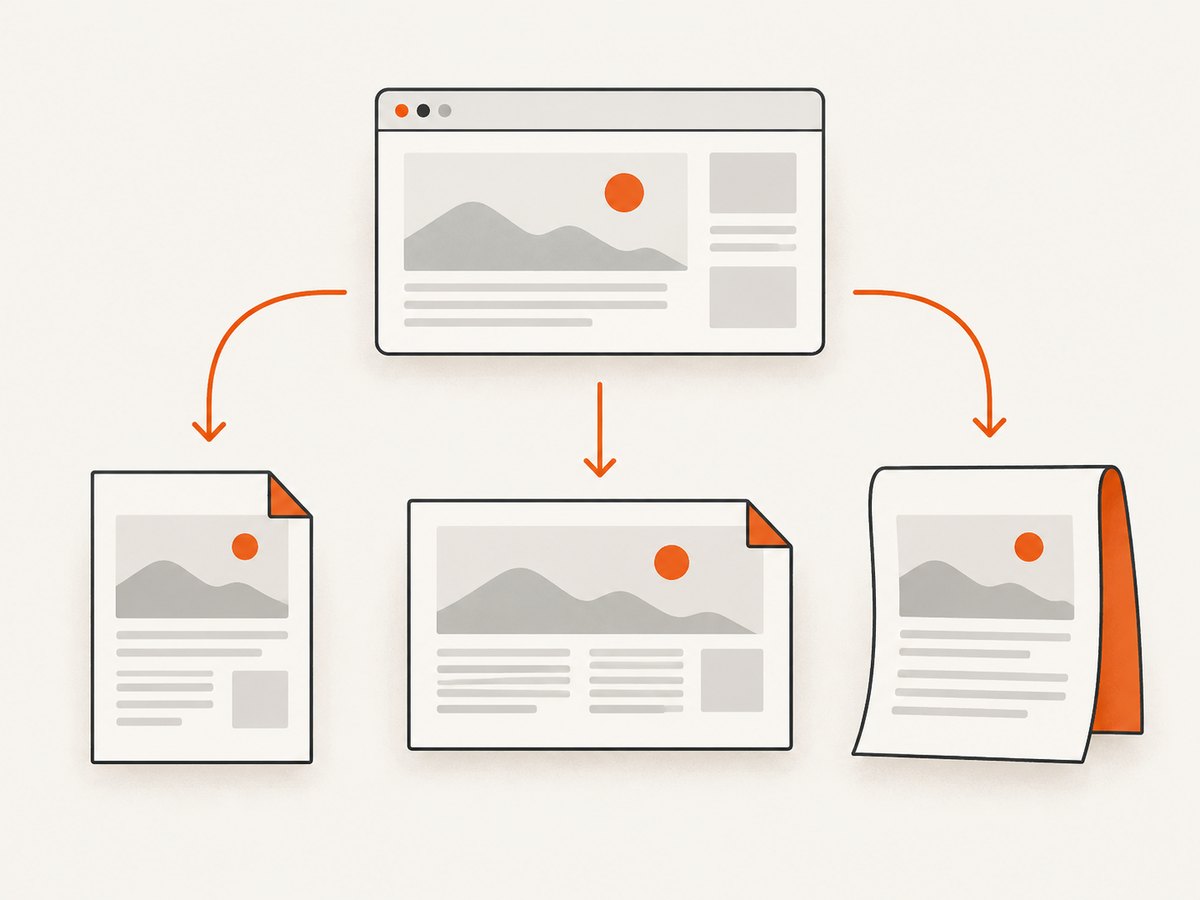
There are three useful ways to define the paper dimensions. Pick one as the source of truth for a given PDF:
| Approach | Set dimensions with | Best suited to |
|---|---|---|
| Named format | format: 'A4', 'Letter', and other supported formats |
Standard paper sizes |
| Custom dimensions | width and height |
Receipts, labels, or a nonstandard document size |
| CSS page geometry | @page { size: ... } plus preferCSSPageSize: true |
Documents whose stylesheet owns print layout |
In the Puppeteer API, format takes precedence over width and height if you supply both. Avoid combining them with conflicting values: it makes the intended output harder to understand. CSS page size takes priority only when preferCSSPageSize is enabled. Otherwise, Puppeteer scales the page content to fit the paper size specified through the PDF options. The official PDFOptions documentation describes these settings.
2. Create a PDF with a named format
For a conventional document, set format to the paper size and use landscape if it should be horizontal. Letter is the documented default when no format is supplied; stating the format explicitly helps keep output predictable.
const puppeteer = require('puppeteer');

(async () => {
  const browser = await puppeteer.launch();
  try {
    const page = await browser.newPage();
    await page.goto('https://example.com', { waitUntil: 'networkidle0' });

    await page.pdf({
      path: 'output-a4.pdf',
      format: 'A4',
      landscape: false,
      printBackground: true,
      margin: {
        top: '12mm',
        right: '12mm',
        bottom: '12mm',
        left: '12mm'
      }
    });
  } finally {
    await browser.close();
  }
})();
Replace the example URL with a page you control or are authorized to capture. The example uses networkidle0 to wait for network activity to settle; sites with persistent connections may never reach that condition. For those pages, use a more appropriate readiness condition, such as waiting for a specific selector, before calling page.pdf().
Orientation and paper format
landscape defaults to false. Set it to true for landscape orientation. Treat paper format and orientation as separate choices: select the intended paper size, then set the orientation needed by the content. Check the resulting pagination, because a wider page can change line wrapping and the number of pages.
3. Set custom page dimensions
Use width and height when the required paper is not a standard named format. The documented options accept numbers or strings with units. Unit-bearing strings make physical dimensions explicit and are easier to review later.
const puppeteer = require('puppeteer');

(async () => {
  const browser = await puppeteer.launch();
  try {
    const page = await browser.newPage();
    await page.goto('https://example.com', { waitUntil: 'networkidle0' });

    await page.pdf({
      path: 'output-custom.pdf',
      width: '8.5in',
      height: '11in',
      margin: '0.5in',
      printBackground: true
    });
  } finally {
    await browser.close();
  }
})();
Use units that match the specification you were given, such as inches or millimeters. If you also pass format, the named format takes precedence over custom width and height. Remove the unused setting rather than relying on that precedence to resolve a conflict.
Receipts and tall pages
A fixed custom width and height describes a page size; it does not automatically mean “make one infinitely tall page.” For documents that need multiple pages, design the content and CSS for pagination. For a long receipt, choose a width and a height appropriate to the intended output, then inspect whether the content breaks across pages as expected. CSS page rules and print styles can also affect the result.
4. Let CSS @page control the dimensions
Use CSS page geometry when the stylesheet should own the paper size and margins. Set preferCSSPageSize: true in the PDF options. Without it, Puppeteer scales content to fit the PDF options’ paper size instead of prioritizing the CSS page size.
const puppeteer = require('puppeteer');

(async () => {
  const browser = await puppeteer.launch();
  try {
    const page = await browser.newPage();
    await page.goto('https://example.com', { waitUntil: 'networkidle0' });

    await page.addStyleTag({ content: `
      @page {
        size: 5in 7in;
        margin: 12mm;
      }
    ` });

    await page.pdf({
      path: 'output-from-css.pdf',
      preferCSSPageSize: true,
      printBackground: true
    });
  } finally {
    await browser.close();
  }
})();
For a site you maintain, put the @page rule in its print stylesheet instead of injecting it. In either case, check that the CSS is present when the PDF is generated. CSS page-size behavior is described in the Puppeteer PDFOptions reference.
Do not give page size two competing owners
If the application sets format: 'A4' while the stylesheet sets a custom @page size, choose which one should win. To use CSS dimensions, enable preferCSSPageSize; to use the API dimensions, omit that preference and use a PDF option. Clear ownership makes later changes easier to debug.
5. Control print styling and PDF output
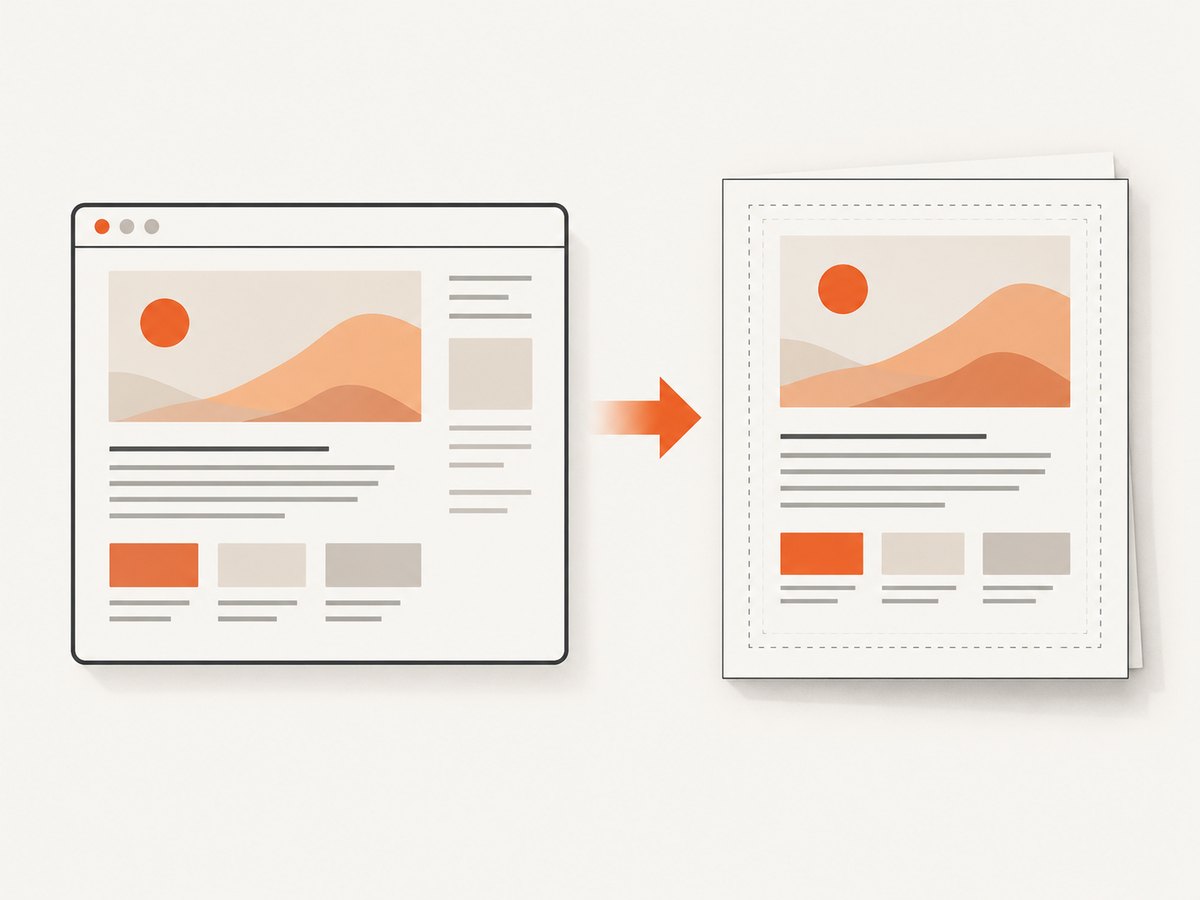
page.pdf() uses print CSS media by default. Print styles may hide navigation, change colors, adjust spacing, or rearrange a page. If the output should use screen media styling, call page.emulateMediaType('screen') before generating the PDF. The Page.pdf() documentation describes the print media behavior.
await page.emulateMediaType('screen');
await page.pdf({
  path: 'screen-styled.pdf',
  format: 'A4',
  printBackground: true
});
Several other options affect appearance or page selection independently of page dimensions:
| Option | What to check |
|---|---|
margin |
Set top, right, bottom, and left space when content needs a safe area or room for annotations. |
scale |
Adjusts rendered content scale. The documented range is 0.1 to 2; extreme values can make text too small or cause unexpected fit. |
printBackground |
Enable it if background colors or images should appear in the PDF. |
pageRanges |
Select specific pages when only part of a document is required. |
displayHeaderFooter |
Controls whether PDF header and footer templates are displayed. |
waitForFonts |
Waits for fonts to be ready; documented default is true. |
landscape |
Choose horizontal orientation when the content needs more width. |
These options do not replace page-size configuration. When the paper size appears correct but the content looks wrong, review print media, margins, scaling, backgrounds, pagination, and font readiness as separate causes. See the PDFOptions reference for option details and the PDF generation guide for the documented workflow.
6. Use a repeatable capture sequence
A reliable PDF job has a clear order: start the browser, load the page, wait for the content the document needs, set the media type if necessary, and generate the PDF. Always close the browser in a finally block so an error during navigation or output does not leave that browser instance open.
- Launch Puppeteer with the browser configuration used by your runtime.
- Open a page and navigate to the target URL.
- Wait for the required content, fonts, or application state.
- Set screen media only if screen styling is desired; otherwise leave the default print media in place.
- Call
page.pdf()with one clear page-size source and the output controls you need. - Close the browser even if a step fails.
For a page that renders data asynchronously, wait for a meaningful selector rather than assuming navigation completion means the document is ready:
await page.goto('https://example.com/report', { waitUntil: 'domcontentloaded' });
await page.waitForSelector('[data-report-ready="true"]', { timeout: 15000 });
await page.pdf({ path: 'report.pdf', format: 'A4', printBackground: true });
Use a selector that represents the final content in your own application. If that condition never appears, the wait times out; that is useful signal that the document was not ready to capture.
7. Troubleshoot page-size and layout problems
| Symptom | Likely cause | Fix |
|---|---|---|
CSS @page size seems ignored |
preferCSSPageSize is false, which is its default. |
Set preferCSSPageSize: true if CSS should control the paper geometry. |
| Custom width and height do not take effect | A format value was also provided and takes precedence. |
Remove format, or remove the custom dimensions and use the named format. |
| PDF content looks different from the browser | PDF generation uses print media, and print CSS can change layout. | Inspect print styles. Use page.emulateMediaType('screen') before page.pdf() if screen media is required. |
| Backgrounds are missing | Background printing is not enabled. | Set printBackground: true. |
| Text or images are clipped | Margins, page dimensions, scaling, or print layout may not fit the content. | Check the chosen page-size source, reduce or adjust margins, review print CSS, and use scale cautiously. |
| Page breaks appear in unexpected places | Content reflows for print, or its height and page geometry differ from screen layout. | Inspect print CSS, dimensions, and margins; check output after changes to orientation or scale. |
| Some content is absent | Navigation may have completed before the application finished rendering data. | Wait for a relevant selector or other app-specific readiness condition before calling page.pdf(). |
| A network-idle wait hangs | The site may keep network connections open. | Use another navigation condition and wait for the specific content needed for the document. |
| Fonts appear wrong or late | Font resources may not be ready when output is created. | Keep waitForFonts enabled (its documented default is true) and verify that the page has loaded the intended fonts. |
| Only some pages are required | The PDF is generating the full document. | Use pageRanges to select the pages needed. |
When behavior differs from an example, check the Puppeteer version installed in your application against its documentation. The cited API reference reflects the project’s main branch as accessed on September 29, 2026; installed versions can have version-specific differences.
8. Performance, reliability, and cost considerations
PDF generation requires a browser page to load and render the document. The work can take longer when the page loads many resources, waits on application data, or uses expensive print layouts. Keep readiness waits tied to the content the PDF needs; an unnecessarily strict wait can stall a job, while generating too early can omit content.
For reliable output, use explicit dimensions and margins, avoid conflicting page-size sources, and keep the browser lifecycle under error handling. If a page is dynamic, wait for its actual ready state. If a document depends on fonts, retain the font wait behavior unless you have a reason to change it. Review sample output after changing paper size, orientation, media type, or scale because each can affect wrapping and pagination.
The Puppeteer approach runs in your own environment, so its direct costs depend on your browser runtime and infrastructure; the research sources do not specify a general cost or performance benchmark. Account for browser processes and the resources needed by your workload when deciding how to run PDF generation.
Or skip the browser setup
If your goal is a screenshot or PDF from a URL and you do not need to manage Puppeteer, ScreenshotNeo is a website screenshot API and MCP server. It accepts one GET request and returns a PNG, JPEG, WebP, or PDF. See the ScreenshotNeo API documentation for request options.
curl -G "https://api.screenshotneo.com/v1/shot" -d access_key=YOUR_API_KEY --data-urlencode url=https://stripe.com -o shot.webpimport requests
r = requests.get(
"https://api.screenshotneo.com/v1/shot",
params={"access_key": "YOUR_API_KEY", "url": "https://stripe.com"},
timeout=90,
)
open("shot.webp", "wb").write(r.content)const q = new URLSearchParams({ access_key: 'YOUR_API_KEY', url: 'https://stripe.com' });
const res = await fetch(`https://api.screenshotneo.com/v1/shot?${q}`);ScreenshotNeo accepts cookie and consent banners as a visitor and removes more than 60 known consent platforms, newsletter popups, and chat widgets before capture; each of those steps can be turned off. Bot checks and CAPTCHAs, blank pages, timeouts, failed loads, and cache hits are not billed, and responses identify the page verdict and billing status in headers. Its MCP server provides take_screenshot, get_page_info, and capture_pdf for AI agents and MCP clients. The free plan includes 1,000 shots per month with no card; paid plans start at $5 for 3,000 shots. Every feature is on every plan.
Create a free ScreenshotNeo account for 1,000 screenshots a month with no card.
Frequently asked questions
What is Puppeteer’s default PDF page format?
The documented default is Letter when no format is supplied. Set a format explicitly when the output must use a particular paper size.
Can I use both format and custom dimensions?
You can pass both, but format takes precedence over width and height. Prefer a single source of truth so a later edit does not silently leave the other values unused.
Why does the PDF use print styles?
page.pdf() generates output using print media by default. Call page.emulateMediaType('screen') first if the PDF should use screen media styles.
How do I make CSS set the paper size?
Declare the dimensions in CSS with @page { size: ... } and set preferCSSPageSize: true in the PDF options.
Does Puppeteer wait for fonts before creating the PDF?
The documented waitForFonts default is true. If fonts still look incorrect, check that the page loads the intended font resources and that the page is ready before PDF generation.


