How to Fix Puppeteer PDF Race Conditions with Front-End Events
Fix Puppeteer PDFs that print before client-side rendering finishes. Add an app-owned readiness signal, wait for it with a timeout, then call page.pdf().

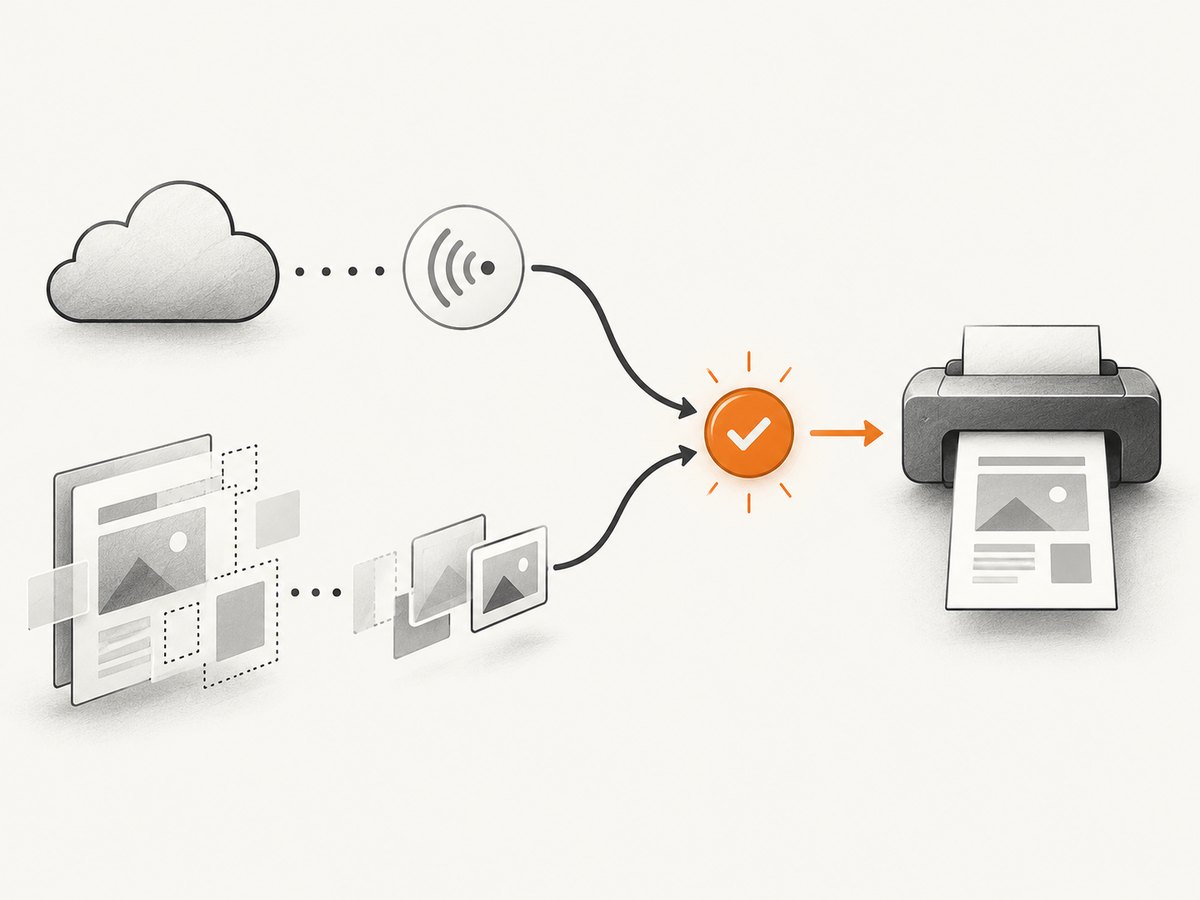
A Puppeteer PDF race condition happens when page.pdf() starts before the application has finished the asynchronous work that the PDF needs. The reliable fix is to define an application-owned readiness contract: reset a page flag before rendering starts, set it only after PDF-relevant work is complete, and make Puppeteer wait for that flag with a finite timeout before printing.
Puppeteer can wait for navigation, network activity, selectors, and page-side conditions. It cannot infer that your chart finished drawing, a client-side data transformation completed, or a report component reached the state you consider printable. The page and the PDF job must agree on what “ready” means.
1. Add a readiness signal owned by the page
Choose a flag name that belongs to your application, such as window.__PDF_READY__. It is not a built-in Puppeteer event. Initialize it before the relevant render work begins, set it to false for each export, and set it to true only once every operation affecting the PDF has completed.
// In the report page's application code
window.__PDF_READY__ = false;

async function renderReportForPdf() {
  try {
    const reportData = await loadReportData();
    renderReport(reportData);

    await waitForChartsToFinish();
    await waitForPdfImages();
    await applyFinalReportLayout();

    // Set this after all PDF-relevant asynchronous work.
    window.__PDF_READY__ = true;
  } catch (error) {
    // Preserve an explicit failure state for the export process.
    window.__PDF_ERROR__ = String(error?.message ?? error);
    throw error;
  }
}

renderReportForPdf();
The helper names above represent application-specific work; replace them with the functions and completion conditions used by your app. If there is no chart renderer or image-loading stage, omit that step. The essential rule is that the flag describes the content the PDF actually needs, not merely that a component mounted or a request was initiated.
Handle failure as well as success
A readiness flag that stays false until timeout is better than a false success, but it can make failures hard to diagnose. If rendering fails, publish an error state such as window.__PDF_ERROR__ and have the Node process inspect it while waiting. Never set the ready flag in a finally block: that would also mark failed rendering as printable.
Reset the flag for every export. For pages that can render multiple reports without a navigation, use a job identifier alongside the state so a late signal from an earlier render cannot release a newer PDF request. A simple per-navigation flag is often enough when each export loads a fresh report document.
2. Wait for the signal before printing
Navigate to the page, wait for the application’s readiness condition with a finite timeout, and then generate the PDF. waitForFunction() evaluates a page-side function until it returns a truthy value. The 15-second timeout here is illustrative; tune it to the application’s expected workload and your job deadline.
import puppeteer from 'puppeteer';

const browser = await puppeteer.launch({ headless: true });
try {
  const page = await browser.newPage();
  await page.goto('https://example.com/reports/quarterly', {
    waitUntil: 'domcontentloaded',
    timeout: 30_000,
  });

  await page.waitForFunction(
    () => window.__PDF_READY__ === true || Boolean(window.__PDF_ERROR__),
    { timeout: 15_000 },
  );

  const renderError = await page.evaluate(() => window.__PDF_ERROR__ ?? null);
  if (renderError) {
    throw new Error(`Report rendering failed: ${renderError}`);
  }

  const pdf = await page.pdf({
    path: 'quarterly-report.pdf',
    format: 'A4',
    printBackground: true,
  });
} finally {
  await browser.close();
}
This example uses domcontentloaded as an initial navigation milestone, not as proof that the report is complete. Puppeteer’s Page.pdf() uses print CSS by default and waits for fonts by default. If your page’s ready signal already accounts for app rendering, avoid adding arbitrary fixed waits after it.
See the [Puppeteer Page API](https://pptr.dev/api/puppeteer.page) for the current waitForFunction() and page method signatures, and the [PDF generation guide](https://pptr.dev/guides/pdf-generation) for PDF behavior. Confirm details against the version in your project lockfile.
3. Choose a useful initial navigation wait
The readiness flag is the final application-level gate. The navigation option controls what Puppeteer waits for before checking that gate.
| Milestone | What it establishes | When it helps |
|---|---|---|
domcontentloaded |
The document has been parsed and its deferred scripts have run. | Good starting point when client-side work continues after document parsing. |
load |
The load event has fired after page resources load. | Useful when initial resource loading matters, but it still does not represent arbitrary application work. |
networkidle0 / networkidle2 |
A Puppeteer navigation network-idle condition has been met. | Useful for pages where request quiet is a meaningful preliminary milestone. |
Network idleness and application readiness are different conditions. A page can have no active requests while a timer, local computation, canvas renderer, or state update is still running. Conversely, analytics polling or a long-lived connection can keep requests active after the report is ready. Use network idle as a useful milestone when appropriate, then wait for the app signal. The [Puppeteer network-idle API](https://pptr.dev/api/puppeteer.page.waitfornetworkidle) describes the network condition and its idle time; it does not define your application’s render semantics.
4. Use an event or DOM marker when it fits better
A boolean flag is compact, but it is not the only contract. A stable DOM marker can work when your frontend already renders an explicit completion element:
// Front end, after the report is ready
const marker = document.querySelector('[data-pdf-status]');
marker?.setAttribute('data-pdf-status', 'ready');
// Puppeteer
await page.waitForSelector('[data-pdf-status="ready"]', {
timeout: 15_000,
});
const pdf = await page.pdf({ printBackground: true });Make sure the marker means the whole document is ready, not just that one section mounted. A marker should also be reset for each render if the same page can be reused.
For an event-based handshake, the page can dispatch a custom event after rendering. Node must install its listener before the event fires; browser events are not retained for later listeners. One approach is to expose a Node callback before triggering the report render:
await page.exposeFunction('__notifyPdfReady', (jobId) => {
  if (jobId === expectedJobId) resolveReady();
});

// In page code, once the current job has finished:
window.dispatchEvent(new CustomEvent('pdf-ready', {
  detail: { jobId: currentJobId },
}));
// Application wiring calls window.__notifyPdfReady(currentJobId).
The snippet shows the handshake shape; production code should create and reject a promise with a timeout, remove listeners after completion, and propagate a page-side error. Puppeteer documents page.exposeFunction() as adding a function on window that calls a Node function and resolves its promise. The event wiring itself remains application code. For many jobs, a page-side flag or selector condition is simpler to inspect and debug.
5. Avoid navigation ordering races
If clicking an export control triggers navigation to a report route, start waiting for navigation and clicking at the same time. Waiting for navigation only after the click can miss a fast navigation.
const [response] = await Promise.all([
  page.waitForNavigation({ waitUntil: 'domcontentloaded' }),
  page.click('[data-action="export-pdf"]'),
]);

await page.waitForFunction(() => window.__PDF_READY__ === true, {
  timeout: 15_000,
});

const pdf = await page.pdf({ printBackground: true });
This ordering follows Puppeteer’s documented pattern for actions that trigger navigation. The navigation wait and the app readiness wait serve different purposes: first observe the document transition, then wait for the new page’s render contract.
6. Set print output deliberately
Once the content is ready, check that the PDF’s media and page settings match the intended result. Puppeteer prints with the CSS print media type by default. To use screen styles instead, emulate screen media before calling page.pdf().
// Use screen CSS when the report is designed for screen layout
await page.emulateMediaType('screen');

const pdf = await page.pdf({
  path: 'report.pdf',
  format: 'A4',
  printBackground: true,
  landscape: false,
  margin: {
    top: '12mm',
    right: '12mm',
    bottom: '12mm',
    left: '12mm',
  },
});
Other relevant PDF options include preferCSSPageSize when CSS @page dimensions should take priority, scale for scaling page content, displayHeaderFooter with header and footer templates, and pageRanges for selecting pages. Use print styles and page breaks to control pagination rather than attempting to correct layout with timing changes.
For accurate print colors, the Page API documents the CSS property -webkit-print-color-adjust. Apply it where needed, for example print-color-adjust: exact in print CSS, and still verify that the stylesheet is loaded before the app signals readiness. The [PDF options declaration](https://pptr.dev/api/puppeteer.pdfoptions) documents options such as font waiting and page size.
7. Troubleshooting checklist
| Symptom | Likely cause | Fix |
|---|---|---|
| The PDF is missing data or charts. | The flag is set after data fetch but before chart drawing or state updates finish. | Move the ready signal after every operation that changes printed content. Await the renderer’s completion callback or a real DOM condition. |
waitForFunction times out. |
The flag was never initialized, render failed, the wrong route loaded, or the completion path was skipped. | Log the page URL and application error state at timeout. Initialize state before rendering, and expose a distinct error signal. |
| The PDF sometimes belongs to the previous report. | A stale ready state or late event from a prior job released the current export. | Reset readiness for each job and associate events with a unique job identifier. Prefer a fresh page per export where practical. |
| Waiting for network idle hangs. | Polling, analytics, streaming, or another long-lived request prevents the chosen idle condition. | Use an appropriate navigation milestone and the app-owned readiness gate. Do not make network idle the only definition of completion. |
| The navigation wait is missed. | The code starts waiting only after a click has already navigated. | Use Promise.all([page.waitForNavigation(), page.click(...)]) so the listener is installed before the action completes. |
| Fonts or layout differ from the browser view. | The PDF uses print CSS, fonts have not loaded as expected, or the page size differs from CSS. | Check print media rules, @page, and page options. Puppeteer waits for fonts by default; if using a background page and font waiting stalls, consult the documented bringToFront() consideration. |
| Colors or backgrounds are absent. | Background printing is disabled or print CSS changes the colors. | Set printBackground: true, inspect print styles, and use -webkit-print-color-adjust where exact print colors are required. |
| A fixed sleep appears to fix it on a developer machine. | The delay happens to exceed local render time but may be too short under load or unnecessarily long on fast runs. | Use a condition-based readiness contract. Keep sleeps for temporary diagnosis, not as the correctness gate. |
When a timeout occurs, capture diagnostic context: current URL, job ID, the readiness and error values, and which render stage last completed. Avoid logging credentials or sensitive report contents. This makes slow rendering distinguishable from a broken handshake.
8. Performance, reliability, and cost
A condition-based wait usually lets a fast report proceed as soon as its actual work is done while giving a slower report a bounded period to finish. A fixed delay makes every job pay the full delay and still cannot guarantee correctness when a render takes longer. The readiness contract also gives teams a clear place to instrument which stage consumes time.
Use finite timeouts at navigation and readiness boundaries, and make timeout failures visible to the job runner. Set limits based on observed application behavior and the caller’s overall deadline; the example values in this guide are starting points, not universal recommendations. Reuse a browser process where appropriate, but isolate report pages or contexts according to your data and state boundaries. Close pages and browsers in failure paths, and avoid marking an export successful until the PDF bytes have been produced and stored.
Puppeteer’s browser-based approach gives you control over application-specific readiness and PDF layout, with the operational cost of maintaining browser execution, browser versions, memory, and concurrency. For workloads that do not need custom browser-side synchronization, a screenshot or PDF API can reduce browser setup. Compare services based on whether their options support the rendering and readiness requirements of your page.
Or skip the browser setup
For a straightforward website capture, ScreenshotNeo provides a one-request screenshot API and an MCP server. It is a different workflow from Puppeteer: use your own readiness handshake when PDF correctness depends on application-specific rendering state. ScreenshotNeo accepts cookie and consent banners before capture and removes more than 60 known consent platforms, newsletter popups, and chat widgets; each step can be turned off. Bot checks, blank pages, timeouts, failed loads, and cache hits are not billed, and response headers report the page verdict and billing status. AI agents can use its MCP tools, including take_screenshot, get_page_info, and capture_pdf.
curl -G "https://api.screenshotneo.com/v1/shot" \
  -d access_key=YOUR_API_KEY \
  --data-urlencode url=https://stripe.com \
  -o shot.webp
See the ScreenshotNeo API documentation for request options. The Free plan includes 1,000 shots per month with no card; paid plans start at $5 for 3,000 shots. Sign up for 1,000 free screenshots a month, with no card.
9. FAQ
Is window.__PDF_READY__ built into Puppeteer?
No. It is an application-defined example. Your page must set it, and Puppeteer waits for the condition you provide.
Should I always use networkidle0 before printing?
No. It can be a useful milestone for some pages, but network quiet does not prove that client-side rendering is complete. Choose a navigation condition that suits the page and use the application signal for print readiness.
Does Puppeteer wait for web fonts when creating a PDF?
Yes, font waiting is enabled by default for page.pdf(). Check the PDF options documentation if you change that behavior or print from a background page.
Can I use the same readiness flag for screenshots and PDFs?
You can if both outputs require the same rendered state. If their layouts or content differ, define separate readiness conditions so the signal accurately describes each output.


