How to Set PDF Size and Print Resolution in Puppeteer
Set A4, custom paper sizes, margins, CSS page rules and rendering scale in Puppeteer, and understand why scale is not a DPI setting.
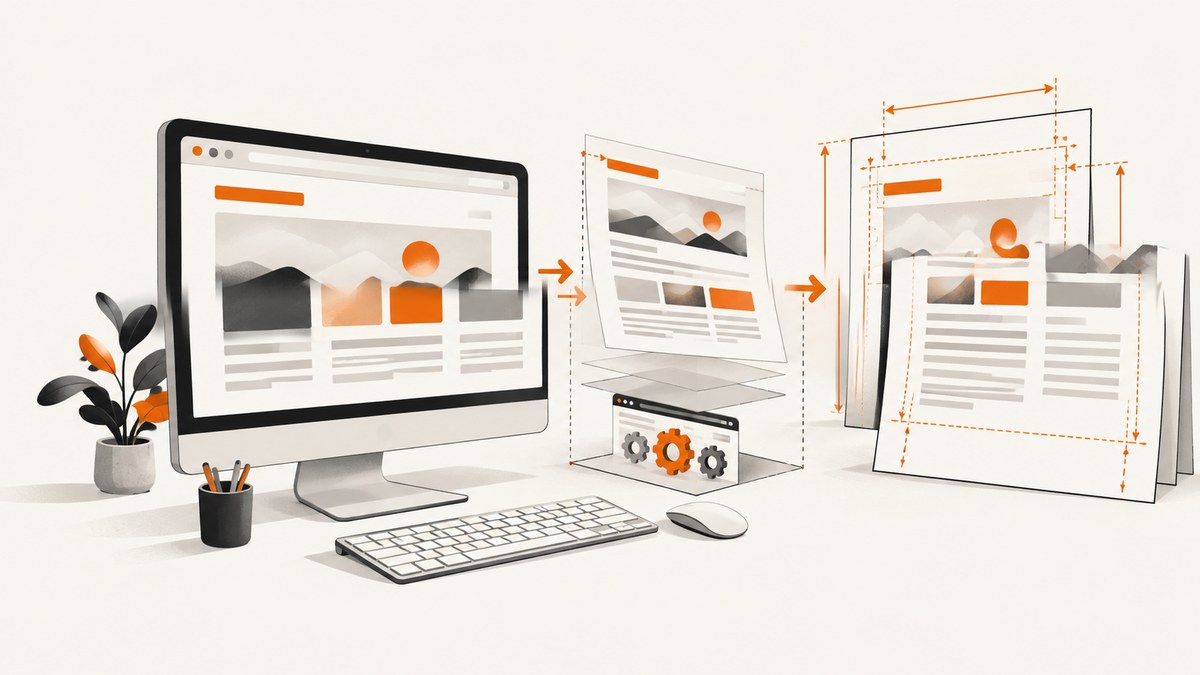
Puppeteer’s page.pdf() method controls PDF paper size, orientation, margins, print backgrounds, page ranges and content scale. Use a named format such as A4 for standard paper, or provide width and height with units such as mm, in or px for custom dimensions. Puppeteer documents scale as a rendering scale from 0.1 to 2; it does not document a PDF DPI or print-resolution option. Viewport.deviceScaleFactor is a separate viewport setting and should not be confused with PDF scale.
This guide shows complete JavaScript examples, explains how CSS @page rules interact with Puppeteer options, and covers fonts, colors, media emulation, page ranges, troubleshooting and production concerns.
1. Generate an A4 PDF with Puppeteer
Install Puppeteer, launch Chromium, navigate to a page, wait for fonts and content, then call page.pdf(). The following script writes an A4 PDF in portrait orientation with backgrounds enabled.
const puppeteer = require('puppeteer');

(async () => {
  const browser = await puppeteer.launch();
  try {
    const page = await browser.newPage();
    await page.goto('https://example.com', { waitUntil: 'networkidle0' });

    await page.pdf({
      path: 'output-a4.pdf',
      format: 'A4',
      landscape: false,
      printBackground: true,
      scale: 1,
      waitForFonts: true,
    });
  } finally {
    await browser.close();
  }
})();
Page.pdf() uses print CSS media by default. Puppeteer’s PDF guide recommends this method for PDF generation, and the API reference documents Letter as the default paper format when no size is selected. See the Page.pdf() reference and PDF generation guide.
2. Choose a named paper format
Set format when the output should use a standard paper size. Puppeteer’s paper formats include Letter, Legal, Tabloid, Ledger and ISO A-series sizes such as A4. A4 is 210 × 297 mm.
await page.pdf({
  path: 'report-a4.pdf',
  format: 'A4',
  margin: {
    top: '12mm',
    right: '12mm',
    bottom: '14mm',
    left: '12mm',
  },
  printBackground: true,
});| Requirement | Option |
|---|---|
| US office paper | format: 'Letter' |
| ISO A4 paper | format: 'A4' |
| Landscape report | landscape: true |
| Full-bleed colored sections | printBackground: true plus print CSS |
| Specific page interval | pageRanges: '1-3' |
If both format and width/height are supplied, format takes priority. Remove format when custom dimensions must win. The complete list is in Puppeteer’s PaperFormat documentation.
3. Set a custom PDF width and height
Use explicit units for tickets, labels, receipts, architectural sheets or other nonstandard pages. CSS length units accepted by the PDF options include physical units such as millimeters and inches.
await page.pdf({
  path: 'custom-page.pdf',
  width: '210mm',
  height: '297mm',
  margin: {
    top: '12mm',
    right: '12mm',
    bottom: '12mm',
    left: '12mm',
  },
  printBackground: true,
});
For a landscape custom sheet, swap the dimensions yourself or set landscape: true according to the layout you want. Keep one source of truth: mixing a named format with custom dimensions makes the named format win.
4. Let CSS @page define the paper size
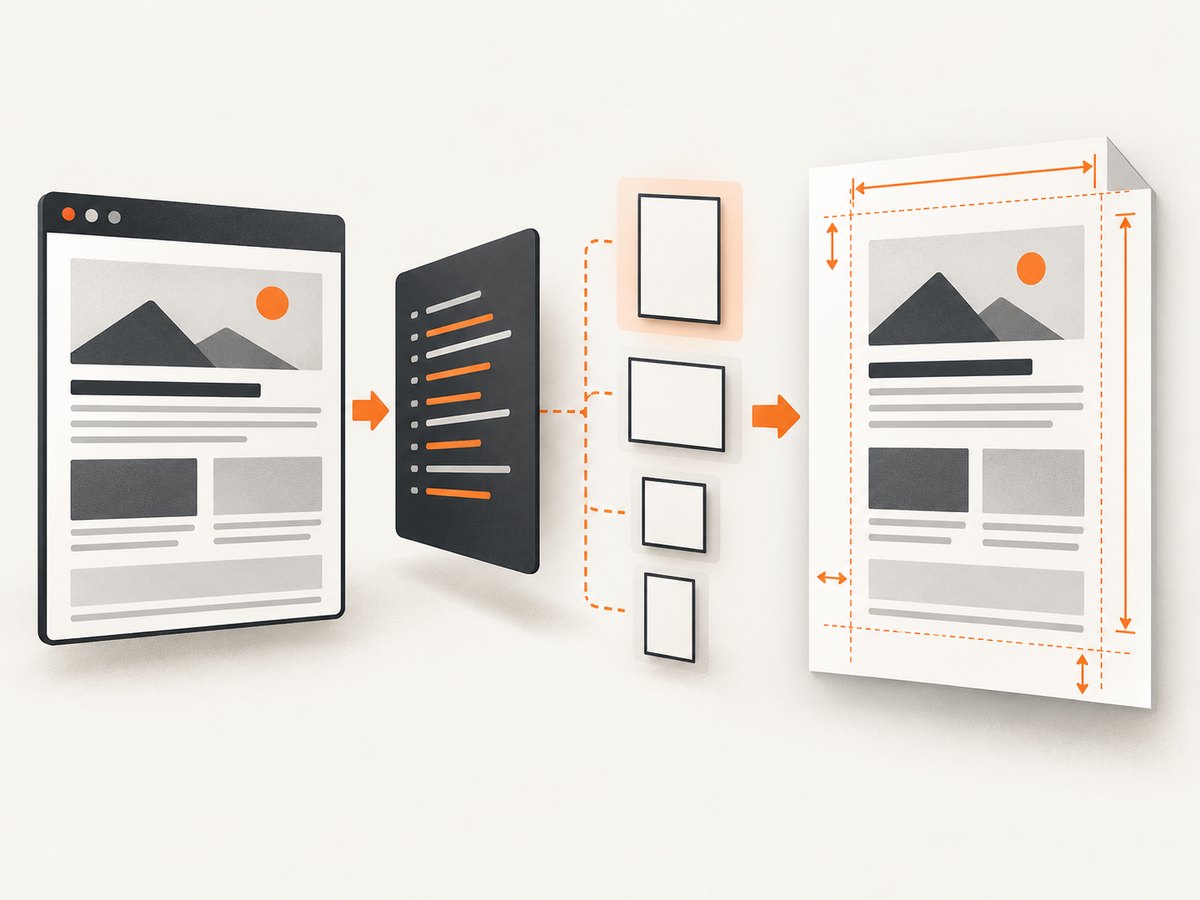
Web documents often already contain print rules. Set preferCSSPageSize: true when the CSS @page rule should determine the physical paper size. Its documented default is false; with the default, Puppeteer scales the document to fit the paper selected by the PDF options.
<style>
  @page {
    size: A4 portrait;
    margin: 14mm 12mm;
  }

  @media print {
    .screen-only { display: none; }
    .page-break { break-before: page; }
  }
</style>
await page.pdf({
path: 'css-sized.pdf',
preferCSSPageSize: true,
printBackground: true,
});Use CSS sizing when designers control the document stylesheet or different templates need different page sizes. Use Puppeteer’s format or explicit dimensions when the service must enforce one output size regardless of page CSS.
5. Understand “print resolution”: scale, DPI and device scale factor
Puppeteer does not document a dpi property in PDFOptions. The option named scale changes the scale at which page content is rendered inside the selected paper dimensions. The documented range is 0.1 through 2, with a default of 1.
await page.pdf({
  path: 'scaled.pdf',
  format: 'A4',
  scale: 0.9,
  printBackground: true,
});
A lower scale can fit more content on each page; a higher scale makes content larger and can create additional page breaks. It is not a numeric printer DPI setting. Validate the resulting PDF in your viewer and downstream print workflow.
deviceScaleFactor belongs to the viewport, not to PDF options:
await page.setViewport({
  width: 1280,
  height: 900,
  deviceScaleFactor: 2,
});
This setting affects viewport rendering, screenshots and CSS-pixel mapping. It does not replace PDFOptions.scale, and changing it is not a documented way to assign a PDF’s print DPI. See the Viewport interface and PDFOptions interface.
6. Control orientation, margins and page ranges
Margins reserve printable space around the page content. Specify each side when headers, footers or a binding gutter need predictable placement.
await page.pdf({
  path: 'landscape-report.pdf',
  format: 'A4',
  landscape: true,
  margin: {
    top: '18mm',
    right: '15mm',
    bottom: '18mm',
    left: '15mm',
  },
  pageRanges: '1-2,5',
  printBackground: true,
});
pageRanges accepts ranges and comma-separated pages. Generate the full document first when you need to inspect pagination, then restrict output for an export endpoint. Remember that changing margins or scale can change where page breaks occur.
7. Print backgrounds, colors and fonts correctly
printBackground defaults to false. Enable it when colored panels, background images or shaded table rows must appear in the PDF. For color-sensitive designs, use the CSS property recommended by the Page API:
@media print {
  * {
    -webkit-print-color-adjust: exact;
    print-color-adjust: exact;
  }
}
Puppeteer waits for fonts by default according to the PDF generation guide and the waitForFonts option. You can still make readiness explicit for pages that load fonts or data after navigation:
await page.goto(url, { waitUntil: 'networkidle0' });
await page.evaluate(() => document.fonts.ready);
await page.waitForSelector('[data-report-ready]');
await page.pdf({
  path: 'ready.pdf',
  format: 'A4',
  printBackground: true,
  waitForFonts: true,
});
Use page.emulateMediaType('screen') before PDF generation only when the screen stylesheet is intended. Otherwise, leave the default print media active.
await page.emulateMediaType('screen');
await page.pdf({ path: 'screen-styled.pdf', format: 'A4' });
8. A production-ready Puppeteer function
The function below accepts a URL and options, waits for the page’s application-level ready marker, and returns a PDF buffer. Keeping the browser open for multiple jobs avoids repeated startup cost, while a timeout prevents a stuck page from occupying a worker forever.
const puppeteer = require('puppeteer');

async function renderPdf(browser, {
  url,
  format = 'A4',
  landscape = false,
  scale = 1,
  preferCSSPageSize = false,
  pageRanges,
}) {
  const page = await browser.newPage();
  try {
    await page.setDefaultNavigationTimeout(45_000);
    await page.goto(url, { waitUntil: 'networkidle0' });
    await page.evaluate(() => document.fonts.ready);
    await page.waitForSelector('[data-report-ready]', { timeout: 15_000 });

    return await page.pdf({
      format,
      landscape,
      scale,
      preferCSSPageSize,
      pageRanges,
      printBackground: true,
      waitForFonts: true,
      timeout: 45_000,
      margin: { top: '12mm', right: '12mm', bottom: '12mm', left: '12mm' },
    });
  } finally {
    await page.close();
  }
}

(async () => {
  const browser = await puppeteer.launch();
  try {
    const pdf = await renderPdf(browser, {
      url: 'https://example.com/report',
      format: 'A4',
      scale: 1,
    });
    require('fs').writeFileSync('report.pdf', pdf);
  } finally {
    await browser.close();
  }
})();
9. Troubleshooting common PDF problems
| Symptom | Likely cause | Fix |
|---|---|---|
| Output is Letter instead of A4 | No format, dimensions or CSS page size were supplied |
Set format: 'A4' or explicit dimensions. |
| Custom dimensions are ignored | format is also present |
Remove format; it takes priority. |
CSS @page size has no effect |
preferCSSPageSize remains false |
Set preferCSSPageSize: true. |
| Backgrounds are missing | printBackground defaults to false |
Set printBackground: true and add print color adjustment CSS where needed. |
| Screen layout differs from PDF | PDF uses print media | Adjust @media print rules or call page.emulateMediaType('screen'). |
| Fonts are substituted | Web fonts have not finished loading | Await document.fonts.ready, keep waitForFonts: true, and wait for an app-ready selector. |
| Content is clipped | Scale, margins or fixed-height containers do not fit | Reduce margins or scale, remove rigid heights, and inspect print CSS. |
| Unexpected extra pages | Large margins, scale above 1 or forced breaks | Inspect break-before/break-after, reduce scale and verify content dimensions. |
| Navigation timeout | Third-party requests or an app never becomes idle | Use a realistic timeout, wait for a specific ready selector, and avoid relying only on networkidle0. |
| Option rejected in BiDi mode | WebDriver BiDi supports a narrower set of PDF options | Check the current BiDi support documentation and use a supported option set. |
10. Performance, reliability and cost considerations
- Reuse Chromium: Launch one browser per worker and create or close pages per job. Browser startup is relatively expensive compared with a page render.
- Bound every wait: Set navigation, selector and PDF timeouts. A page waiting forever for analytics or a websocket should not consume a worker indefinitely.
- Wait for application readiness: A selector such as
[data-report-ready]is usually more reliable than guessing with a fixed delay. - Control third-party content: Ads, trackers and slow embeds can delay network idle and alter layout. Disable or mock them where your document permits.
- Keep output deterministic: Pin the Puppeteer version, fonts and Chromium revision in deployment. Recheck option availability after upgrades.
- Measure the artifact: Verify page count, dimensions, font embedding and color output in the PDF consumer that matters to your workflow. The API reference describes behavior, not the result from every printer or viewer.
PDF rendering consumes CPU and memory, especially for image-heavy or long documents. Queue jobs, cap concurrency and recycle workers if your workload shows memory growth. Cache identical source documents when business rules allow it.
11. Or skip the browser setup
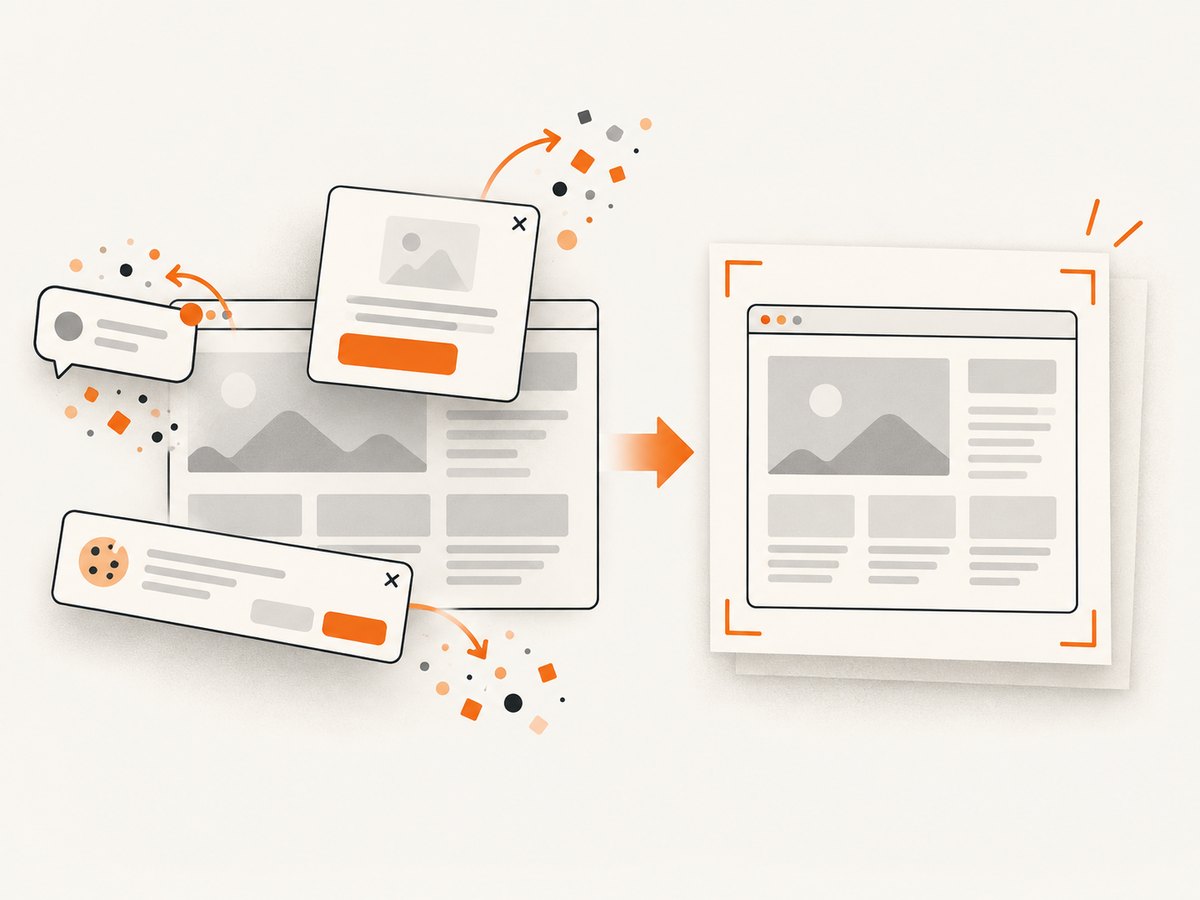
If you only need a reliable rendered capture or PDF from a URL, ScreenshotNeo provides a single HTTP endpoint. Its capture pipeline accepts cookie and consent banners like a visitor, then removes more than 60 known consent platforms along with newsletter popups and chat widgets before the shot. Each cleanup step can be turned off. Bot checks, blank pages, timeouts, failed loads and cache hits are not billed, and response headers identify the page verdict and billing status.
For PDF output, use the PDF options documented in the ScreenshotNeo docs. The same service also supports paper size, margins, landscape mode and page ranges, plus full-page capture, custom CSS and JavaScript, waiting rules, headers, cookies, user agents, geolocation, caching and signed links.
curl -G "https://api.screenshotneo.com/v1/shot" \
  -d access_key=YOUR_API_KEY \
  --data-urlencode url=https://stripe.com \
  -o shot.webp
import requests
r = requests.get(
"https://api.screenshotneo.com/v1/shot",
params={"access_key": "YOUR_API_KEY", "url": "https://stripe.com"},
timeout=90,
)
r.raise_for_status()
open("shot.webp", "wb").write(r.content)const q = new URLSearchParams({ access_key: 'YOUR_API_KEY', url: 'https://stripe.com' });
const res = await fetch(`https://api.screenshotneo.com/v1/shot?${q}`);
if (!res.ok) throw new Error(`HTTP ${res.status}`);
const file = await res.arrayBuffer();
require('fs').writeFileSync('shot.webp', Buffer.from(file));ScreenshotNeo also has an MCP server with take_screenshot, get_page_info and capture_pdf tools for Claude, Cursor and other MCP clients. There are 1,000 screenshots per month free with no card; paid plans start at $5 for 3,000 shots. Create a free ScreenshotNeo account.
12. FAQ
What is the default PDF paper size in Puppeteer?
The documented default is Letter when no paper size is selected.
Can I set PDF DPI directly?
Puppeteer’s documented PDF options do not include a DPI property. Use scale for content scaling and treat viewport deviceScaleFactor as a separate setting.
Should I use CSS @page or Puppeteer options?
Use CSS when the document stylesheet owns pagination. Set preferCSSPageSize: true to give CSS dimensions precedence. Use Puppeteer options when a service must enforce a fixed output format.
Why do PDF colors look different?
PDF generation uses print media and backgrounds are off by default. Enable printBackground and use -webkit-print-color-adjust: exact where exact print colors matter.
Are all PDF options supported through WebDriver BiDi?
No. The BiDi documentation lists a narrower supported set, so check that reference before switching protocols.


