How to Fix Puppeteer PDFs That Won’t Open After Supabase Upload
Trace an unreadable Puppeteer PDF through generation, Supabase upload, and download with byte checks that pinpoint where it breaks.
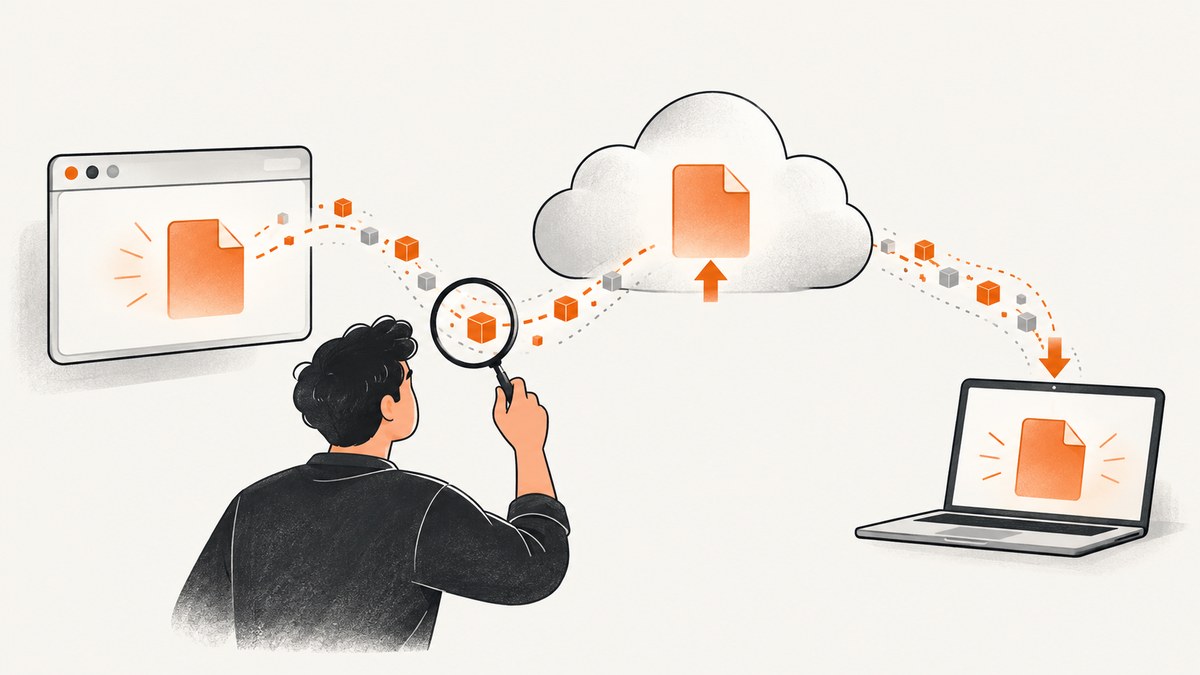
A PDF that will not open after a Supabase upload can be invalid before upload, altered at the upload boundary, or retrieved through the wrong path. Check those stages in order: generate and open the file locally, upload the original bytes with application/pdf, then download the stored object and compare its length and hash with the generated data. An upload success response does not prove the downloaded file is the same artifact.
This guide uses Node.js with Puppeteer and @supabase/supabase-js. The same checks apply in other runtimes: preserve binary data, inspect the storage response, and fetch the exact object through the correct public or private access route.
1. Confirm Puppeteer generated a readable PDF
Start before Supabase. Puppeteer’s page.pdf() returns a Promise<Uint8Array>. Write those bytes to disk and open that file in a PDF viewer. If it fails there, Storage is not the cause yet. Check that PDF generation completed without an exception and that the page had the intended content when captured.
import fs from 'node:fs/promises';
import puppeteer from 'puppeteer';

const browser = await puppeteer.launch({ headless: true });
try {
  const page = await browser.newPage();
  await page.goto('https://example.com', { waitUntil: 'networkidle0' });

  const pdfBytes = await page.pdf({
    format: 'A4',
    printBackground: true,
    waitForFonts: true,
    timeout: 30_000,
  });

  await fs.writeFile('/tmp/generated.pdf', pdfBytes);
  console.log({
    bytes: pdfBytes.byteLength,
    header: Buffer.from(pdfBytes).subarray(0, 8).toString('ascii'),
  });
} finally {
  await browser.close();
}
Open /tmp/generated.pdf before adding upload code. The header is a quick clue, not a full validity check: a PDF commonly begins with %PDF-, but seeing those bytes does not establish that every object and cross-reference structure is sound.
Check page readiness and print behavior
Puppeteer generates PDFs using print CSS media by default. If the page is styled differently for screen, use await page.emulateMediaType('screen') before calling pdf(). Wait for application data and fonts as needed. The documented default for waitForFonts is true, but a page can still be captured before its own asynchronous content is ready.
Useful options include format or explicit width/height, landscape, margin, printBackground, path, timeout, and waitForFonts. These affect output, appearance, readiness, or file destination. They do not explain bytes changing after generation. See the Puppeteer PDF guide, Page.pdf API, and PDF options reference.
2. Upload the binary bytes unchanged
Pass the PDF data as binary data to Supabase Storage; do not decode it as UTF-8, concatenate it into a string, or JSON-serialize it. Set the content type explicitly. Supabase documents a file body argument and upload options including contentType. Confirm that the body type you pass is supported by the version of @supabase/supabase-js and runtime in your project, especially if wrapping the Uint8Array in a Buffer or Blob.
import { createClient } from '@supabase/supabase-js';
import puppeteer from 'puppeteer';

const supabase = createClient(
  process.env.SUPABASE_URL,
  process.env.SUPABASE_SERVICE_ROLE_KEY,
);

const browser = await puppeteer.launch({ headless: true });
try {
  const page = await browser.newPage();
  await page.setContent('<h1>Invoice</h1><p>Example document</p>');
  const pdfBytes = await page.pdf({ format: 'A4', printBackground: true });

  const path = `invoices/${Date.now()}.pdf`;
  const { data, error } = await supabase.storage
    .from('documents')
    .upload(path, pdfBytes, {
      contentType: 'application/pdf',
      upsert: false,
    });

  if (error) {
    console.error('Storage upload failed:', error);
    throw error;
  }

  console.log('Uploaded:', data.path);
} finally {
  await browser.close();
}
Keep privileged credentials on a trusted server. A browser or other untrusted client should use an appropriately scoped access path and Storage policies; do not expose a service role key. The code assumes the bucket documents exists and its policies allow this server-side upload.
The upsert option controls replacement behavior for an existing path. For diagnosis, a unique object path avoids confusing a newly generated file with a previous object or a cached response. If you deliberately overwrite, verify that the path is exactly the one later fetched.
3. Treat upload success and download success separately
Log and inspect the complete error object returned by Storage. A rejected MIME type, missing bucket or object, authorization problem, or size limit is a request/storage error; it is not proof of PDF corruption. Supabase documents distinct Storage error codes, so fix the reported condition first. See the Storage error codes and JavaScript upload reference.
Next check the bucket type and access method. A public bucket can be read through the URL returned by getPublicUrl. A private object needs an authorized download or a time-limited signed URL. A public URL does not grant access to a private bucket. Supabase’s asset serving guide describes the routes; the JavaScript download method covers object downloads.
// Private bucket: download through the authenticated Supabase client.
const { data: file, error } = await supabase.storage
  .from('documents')
  .download(path);

if (error) {
  console.error('Storage download failed:', error);
  throw error;
}

const downloaded = new Uint8Array(await file.arrayBuffer());
console.log('Downloaded bytes:', downloaded.byteLength);
For a public bucket, obtain and request its public URL instead:
const { data } = supabase.storage.from('public-documents').getPublicUrl(path);
const response = await fetch(data.publicUrl);
if (!response.ok) {
  throw new Error(`HTTP ${response.status}: ${response.statusText}`);
}
const downloaded = new Uint8Array(await response.arrayBuffer());
Some download URL options can prompt a browser download. That changes how a browser handles the response; it does not repair a malformed file. Inspect the actual HTTP status and response body rather than assuming a viewer’s error describes the underlying cause.
4. Compare the generated and retrieved bytes
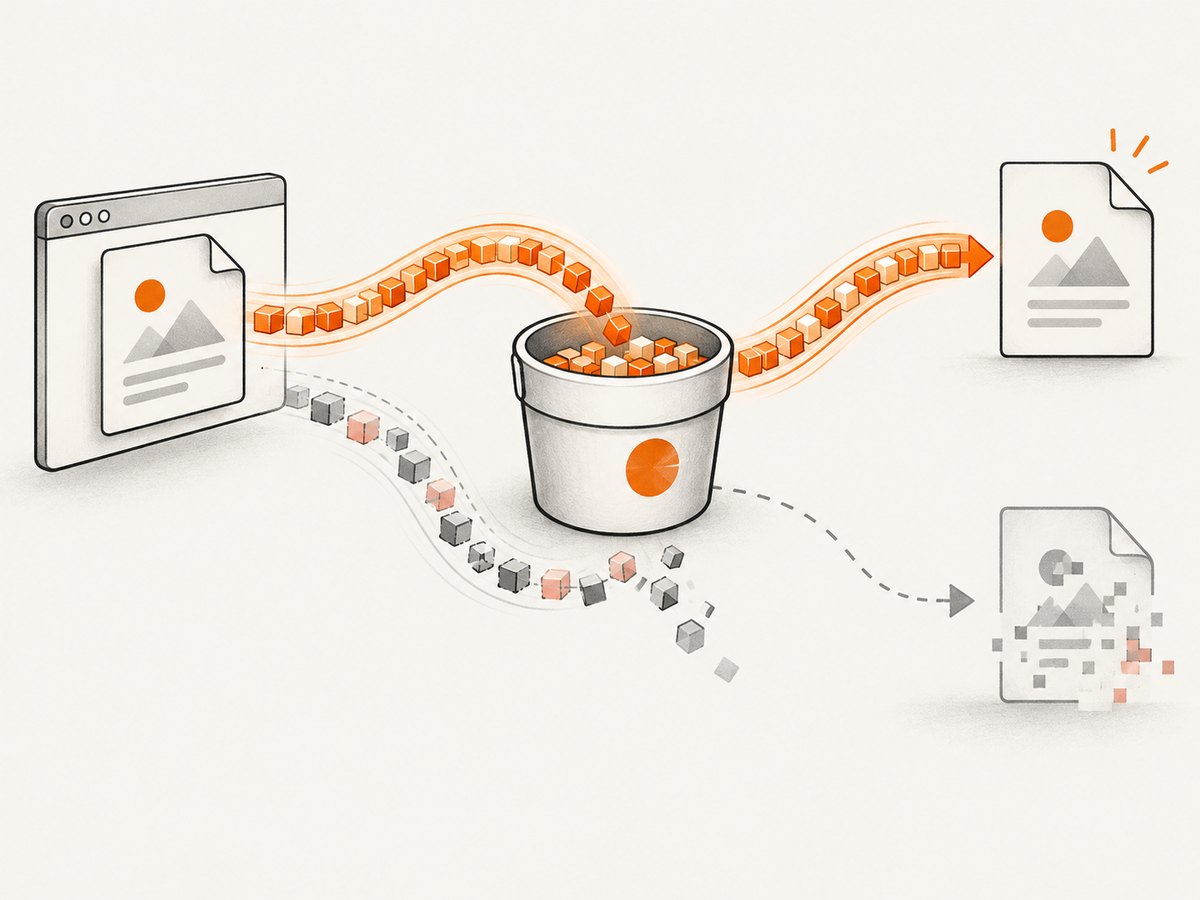
Compare lengths first, then hashes. Do this in the same process when possible, or persist the generated hash and length before upload. If downloaded bytes differ, investigate conversion at the upload boundary, a different path or bucket, overwrite behavior, caching, and response handling. If they match and both local and retrieved copies fail to open, investigate PDF generation and the runtime. A MIME header helps clients interpret a response, but changing it cannot fix malformed bytes.
import { createHash } from 'node:crypto';

function sha256(bytes) {
  return createHash('sha256').update(bytes).digest('hex');
}

console.log({
  generatedLength: pdfBytes.byteLength,
  downloadedLength: downloaded.byteLength,
  generatedSha256: sha256(pdfBytes),
  downloadedSha256: sha256(downloaded),
  identical: Buffer.from(pdfBytes).equals(Buffer.from(downloaded)),
});
This comparison isolates the boundary: equal lengths alone are not enough, while matching cryptographic hashes are strong evidence that the retrieved bytes match the generated artifact. This is diagnostic guidance derived from the documented generation, upload, and download interfaces.
| Checkpoint | Test | Failure points toward |
|---|---|---|
| Generated artifact | Open the file written directly from page.pdf() |
Page readiness, generation inputs, or browser/runtime issue |
| Upload boundary | Preserve bytes and inspect Storage response | Conversion, request metadata, permission, limit, or path problem |
| Retrieved artifact | Fetch through the correct route and compare hashes | Access route, wrong object, overwrite/cache, or response handling |
5. Investigate versions only after the byte checks
Record Node.js, Puppeteer, and the Chrome version Puppeteer launches. Reproduce with a minimal HTML page and compare the local output across environments. A Puppeteer issue report describes one Windows/Node environment where a sample worked on Puppeteer 22.15.0 and became unreadable after an upgrade to 23.0.0. That is an individual report, not evidence of a general regression or the cause of this failure. Treat version changes as a lead to reproduce, not a diagnosis: Puppeteer issue tracker.
Change one variable at a time: first the generated artifact, then the upload body type or SDK version, then the retrieval route. Keep the minimal reproduction and record hashes so a version comparison does not get confounded by a different object or page.
6. Troubleshooting common symptoms
| Symptom | Likely cause to check | Fix or next check |
|---|---|---|
| Local PDF already fails | Generation failure, incomplete page state, or runtime/version issue | Capture the PDF exception; wait for required page data; open the local artifact; reproduce with minimal HTML. |
| Upload returns an error | Bucket/path, policy, MIME restriction, or size limit | Log the full Storage error; correct the named condition before examining file integrity. |
| Upload reports success, download is 404 | Wrong bucket or object path, or an object that was never addressed correctly | Use the returned path, confirm bucket name, and inspect HTTP status. |
| Private object URL is denied | Public URL used for a private bucket or missing authorization | Use authenticated download() or create a signed URL with a suitable expiry. |
| Downloaded file is tiny or HTML-like | Error page or access response saved as if it were the PDF | Check status, headers, and body before writing it; compare length and hash. |
| Hashes differ | Different path/object, body conversion, overwrite, cache, or altered response handling | Use a unique path, pass raw bytes, fetch that exact object, then compare again. |
| Hashes match but viewer rejects both | Generated artifact is invalid or incomplete | Return to Puppeteer; test page readiness and a minimal reproducible page. |
| PDF opens but looks blank or styled wrong | Print CSS, screen-only styles, or content not ready | Check print media rules, optionally emulate screen media, and await application content. |
7. Reliability, performance, and cost considerations
PDF rendering consumes browser time and memory, and large pages can take longer to load and render. Reuse a browser process for multiple jobs when your service architecture safely supports it, but isolate pages and close them when finished; always close browser processes during shutdown. Set a bounded navigation and PDF timeout, and handle timeouts as failed jobs rather than uploading partial or stale output. Avoid treating a network-idle event as universal proof of application readiness: pages with persistent connections may never become idle, while a page can become idle before its data-dependent content is ready.
Keep generated bytes or a stable checksum long enough to diagnose retries. Make retries idempotent: use a known object path per job and decide explicitly whether to overwrite. Do not retry authorization, invalid MIME, or size-limit errors unchanged. For transient network failures, retry with a limit and retain the same generated artifact when possible, so a retry does not silently render different content.
Account for both browser compute and Storage egress/retention in your own deployment costs. This diagnosis does not imply that purchasing a storage plan or switching providers fixes corruption; first identify which boundary changes or rejects the data.
8. Or skip the browser setup
If your task is to capture a web page as an image rather than create a PDF from a custom Puppeteer-rendered document, ScreenshotNeo is a website screenshot API and MCP server from Yorker Media. It does not replace this Puppeteer PDF debugging path; it is an alternative for website screenshots, with PDF capture also available. See the ScreenshotNeo documentation.

curl -G "https://api.screenshotneo.com/v1/shot" -d access_key=YOUR_API_KEY --data-urlencode url=https://stripe.com -o shot.webpimport requests
r = requests.get(
"https://api.screenshotneo.com/v1/shot",
params={"access_key": "YOUR_API_KEY", "url": "https://stripe.com"},
timeout=90,
)
r.raise_for_status()
open("shot.webp", "wb").write(r.content)const q = new URLSearchParams({ access_key: 'YOUR_API_KEY', url: 'https://stripe.com' });
const res = await fetch(`https://api.screenshotneo.com/v1/shot?${q}`);
if (!res.ok) throw new Error(`HTTP ${res.status}`);
await Bun.write('shot.webp', res);ScreenshotNeo removes cookie banners, popups, and chat widgets before the shot. Bot checks, blank pages, and failed loads are never billed. Its MCP server lets AI agents take screenshots. The Free plan includes 1,000 screenshots per month with no card; paid plans start at $5 for 3,000 screenshots. Every feature is on every plan. Sign up free for 1,000 screenshots a month, no card required.
FAQ
Can I fix a broken PDF by changing its content type?
No. Set application/pdf so Storage and clients have the right metadata, but a header cannot repair bytes that were malformed during generation or altered before storage.
Does a successful upload mean the object is publicly readable?
No. Upload permission and read access are separate. Public URLs work for public buckets; private objects require an authorized download route or signed URL.
Should I turn the Puppeteer result into a string before uploading?
No. Keep the Uint8Array as binary data across the boundary, and verify the body type against your installed Supabase SDK version.
When should I downgrade Puppeteer?
Only after a minimal reproduction shows the local generated artifact changes or fails across versions. The reported version issue is one environment’s experience, not a universal fix.


