How to Create a Table of Contents in a Puppeteer PDF with Node.js
Build a linked table of contents with accurate printed page numbers in Puppeteer. Learn the two-pass workflow, PDF bookmarks, and common pagination fixes.

Short answer: Puppeteer’s page.pdf() prints the page using print CSS; it does not automatically build a visible table of contents with the printed page number for each heading. Create the TOC in your HTML and Node.js pipeline. For reliable page numbers, render once to measure where headings land, insert those numbers, render again, then repeat if the TOC changes pagination. Puppeteer’s experimental outline option can add PDF bookmarks, but bookmarks are separate from a visible TOC.
This guide builds a linked TOC with page numbers, explains the pagination math and its limits, and shows where PDF footers and bookmarks fit. If your goal is a website screenshot rather than a PDF document, ScreenshotNeo provides a screenshot API and MCP server; it does not replace the HTML-to-PDF workflow described here.
1. Understand what Puppeteer does for PDFs
page.pdf() generates a PDF from the current page with print CSS media enabled by default. Puppeteer provides PDF options for page size, margins, headers and footers, and an experimental document outline. Its pageNumber and totalPages template counters are useful for running headers or footers; they do not look up the page containing each heading. [Puppeteer Page.pdf()] [Puppeteer PDFOptions]
That distinction determines the implementation:
- Visible TOC: HTML content that you generate and include in the document.
- Per-heading printed page numbers: values your pipeline must calculate or obtain from a PDF layout/parser step.
- Running page counters: Puppeteer’s footer or header template placeholders.
- PDF bookmarks: optional document outline, depending on the deployed Puppeteer and Chromium versions.
A quick single-render TOC with links but no printed page numbers is simple and robust. A numbered TOC needs an additional layout pass because changing the TOC can itself move later content and change page assignments.
2. Set up a reproducible Node.js document
Install Puppeteer in a Node.js project:
npm install puppeteerThe following complete example writes a small PDF, creates a visible TOC with links and page numbers, waits for fonts, and uses a convergence loop to remeasure after updating the TOC. Save it as make-pdf.mjs and run node make-pdf.mjs. Puppeteer downloads a compatible browser during installation unless your environment is configured to use a separately managed browser.
import puppeteer from 'puppeteer';
const sections = [
{ id: 'overview', title: 'Overview', level: 1 },
{ id: 'implementation', title: 'Implementation details', level: 1 },
{ id: 'edge-cases', title: 'Pagination edge cases', level: 2 },
{ id: 'deployment', title: 'Production deployment', level: 1 },
];
function escapeHtml(value) {
return String(value).replace(/[&<>"']/g, (char) => ({
'&': '&', '<': '<', '>': '>',
'"': '"', "'": '''
})[char]);
}
function renderDocument(tocPages = new Map()) {
const toc = sections.map((section) => {
const title = escapeHtml(section.title);
const id = escapeHtml(section.id);
const page = tocPages.get(section.id) ?? '…';
return `<li class="level-${section.level}">
<a href="#${id}">${title}</a><span class="leader"></span>
<span class="page">${escapeHtml(page)}</span></li>`;
}).join('');
const content = sections.map((section) => `
<section class="chapter">
<h${section.level} id="${escapeHtml(section.id)}">${escapeHtml(section.title)}</h${section.level}>
<p>This is sample content for ${escapeHtml(section.title)}. Add your real section content here.</p>
<p>Use realistic content lengths when measuring: text wrapping and page breaks determine printed page positions.</p>
</section>`).join('');
return `<!doctype html><html><head><meta charset="utf-8">
<style>
@page { size: A4; margin: 22mm 18mm 22mm; }
body { font: 11pt/1.5 Arial, sans-serif; color: #222; }
h1 { font-size: 24pt; }
h2 { font-size: 18pt; }
.toc { page-break-after: always; }
.toc ol { list-style: none; padding: 0; }
.toc li { display: flex; gap: .5em; margin: .45em 0; }
.toc .level-2 { padding-left: 1.5em; }
.toc a { color: inherit; text-decoration: none; }
.leader { flex: 1; border-bottom: 1px dotted #777; height: 1em; }
.page { min-width: 2em; text-align: right; }
.chapter { break-before: page; }
.chapter:first-of-type { break-before: auto; }
@media print { a { color: inherit; } }
</style></head><body>
<nav class="toc" aria-label="Table of contents">
<h1>Contents</h1><ol>${toc}</ol>
</nav>${content}
</body></html>`;
}
const browser = await puppeteer.launch({ headless: true });
try {
const page = await browser.newPage();
await page.setViewport({ width: 1200, height: 900, deviceScaleFactor: 1 });
await page.emulateMediaType('print');
let tocPages = new Map();
let previous = '';
let stable = false;
for (let pass = 0; pass < 5; pass++) {
await page.setContent(renderDocument(tocPages), { waitUntil: 'networkidle0' });
await page.evaluate(() => document.fonts.ready);
const positions = await page.evaluate(() => {
const pageHeightCssPx = 1122.52; // A4 height in CSS px at 96 dpi
const topMarginCssPx = 22 * 96 / 25.4;
return [...document.querySelectorAll('.chapter h1[id], .chapter h2[id]')]
.map((el) => ({ id: el.id, top: el.getBoundingClientRect().top }))
.map(({ id, top }) => ({ id, page: Math.max(1,
Math.floor((top + topMarginCssPx) / pageHeightCssPx) + 1) }));
});
const next = new Map(positions.map(({ id, page }) => [id, page]));
const signature = JSON.stringify([...next]);
if (signature === previous) { tocPages = next; stable = true; break; }
previous = signature;
tocPages = next;
}
// Render with the last page map, then produce the final PDF.
await page.setContent(renderDocument(tocPages), { waitUntil: 'networkidle0' });
await page.evaluate(() => document.fonts.ready);
await page.pdf({
path: 'output.pdf', format: 'A4', printBackground: true,
displayHeaderFooter: true,
footerTemplate: '<div style="width:100%;font-size:9px;text-align:center">'
+ '<span class="pageNumber"></span> / '
+ '<span class="totalPages"></span></div>',
margin: { top: '22mm', right: '18mm', bottom: '22mm', left: '18mm' },
});
console.log(stable ? 'TOC page assignments converged.' :
'TOC assignments did not converge within five passes; validate the PDF.');
} finally {
await browser.close();
}The example’s content is intentionally short. Replace it with your full document and use the exact same HTML, styles, assets, margins, paper size, and PDF options during measurement and final output. Its page calculation is an estimate, not a browser API guarantee; the next section explains how to make the result dependable.
3. Build the TOC from structured sections
Maintain one ordered section list and use it both to render headings and to render TOC entries. Give each heading a stable, unique ID, then point its TOC anchor at that ID. This avoids trying to infer titles from rendered text and makes links deterministic.
Escape every title and ID inserted into HTML. Better still, generate IDs from trusted internal data rather than user-supplied markup. Validate that IDs are unique and nonempty; duplicate IDs make links ambiguous. If sections can be omitted conditionally, build the TOC and body from the same filtered list.
For a links-only TOC, render the document once and omit the page-number cell. Use CSS counters if you want numbered entries, but remember that list numbering is not the same as printed page numbering. A title can wrap across lines without affecting its anchor. Keep the TOC semantically marked up with <nav> and a list so screen readers can navigate it.
4. Calculate printed page numbers accurately
Do not use pageNumber to fill the TOC. That counter is evaluated as a running PDF header or footer. It cannot return the page for an arbitrary heading ID. The direct DOM measurement gives a heading’s CSS position, but converting that coordinate into the printed PDF page requires matching Chromium’s print layout.
Control the print geometry
Choose paper size, margins, and scale before measuring. For a fixed paper size, the page’s CSS-pixel height is its physical height in inches multiplied by 96. Usable content height also depends on top and bottom margins. However, a simple division of getBoundingClientRect().top by page height can be wrong when the document uses page breaks, named pages, CSS transforms, a non-default scale, or content that fragments in print differently from the screen layout.
The sample is useful to demonstrate the loop, but for production accuracy prefer one of these approaches:
- Measure in print layout with a controlled template. Use fixed paper geometry and print styles; map each heading to the actual page box using a layout-aware method that accounts for breaks and margins.
- Inspect the generated PDF. Render a provisional PDF, then use a PDF parser or your own PDF layout tooling to locate heading text and determine its page. Feed those page assignments back into the HTML TOC.
- Make pagination deterministic. Use explicit page breaks at known section boundaries and map sections to those pages, provided content changes cannot cause the boundaries to shift unexpectedly.
For many internal reports, a two-pass estimate is sufficient after validating representative documents. For contracts, books, or reports where page references must be correct, parse the provisional PDF or validate the generated PDF as part of the publishing workflow.
Wait for layout inputs
Before measuring, wait for navigation or data loading, then await document.fonts.ready. Ensure images have loaded and declare intrinsic width and height to reduce layout shifts. If content depends on client-side JavaScript, wait for an application-ready condition rather than assuming that networkidle0 means all application work is done. Use page.emulateMediaType('screen') only when you intentionally want screen styles; PDF generation otherwise uses print CSS media. [Puppeteer Page.pdf()] [Puppeteer Page.emulateMediaType()]
5. Re-render until the TOC is stable
TOC page numbers can change page layout. A longer page number may widen a cell, wrap a title, or add a TOC page. That shifts body sections, which changes the numbers you just inserted. The two-pass procedure is therefore a convergence process:
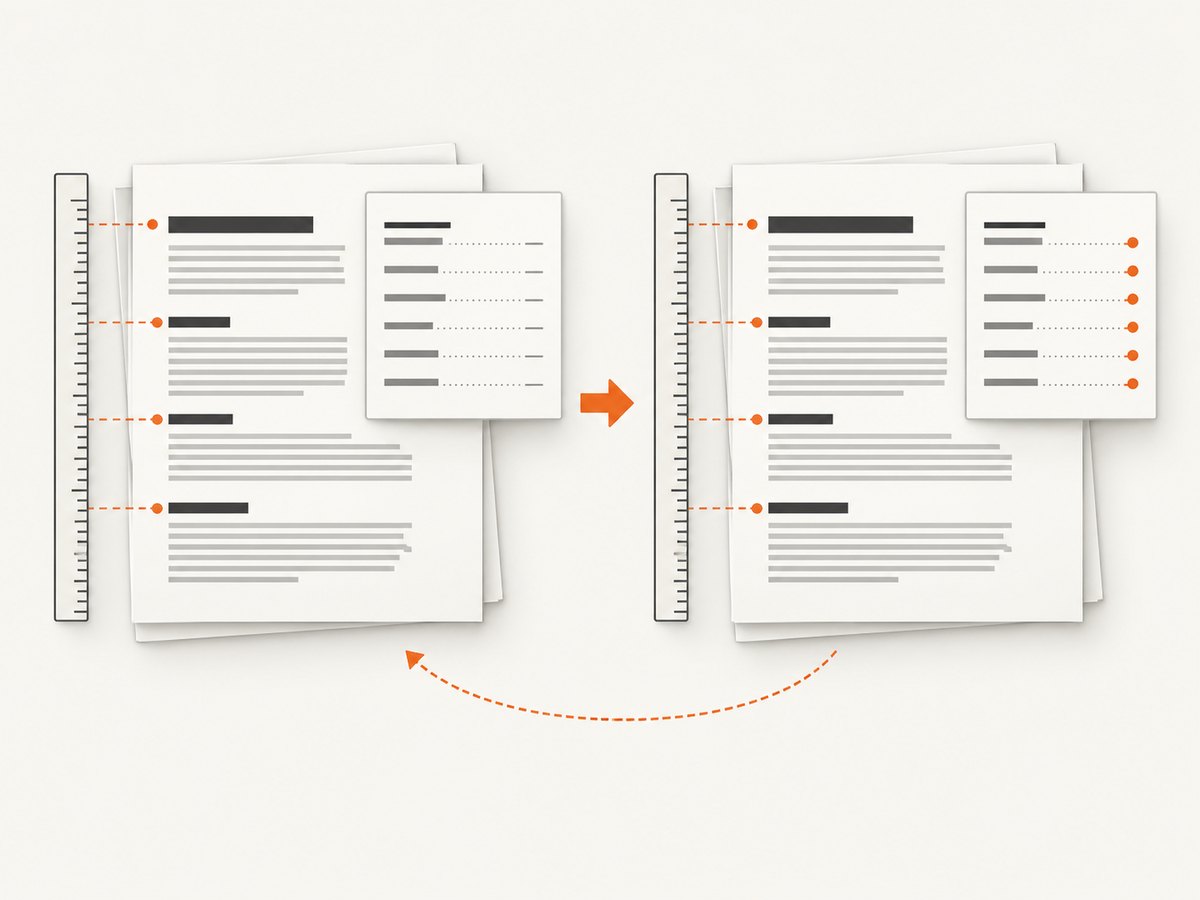
- Render the complete document with blank or provisional page numbers.
- Measure heading pages using the same print configuration, or parse a provisional PDF.
- Regenerate the TOC with those assignments.
- Measure again and compare assignments for every heading.
- Repeat until assignments match, or stop after a bounded number of passes and flag the output for validation.
Do not silently claim stability just because the loop ended. The sample logs whether page assignments converged within its limit. A production job should record the pass count and treat non-convergence as a validation issue. If the TOC keeps changing, reserve enough width for page numbers, prevent title wrapping where appropriate, reduce TOC detail, or use a PDF parser for final page mapping.
6. Configure PDF options, links, and bookmarks
Set PDF options explicitly so the measured layout matches the file you deliver. format selects a standard page size; you can instead use width and height. Set margin, scale, and printBackground deliberately. Header and footer templates need displayHeaderFooter: true. Puppeteer documents placeholders including pageNumber and totalPages for those templates. [PDFOptions reference]
Use outline: true only as an optional convenience. The documented behavior is experimental, and the outline is a PDF bookmark tree rather than a visible TOC. Test it with the exact Puppeteer and Chromium versions you deploy, and inspect the resulting PDF in your target readers. Keep visible HTML links even when bookmarks are enabled if readers need a printed contents page.
Internal anchors such as href="#implementation" make TOC entries clickable in readers that preserve PDF links. Check the final artifact, since PDF viewers differ in how they display links and outlines. For especially long documents, consider limiting the TOC to top-level headings or selected subheadings so it remains useful and does not consume several pages.
7. cURL, Python, and Node.js PDF generation choices
Puppeteer is a Node.js library, so the actual browser automation belongs in Node.js. cURL and Python can still participate in a surrounding workflow: cURL can call a service you build around Puppeteer, and Python can invoke that service or orchestrate a Node script. Neither cURL nor Python can call Puppeteer’s JavaScript API directly.
For example, expose your own authenticated HTTP endpoint that accepts document data and runs the Node job. The following cURL command is a generic shape; replace the URL with your own endpoint and adapt its request schema:
curl -X POST "https://your-service.example/render-pdf" \
  -H "Content-Type: application/json" \
  -H "Authorization: Bearer YOUR_TOKEN" \
  --data '{"title":"Quarterly report","sections":[{"id":"overview","title":"Overview"}]}' \
  --output report.pdf
Python can invoke a locally installed Node script and check its exit status:
import subprocess

subprocess.run(
    ["node", "make-pdf.mjs"],
    check=True,
    timeout=180,
)
If you call your own HTTP wrapper instead, use a client timeout that allows for browser startup, page rendering, and any PDF parsing. Keep credentials out of source control. The endpoint, authentication model, and payload above are your service design; they are not Puppeteer APIs.
8. Or skip the browser setup
ScreenshotNeo is for producing website screenshots through one GET request, not for creating a multi-page PDF with a generated table of contents. If you need a screenshot of a URL as part of the same developer workflow, its API can return PNG, JPEG, or WebP. See the ScreenshotNeo API documentation.

curl -G "https://api.screenshotneo.com/v1/shot" -d access_key=YOUR_API_KEY --data-urlencode url=https://stripe.com -o shot.webpimport requests
r = requests.get("https://api.screenshotneo.com/v1/shot", params={"access_key": "YOUR_API_KEY", "url": "https://stripe.com"}, timeout=90)
open("shot.webp", "wb").write(r.content)const q = new URLSearchParams({ access_key: 'YOUR_API_KEY', url: 'https://stripe.com' });
const res = await fetch(`https://api.screenshotneo.com/v1/shot?${q}`);
Cookie and consent banners, newsletter popups, and chat widgets are removed before the shot. Bot checks, blank pages, and failed loads are never billed; response headers report the page verdict and billing status. An MCP server lets AI agents use take_screenshot, get_page_info, and capture_pdf. The free plan includes 1,000 screenshots a month with no card; paid plans start at $5 for 3,000 screenshots. Sign up for 1,000 free screenshots a month, with no card.
9. Troubleshooting common problems
| Symptom | Likely cause | Fix |
|---|---|---|
| TOC page numbers are all one page off | The calculation does not account for the top margin, page breaks, or the rendered page geometry. | Use identical PDF options during measurement and output. Validate against the actual PDF or map pages with a PDF parser. |
| Numbers are correct before the TOC is filled, then wrong | Filled values changed TOC wrapping or length. | Re-render and remeasure until assignments converge. Reserve a fixed page-number column. |
| Headings move between runs | Fonts, images, remote assets, or application content load at different times. | Wait for fonts and required app state; use local or stable assets and fixed image dimensions. |
| TOC links jump to the wrong section | Duplicate or malformed heading IDs. | Generate unique IDs from trusted data and validate them before rendering. |
| Footer is missing | displayHeaderFooter is false or omitted. |
Enable it and verify the template HTML. Use the documented class names for counters. |
| PDF colors or backgrounds differ | Print CSS differs from screen CSS, or background printing is disabled. | Use print styles intentionally and set printBackground: true when backgrounds are required. |
| Outline/bookmarks do not appear | outline is experimental or unsupported by the deployed browser version. |
Check the Puppeteer PDFOptions documentation for your version and test the generated file in a PDF reader. |
networkidle0 never completes |
Long polling, analytics, or other persistent requests keep the network active. | Wait for a specific app-ready selector or state, and handle required resources deliberately instead of relying only on network idleness. |
10. Performance, reliability, and cost
Each extra measurement or PDF parse adds work, so links-only TOCs are cheapest to render. A numbered TOC usually needs at least one provisional layout and one final render; convergence can require more passes. Reuse a browser process across a batch of jobs when your service architecture permits it, but isolate pages and close them after use. Keep the pass limit bounded so a pathological document cannot loop indefinitely.
Reliability comes from controlling inputs: use fixed fonts and assets, wait for the application’s actual ready state, specify print media and PDF geometry, and validate page assignments against the final output. External images and web fonts can fail or change. Where reproducibility matters, bundle assets or serve stable versions and give images explicit dimensions. Record the document version and rendering configuration with the generated PDF so discrepancies can be diagnosed.
Cost depends on where Chromium runs and how much browser time and PDF processing your system consumes. This dossier provides no benchmark or hosting price, so estimate from your own document sizes, pass counts, concurrency, and deployment costs. A hosted browser can reduce the work of operating Chromium, but verify its current Puppeteer support, PDF capabilities, limits, security model, and pricing before choosing it. No particular hosted provider is recommended here.
11. FAQ
Can Puppeteer automatically number a visible TOC?
No documented page.pdf() option creates that TOC. Generate it in HTML and calculate the heading pages in your pipeline.
Can the footer show the current and total pages?
Yes. Enable displayHeaderFooter and place pageNumber and totalPages spans in the template.
Does outline: true replace the contents page?
No. It requests a document outline for bookmarks, and the option is experimental. It is separate from visible TOC content.
Is one measurement pass enough?
Only if inserting the measured values cannot change pagination and your page mapping is accurate. Re-render and compare assignments for numbered TOCs.
12. Implementation checklist
- Keep sections in one ordered data structure and assign unique heading IDs.
- Escape interpolated values and build TOC links from the same section list as the body.
- Specify print media, page dimensions, margins, scale, and background behavior.
- Wait for fonts, required data, and images before measuring.
- Use a print-aware mapping or parse a provisional PDF when page accuracy matters.
- Re-render until page assignments stabilize; flag non-converging output.
- Use footer counters for running page labels and treat experimental outlines as optional bookmarks.
- Inspect representative short and long PDFs in the readers your users rely on.
The reliable mental model is straightforward: Puppeteer prints your HTML, while your application owns the visible TOC and its per-heading page references. Make those references from the final print layout, account for the TOC’s effect on pagination, and validate the PDF when page accuracy matters.


