How to Fix Puppeteer PDF Differences Between Windows and CentOS
Fix Puppeteer PDF differences between Windows and CentOS by aligning Chromium, fonts, print settings, and document inputs. Use this step-by-step checklist to track down layout changes.
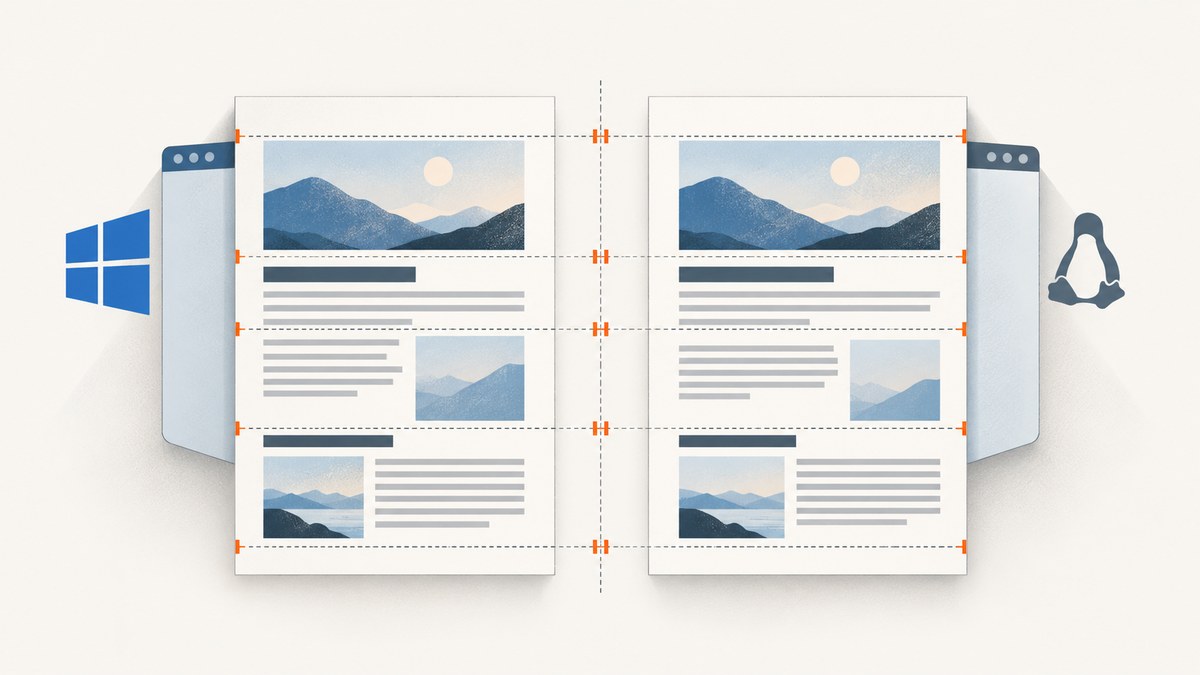
Puppeteer PDFs can differ between Windows and CentOS because operating system, Chromium build, fonts, document assets, and print settings affect rendering. To make the output more consistent, first align the Puppeteer and Chromium versions, use identical HTML/CSS/data, explicitly set print media and every relevant PDF option, install and verify the fonts your document uses on CentOS, and wait for those fonts to load. Then compare one rendering variable at a time. Identical output across operating systems is not guaranteed.
This guide walks through a reproducible Windows-versus-CentOS setup, explains what to inspect when text wraps differently or page breaks move, and distinguishes documented Puppeteer behavior from a case-specific Chromium flag that may be worth experimenting with.
1. Record the rendering environment
Start by capturing the versions and launch configuration from both machines. A Puppeteer package version does not by itself establish which Chromium executable is running, especially if your code supplies a custom executable path. Record the OS release and architecture too, so a later comparison has enough context to reproduce the run.
node --version
npm ls puppeteer
# Record the OS and architecture on each machine:
uname -a
cat /etc/centos-release
On Windows, use node --version, npm ls puppeteer, and PowerShell’s [System.Runtime.InteropServices.RuntimeInformation]::OSDescription and [System.Runtime.InteropServices.RuntimeInformation]::OSArchitecture. Log the browser version from Puppeteer in the capture script. Keep the lockfile and install dependencies from it in both environments. If you manage Chromium separately, pin and record that build as well.
const browser = await puppeteer.launch({ headless: true });
console.log({
  puppeteer: require('puppeteer/package.json').version,
  chromium: await browser.version(),
  platform: process.platform,
  arch: process.arch,
});
Use the same headless/headful mode, launch flags, executable path policy, and environment variables for the comparison. Do not change several of these while also changing fonts or CSS: otherwise a better or worse result will not tell you which change mattered.
2. Make the PDF inputs and print behavior explicit
Page.pdf() renders using print CSS by default. If your production output is meant to match the screen stylesheet, call page.emulateMediaType('screen') before generating the PDF. Otherwise, keep print media and ensure both platforms load the same @media print and @page rules. Chromium also adjusts colors for printing by default; use -webkit-print-color-adjust when exact print colors are required.

Set the PDF options rather than relying on defaults. Puppeteer documents Letter as the default paper format, printBackground as false, and preferCSSPageSize as false. When CSS page size is not preferred, content may be scaled to fit the selected paper. Explicit options make the two runs comparable:
const pdfOptions = {
  path: 'report.pdf',
  format: 'A4',
  landscape: false,
  margin: {
    top: '12mm',
    right: '12mm',
    bottom: '14mm',
    left: '12mm',
  },
  scale: 1,
  printBackground: true,
  preferCSSPageSize: true,
  displayHeaderFooter: false,
  waitForFonts: true,
};

await page.pdf(pdfOptions);
Choose values that match your intended output; these are an example configuration, not universal settings. If your layout is defined in CSS, preferCSSPageSize: true tells Chromium to give the CSS page size priority. If you want the API’s paper format and dimensions to govern, set it false and configure the format or width and height deliberately. The API supports paper format, width and height, margins, scale, landscape, background printing, and CSS page-size priority. Keep every applicable choice identical between runs.
@page {
  size: A4 portrait;
  margin: 12mm 12mm 14mm;
}

html {
  -webkit-print-color-adjust: exact;
  print-color-adjust: exact;
}
Use the color adjustment rule only if the PDF needs to preserve CSS colors as specified. It addresses print color behavior, not font metrics or page geometry. Also make the viewport assumptions, locale-sensitive data, dates, and loaded images the same; dynamic content can change line wrapping or page count even with matching PDF options.
3. Verify CentOS dependencies and the actual fonts
CentOS needs the shared libraries and other dependencies Chromium requires. Puppeteer’s troubleshooting documentation lists CentOS packages including ipa-gothic-fonts, X font packages, and Pango libraries. Treat that list as a launch and dependency starting point: installing those packages does not prove that your particular font families, weights, or scripts are present.
Check three things on the CentOS host:
- Browser dependencies: use the Puppeteer troubleshooting guide’s CentOS package list for your release, and check whether Chrome has unresolved shared libraries with
ldd chrome | grep not. - Font files and discovery: inspect the installed font files and confirm the system can discover the families named in your CSS. Package names and availability can vary by CentOS release.
- Coverage and weights: confirm the fonts cover the glyphs in the document and that the weights you request are available. A fallback for a missing family, weight, or non-Latin glyph can have different metrics.
Make the CSS font stack intentional. A generic family can still resolve to different fonts on Windows and CentOS. If consistent line breaks matter, use a font that is actually available in both environments and confirm that its web font loads when you expect it to. Inspect the generated PDF’s embedded or substituted fonts with your normal PDF inspection tools if the text widths suggest a fallback.
4. Wait for web fonts and page content before printing
Puppeteer’s current PDF options define waitForFonts as true by default; it waits for document.fonts.ready. The PDF guide also says Page.pdf() waits for fonts by default. Keep that behavior enabled unless you have a specific reason to turn it off. If you generate PDFs in a background page, the API notes that bringing the page to the foreground may be necessary for font readiness to resolve.
Font readiness does not fix a broken font request or guarantee the intended family was selected. Check the browser console and network activity for failed font loads, and verify the computed font family for affected elements. If the page fills content asynchronously, wait for the application’s own ready condition before printing as well.
await page.goto('https://example.com/report', {
  waitUntil: 'networkidle0',
  timeout: 60000,
});

await page.evaluate(async () => {
  await document.fonts.ready;
});

await page.pdf({
  path: 'report.pdf',
  format: 'A4',
  printBackground: true,
  preferCSSPageSize: true,
  waitForFonts: true,
});
networkidle0 is a useful example for pages whose requests settle, but it may never occur on pages that maintain long-lived connections or continuously poll. In those cases, wait for a stable application selector or a known rendering signal, then wait for fonts. Avoid using an arbitrary sleep as the only readiness check: it can be too short on a busy run and waste time on a fast one.
5. Use the same runnable capture script on both systems
Install a pinned Puppeteer dependency through your project manifest and lockfile, then run this script with the same target and configuration on Windows and CentOS. Substitute your actual page URL and choose the media type that matches the intended PDF.
const puppeteer = require('puppeteer');

(async () => {
  const browser = await puppeteer.launch({
    headless: true,
    // Keep the sandbox enabled where possible.
    // Add identical launch args on both systems only when needed.
    args: [],
  });

  try {
    console.log({
      puppeteer: require('puppeteer/package.json').version,
      chromium: await browser.version(),
      platform: process.platform,
      arch: process.arch,
    });

    const page = await browser.newPage();
    await page.setViewport({ width: 1280, height: 900, deviceScaleFactor: 1 });
    await page.goto('https://example.com/report', {
      waitUntil: 'networkidle0',
      timeout: 60000,
    });

    // Omit this line to use print media, which Page.pdf() uses by default.
    await page.emulateMediaType('print');
    await page.evaluate(() => document.fonts.ready);

    await page.pdf({
      path: 'report.pdf',
      format: 'A4',
      landscape: false,
      margin: { top: '12mm', right: '12mm', bottom: '14mm', left: '12mm' },
      scale: 1,
      printBackground: true,
      preferCSSPageSize: true,
      waitForFonts: true,
    });
  } finally {
    await browser.close();
  }
})().catch((error) => {
  console.error(error);
  process.exitCode = 1;
});
For screen styling, replace the explicit print call with await page.emulateMediaType('screen'). Keep that decision identical on both hosts. The script logs enough runtime information to make output comparisons useful; save the logs and the exact HTML/CSS/assets with each PDF artifact.
6. Compare the PDFs systematically
Compare one axis at a time instead of judging only whether the pages “look different.” Start with the PDF page size and count, then inspect geometry and text:
- Compare page dimensions, orientation, margins, and total page count.
- Find the first element or paragraph whose position differs; note whether it is a global shift or accumulates after text.
- Compare font family, weight, glyph selection, word widths, line wrapping, and baseline spacing.
- Check page breaks around the first changed wrap. A small metric difference can push following content onto a later page.
- Inspect backgrounds and colors separately from geometry because print color handling can alter visual output without changing layout.
If text gradually drifts horizontally or wraps sooner on one platform, focus on font family, weight, and font loading. If all content is uniformly shifted or scaled, revisit paper size, margins, scale, and preferCSSPageSize. If only colors differ, inspect print CSS, backgrounds, and -webkit-print-color-adjust. Save both PDFs and compare a small CSS or option change against the same inputs.
7. Treat render hinting as a controlled experiment
A Puppeteer issue discussing wider font widths across Windows and Linux notes that operating system, browser version, and content can all affect output. In a 2019 comment, contributor Andrey Lushnikov suggested --font-render-hinting=medium for the reported headless/headful consistency case. This is an issue-thread suggestion for one report, not a documented Puppeteer guarantee or a verified fix for every Windows/CentOS mismatch.
const browser = await puppeteer.launch({
  headless: true,
  args: ['--font-render-hinting=medium'],
});
Try it only after versions, fonts, media, and PDF settings are aligned. Compare the exact target systems with and without the flag, and keep it only if it improves your output. Do not use it to mask missing fonts or mismatched paper settings.
8. Troubleshooting common symptoms
| Symptom | Likely cause | What to check or change |
|---|---|---|
| Text is wider or wraps earlier on CentOS | Font substitution, missing weight or glyph, different Chromium build | Verify computed and installed fonts, font requests, glyph coverage, and actual browser version. Compare with identical assets. |
| Content shifts or scales across the whole page | Different format, dimensions, margins, scale, or CSS page-size behavior | Set all PDF options explicitly, including format, margins, scale, and preferCSSPageSize. |
| Colors or backgrounds disappear in the PDF | Background printing is off or print CSS adjusts colors | Set printBackground: true if required and use print color adjustment CSS when exact colors matter. |
| Web fonts appear inconsistently | Font request failure, premature capture, or unresolved readiness in a background page | Inspect network and console errors; keep waitForFonts enabled; wait for the app’s render state and document.fonts.ready. |
| CentOS Chromium fails to launch | Missing shared library or browser dependency | Check the CentOS dependency guidance and run ldd chrome | grep not against the actual executable. |
| PDF has different pages despite matching fonts | Different content, asset timing, CSS media, viewport assumptions, or dynamic data | Capture the same input snapshot, set media deliberately, wait for content, and compare the first point of divergence. |
| Hinting flag changes output unpredictably | Flag behavior depends on the particular browser and font rendering path | Remove it, establish a baseline, and evaluate it only as a controlled experiment on pinned versions. |
9. Improve reliability without weakening browser security
Keep Chromium’s sandbox enabled where possible. Puppeteer’s troubleshooting guide strongly discourages running without a sandbox; disabling it is a security-sensitive launch change and does not align PDFs. For repeatable jobs, pin dependencies, retain the input document and runtime log with each output, and fail visibly when navigation or font loading fails rather than silently generating a partial PDF.
Set an appropriate navigation timeout and close the browser in a finally block, as in the example. For large or variable documents, consider a job-level timeout and a clear retry policy around transient navigation failures. Reuse a browser process only when your service can isolate pages and reliably close them after each job. On a retry, preserve the same inputs and runtime so the retry itself does not introduce another rendering difference.
10. Performance and cost considerations
PDF generation time depends on page complexity, loaded assets, fonts, and the time your readiness condition takes. Waiting for every network request can be slow or impossible for pages with persistent activity, so use a meaningful readiness signal where possible. Font readiness is important to layout consistency; disabling it for speed can produce different text metrics or missing fallback behavior.
Chromium package installation and font files add deployment work on CentOS. Keep the required fonts and browser dependencies in the environment setup, and avoid installing packages ad hoc on only one worker. When operating multiple workers, make their browser version, OS image, and font set consistent. There is no universal cross-platform performance or mismatch percentage: measure render time and compare artifacts for your own document set.
11. Or skip the browser setup
If your goal is a visual snapshot of a page rather than a PDF generated by your own Puppeteer runtime, ScreenshotNeo provides a website screenshot API and MCP server. It cannot make a Puppeteer-produced PDF identical across operating systems, but it can remove the need to install and align a local browser for screenshot captures. See the ScreenshotNeo API documentation.

curl -G "https://api.screenshotneo.com/v1/shot" -d access_key=YOUR_API_KEY --data-urlencode url=https://example.com/report -o shot.webpimport requests
r = requests.get(
"https://api.screenshotneo.com/v1/shot",
params={"access_key": "YOUR_API_KEY", "url": "https://example.com/report"},
timeout=90,
)
open("shot.webp", "wb").write(r.content)const q = new URLSearchParams({
access_key: 'YOUR_API_KEY',
url: 'https://example.com/report',
});
const res = await fetch(`https://api.screenshotneo.com/v1/shot?${q}`);
if (!res.ok) throw new Error(`Screenshot request failed: ${res.status}`);
await Bun.write('shot.webp', res);Replace YOUR_API_KEY with an API key. The Node.js example uses Bun’s file writer; with Node.js, save the response body using your preferred file-writing method. ScreenshotNeo accepts cookie and consent banners like a visitor and removes more than 60 known consent platforms, newsletter popups, and chat widgets before capture; those steps can each be turned off. Bot checks and CAPTCHAs, blank pages, failed loads, timeouts, and cache hits cost nothing, and the response identifies the page verdict and billing state in headers. Its MCP server gives AI agents tools for screenshots, page information, and PDF capture. The free plan includes 1,000 shots per month with no card; paid plans start at $5 for 3,000 shots. Every feature is on every plan. Create a free account at ScreenshotNeo sign-up.
12. FAQ
Will matching Puppeteer versions guarantee identical PDFs?
No. Operating system, Chromium build, fonts, assets, and document content still affect rendering. Matching versions removes one source of variation.
Should I use screen or print media?
Use the media stylesheet your PDF is intended to represent. Puppeteer uses print media by default; call emulateMediaType('screen') first when the screen stylesheet is required.
Is --font-render-hinting=medium the standard fix?
No. It was suggested in an issue comment for a particular report. Test it as an isolated experiment after correcting versions, fonts, and PDF configuration.
Can ScreenshotNeo replace Puppeteer for this PDF workflow?
ScreenshotNeo can capture a page as a screenshot or PDF through its API, but it does not resolve differences in PDFs generated by your own Puppeteer installations. Use it when managed capture better fits the task.


