How to Create a PDF with Puppeteer in Node.js Without Writing It to Disk
Create and return Puppeteer PDFs from memory or a Web Stream, with print options, cleanup, backpressure, troubleshooting, and a no-browser API option.
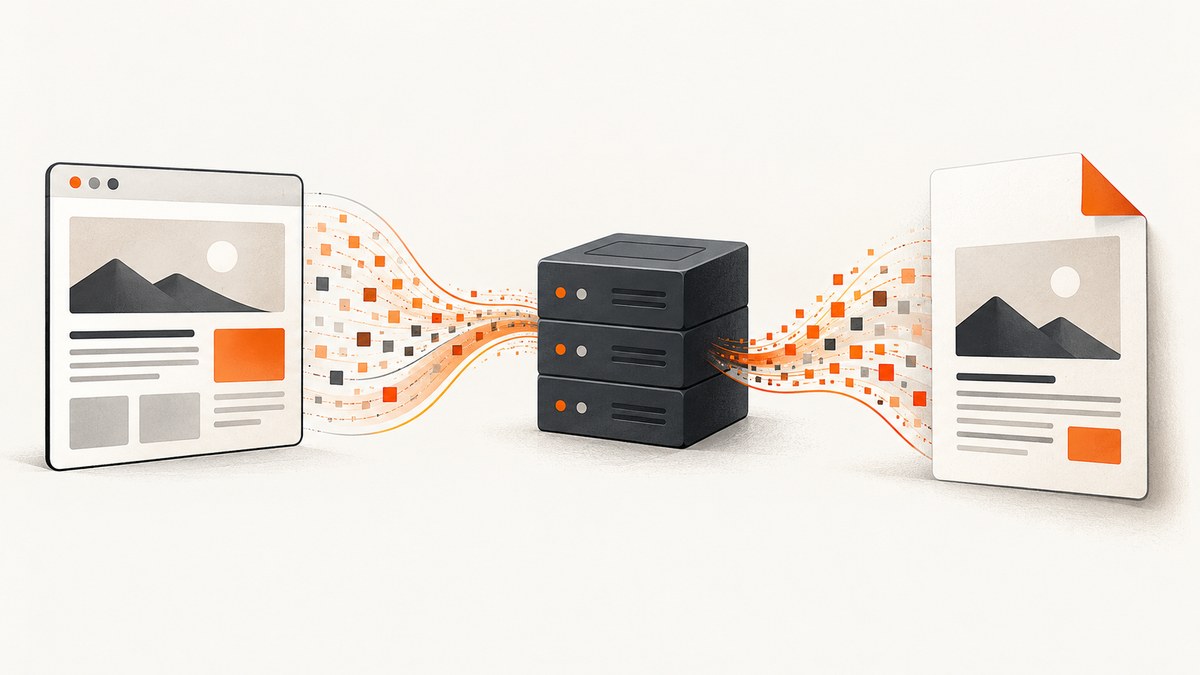
Yes. Omit Puppeteer’s path option and page.pdf() returns the completed PDF as bytes. You can return those bytes from an HTTP handler without creating a PDF file. When the destination accepts chunks, use page.createPDFStream() and connect the Web Stream to Node’s response stream.
“Without writing it to disk” means Puppeteer does not save the generated PDF file. Chromium still uses memory and CPU to load the page, lay out print CSS, render fonts and images, and assemble the PDF. Streaming can change how your application hands data to a destination; it does not guarantee page-by-page rendering or a fixed memory ceiling.
1. Return a PDF as bytes with page.pdf()
The simplest pattern is:
- Launch Chromium.
- Open a page and load the document.
- Call
await page.pdf()withoutpath. - Send the returned
Uint8Arraywith PDF headers. - Close the page and browser in a
finallyblock.
Puppeteer documents PDFOptions.path as optional, with a default of undefined; omitting it prevents Puppeteer from writing the PDF to disk (PDFOptions). The Next API reference describes page.pdf() as returning Promise<Uint8Array>; check the signature in the Puppeteer version installed in your project (Page.pdf()).
Complete Express example
import express from 'express';
import puppeteer from 'puppeteer';

const app = express();

app.get('/invoice.pdf', async (req, res) => {
  let browser;
  try {
    browser = await puppeteer.launch({ headless: true });
    const page = await browser.newPage();

    await page.goto('https://example.com/invoice', {
      waitUntil: 'networkidle0',
      timeout: 30_000
    });

    // PDF output uses print media by default. Keep this line when
    // the document's print CSS is the desired design.
    const pdf = await page.pdf({
      format: 'A4',
      printBackground: true,
      preferCSSPageSize: true,
      waitForFonts: true,
      timeout: 30_000
    });

    res.status(200);
    res.set({
      'Content-Type': 'application/pdf',
      'Content-Disposition': 'inline; filename="invoice.pdf"',
      'Content-Length': String(pdf.byteLength),
      'Cache-Control': 'no-store'
    });
    res.end(pdf);
  } catch (error) {
    console.error(error);
    if (!res.headersSent) {
      res.status(500).json({ error: 'PDF generation failed' });
    } else {
      res.destroy(error);
    }
  } finally {
    if (browser) await browser.close();
  }
});

app.listen(3000, () => console.log('Listening on http://localhost:3000'));
Install dependencies with npm install express puppeteer, start the server, and request http://localhost:3000/invoice.pdf. The response is the PDF; no output path is supplied.
2. Use createPDFStream() for a stream destination
page.createPDFStream() returns a Web ReadableStream<Uint8Array> in Puppeteer 25.12.0 (createPDFStream()). This is useful when your framework or storage destination accepts chunks and you do not want your application code to first collect the entire PDF in one variable.
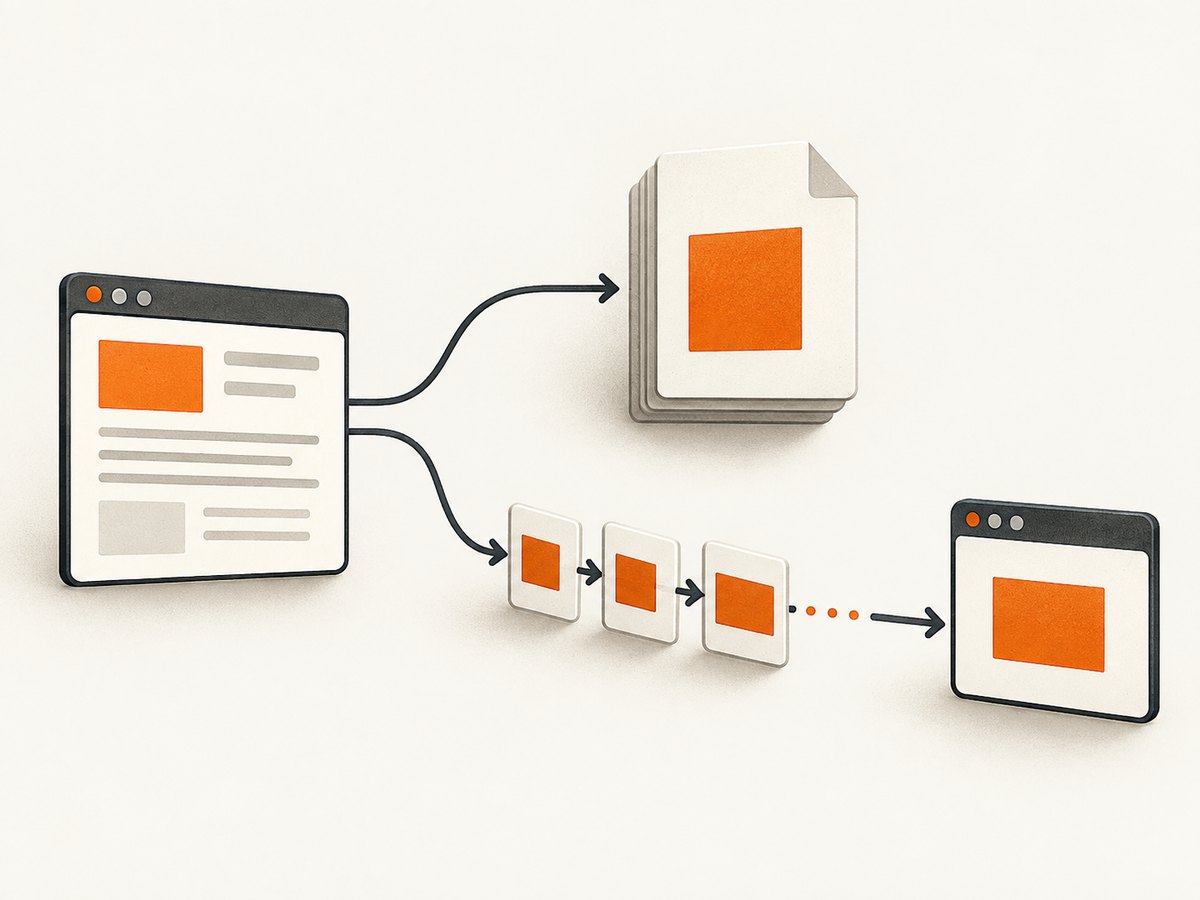
Node’s stream utilities support Web Streams in modern releases. Node documents Web Stream support in stream.pipeline() from Node v18.16.0 and v19.7.0, and promise-based stream utilities from v15.0.0 (Node stream documentation). Confirm support for the Node release used by your deployment.
import express from 'express';
import puppeteer from 'puppeteer';
import { Readable } from 'node:stream';
import { pipeline } from 'node:stream/promises';

const app = express();

app.get('/streamed.pdf', async (req, res) => {
  let browser;
  try {
    browser = await puppeteer.launch({ headless: true });
    const page = await browser.newPage();
    await page.goto('https://example.com/report', {
      waitUntil: 'networkidle0',
      timeout: 30_000
    });

    res.status(200).set({
      'Content-Type': 'application/pdf',
      'Content-Disposition': 'inline; filename="report.pdf"',
      'Cache-Control': 'no-store'
    });

    const pdfWebStream = await page.createPDFStream({
      format: 'A4',
      printBackground: true,
      waitForFonts: true
    });

    // Readable.fromWeb adapts the Web ReadableStream to a Node stream.
    await pipeline(Readable.fromWeb(pdfWebStream), res);
  } catch (error) {
    console.error(error);
    if (!res.headersSent) res.status(500).json({ error: 'PDF generation failed' });
    else res.destroy(error);
  } finally {
    if (browser) await browser.close();
  }
});

app.listen(3000);
Use pipeline() instead of manually reading chunks and ignoring errors. It propagates failures and coordinates the source and destination as their speeds differ. Node’s highWaterMark is a buffering threshold, not a hard upper bound on total process memory. Chromium’s layout and rendering memory also remains part of the job.
3. Choose bytes or a stream
| Question | page.pdf() |
createPDFStream() |
|---|---|---|
| Return type | Completed Uint8Array |
Web ReadableStream<Uint8Array> |
| Application behavior | Collects the PDF before sending or storing it | Composes with a compatible destination stream |
| Best fit | Small or moderate responses, database/blob uploads requiring bytes, simple handlers | Framework responses, object-storage streams, or pipelines where chunk handling is useful |
| Memory conclusion | One application variable contains the completed PDF | May reduce application-side buffering, but does not bound Chromium memory |
| Error handling | Catch one awaited operation | Use adapters and pipeline() so stream errors are propagated |
Neither API should be advertised as universally faster or lower-memory. Measure the actual pages, fonts, images, concurrency and deployment limits.
4. PDF options that change the result
Paper size and CSS page size
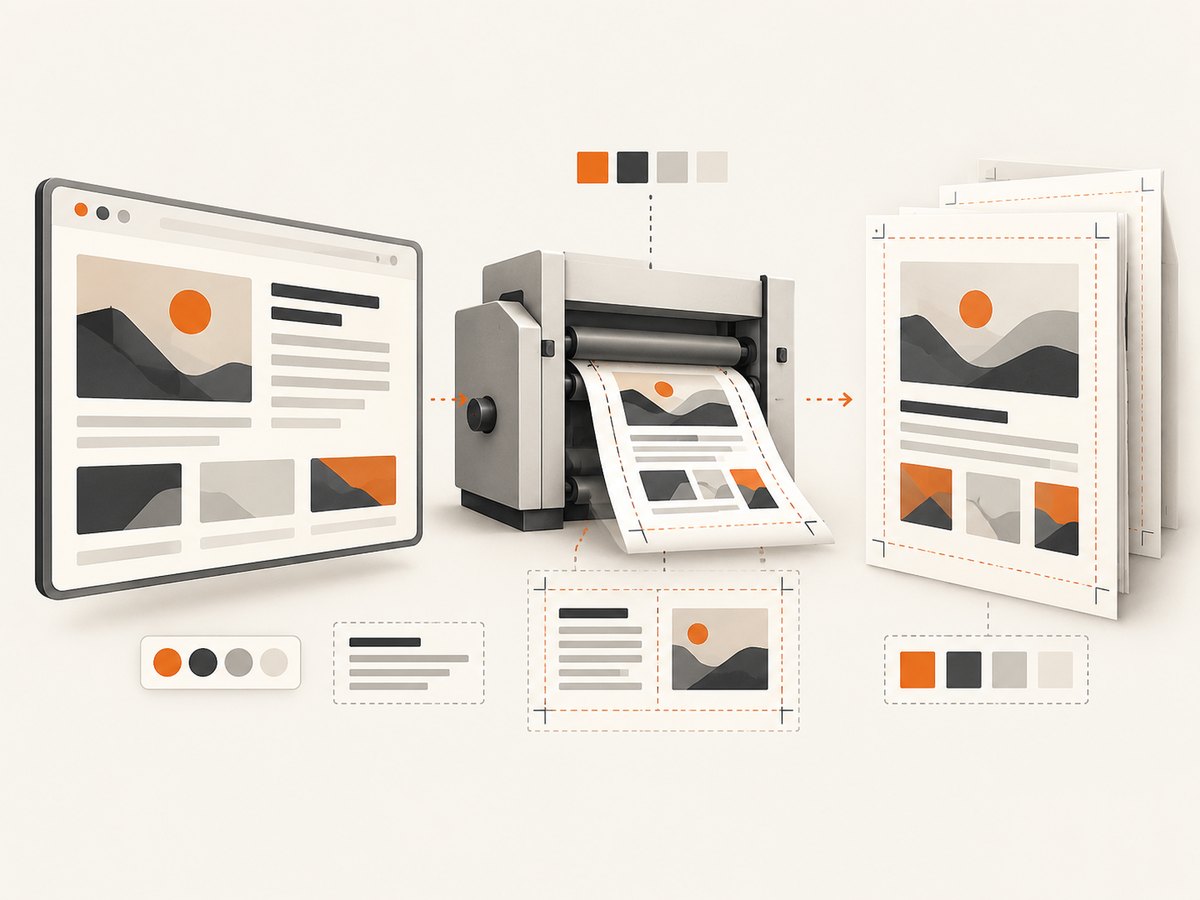
format defaults to Letter in the cited API reference. If you set format, it takes precedence over width and height. Set preferCSSPageSize: true when the document’s @page rule should control dimensions.
await page.pdf({
  format: 'A4',
  margin: { top: '16mm', right: '14mm', bottom: '16mm', left: '14mm' },
  preferCSSPageSize: true
});
Print versus screen styles
Puppeteer generates PDFs with print CSS media by default. If you need the screen stylesheet, call emulateMediaType('screen') before generating the PDF (PDF generation guide).
await page.emulateMediaType('screen');
await page.pdf({ format: 'A4', printBackground: true });
Print output can modify colors. Use CSS such as -webkit-print-color-adjust: exact when exact colors are required, and set printBackground: true because its default is false.
Fonts, backgrounds and scaling
waitForFontsdefaults totruein the cited reference. Keep it enabled when web fonts affect line wrapping; font readiness can require bringing a background page to the front.scaledefaults to1. Lower values shrink content but can make text harder to read.marginis unset unless you provide it. Page CSS margins and PDF option margins can interact, so inspect the rendered result.timeoutis 30,000 ms in the cited reference;0disables this timeout. A disabled timeout needs an external job deadline so a stuck page cannot run forever.
Wait for the page you actually want to print
networkidle0 waits for no active network connections, but applications with analytics, WebSockets or long polling may never become idle. For those pages, wait for a specific selector or application signal:
await page.goto(url, { waitUntil: 'domcontentloaded', timeout: 30_000 });
await page.waitForSelector('#invoice-ready', { timeout: 15_000 });
await page.evaluate(() => document.fonts.ready);
For a page you control, add print-specific rules:
@page { size: A4; margin: 14mm; }
@media print {
  .no-print { display: none !important; }
  * { -webkit-print-color-adjust: exact; print-color-adjust: exact; }
}
5. HTML strings, authentication and sensitive data
To print generated HTML instead of a public URL, use page.setContent() and wait for required resources.
await page.setContent(`
  <!doctype html>
  <html><head>
    <style>body { font-family: sans-serif; }</style>
  </head><body>
    <h1>Invoice ${invoiceNumber}</h1>
  </body></html>
`, { waitUntil: 'load', timeout: 30_000 });
await page.evaluate(() => document.fonts.ready);
const pdf = await page.pdf({ format: 'A4' });
For authenticated pages, set cookies or headers before navigation, and avoid logging URLs that contain tokens. Close the page after every request when using a per-request browser. A shared browser can reduce launch overhead, but isolate pages, cap concurrency and restart the browser under an operational policy appropriate to your workload.
6. Troubleshooting checklist
| Symptom | Likely cause | Fix |
|---|---|---|
| A PDF file appears on disk | A path option or separate application write exists |
Remove path; return the bytes or pipe the stream. |
| Colors or backgrounds are missing | Print CSS and printBackground: false |
Set printBackground: true; add print color adjustment CSS. |
| Screen layout is different | PDF uses print media by default | Call page.emulateMediaType('screen') before pdf(). |
| Fonts change line breaks | Fonts have not finished loading | Keep waitForFonts: true and await document.fonts.ready. |
| Navigation times out | Slow assets, blocked requests or never-idle connections | Use an explicit selector wait, increase a bounded timeout, or avoid networkidle0 for long-lived connections. |
| Stream response hangs | Web Stream and Node stream were mixed incorrectly | Use Readable.fromWeb() and pipeline(); handle both pipeline and browser errors. |
| Process memory grows under load | Concurrent Chromium pages, large images or collected byte buffers | Limit concurrency, close pages, avoid retaining PDFs, and measure real workloads. Do not treat highWaterMark as a total memory cap. |
| Client receives truncated output | Browser closed before the response completed or a stream error was ignored | Await the pipeline and close the browser in finally after it resolves or fails. |
7. Performance, reliability and cost considerations
Launching Chromium for every request is simple and gives strong isolation, but launch time and CPU are part of each request. A deliberately managed shared browser can reuse the process; create a fresh page per job, enforce navigation and job deadlines, cap simultaneous pages, and close pages in a finally block. The right concurrency depends on your document size, fonts, images and host resources, so collect measurements in your deployment.
Byte mode gives a clear completion point and makes it easy to set Content-Length. Stream mode can hand output to a destination as chunks are consumed, while pipeline() handles backpressure and errors. Neither mode removes the cost of rendering the page. Cache stable inputs at the application layer when correctness allows, and avoid embedding unnecessarily large images or data URLs.
For untrusted URLs or HTML, apply your own network and authorization controls. Puppeteer will fetch whatever your page requests, so define an allowlist or isolated execution environment when users can supply input.
8. Or skip the browser setup
If you only need a reliable PDF or screenshot endpoint, ScreenshotNeo provides a website capture API and MCP server. Its PDF endpoint handles browser launch and capture for you. See the ScreenshotNeo API documentation for the full option set.
curl -G "https://api.screenshotneo.com/v1/shot" \
  -d access_key=YOUR_API_KEY \
  --data-urlencode url=https://stripe.com \
  -d format=pdf \
  -o report.pdf
import requests
r = requests.get(
"https://api.screenshotneo.com/v1/shot",
params={
"access_key": "YOUR_API_KEY",
"url": "https://stripe.com",
"format": "pdf"
},
timeout=90
)
r.raise_for_status()
open("report.pdf", "wb").write(r.content)const q = new URLSearchParams({
access_key: 'YOUR_API_KEY',
url: 'https://stripe.com',
format: 'pdf'
});
const res = await fetch(`https://api.screenshotneo.com/v1/shot?${q}`);
if (!res.ok) throw new Error(`ScreenshotNeo request failed: ${res.status}`);
const pdf = Buffer.from(await res.arrayBuffer());ScreenshotNeo removes cookie and consent banners, newsletter popups and chat widgets before capture. Bot checks, blank pages, timeouts, failed loads and cache hits are not billed, and the response identifies the result with X-Page-Verdict and X-Billed headers. Its MCP server includes take_screenshot, get_page_info and capture_pdf tools for Claude, Cursor and other MCP clients. You can use custom CSS and JavaScript, headers, cookies, user agents, authentication, waiting rules, geolocation, time zone, caching, signed links, asynchronous jobs, bulk capture and PDF page settings.
Free usage includes 1,000 shots per month with no card. Paid plans start at $5 for 3,000 shots, and every feature is available on every plan. Create a free ScreenshotNeo account.
9. FAQ
Does Puppeteer require a temporary file for PDF output?
No. Leave path undefined and use the returned bytes or Web Stream.
Can I send the PDF directly from an Express route?
Yes. Set Content-Type: application/pdf and call res.end(pdf) for byte mode, or use a Web-to-Node adapter with pipeline() for stream mode.
Is a PDF stream guaranteed to use less memory?
No. It can reduce application-side buffering, but Chromium’s rendering memory and stream buffers still apply. Measure your workload.
Why does my PDF use Letter paper?
Letter is the documented default in the cited PDF options reference. Set format: 'A4' or use CSS page sizing with preferCSSPageSize.
Which approach should I start with?
Start with page.pdf() when a completed byte array is convenient. Choose createPDFStream() when your destination is already a stream and you want pipeline-based error and backpressure handling.


