How to Print an Entire HTML Document on One Page with Puppeteer
Learn how to fit an HTML document onto one PDF page with Puppeteer by setting page dimensions, print CSS, margins, and scale—and when a taller page is the better choice.
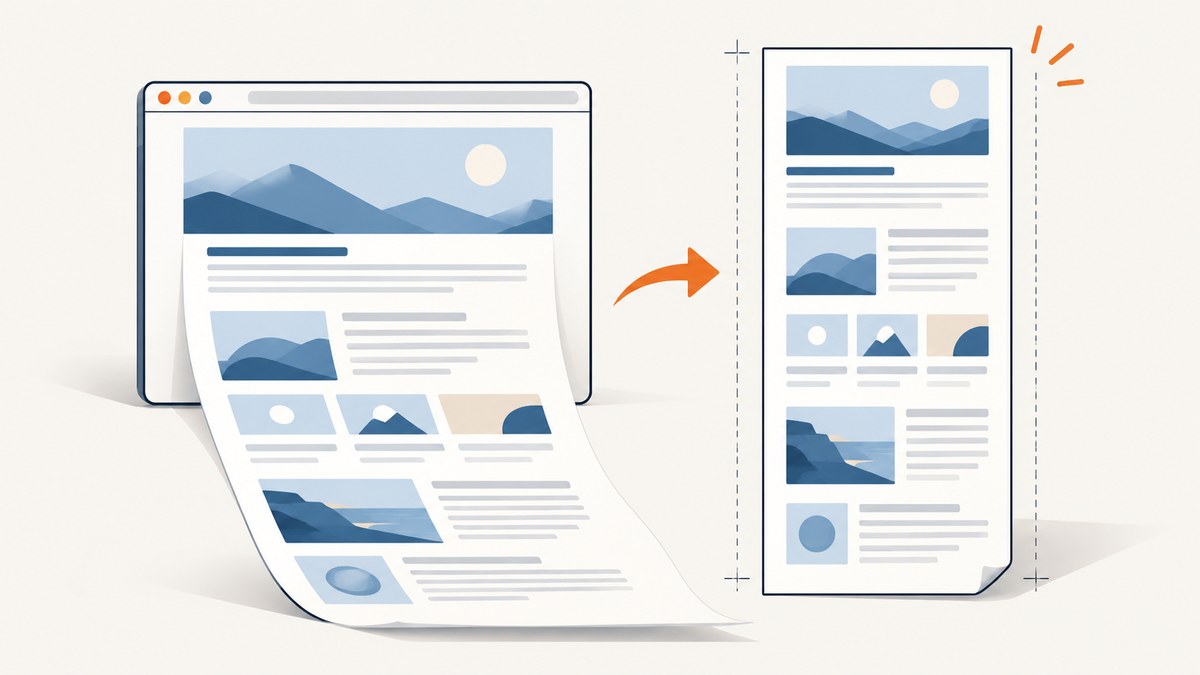
To print an entire HTML document on one PDF page with Puppeteer, make the PDF page box large enough for the rendered print layout, remove unnecessary margins and spacing, and set preferCSSPageSize: true if your CSS @page rule defines the dimensions. If the document is only a little too tall, reduce scale gradually. Puppeteer cannot guarantee that arbitrarily long content will be losslessly compressed onto a normal sheet; for a long document, use a custom tall page or redesign the print layout to keep it readable.
page.pdf() uses print CSS media by default. That means the output can differ from the screen even when you do not change the page content. The examples below show a practical Puppeteer setup, a custom page size, readiness checks, and ways to diagnose unexpected extra pages. They also cover how to choose between a normal paper size, scaling, and a tall single-page PDF.
1. The shortest working Puppeteer example
Install Puppeteer in a Node.js project with npm install puppeteer. Save this as print-one-page.mjs, then run it with node print-one-page.mjs. Replace the example URL with your document URL. The code requests CSS-defined page dimensions, zero margins, and a background-inclusive PDF.
import puppeteer from 'puppeteer';

const browser = await puppeteer.launch();
try {
  const page = await browser.newPage();

  await page.goto('https://example.com/document', {
    waitUntil: 'networkidle2'
  });

  await page.pdf({
    path: 'document-one-page.pdf',
    preferCSSPageSize: true,
    printBackground: true,
    margin: { top: '0', right: '0', bottom: '0', left: '0' },
    scale: 1
  });
} finally {
  await browser.close();
}
This produces a one-page file only if the content fits the page box established by the document’s print CSS or PDF options. The break-after rules shown later can discourage an intentional break between elements, but they cannot make content physically fit into a page that is too short.
2. Set the PDF page dimensions
There are two main ways to define the page geometry: CSS @page and Puppeteer’s PDF options. Choose one source of truth so the page’s width, height, and margins are predictable.
Use CSS @page for a custom one-page canvas
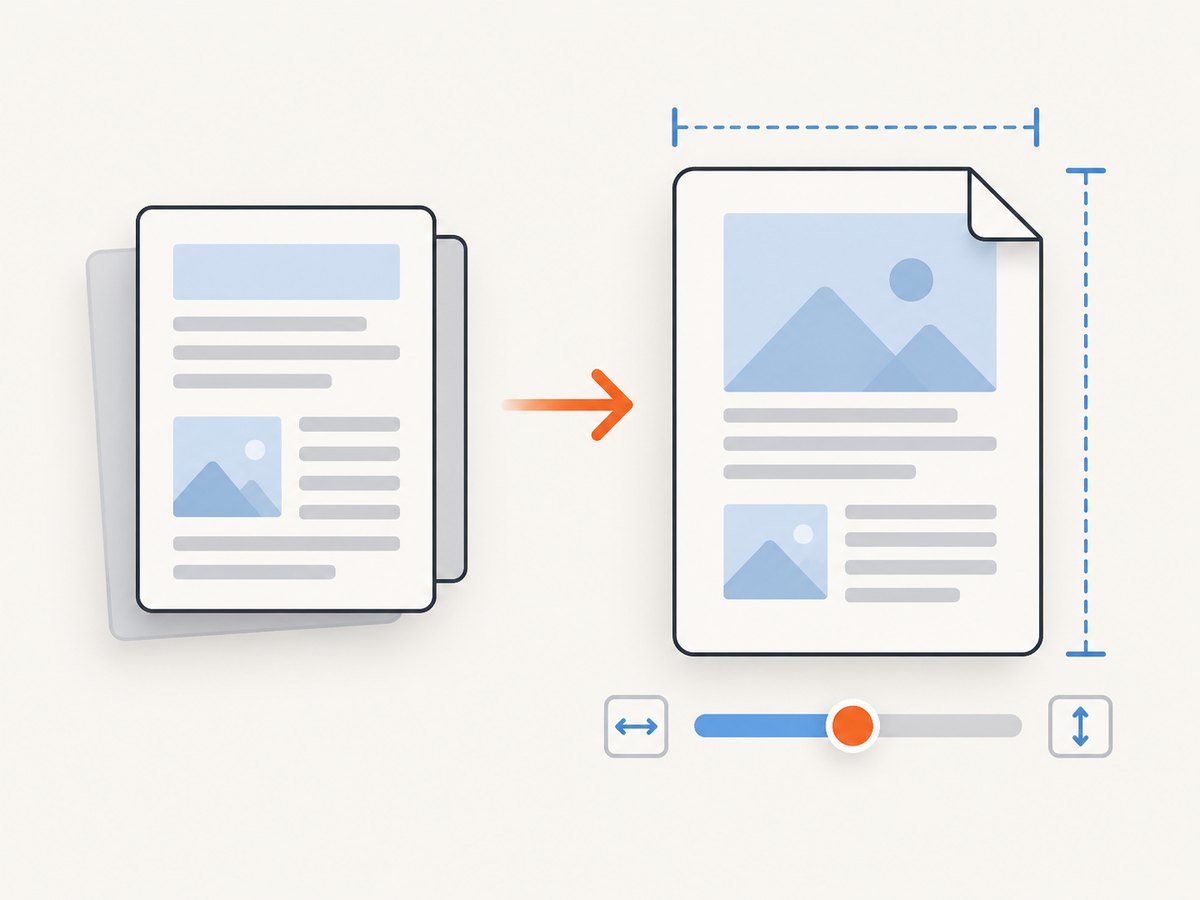
Put print-specific sizing and spacing in a print media rule. In the example below, 11in is only a starting height; increase it if the rendered document needs more vertical space. Use preferCSSPageSize: true in the Puppeteer call so the CSS page size takes priority over PDF width, height, or format settings.
@media print {
  @page {
    /* Adjust height to fit the rendered document. */
    size: 8.5in 11in;
    margin: 0;
  }

  html,
  body {
    margin: 0;
    padding: 0;
  }

  .document {
    break-after: avoid;
    page-break-after: avoid;
  }
}
The page still needs room for the content after layout: borders, images, tables, generated content, and any elements with minimum heights all use space. If you set the height to a standard letter page, content taller than that page can still create another page.
Set a width and height in PDF options
If you do not want the document’s CSS to choose the page dimensions, provide width and height directly in page.pdf(). Puppeteer also accepts a paper format such as a standard sheet size. The dimensions and units must reflect the intended output; for a long, single-page document, a custom height is often more suitable than a conventional sheet.
await page.pdf({
  path: 'document-tall-page.pdf',
  width: '8.5in',
  height: '24in',
  margin: { top: '0', right: '0', bottom: '0', left: '0' },
  printBackground: true,
  scale: 1
});
When using width and height instead of CSS, omit preferCSSPageSize: true unless CSS is intentionally meant to win. The PDF API also supports preferCSSPageSize to give an @page size priority over width, height, or format.
Choose among the three fit strategies
| Strategy | Best when | Trade-off |
|---|---|---|
| Normal paper page with print CSS | The document is already close to one sheet in its print layout. | Preserves familiar page dimensions, but may need content edits to fit. |
| Custom tall page | The whole document needs to remain readable as one continuous PDF page. | Some printers and PDF viewers handle unusually tall pages less conveniently. |
| Lower scale | The content is only slightly too large for the chosen page. | All content shrinks, including text; aggressive scaling can make it unreadable. |
3. Shape the print layout before shrinking it
Before changing scale, inspect the document’s print layout and remove space that has no value in the PDF. Print CSS can hide navigation, remove oversized gaps, change widths, and avoid screen-only fixed-height regions. These changes often preserve legibility better than scaling the entire page down.
@media print {
  nav,
  .cookie-banner,
  .screen-only,
  .site-footer {
    display: none !important;
  }

  html,
  body {
    margin: 0;
    padding: 0;
  }

  .document {
    width: 100%;
    min-height: 0;
    break-after: avoid;
    page-break-after: avoid;
  }

  img,
  table,
  pre {
    max-width: 100%;
  }
}
Adapt selectors to your document. Check especially for fixed widths that exceed the page, minimum heights, large top padding, and tables or long code lines that force horizontal overflow. A page-break avoidance rule is useful around a document wrapper, but it does not override the page’s physical dimensions or guarantee that an oversized element will stay on one page.
To preview the same print media in Puppeteer before generating the PDF, you can emulate it and inspect the page in a browser debugging session. The actual PDF call also uses print media by default. If your design intentionally relies on screen CSS, call page.emulateMediaType('screen') before printing; do this only when screen media is the desired PDF layout.
4. Use scale carefully
The PDF option scale accepts values from 0.1 to 2. A value below 1 shrinks the rendered output. Start at 1, measure or inspect the overflow, and make small reductions only if the content is nearly fitting. Lowering scale to force a very long document onto one normal sheet can turn a readable document into tiny text.
await page.pdf({
  path: 'document-scaled.pdf',
  format: 'Letter',
  margin: { top: '0', right: '0', bottom: '0', left: '0' },
  scale: 0.95,
  printBackground: true
});
Try a small change such as 0.95, then inspect the resulting PDF at normal viewing size. If it still needs substantial shrinking, switch to a taller page or change the print layout instead of continuing to reduce the scale.
5. Wait for the document, app content, and fonts
For remote pages, wait for navigation before printing. Puppeteer’s guide demonstrates waitUntil: 'networkidle2'. Some applications render their main content after navigation has completed, so also wait for a meaningful selector or an application-ready signal. The PDF API waits for fonts by default, but waiting for your app’s own content and images remains your responsibility.
await page.goto('https://example.com/report', {
  waitUntil: 'networkidle2'
});

// Replace this with a selector that appears when your report is ready.
await page.waitForSelector('[data-report-ready="true"]', {
  timeout: 15000
});

await page.pdf({
  path: 'report.pdf',
  preferCSSPageSize: true,
  printBackground: true,
  margin: { top: '0', right: '0', bottom: '0', left: '0' }
});
If the page keeps background network connections open, network-idle navigation can be unsuitable as the only readiness condition. Prefer a specific ready selector or app signal in that case. For client-rendered content, wait for the content itself rather than relying solely on a fixed delay: delays add time without proving the page is ready.
6. Relevant page.pdf() options
| Option | What it controls | When to use it |
|---|---|---|
path |
Where the generated PDF is saved. | Use a stable output path for a local script or job workspace. |
format |
A standard paper format. | Use when the output should use a familiar sheet size. |
width, height |
Explicit PDF page dimensions. | Use a custom canvas, such as a tall one-page report. |
margin |
Top, right, bottom, and left page margins. | Use zero or small margins when every bit of page area matters. |
preferCSSPageSize |
Whether CSS @page dimensions take priority over PDF dimensions or format. |
Set to true when CSS is your page-size source of truth. |
scale |
Scales rendered content, from 0.1 to 2. |
Use small adjustments for near-fits; check readability. |
printBackground |
Whether background graphics are included. | Enable when background colors, fills, or graphics are part of the design. |
pageRanges |
Selects pages to include in the PDF. | Use only when intentionally selecting pages; an empty range means all pages. |
displayHeaderFooter |
Whether printed headers and footers are displayed. | Leave disabled when you want a clean canvas without added header or footer content. |
Check the current API reference for the complete option definitions and accepted units: Puppeteer PDFOptions. Keep CSS page size and PDF options aligned so that the chosen dimensions and margins are not working at cross-purposes.
7. Colors, backgrounds, and print media
Puppeteer generates PDFs with print CSS media by default. Print styles can alter colors and other visual details from the screen layout. Turn on printBackground: true when backgrounds matter. For color-sensitive elements, CSS can request print color preservation with -webkit-print-color-adjust:
@media print {
  .brand-color {
    -webkit-print-color-adjust: exact;
  }
}
Color adjustment is a request to the browser’s print rendering; inspect the resulting file in the PDF viewer and printer that matter to your workflow. If you instead need screen styles, call await page.emulateMediaType('screen') before page.pdf(), and confirm that the screen layout fits the page you chose.
8. Troubleshooting: why did Puppeteer create a second page?
| Symptom | Likely cause | Fix |
|---|---|---|
| The PDF has two or more pages. | The rendered print layout exceeds the selected page box. | Inspect print layout, reduce unnecessary spacing, choose a taller page, or make a modest scale adjustment. |
| CSS page size seems ignored. | preferCSSPageSize is not enabled, or PDF dimensions are competing with CSS. |
Set preferCSSPageSize: true and make @page the intended source of truth. |
| Content is clipped at an edge. | Margins, fixed widths, overflow rules, or a page that is too small are cutting it off. | Check all four margins, wrapper width, minimum widths, and overflow settings; increase the page dimensions as needed. |
| Text is too small. | Scale was reduced too far to force a large document onto a conventional page. | Restore scale toward 1, use a custom tall page, or simplify the print layout. |
| Colors or background fills are missing. | Background graphics are not enabled, or print media styles differ from screen styles. | Set printBackground: true and check the print CSS; use color-adjust CSS if appropriate. |
| Some sections or images are absent. | Printing began before client-rendered content or late-loading assets were ready. | Wait for a meaningful selector or app-ready signal, and check for failed resources. |
| The layout differs from the browser window. | page.pdf() uses print media, not screen media. |
Add or correct @media print rules, or explicitly emulate screen media if that is the intended design. |
| A table or long URL pushes content outside the page. | Wide or unbreakable content exceeds the available line width. | Use print-specific table sizing and wrapping rules, or allow that content to occupy a wider page. |
For a focused diagnosis, inspect the page using the same print CSS Puppeteer will apply. Verify the @page size, all margins, and the effective preferCSSPageSize setting first. Then check fixed widths, minimum heights, overflowing tables, long unbroken strings, images that have not loaded, and components rendered after the print call.
9. Performance, reliability, and cost considerations
PDF creation time depends on loading the page and letting it finish rendering. A readiness condition tied to the report is usually more useful than an arbitrary long delay, while waiting for network idle can help when the page’s network activity settles. Browser launch and page navigation are also part of a standalone script’s work. For repeated jobs, keep the readiness condition specific and set timeouts that suit the application so a stalled page does not wait forever.
Reliability depends on controlling the inputs: use a stable URL or local HTML, wait for the content that matters, make the print CSS explicit, and keep page geometry consistent. Test pages with long tables, images, and fonts, because they can change the rendered height. Make sure the PDF is actually one page and readable before treating success as a file-generation-only check.
There is no universal cost figure for running Puppeteer: it depends on where Chromium runs and how the surrounding infrastructure is billed. For local use, account for the machine and runtime you choose. For hosted automation, consider browser execution time, memory, concurrency, and storage alongside the PDF generation itself.
10. Or skip the browser setup
If your goal is a screenshot of a web page rather than a PDF rendered through your own Chromium process, ScreenshotNeo provides a website screenshot API and MCP server. Its API returns PNG, JPEG, WebP, or PDF from one GET request. This example requests a PDF; see the ScreenshotNeo API documentation for the available parameters and output options.
curl -G "https://api.screenshotneo.com/v1/shot" \
  -d access_key=YOUR_API_KEY \
  --data-urlencode url=https://stripe.com \
  -d format=pdf \
  -o page.pdf
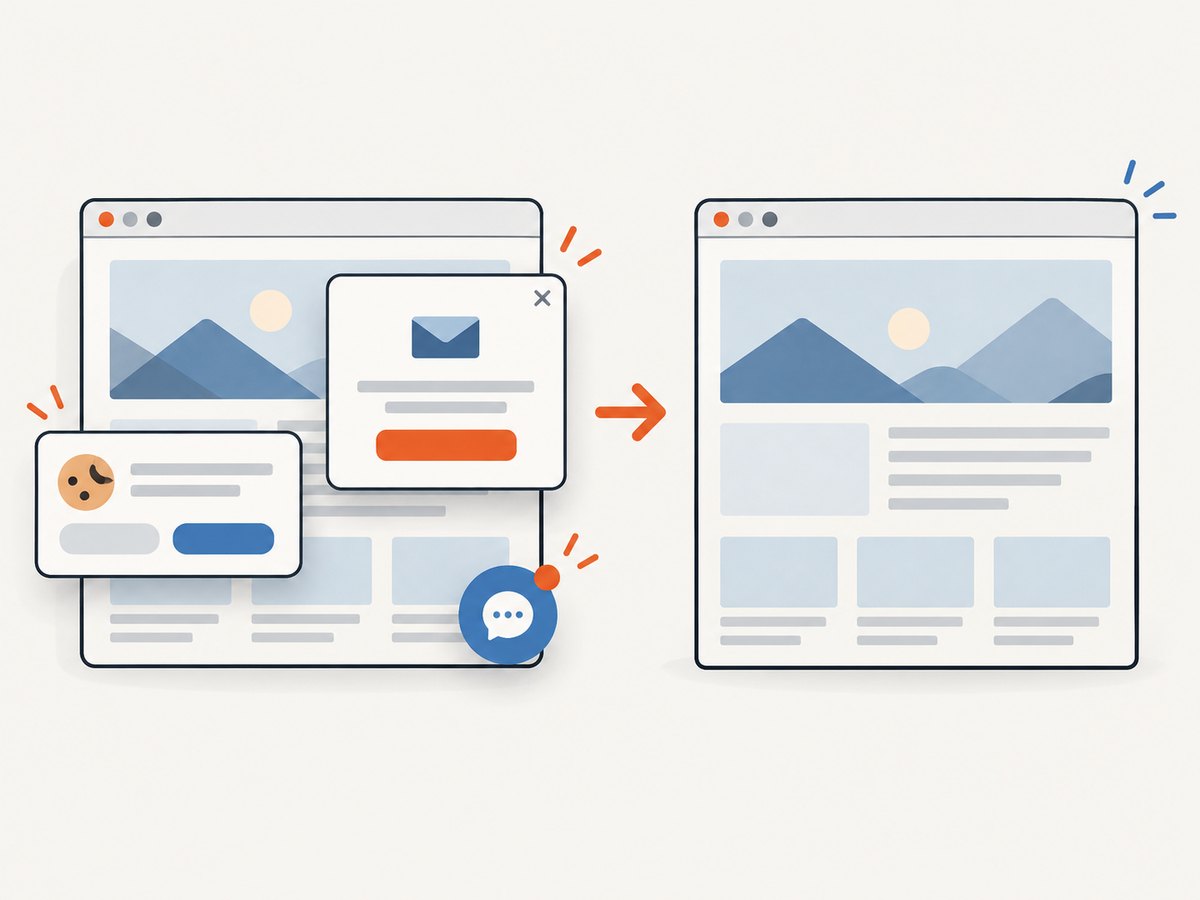
ScreenshotNeo accepts cookie or consent banners before capture and removes more than 60 known consent platforms, newsletter popups, and chat widgets; each of those steps can be turned off. Bot checks or CAPTCHAs, blank pages, timeouts, failed loads, and cache hits cost nothing, and the response identifies page verdict and billing status in headers. Its MCP server gives AI agents tools for taking screenshots, getting page information, and capturing PDFs. The Free plan includes 1,000 shots per month with no card; paid plans start at $5 for 3,000 shots.
Sign up for 1,000 free screenshots a month, with no card required.
11. Frequently asked questions
Can Puppeteer guarantee that any document fits on one page?
No. The rendered content has to fit the selected page box. For a long document, use a taller page or adjust its print design; shrinking everything until it fits may harm readability.
Does an empty pageRanges value mean the first page only?
No. An empty range means all pages. Use a page range only when you deliberately want to select pages from the generated result.
Should I set printBackground for every PDF?
Only when background graphics are part of the output you need. Leaving it off can be appropriate for a plain, ink-saving document.
Why can the same URL produce different PDF layouts?
Its print CSS, dynamic content readiness, loaded fonts and images, and page-size settings all affect the rendered result. Make those inputs explicit when repeatability matters.


