How to Print Only the Last Pages of a Large HTML Document with Puppeteer
Learn how to print only the final pages of a large HTML document with Puppeteer, including page counting, print CSS, ranges, memory, errors, and alternatives.
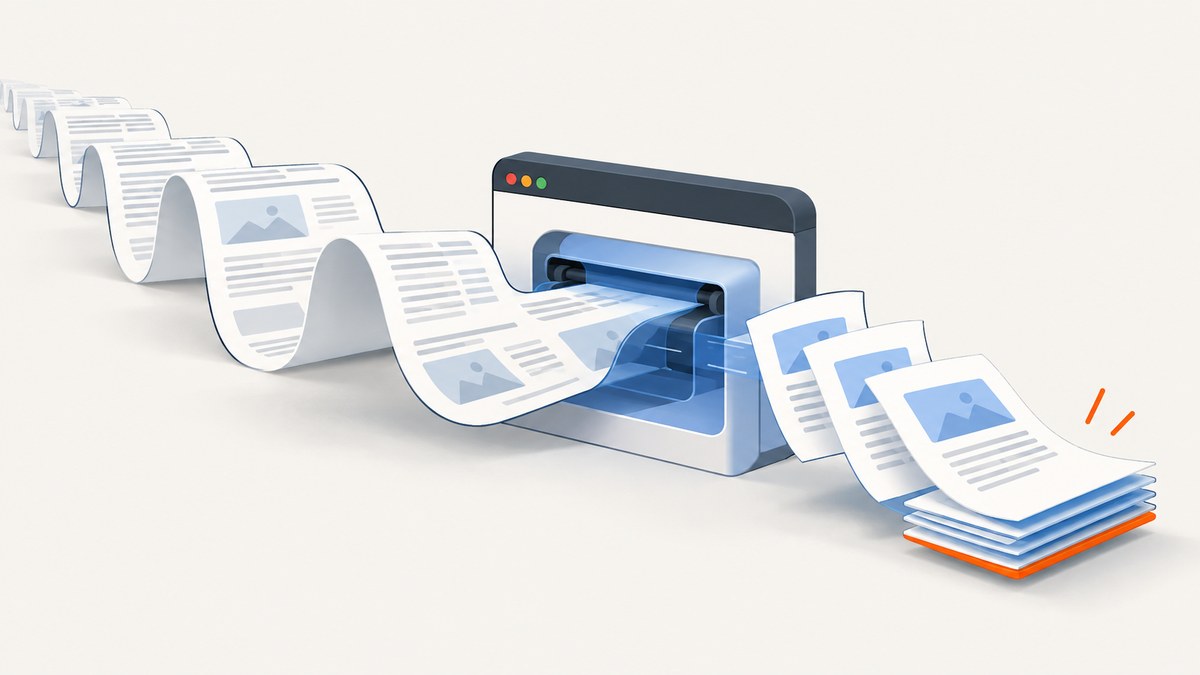
To print only the last pages of a large HTML document with Puppeteer, first determine the document’s printed page count, calculate the page numbers in the tail segment, and pass those explicit numbers to page.pdf({ pageRanges }). Puppeteer does not document a special last N pages or negative page-range expression. For example, if the same print settings produce 240 pages and you need the final 10, use pageRanges: '231-240'.
This distinction matters because pagination depends on the exact content, fonts, print CSS, paper size, margins, scale, and media type used for the final export. A page count obtained from a different render can shift the boundaries. Treat counting and exporting as two application-level steps that must use identical rendering inputs.
What Puppeteer supports
Puppeteer’s Page.pdf() method generates a PDF using the print CSS media type by default. Its pageRanges option accepts explicit page numbers and ranges, including comma-separated selections such as 1-5, 8, 11-13. An empty string prints every page. The documented syntax does not include a suffix operator such as last-5.
The official API reference describes Page.pdf() as returning a Uint8Array. Page.createPDFStream() returns a web ReadableStream<Uint8Array>. Streaming changes how your application consumes the generated bytes; the API documentation does not promise incremental layout or lower browser memory use. See the Page.pdf API reference and the PDF generation guide.
A complete Puppeteer implementation
The following script loads a URL, waits for fonts, establishes a page count using your own counting strategy, calculates the tail range, and writes the selected pages. The example uses a supplied page count because Puppeteer does not expose a documented page-count query for the rendered PDF.
import puppeteer from 'puppeteer';
import fs from 'node:fs/promises';

const url = process.argv[2] ?? 'https://example.com/article';
const totalPages = Number(process.argv[3]);
const pagesToKeep = Number(process.argv[4] ?? 5);

if (!Number.isInteger(totalPages) || totalPages < 1) {
  throw new Error('Provide the printed page count as a positive integer.');
}
if (!Number.isInteger(pagesToKeep) || pagesToKeep < 1) {
  throw new Error('pagesToKeep must be a positive integer.');
}

const firstPage = Math.max(1, totalPages - pagesToKeep + 1);
const pageRanges = `${firstPage}-${totalPages}`;

const browser = await puppeteer.launch({ headless: true });
try {
  const page = await browser.newPage();
  await page.goto(url, { waitUntil: 'networkidle0' });
  await page.evaluate(() => document.fonts?.ready);

  // Keep these values identical to the render used to establish totalPages.
  const pdf = await page.pdf({
    path: 'last-pages.pdf',
    format: 'A4',
    printBackground: true,
    pageRanges,
    margin: { top: '16mm', right: '16mm', bottom: '16mm', left: '16mm' }
  });

  console.log(`Wrote ${pageRanges} (${pdf.length} bytes)`);
} finally {
  await browser.close();
}
Run it with a known count and tail length:
node last-pages.mjs https://example.com/article 240 10The output range is calculated as totalPages - pagesToKeep + 1 through totalPages. If the document has fewer pages than requested, the first page is clamped to 1, so asking for the last 10 pages of a 6-page document prints pages 1–6.
How to establish the page count
Counting is the part Puppeteer leaves to your application. Choose a method that produces the same pagination as the final export.
Use a trusted upstream count
If your publishing system already knows the printed page count, pass that value into the export job. This is the most predictable approach when the HTML, assets, fonts, and print settings are versioned together.
Render a complete PDF, then inspect it
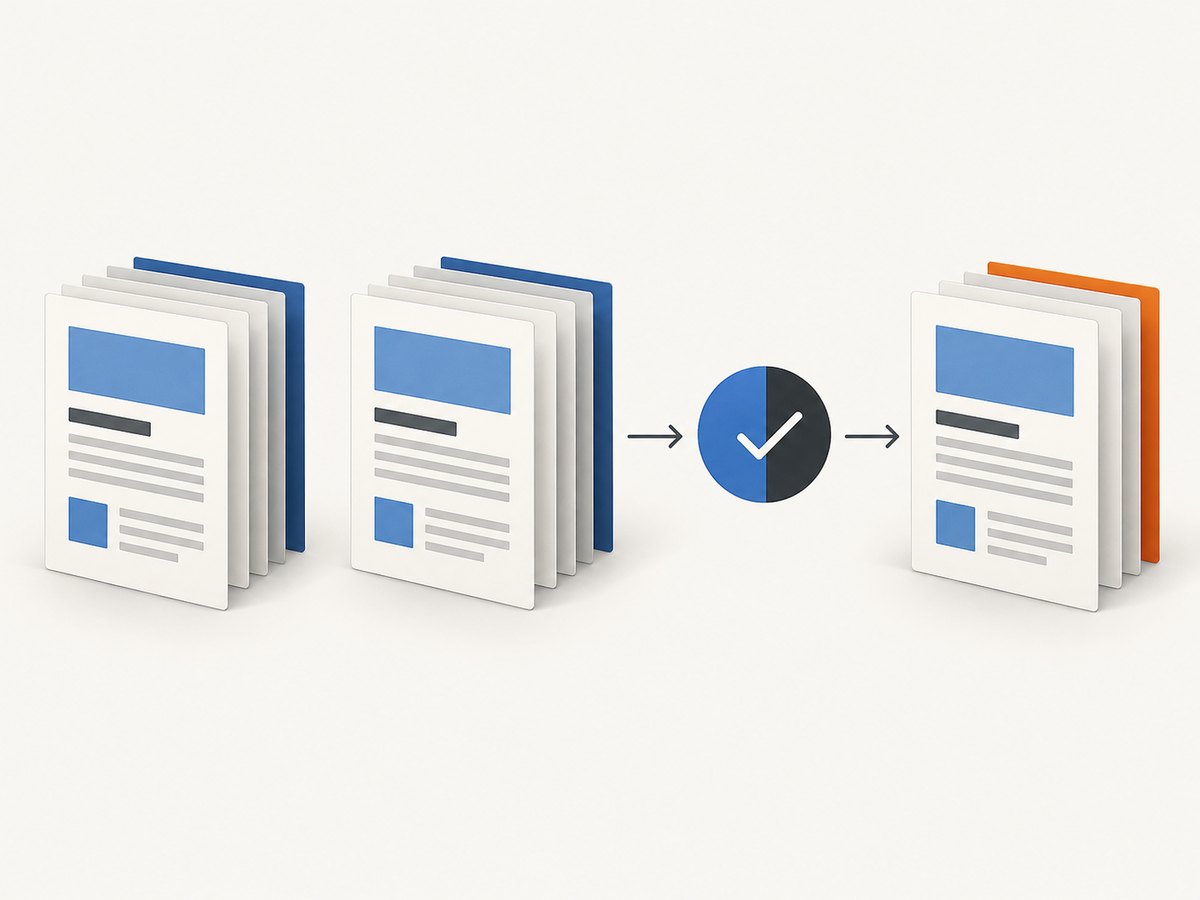
You can generate a full PDF and inspect it with a PDF parser in a separate process to obtain its page count. Then render again with the calculated range. The two renders must use the same URL or HTML, browser version, fonts, CSS, paper size, margins, scale, and timing. A font loading race or changing advertisement can alter pagination between passes.
Split the source document before printing
For generated reports, split content into known sections or records before creating HTML. If the application can identify the final section directly, print that section instead of relying on a second full-document pagination pass. This changes the document structure, so verify headers, counters, and page breaks.
Do not infer pages from DOM height alone
Pixel height divided by an estimated page height is not a reliable page count. CSS fragmentation, margins, replaced elements, widows and orphans, transforms, fixed headers, and font metrics all affect printed pages. Use the PDF produced with the exact print configuration whenever possible.
Print CSS and layout settings that affect the tail
Before counting or exporting, make print behavior deterministic.
- Media type:
page.pdf()uses print media. If your design should use screen styles, callawait page.emulateMediaType('screen')before generating the PDF. - Fonts: wait for
document.fonts.ready. The PDF guide states that PDF generation waits for fonts by default, but explicitly waiting makes the application state easier to reason about. - Paper and margins: use one explicit
formatorwidth/heightpair and explicit margins in both passes. - Backgrounds: set
printBackground: truewhen colored panels or images are part of the intended output. - Scale: keep
scaleconstant. Small changes can move a heading or image to another page. - Page breaks: use
break-before,break-after, andbreak-insidein print CSS. Avoid relying on deprecatedpage-break-*rules alone. - Dynamic content: wait for the selector that proves the report is complete, or wait for a known application event.
networkidle0can remain pending when analytics or long polling never stop.
@media print {
  .ad, .chat-widget, .newsletter { display: none !important; }
  .chapter { break-before: page; }
  table, figure, pre { break-inside: avoid; }
}
Selecting non-contiguous ending sections
pageRanges accepts comma-separated selections. If your tail consists of an appendix on pages 231–236 and a signature page on 240, use:
const pdf = await page.pdf({
  pageRanges: '231-236, 240',
  format: 'A4'
});
Ranges are ordinary printed page numbers, not zero-based indexes. Validate generated output with a PDF parser or a human review when page selection is legally or operationally important.
Handling large documents
Large HTML can stress navigation, layout, image decoding, font loading, and PDF generation. The consulted Puppeteer documentation does not publish a maximum page count, memory bound, or benchmark for large documents, so choose limits from measurements on your own workload.
Reduce avoidable work
- Serve appropriately sized images and avoid loading assets that print CSS hides.
- Disable animations and transitions in print styles.
- Remove interactive widgets, ads, and live data feeds before capture.
- Use deterministic local or cached fonts when reproducibility matters.
- Set navigation and job-level timeouts, then record which phase failed.
Use the right output interface
Use page.pdf() when you want a byte array or a direct path. Use page.createPDFStream() when your Node pipeline already accepts web streams:
const stream = await page.createPDFStream({
  format: 'A4',
  pageRanges: '231-240',
  printBackground: true
});

const writer = (await import('node:fs')).createWriteStream('last-pages.pdf');
for await (const chunk of stream) writer.write(chunk);
writer.end();
This streams generated bytes to your writer, but it does not establish a lower-memory layout strategy. Measure browser RSS and job duration with representative documents before selecting an architecture.
Reliable two-pass workflow
- Freeze the source revision, data, fonts, and browser version.
- Launch a fresh page with the same viewport, locale, timezone, and authentication used by export.
- Wait for the content-ready signal and fonts.
- Generate a full PDF using the final print options.
- Read its page count with your PDF-processing step.
- Calculate
first = max(1, total - N + 1). - Render again with
pageRanges: `${first}-${total}`. - Verify that the selected PDF has the expected number of pages and that its first and last visible pages match the full render.
If content is volatile, save the exact HTML and assets used in pass one and reuse them in pass two. Otherwise, a changed image height or late font can invalidate the calculated range.
Troubleshooting
| Symptom | Likely cause | Fix |
|---|---|---|
| “Cannot parse page range” | Unsupported syntax such as last-5, a zero, or malformed commas. |
Convert the tail to explicit numbers such as 231-240. |
| The wrong pages are printed | The count pass and export pass used different fonts, CSS, margins, or data. | Freeze inputs and reuse identical print options. |
| Blank or missing images | Images had not loaded when layout was captured. | Wait for a content-ready selector, image completion, and fonts; avoid arbitrary short delays. |
| Job never reaches network idle | Analytics, sockets, or polling keep requests open. | Wait for a specific selector or application event instead of networkidle0. |
| Headers or footers change page count | Different displayHeaderFooter, templates, or margins between passes. |
Keep header/footer settings identical and include their space in margins. |
| Out-of-memory or browser crash | Very large DOM, high-resolution images, or concurrent PDF jobs. | Measure memory, reduce asset sizes, limit concurrency, split the source, and recycle workers after failures. |
| Stream output is incomplete | The writable stream was not finalized or errors were ignored. | Await pipeline completion and handle both readable and writable errors. |
Or skip the browser setup
ScreenshotNeo provides a single GET request for a screenshot or PDF, with options for full-page capture, lazy images, custom CSS and JavaScript, waiting for selectors or network idle, device presets, cookies, headers, and PDF paper settings. For a PDF workflow, you still need to decide which content belongs in the document; the service removes the browser orchestration and capture plumbing.
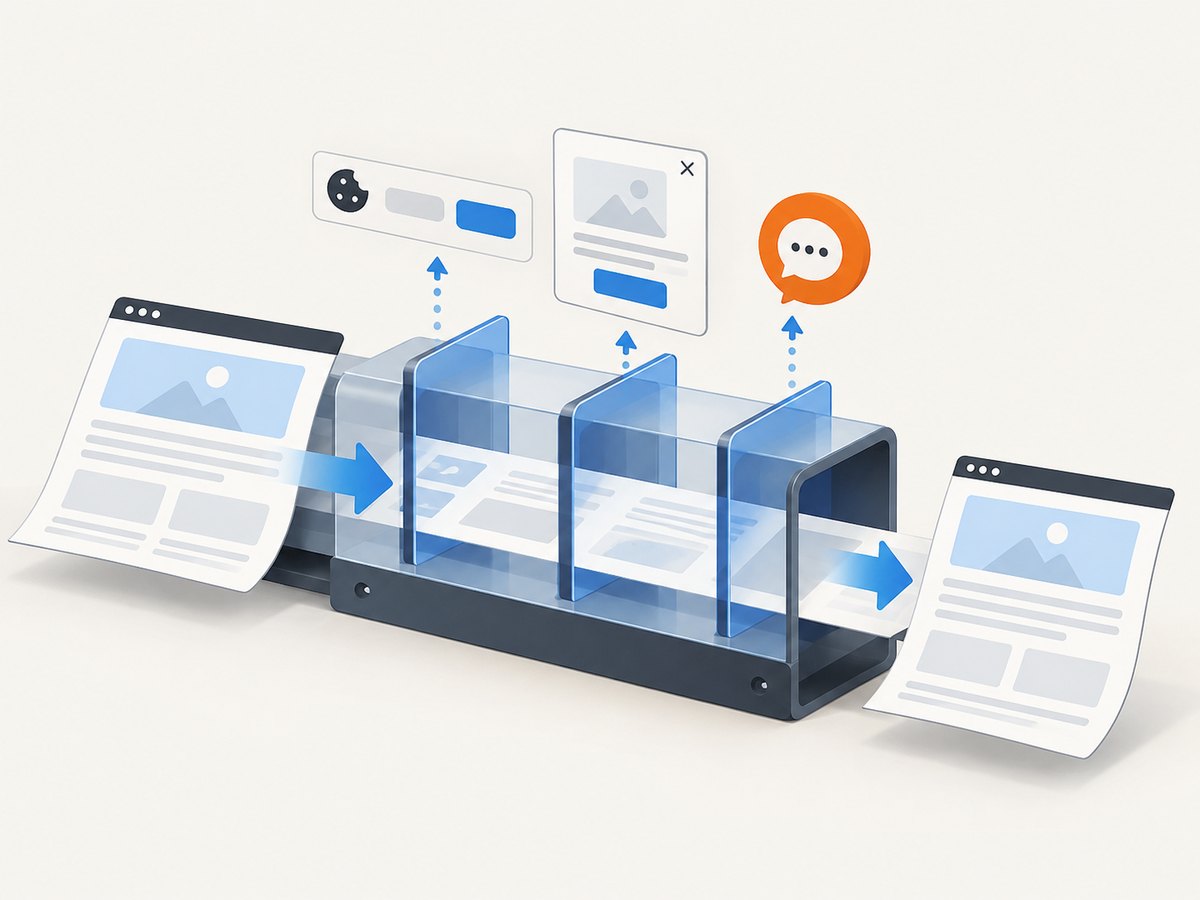
Cookie banners, newsletter popups, and chat widgets are removed before the shot. Bot checks, blank pages, timeouts, failed loads, and cache hits are never billed, and response headers identify the page verdict and billing status. An MCP server provides take_screenshot, get_page_info, and capture_pdf tools for Claude, Cursor, and other MCP clients. The free plan includes 1,000 screenshots per month with no card; paid plans start at $5 for 3,000 shots.
See the ScreenshotNeo API documentation for the current parameters. The following calls use the documented API shape:
cURL
curl -G "https://api.screenshotneo.com/v1/shot" \
  -d access_key=YOUR_API_KEY \
  --data-urlencode url=https://example.com/article \
  -o shot.webp
Python
import requests

r = requests.get(
    "https://api.screenshotneo.com/v1/shot",
    params={"access_key": "YOUR_API_KEY", "url": "https://example.com/article"},
    timeout=90,
)
r.raise_for_status()
open("shot.webp", "wb").write(r.content)
Node.js
const q = new URLSearchParams({
  access_key: 'YOUR_API_KEY',
  url: 'https://example.com/article'
});
const res = await fetch(`https://api.screenshotneo.com/v1/shot?${q}`);
if (!res.ok) throw new Error(`HTTP ${res.status}`);
const bytes = new Uint8Array(await res.arrayBuffer());
await import('node:fs/promises').then(fs => fs.writeFile('shot.webp', bytes));
Create a free ScreenshotNeo account to get 1,000 screenshots each month with no card.
Performance, reliability, and cost notes
There is no official benchmark in the cited Puppeteer material for maximum document size, page count, memory use, or generation speed. Track navigation time, font readiness, full-render time, second-pass time, PDF byte size, browser memory, and failure rate in your environment. Run jobs with bounded concurrency and retry only transient navigation failures; retrying a deterministic layout or invalid page range will not help.
For cost planning, Puppeteer costs are infrastructure costs: browser workers, CPU, memory, storage, and operational time. ScreenshotNeo bills only clean shots; failed loads, bot checks, blank pages, timeouts, and cache hits are not billed. Its plans are Free (1,000/month), Starter ($5/3,000), Growth ($15/15,000), Pro ($39/60,000), Scale ($99/250,000), and Business ($249/1,000,000); yearly billing gives two months free, and every feature is included on every plan.
FAQ
Can I pass “last 5 pages” directly to pageRanges?
No documented syntax provides that shortcut. Calculate the explicit range after determining the printed page count.
Does createPDFStream() make huge documents safe?
It changes the byte-consumption interface to a web readable stream. The documentation does not claim lower layout memory usage.
Should I use screen or print media?
Use print media by default. Call page.emulateMediaType('screen') first only when your intended PDF should use screen styles.
Why did the last page number change after a deploy?
Fonts, print CSS, browser versions, content, image dimensions, and margins can all change pagination. Recount with the exact deployed inputs.
Can an API replace Puppeteer for arbitrary pagination?
An API can remove browser setup and provide PDF capture options, but your application still owns document composition and any rule about which logical content belongs in the final pages.


