How to Fix Puppeteer ProtocolError: Page.printToPDF Printing Is Not Available
Fix Puppeteer’s Page.printToPDF error by checking the browser binary, version, and headless mode, then verify PDF generation with a minimal script.

Direct answer: ProtocolError: Page.printToPDF Printing Is Not Available means the Chrome or Chromium instance attached to Puppeteer did not provide the PDF printing command in its current build or mode. First confirm which browser executable Puppeteer actually launched, then try page.pdf() with the headless configuration supported by that browser. Do not treat print CSS, page margins, or color options as a fix for an unavailable protocol command: those affect the PDF after printing works.
Puppeteer’s supported high-level PDF method is page.pdf(). It asks the browser to print the page using the print CSS media type. Puppeteer’s Page.pdf() API documentation describes the method and its media behavior.
1. Understand what the error says
Puppeteer sends a DevTools Protocol command to the browser process. page.pdf() ultimately depends on the browser endpoint implementing Page.printToPDF. The protocol error means that endpoint rejected or did not implement the command; it does not by itself say that the page’s HTML is malformed or that a particular PDF option is wrong. Chromium handles the command on the browser side, so its executable and mode are central to the diagnosis.
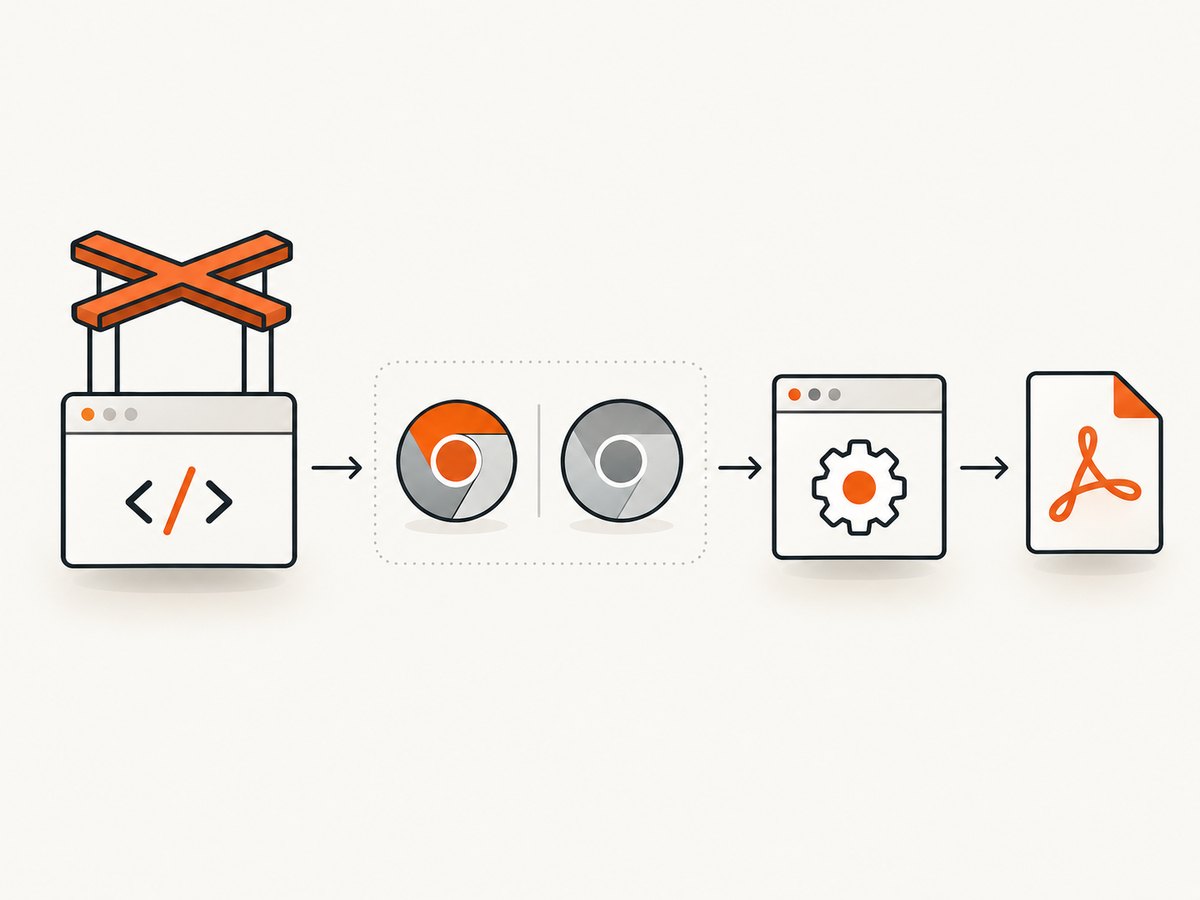
Mode has mattered historically. A Chromium change dated August 27, 2021 records that the command had been available in traditional headless Chrome and describes adding support for native headless mode. That commit documents implementation history, not a current compatibility matrix. Browser support can change; use the exact Chrome/Chromium build attached to your Puppeteer process as the source of truth. Read the Chromium change.
2. Run a minimal Puppeteer PDF example
Start by removing custom launch flags, remote connections, and PDF styling from the reproduction. This script uses the browser bundled with the installed puppeteer package, opens a page, and writes a PDF. Install Puppeteer with npm install puppeteer, save this as make-pdf.cjs, and run node make-pdf.cjs.
const puppeteer = require('puppeteer');

(async () => {
  let browser;
  try {
    browser = await puppeteer.launch();
    const page = await browser.newPage();
    await page.goto('https://example.com', {
      waitUntil: 'networkidle2',
      timeout: 30000,
    });
    await page.pdf({
      path: 'page.pdf',
      format: 'A4',
      printBackground: true,
    });
    console.log('Wrote page.pdf');
  } catch (error) {
    console.error(error);
    process.exitCode = 1;
  } finally {
    if (browser) await browser.close();
  }
})();
The default puppeteer package downloads a compatible browser for its release. If this minimal script succeeds but your application fails, compare the launch options and connection path in the two cases. If it fails, record the exact package version and browser version before changing more settings.
3. Check the actual browser and mode
- Find the failing call. Confirm that the exception occurs at
page.pdf()(or a wrapper around it), rather than during navigation or when writing the output file. - Inspect the browser attachment. Check whether the code uses
puppeteerorpuppeteer-core, a customexecutablePath, a browser WebSocket endpoint, or a remote browser service. Withpuppeteer-core, the application supplies the browser; it is especially important to verify that supplied executable. - Record the binary and version. Log the executable path configured by the application and inspect the launched process or browser’s version output. Do not assume the browser found on a developer machine is the same one in a container or production worker.
- Try the browser’s supported headless mode. For a local Puppeteer-managed launch, begin with the default launch configuration shown above. If you deliberately use
headless: false, a custom headless setting, or a remote browser, test a supported headless configuration with that exact browser build. The history shows that mode can affect command availability, but it does not establish that every current headful or headless combination behaves the same. - Check package and browser pairing. Align the Puppeteer release with the browser it is intended to control. Avoid silently pointing a newer package at an unrelated system browser or reusing a stale browser in a container. The available sources do not provide a definitive version-by-version minimum, so do not guess one from an old issue or commit.
- Reduce the reproduction. Remove extensions, unrelated CDP sessions, custom browser flags, page hooks, and PDF options. Once the basic call succeeds, reintroduce those pieces one at a time.
A historical Puppeteer report describes this error with Puppeteer 5.1.0 on Windows 10 and includes a headful reproduction. It is useful as an example of the failure, but its age and environment mean it should not be generalized into a current rule. See issue #6220. Another historical report also documents a headful case: Puppeteer issue #5059.
4. Configure the PDF after the protocol works
Once page.pdf() runs, options control document layout and output. They do not make an unsupported Page.printToPDF command available. Check the current Puppeteer PDFOptions reference for the complete option list supported by your installed release.
| Need | Example option or step | What it changes |
|---|---|---|
| Save to a file | path: 'page.pdf' |
Writes the resulting bytes to a path; a relative path is resolved from the process working directory. |
| Choose paper | format: 'A4', or width and height |
Selects paper dimensions. The format takes priority when both format and dimensions are provided. |
| Set margins | margin: { top: '12mm', right: '10mm', bottom: '12mm', left: '10mm' } |
Sets printable whitespace. Use supported CSS length units. |
| Use landscape orientation | landscape: true |
Prints the selected paper orientation in landscape. |
| Include backgrounds | printBackground: true |
Includes background graphics and colors that might otherwise be omitted. |
| Render screen styling | await page.emulateMediaType('screen') before page.pdf() |
Changes the media type used by page CSS. The default for PDF generation is print. |
| Preserve print colors | -webkit-print-color-adjust: exact in page CSS |
Requests exact color rendering for print styles; it affects appearance, not command support. |
| Control headers or footers | displayHeaderFooter, headerTemplate, footerTemplate |
Enables print header/footer templates, with supported classes such as title, URL, date, page number, and total pages. |
| Print a range | pageRanges: '1-3' |
Limits output to selected pages, subject to the installed Puppeteer release’s documented syntax. |
| Prefer CSS page sizing | preferCSSPageSize: true |
Allows CSS @page size declarations to take priority where supported. |
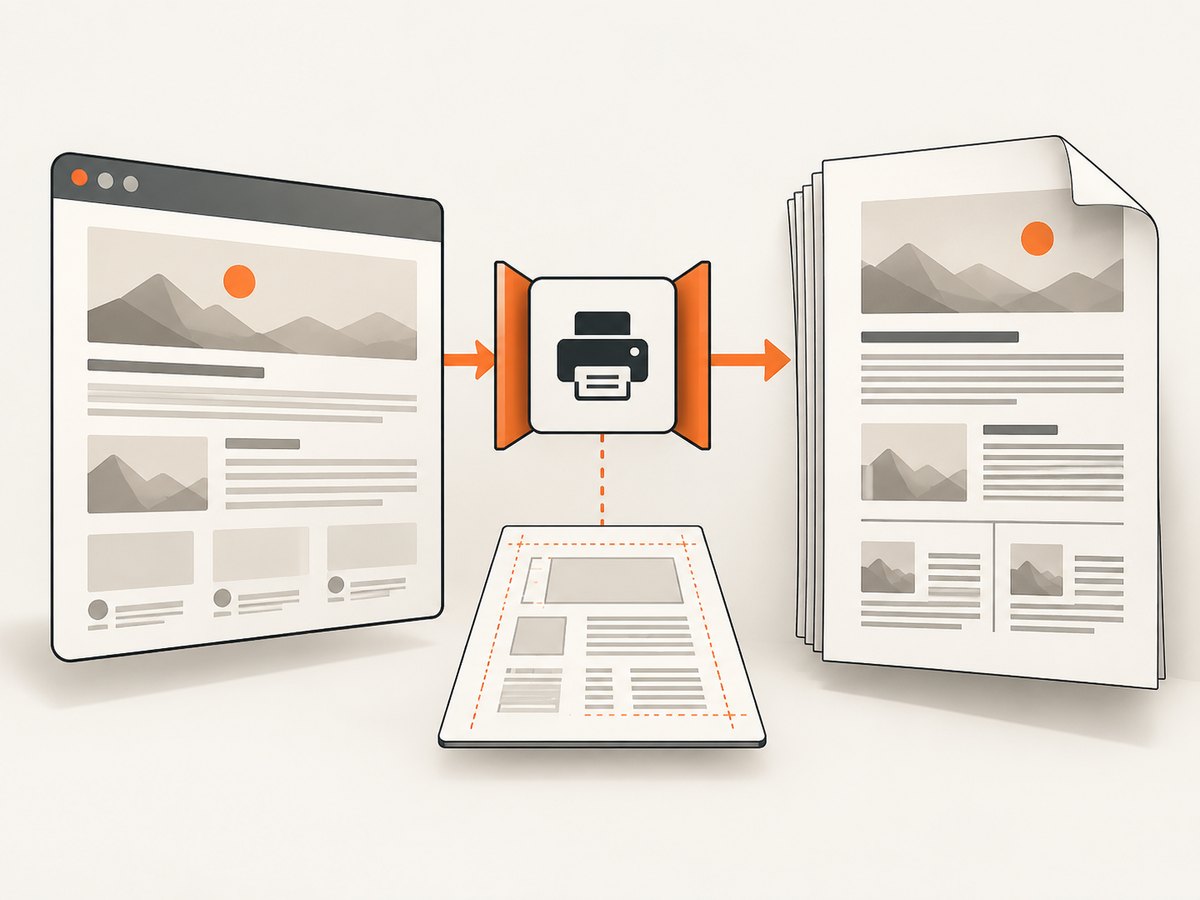
For example, after a successful basic call, a print-focused page may use @media print and @page rules for page breaks and paper size. If the site styles itself differently for screen and print, call page.emulateMediaType('screen') before PDF generation to select screen styles. Puppeteer documents that page.pdf() uses print media by default and that screen media can be selected explicitly. See the Page.pdf() remarks.
5. Diagnose common errors
| Symptom | Likely cause | Next action |
|---|---|---|
Printing Is Not Available or PrintToPDF is not implemented |
The connected browser endpoint does not expose the command in its current build or mode. | Verify the actual executable and version, then try a supported headless configuration. Reduce the case to the minimal script. |
| It works locally but fails in a container | The container may launch a different browser, use a different mode, or connect to a remote endpoint. | Log the deployed package version, browser version, executable path, launch arguments, and endpoint type from the failing environment. |
| PDF call hangs or times out | The browser process may be stuck, the page may not have reached the expected state, or the deployed launch has environment-specific problems. | Separate navigation from PDF generation; use a finite navigation timeout, capture process logs, and first try a simple static page. A timeout is a separate symptom from an explicit unsupported-command error. |
| PDF is blank or missing content | The page may not have finished loading data, or print CSS may hide elements. | Wait for the page’s real readiness condition, inspect print styles, and compare with screen media. Avoid assuming network idle means a client-side application has finished rendering. |
| Colors or backgrounds differ | Print rendering changes CSS media and may adjust colors by default. | Use printBackground: true and, where appropriate, -webkit-print-color-adjust: exact; verify @media print styles. |
| Wrong page size or clipping | Conflicting paper format, width/height, CSS @page, margins, or scale. |
Choose one sizing strategy, inspect the PDF options for your version, and test a small page before processing a batch. |
puppeteer-core works on one machine only |
It controls the executable configured by the application; that executable may differ across environments. | Set an explicit, known browser path or connect to a known browser build, and record the version in deployment diagnostics. |
| PDF written to an unexpected location | A relative path resolves from the Node process working directory. |
Use an absolute path or log process.cwd(); alternatively handle the returned bytes and write them to the intended destination. |
6. Reliability, performance, and operational notes
Keep browser and package versions observable. Record Puppeteer’s package version, browser version, executable path, launch mode, and whether the browser is local or remote when starting a worker. This turns a deployment-only failure into a useful comparison. Do not log secrets embedded in command-line arguments or connection URLs.
Wait for the content your document needs. Navigation completion and application readiness are different. A page can keep network connections open, while a client-side page can declare navigation complete before its important content appears. Use an application-specific selector or readiness signal when available, with a bounded timeout. Then generate the PDF. This makes blank or partial documents easier to distinguish from protocol availability problems.
Reuse browsers carefully. A long-lived browser can avoid repeatedly starting a process, but isolate pages or browser contexts between jobs and close them after use. Set limits for concurrent PDF work based on the memory and CPU available to the worker. Large pages, high-resolution assets, and long documents take more resources than a short static page; measure your own workload rather than relying on a generic throughput figure.
Bound the work and handle failures. Put timeouts around navigation and the overall job, close pages and browsers in cleanup paths, and retry only transient failures. Repeating an unsupported protocol command against the same browser build is unlikely to fix it. For important documents, retain enough job metadata to reproduce the browser configuration and record whether the output file was actually created.
Cost depends on where the browser runs. A self-managed setup uses your compute, storage, and operational time; the research sources do not establish universal prices or performance figures. If you compare a hosted capture service, review its billing behavior and supported output directly rather than assuming it uses the same browser or has identical PDF semantics.
7. Or skip the browser setup
If the task is capturing a page as an image or PDF rather than debugging Puppeteer itself, ScreenshotNeo provides a website screenshot API and MCP server. The API accepts one GET request and returns a screenshot or PDF. See the ScreenshotNeo API documentation for request options.
curl -G "https://api.screenshotneo.com/v1/shot" \
  -d access_key=YOUR_API_KEY \
  --data-urlencode url=https://stripe.com \
  -o shot.pdf
Use the same endpoint from Python:
import requests

r = requests.get(
    "https://api.screenshotneo.com/v1/shot",
    params={"access_key": "YOUR_API_KEY", "url": "https://stripe.com"},
    timeout=90,
)
r.raise_for_status()
open("shot.pdf", "wb").write(r.content)
Or from Node.js:
const q = new URLSearchParams({
  access_key: 'YOUR_API_KEY',
  url: 'https://stripe.com',
  format: 'pdf',
});
const res = await fetch(`https://api.screenshotneo.com/v1/shot?${q}`);
if (!res.ok) throw new Error(`ScreenshotNeo returned ${res.status}`);
await import('node:fs/promises').then(fs => fs.writeFile('shot.pdf', Buffer.from(await res.arrayBuffer())));- Cookie and consent banners are accepted and removed before capture, along with known newsletter popups and chat widgets; each step can be turned off.
- Bot checks, blank pages, failed loads, timeouts, and cache hits are not billed. Response headers report the page verdict and billing status.
- An MCP server gives AI agents tools to take screenshots, get page information, and capture PDFs.
- The free plan includes 1,000 shots a month with no card. Paid plans start at $5 for 3,000 shots; all features are on every plan.
Sign up for ScreenshotNeo and get 1,000 screenshots a month free, with no card.
8. FAQ
Does generating a PDF require Puppeteer?
No. Puppeteer is one way to control a browser and create a PDF. This guide uses it because it is the subject of the error; a screenshot API can handle capture without your application managing a browser process.
Does changing the print CSS fix “Printing Is Not Available”?
No. Print CSS affects layout and styling once the browser can print. First resolve the browser command availability issue; then tune CSS and PDF options.
Can I rely on a specific minimum Chrome version?
The cited research does not establish a complete current version matrix. Verify the exact browser executable and its pairing with your deployed Puppeteer package instead of treating the 2021 Chromium change as a current minimum-version guarantee.
What should I include in a bug report?
Include a minimal script, Puppeteer package version, browser version and path, operating system or container details, launch options, and whether the session is local or remote. Remove credentials and private page content.


