How to Detect Redirects Versus New Elements in Puppeteer Without Timeouts
Learn how to distinguish real navigation from JavaScript DOM updates in Puppeteer, avoid waitForNavigation timeouts, and choose reliable waits.
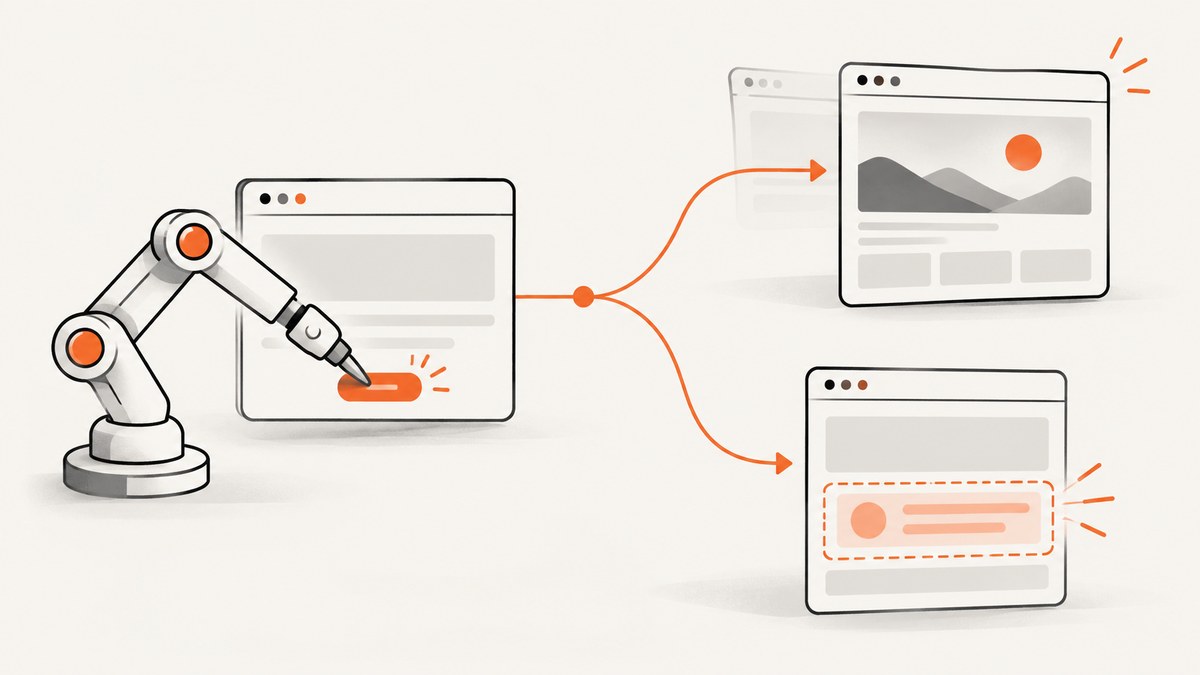
Use a navigation wait only when the click should change the document URL or reload the document. If the current document stays loaded and JavaScript inserts or changes content, wait for a selector, locator state, or predicate instead. For actions that can do either, record the starting URL, arm waitForNavigation() before the action, then inspect the final URL and fall back to a specific DOM wait.
This distinction prevents the most common Puppeteer timeout: waiting for navigation after a click that only opens a panel, fetches data, or inserts an element. Puppeteer defines navigation as waiting for a page to navigate to a new URL or reload; selector waits wait for a selector to appear in the page. See the official page.waitForNavigation API and official page.waitForSelector API.
1. Decide whether the document changes
| Observed behavior | Correct signal | Typical wait |
|---|---|---|
| URL changes, a new document loads, or the page reloads | Navigation response or final URL | waitForNavigation() |
| History API changes the URL without a document request | URL change; response may be null |
waitForNavigation() plus URL comparison |
| An anchor updates only the hash | Same-document URL change | Navigation wait or URL predicate |
| JavaScript inserts a result, modal, toast, or table row | DOM state | waitForSelector(), locator, or predicate |
| Content appears inside an iframe | Child-frame DOM state | frame.waitForSelector() |
A redirect chain can contain several HTTP responses. Puppeteer resolves the navigation promise with the last redirect’s response. Therefore, compare both the initial and final URLs when diagnosing a redirect. A same-document History API update or anchor navigation can produce a null response even though the URL changed.
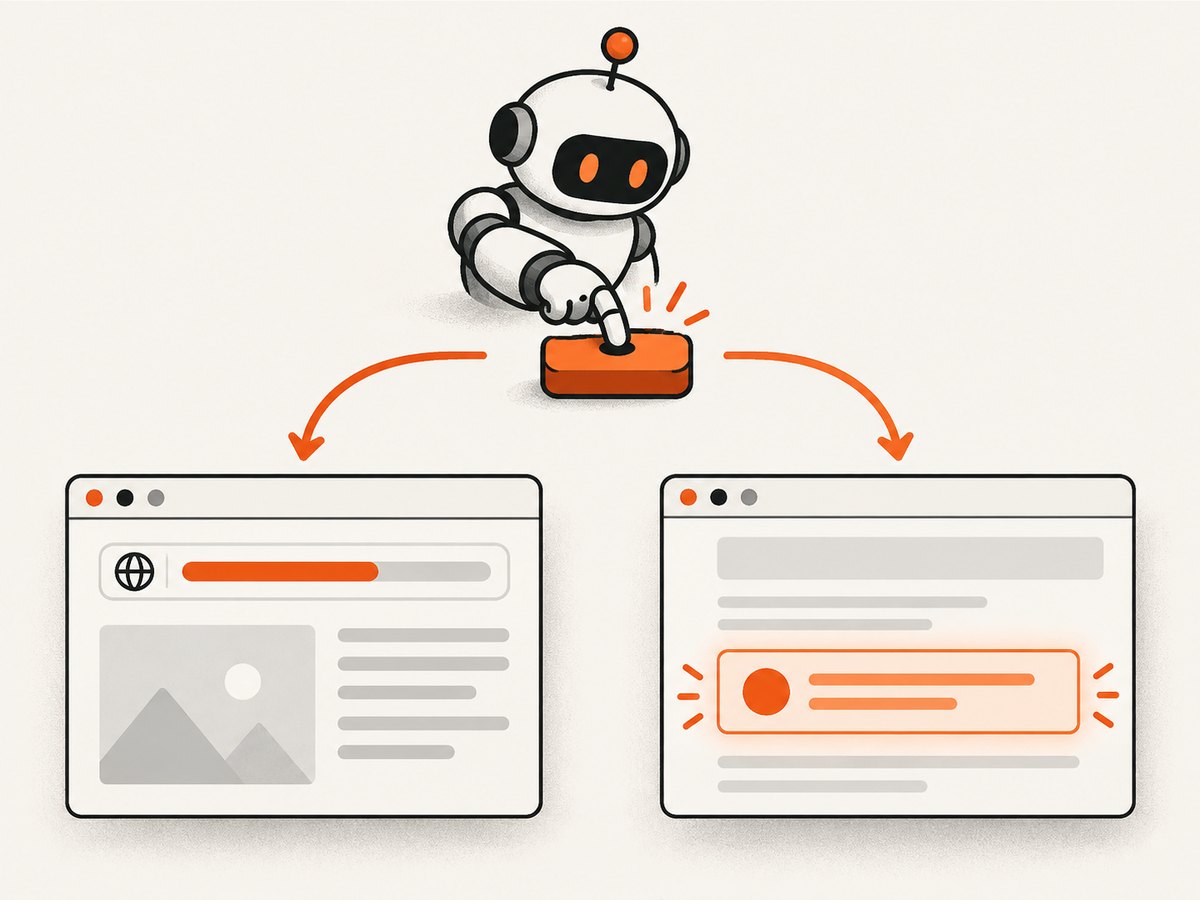
2. The reliable pattern for an ambiguous click
The following helper handles a button that either navigates or adds [data-result]. The navigation promise is created before the click, which avoids the race where the click starts navigation before Puppeteer begins listening.
import puppeteer from 'puppeteer';

const browser = await puppeteer.launch({headless: true});
const page = await browser.newPage();
await page.goto('https://example.com/search', {waitUntil: 'domcontentloaded'});

const before = page.url();
const navigation = page.waitForNavigation({
  waitUntil: 'domcontentloaded',
  timeout: 10000
});

await page.click('button[type="submit"]');

const response = await navigation.catch(error => {
  if (error.name === 'TimeoutError') return null;
  throw error;
});

const after = page.url();

if (response || after !== before) {
  console.log('A navigation or redirect occurred:', before, '->', after);
} else {
  await page.waitForSelector('[data-result]', {
    visible: true,
    timeout: 10000
  });
  console.log('The existing document added or updated a result element.');
}

await browser.close();
A navigation timeout in this bounded pattern is treated as evidence that no navigation completed within 10 seconds; it is not allowed to hang the job. The code still throws unexpected errors, such as a closed target or browser failure.
When navigation is expected
For a link or form that must load another document, use Promise.all and start both promises before the action:
const [response] = await Promise.all([
  page.waitForNavigation({waitUntil: 'domcontentloaded', timeout: 30000}),
  page.click('a.some-link')
]);

console.log('Final URL:', page.url());
console.log('Status:', response?.status());
This is the pattern recommended in Puppeteer’s navigation guide. Do not write await page.click(...); await page.waitForNavigation(); the navigation event may already have happened.
When a DOM update is expected
If the page uses fetch, XMLHttpRequest, React, Vue, or another client-side renderer, wait for a stable, meaningful element:
await page.click('[data-action="load-results"]');
await page.waitForSelector('[data-result-row]', {
  visible: true,
  timeout: 15000
});

const rows = await page.$$eval('[data-result-row]', els =>
  els.map(el => el.textContent.trim())
);
console.log(rows);
waitForSelector resolves immediately when the selector already exists, so use a state change when an old element can remain in the DOM. For example, wait for a loading marker to disappear and a result count to change, or add a request-specific attribute in your application.
await page.click('#refresh');
await page.waitForSelector('.loading', {hidden: true, timeout: 15000});
await page.waitForFunction(
  previous => document.querySelector('.result-count')?.textContent !== previous,
  {},
  previousCount
);
3. Choose the right Puppeteer wait
waitForNavigation
Use it for a new document, reload, redirect, or same-document navigation observed through the browser’s navigation lifecycle. The waitUntil option controls when it resolves:
load: the load event fired.domcontentloaded: the HTML was parsed. This is usually a practical default when you only need the next document’s DOM.networkidle0: there are no active network connections for the idle window.networkidle2: there are at most two active connections for the idle window.
Long-lived analytics, WebSockets, polling, and streaming requests can prevent network-idle conditions from completing. Prefer domcontentloaded followed by a selector that proves the required content is ready.
waitForSelector
Use a stable selector for the element that proves the operation succeeded. Relevant options include visible: true to require visibility, hidden: true to wait for removal or hiding, and an explicit timeout. Puppeteer’s documented default timeout is 30,000 ms; timeout: 0 disables the timeout, which is rarely appropriate in production automation.
await page.waitForSelector('[role="dialog"]', {
  visible: true,
  timeout: 10000
});

await page.waitForSelector('[data-spinner]', {
  hidden: true,
  timeout: 20000
});
Locators
Puppeteer locators automatically wait for an element to be present and in the correct state for an action, using the page timeout by default. They are useful when you want the wait and interaction expressed together:
const submit = page.locator('button[type="submit"]');
await submit.click();
await page.locator('[data-result]').wait();
Use semantic attributes such as data-testid, accessible roles, or stable IDs. Avoid selectors based on generated class names or visual position.
waitForFunction and predicates
Use a predicate when success is a value rather than an element’s presence: a URL pattern, a count, a state attribute, or application data.
await page.waitForFunction(
  () => location.pathname.startsWith('/checkout') &&
        document.body.dataset.state === 'ready',
  {timeout: 15000}
);
Frames
Top-level page waits do not select content inside an iframe. Find the frame and attach the wait to it:
const frame = page.frames().find(f => f.url().includes('/results-widget'));
if (!frame) throw new Error('Results iframe was not found');
await frame.waitForSelector('[data-result]', {
  visible: true,
  timeout: 10000
});
Frame.waitForSelector continues to work across navigations in that frame, but you must use the frame that owns the target element.
4. Complete diagnostic example
This script records URL, response, and DOM outcomes so failures are explainable in CI:
import puppeteer from 'puppeteer';

async function clickAndClassify(page, clickSelector, resultSelector) {
  const before = page.url();
  const nav = page.waitForNavigation({
    waitUntil: 'domcontentloaded',
    timeout: 8000
  }).catch(error => {
    if (error.name === 'TimeoutError') return null;
    throw error;
  });

  await page.click(clickSelector);
  const response = await nav;
  const after = page.url();

  if (response || after !== before) {
    return {kind: 'navigation', before, after, status: response?.status() ?? null};
  }

  await page.waitForSelector(resultSelector, {
    visible: true,
    timeout: 10000
  });
  return {kind: 'dom-update', before, after};
}

const browser = await puppeteer.launch();
const page = await browser.newPage();
page.setDefaultTimeout(15000);
await page.goto('https://example.com', {waitUntil: 'domcontentloaded'});

try {
  console.log(await clickAndClassify(page, '#continue', '[data-result]'));
} finally {
  await browser.close();
}
5. Common timeout causes and fixes
| Error or symptom | Cause | Fix |
|---|---|---|
Navigation timeout of ... ms exceeded |
The click only changed the DOM, or the chosen network-idle condition never occurred. | Use a selector or predicate wait; use domcontentloaded for document navigation. |
| The navigation happened but the wait timed out | The wait was started after the click. | Arm the wait first with Promise.all or the bounded pattern. |
response is null |
History API or anchor navigation changed the URL without a normal document response. | Compare page.url() before and after, then wait for the destination DOM. |
| Selector wait resolves too early | The selector was already present from the previous state. | Wait for a loading marker to disappear, an attribute/value change, or remove and recreate the target. |
| Element never appears | Wrong selector, failed request, delayed rendering, or content is in an iframe or shadow root. | Inspect the DOM, listen for request failures, select the correct frame, and use a stable selector. |
| Intermittent failures in CI | Unbounded timing assumptions, animations, or a race between click and wait. | Use finite explicit timeouts, arm waits before actions, and wait for application state rather than arbitrary sleeps. |
Capture evidence when debugging: log page.url(), listen for page.on('requestfailed'), save the HTML with page.content(), and take a screenshot at the failure point. A short, intentional delay can help with a known animation, but it should not replace a state-based wait.
6. Performance, reliability, and cost considerations
Every wait adds latency only until its success condition is met. A selector for the actual result is usually faster and more reliable than waiting for all network activity. Set a page-level default timeout for consistency, then override operations that have different service-level expectations. Keep navigation and DOM timeouts finite so one broken page cannot consume an entire worker.
For redirect diagnosis, retain the final URL and status code in logs. For DOM updates, log the selector and the state that satisfied it. Retry only operations that are safe to repeat; a second click can submit a form twice. If a navigation may be slow, increase the timeout based on observed page behavior rather than disabling it.
7. Or skip the browser setup
If your goal is a clean screenshot after a page settles, ScreenshotNeo provides a single request instead of maintaining Puppeteer, Chromium, waits, and cleanup code. It can wait for a selector, a delay, or network idle; click an element before capture; run custom JavaScript; hide selectors; and capture a full page or one CSS-selected element. Cookie and consent banners, newsletter popups, and chat widgets are removed before capture, with each cleanup step configurable.

Only clean shots are billed. Bot checks or CAPTCHAs, blank pages, timeouts, failed loads, and cache hits cost nothing, and response headers report the page verdict and whether it was billed. An MCP server exposes take_screenshot, get_page_info, and capture_pdf to Claude, Cursor, and other MCP clients.
See the ScreenshotNeo API documentation for all options.
cURL
curl -G "https://api.screenshotneo.com/v1/shot" \
  -d access_key=YOUR_API_KEY \
  --data-urlencode url=https://stripe.com \
  -o shot.webp
Python
import requests

r = requests.get(
    "https://api.screenshotneo.com/v1/shot",
    params={"access_key": "YOUR_API_KEY", "url": "https://stripe.com"},
    timeout=90,
)
r.raise_for_status()
open("shot.webp", "wb").write(r.content)
Node.js
const q = new URLSearchParams({
  access_key: 'YOUR_API_KEY',
  url: 'https://stripe.com'
});
const res = await fetch(`https://api.screenshotneo.com/v1/shot?${q}`);
if (!res.ok) throw new Error(`Screenshot failed: ${res.status}`);
const file = Buffer.from(await res.arrayBuffer());
await import('node:fs/promises').then(fs => fs.writeFile('shot.webp', file));
ScreenshotNeo supports PNG, JPEG, WebP, and PDF; device presets, arbitrary viewports, retina scale, dark mode, custom CSS and JavaScript, headers, cookies, user agents, authorization, timezone, geolocation, blocking rules, caching with a chosen TTL, signed links, asynchronous jobs with signed webhooks, bulk capture of up to 100 URLs per call, usage reporting, and an OpenAPI specification. Its parameter names are compatible with those used by other screenshot APIs, which helps when switching.
The Free plan includes 1,000 screenshots each month with no card. Starter is $5 for 3,000, Growth $15 for 15,000, Pro $39 for 60,000, Scale $99 for 250,000, and Business $249 for 1,000,000; yearly billing gives two months free, and every feature is available on every plan. Create a free ScreenshotNeo account and start with the 1,000 monthly screenshots at no charge.
8. Practical checklist
- Record
page.url()before the action. - Start
waitForNavigation()before clicking when navigation is possible. - Use a finite timeout and catch only the expected navigation timeout.
- Compare the final URL and response to classify navigation.
- For same-document updates, wait for a stable selector, locator state, or predicate.
- Use the correct frame for iframe content.
- Avoid broad network-idle waits on pages with polling or WebSockets.
- Log URL, status, selector, and request failures when diagnosing CI issues.
FAQ
Does a redirect always return a response?
A normal document navigation resolves with the final response after redirects. Same-document History API and anchor changes can produce a null response, so always compare URLs too.
Should I set timeout: 0 to avoid failures?
No. That disables the safety limit and can leave a worker hanging indefinitely. Set a finite timeout that matches the operation and handle the failure explicitly.
Can I use waitForNavigation for a single-page application?
Use it only when the SPA changes the URL through navigation or History API. For a component update at the same route, wait for the component’s DOM state.
Why does waitForSelector succeed before new data arrives?
The selector may already exist. Wait for a loading indicator to disappear, a text or attribute value to change, or a new element with a request-specific marker.
What is the safest default for document loads?
Use domcontentloaded and then wait for the exact element your task needs. This avoids depending on unrelated long-lived network connections.


