How to Run Puppeteer Reliably on Google Cloud Run
Deploy Puppeteer on Cloud Run with the right execution model, timeouts, memory, concurrency, cleanup, logging and load tests.
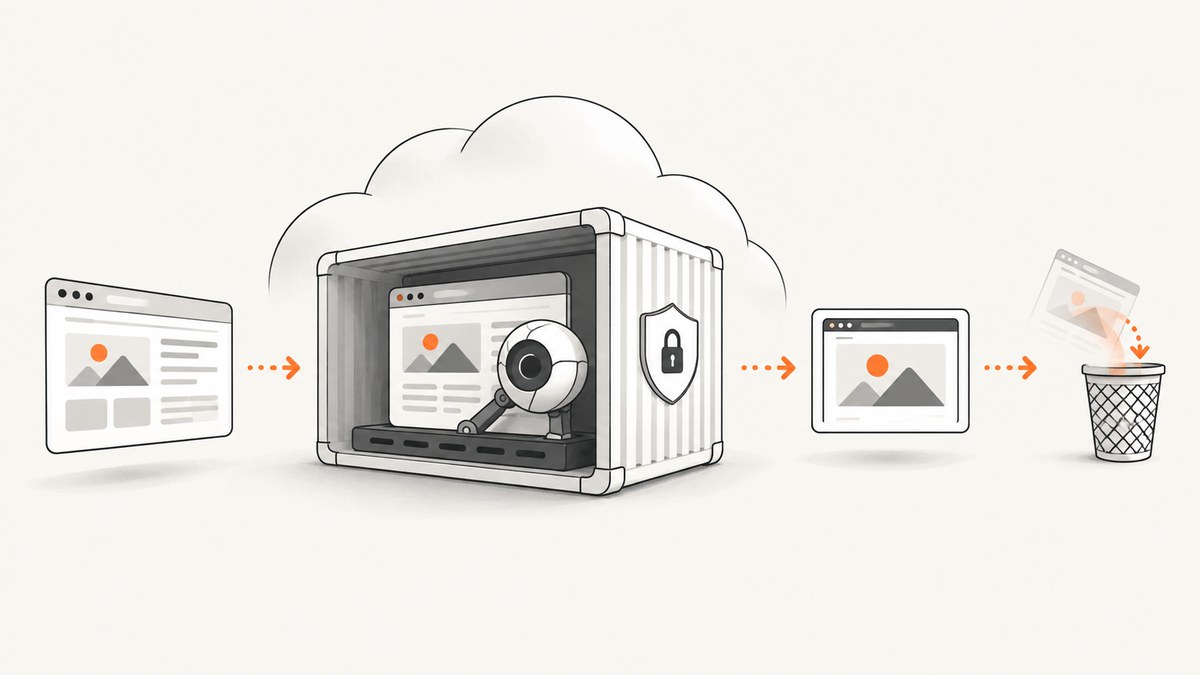
Running Puppeteer on Google Cloud Run is reliable when you treat the browser as a resource-intensive workload instead of a small HTTP handler. Choose a Cloud Run service for short, synchronous responses or a Cloud Run Job for queued work, set a deadline that matches the browser task, measure memory under realistic concurrency, and close every page and browser when the request ends.
Google documents headless Chrome automation on Cloud Run for scraping, form submissions, UI tests, PDFs and screenshots. Puppeteer is one of the high-level libraries named for controlling Chromium. The platform does not provide one universal launch flag, memory size or concurrency value that works for every site. Your pages, assets, browser version and request mix determine the stable configuration.
1. Choose a Cloud Run service or job
Use a Cloud Run service when a caller needs an HTTP response containing a result. A service request timeout defaults to five minutes and can be configured up to 60 minutes. When that deadline expires, Cloud Run closes the connection and the caller can receive HTTP 504. The container is not necessarily terminated immediately, so Chromium work can continue and consume resources during a later request.
Use a Cloud Run Job when the work is task-oriented and does not need to return through one long-lived HTTP request. Jobs have a default task timeout of 10 minutes and a configurable maximum of 168 hours (seven days). GPU tasks have a one-hour maximum. Retries apply the timeout to each task attempt. These limits describe the platform; they do not guarantee that an unusually long browser operation will succeed.
| Question | Service | Job |
|---|---|---|
| Does the caller need an immediate HTTP response? | Yes | No |
| Typical shape | Screenshot, PDF or page information API | Batch crawl, scheduled capture or long workflow |
| Timeout model | Request deadline, default five minutes, maximum 60 minutes | Task deadline, default 10 minutes, maximum 168 hours |
| Retry model | Implement client or queue retries carefully | Platform task retries are available |
This service-versus-job choice follows the execution and timeout models. If a request can be split into smaller browser tasks, splitting it often improves retry behavior and reduces the chance that one deadline leaves orphaned work.
2. Build a minimal Puppeteer container
Pin the Puppeteer version in your package file and validate it with the Chromium supplied by that version or with the browser installed in your image. The research does not establish a universal Puppeteer and Chrome pairing, so verify the exact versions used by your container.
FROM node:20-bookworm-slim

# Install Chromium and the libraries required by headless Chrome.
RUN apt-get update \\
  && apt-get install -y --no-install-recommends chromium ca-certificates \\
  && rm -rf /var/lib/apt/lists/*

WORKDIR /app
COPY package*.json ./
RUN npm ci --omit=dev
COPY server.js ./

ENV PORT=8080
ENV PUPPETEER_EXECUTABLE_PATH=/usr/bin/chromium
EXPOSE 8080
CMD ["node", "server.js"]
{
"name": "cloud-run-puppeteer",
"private": true,
"dependencies": {
"express": "^4.21.2",
"puppeteer-core": "^24.0.0"
}
}puppeteer-core does not download another browser during installation. The executable path is supplied explicitly through an environment variable, which makes the image and runtime choice visible.
3. Write a deadline-aware HTTP handler
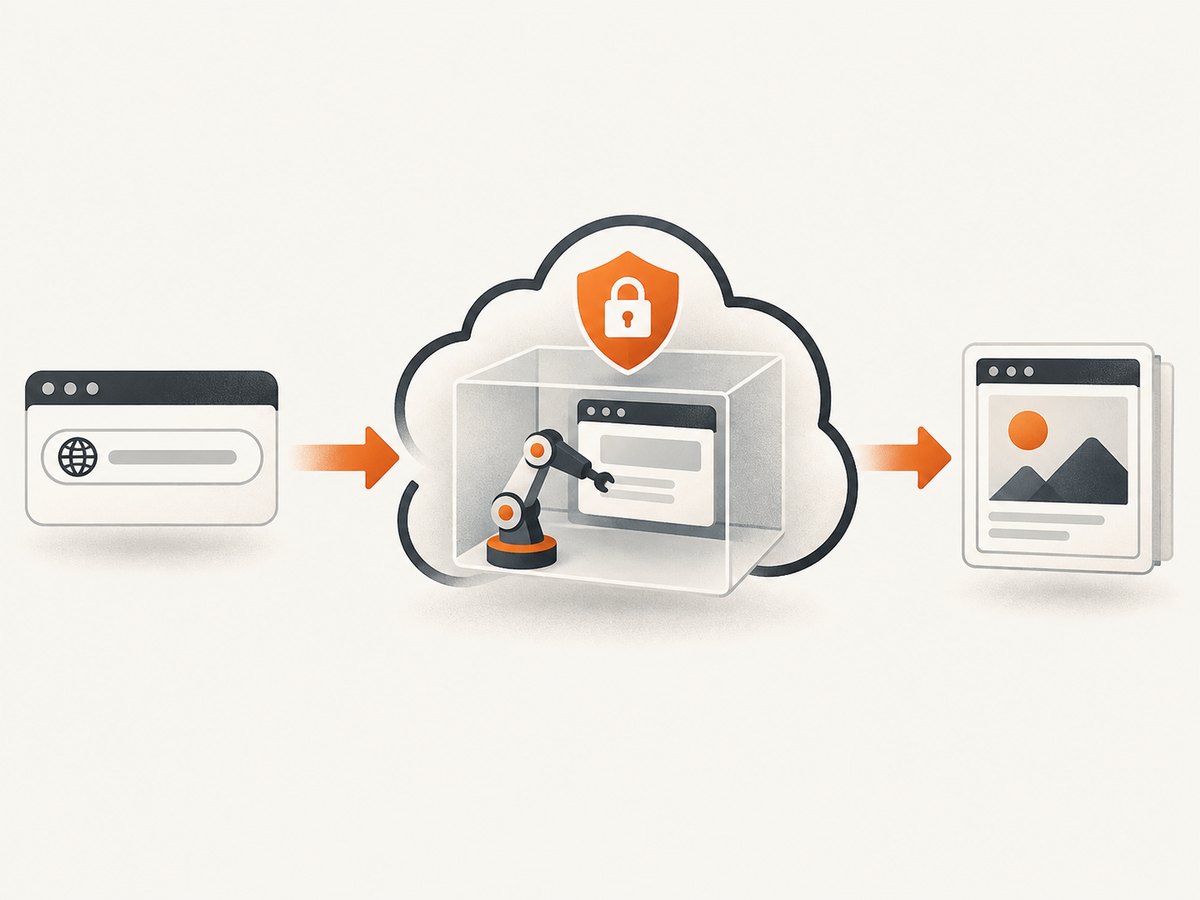
The handler below opens one browser per request for clarity. For higher throughput you can evaluate a bounded browser pool, but pooling requires strict page cleanup and measurement because pages share the instance’s memory. The example records each stage, applies a navigation timeout, checks the request deadline and closes resources in a finally block.
const express = require('express');
const puppeteer = require('puppeteer-core');

const app = express();
const port = Number(process.env.PORT || 8080);
const executablePath = process.env.PUPPETEER_EXECUTABLE_PATH || '/usr/bin/chromium';

function log(stage, fields = {}) {
  console.log(JSON.stringify({ stage, time: new Date().toISOString(), ...fields }));
}

app.get('/screenshot', async (req, res) => {
  const target = req.query.url;
  if (!target) return res.status(400).json({ error: 'url is required' });

  let parsed;
  try {
    parsed = new URL(target);
    if (!['http:', 'https:'].includes(parsed.protocol)) throw new Error('unsupported protocol');
  } catch {
    return res.status(400).json({ error: 'url must be an http or https URL' });
  }

  const started = Date.now();
  let browser;
  let page;
  try {
    log('browser_start', { url: parsed.href });
    browser = await puppeteer.launch({
      executablePath,
      headless: true,
      args: ['--no-sandbox', '--disable-setuid-sandbox'],
      defaultViewport: { width: 1440, height: 900, deviceScaleFactor: 1 }
    });

    page = await browser.newPage();
    page.setDefaultNavigationTimeout(45000);
    page.setDefaultTimeout(15000);

    log('navigation_start');
    await page.goto(parsed.href, { waitUntil: 'networkidle2' });

    // Leave time for the HTTP response and cleanup.
    const elapsed = Date.now() - started;
    if (req.socket.timeout && elapsed > req.socket.timeout - 5000) {
      throw new Error('request deadline is too close');
    }

    const image = await page.screenshot({ type: 'png', fullPage: true });
    log('capture_complete', { bytes: image.length, elapsed_ms: Date.now() - started });
    res.type('png').send(image);
  } catch (error) {
    log('capture_error', { message: error.message, elapsed_ms: Date.now() - started });
    if (!res.headersSent) res.status(502).json({ error: error.message });
  } finally {
    log('cleanup_start');
    if (page) await page.close().catch(() => {});
    if (browser) await browser.close().catch(() => {});
    log('cleanup_complete');
  }
});

app.get('/healthz', (_req, res) => res.send('ok'));
app.listen(port, () => log('server_started', { port }));
In production, pass an explicit application deadline from your request framework or queue instead of relying only on socket behavior. Cloud Run can return 504 while your code is still inside goto or screenshot capture, so cancellation and cleanup must be part of the design.
4. Deploy and tune the service
- Build and deploy the image to Cloud Run.
- Set memory and timeout values high enough for the largest expected page, then measure rather than guessing.
- Start with low per-instance concurrency, often one or a small number, while collecting data.
- Run representative load tests with the same URLs, assets, viewport sizes and screenshot modes used in production.
- Increase concurrency in steps only while latency, peak memory and failure rate remain stable.
Cloud Run’s console default is 80 concurrent requests per instance. CLI or Terraform creation defaults to 80 multiplied by the vCPU count. Neither is a recommended Puppeteer setting. Browser processes, pages, JavaScript heaps, image decode buffers and screenshot output can make peak memory grow with each simultaneous request.
A useful sizing model is:
peak_memory ~= standing_container_memory + (memory_per_browser_request * concurrency)Measure both terms. A page with many large images can use far more memory than a simple document. Cloud Run terminates an instance that exceeds its configured memory limit. If that happens, increase memory, reduce concurrent browser work, reduce page cost, or combine those changes.
5. Make navigation predictable
Wait for the right event
networkidle2 is useful for pages that finish loading, but analytics, streams and long polling can prevent an idle state. For those sites, navigate with domcontentloaded, wait for a specific selector, and add a bounded delay only when needed.
await page.goto(url, { waitUntil: 'domcontentloaded', timeout: 45000 });
await page.waitForSelector('#main-content', { timeout: 15000 });
await new Promise(resolve => setTimeout(resolve, 500));
Control expensive resources
Block unnecessary fonts, video, advertising and tracking requests when your output does not require them. Be careful: blocking scripts or styles can change layout and make the capture invalid. Record the policy used for each request so a visual difference can be explained later.
await page.setRequestInterception(true);
page.on('request', request => {
  const type = request.resourceType();
  if (['media', 'font'].includes(type)) return request.abort();
  request.continue();
});
Use browser context isolation
When one browser serves several requests, create a new context per request so cookies, local storage and permissions do not leak between users. Close the context in the same cleanup path as the page. Do not share a page concurrently across requests.
6. Handle timeouts, retries and partial work
Use separate limits for navigation, selectors and the overall request. A retry should be bounded and should not multiply expensive browser work without a reason. Retry transient navigation failures, but classify invalid URLs, authentication failures and deterministic JavaScript errors as non-retryable.
| Symptom | Likely cause | Fix |
|---|---|---|
| 504 from Cloud Run | Service request deadline expired | Shorten the task, split it, use a longer permitted timeout, or move it to a Job. Track remaining time and clean up before expiry. |
| Instance terminated under load | Memory limit exceeded | Lower concurrency, increase memory, reduce page/resource cost, and measure peak usage. |
| Navigation timeout | Slow origin, never-idle requests or blocked dependency | Use a bounded navigation timeout, choose a suitable wait condition, wait for a selector, or allow required resources. |
| Chrome fails to start | Missing executable, libraries or container permissions | Verify the installed Chromium path, required packages and the executable environment variable. |
| Blank or incomplete screenshot | Capture occurred before content or lazy images rendered | Wait for a content selector, scroll to trigger lazy loading, or add a small bounded delay. |
| Intermittent failures after a timeout | Browser work continued after the client received 504 | Cancel or stop work when the deadline is near and always close pages and browsers. |
7. Observe the workload
Correlate Cloud Run request logs with application logs. Emit timestamps for browser startup, navigation start and end, selector waits, capture completion and cleanup. Include a request identifier, target host, elapsed milliseconds, output bytes and error class, while avoiding cookies and sensitive page data.
Use logs and traces to distinguish three classes of failure:
- Long work: navigation or rendering consumes most of the deadline.
- Resource pressure: memory rises with concurrency and instances are terminated.
- Request handling: the handler sends a response late, leaks a page, or continues after a timeout.
Load tests should vary concurrency, URL complexity, viewport, full-page mode and cache state. Record p50 and tail latency, peak memory, browser-start time, navigation time, capture time, timeout rate and instance restarts. Tune one variable at a time so the result is attributable.
8. Reliability checklist
- Pin and verify Puppeteer and Chromium versions.
- Validate and restrict target URLs if the endpoint is exposed publicly.
- Use explicit navigation, selector and overall deadlines.
- Close contexts, pages and browsers in
finallyblocks. - Start with low concurrency and increase it using representative load tests.
- Set memory from measured peak usage, not platform defaults.
- Design for 504 responses while the container may still be working.
- Use Jobs for queued or long-running tasks that do not need a synchronous response.
- Log stage timings and classify retryable errors.
- Keep screenshots and page data out of logs unless required and protected.
9. Cost and performance considerations
Higher concurrency can improve throughput per instance, but it also raises peak memory and can increase tail latency when several Chromiums compete for CPU. More memory may stabilize the service while increasing resource cost. Lower concurrency can reduce failures while requiring more instances. The correct choice is the one that meets your measured latency and reliability target.
Full-page screenshots, large viewports, heavy client-side applications and PDF rendering take more time and memory than a small viewport capture. Reduce unnecessary resources, reuse work only when isolation is safe, and cache deterministic outputs at an appropriate layer. For long batches, queue URLs and process bounded groups in a Job rather than extending one HTTP request.
10. Or skip the browser setup
If your goal is a clean website screenshot rather than operating Chromium yourself, ScreenshotNeo provides a single HTTP endpoint. The API accepts a URL and returns PNG, JPEG, WebP or PDF. See the ScreenshotNeo documentation for request options.

cURL
curl -G "https://api.screenshotneo.com/v1/shot" -d access_key=YOUR_API_KEY --data-urlencode url=https://stripe.com -o shot.webpPython
import requests
r = requests.get("https://api.screenshotneo.com/v1/shot", params={"access_key": "YOUR_API_KEY", "url": "https://stripe.com"}, timeout=90)
open("shot.webp", "wb").write(r.content)
Node.js
const q = new URLSearchParams({ access_key: 'YOUR_API_KEY', url: 'https://stripe.com' });
const res = await fetch(`https://api.screenshotneo.com/v1/shot?${q}`);
ScreenshotNeo removes cookie and consent banners, newsletter popups and chat widgets before capture. Bot checks, blank pages, timeouts, failed loads and cache hits are not billed, and response headers identify the page verdict and whether the shot was billed. Its MCP server lets Claude, Cursor and other MCP clients use take_screenshot, get_page_info and capture_pdf. The Free plan includes 1,000 screenshots each month without a card; paid plans start at $5 for 3,000.
Create a free ScreenshotNeo account and start with the 1,000 monthly screenshots.
11. Frequently asked questions
Should I run one browser for every request?
It is the simplest isolation model, but startup time and memory can be higher. A bounded pool can improve throughput if contexts and pages are isolated and cleanup is measured.
Is --no-sandbox always required?
The correct flags depend on the image, user and permissions. Verify the security and runtime requirements of your chosen container instead of copying a universal launch command.
When should I use a Cloud Run Job?
Use a Job when work is queued, scheduled, batched or too long for a synchronous response. Its task timeout and retry model fit that shape better than an HTTP service.
Why did my client time out while Cloud Run kept using CPU?
The service deadline closes the connection and can return 504 without immediately terminating the container. Your handler must notice the deadline and close browser resources.
What concurrency should I configure?
There is no reliable universal value. Begin low, load-test representative pages, measure memory and tail latency, then increase concurrency in controlled steps.


