How to Take an RGBA Screenshot With Puppeteer
Create transparent PNG screenshots with Puppeteer using omitBackground, handle CSS backgrounds, capture elements, and troubleshoot alpha-channel issues.
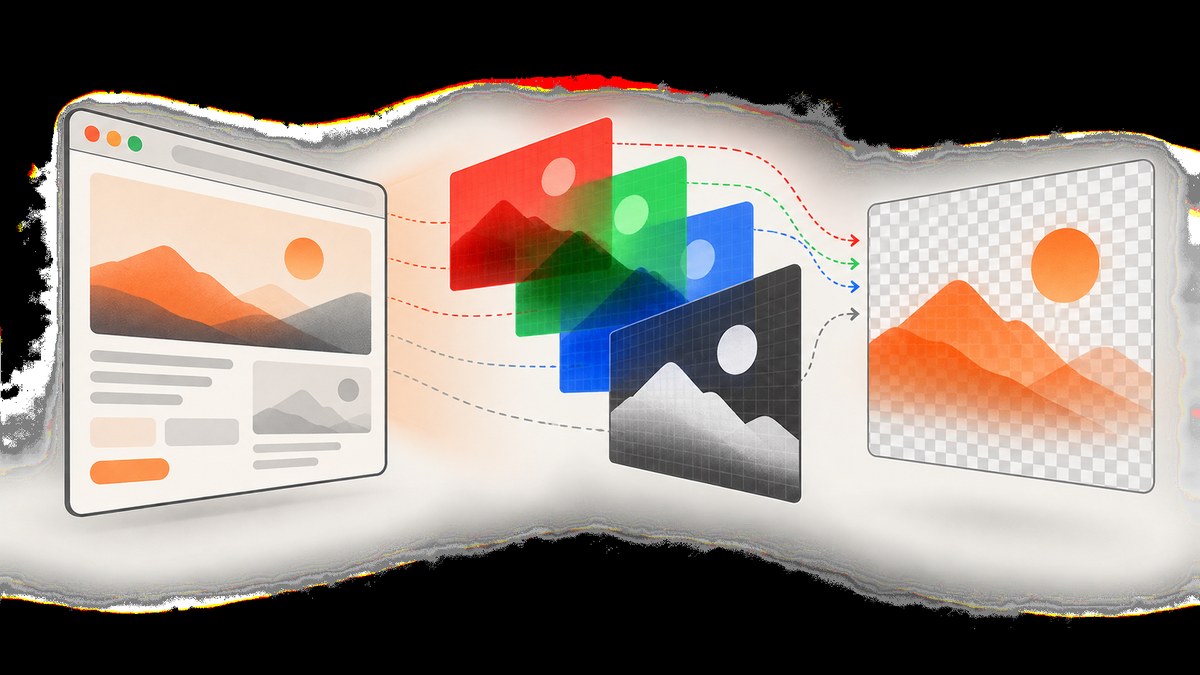
To take an RGBA screenshot with Puppeteer, capture a PNG and set omitBackground: true:
const screenshot = await page.screenshot({
  path: 'screenshot.png',
  type: 'png',
  omitBackground: true,
});
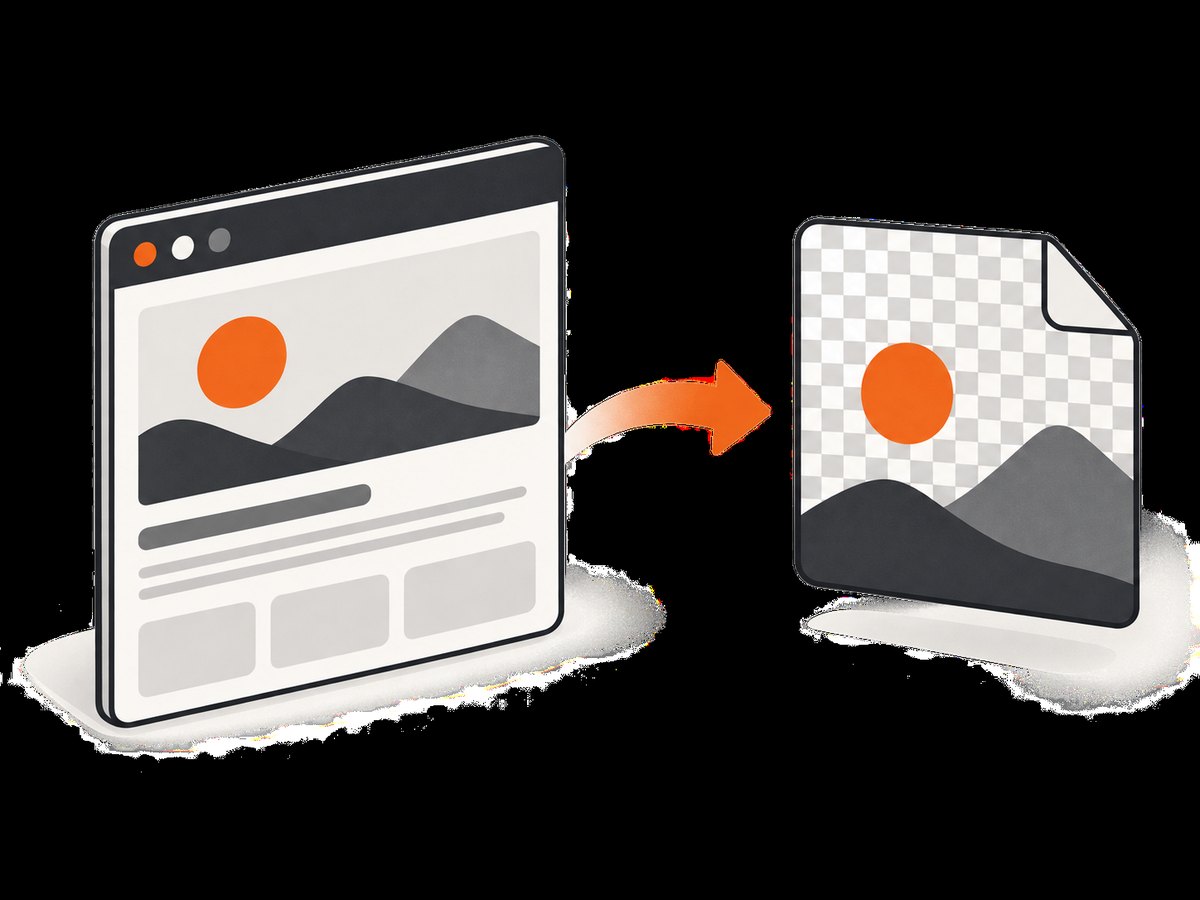
PNG is the appropriate format because it preserves an alpha channel. omitBackground removes the browser’s default white backdrop, so pixels that would have shown that backdrop can become transparent. It does not remove a background explicitly painted by your page’s CSS, an image, or another covering element. Puppeteer’s documentation describes this option as hiding the default white background and allowing screenshots with transparency.
What an RGBA screenshot contains
RGBA means each pixel has red, green, blue and alpha values. The alpha value controls opacity: zero is fully transparent and 255 is fully opaque. A transparent Puppeteer screenshot normally contains opaque rendered content over transparent areas where the browser backdrop was omitted. It does not automatically turn every color, panel, or image into partial transparency.
If a page sets body { background: white; }, that white is page content and remains in the image. The same applies to a full-screen section, a background image, a pseudo-element, or a modal overlay. To obtain transparent regions, remove or override those styles before taking the screenshot.
Complete Puppeteer example
The following script launches Chromium, loads a page, waits for navigation to settle, captures a transparent PNG, and closes the browser even if capture fails.
import puppeteer from 'puppeteer';

const browser = await puppeteer.launch({
  headless: true,
});

try {
  const page = await browser.newPage();
  await page.setViewport({ width: 1440, height: 900, deviceScaleFactor: 1 });

  await page.goto('https://example.com', {
    waitUntil: 'networkidle2',
    timeout: 60_000,
  });

  // Remove page-owned backgrounds when you need transparent canvas areas.
  await page.addStyleTag({
    content: `
      html, body {
        background: transparent !important;
      }
    `,
  });

  await page.screenshot({
    path: 'screenshot.png',
    type: 'png',
    omitBackground: true,
    fullPage: true,
  });
} finally {
  await browser.close();
}
Install Puppeteer with npm install puppeteer. The package downloads a compatible browser for normal installations. If your deployment supplies its own Chrome or Chromium, configure the executable path in puppeteer.launch() and ensure the process has the libraries and sandbox permissions it needs.
Choose the capture output
Write a PNG file
Set path to write the result directly to disk. Use a .png extension and explicitly set type: 'png' when you want the choice to be unambiguous.
await page.screenshot({
  path: 'transparent-card.png',
  type: 'png',
  omitBackground: true,
});
Keep the bytes in memory
When path is omitted, page.screenshot() returns a Uint8Array. This is useful for uploading to object storage, returning an HTTP response, or passing the image to an image-processing library.
const pngBytes = await page.screenshot({
  type: 'png',
  omitBackground: true,
});

await fetch('https://storage.example/upload', {
  method: 'PUT',
  headers: { 'content-type': 'image/png' },
  body: pngBytes,
});
Request base64
Base64 is an explicit encoding choice. It is convenient for JSON responses or data URLs, but it increases payload size compared with binary bytes.
const base64 = await page.screenshot({
  type: 'png',
  omitBackground: true,
  encoding: 'base64',
});

const dataUrl = `data:image/png;base64,${base64}`;
Why JPEG cannot meet this requirement
JPEG does not preserve an alpha channel. Do not use type: 'jpeg' when transparent pixels matter. WebP can support transparency in some workflows, but PNG is the documented, predictable choice for this Puppeteer use case and the easiest format to validate across tools.
Capture a full page, viewport, or element
Viewport screenshot
Without fullPage, Puppeteer captures the current viewport.
await page.screenshot({
  path: 'viewport.png',
  type: 'png',
  omitBackground: true,
});
Full-page screenshot
Set fullPage: true to capture the document’s complete scrollable area. Long pages may produce very large PNGs and take longer to encode.
await page.screenshot({
  path: 'full-page.png',
  type: 'png',
  omitBackground: true,
  fullPage: true,
});
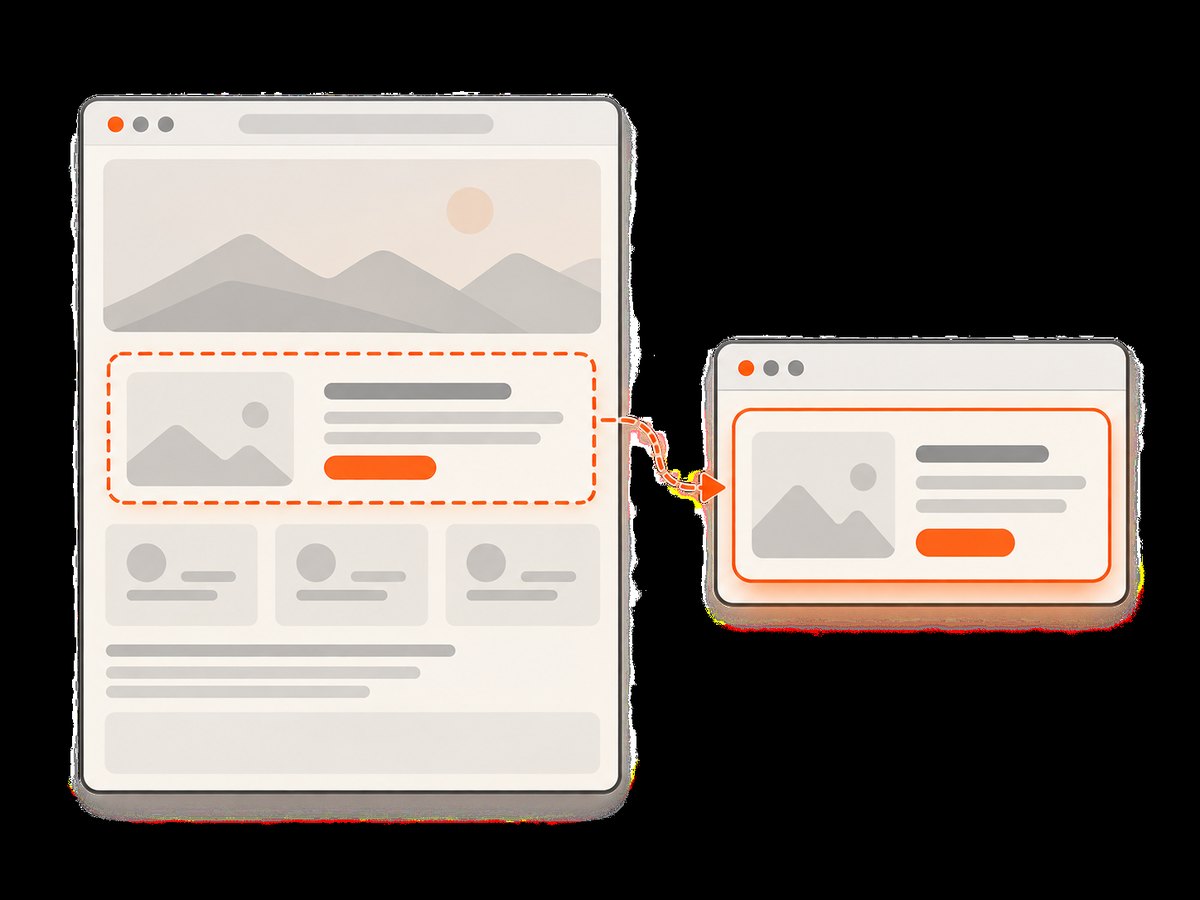
Capture one element
Use an ElementHandle when you need a logo, chart, card, or other DOM node rather than the page.
const card = await page.waitForSelector('.product-card', {
  timeout: 15_000,
});

if (!card) throw new Error('Product card was not found');

await card.screenshot({
  path: 'product-card.png',
  type: 'png',
  omitBackground: true,
});
Puppeteer scrolls the element into view when necessary. The handle must still refer to an attached DOM node; a framework rerender that replaces the node can detach it and cause capture to fail.
Clip a rectangle
For a fixed region, obtain its bounding box and pass the coordinates as a clip.
const node = await page.waitForSelector('#illustration');
if (!node) throw new Error('Illustration not found');

const box = await node.boundingBox();
if (!box) throw new Error('Illustration has no visible bounding box');

await page.screenshot({
  path: 'illustration.png',
  type: 'png',
  omitBackground: true,
  clip: { x: box.x, y: box.y, width: box.width, height: box.height },
});
A clip is tied to the current viewport and page layout. If fonts or responsive content load later, calculate the box after the page reaches its final state.
Make the page ready before capture
page.goto() waits only according to the navigation strategy you select. Applications can continue rendering after navigation, so wait for the condition that represents readiness for your screenshot.
await page.goto('https://example.com/dashboard', {
  waitUntil: 'domcontentloaded',
  timeout: 60_000,
});

await page.waitForSelector('[data-chart-ready="true"]', {
  timeout: 30_000,
});

await page.evaluate(() => document.fonts.ready);
await page.screenshot({
  path: 'dashboard.png',
  type: 'png',
  omitBackground: true,
});
Useful readiness signals include a selector, a known application flag, completed fonts, or a short delay for an animation. Prefer a specific selector over an arbitrary long sleep. If an animation changes the pixels, disable it before capture:
await page.addStyleTag({
  content: `
    *, *::before, *::after {
      animation: none !important;
      transition: none !important;
      caret-color: transparent !important;
    }
  `,
});
For lazy images, scroll through the page or trigger the application’s loading mechanism before a full-page capture. Verify that image elements have completed loading when missing images would invalidate the result.
Transparency troubleshooting
| Symptom | Cause | Fix |
|---|---|---|
| White background remains | The page or target element paints a CSS background, image, pseudo-element, or covering layer. | Inspect computed styles and remove or override the page-owned background. omitBackground only omits the browser’s default backdrop. |
| The file has no alpha | The output was encoded as JPEG or another format without transparency. | Set type: 'png' and use a PNG filename. |
| Screenshot is blank | Capture ran before application content rendered, or the URL returned an error page. | Check the response and console, wait for a content selector, and capture only after the page’s ready signal. |
| Element screenshot throws a detached-node error | A client-side rerender replaced the element after the handle was obtained. | Wait for the final render, query the element again, and capture immediately. |
| Element is missing | The selector is wrong, content is behind a route or consent dialog, or the element is not rendered at this viewport. | Log the URL and selector, increase the diagnostic timeout, set the expected viewport, and handle dialogs before capture. |
| Text or icons differ between runs | Fonts, animations, time, or asynchronous data are not deterministic. | Wait for document.fonts.ready, disable motion, freeze test data where possible, and use a fixed viewport and timezone. |
| Transparent result looks opaque in a viewer | The viewer displays transparency against white, or the image contains an intentional opaque layer. | Inspect the alpha channel over a checkerboard background and review computed backgrounds. |
Reliability and performance
- Reuse a browser process. Launching Chromium for every image adds startup cost. Keep one browser alive and create isolated pages for concurrent jobs.
- Limit concurrency. Each page consumes CPU and memory. A queue with a fixed worker count is safer than launching unlimited captures.
- Bound every wait. Set navigation and selector timeouts, then record the URL, selector, and failure stage in logs.
- Reduce image work. Use the smallest required viewport, avoid
fullPagewhen a component capture is enough, and prefer binary bytes over base64 for internal pipelines. - Control nondeterminism. Fix viewport dimensions and device scale, wait for fonts and data, disable animations, and use stable test content.
- Clean up pages. Close each page after its job and close the browser during shutdown. Leaked pages eventually exhaust memory.
- Check the result. Validate that the file is nonempty and has the expected PNG signature before publishing or uploading it.
A transparent full-page PNG can be substantially larger than a viewport image because it contains more pixels. If storage or transfer size matters, capture only the required element or region and optimize the PNG after capture without flattening its alpha channel.
Security and operational details
Only navigate to URLs your application is authorized to access. Treat page content as untrusted: do not expose private credentials to arbitrary pages, and keep API keys out of page JavaScript. If a target requires authentication, use a controlled browser context and clear it between jobs. Record failures without logging cookies, authorization headers, or sensitive page content.
For repeatable builds, pin your Puppeteer version and browser revision, run the same viewport and color settings, and keep a diagnostic screenshot for failures. A screenshot can be technically valid while still being the wrong page, so check the final URL and an identifying selector before storing it.
Or skip the browser setup
ScreenshotNeo provides a website screenshot API and MCP server. One GET request returns PNG, JPEG, WebP, or PDF output, and its transparent-background option can replace a locally managed Chromium workflow for service-side captures.
cURL:
curl -G "https://api.screenshotneo.com/v1/shot" \
  -d access_key=YOUR_API_KEY \
  --data-urlencode url=https://stripe.com \
  -o shot.webp
Python:
import requests

r = requests.get(
    "https://api.screenshotneo.com/v1/shot",
    params={"access_key": "YOUR_API_KEY", "url": "https://stripe.com"},
    timeout=90,
)
r.raise_for_status()
open("shot.webp", "wb").write(r.content)
Node.js:
const q = new URLSearchParams({
  access_key: 'YOUR_API_KEY',
  url: 'https://stripe.com'
});
const res = await fetch(`https://api.screenshotneo.com/v1/shot?${q}`);
if (!res.ok) throw new Error(`Screenshot failed: ${res.status}`);
const bytes = await res.arrayBuffer();
See the ScreenshotNeo documentation for request options. Cookie and consent banners, newsletter popups, and chat widgets are removed before the shot. Bot checks, blank pages, failed loads, timeouts, and cache hits are not billed, and response headers identify the page verdict and billing result. Its MCP server exposes take_screenshot, get_page_info, and capture_pdf for Claude, Cursor, and other MCP clients. The Free plan includes 1,000 screenshots per month with no card; paid plans start at $5 for 3,000 screenshots.
Create a free ScreenshotNeo account and start with 1,000 screenshots a month at no charge.
FAQ
Does omitBackground make every pixel translucent?
No. It omits the browser’s default backdrop. Text, borders, images, and CSS-painted backgrounds remain opaque unless the page itself renders transparency.
Can I return an RGBA screenshot as base64?
Yes. Keep PNG output and set encoding: 'base64'. For internal services, the default Uint8Array is usually more efficient.
Should I use fullPage for an element?
No. Use an element handle or a clip for a component. Full-page capture is intended for the document’s scrollable area.
Why does my transparent PNG look white in a browser tab?
The viewer may place a white preview background behind the image. Inspect the alpha channel with a checkerboard viewer or image editor.
When should I use an API instead of Puppeteer?
Use Puppeteer when you need code-level control over a browser session. Use ScreenshotNeo when you want a hosted capture endpoint, consent and popup cleanup, billing verdict headers, bulk or asynchronous capture, or MCP tools for AI agents.


