How to Keep Puppeteer Code Running When the Browser Is Minimized
Puppeteer runs headless by default, so most background jobs do not need a minimized Chrome window. If you need headful mode, learn what to try and how to diagnose throttling.
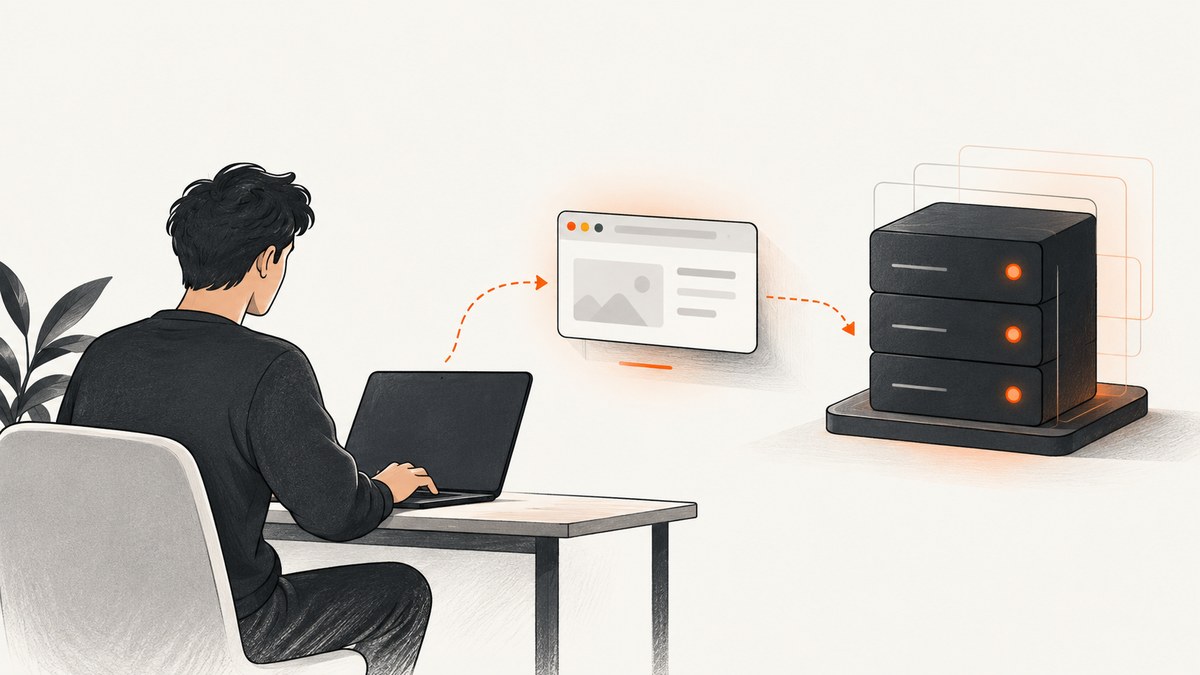
If Puppeteer must keep working while you do other things, launch it headless. Puppeteer launches headless by default; explicitly setting headless: true makes the intent clear. A minimized headful browser is still a visible-window browser managed by the operating system, and its scheduling can vary. Headless mode and minimized mode are not synonyms.
Use headless: false only when you need to watch the browser, interact with it, or rely on native UI. If a minimized headful run appears to stall, you can experiment with Chrome background-throttling flags, but they are not a guaranteed Puppeteer fix. Test timing-sensitive work on the same Chrome and operating-system versions you will use in production.
1. Choose the right browser mode
| Need | Use | What to keep in mind |
|---|---|---|
| Unattended scraping, tests, screenshots, or PDFs | headless: true, the default |
There is no visible window to minimize. Validate any workload that depends on display behavior, GPU, dialogs, or extensions. |
| Watch a run or interact with the browser | headless: false |
This is headful mode. Minimizing the window is an operating-system action. |
| A minimized headful tab seems to run timers slowly | Try the background flags shown below | This is an environment-specific experiment, not a universal or documented guarantee. |
| Production automation with no need for a desktop | Headless in a worker or service process | Measure resource use and validate behavior in the actual deployment environment. |
Puppeteer documents headless as its default and headless: false as the visible-browser choice. Chrome describes headless mode as running without visible UI. Modern Chrome headless shares browser code with headful Chrome while not displaying platform windows; that still does not make the two modes identical in every workload.
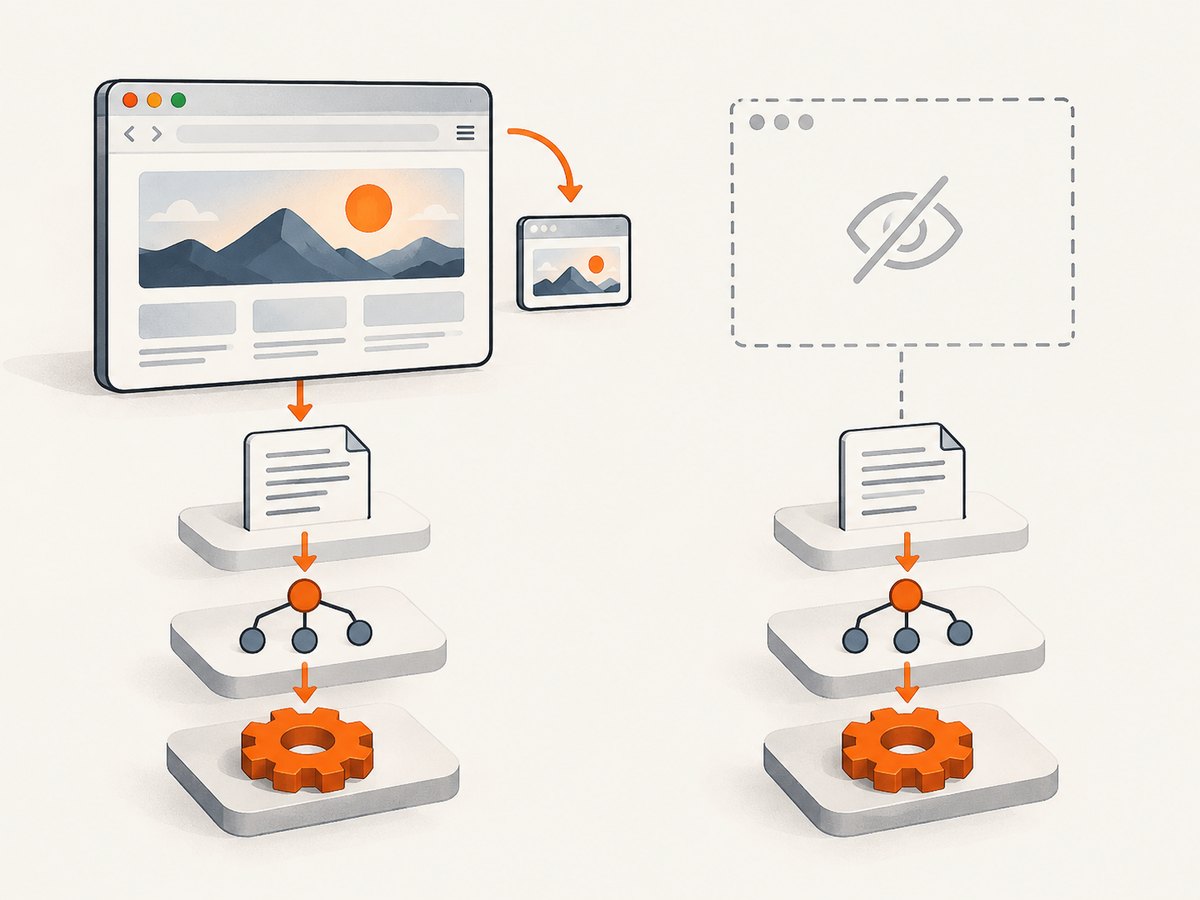
2. Run Puppeteer headless in the background
Install Puppeteer in your project with npm install puppeteer. This example visits a page, takes a screenshot, and closes the browser even if navigation or capture fails:
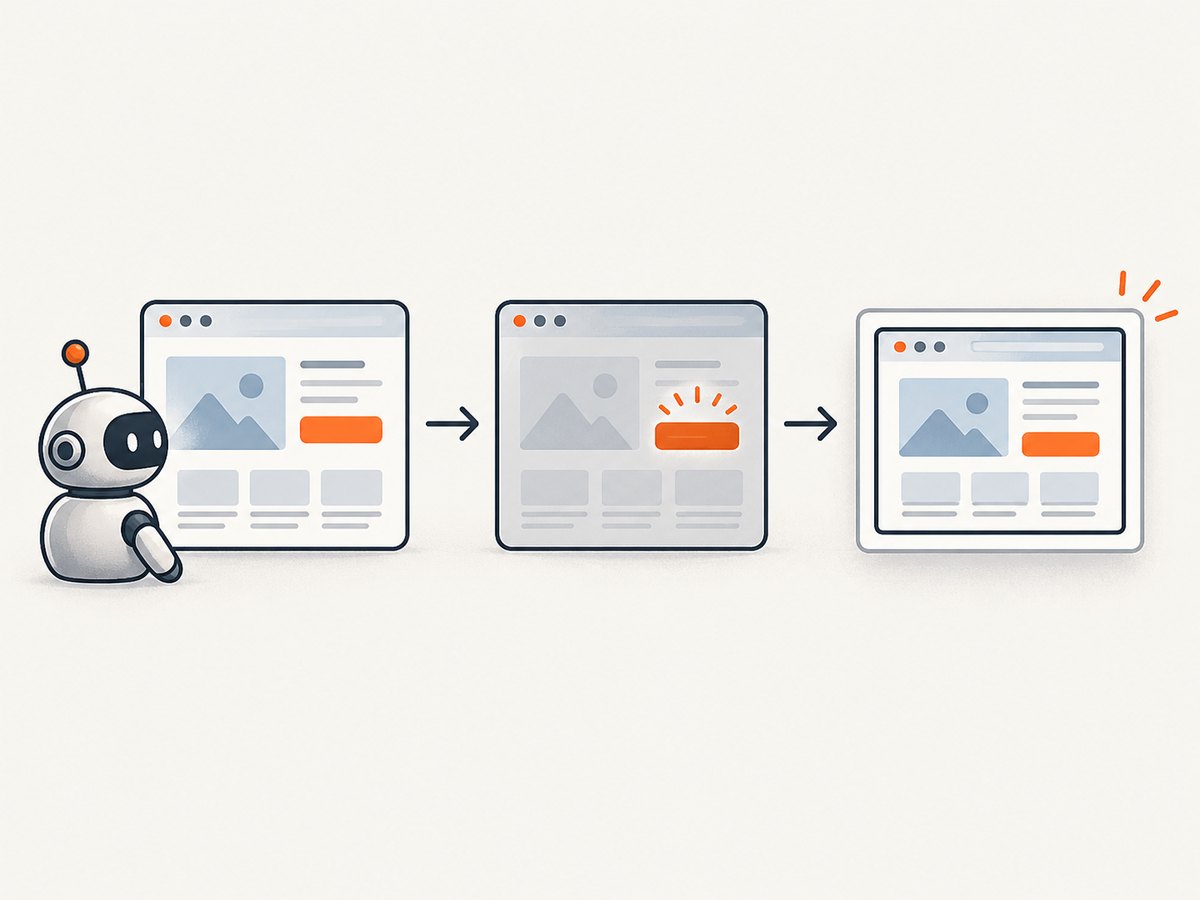
import puppeteer from 'puppeteer';

async function main() {
  const browser = await puppeteer.launch({
    headless: true,
  });

  try {
    const page = await browser.newPage();
    await page.goto('https://example.com', {
      waitUntil: 'networkidle2',
      timeout: 30000,
    });
    await page.screenshot({ path: 'example.png', fullPage: true });
  } finally {
    await browser.close();
  }
}

main().catch((error) => {
  console.error(error);
  process.exitCode = 1;
});
Run it with node script.js (use a .mjs file or configure your package for ES modules). Setting headless: true explicitly documents the desired mode even though it is already the default. The finally block releases the browser process on both success and failure.
Wait for the condition your page actually needs
networkidle2 waits for a period with no more than two network connections, but pages with analytics, polling, or streaming requests may never become idle. If the page has a reliable element that signals readiness, wait for it instead:
await page.goto('https://example.com', {
  waitUntil: 'domcontentloaded',
  timeout: 30000,
});
await page.waitForSelector('[data-ready="true"]', { timeout: 15000 });
Choose the least strict condition that represents usable content. A fixed delay can help with known animation or hydration delays, but it adds time to every run and is brittle when page speed changes.
3. Keep a visible browser open when you need it
For a person to observe the run, launch headful mode:
const browser = await puppeteer.launch({
  headless: false,
});
You can minimize that window through the operating system. Puppeteer does not define a separate “minimized execution” mode, and its documentation does not promise that a minimized page receives the same timer, animation, rendering, or focus treatment as a foreground page. The behavior can depend on Chrome, the operating system, and the workload.
Experiment with background-related Chrome flags
A Puppeteer issue report records this attempted configuration for a minimized headful browser:
const browser = await puppeteer.launch({
  headless: false,
  args: [
    '--disable-background-timer-throttling',
    '--disable-backgrounding-occluded-windows',
    '--disable-renderer-backgrounding',
  ],
});
These flags are a workaround to evaluate, not an official Puppeteer guarantee. The issue does not establish that they solve every minimized-window case. Change one variable at a time and compare the same script with the window foregrounded, minimized, and headless. Keep the flags only if the target environment shows a repeatable improvement.
4. Diagnose a run that slows or appears stuck
- Confirm the mode. Log the launch options and verify whether the job needs headful mode. If no person must see the window, try headless first.
- Identify the stalled operation. Log before and after navigation, selector waits, screenshots, and other long actions. Set explicit timeouts so a wait cannot hang indefinitely.
- Compare window states. In headful mode, run the same scenario with the window in front and minimized. This helps distinguish page behavior from window-state effects.
- Check the readiness condition. A network-idle wait can be unsuitable for pages with persistent requests. Prefer a selector that indicates the content you need.
- Validate deployment conditions. Reproduce with the production Chrome and operating-system versions, process permissions, and resource limits.
- Try flags only as an experiment. If minimized headful mode is essential, test the three flags above and keep monitoring for timeouts and missed work.
5. Troubleshooting common problems
| Symptom | Likely cause | What to try |
|---|---|---|
| Timers or callbacks are delayed after minimizing | Background-window scheduling or timer throttling | Use headless if visibility is unnecessary. If headful is required, test the documented-in-issue flags on your exact setup. |
page.goto() times out |
The page is slow, blocked, or never reaches the chosen lifecycle condition | Set an explicit timeout and choose a suitable waitUntil condition. Wait for a target selector when that better represents readiness. |
waitForSelector() times out |
The selector is wrong, the content did not load, or the page is in a different state | Check the selector and inspect the page state. Wait for navigation or a more stable readiness marker before looking for it. |
| The script exits before work finishes | The automation returned without awaiting its asynchronous operations, or the browser was closed too early | Await navigation and page actions. Close the browser in a finally block after the work completes. |
| The browser process remains after an error | Cleanup was skipped when an exception occurred | Use try/finally around page work and call browser.close() in the cleanup path. |
| Headless output differs from visible output | The workload depends on display, GPU, dialog, extension, or other environment-specific behavior | Reproduce in both modes and isolate the dependency. Use headful mode if the task truly requires visible or native UI, then validate minimized behavior separately. |
6. Reliability, performance, and cost considerations
For unattended jobs, headless avoids tying execution to a desktop window state. That is a practical reliability advantage, not a promise that every page will render identically or finish faster. Page complexity, network conditions, resource limits, and the chosen wait condition all affect completion time. Record failures and timeouts so you can distinguish a browser-mode issue from a site or infrastructure issue.
Do not add long fixed sleeps to paper over inconsistent readiness. Wait for meaningful page state and apply bounded timeouts. Close pages and browsers when work ends, especially in workers that process many tasks. Test the mode you plan to deploy, because a local desktop and an unattended service can have different display and resource conditions.
If the task is simply to get a website screenshot and you do not need browser automation, a screenshot API can remove the browser setup from your code path. ScreenshotNeo provides a website screenshot API and MCP server for developers; its documented options include selectors, full-page capture, device presets, wait conditions, and PDF output. See the ScreenshotNeo API documentation for request parameters and response details.
Or skip the browser setup
Make one GET request with a URL. This cURL example saves a WebP screenshot:
curl -G "https://api.screenshotneo.com/v1/shot" \
  -d access_key=YOUR_API_KEY \
  --data-urlencode url=https://stripe.com \
  -o shot.webp
Python:
import requests

r = requests.get(
    "https://api.screenshotneo.com/v1/shot",
    params={"access_key": "YOUR_API_KEY", "url": "https://stripe.com"},
    timeout=90,
)
open("shot.webp", "wb").write(r.content)
Node.js:
const q = new URLSearchParams({
  access_key: 'YOUR_API_KEY',
  url: 'https://stripe.com',
});
const res = await fetch(`https://api.screenshotneo.com/v1/shot?${q}`);
if (!res.ok) throw new Error(`Screenshot request failed: ${res.status}`);
await import('node:fs/promises').then(({ writeFile }) =>
  writeFile('shot.webp', Buffer.from(await res.arrayBuffer()))
);
Replace YOUR_API_KEY with your key. The request returns an image or PDF according to the requested format and options; consult the API docs for the complete parameter list. Cookie banners, newsletter popups, and chat widgets are removed before capture, and each step can be turned off. Bot checks, blank pages, timeouts, failed loads, and cache hits are not billed; response headers identify the page verdict and billing status. An MCP server exposes take_screenshot, get_page_info, and capture_pdf for Claude, Cursor, and other MCP clients. The free plan includes 1,000 screenshots per month with no card; paid plans start at $5 for 3,000. Sign up for 1,000 free screenshots a month, with no card.
Frequently asked questions
Does Puppeteer stop running when I minimize Chrome?
Minimizing does not itself tell Puppeteer to stop, but a minimized headful page may receive different scheduling or rendering treatment. If no visible window is needed, headless is the documented default mode for unattended execution.
Is headless exactly the same as a minimized browser?
No. Headless runs without visible UI; minimized headful mode still uses a visible-window configuration controlled by the operating system.
Do the three Chrome flags guarantee that minimized jobs will run normally?
No. They are flags reported in a Puppeteer issue, not a universal Puppeteer-supported fix. Verify them against your browser version and operating system.
Should I use headful mode in production?
Use it when the job requires visible browser behavior or human observation. For unattended automation, headless is usually the simpler fit, subject to testing the actual workload.


