How to Take a Puppeteer Screenshot After a Console Message
Listen for a specific Puppeteer console message, then capture the page safely. Includes runnable code, matching options, troubleshooting, and an API alternative.

To take a Puppeteer screenshot after a console message, register a listener for the page’s console event before the navigation or interaction that should emit it. Filter the event’s ConsoleMessage by type or text, then await page.screenshot() after a match. Put a timeout around the wait so a missing message cannot leave your script hanging.
This pattern is useful when a browser action logs a readiness signal, warning, or error and you want to preserve the resulting page state. The console event is only the trigger: your code decides which message qualifies and what part of the page to capture.
1. Complete runnable example
This ES module example waits for an error message containing a phrase, saves a PNG, and closes the browser even if navigation, waiting, or capture fails. Install Puppeteer with npm install puppeteer, save the file as capture-after-console.mjs, then run node capture-after-console.mjs. The example navigates to a placeholder URL; replace it with a page and trigger that actually produce your target message.
import puppeteer from 'puppeteer';

const targetUrl = 'https://example.com';
const targetPhrase = 'target phrase';
const timeoutMs = 10_000;

const browser = await puppeteer.launch();
try {
  const page = await browser.newPage();

  // Arm the wait before navigation or the action that emits the message.
  const screenshotAfterMessage = new Promise((resolve, reject) => {
    const timeout = setTimeout(() => {
      page.off('console', onConsole);
      reject(new Error(`Timed out after ${timeoutMs} ms waiting for the target console message`));
    }, timeoutMs);

    const onConsole = async msg => {
      if (msg.type() !== 'error' || !msg.text().includes(targetPhrase)) return;

      // Stop accepting matches; this run needs only its first qualifying event.
      page.off('console', onConsole);
      clearTimeout(timeout);
      try {
        const result = await page.screenshot({ path: 'after-console.png' });
        resolve(result);
      } catch (error) {
        reject(error);
      }
    };

    page.on('console', onConsole);
  });

  await page.goto(targetUrl, { waitUntil: 'domcontentloaded' });
  // If a click or app action should emit the message, perform it here instead.
  await screenshotAfterMessage;
  console.log('Saved after-console.png');
} finally {
  await browser.close();
}
Adjust targetPhrase and the type condition for your page. For example, remove the type check if any message containing the phrase should trigger the capture. The screenshot promise is created before goto(), so even a message emitted during navigation can be observed.
2. How the console trigger works
A Puppeteer page is an event emitter with a documented console event. Its event payload is a ConsoleMessage; text() returns its text and type() identifies categories such as error, warn, log, and info. See the [Puppeteer Page API](https://pptr.dev/api/puppeteer.pageevent) and [ConsoleMessage API](https://pptr.dev/api/puppeteer.consolemessage).
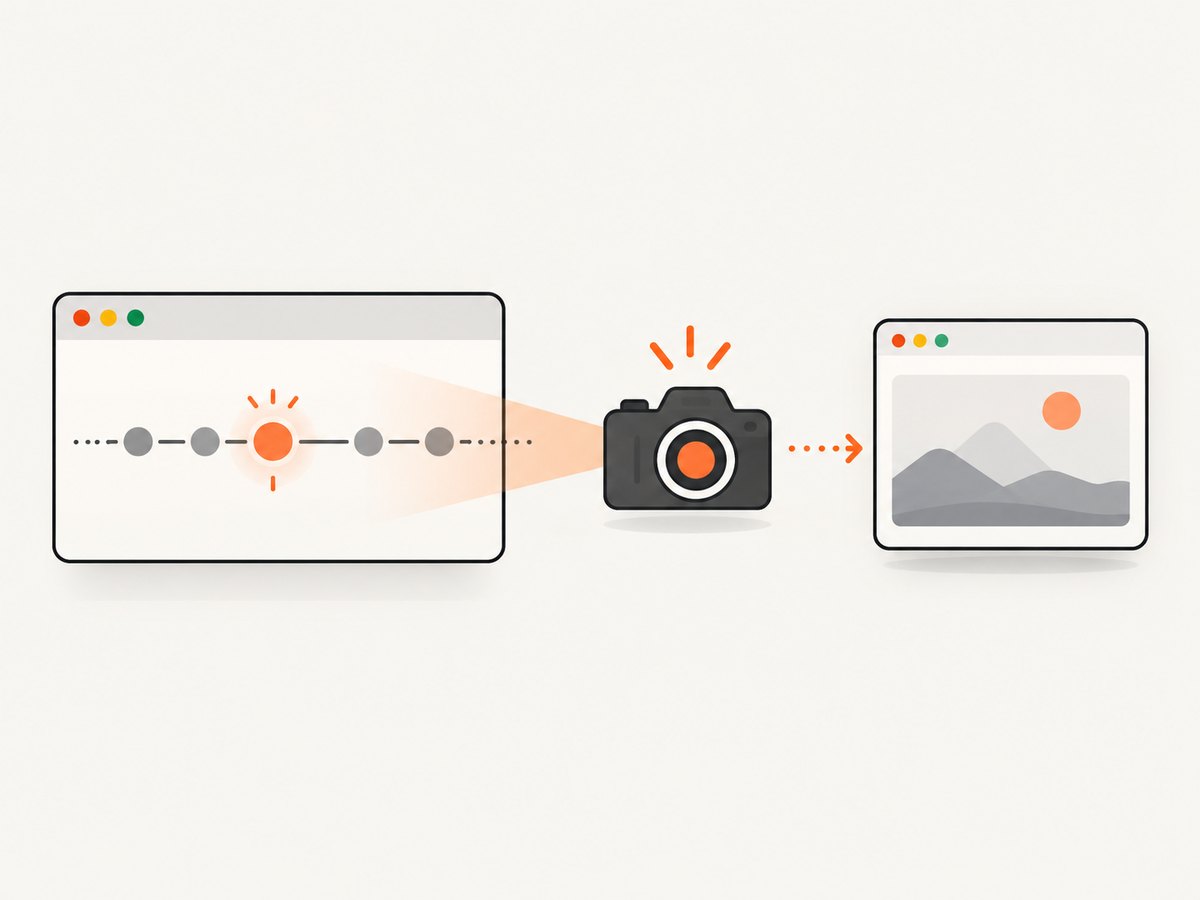
The important ordering is: create the wait, register its event handler, then perform the action. Events are not replayed to listeners attached later. If you attach after goto() or after the click that caused the log, the message may already be gone.
- Choose the trigger: a message type, exact text, substring, or a combination.
- Install the listener and start its timeout.
- Navigate or perform the action expected to produce the message.
- When a qualifying event arrives, remove the listener and capture the intended state.
- Await the capture before closing the browser.
Match by type or message text
Use type matching when any browser console error is enough. Use text matching when unrelated errors or routine logs should not trigger a capture. A substring test such as msg.text().includes('failed to load') tolerates surrounding details. For an exact match, use msg.text() === expected. If the same phrase appears in an info message but you only care about errors, keep both filters.
const onConsole = msg => {
  const isRelevant = msg.type() === 'warn' &&
    msg.text().includes('deprecated API');
  if (isRelevant) {
    // Trigger the capture or resolve a waiting promise here.
  }
};
page.on('console', onConsole);
A console message does not prove that the page is visually ready. If the logged event occurs before an image, animation, or later layout update finishes, add a separate readiness condition after the message and before the screenshot. Puppeteer’s wait APIs can wait for a selector or other page condition; use a condition that represents the state you actually need. Avoid adding an arbitrary delay unless the page offers no more reliable signal.
3. One message or repeated messages
Use page.once('console', handler) when the next console event of any kind is the trigger. It removes itself after one event, so it is unsuitable if unrelated logs can arrive first. To wait for a particular type or phrase, use page.on() and filter inside the handler, then remove the handler after the first accepted match as in the complete example.
For recurring captures, leave a persistent listener installed and decide how to handle overlap. Console messages can arrive faster than screenshots finish. Starting one asynchronous screenshot for every match can cause concurrent captures of slightly different states, consume resources, and write to the same path. A simple first-match guard is:
let captureStarted = false;
page.on('console', async msg => {
  if (captureStarted || msg.type() !== 'error') return;
  if (!msg.text().includes('target phrase')) return;

  captureStarted = true;
  try {
    await page.screenshot({ path: 'first-match.png' });
  } catch (error) {
    console.error('Screenshot failed:', error);
  }
});
For a sequence of captures, use a queue or await each capture before accepting another. Give each output a distinct filename. Remove persistent listeners when they are no longer needed, especially if a page is reused.
4. Choose the screenshot area and format
page.screenshot() captures the visible viewport by default. A filename extension determines the inferred image format; PNG is the default when no other type is specified. Puppeteer’s [screenshots guide](https://pptr.dev/guides/screenshots) and [Page.screenshot API](https://pptr.dev/api/puppeteer.page.screenshot) document the capture options.
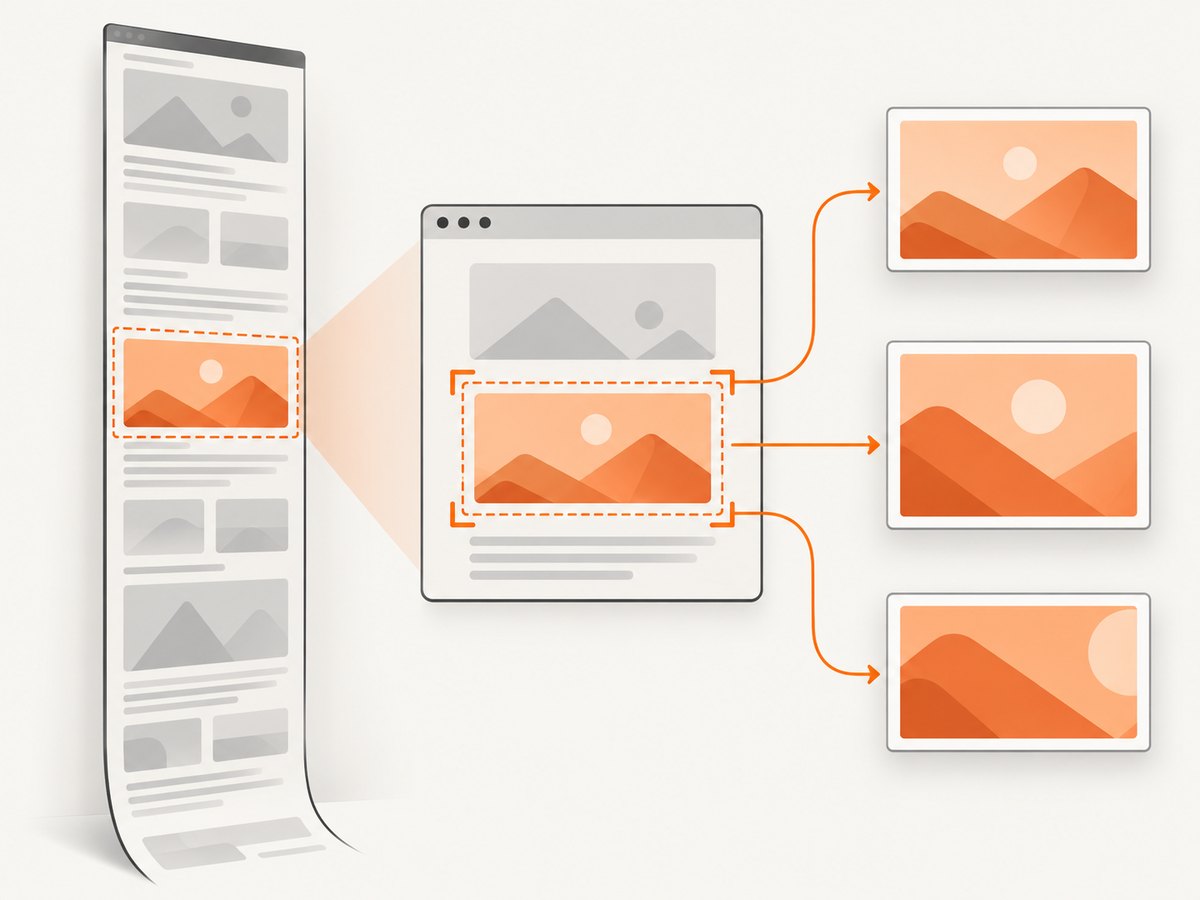
| Need | Option or method | Notes |
|---|---|---|
| Visible viewport | page.screenshot({ path: 'view.png' }) |
Default capture. Set the viewport before the trigger if dimensions matter. |
| Whole document | page.screenshot({ path: 'full.png', fullPage: true }) |
Captures beyond the viewport; long pages may need more memory and time. |
| Region | page.screenshot({ path: 'region.png', clip: { x, y, width, height } }) |
Coordinates and dimensions describe the page region. Ensure the clip fits the page. |
| One element | await elementHandle.screenshot({ path: 'element.png' }) |
Locate the element after the trigger if the trigger creates it. Puppeteer scrolls it into view when needed. |
| JPEG | page.screenshot({ path: 'capture.jpg', type: 'jpeg', quality: 80 }) |
Use a quality value appropriate to your image; JPEG is lossy. |
PNG is appropriate when fidelity and sharp edges matter. JPEG can reduce file size for photographic content at the cost of compression artifacts. The path extension is convenient for format inference; when setting type directly, keep it consistent with the filename. See the API reference for supported options and any version-specific details.
Set the viewport deliberately
For reproducible output, configure viewport size before navigation or before the triggering action:
await page.setViewport({ width: 1440, height: 900, deviceScaleFactor: 1 });The viewport controls the visible page dimensions; device scale factor affects the rendered pixel density. If the application responds to viewport size, changing it after the trigger may change layout and produce a screenshot of a different state.
5. Triggering on navigation versus interaction
When navigation should produce the message, register first and then call page.goto(). Do not wait for goto() to finish before installing the listener: the log may happen while the page is loading.
When a click should produce it, navigate to the page, create the message wait, then click. The handler should be registered before the click:
const screenshotAfterMessage = waitForTargetConsole(page, {
  type: 'error',
  includes: 'save failed',
  timeoutMs: 10_000,
});
await page.click('button.save');
await screenshotAfterMessage;
This snippet assumes a helper that implements the timeout and cleanup pattern shown above. Do not create a wait after the click: a fast response can log before the listener exists. If the action itself can fail, make sure the associated wait is also settled or its timer is cleared so it does not remain active.
6. Reusable timeout helper
A helper makes filtering and cleanup explicit when a script handles several console-triggered actions:
function waitForConsole(page, predicate, timeoutMs = 10_000) {
  return new Promise((resolve, reject) => {
    const timer = setTimeout(() => {
      page.off('console', onConsole);
      reject(new Error(`No matching console message within ${timeoutMs} ms`));
    }, timeoutMs);

    function onConsole(msg) {
      let matches;
      try {
        matches = predicate(msg);
      } catch (error) {
        clearTimeout(timer);
        page.off('console', onConsole);
        reject(error);
        return;
      }
      if (!matches) return;

      clearTimeout(timer);
      page.off('console', onConsole);
      resolve(msg);
    }
    page.on('console', onConsole);
  });
}

const message = waitForConsole(
  page,
  msg => msg.type() === 'error' && msg.text().includes('target phrase'),
  10_000,
);
await page.goto('https://example.com', { waitUntil: 'domcontentloaded' });
await message;
await page.screenshot({ path: 'after-console.png', fullPage: true });
The helper resolves when the event matches; capture happens afterward in the caller, so screenshot errors naturally reject the surrounding async flow and can be handled with try/catch. If the page closes or navigation fails before a match, the timeout still bounds the wait. For a long timeout or reusable page, consider also clearing the event listener when the surrounding operation is cancelled.
7. Common errors and fixes
| Symptom | Likely cause | Fix |
|---|---|---|
| The script times out | The message never appeared, the phrase differs, or the listener was attached too late. | Register before the trigger; log observed message types and text temporarily; loosen the filter only as much as needed; verify the page action succeeded. |
| A random log triggers capture | The listener accepts every console event. | Check msg.type() and match a stable phrase or another distinctive part of the message. |
| The screenshot shows the old state | The console log occurred before rendering or asynchronous UI updates completed. | After the message, wait for a meaningful selector or state condition, then capture. |
| Two captures overwrite one another | Several matching events start asynchronous screenshots using one path. | Remove the listener after the first match, add a guard, serialize captures, or generate unique filenames. |
| Output is missing or in an unexpected format | The path points elsewhere, the directory does not exist, or extension and explicit type disagree. | Use an existing writable directory, inspect the returned bytes if not saving to a path, and keep extension and type aligned. |
| Full-page capture is slow or fails on a large page | Very tall documents and heavy pages need more rendering and memory. | Capture only the required viewport, region, or element; avoid unnecessary full-page captures and close pages promptly. |
| Browser remains running after failure | Browser shutdown is not in a finally block. |
Use try/finally around work after launch and call await browser.close() in the finalizer. |
8. Performance, reliability, and cost
A console-triggered screenshot has three main sources of delay: waiting for the message, rendering/capturing the selected area, and writing or transferring the image. There is no universal duration: the page, machine, image dimensions, and capture mode all matter. The research sources publish no relevant benchmark, so treat timing on your own pages as workload-specific.
For reliability, arm listeners before triggers, use finite timeouts, filter narrowly, await the screenshot promise, and close the browser in a finalizer. Prefer explicit page-state conditions over fixed sleeps. If you automate many pages, limit concurrency to fit available memory and avoid repeated full-page captures when a viewport or element suffices. A local Puppeteer workflow has no per-screenshot ScreenshotNeo charge, but you operate the browser process and its compute, storage, and maintenance yourself.
Puppeteer’s APIs can change across releases. Use the documentation matching the Puppeteer version installed in your project, and keep the package version controlled for repeatable automation. The code here uses documented page events and screenshot methods; it does not rely on a special console-wait API.
9. Or skip the browser setup
If your job is to capture a URL and you do not need Puppeteer’s event listener to coordinate a custom browser action, ScreenshotNeo provides a website screenshot API. One GET request returns an image or PDF; see the API documentation for parameters and setup.
curl -G "https://api.screenshotneo.com/v1/shot" -d access_key=YOUR_API_KEY --data-urlencode url=https://stripe.com -o shot.webpimport requests
r = requests.get(
"https://api.screenshotneo.com/v1/shot",
params={"access_key": "YOUR_API_KEY", "url": "https://stripe.com"},
timeout=90,
)
open("shot.webp", "wb").write(r.content)const q = new URLSearchParams({ access_key: 'YOUR_API_KEY', url: 'https://stripe.com' });
const res = await fetch(`https://api.screenshotneo.com/v1/shot?${q}`);
if (!res.ok) throw new Error(`Screenshot request failed: ${res.status}`);
await import('node:fs/promises').then(fs => fs.writeFile('shot.webp', Buffer.from(await res.arrayBuffer())));Cookie banners, popups, and chat widgets are removed before the shot. Bot checks, blank pages, and failed loads are never billed. An MCP server lets AI agents take screenshots, and 1,000 screenshots a month are free with no card; paid plans start at $5 for 3,000. The API also supports full-page capture, element selection, image formats, PDF, custom CSS and JavaScript, wait conditions, caching, async jobs, and bulk capture. Start with 1,000 free screenshots a month, no card required.
10. Frequently asked questions
Can I trigger on a JavaScript exception?
A page console event can report console messages, but an uncaught page exception is a distinct signal. If the condition is specifically an uncaught exception, use Puppeteer’s page error event for that condition and apply the same register-before-trigger, timeout, and awaited-capture pattern.
Does the console message include the page’s full source location?
The event is a ConsoleMessage; this article’s filter uses its documented text and type methods. Consult the API reference for additional fields available in your installed Puppeteer version if you need location details.
Can I return the screenshot instead of writing a file?
Yes. page.screenshot() returns image data as well as supporting a path. Omit the path when you want to pass the bytes to another function or upload them yourself.
Can a screenshot itself cause another console message?
Usually the capture is a separate browser operation, but a persistent listener may observe later activity caused by page scripts. Remove or narrow the listener once its job is done to prevent unintended repeat captures.


