How to Save a Puppeteer Screenshot to Google Cloud Storage from Cloud Functions
Capture a webpage with Puppeteer in a Node.js Cloud Run function and upload the image to Google Cloud Storage with the runtime service account.
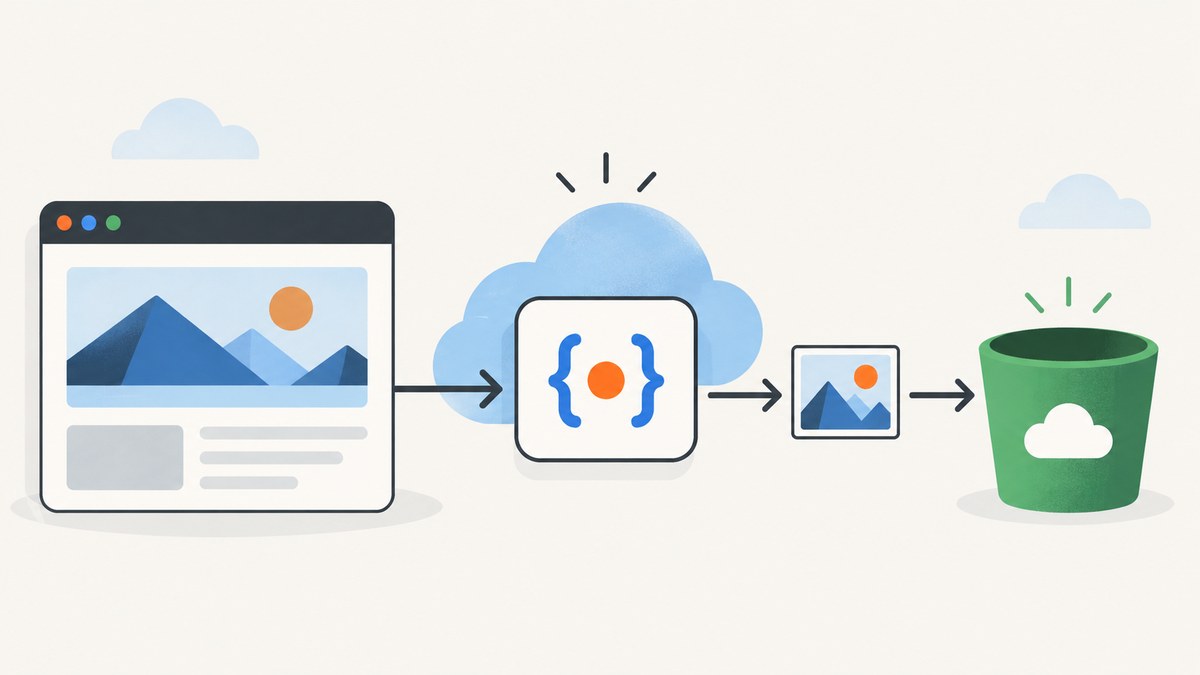
How do I save a Puppeteer screenshot to Google Cloud Storage from Cloud Functions? Capture the page with Puppeteer, keep the screenshot bytes in memory, and pass those bytes to the Google Cloud Storage Node.js client. Await the upload before returning from the function. For the current second-generation functions interface, Google uses the name Cloud Run functions; this guide uses a function created through the Cloud Functions v2 API and the gcloud functions deployment interface. A function deployed as a Cloud Run service has a different management path. Google’s Cloud Run functions documentation explains the distinction.
The example below is an HTTP-triggered Node.js function. It captures a URL supplied by the caller, uploads a PNG object, and returns the object name. It uses Application Default Credentials (ADC): in production, the function authenticates as its runtime service account. Puppeteer and Chromium packaging depend on the selected runtime and package versions, so validate the launch configuration against the exact combination you deploy.
1. Create the bucket and grant the function access
Create or select a Cloud Storage bucket before deploying. Choose a bucket in a region that fits your data location and application requirements. Configure an explicit runtime service account for the function, then grant that identity only the bucket permissions required by the object naming strategy.
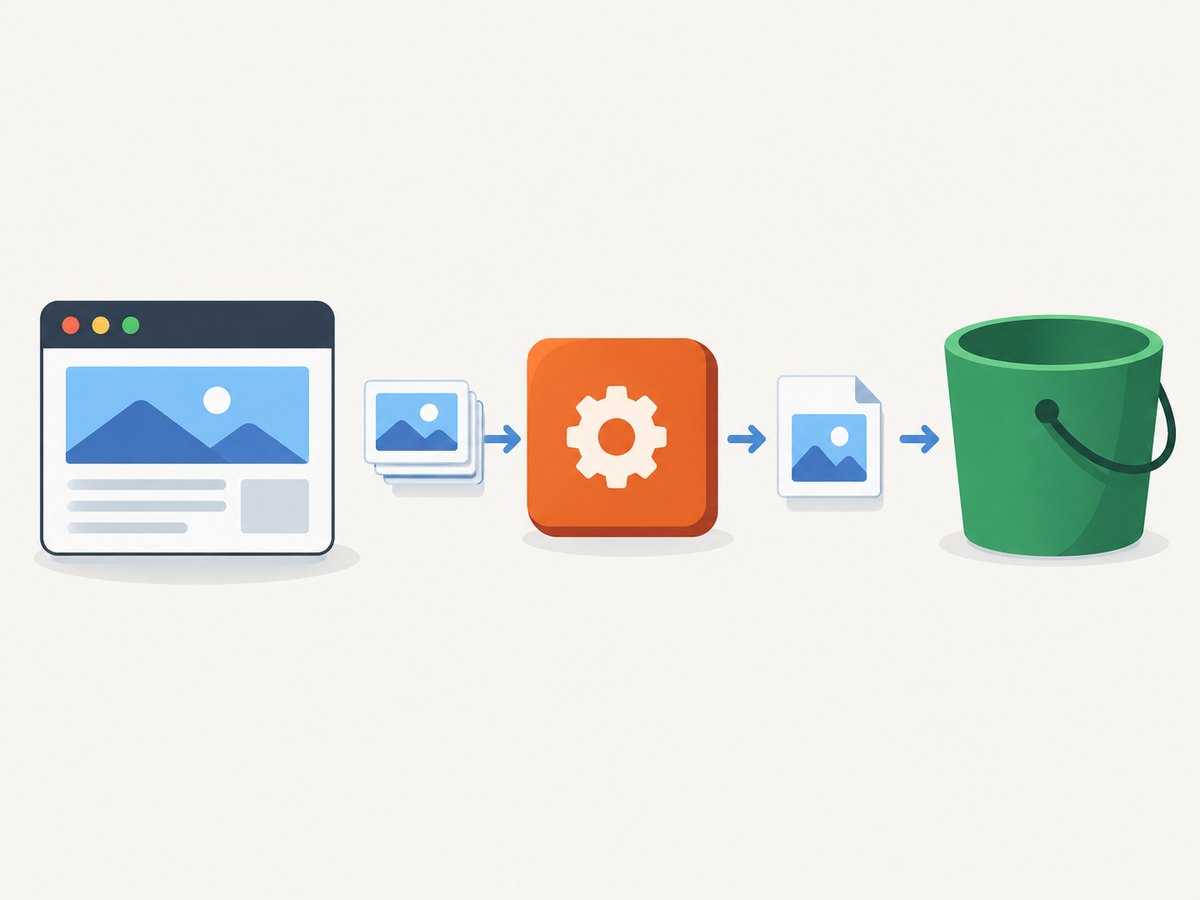
If the function only creates uniquely named objects, its permissions can be narrower than a workflow that reads, lists, deletes, or replaces existing objects. Google’s function identity guide describes the runtime identity, and the Cloud Storage IAM roles reference helps select a suitable role. Avoid embedding service account key files in source code or environment variables.
Set the bucket name as a deployment environment variable. The function will receive it through process.env.BUCKET_NAME. The caller must also be authorized to invoke the HTTP function; invocation permissions and permission to write objects are separate concerns.
2. Add the function code and dependencies
Use a clean project directory. The example uses the Functions Framework for an HTTP entry point, the Cloud Storage client for upload, and Puppeteer for browser automation. Pin dependencies in your package manager lockfile so builds install consistent versions. Google recommends pinning the Functions Framework dependency as well.
{
  "name": "puppeteer-gcs-capture",
  "version": "1.0.0",
  "main": "index.js",
  "scripts": {
    "start": "functions-framework --target=captureScreenshot"
  },
  "dependencies": {
    "@google-cloud/functions-framework": "^3.4.0",
    "@google-cloud/storage": "^7.0.0",
    "puppeteer": "^24.0.0"
  }
}
The versions above are example dependency ranges, not a claim that every Puppeteer and Chromium combination works in every function runtime. Choose a currently supported Node.js runtime, commit the generated lockfile, and check Puppeteer’s current Page.screenshot API for the installed version. The default Puppeteer package downloads a compatible browser during installation; if using a different Chromium distribution or a package that does not download one, update the launch code to match its executable and requirements.
Save the following as index.js. Its screenshot path returns a Uint8Array in current Puppeteer versions. The Cloud Storage client accepts a buffer-like content value through file.save(contents).
const crypto = require('node:crypto');
const puppeteer = require('puppeteer');
const {Storage} = require('@google-cloud/storage');

const storage = new Storage();
const bucketName = process.env.BUCKET_NAME;

exports.captureScreenshot = async (req, res) => {
  if (req.method !== 'POST') {
    res.set('Allow', 'POST').status(405).send('Use POST');
    return;
  }

  if (!bucketName) {
    console.error('BUCKET_NAME is not configured');
    res.status(500).send('Storage is not configured');
    return;
  }

  const targetUrl = req.body && req.body.url;
  let parsedUrl;
  try {
    parsedUrl = new URL(targetUrl);
  } catch {
    res.status(400).send('Provide a valid URL in the JSON body');
    return;
  }
  if (!['http:', 'https:'].includes(parsedUrl.protocol)) {
    res.status(400).send('Only HTTP and HTTPS URLs are supported');
    return;
  }

  let browser;
  try {
    browser = await puppeteer.launch({
      headless: true,
      args: ['--no-sandbox', '--disable-setuid-sandbox']
    });
    const page = await browser.newPage({
      viewport: {width: 1365, height: 900},
      deviceScaleFactor: 1
    });
    page.setDefaultNavigationTimeout(30000);
    await page.goto(parsedUrl.toString(), {waitUntil: 'networkidle2'});

    const screenshot = await page.screenshot({
      type: 'png',
      fullPage: true
    });
    const objectName = `screenshots/${Date.now()}-${crypto.randomUUID()}.png`;

    await storage.bucket(bucketName).file(objectName).save(screenshot, {
      contentType: 'image/png',
      resumable: false,
      metadata: {cacheControl: 'private, max-age=0'}
    });

    res.status(200).json({bucket: bucketName, object: objectName});
  } catch (err) {
    console.error('Screenshot capture or upload failed', err);
    res.status(500).send('Screenshot capture or upload failed');
  } finally {
    if (browser) {
      await browser.close().catch((err) => {
        console.error('Browser close failed', err);
      });
    }
  }
};
The --no-sandbox flags are commonly used in containerized browser examples, but the correct flags and Chromium build are package- and runtime-dependent. Review the security and runtime requirements for your chosen browser packaging rather than copying launch flags blindly. The code validates the URL scheme, but a public endpoint that accepts arbitrary URLs also needs protections against requests to internal services and metadata endpoints. In production, restrict allowed domains or apply an appropriate outbound network policy.
3. Deploy the Cloud Run function
From the project directory, deploy with the second-generation Cloud Functions interface. Replace the project, region, bucket, service account, and entry point values with your own. Confirm the Node.js runtime identifier against Google’s current supported runtimes before deployment.
gcloud functions deploy capture-screenshot \
  --gen2 \
  --runtime=nodejs22 \
  --region=us-central1 \
  --source=. \
  --entry-point=captureScreenshot \
  --trigger-http \
  --service-account=screenshot-function@PROJECT_ID.iam.gserviceaccount.com \
  --set-env-vars=BUCKET_NAME=YOUR_BUCKET \
  --memory=2Gi \
  --timeout=120s
Memory and timeout here are starting configuration examples, not universal recommendations. Browser startup, page weight, full-page dimensions, and concurrency determine the actual resource need. Observe the deployed function’s peak memory and latency, then tune the settings for your pages. Google notes that instances exceeding their memory limit are terminated; Cloud Run memory configuration documentation explains the memory limit behavior.
Once deployed, invoke the function with an authorized request. For an HTTP function configured to allow unauthenticated invocation, a simple request looks like this; production access should use the invocation controls appropriate for your application.
curl -X POST "$FUNCTION_URL" \
  -H 'Content-Type: application/json' \
  -d '{"url":"https://example.com"}'
4. Choose an object naming and overwrite strategy
The code generates a unique object name using a timestamp and UUID. That preserves individual captures and makes simultaneous requests less likely to collide. It also means storage grows until you apply lifecycle management or remove old objects.
A stable object name such as screenshots/latest.png is useful when each invocation should replace the previous capture. It simplifies retrieval but changes retry semantics: a retry can replace an earlier successful image. Decide whether preserving history or maintaining one current object matters more, then make retries safe for that choice. Google’s functions best practices recommends designing functions to behave reliably when invoked more than once.
| Choice | Useful when | Trade-off |
|---|---|---|
| Unique name | You need capture history or independent results. | Requires retention and cleanup planning. |
| Stable name | Consumers need one predictable “latest” object. | Retries or concurrent invocations may overwrite one another. |
5. Adjust capture behavior
Page.screenshot supports options such as image type, full-page capture, clipping, transparency, and screenshot encoding, with details that vary by Puppeteer version. For a viewport-only screenshot, set fullPage: false. For JPEG output, use type: 'jpeg' and provide a quality value supported by your installed version; update the Cloud Storage content type to image/jpeg and use a .jpg object suffix. WebP availability also depends on the browser and Puppeteer version.
Other page settings are configured separately from screenshot options. Set the viewport before navigation if responsive layout matters. Use page.emulateMediaFeatures for supported browser media features, or apply a page style when you need a specific rendering adjustment. If the page loads content after navigation, wait for a known selector or application-specific readiness condition. A fixed delay can help with a known asynchronous transition, but adds latency and does not guarantee the page is ready.
networkidle2 waits for a relatively quiet network, but analytics, long polling, streaming, and chat can prevent a quiet state. For pages where that happens, use domcontentloaded or load and wait for a specific element that signals useful content is ready. Avoid waiting indefinitely; retain explicit navigation and overall function timeouts.
6. In-memory upload or temporary file?
For ordinary screenshots, capturing bytes and calling file.save(screenshot) is the simplest approach. The screenshot, browser process, page assets, and function runtime all contribute to memory use. Full-page screenshots of very long documents and concurrent browser pages can raise the peak substantially.
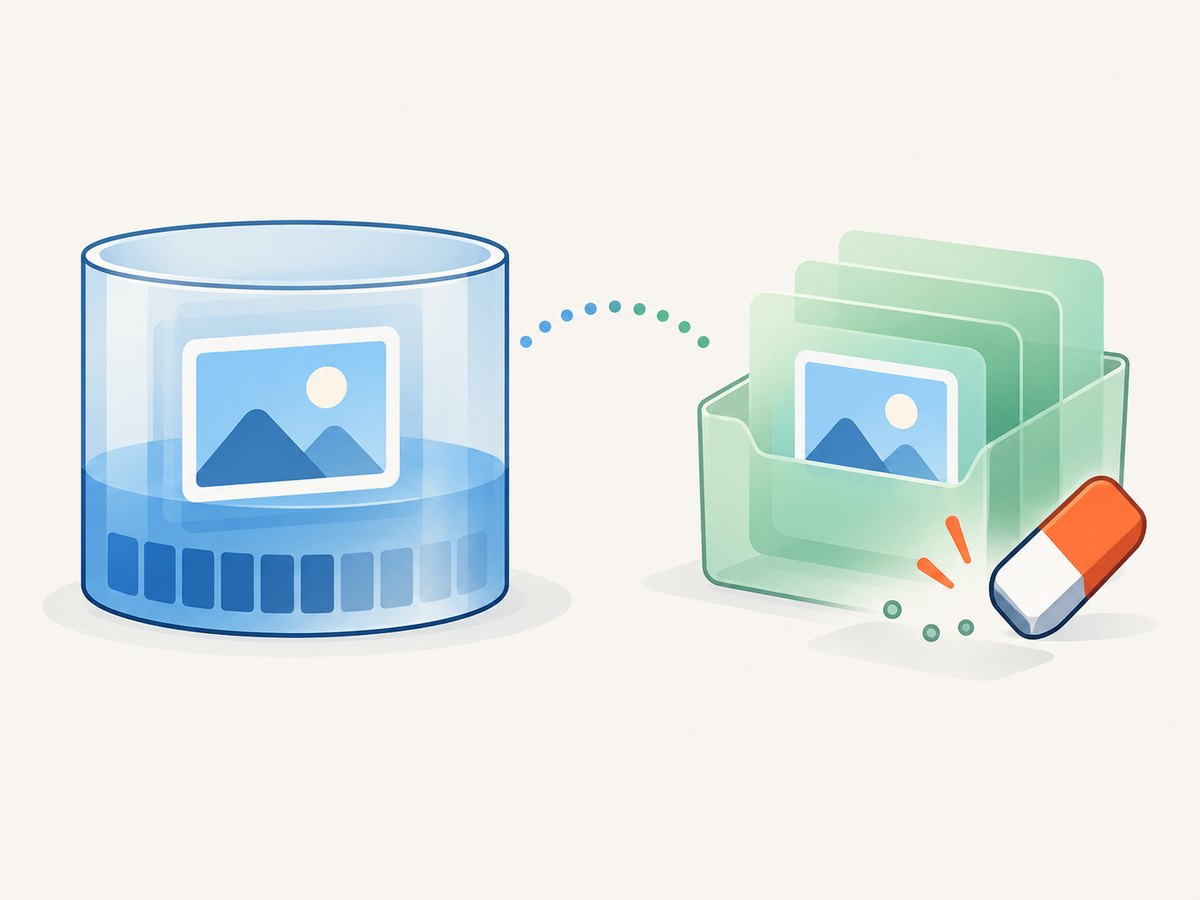
Temporary files do not make disk usage free in Cloud Run functions: the temporary directory uses an in-memory filesystem. Files consume available memory and may persist between invocations, so remove them in a finally block. For larger output, consider a stream-oriented pipeline where supported by the selected libraries, reducing the need to hold multiple copies in memory. Google describes temporary storage and pipelining in its best practices. There is no universal screenshot size threshold; profile your own pages and concurrency.
| Approach | Benefits | Costs and care |
|---|---|---|
| In-memory bytes | Short code path; no cleanup step. | Screenshot bytes add to peak memory. |
| Temporary file | Can fit workflows built around file paths. | Still consumes function memory; cleanup is required. |
| Stream or pipeline | Can reduce buffering for larger data paths. | More involved; confirm client and capture APIs support the intended flow. |
7. Reliability, security, performance, and cost
Await the whole operation
Navigation, screenshot generation, upload, and browser cleanup are asynchronous. Do not send a success response before the object upload resolves. Work that continues after a function returns may not progress reliably and can affect later invocations. The example awaits both capture and upload, logs failures, and returns an error status if either fails.
Make failures observable and retries safe
Log a request identifier, target host, capture duration, upload duration, and error category. Avoid logging credentials, sensitive query strings, cookies, or page content. For retrying callers, choose stable or unique object names deliberately and consider how a retry after a successful upload but before the caller receives the response should behave.
Limit browser work
Chromium and browser packages add startup work and memory use. Initialize the Storage client outside the handler so it can be reused when an instance handles another invocation; create and close a browser for each request unless you have carefully designed lifecycle and concurrency handling. Start with one browser page per invocation, constrain navigation and total function time, and measure cold and warm behavior on representative sites. Higher concurrency can increase throughput, but it also increases simultaneous browser memory consumption.
Protect the function and the bucket
Do not expose an unrestricted URL-to-screenshot endpoint to the public internet without access controls and URL restrictions. Otherwise, callers may use your function to make requests you did not intend or generate unexpected browser and storage usage. Keep the bucket private unless public delivery is a deliberate requirement. Use signed URLs or an authenticated application endpoint if consumers need access without making the bucket public.
Estimate cost from actual use
There is no single cost per screenshot: it depends on function execution time and resources, browser startup and page complexity, storage volume, object operations, retention, and network egress. Full-page captures, retries, and abandoned unique objects can all change the total. Record invocation duration and object growth, set a retention policy where appropriate, and review the applicable Google Cloud pricing for the selected services and region. Increase memory only when workload measurements support it; excessive memory allocation raises resource cost, while too little can cause termination and retries.
8. Troubleshooting
| Symptom | Likely cause | Fix |
|---|---|---|
| Browser launch fails or Chromium executable is missing. | The deployed package does not include a compatible browser, or its launch configuration does not match the runtime. | Check the Puppeteer version, browser download/install process, runtime support, and any custom executable path. Test the deployed artifact, not just a developer machine. |
| Function exits with memory errors or restarts. | Chromium, page resources, screenshot bytes, or temporary files exceed the configured memory budget. | Measure peak use, reduce viewport or full-page work, reduce concurrency, remove temporary files, or configure a suitable memory limit. |
| Navigation times out. | The site is slow, unreachable from the function, or keeps network activity open. | Check outbound connectivity, use a realistic navigation timeout, choose a more suitable load condition, and wait for a specific content selector. |
| Upload returns permission denied. | The runtime service account lacks permission for the bucket or requested object operation. | Identify the actual runtime identity and grant the narrow bucket-level permissions required to create or replace the object. |
| Upload succeeds but the object has the wrong type. | The save metadata or filename suffix does not match the encoded image. | Set the correct contentType and suffix for PNG, JPEG, or another chosen format. |
| Caller gets success but cannot find the image. | The response may not be a public URL; the bucket may be private, or the caller is looking in another bucket or project. | Use the returned bucket and object name, then retrieve it through authorized application code or a deliberately issued signed URL. |
| Captures are overwritten unexpectedly. | Object names are stable or collide. | Use unique names for retained captures, or serialize writes and document replacement behavior for a “latest” object. |
| Function responds before the image exists. | Upload or screenshot work was started without being awaited. | Return only after the save promise resolves; send an error response on rejection. |
9. Or skip the browser setup
If you want a screenshot API instead of packaging Puppeteer and Chromium in a function, ScreenshotNeo accepts one GET request with a URL and returns an image or PDF. Its API can also use familiar screenshot parameter names, which can make switching easier. See the ScreenshotNeo API documentation for request options.
curl -G "https://api.screenshotneo.com/v1/shot" \
  -d access_key=YOUR_API_KEY \
  --data-urlencode url=https://stripe.com \
  -o shot.webp
import requests
r = requests.get(
"https://api.screenshotneo.com/v1/shot",
params={"access_key": "YOUR_API_KEY", "url": "https://stripe.com"},
timeout=90,
)
open("shot.webp", "wb").write(r.content)const q = new URLSearchParams({
access_key: 'YOUR_API_KEY',
url: 'https://stripe.com'
});
const res = await fetch(`https://api.screenshotneo.com/v1/shot?${q}`);
if (!res.ok) throw new Error(`Screenshot request failed: ${res.status}`);
const image = Buffer.from(await res.arrayBuffer());
require('node:fs').writeFileSync('shot.webp', image);ScreenshotNeo removes cookie banners, newsletter popups, and chat widgets before the capture; bot checks, blank pages, and failed loads are never billed. Its MCP server lets AI agents take screenshots. The free plan includes 1,000 screenshots a month with no card, and paid plans start at $5 for 3,000. Sign up free and get 1,000 screenshots a month with no card.
10. Frequently asked questions
Can an event-driven function use the same upload pattern?
Yes. Select an event trigger when screenshot work should start from an event rather than an HTTP request. Keep the capture and upload awaited before the handler completes, and make repeated event delivery safe for your object naming scheme.
Does saving a screenshot make it publicly accessible?
No. Uploading creates an object in the bucket; access is controlled separately by bucket and object permissions. Keep it private by default and grant consumers access through your application or a suitable signed URL flow.
Can I capture a specific element instead of the whole page?
Yes. Wait for the target selector, locate it, and use the element screenshot method supported by your installed Puppeteer version. Element capture can reduce output size, but only after the page has rendered the required element.
Should every screenshot use a separate function invocation?
For straightforward workloads, one invocation per capture keeps failures and resource use isolated. For large batches, consider a queue or job workflow so slow pages can be retried and limited independently; tune concurrency based on memory and execution measurements.


