How to Take a Screenshot with Puppeteer in Node.js
Use Puppeteer’s page.screenshot() to save a viewport, full-page, clipped, or element screenshot in Node.js, with working examples and fixes for common capture problems.
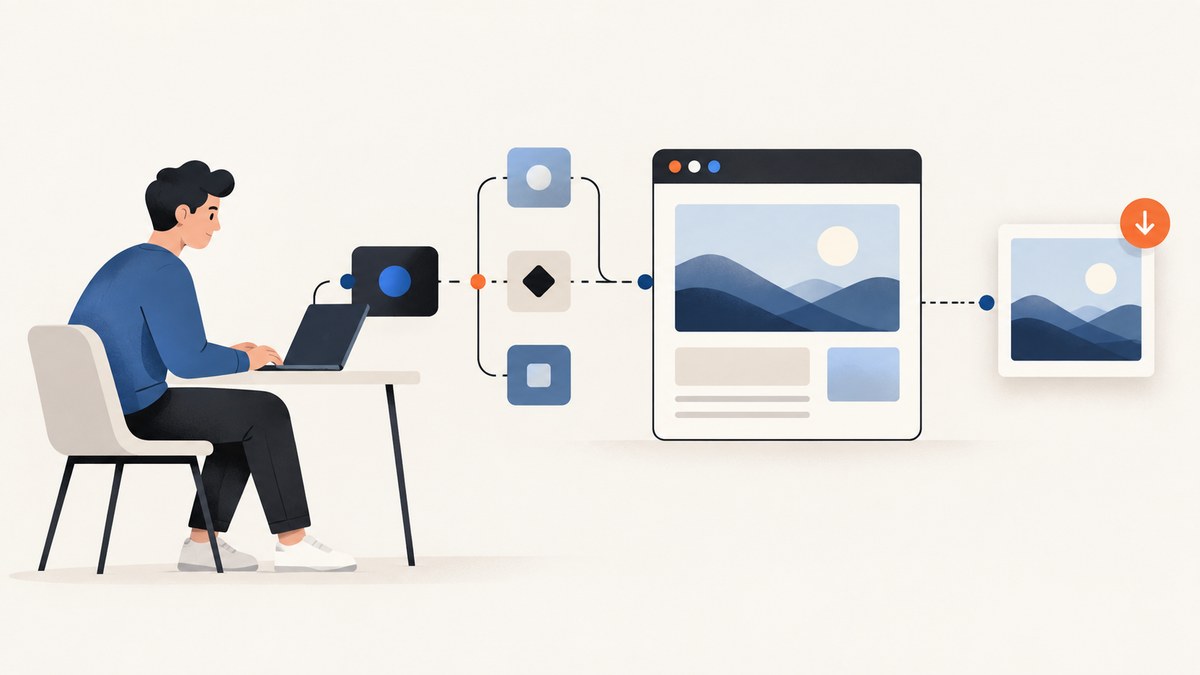
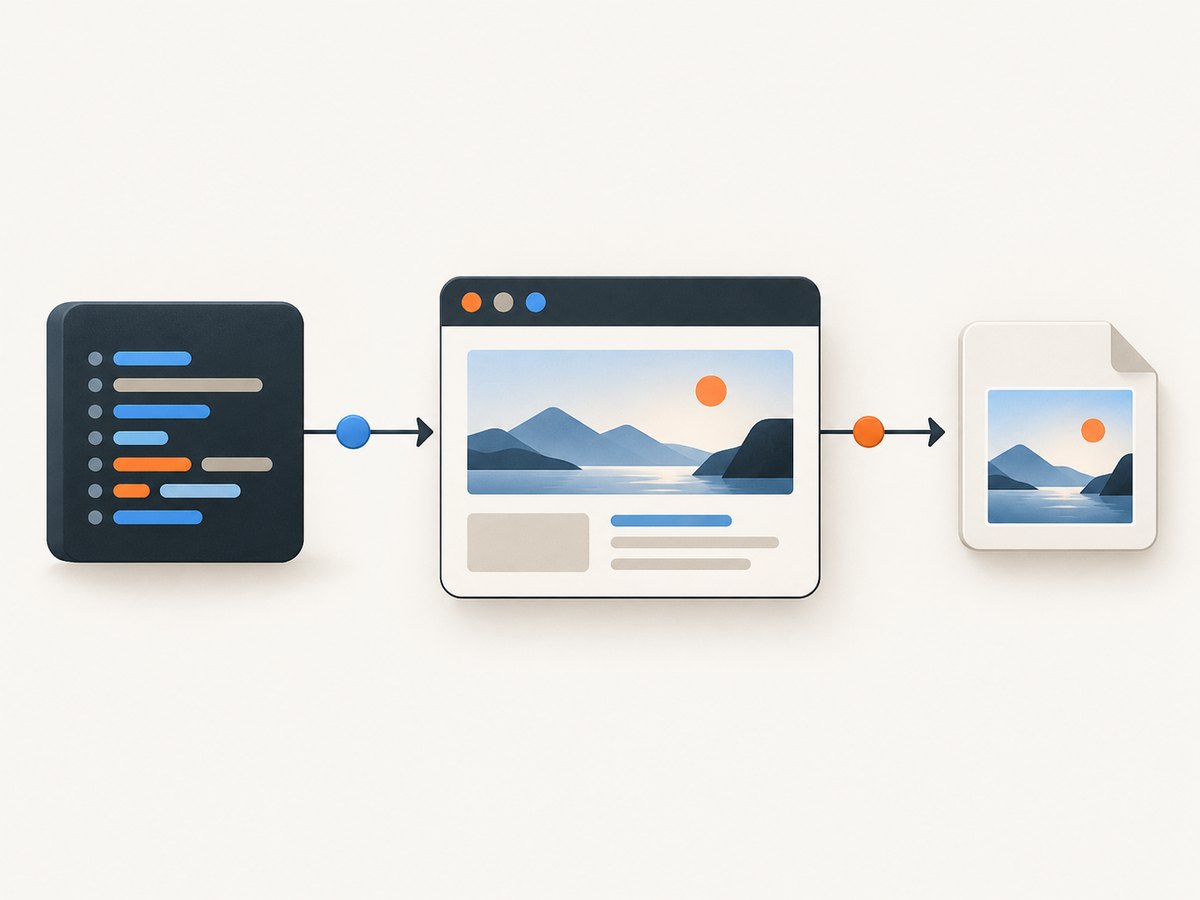
Puppeteer takes a screenshot with page.screenshot(). Launch a browser, open a page, navigate to a URL, and save the result by passing a path. Set fullPage: true for the whole document, use clip for a rectangular region, or call screenshot() on an element handle for one DOM element. The examples below use Node.js ES modules and save PNG files.
Puppeteer’s screenshot guide and Page API reference document these methods. The shortest working version is:
import puppeteer from 'puppeteer';

const browser = await puppeteer.launch();
try {
  const page = await browser.newPage();
  await page.goto('https://example.com');
  await page.screenshot({ path: 'screenshot.png' });
} finally {
  await browser.close();
}
Install Puppeteer in a project with npm install puppeteer. The package normally downloads a compatible browser as part of installation. This example assumes a Node.js version that supports top-level await in ES modules. For a CommonJS project, wrap the same code in an async function or use dynamic import.
1. Set up a reusable screenshot script
Create a project, install the package, and save this as screenshot.mjs:
import puppeteer from 'puppeteer';

const url = process.argv[2] ?? 'https://example.com';
const output = process.argv[3] ?? 'screenshot.png';

const browser = await puppeteer.launch({ headless: true });
try {
  const page = await browser.newPage();
  await page.setViewport({ width: 1440, height: 900 });
  const response = await page.goto(url, {
    waitUntil: 'networkidle2',
    timeout: 30_000,
  });

  if (!response) {
    throw new Error('Navigation did not return an HTTP response');
  }
  if (!response.ok()) {
    throw new Error(`Page returned HTTP ${response.status()}`);
  }

  await page.screenshot({ path: output, fullPage: true });
  console.log(`Saved ${output}`);
} finally {
  await browser.close();
}
Run it with node screenshot.mjs https://example.com page.png. If the URL or output path contains shell spaces, quote that argument. A relative screenshot path is resolved from the process’s current working directory, not necessarily from the script’s directory. Use an absolute path when a job runner’s working directory can vary.
The try/finally guarantees that the browser is closed if navigation, validation, or capture throws. This matters in servers and batch jobs: a leaked browser can keep consuming memory and processes after the request has failed.
2. Choose what to capture
Viewport screenshot
By default, Puppeteer captures the visible viewport. Set the viewport before navigation when the page uses responsive layout, since some sites choose their layout during initial load:
await page.setViewport({ width: 1280, height: 800, deviceScaleFactor: 1 });
await page.goto('https://example.com', { waitUntil: 'networkidle2' });
await page.screenshot({ path: 'viewport.png' });
The viewport width and height are CSS pixels. Choose dimensions that match the target device or report. A narrow viewport may trigger a mobile navigation menu; a wide viewport may change grid columns or hide responsive elements.
Full-page screenshot
Pass fullPage: true to capture beyond the current viewport down the page:
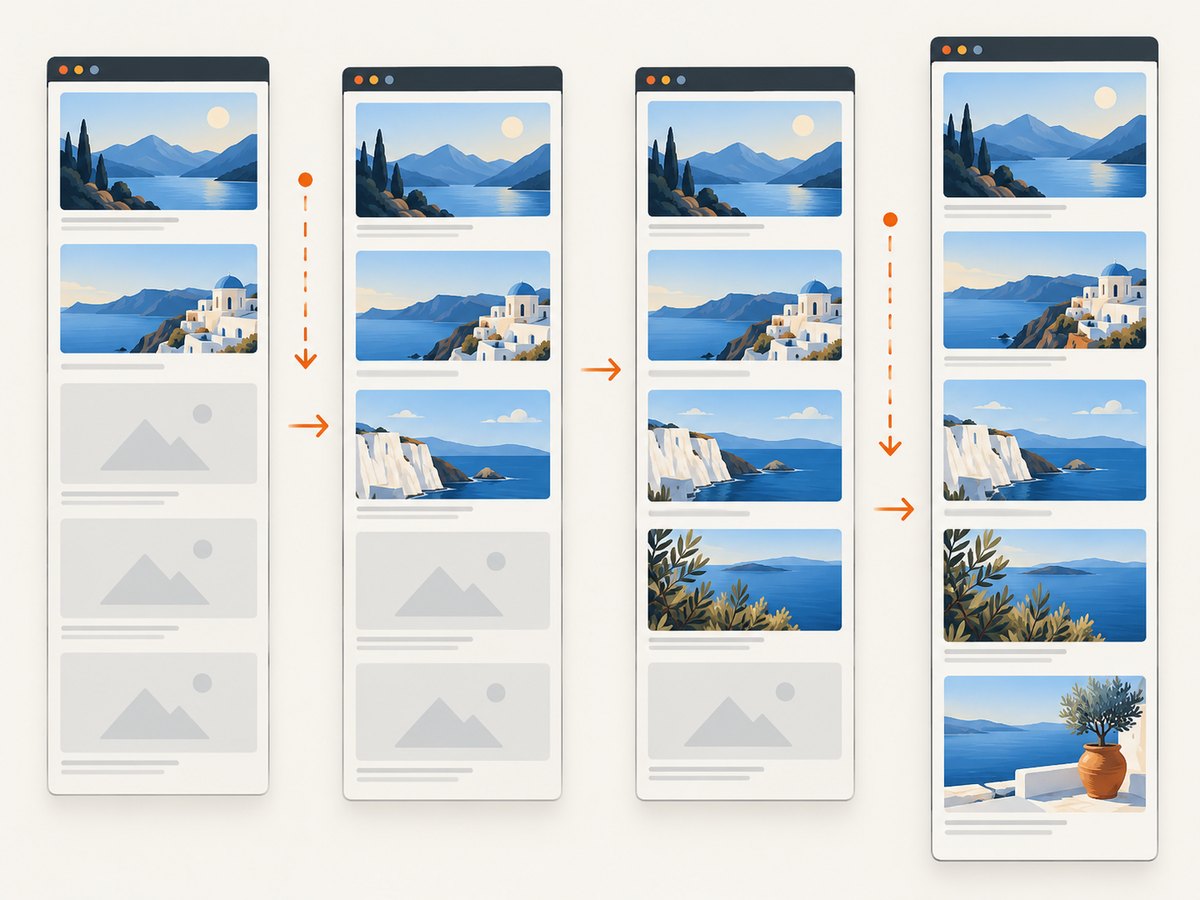
await page.screenshot({ path: 'full-page.png', fullPage: true });fullPage defaults to false. Full-page capture can produce a very tall image for long documents. Pages with lazy-loaded images may not load every image until the page is scrolled. For those pages, scroll in increments before capture, then wait briefly for images to load. This helper can be adapted to the page’s layout:
await page.evaluate(async () => {
  const step = Math.max(300, window.innerHeight);
  for (let y = 0; y < document.documentElement.scrollHeight; y += step) {
    window.scrollTo(0, y);
    await new Promise(resolve => setTimeout(resolve, 150));
  }
  window.scrollTo(0, 0);
});
await page.screenshot({ path: 'long-page.png', fullPage: true });
The delay is a practical settling interval, not a guarantee that every site has finished loading. Use an application-specific ready signal or wait for a known selector when possible. Infinite-scroll pages may continue growing indefinitely; define a maximum scroll distance or item count for those cases.
Rectangular clip
Use clip when you know the rectangle to capture. Its coordinates and dimensions are in CSS pixels:
await page.screenshot({
  path: 'region.png',
  clip: { x: 120, y: 160, width: 640, height: 360 },
});
Check that the clip has positive width and height and is within the page’s capture bounds. A clip is useful for repeatable fixed regions, but it does not identify a DOM element. If content moves or the viewport changes, the same coordinates may show a different part of the page.
One element
For a card, chart, or other element, wait for its selector and call screenshot() on the resulting handle:
const card = await page.waitForSelector('[data-testid="product-card"]', {
  visible: true,
  timeout: 10_000,
});
if (!card) throw new Error('Product card was not found');
await card.screenshot({ path: 'product-card.png' });
await card.dispose();
Puppeteer’s screenshot guide explains that element capture scrolls the element into view when needed. The element must remain attached to the DOM. A selector that does not resolve is an error; diagnose it rather than treating a missing screenshot as a successful capture. Dispose handles when a long-running worker creates many of them.
3. Select the format and output destination
Puppeteer supports PNG, JPEG, and WebP. You can set type explicitly, or let the filename extension determine the screenshot format. PNG is the default and preserves sharp edges well. JPEG is useful when a smaller lossy photo image is acceptable. WebP is another supported option; check that the tools consuming the file support it.
await page.screenshot({ path: 'capture.jpg', type: 'jpeg', quality: 82 });
await page.screenshot({ path: 'capture.webp', type: 'webp', quality: 80 });
await page.screenshot({ path: 'capture.png', type: 'png' });
quality accepts a number from 0 to 100 and applies to JPEG and WebP, not PNG. The best value depends on the image and acceptable visual loss. For visual regression tests, use a consistent format and settings so encoding changes do not add unexpected differences.
If you omit path, page.screenshot() returns image bytes as a Uint8Array; it does not write a file. Write or upload those bytes yourself:
import { writeFile } from 'node:fs/promises';
const bytes = await page.screenshot({ type: 'png' });
await writeFile('capture.png', bytes);
With encoding: 'base64', the return value is a base64 string. Base64 is handy for embedding or JSON transport, but it increases the size compared with binary data. Prefer bytes for file writes and binary uploads.
4. Make the page ready before capture
Navigation completing does not always mean the page is visually ready. A single-page app may render after its initial document loads; fonts, images, charts, and animations can also change after navigation. Choose a wait condition based on the page rather than adding a large fixed sleep to every capture.
await page.goto('https://example.com/dashboard', {
  waitUntil: 'domcontentloaded',
  timeout: 30_000,
});
await page.waitForSelector('[data-testid="dashboard-ready"]', {
  visible: true,
  timeout: 15_000,
});
await page.screenshot({ path: 'dashboard.png' });
Common navigation conditions include load, domcontentloaded, and network-idle conditions. Network idle can be a poor fit for sites that maintain long-polling or analytics connections. Conversely, waiting only for the DOM can be too early for a page whose meaningful content appears later. A selector tied to application readiness is often more precise.
To wait for a particular image, font-dependent layout, or application event, use a page-specific condition. Avoid relying on arbitrary delays unless there is no observable readiness signal. If the page animates, disable animation through your own test stylesheet or wait for the animation to finish; otherwise captures made milliseconds apart can differ.
5. Useful screenshot options
| Option | Use | Notes |
|---|---|---|
path |
Save directly to a file | Extension can infer format; relative paths use the current working directory. |
type |
Choose png, jpeg, or webp |
PNG is the default. |
quality |
Choose lossy output quality | 0–100; does not apply to PNG. |
fullPage |
Capture the document beyond the viewport | Defaults to false; very long pages can use substantial memory. |
clip |
Capture a specific rectangle | Specify x, y, width, and height in CSS pixels. |
omitBackground |
Allow a transparent background | Useful for assets with transparent page backgrounds; verify format support in your workflow. |
encoding |
Request binary or base64 return data | Binary is the default; base64 is a string. |
The ScreenshotOptions reference lists available options and defaults. Avoid assuming every option works identically in every automation mode. Puppeteer’s WebDriver BiDi documentation lists a narrower supported set for screenshot parameters; check its BiDi support guide if you use that mode.
6. Capture screenshots reliably in production
- Validate the input URL. Accept only schemes and hosts your service is meant to visit. A screenshot worker that accepts arbitrary URLs can be used to reach internal services, so enforce an allowlist or network-level restrictions when appropriate.
- Set explicit timeouts. Bound navigation and selector waits. A page that never becomes idle should fail within a known time budget.
- Use a fresh page per job. Avoid leaking cookies, local storage, or page state between unrelated captures. Use separate browser contexts when isolation is needed.
- Always close resources. Close the page or context and browser in
finallyblocks. In a shared browser process, close the per-job context rather than shutting down the shared browser. - Limit concurrency. Each browser page and large image consumes memory. Start with a small number of simultaneous captures, measure resource use in your environment, and increase gradually.
- Keep output deterministic. Fix viewport, device scale factor, locale, and page readiness conditions for visual tests. Be aware that live data, ads, timestamps, and animations can still vary.
In a BrowserContext, Puppeteer serializes some operations that could interfere with an active screenshot: creating pages and closing a page wait for the screenshot to finish. Its Page API notes that bringing a page to the front does not wait for screenshot operations. Avoid trying to manipulate the same page while capture is underway.
7. Troubleshooting
| Symptom | Likely cause | Fix |
|---|---|---|
| Browser launch fails | Browser download is missing, OS libraries are unavailable, or the runtime cannot start Chrome. | Install Puppeteer and its supported browser dependencies for the host environment. Check launch logs and use a compatible installed browser configuration. |
| Navigation times out | The site is slow, never reaches the selected network-idle condition, or blocks automated browsing. | Set a deliberate timeout and choose a suitable waitUntil condition. Wait for a meaningful selector when network idle is inappropriate. |
| Screenshot is blank or incomplete | The app had not rendered, content is below the fold and lazy-loaded, or a selector was not ready. | Wait for the app’s ready marker, scroll lazy content into view, and verify the page before capture. |
| Element screenshot throws | The selector matched nothing, timed out, or the element was detached before capture. | Wait for a specific visible selector, check the handle exists, and capture before the page replaces that node. |
| Wrong dimensions or crop | Viewport was not set as expected, coordinates use a different scale, or the clip is outside the desired region. | Set viewport before navigation; confirm clip coordinates and dimensions are CSS pixels. |
| Output file is missing | No path was supplied, or the relative path resolved under another working directory. |
Pass an explicit path or write the returned bytes with Node’s filesystem API. |
| File format does not match extension | Explicit type conflicts with the path extension. |
Use matching values, such as type: 'jpeg' with .jpg, and verify downstream tooling. |
| Capture varies between runs | Live page data, animations, fonts, or external resources changed. | Wait for readiness, fix the viewport, disable animations where appropriate, and use stable test data. |
8. Performance, reliability, and cost
Launching a browser for every single screenshot is simple, but startup adds work. For a service that captures many pages, a long-lived browser with isolated per-job contexts can reduce repeated startup overhead. That design also needs limits: recycle unhealthy browsers, close contexts, cap parallel pages, and monitor memory. Full-page shots and high-resolution captures produce larger images and can take more memory to encode.
Use a viewport capture if that is all you need; avoid generating and transferring a very tall image just to crop it later. JPEG or WebP may reduce output size for photographic content when lossy compression is acceptable. Keep PNG for cases where lossless output matters. Compare file sizes on representative pages instead of assuming one format is always smallest.
Puppeteer itself is an open-source Node.js library, but operating a capture service has infrastructure costs: browser CPU and memory, storage, bandwidth, retries, and maintenance. Set request timeouts and maximum output dimensions so an unexpectedly long page cannot monopolize a worker. Decide whether failed captures should be retried; retry transient network failures with a bounded policy, but do not repeatedly retry deterministic errors such as an invalid selector.
Or skip the browser setup
If you need screenshots without installing and operating a browser, ScreenshotNeo is a website screenshot API and MCP server from Yorker Media. One GET request can return a PNG, JPEG, WebP, or PDF. See the ScreenshotNeo API documentation for parameters and response details.
import puppeteer from 'puppeteer';

const q = new URLSearchParams({
  access_key: 'YOUR_API_KEY',
  url: 'https://stripe.com',
});
const res = await fetch(`https://api.screenshotneo.com/v1/shot?${q}`);
if (!res.ok) throw new Error(`Screenshot request failed: ${res.status}`);
await import('node:fs/promises').then(({ writeFile }) =>
  res.arrayBuffer().then(data => writeFile('shot.webp', Buffer.from(data)))
);
The same endpoint can be called from cURL or Python:
curl -G "https://api.screenshotneo.com/v1/shot" \
  -d access_key=YOUR_API_KEY \
  --data-urlencode url=https://stripe.com \
  -o shot.webp
import requests
r = requests.get(
"https://api.screenshotneo.com/v1/shot",
params={"access_key": "YOUR_API_KEY", "url": "https://stripe.com"},
timeout=90,
)
r.raise_for_status()
with open("shot.webp", "wb") as f:
f.write(r.content)Cookie and consent banners, newsletter popups, and chat widgets are removed before the shot; each cleanup step can be turned off. Bot checks, blank pages, timeouts, failed loads, and cache hits cost nothing, and response headers say which verdict applied and whether the shot was billed. An MCP server gives AI agents such as Claude and Cursor tools to take screenshots, get page information, and capture PDFs. The free plan includes 1,000 screenshots a month with no card; paid plans start at $5 for 3,000.
Create a free ScreenshotNeo account for 1,000 screenshots a month, no card required.
FAQ
Does Puppeteer save a screenshot automatically?
Only if you pass path. Without it, the method returns image data for you to write or upload.
How do I capture an element that is below the fold?
Use ElementHandle.screenshot(). Puppeteer scrolls it into view if needed, provided it is still attached to the page.
Can I capture a page as a PDF instead?
Puppeteer supports PDF generation separately from screenshot capture. Use its page PDF method when the output must be a paginated document rather than a raster image.
Why does a full-page screenshot still miss some images?
Many sites defer loading images until they approach the viewport. Scroll through the document and wait for the relevant images or page-ready condition before capturing.
Can I use these options with WebDriver BiDi?
Not necessarily. BiDi documents a narrower set of supported screenshot parameters, so check Puppeteer’s mode-specific support documentation before depending on an option.


