How to Take Website Screenshots with Puppeteer in n8n
Capture rendered website screenshots in n8n with Puppeteer or a hosted browser API. Learn how to configure the workflow, handle image data, and troubleshoot deployment issues.
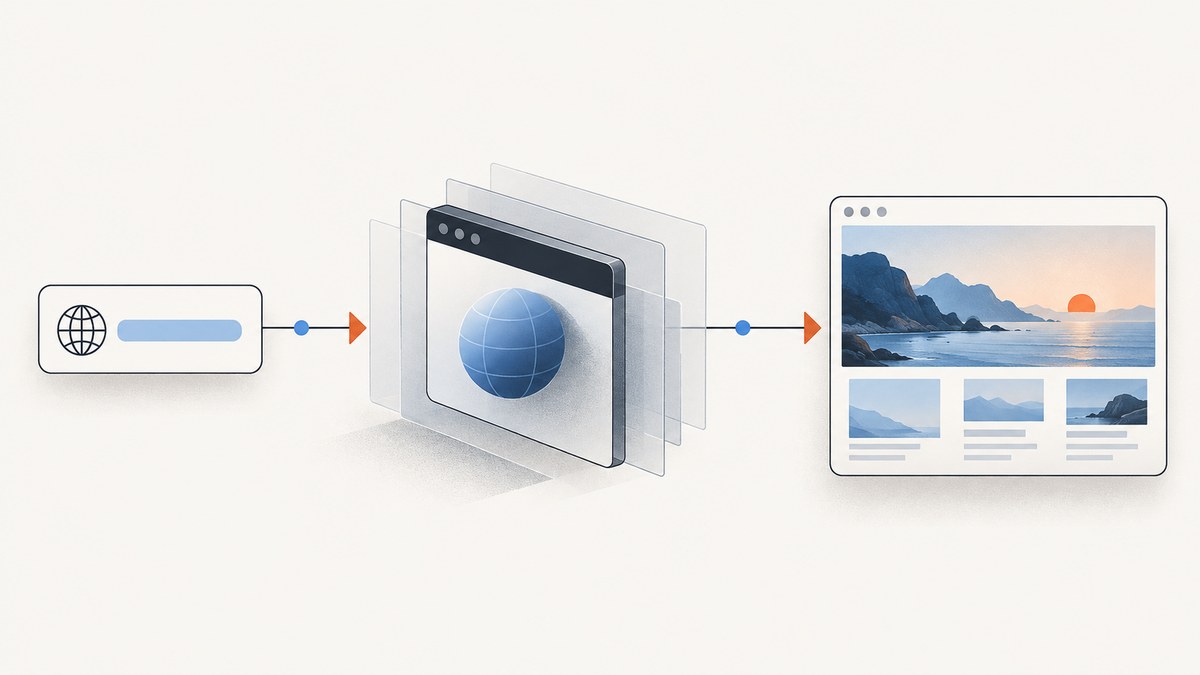
How to take website screenshots with Puppeteer in n8n depends on where the browser runs. Puppeteer’s page.screenshot() method captures a page after it has been navigated and rendered. In an n8n workflow, you can run Puppeteer in an environment you control if that environment has a compatible browser and dependencies, or call a hosted browser through the HTTP Request node and pass its image response to later nodes. The hosted route avoids packaging Chromium into the n8n runtime; local execution gives you control over that runtime. Which one works depends on your n8n deployment and requirements.
This guide shows the Puppeteer capture sequence, explains what must be arranged around it in n8n, and gives a hosted API workflow example. The examples are documentation-based; check your deployed n8n and Puppeteer versions before adopting node settings or runtime assumptions. Puppeteer’s official screenshot guide recommends Page.screenshot(), and its API reference documents byte and base64 results.
1. Choose where the browser runs
The screenshot call is the same core operation in either architecture. The difference is whether the browser process runs alongside n8n or on a separate hosted service.
| Route | What runs in n8n | What you need to check |
|---|---|---|
| Local Puppeteer | A script or component launches or connects to a browser and calls page.screenshot(). |
Package availability, compatible browser binary, operating-system libraries, permissions, sandbox configuration, and how the script can return binary data to the workflow. |
| Hosted browser API | An HTTP Request node sends a URL and options, then receives image data. | Network access, provider authentication, current request limits and costs, response format, and the n8n node’s binary handling. |
n8n supports Cloud and self-hosted deployment choices, including Docker and npm installations, but that does not establish that Puppeteer or an executable browser is available in every environment. Check the documentation for your current deployment and its node restrictions before planning a local runtime. See n8n deployment options.
2. Understand the Puppeteer capture sequence
A screenshot is a browser rendering result, not a capture of the raw HTML response. The page must be open and have reached the state you intend to preserve. A minimal Node.js Puppeteer script looks like this:
import puppeteer from 'puppeteer';

const url = 'https://example.com';
const browser = await puppeteer.launch();
try {
  const page = await browser.newPage();
  await page.setViewport({ width: 1440, height: 1000 });
  await page.goto(url, { waitUntil: 'networkidle2', timeout: 60000 });
  const image = await page.screenshot({
    type: 'png',
    fullPage: true,
    path: 'screenshot.png'
  });
  console.log(`Captured ${image.byteLength} bytes`);
} finally {
  await browser.close();
}
This is a standalone Puppeteer example, not a universally runnable n8n Code node recipe. Installing a Node package does not by itself provide the browser binary, system libraries, permissions, or process access Puppeteer needs. Some hosted n8n environments may not permit the necessary local execution. Make the script callable by your n8n workflow only after you have verified the supported mechanism in your installation—for example, a separately managed worker or service you control.
What the capture options mean
type: Select an image format supported by the Puppeteer version in use, such as PNG or JPEG. The API also supports screenshot options for configuration; verify current options in the reference.fullPage: Captures the full document rather than only the current viewport. Long pages can create large image files and consume more memory.path: Writes the image to a file in the browser process environment. In a workflow, confirm how that file is made accessible to n8n; a file inside a separate container is not automatically an n8n binary item.encoding: The documented base64 option returns a string. Without that option, Puppeteer returns screenshot bytes as aUint8Array. Choose the representation that your workflow boundary can pass safely.
For a cropped capture, set a clip rectangle in the screenshot options. To capture one element, locate it and use the element’s screenshot method. Keep viewport dimensions explicit when you need consistent output: responsive layouts can change substantially with width, and device scale can affect pixel dimensions.
3. Connect local Puppeteer to an n8n workflow
There is no single local-browser recipe that applies to every n8n deployment, so treat the workflow as an integration contract. A robust design accepts a URL, invokes a browser-capable process, and returns either image bytes or a base64 string plus useful metadata.
- Start with a trigger. Use a Manual Trigger while building, or the actual trigger that supplies URLs in production. Validate each input as an absolute HTTP or HTTPS URL before passing it to a browser.
- Invoke your browser runtime. Choose a supported execution path for your installation. Keep browser dependencies in a maintained runtime or service, rather than assuming they exist in the n8n process.
- Navigate and wait intentionally. Use a navigation timeout and a wait condition appropriate to the target page. Pages that continually poll may never become network-idle; pages with client-side content may need an application-specific selector or delay.
- Capture and return data. Return bytes or base64 and label the format. Include the final URL and capture status if useful, but do not log sensitive page content or credentials.
- Convert to n8n binary data. Configure the receiving step to expose the image as binary data. The property name and conversion method depend on the execution path and n8n version; inspect a real execution’s output before connecting storage or email nodes.
- Use the binary item downstream. Connect it to a storage, email, or other node that accepts binary input. Give the file a predictable name such as
page.pngand a matching MIME type.
Before enabling a production schedule, confirm whether your chosen node can execute the code, whether the browser can launch under its user account, and whether the execution container can reach both the target site and the n8n data path. n8n’s deployment model affects available infrastructure and configuration; consult the current docs for the specific installation.
4. Use a hosted screenshot endpoint through HTTP Request
If you do not want to package Chromium with n8n, a hosted browser endpoint can accept a URL and screenshot options and return an image response. Browserless documents an n8n integration using its screenshot endpoint with an HTTP Request node. The example below follows that documented pattern. Confirm the provider’s current endpoint, authentication, options, limits, and billing before using it.
Configure the n8n HTTP Request node
- Add a Manual Trigger or the trigger that provides a target URL.
- Add an HTTP Request node. Set the method to
POSTand URL tohttps://production-sfo.browserless.io/screenshot. - Pass the provider token as a query parameter named
token. Store the live value in n8n Credentials or an appropriate secret facility; do not put a real token into a workflow export or public template. - Send the request body as JSON, for example
{"url":"https://example.com"}. Add only options supported by the endpoint’s current documentation. - Set the response handling for your intended format. For binary output, configure the node to download or return the response as a file/binary value. Alternatively, ask the endpoint for base64 output and handle it as JSON.
- Run one execution and inspect the output. Confirm that the content is an image, that its MIME type and filename are usable downstream, and that the image opens correctly.
Browserless’s n8n integration documentation shows both buffer and base64 patterns. Its Screenshot API documentation describes a POST request with a URL and optional screenshot options, returning PNG or JPEG output. Those details can change, so use the provider’s current documentation when translating the pattern to your account.
Example request shape
POST https://production-sfo.browserless.io/screenshot?token=YOUR_API_TOKEN
Content-Type: application/json

{
  "url": "https://example.com"
}
For the buffer path, have n8n treat the response as binary data. For a JSON/base64 path, the request body can include the endpoint’s documented base64 encoding option, then a following step can decode it into binary. Do not try to JSON-parse raw PNG or JPEG bytes. Conversely, do not treat a base64 string as if it were already a file buffer.
5. Or skip the browser setup
If your workflow only needs a screenshot result, ScreenshotNeo offers a one-call screenshot API and an MCP server for AI agents. Cookie banners, popups, and chat widgets are removed before the shot; bot checks, blank pages, and failed loads are never billed. An MCP server lets AI agents take screenshots. The free plan includes 1,000 screenshots a month with no card, and paid plans start at $5 for 3,000. See ScreenshotNeo and the API documentation.
curl -G "https://api.screenshotneo.com/v1/shot" \
  -d access_key=YOUR_API_KEY \
  --data-urlencode url=https://example.com \
  -o shot.webp
import requests
r = requests.get(
"https://api.screenshotneo.com/v1/shot",
params={"access_key": "YOUR_API_KEY", "url": "https://example.com"},
timeout=90,
)
open("shot.webp", "wb").write(r.content)const q = new URLSearchParams({
access_key: 'YOUR_API_KEY',
url: 'https://example.com'
});
const res = await fetch(`https://api.screenshotneo.com/v1/shot?${q}`);
if (!res.ok) throw new Error(`Screenshot request failed: ${res.status}`);
const image = Buffer.from(await res.arrayBuffer());
In n8n, use the HTTP Request node to call https://api.screenshotneo.com/v1/shot with a GET request and query parameters access_key and url, then configure the response as a file/binary result. Store the key as a secret. ScreenshotNeo also supports full-page capture, selector capture, device presets, custom CSS and JavaScript, waits, caching, asynchronous jobs, bulk capture, PDF output, and more; use the docs for parameter names and behavior.
Create a free ScreenshotNeo account for 1,000 screenshots a month with no card.
6. Choose image bytes or base64
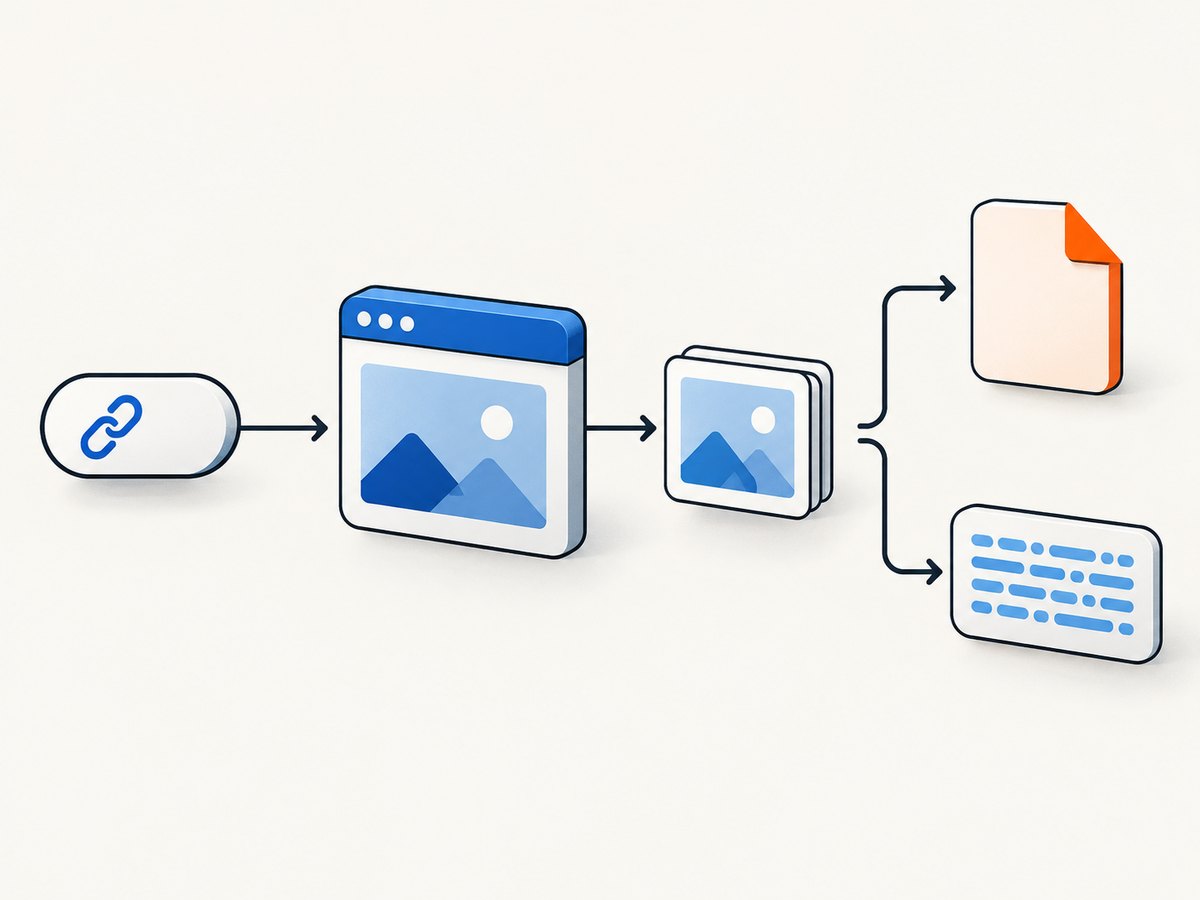
Image bytes are generally the direct representation for a file response: the workflow can store or pass the binary without expanding it into a text string. Base64 is useful when the integration boundary only carries JSON, but it adds encoding overhead and usually needs a decode step before file-oriented nodes can use it. Make the choice at the browser/API boundary and keep it consistent through the workflow.
| Representation | Use when | Check |
|---|---|---|
| Binary bytes | Your HTTP Request or execution path supports binary/file responses. | MIME type, filename, and binary property survive each downstream node. |
| Base64 string | The integration returns JSON or only transports text. | Decode once, avoid logging the full string, and verify the output file opens. |
Puppeteer returns screenshot bytes by default and can return base64 with the corresponding encoding option. Browserless’s n8n guide similarly illustrates buffer and base64 routes. An unexpectedly large workflow execution can result from full-page captures or keeping base64 strings in execution data.
7. Reliability, performance, and cost
Wait for the right state
Navigation completion does not guarantee that every visual element has finished changing. Choose a wait condition based on the page: a navigation event for mostly static pages, a specific selector for a known component, or a bounded delay for a short animation. Avoid unbounded waits. Some sites keep background connections active, so waiting for network idle indefinitely can stall a workflow. Add a timeout and define whether a timed-out capture should retry or fail visibly.

Keep captures bounded
Set the viewport intentionally and prefer viewport screenshots when the full document is unnecessary. Full-page output can be much larger and take more memory, particularly on very long pages. Choose JPEG when smaller files are more important than lossless detail and the endpoint supports it; use PNG where sharp text or transparency matters. Check the supported formats and options for your selected runtime or API.
Control concurrency and retries
Each capture consumes browser and network resources. Limit simultaneous jobs to what your browser runtime or provider can handle, and avoid retrying permanent failures such as invalid URLs or access-denied pages. For transient timeouts or server errors, use a bounded retry policy with a delay. If a workflow may capture many URLs, record per-item success or failure so one inaccessible page does not hide the status of the rest.
Budget for both infrastructure and services
Local Puppeteer has no hosted screenshot API request fee by virtue of running locally, but operating the browser still uses compute, memory, storage, and maintenance time. Hosted browser services have provider-specific pricing, limits, and request policies; verify the current terms directly. The research sources do not establish an apples-to-apples speed or cost comparison between local Puppeteer and Browserless, so choose based on runtime control, operational effort, network reachability, and your measured workload rather than an assumed performance ranking.
ScreenshotNeo’s listed plans are Free (1,000 shots/month), Starter ($5 for 3,000), Growth ($15 for 15,000), Pro ($39 for 60,000), Scale ($99 for 250,000), and Business ($249 for 1,000,000); yearly billing gives two months free, and every feature is on every plan. The billed unit is a clean shot; bot checks/CAPTCHAs, blank pages, timeouts, failed loads, and cache hits cost nothing, with response headers indicating page verdict and billing status. Check the product’s current plan details before committing usage estimates.
8. Troubleshooting
| Symptom | Likely cause | Fix |
|---|---|---|
| Puppeteer cannot launch | The browser binary, required system libraries, permissions, or sandbox configuration are unavailable in the runtime. | Check the current installation’s supported dependencies and launch requirements. Verify the browser runs as the same user as the workflow process. If the deployment does not allow a local browser, use a hosted endpoint. |
| Module not found or Puppeteer is blocked | The package is not installed in the actual execution environment, or the n8n deployment restricts code/node access. | Confirm the supported package and node model for your deployment. Do not assume a package installed on a host is visible inside a separate container. |
| The capture is blank or missing content | The page had not rendered the required content, navigation failed, or a selector/wait condition was unsuitable. | Check the final URL and navigation result; wait for a meaningful selector or a bounded delay; inspect whether the site requires authentication or blocks automated access. |
| Navigation or HTTP node times out | The site is slow, waits never finish, or the request timeout is too short. | Set a reasonable timeout, prefer a bounded readiness condition, and retry only transient errors. A page that never becomes network-idle may need a different wait strategy. |
| Image is corrupted or unreadable | Raw image bytes were treated as JSON, base64 was not decoded, or binary mode was not enabled. | Choose one response format, configure the node for binary or JSON accordingly, and inspect the returned MIME type and binary data before connecting downstream nodes. |
| 401 from Browserless | The token is missing, invalid, expired, or placed in the wrong request location. | Check the provider’s current authentication instructions and ensure the token query parameter is attached to the HTTP request. Keep the secret out of exported workflows. |
| Works manually but fails on schedule | The production execution may run in a different worker, container, environment, or account context. | Check the scheduled execution’s logs and runtime, filesystem access, environment configuration, and outbound network access. Validate the same execution path used in production. |
| Large execution records or slow downstream steps | Full-page images or base64 values inflate workflow data. | Use viewport captures when suitable, pass binary instead of base64 when supported, and avoid retaining unnecessary image data in logs or intermediate steps. |
9. A pre-deployment checklist
- Confirm that your target URLs are validated and restricted to the domains your workflow is meant to capture.
- Verify the browser runtime or hosted endpoint from the actual production execution environment.
- Set explicit viewport, format, navigation timeout, and render wait behavior.
- Decide whether the handoff uses bytes or base64, then verify the image in a downstream node.
- Store API tokens and credentials using the deployment’s secret-management facilities.
- Set concurrency and bounded retries, and make failed captures observable.
- Review privacy and retention: screenshots may contain personal or confidential page content.
- Check current provider limits, costs, and endpoint documentation before estimating production volume.
10. FAQ
Can I take a screenshot of a website in an n8n workflow without Puppeteer installed in n8n?
Yes. Call a hosted browser or screenshot API from the HTTP Request node and handle its image response as binary data or base64. Browserless documents an n8n screenshot integration; ScreenshotNeo also provides a screenshot API.
Does page.screenshot() return a file path?
It returns screenshot bytes by default, or a base64 string when requested. Supplying a path also writes a file in the browser process environment. A path alone does not make the file available to a separate n8n container.
Why does my screenshot differ from what I see in my browser?
Viewport size, device scale, page state, authentication, consent dialogs, delayed rendering, and browser environment can all change the output. Make the capture conditions explicit and wait for the content that matters.
Can the same workflow capture a batch of URLs?
Yes. Pass each URL as an item through the capture step, while limiting concurrency and preserving a per-URL result. For a hosted provider, verify current batch capabilities and request limits before designing around them.


