How to Take Puppeteer Screenshots of Pages with Video
Capture still screenshots and MP4 recordings of video pages with Puppeteer, including full-page, element, timing, troubleshooting, and API options.

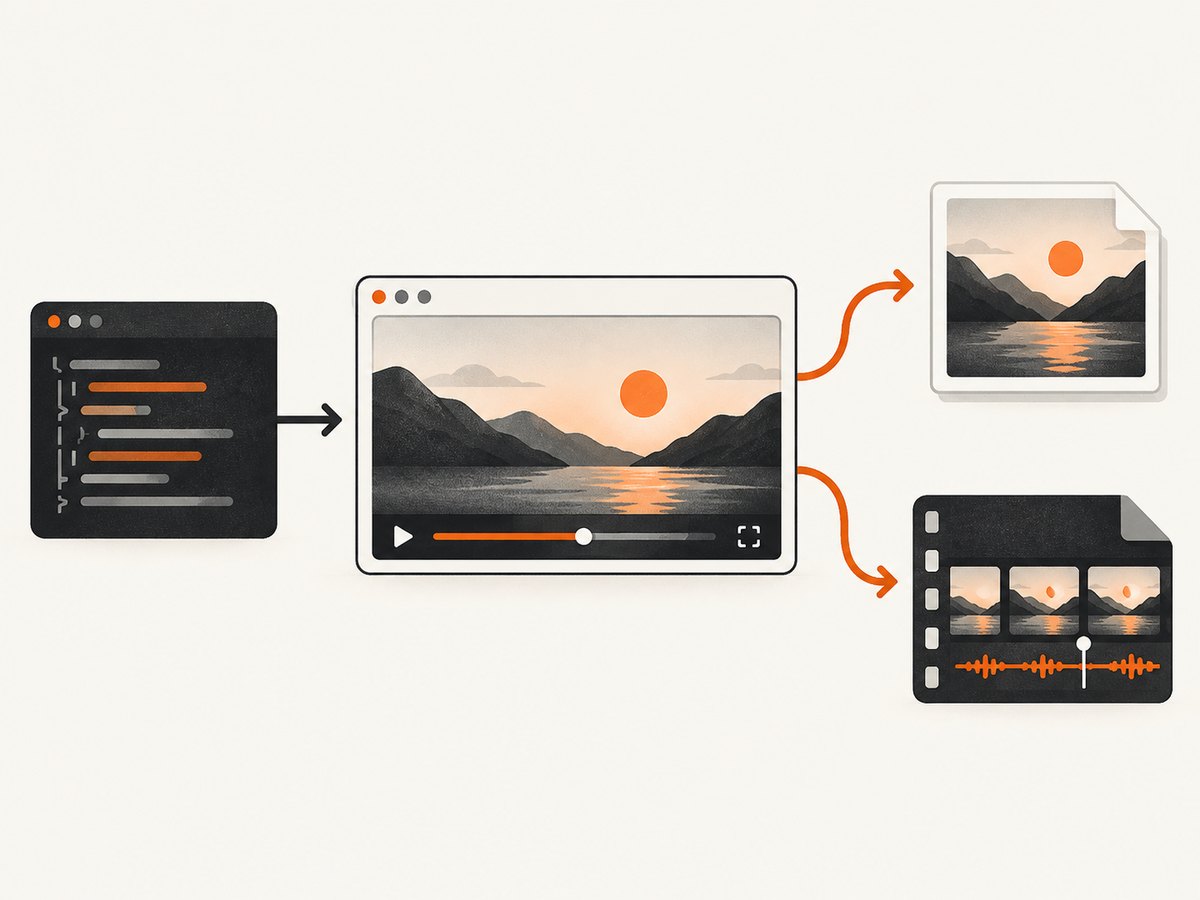
To capture a page that contains video with Puppeteer, choose the output you need first:
- Use
await page.screenshot()for one rendered moment as PNG, JPEG, or WebP. - Use
await element.screenshot()when only a selected element matters. - Use
await page.record()to preserve page activity over time as an MP4 video stream, then callstop()when the interaction or animation is complete.
A video element does not require a special screenshot API. A screenshot captures whatever is painted at the instant the command runs. A recording captures the page over a period, including playback and user actions. The current Puppeteer documentation describes Page.record() as using Chrome DevTools Protocol’s Page.startScreenRecording and producing an MP4 stream. See the screenshot API and record API references for the version installed in your project.
Choose a still screenshot or a video recording
| Goal | API | Result | Main timing concern |
|---|---|---|---|
| Save one visual state | Page.screenshot() |
Image bytes or a file at path |
Wait until the video frame or page state you want is rendered |
| Capture one component | ElementHandle.screenshot() |
Image of the selected element | The element must still be attached to the DOM |
| Preserve activity over time | Page.record() |
MP4 video stream | Stop the returned recorder after playback or interaction |
The phrase “screenshots of pages with video” can mean either of these workflows. Puppeteer’s official references directly document still images and page recording. They do not describe extracting individual still frames from an existing video file, so this guide does not promise a frame-extraction API.
Install Puppeteer and launch a browser
Create a small Node.js project and install Puppeteer:
mkdir puppeteer-video-capture
cd puppeteer-video-capture
npm init -y
npm install puppeteer
The package downloads a compatible Chromium build during installation. If your deployment uses an existing Chrome or Chromium binary, use puppeteer-core and provide an executable path. Keep the Puppeteer and browser versions aligned; the documentation pages currently show slightly different version labels, and the Page overview marks record() experimental. Check your installed release before relying on recording in production.
Take a screenshot of a page that contains video
This complete script navigates to a page, waits for the document and video element, waits briefly for playback to begin, then saves a PNG. Replace the URL with a page you control or are authorized to capture.
const puppeteer = require('puppeteer');

(async () => {
  const browser = await puppeteer.launch({headless: true});
  try {
    const page = await browser.newPage();
    await page.setViewport({width: 1440, height: 900, deviceScaleFactor: 1});
    await page.goto('https://example.com/video-page', {
      waitUntil: 'networkidle2',
      timeout: 60000
    });

    await page.waitForSelector('video', {timeout: 30000});
    await page.waitForFunction(() => {
      const video = document.querySelector('video');
      return video && video.readyState >= 2;
    }, {timeout: 30000});

    // Give the browser a moment to paint a video frame.
    await new Promise(resolve => setTimeout(resolve, 1000));
    await page.screenshot({path: 'video-page.png', type: 'png'});
  } finally {
    await browser.close();
  }
})();
networkidle2 is only a navigation heuristic. A page with streaming media, analytics, advertisements, or a long-lived connection may never become truly idle. Combine a practical navigation wait with a selector, a video readiness check, or an application-specific signal.
Capture the video element or another component
Use an element handle when the full page is unnecessary. Puppeteer scrolls the element into view before taking the image. The API throws if the element has been detached, which can happen when a framework replaces the video node during playback.
const video = await page.waitForSelector('video');
if (!video) throw new Error('Video element was not found');
await video.screenshot({path: 'video-only.png'});
For a stable target, prefer a selector that identifies the player container rather than a generated class name:
await page.waitForSelector('[data-testid="player"]');
await page.locator('[data-testid="player"]').screenshot({
  path: 'player.png',
  type: 'png'
});
If the page re-renders, select the element immediately before capture and retry after reacquiring the handle. Do not retain an element handle across navigation.
Full-page, clipped, transparent, and high-resolution screenshots
The screenshot options reference includes fullPage, clip, path, type, encoding, omitBackground, and captureBeyondViewport. The surfaced options page is under Puppeteer’s “next” documentation, so verify exact behavior against the version installed in your project.
// Full page, including content below the viewport
await page.screenshot({
  path: 'full-page.png',
  fullPage: true,
  type: 'png'
});

// A viewport-region screenshot
await page.screenshot({
  path: 'clip.png',
  clip: {x: 0, y: 120, width: 900, height: 520},
  type: 'jpeg',
  quality: 88
});

// Return bytes instead of writing a file
const bytes = await page.screenshot({type: 'webp'});
require('fs').writeFileSync('page.webp', bytes);

// Transparent page background where the browser supports it
await page.screenshot({path: 'transparent.png', omitBackground: true});
Full-page capture can interact poorly with sticky headers, infinite scrolling, and pages whose layout changes as more media loads. For a video player, an element screenshot or a fixed clip is usually more predictable. A larger deviceScaleFactor creates more pixels but also increases memory and output size:
await page.setViewport({width: 1280, height: 720, deviceScaleFactor: 2});Record a page with video as MP4
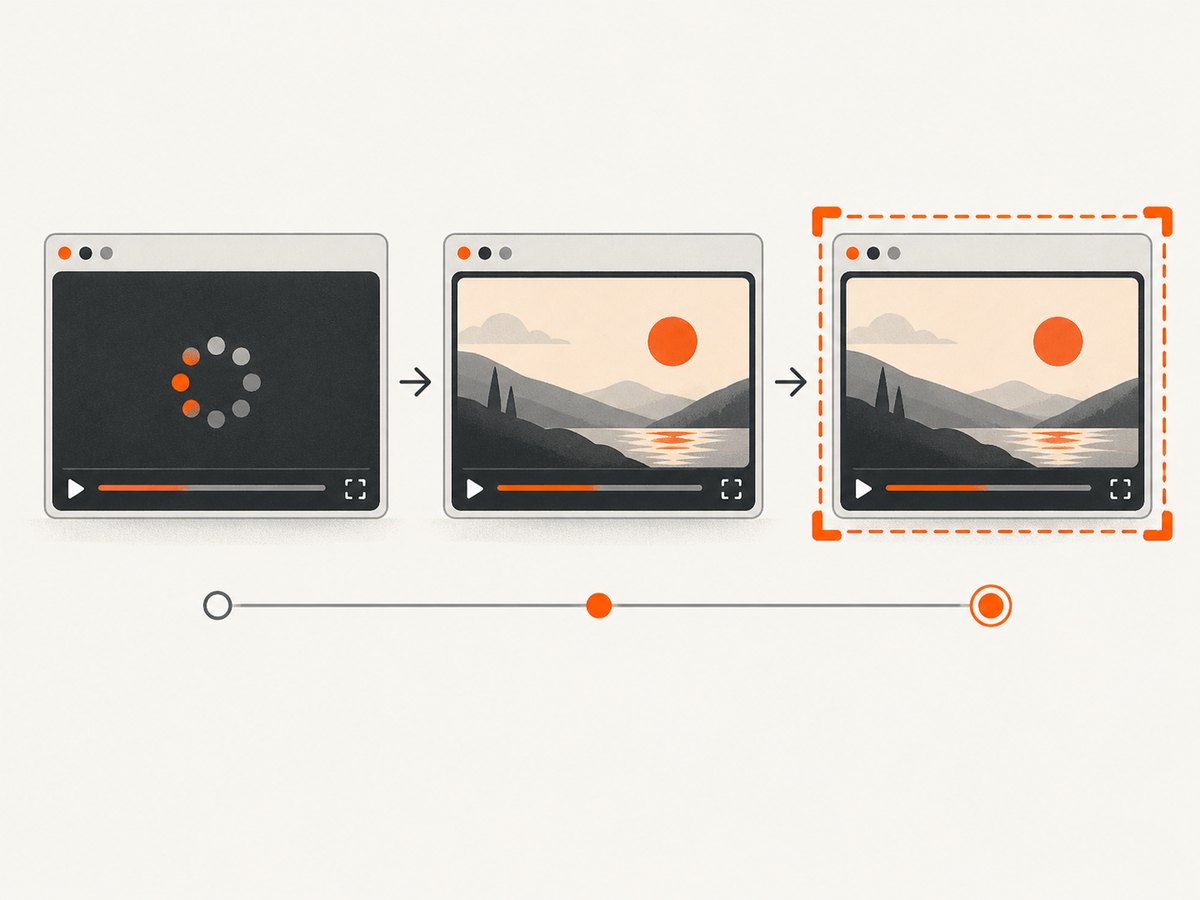
For a time-based capture, navigate first, start the recorder, perform actions or wait through the animation, and stop the returned object before closing the browser.
const puppeteer = require('puppeteer');

(async () => {
  const browser = await puppeteer.launch({headless: true});
  try {
    const page = await browser.newPage();
    await page.setViewport({width: 1280, height: 720, deviceScaleFactor: 1});
    await page.goto('https://example.com/video-page', {
      waitUntil: 'domcontentloaded',
      timeout: 60000
    });
    await page.waitForSelector('video', {timeout: 30000});

    const recorder = await page.record({path: 'video-page.mp4'});
    try {
      await page.evaluate(() => {
        const video = document.querySelector('video');
        if (video) video.play();
      });
      await new Promise(resolve => setTimeout(resolve, 10000));
    } finally {
      await recorder.stop();
    }
  } finally {
    await browser.close();
  }
})();
The official reference describes the output as an MP4 video stream. Stop recording in a finally block so an exception does not leave the capture unfinished. If record() is unavailable or fails, confirm the Puppeteer release, browser binary, and the current API reference for that pair. The older Page.screencast() API is marked obsolete; Puppeteer’s documentation says to use Page.record() instead.
Control playback and capture a known moment
Video playback is asynchronous. Waiting for the element alone does not guarantee that a frame is visible. You can seek to a known time, wait for the seeked event, and then take a still:
await page.evaluate(() => new Promise((resolve, reject) => {
  const video = document.querySelector('video');
  if (!video) return reject(new Error('No video element'));
  const done = () => { video.removeEventListener('seeked', done); resolve(); };
  video.addEventListener('seeked', done, {once: true});
  video.currentTime = 12;
}));
await page.screenshot({path: 'at-12-seconds.png'});
Autoplay policies may prevent play() until the video is muted or the page receives a user gesture. For a controlled test page, set muted before playing or click the page’s play control:
await page.evaluate(() => {
  const video = document.querySelector('video');
  if (video) video.muted = true;
});
await page.click('[aria-label="Play"]');
Do not assume that a cross-origin, DRM-protected, or canvas-rendered video can be inspected through the DOM. Puppeteer can capture the browser’s rendered output, but page scripts may not expose pixels or metadata to your code.
Wait strategies for animated and streaming pages
- Navigation: use
domcontentloadedfor a fast start, ornetworkidle2when the page generally settles. - Selector: wait for
video, the player shell, or a loading indicator to disappear. - Readiness: check
HTMLMediaElement.readyStateand, when relevant,videoWidthandvideoHeight. - Fixed delay: use a short delay only when the page has no reliable signal.
- Application signal: expose a test-only flag such as
window.captureReady = trueafter your player has initialized.
await page.waitForFunction(() => {
  const v = document.querySelector('video');
  return v && v.readyState >= 3 && v.videoWidth > 0;
}, {timeout: 30000});
For pages with ads or live streams, there may be no final “loaded” state. Define the exact moment your screenshot or recording should represent and wait for that condition.
Complete reusable capture script
const puppeteer = require('puppeteer');

async function capture(url, {image = true, video = false} = {}) {
  const browser = await puppeteer.launch({headless: true});
  try {
    const page = await browser.newPage();
    await page.setViewport({width: 1440, height: 900, deviceScaleFactor: 1});
    await page.goto(url, {waitUntil: 'domcontentloaded', timeout: 60000});
    await page.waitForSelector('video', {timeout: 30000});
    await page.waitForFunction(() => {
      const v = document.querySelector('video');
      return v && v.readyState >= 2;
    }, {timeout: 30000});

    if (image) await page.screenshot({path: 'page.png', fullPage: true});
    if (video) {
      const recorder = await page.record({path: 'page.mp4'});
      try {
        await new Promise(resolve => setTimeout(resolve, 10000));
      } finally {
        await recorder.stop();
      }
    }
  } finally {
    await browser.close();
  }
}

capture('https://example.com/video-page', {image: true, video: true})
  .catch(error => { console.error(error); process.exitCode = 1; });
Or skip the browser setup
If you need a clean still image rather than a local browser workflow, ScreenshotNeo provides a GET endpoint for PNG, JPEG, WebP, or PDF output. The API accepts the URL and returns the capture; see the ScreenshotNeo documentation for all options.
curl -G "https://api.screenshotneo.com/v1/shot" -d access_key=YOUR_API_KEY --data-urlencode url=https://stripe.com -o shot.webpimport requests
r = requests.get("https://api.screenshotneo.com/v1/shot", params={"access_key": "YOUR_API_KEY", "url": "https://stripe.com"}, timeout=90)
open("shot.webp", "wb").write(r.content)const q = new URLSearchParams({ access_key: 'YOUR_API_KEY', url: 'https://stripe.com' });
const res = await fetch(`https://api.screenshotneo.com/v1/shot?${q}`);ScreenshotNeo removes cookie and consent banners, newsletter popups, and chat widgets before capture. Bot checks, blank pages, failed loads, timeouts, and cache hits are not billed, and the response identifies the result with X-Page-Verdict and X-Billed headers. Its MCP server provides take_screenshot, get_page_info, and capture_pdf tools for Claude, Cursor, and other MCP clients. Free accounts include 1,000 screenshots per month with no card; paid plans start at $5 for 3,000 shots. Create a free ScreenshotNeo account.
Useful Puppeteer options for video pages
| Option or method | Use it for | Practical note |
|---|---|---|
path |
Write directly to a file | Ensure the process can write to the destination |
type |
Choose PNG, JPEG, or WebP | JPEG quality applies to lossy output |
fullPage |
Capture content beyond the viewport | May expose layout changes on long or infinite pages |
clip |
Capture a rectangle | Coordinates are in CSS pixels |
omitBackground |
Keep transparent background | Useful for pages with transparent composition |
encoding |
Return base64 or binary data | Binary is usually smaller and simpler for files |
deviceScaleFactor |
Increase pixel density | Higher values increase memory and output size |
Troubleshooting common failures
“Timeout exceeded” during navigation
Cause: streaming media, analytics, or an open connection prevents the chosen idle condition. Fix: use domcontentloaded, increase the timeout, and wait for a specific selector or readiness condition instead.
The screenshot shows a black video rectangle
Cause: playback has not started, the media has not decoded a frame, autoplay was blocked, or the source is unavailable. Fix: check readyState, set muted for controlled autoplay, click play, wait for videoWidth > 0, and inspect browser console and network errors.
ElementHandle.screenshot() says the node is detached
Cause: the player framework replaced the element. Fix: call waitForSelector again immediately before the screenshot and avoid retaining handles across re-renders or navigation.
page.record is not a function
Cause: the installed Puppeteer version does not expose the documented method, or the imported package differs from the one you upgraded. Fix: print the installed version, consult its API reference, update Puppeteer and its browser together, and verify the runtime is using that installation.
The recording file is empty or incomplete
Cause: the recorder was not stopped, the browser closed first, or an exception interrupted the workflow. Fix: call await recorder.stop() in finally and close the browser only afterward.
Video works locally but not in CI
Cause: missing browser dependencies, sandbox restrictions, different Chromium versions, or insufficient shared memory. Fix: use the browser supplied by your Puppeteer version, install required system libraries, compare versions, and capture browser logs. Keep viewport and device scale modest when memory is constrained.
Full-page capture is unexpectedly tall or changes the layout
Cause: lazy loading, infinite scrolling, sticky elements, or responsive breakpoints. Fix: capture the player element or a fixed clip, set the viewport explicitly, and scroll or wait for content intentionally before calling fullPage.
Performance, reliability, and cost considerations
- Reuse browsers carefully: launching Chromium is expensive, but sharing a browser across jobs can leak cookies or state. Use isolated pages or browser contexts and close them after work.
- Limit concurrency: each recording consumes CPU, memory, and disk bandwidth. Queue long recordings and avoid starting unbounded jobs.
- Control output: choose a fixed viewport, reasonable device scale, and a bounded recording duration. Large full-page images and high-density captures use more memory.
- Make captures repeatable: set timezone, locale, viewport, and authentication state explicitly. Disable animations in test environments if the visual baseline must be stable.
- Preserve diagnostics: log URL, Puppeteer version, browser version, elapsed time, and whether the video reached a ready state. Save console and page error events for failed jobs.
- Respect access rules: capture only pages you are authorized to automate, and follow the target site’s terms and applicable access controls.
Puppeteer’s screenshot APIs wait for completion in relevant page operations, but bringing a page to the front does not wait for existing screenshot operations. In concurrent workflows, await each screenshot promise before reusing or closing the page.
FAQ
Can Puppeteer take a screenshot while a video is playing?
Yes. page.screenshot() captures the currently rendered frame. Wait until the video has decoded a frame if timing matters.
Does Page.record() extract still images?
No. It records page activity as an MP4 stream. Use page.screenshot() for stills.
Should new code use Page.screencast()?
No. The official reference marks it obsolete and says to use Page.record() instead.
Can I capture only the video player?
Yes. Select the player or video element and call its screenshot() method.
Why does a live stream never become network idle?
A live stream can keep connections open indefinitely. Use a selector and media readiness check, then capture at a defined time.


