How to Create Screenshots and PDFs with Puppeteer
Learn how to capture reliable screenshots and generate print-ready PDFs with Puppeteer, including full pages, elements, CSS, fonts, and troubleshooting.
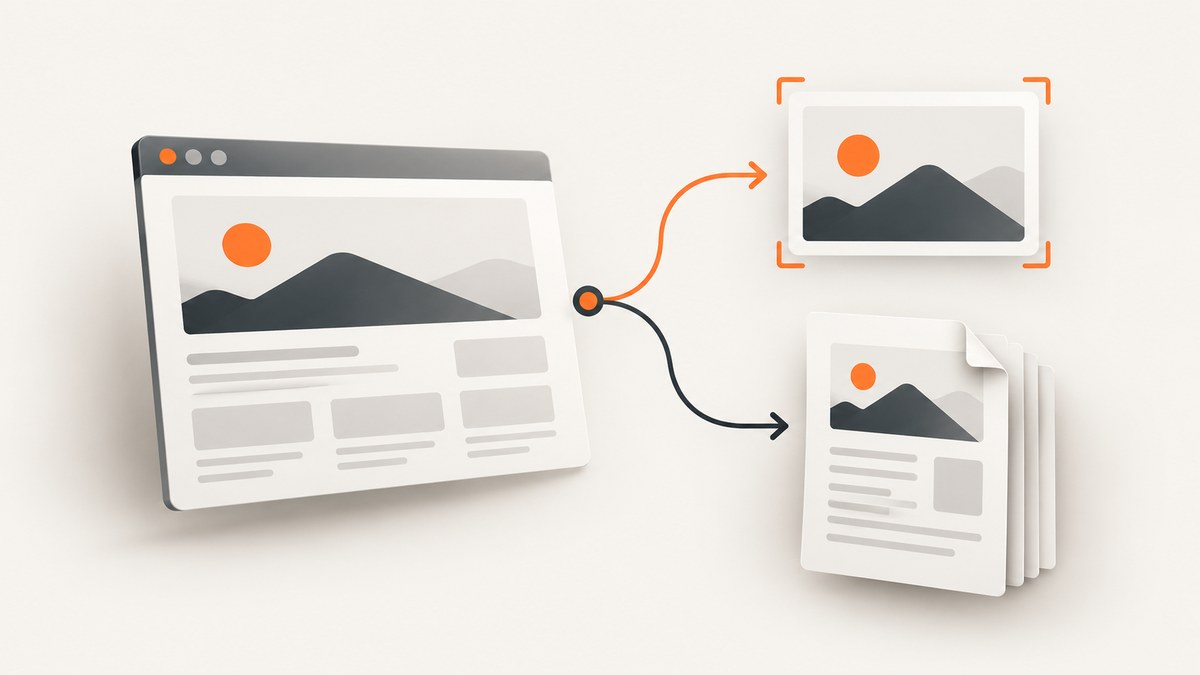
Direct answer: use Puppeteer’s page.screenshot() to capture a rendered page or element, and page.pdf() to create a paginated PDF. Navigate first, wait for the page state your application needs, configure the output options, then close the browser in a finally block. The two methods render differently: screenshots capture pixels from a viewport or page, while PDFs use print CSS unless you explicitly emulate screen media.
This guide covers a complete workflow for current Puppeteer releases, including full-page and clipped images, element captures, transparent backgrounds, print layout, fonts, dynamic content, authentication, reliability, performance, and common failures. The official API references are the authority for defaults and version-specific behavior: Page.screenshot(), Page.pdf(), and the PDF guide.
1. Install Puppeteer and create a browser lifecycle
Install Puppeteer in a Node.js project. The package downloads a compatible browser during installation. If your deployment supplies its own Chrome or Chromium binary, use executablePath when launching.
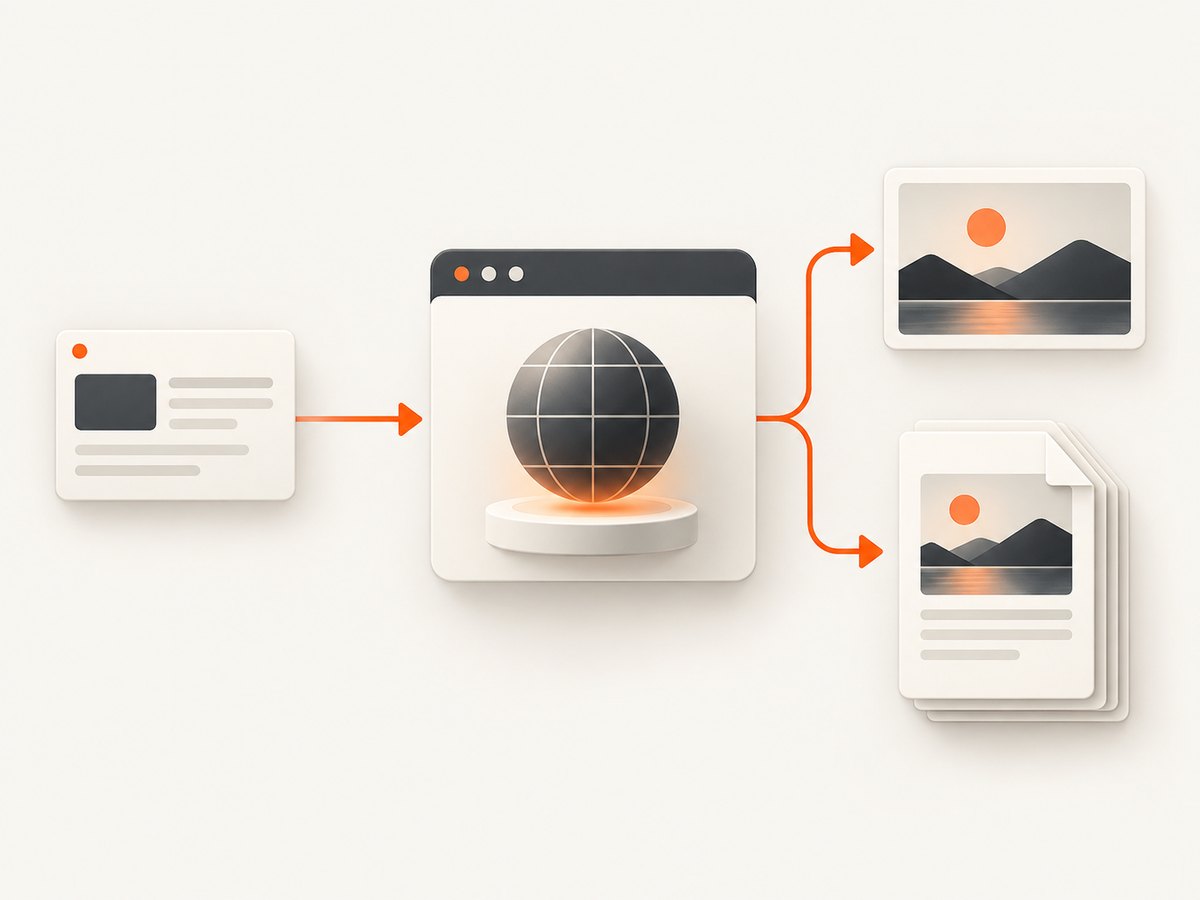
npm install puppeteerA safe baseline keeps browser creation outside the per-page work when you process multiple URLs, creates a fresh page for each job, and always closes the browser:
import puppeteer from 'puppeteer';

const browser = await puppeteer.launch({
  // executablePath: '/usr/bin/google-chrome', // optional in managed environments
  headless: true
});

try {
  const page = await browser.newPage();
  await page.setViewport({ width: 1440, height: 900, deviceScaleFactor: 1 });
  await page.goto('https://example.com', {
    waitUntil: 'networkidle2',
    timeout: 30_000
  });

  await page.screenshot({ path: 'page.png', fullPage: true });
  await page.pdf({ path: 'page.pdf', format: 'A4', printBackground: true });
} finally {
  await browser.close();
}
networkidle2 waits until there are no more than two active network connections for a short period. It is useful for many pages, but it cannot know whether your application has finished rendering data, animations, or lazy content. Add an application-specific readiness check when needed.
2. Capture screenshots with page.screenshot()
Viewport versus full-page capture
By default, a screenshot is the visible viewport. Set fullPage: true to capture the document’s complete scrollable height. Full-page capture can become very tall; for long reports, consider clipping sections or generating a PDF instead.
await page.screenshot({
  path: 'full-page.webp',
  fullPage: true,
  type: 'webp',
  quality: 85
});
The output type can be png, jpeg, or webp. PNG is the default and does not use a quality setting. When you provide a path, Puppeteer can infer the type from the filename extension. JPEG and WebP quality values are useful for reducing file size; they do not apply to PNG. The API documents screenshot output as a Uint8Array unless you request base64 encoding.
Capture a region with clip
Use a clip rectangle when you need a fixed portion of the viewport. Coordinates are CSS pixels relative to the page’s viewport.
await page.screenshot({
  path: 'chart.png',
  clip: { x: 80, y: 180, width: 900, height: 500 }
});
The clipped rectangle must fit the current viewport. For a responsive layout, set the viewport first and calculate the rectangle after the page has loaded.
Capture one element
Locate an element and call ElementHandle.screenshot(). Puppeteer scrolls the element into view when required. The call fails if the element is detached from the DOM, so obtain a fresh handle after client-side navigation or re-rendering.
const card = await page.waitForSelector('[data-report-card]', {
  visible: true,
  timeout: 15_000
});

if (!card) throw new Error('Report card was not found');
await card.screenshot({ path: 'report-card.png' });
Transparent backgrounds and high-density output
Set omitBackground: true to preserve transparency in PNG output. Use deviceScaleFactor: 2 or another value in page.setViewport() for retina-style captures. A higher scale produces sharper images and larger files.
await page.setViewport({
  width: 1200,
  height: 800,
  deviceScaleFactor: 2
});
await page.screenshot({
  path: 'transparent.png',
  omitBackground: true
});
Return bytes instead of writing a file
const bytes = await page.screenshot({ type: 'png' });
await storage.put('screenshots/home.png', bytes);
For an HTTP endpoint, send the returned bytes with an image content type. Use encoding: 'base64' only when a base64 string is required by another protocol.
3. Generate PDFs with page.pdf()
page.pdf() creates a paginated document and can write it directly to a path or return bytes. Puppeteer uses print CSS media by default. If your site has screen-specific styles, call page.emulateMediaType('screen') before generating the PDF.
await page.emulateMediaType('screen');
await page.pdf({
  path: 'screen-styled.pdf',
  format: 'A4',
  printBackground: true,
  margin: {
    top: '16mm',
    right: '14mm',
    bottom: '16mm',
    left: '14mm'
  }
});
For normal print output, omit the media call and define print rules in your stylesheet:
@media print {
  .navigation, .cookie-banner { display: none !important; }
}

@page {
  size: A4;
  margin: 16mm;
}

.report {
  break-inside: avoid;
  -webkit-print-color-adjust: exact;
}
PDF options that affect layout
| Option | What it controls | Useful detail |
|---|---|---|
format |
Paper preset such as Letter or A4 | Letter is the documented default. It takes priority over width and height. |
width, height |
Custom paper dimensions | Use when a preset does not match the required page size. |
landscape |
Orientation | Defaults to false. |
margin |
Top, right, bottom, and left whitespace | Margins are unset by default; specify units such as mm or in. |
printBackground |
Background colors and images | Defaults to false. Set true for branded cards and colored sections. |
preferCSSPageSize |
Whether CSS @page size wins |
Defaults to false. Set true when CSS defines the authoritative paper size. |
pageRanges |
Pages to include | For example, 1-3 or 2,5. |
scale |
Content scaling | Useful for fitting dense layouts, but test text readability. |
displayHeaderFooter |
Built-in header and footer templates | Defaults to false; enable it with headerTemplate and footerTemplate. |
waitForFonts |
Font readiness | Defaults to true and waits for document.fonts.ready. |
The PDF API documents a 30-second default timeout. Font readiness does not replace navigation or application readiness checks. If a page is running in a background tab, bringing it to the front can help font activation in the situations described by the API documentation.
4. Make dynamic pages deterministic
Choose readiness conditions that match the page rather than relying on a single universal delay.
- Wait for navigation: use
waitUntil: 'domcontentloaded','load', or'networkidle2'according to the page’s behavior. - Wait for a meaningful selector: call
page.waitForSelector('[data-ready="true"]')after your application marks the view complete. - Wait for a bounded delay: use
await new Promise(resolve => setTimeout(resolve, 500))only for known animation or hydration gaps. - Load lazy content: scroll incrementally before a full-page screenshot if images load only near the viewport.
- Freeze motion: inject CSS to disable transitions and animations when visual consistency matters.
await page.goto(url, { waitUntil: 'domcontentloaded', timeout: 30_000 });
await page.waitForSelector('#dashboard[data-rendered="true"]', {
  timeout: 20_000
});
await page.addStyleTag({
  content: `*, *::before, *::after {
    animation: none !important;
    transition: none !important;
    caret-color: transparent !important;
  }`
});
await page.screenshot({ path: 'dashboard.png', fullPage: true });
5. Authentication, headers, cookies, and browser settings
For protected pages, establish identity before navigation. Basic authentication, custom headers, cookies, and a user agent are all page-level controls.
await page.setExtraHTTPHeaders({
  Authorization: `Bearer ${process.env.REPORT_TOKEN}`
});
await page.setCookie({
  name: 'session',
  value: process.env.SESSION_VALUE,
  domain: 'example.com',
  path: '/',
  httpOnly: true,
  secure: true
});
await page.setUserAgent('ReportRenderer/1.0');
await page.goto('https://example.com/private/report', {
  waitUntil: 'networkidle2'
});
Keep secrets in environment variables or a secret manager. Do not embed credentials in URLs that might appear in logs. If the site depends on a specific timezone or locale, configure the browser context and viewport consistently across jobs.
6. A production capture checklist
- Pin Puppeteer and review the matching API documentation when upgrading.
- Set explicit navigation and PDF timeouts; do not allow jobs to wait forever.
- Reuse a browser process for batches, but isolate each job in a new page or context.
- Close pages after each job and close the browser during shutdown.
- Use unique output names and write atomically so readers never see partial files.
- Record URL, viewport, media type, output options, duration, and failure reason.
- Retry transient navigation failures with a bounded retry count and backoff.
- Limit concurrency to the CPU and memory available to Chromium.
- Validate that returned bytes are non-empty and have the expected file signature.
7. Troubleshooting Puppeteer screenshots and PDFs
| Symptom | Likely cause | Fix |
|---|---|---|
| Blank or partially rendered screenshot | Capture ran before client rendering finished | Wait for a page-specific selector, data signal, or bounded delay after navigation. |
| Lazy images are missing | Images load only after entering the viewport | Scroll through the document before capture, or trigger the page’s lazy-load mechanism. |
| Element screenshot throws because the node is detached | A framework re-render replaced the element | Call waitForSelector again and capture the new handle. |
| PDF colors or backgrounds are absent | Print backgrounds are disabled by default | Set printBackground: true and use -webkit-print-color-adjust: exact where appropriate. |
| PDF uses the wrong styling | PDF rendering uses print media | Call page.emulateMediaType('screen') before page.pdf(), or add print CSS. |
| Content is clipped or unexpectedly scaled | Paper, margins, CSS page size, or scale conflict | Choose one source of truth; check format, preferCSSPageSize, margins, and scale. |
| Navigation timeout | Slow resource, never-ending connection, or blocked request | Set a suitable timeout, wait for a selector instead of network idle, and inspect failed requests. |
| Fonts differ from the browser | Web fonts have not loaded or are unavailable in the runtime | Ensure font URLs are reachable, keep waitForFonts enabled, and verify the deployed font files. |
| Chromium fails to launch in a container | Missing system libraries or sandbox restrictions | Use a Puppeteer-compatible image/runtime, install required dependencies, and follow your platform’s Chromium guidance. |
| Memory usage grows during a batch | Pages, contexts, or browser processes are not closed | Close each page, cap concurrency, and recycle the browser after a bounded number of jobs. |
8. Performance, reliability, and cost considerations
Browser startup is expensive compared with opening another page in an existing browser. For batches, launch one browser and process a controlled number of pages, while monitoring memory. A new browser context gives stronger isolation than sharing cookies in one page, but consumes more resources.
Full-page screenshots and PDFs require layout and rasterization work proportional to page size and complexity. Reduce unnecessary third-party requests, avoid an excessive device scale factor, and use clipped or element captures when the requirement is local. Waiting for networkidle2 can be slow on pages with analytics or long-polling connections; a deterministic application selector is often faster and more reliable.
Puppeteer itself has no per-capture fee. Your costs come from the compute, memory, storage, bandwidth, and operational work needed to run Chromium. If you need a managed capture endpoint, compare billing semantics carefully: determine whether failed loads, bot checks, blank pages, and cache hits consume credits, and whether you can observe the result of each request.
9. Or skip the browser setup
ScreenshotNeo provides a website screenshot API and MCP server. One GET request returns a PNG, JPEG, WebP, or PDF, while the service handles the browser lifecycle and capture options. See the ScreenshotNeo documentation for the complete parameter reference.

cURL
curl -G "https://api.screenshotneo.com/v1/shot" -d access_key=YOUR_API_KEY --data-urlencode url=https://stripe.com -o shot.webpPython
import requests

r = requests.get(
    "https://api.screenshotneo.com/v1/shot",
    params={"access_key": "YOUR_API_KEY", "url": "https://stripe.com"},
    timeout=90,
)
r.raise_for_status()
open("shot.webp", "wb").write(r.content)
Node.js
const q = new URLSearchParams({ access_key: 'YOUR_API_KEY', url: 'https://stripe.com' });
const res = await fetch(`https://api.screenshotneo.com/v1/shot?${q}`);
if (!res.ok) throw new Error(`ScreenshotNeo returned ${res.status}`);
const bytes = Buffer.from(await res.arrayBuffer());
await import('node:fs/promises').then(fs => fs.writeFile('shot.webp', bytes));
ScreenshotNeo supports full-page capture with lazy images loaded, CSS selector element capture, dark mode, 12 device presets or any viewport, retina scale, PDF paper size, margins, landscape mode and page ranges. You can also provide custom CSS and JavaScript, click an element, wait for a selector, delay or network idle, block ads or resource types, set headers, cookies, user agents, authorization, timezone and geolocation, resize images, use transparent backgrounds, cache with a chosen TTL, create signed links, submit asynchronous jobs with signed webhooks, capture up to 100 URLs per bulk call, and query usage. Existing parameter names used by other screenshot APIs also work to ease migration.
Before capture, ScreenshotNeo accepts cookie and consent banners and removes more than 60 known consent platforms, newsletter popups, and chat widgets; each step can be disabled. Only clean shots are billed. Bot checks or CAPTCHAs, blank pages, timeouts, failed loads, and cache hits cost nothing, and each response reports the result in X-Page-Verdict and X-Billed headers. Its MCP server exposes take_screenshot, get_page_info, and capture_pdf for Claude, Cursor, and other MCP clients.
The Free plan includes 1,000 shots per month with no card. Paid plans start at $5 for 3,000 shots; yearly billing provides two months free, and every feature is available on every plan. Create a free ScreenshotNeo account.
10. FAQ
Does page.screenshot() capture a PDF?
No. It returns raster image bytes or writes an image file. Use page.pdf() for a paginated PDF.
Why does my PDF look different from the screenshot?
PDF generation uses print media by default and applies paper dimensions, margins, pagination, and print color behavior. A screenshot represents pixels in a viewport.
Can I capture an element below the fold?
Yes. Element screenshot capture scrolls the target into view, provided the element remains attached to the DOM.
Should I use a delay or network idle?
Use a page-specific readiness selector when possible. Delays and network-idle waits are fallbacks because neither proves that application data and animations are complete.
How do I capture many URLs?
Reuse a browser, create isolated pages or contexts, cap concurrency, record per-job errors, and close resources deterministically. For a managed bulk endpoint, ScreenshotNeo accepts up to 100 URLs per call.


