Why Puppeteer Screenshots Render Pages Incorrectly and How to Fix Them
Fix incorrect Puppeteer screenshots by checking capture area, viewport, emulation, page readiness, elements, and browser versions.

Puppeteer screenshots usually look wrong for one of five reasons: the capture region is not the region you intended, the CSS viewport is different from the target, device emulation was applied at the wrong time, the page had not reached the visual state you needed, or a browser/Puppeteer version changed screenshot behavior. Start by recording the expected image dimensions, actual dimensions, viewport settings, screenshot options, and installed versions. Then work through the checks below in order.
The key idea is to separate what gets captured from how the page is rendered. A viewport screenshot, a full-page screenshot, a clipped rectangle, and an element screenshot are different operations. A correct viewport can still produce a wrong crop; a correct crop can still show a responsive layout intended for another device.
1. Identify the intended capture
Write down the output you actually need before changing code:
- Visible viewport: only the currently visible browser area.
- Full document: the complete page, including content below the fold.
- Rectangle: a known CSS-pixel region using
clip. - One component: an element such as a chart, card, or invoice.
Puppeteer exposes page screenshots through Page.screenshot() and element screenshots through ElementHandle.screenshot(). The official guide demonstrates navigating, waiting for a navigation milestone, and then calling page.screenshot() [Puppeteer screenshots guide].
| Goal | Typical setting | Frequent mistake |
|---|---|---|
| Visible page | fullPage: false (the default) |
Assuming the browser window and CSS viewport have the same dimensions |
| Entire document | fullPage: true |
Expecting a fixed viewport crop |
| Known rectangle | clip: {x, y, width, height} |
Using device pixels instead of CSS pixels |
| One element | elementHandle.screenshot() |
Holding a handle after the framework replaced the element |
2. Use a controlled baseline
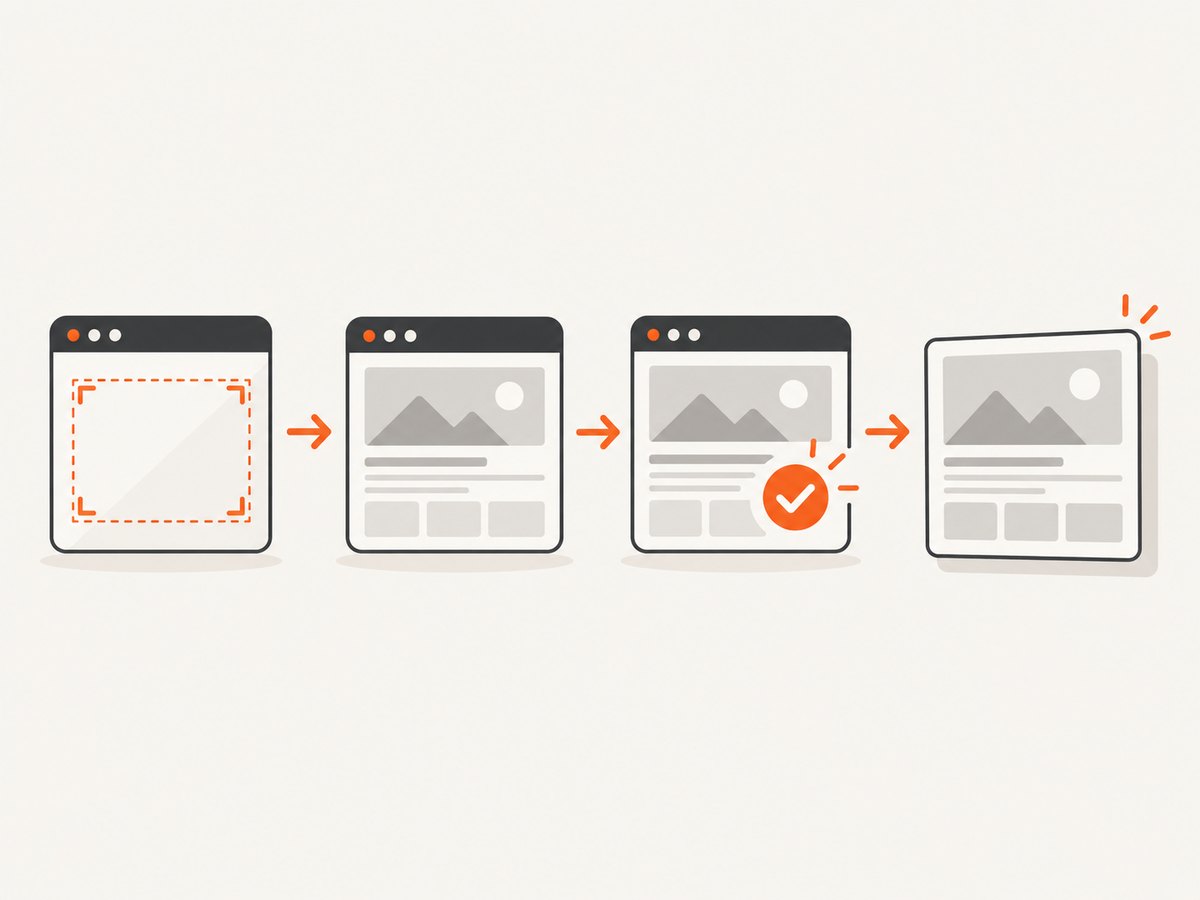
Run this minimal script against a page that does not require authentication. It records the browser versions, sets the viewport before navigation, waits for the document, and writes both a viewport and full-page image.
import puppeteer from 'puppeteer';

const browser = await puppeteer.launch({headless: true});
const page = await browser.newPage();

await page.setViewport({
  width: 1440,
  height: 900,
  deviceScaleFactor: 1,
  isMobile: false,
  hasTouch: false
});

console.log({
  puppeteer: puppeteer.version(),
  browser: await browser.version(),
  viewport: page.viewport()
});

await page.goto('https://example.com', {waitUntil: 'networkidle2'});
await page.screenshot({path: 'viewport.png', type: 'png'});
await page.screenshot({path: 'full-page.png', fullPage: true, type: 'png'});

await browser.close();
networkidle2 is a useful navigation wait, but it is not a universal “page is visually finished” signal. Single-page applications can update after navigation, fonts can swap, and images can decode later. Add a page-specific readiness condition in the next step.
3. Fix the capture region and dimensions
The ScreenshotOptions API documents fullPage, clip, captureBeyondViewport, fromSurface, omitBackground, type, and quality. Set each option intentionally.
Viewport versus full page
// The visible CSS viewport only
await page.screenshot({path: 'viewport.png', fullPage: false});

// The document's complete scrollable content
await page.screenshot({path: 'document.png', fullPage: true});
A full-page image can be much taller than the configured viewport. If the page uses sticky headers, fixed toolbars, or scroll-triggered effects, inspect whether those elements are expected to repeat or change as the document is captured.
Clip a known rectangle
await page.screenshot({
  path: 'chart-region.png',
  clip: {x: 80, y: 140, width: 900, height: 520},
  captureBeyondViewport: true,
  type: 'png'
});
Coordinates and dimensions are CSS pixels. A clip that was measured from a retina image must be converted back to CSS pixels before use. Keep captureBeyondViewport explicit when your rectangle extends outside the visible area.
Capture a component
const card = await page.waitForSelector('[data-testid="invoice-card"]', {
  visible: true
});
if (!card) throw new Error('invoice card was not found');

await card.screenshot({path: 'invoice-card.png', type: 'png'});
Puppeteer scrolls an element into view for an element screenshot. The element API documents an error when the handle has been detached from the DOM [ElementHandle.screenshot()]. Frameworks that re-render a component can detach the original node between lookup and capture. Locate it immediately before the screenshot, and retry by selector if the page replaces it.
4. Make the CSS viewport match the target
Puppeteer viewport width and height are CSS-pixel dimensions. deviceScaleFactor controls the scale of rendered pixels and defaults to 1 [Viewport API]. A 1440 by 900 CSS viewport at scale 2 can produce a 2880 by 1800 pixel image. That is expected; it is not a layout width of 2880 CSS pixels.
await page.setViewport({
  width: 390,
  height: 844,
  deviceScaleFactor: 3,
  isMobile: true,
  hasTouch: true
});
Set the viewport before goto(). The Page API recommends this because many sites choose responsive markup during initial load; changing to a phone-like viewport after loading can leave the page in an unexpected state. Some changes to isMobile or hasTouch can reload the page [Page API]. If you must change emulation after navigation, wait for the reload and repeat your readiness checks.
Check layout from inside the page
const metrics = await page.evaluate(() => ({
  innerWidth: window.innerWidth,
  innerHeight: window.innerHeight,
  dpr: window.devicePixelRatio,
  scrollWidth: document.documentElement.scrollWidth,
  scrollHeight: document.documentElement.scrollHeight
}));
console.log(metrics);
Compare innerWidth with the intended CSS width, and compare the image’s pixel dimensions with CSS dimensions multiplied by the device scale. If only sharpness differs, inspect deviceScaleFactor; if breakpoints differ, inspect width, mobile emulation, and touch settings.
5. Wait for the visual state you need
Navigation completion tells you that a navigation milestone occurred. It does not prove that your chart, images, fonts, or application data are ready. Use a selector or application-specific signal that represents the content in the screenshot.
await page.goto('https://example.com/dashboard', {waitUntil: 'networkidle2'});
await page.waitForSelector('[data-render-state="ready"]', {visible: true});

await page.evaluate(async () => {
  if (document.fonts?.ready) await document.fonts.ready;
  const images = Array.from(document.images);
  await Promise.all(images.map(img => {
    if (img.complete) return Promise.resolve();
    return new Promise(resolve => {
      img.addEventListener('load', resolve, {once: true});
      img.addEventListener('error', resolve, {once: true});
    });
  }));
});

await page.screenshot({path: 'ready.png'});
For animated interfaces, disable motion in a capture-only stylesheet or wait for a stable application state. Puppeteer’s interaction guide describes locator checks for visibility and a stable bounding box across two animation frames [Page interactions]. That is useful evidence that an element has settled, but it does not certify that every page resource is ready.
await page.addStyleTag({content: `
  *, *::before, *::after {
    animation: none !important;
    transition: none !important;
    caret-color: transparent !important;
  }
`});
6. Diagnose element, lazy-load, and scroll problems
Lazy-loaded images may not exist until their containers approach the viewport. A full-page capture can therefore include placeholders if the site only loads content after scroll events. Scroll through the document before capturing, or use a page-specific “all content loaded” signal.
await page.evaluate(async () => {
  await new Promise(resolve => {
    let last = 0;
    const timer = setInterval(() => {
      window.scrollBy(0, window.innerHeight);
      const height = document.documentElement.scrollHeight;
      if (window.scrollY + window.innerHeight >= height || height === last) {
        clearInterval(timer);
        window.scrollTo(0, 0);
        resolve();
      }
      last = height;
    }, 100);
  });
});
await page.screenshot({path: 'lazy-content.png', fullPage: true});
Use a bounded scroll routine like this only when the page’s behavior requires it. Pages with infinite scrolling may never reach a final height; set a maximum number of iterations and capture the intended range.
7. Check CSS, fonts, and browser state
- Verify that the expected stylesheet actually loaded. A blocked CSS request can make a page look unstyled while navigation still succeeds.
- Wait for
document.fonts.readywhen text wrapping or icon glyphs affect the crop. - Use a fixed timezone and locale when date formatting changes layout.
- Use a deterministic authentication state and seed data when the page is personalized.
- Inspect console errors and failed requests while diagnosing a blank or partial render.
page.on('console', msg => console.log('[console]', msg.type(), msg.text()));
page.on('requestfailed', req => console.log('[requestfailed]', req.url(), req.failure()?.errorText));
page.on('pageerror', err => console.log('[pageerror]', err.message));
8. Consider version-specific behavior
Puppeteer’s changelog records screenshot behavior changes, including historical changes involving captureBeyondViewport and viewport handling after full-page screenshots when defaultViewport is null [Puppeteer changelog]. When a screenshot changes after an upgrade, record the installed Puppeteer version, Chrome or Chromium version, launch flags, viewport, and screenshot options. Reproduce with the same versions before changing page CSS. A version regression and a page-layout bug require different fixes.
9. Troubleshooting checklist
| Symptom | Likely cause | Fix |
|---|---|---|
| Mobile layout appears on desktop | Width, isMobile, or touch emulation is wrong |
Set the intended viewport and emulation before navigation; log innerWidth. |
| Image is cropped unexpectedly | Default viewport capture used instead of full page, clip, or element capture | Choose fullPage, clip, or an element handle explicitly. |
| Output is twice or three times the expected pixels | Device scale factor is greater than 1 | Compare CSS dimensions with pixel dimensions; set deviceScaleFactor deliberately. |
| Fonts wrap differently | Fonts have not loaded, or viewport/scale differs | Wait for document.fonts.ready and verify CSS width. |
| Chart or data is missing | Application update happens after navigation | Wait for a selector or app readiness signal, not only networkidle2. |
| Element screenshot throws detached-node error | Framework replaced the element | Find the element again immediately before capture and avoid stale handles. |
| Full page is wrong after an upgrade | Version-specific screenshot behavior | Record both versions and compare the matching changelog entry. |
| Blank page or missing assets | Request failure, blocked resource, or script error | Log requestfailed, console messages, and page errors; fix the failed dependency. |
10. Performance, reliability, and cost considerations
Full-page screenshots require more layout and image work than a viewport crop. Large documents can consume more memory and produce very large files. Prefer an element or clip when the consumer needs only one region. Use JPEG or WebP when a smaller file is acceptable; use PNG when lossless text or transparency matters. Keep waits specific: a selector tied to the required content is usually more predictable than an arbitrary long delay.
For repeatable output, pin Puppeteer and browser versions, set the viewport before navigation, freeze animations, wait for fonts and required images, and save the capture metadata beside the image. Retries should be reserved for transient navigation or resource failures; retrying a deterministic selector or layout error only adds delay.
Or skip the browser setup
ScreenshotNeo provides a website screenshot API when you want a clean capture without maintaining a Puppeteer browser. One GET request returns PNG, JPEG, WebP, or PDF. It accepts full-page capture, element selectors, viewport and device presets, retina scale, waits, custom CSS and JavaScript, headers, cookies, user agents, authentication, timezone, geolocation, blocking rules, resizing, caching, signed links, asynchronous jobs, bulk capture, and PDF options. See the ScreenshotNeo documentation for parameter details.
curl -G "https://api.screenshotneo.com/v1/shot" -d access_key=YOUR_API_KEY --data-urlencode url=https://stripe.com -o shot.webpimport requests
r = requests.get("https://api.screenshotneo.com/v1/shot", params={"access_key": "YOUR_API_KEY", "url": "https://stripe.com"}, timeout=90)
open("shot.webp", "wb").write(r.content)const q = new URLSearchParams({ access_key: 'YOUR_API_KEY', url: 'https://stripe.com' });
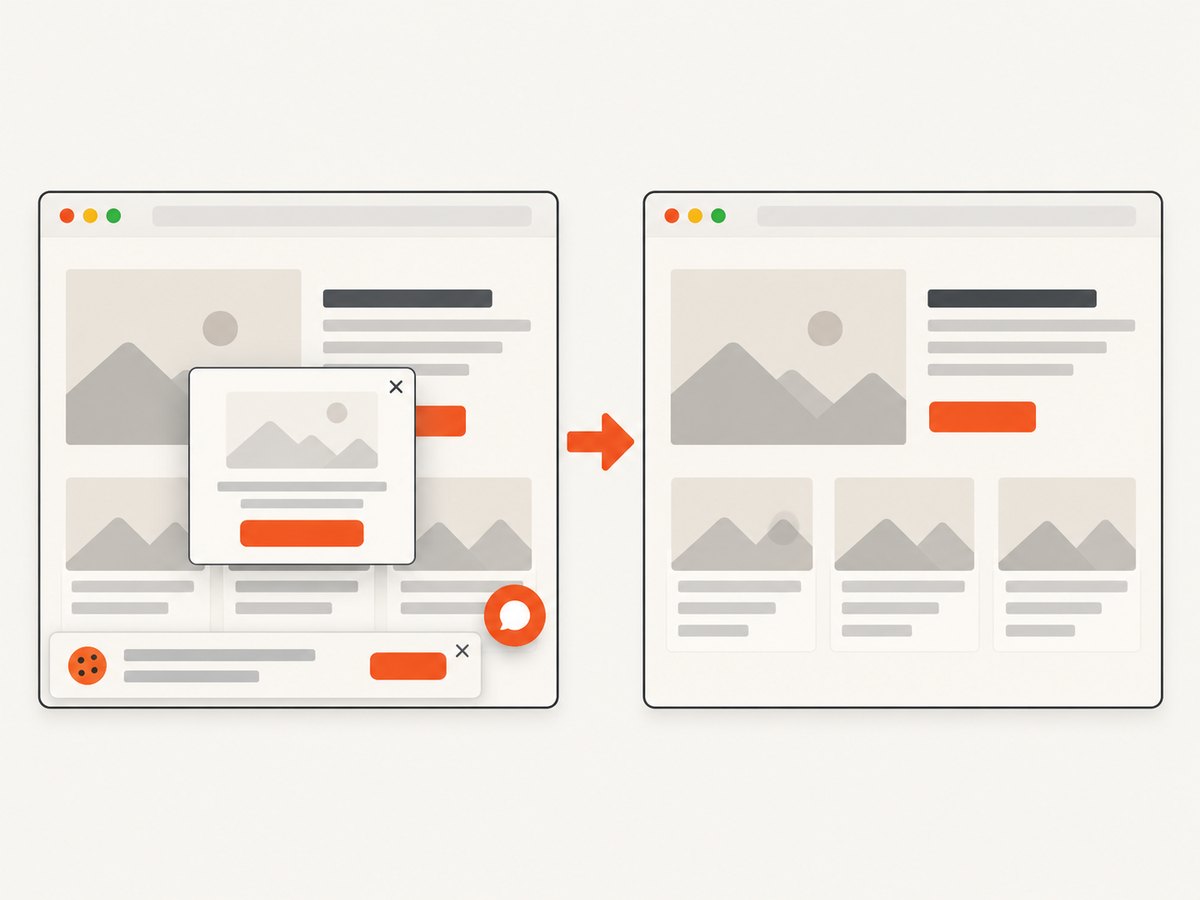
const res = await fetch(`https://api.screenshotneo.com/v1/shot?${q}`);Before capture, ScreenshotNeo accepts cookie and consent banners and removes more than 60 known consent platforms, newsletter popups, and chat widgets; each step can be turned off. Bot checks and CAPTCHAs, blank pages, timeouts, failed loads, and cache hits cost nothing. Response headers identify the page verdict and whether the shot was billed. Its MCP server exposes take_screenshot, get_page_info, and capture_pdf for Claude, Cursor, and other MCP clients. The Free plan includes 1,000 shots per month with no card; paid plans start at $5 for 3,000 shots. Create a free ScreenshotNeo account.
FAQ
Why does networkidle2 still produce an incomplete screenshot?
It is a navigation milestone, not a guarantee that application data, fonts, images, or animations have settled. Wait for a selector or application-specific readiness signal.
Should I use fullPage or an element screenshot?
Use fullPage for the complete document and an element screenshot for one component. Element capture avoids unrelated page content and is often cheaper to process.
Why are my screenshot pixels larger than the viewport?
A device scale factor above 1 multiplies rendered pixels while CSS layout dimensions stay the same. Check window.devicePixelRatio and page.viewport().
What should I record for a reproducible bug report?
Save the URL or a reproducible fixture, expected and actual dimensions, viewport and emulation settings, screenshot options, Puppeteer version, browser version, and console or request errors.
Can I capture a page without running Chromium myself?
Yes. ScreenshotNeo provides an HTTP API, PDF capture, bulk jobs, signed links, and an MCP server for AI agents. Its free tier provides 1,000 screenshots monthly without a card.


