How to Select a Puppeteer Dropdown Option by Text
Select native and custom Puppeteer dropdowns by visible text, handle async updates, and avoid common value, timing, and locator errors.
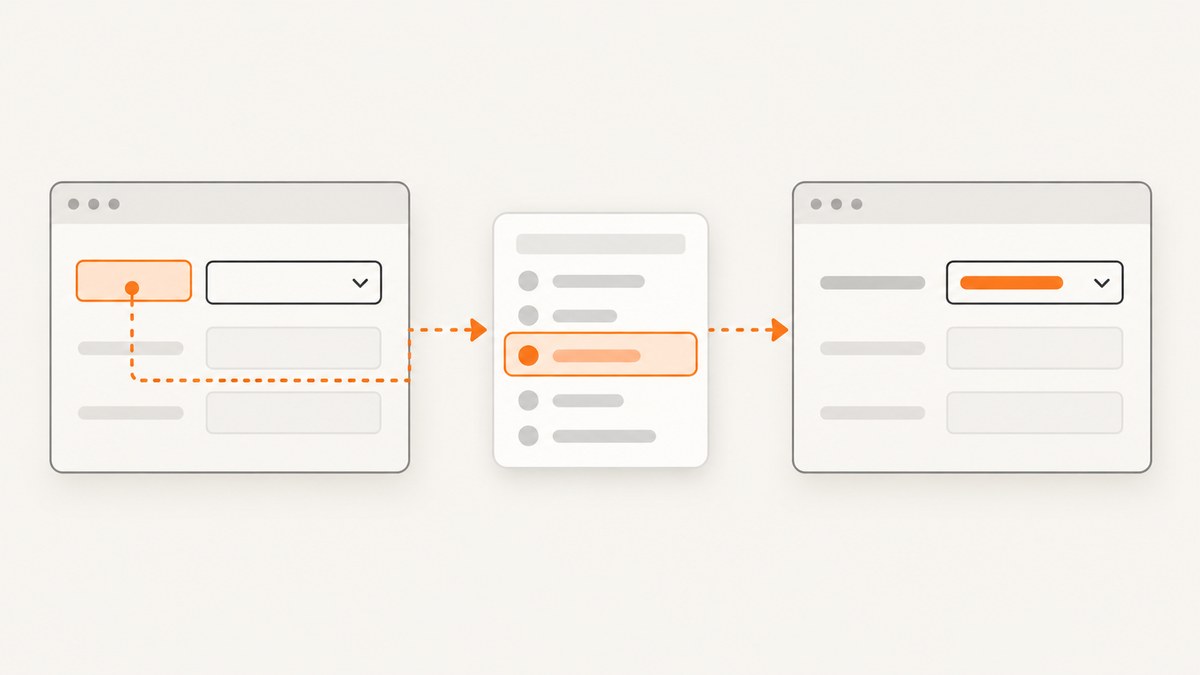
For a native HTML <select>, find the <option> whose visible text matches your label, read that option’s value, and pass the value to Puppeteer’s page.select(). Puppeteer selects by option value, not by the label shown to a user.
const value = await page.$eval(
  'select#country',
  (select, label) =>
    [...select.options].find(
      option => option.textContent.trim() === label
    )?.value,
  'Canada',
);

if (value === undefined) {
  throw new Error('Option not found');
}

await page.select('select#country', value);
page.select() dispatches input and change events and returns the values it selected. If the control is a custom widget built from buttons, list items, or divs, do not use page.select(); interact with the widget’s trigger and option elements instead.
1. Understand what Puppeteer selects
Puppeteer’s Page.select() API accepts a CSS selector for a native <select> and one or more option values. For a single-select, only the first supplied value is used. For a multiple select, all supplied values can be selected. The method throws when the selector does not identify a <select> element.
The visible label and submitted value are separate properties:
<select id="country" name="country">
  <option value="us">United States</option>
  <option value="ca">Canada</option>
  <option value="mx">Mexico</option>
</select>
Here, a person sees “Canada,” while the form submits ca. Calling page.select('#country', 'Canada') looks for a value of Canada and normally selects nothing. Map the displayed text to ca first.
2. Complete runnable example
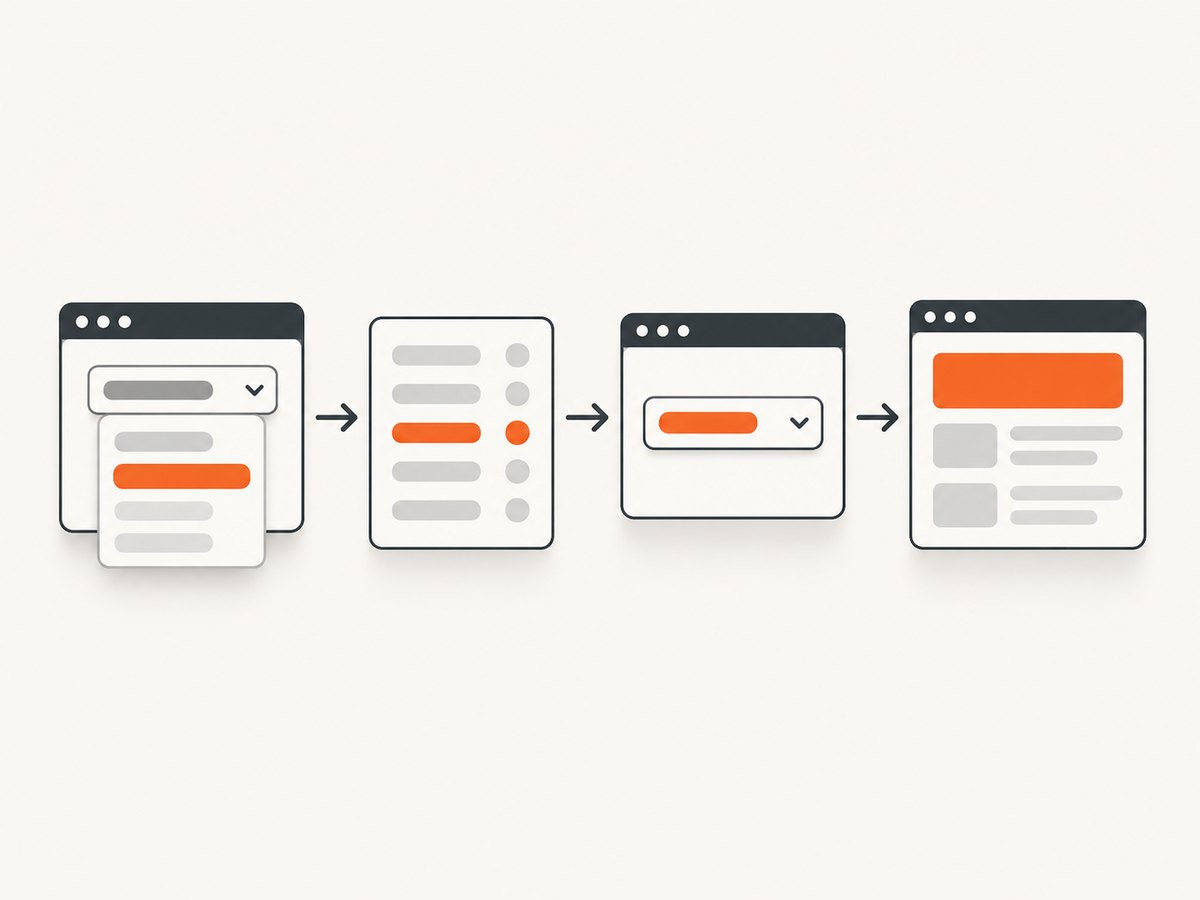
The following script opens a page, finds an option by its trimmed text, selects its value, waits for an application response, and verifies the result. Replace the URL and selector with those from your page.
import puppeteer from 'puppeteer';

const browser = await puppeteer.launch({headless: true});
const page = await browser.newPage();

try {
  await page.goto('https://example.com/form', {
    waitUntil: 'domcontentloaded',
  });

  const selectSelector = 'select#country';
  const wantedLabel = 'Canada';

  await page.waitForSelector(selectSelector);

  const optionValue = await page.$eval(
    selectSelector,
    (select, label) => {
      const match = [...select.options].find(
        option => option.textContent.trim() === label,
      );
      return match?.value;
    },
    wantedLabel,
  );

  if (optionValue === undefined) {
    throw new Error(`No option labeled "${wantedLabel}" was found`);
  }

  const selectedValues = await page.select(
    selectSelector,
    optionValue,
  );

  if (!selectedValues.includes(optionValue)) {
    throw new Error(
      `Puppeteer did not select expected value "${optionValue}"`,
    );
  }

  // Use a condition that represents your application's response.
  await page.waitForFunction(
    (selector, expected) => {
      const element = document.querySelector(selector);
      return element?.value === expected;
    },
    {},
    selectSelector,
    optionValue,
  );

  console.log({label: wantedLabel, value: optionValue});
} finally {
  await browser.close();
}
The function passed to $eval() runs in the page context. It receives the matched element and the extra argument containing the desired label. Puppeteer’s Page.evaluate() documentation describes the same page-context execution model.
Whitespace, case, and duplicate labels
Use trim() when indentation or formatting whitespace is present in the markup. Exact matching is usually safest because it avoids selecting “Canada (French)” when you asked for “Canada.” If labels can differ in capitalization, normalize both sides deliberately:
const optionValue = await page.$eval(
  'select#country',
  (select, label) => {
    const wanted = label.trim().toLocaleLowerCase();
    const matches = [...select.options].filter(
      option => option.textContent.trim().toLocaleLowerCase() === wanted,
    );

    if (matches.length !== 1) {
      throw new Error(`Expected one match, found ${matches.length}`);
    }

    return matches[0].value;
  },
  'canada',
);
Duplicate labels need an explicit policy. Filter by a known value prefix, a data-* attribute, optgroup, or another business rule. Do not silently use the first duplicate unless that is the intended behavior.
3. Wait for the dropdown before reading options
Reading options before the page has populated them is a common cause of “option not found.” A static form can use page.waitForSelector(). A dependent dropdown may require waiting until a particular option appears.
await page.waitForFunction(() => {
  const select = document.querySelector('select#city');
  return select && [...select.options].some(
    option => option.textContent.trim() === 'Toronto',
  );
});

const value = await page.$eval(
  'select#city',
  (select) => [...select.options]
    .find(option => option.textContent.trim() === 'Toronto')?.value,
);

if (value === undefined) throw new Error('Toronto is unavailable');
await page.select('select#city', value);
If selecting one control triggers an API request that fills another, wait for a response, a loading indicator to disappear, or the expected option count. The correct condition is application-specific; a fixed sleep is less reliable because network and server time vary.
4. Multiple-select controls
For <select multiple>, resolve every requested label to a value and pass all values in one call.
const labels = ['Red', 'Blue'];
const values = await page.$eval(
  'select#colors',
  (select, wantedLabels) => wantedLabels.map(label => {
    const option = [...select.options].find(
      candidate => candidate.textContent.trim() === label,
    );
    if (!option) throw new Error(`Missing option: ${label}`);
    return option.value;
  }),
  labels,
);

const selected = await page.select('select#colors', ...values);
console.log(selected);
Confirm that the element actually has the multiple attribute. On a normal single-select, supplying several values does not create a multi-selection.
5. Custom dropdowns are different
Many design systems do not render a native <select>. They use a button for the trigger and a list of options that appears after a click. page.select() cannot operate on those elements.
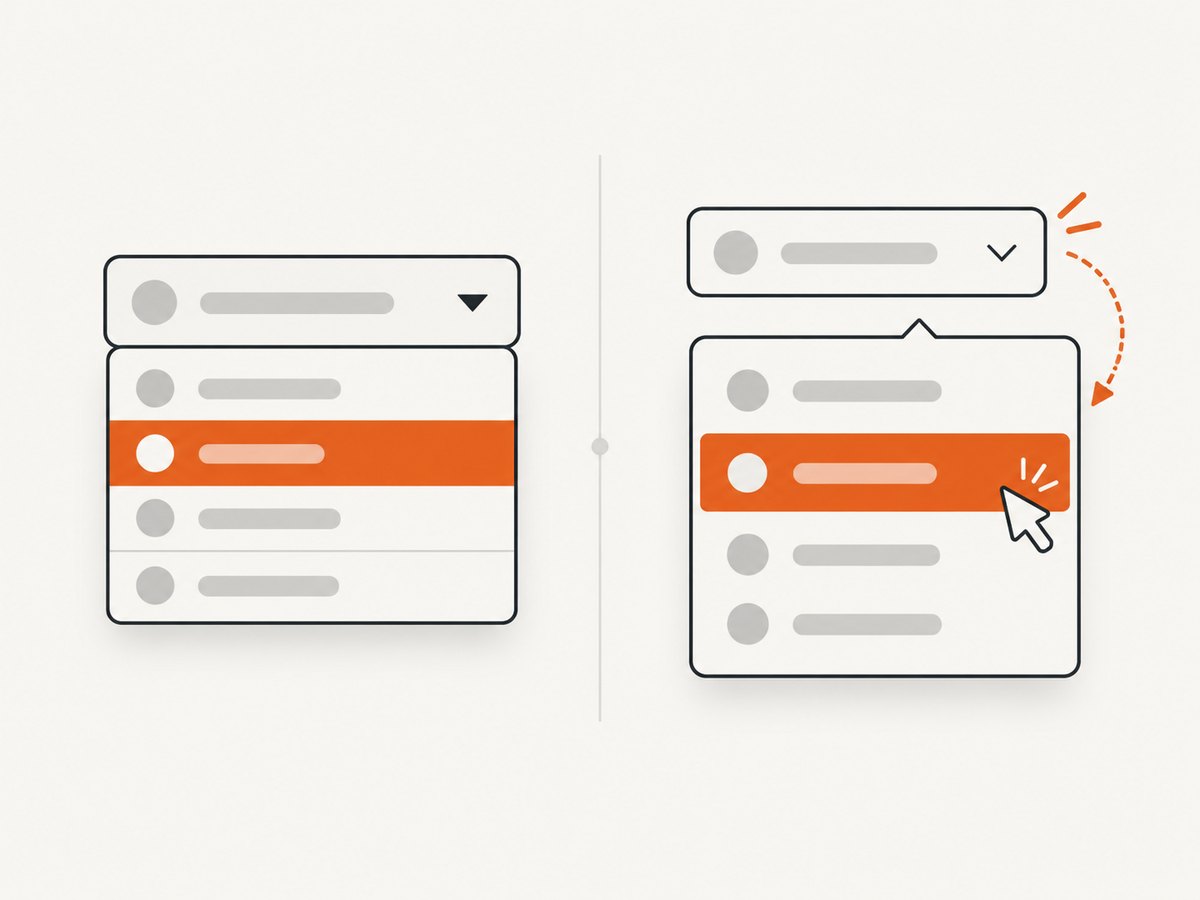
Puppeteer’s page interactions guide recommends locators for selecting and interacting with elements. Use the widget’s accessibility role or stable attributes, then click the option whose text matches.
const dropdown = page.getByRole('button', {name: 'Country'});
await dropdown.click();

const option = page
  .getByRole('option')
  .filter({hasText: 'Canada'});

await option.click();
The exact locator depends on the markup. Some widgets expose role="listbox" and role="option"; others use menu items or plain elements with a data attribute. Inspect the DOM and accessibility tree, and prefer a selector that reflects the component’s stable semantics.
When text locators are not enough
If several visible options contain the same text, scope the locator to the open listbox or add an identifying attribute. If the option is virtualized, scroll the list or use the component’s search field so the desired item is rendered before clicking it. If an overlay closes immediately, make sure the click occurs after the trigger has opened and that no covering element intercepts the action.
6. Events and application state
page.select() triggers input and change once the requested options have been selected. Front-end code may react synchronously, start a fetch, enable another field, or navigate. Selecting the value successfully does not mean the subsequent workflow has finished.
Choose a wait that represents the state you need:
- Wait for an enabled submit button when selection controls form validity.
- Wait for a specific result element when the selection updates a view.
- Wait for a matching network response when the selection loads data.
- Wait for navigation when the change submits or routes the page.
const responsePromise = page.waitForResponse(
  response => response.url().includes('/api/cities')
    && response.request().method() === 'GET',
);

await page.select('#country', 'ca');
await responsePromise;
await page.waitForSelector('#city option[value="toronto"]');
7. Troubleshooting checklist
| Symptom | Likely cause | Fix |
|---|---|---|
page.select() throws that the element is not a select |
The control is a custom widget or the selector matched another element. | Inspect the markup. Use a native <select> selector or interact with the custom trigger and option using locators. |
| No option is selected | You passed visible text, but Puppeteer expects a value. | Read the matching option’s value, then pass that value. |
| “Option not found” | Options load later, whitespace differs, or the label is not exact. | Wait for the option, trim text, and log the available labels before changing matching rules. |
| The script selects an old list | A dependent dropdown was read before its request completed. | Wait for the response, loading state, or expected option to appear. |
| The UI does not react | The script checked the value but not the event-driven result. | Wait for the state change triggered by input/change, such as a result element or enabled button. |
| Two options have the same label | Text alone is ambiguous. | Require one match or add a value, group, or data attribute constraint. |
| Locator click is intercepted | A menu is closed, an overlay covers the option, or the item is not rendered. | Open the widget, wait for visibility, scroll or search for virtualized items, and use the component’s stable semantics. |
For diagnosis, log the selector, requested label, all available labels and the resolved value. A short DOM snapshot around the control often reveals a hidden whitespace character, disabled option, or custom implementation.
8. Reliability and performance
Use stable selectors
Prefer an ID, name, accessible role, or dedicated data attribute over a generated class name. Keep label-to-value resolution in one helper so every test handles missing and duplicate labels consistently.
Minimize page-context work
Resolve the option in one $eval() call instead of fetching every option separately. Pass plain data into the callback; browser-context functions cannot access Node.js variables unless those values are supplied as arguments.
Make retries safe
Retries help with transient navigation and network failures, but repeating a selection can have side effects if the change submits a form. Check the current state before retrying and wait for the expected result after each attempt. Capture a screenshot or HTML snapshot on failure so CI diagnostics show which options were present.
Control timeouts deliberately
Use a short selector timeout for a missing control and a longer, targeted timeout for a known slow API response. Avoid a very large global timeout that hides selector regressions. Close the browser in a finally block so failed runs do not leak Chromium processes.
9. Or skip the browser setup
If your goal is to capture the resulting page rather than automate a local browser session, ScreenshotNeo provides a website screenshot API. It accepts one GET request and returns PNG, JPEG, WebP, or PDF. See the ScreenshotNeo API documentation for the full parameter set.
cURL
curl -G "https://api.screenshotneo.com/v1/shot" \
  -d access_key=YOUR_API_KEY \
  --data-urlencode url=https://stripe.com \
  -o shot.webp
Python
import requests

r = requests.get(
    "https://api.screenshotneo.com/v1/shot",
    params={
        "access_key": "YOUR_API_KEY",
        "url": "https://stripe.com",
    },
    timeout=90,
)
r.raise_for_status()
open("shot.webp", "wb").write(r.content)
Node.js
const q = new URLSearchParams({
  access_key: 'YOUR_API_KEY',
  url: 'https://stripe.com',
});

const res = await fetch(
  `https://api.screenshotneo.com/v1/shot?${q}`,
);

if (!res.ok) throw new Error(`HTTP ${res.status}`);
await Bun.write('shot.webp', res);
ScreenshotNeo can load lazy images, capture a CSS-selected element or a full page, apply dark mode, use device presets or a custom viewport, execute custom CSS and JavaScript, click an element, wait for a selector, delay, or network idle, and block ads, trackers, requests, or resource types. It also supports custom headers, cookies, user agents, Authorization, timezone, geolocation, transparent backgrounds, resizing, cache TTLs, signed image links, asynchronous jobs with signed webhooks, bulk capture for up to 100 URLs per call, a usage API, and an OpenAPI specification.
Cookie and consent banners, newsletter popups, and chat widgets from more than 60 known platforms are removed before capture; each cleanup step can be turned off. Bot checks, CAPTCHAs, blank pages, timeouts, failed loads, and cache hits are not billed, and the response identifies the result with X-Page-Verdict and X-Billed headers. ScreenshotNeo also provides an MCP server with take_screenshot, get_page_info, and capture_pdf for Claude, Cursor, and other MCP clients.
The Free plan includes 1,000 shots per month with no card. Paid plans start at $5 for 3,000 shots; yearly billing gives two months free, and every feature is available on every plan. Create a free ScreenshotNeo account.
10. FAQ
Can I pass the option’s label directly to page.select()?
Only when the label and value are identical. In general, find the option by its displayed text and pass its value.
Does page.select() work with React or Vue selects?
It works when the component renders a native <select>. If it renders a custom listbox, use locators to open the widget and click its option.
How do I select an option by partial text?
Use a deliberate predicate such as includes(), then reject zero or multiple matches. Exact matching is safer when labels can overlap.
Why does the selected value revert?
An application handler may reload options or overwrite state after the change event. Wait for that update and assert the final value after the dependent work completes.
How can I verify the selection?
Check the returned values from page.select(), read the element’s current value, and assert the user-visible result that your application is supposed to produce.


