How to Change Page Orientation for Selected Puppeteer PDF Pages
Puppeteer’s PDF orientation setting applies to the whole document. Use CSS named pages for content-driven mixed orientation, or render and merge PDFs for exact page numbers.
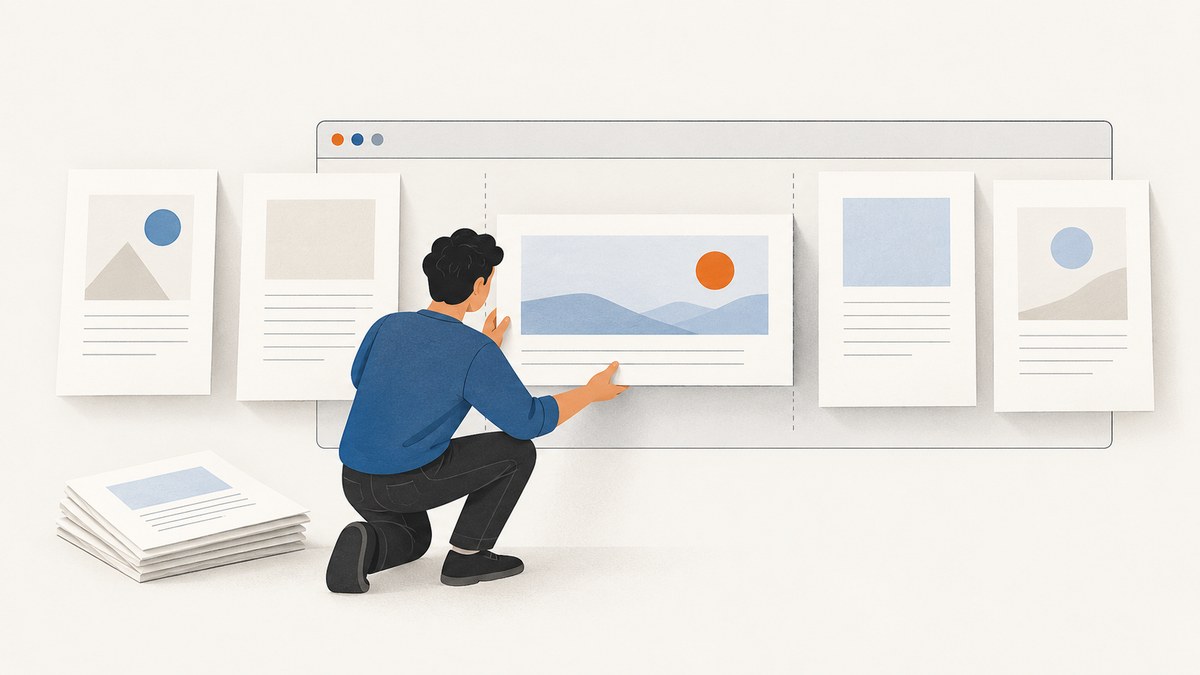
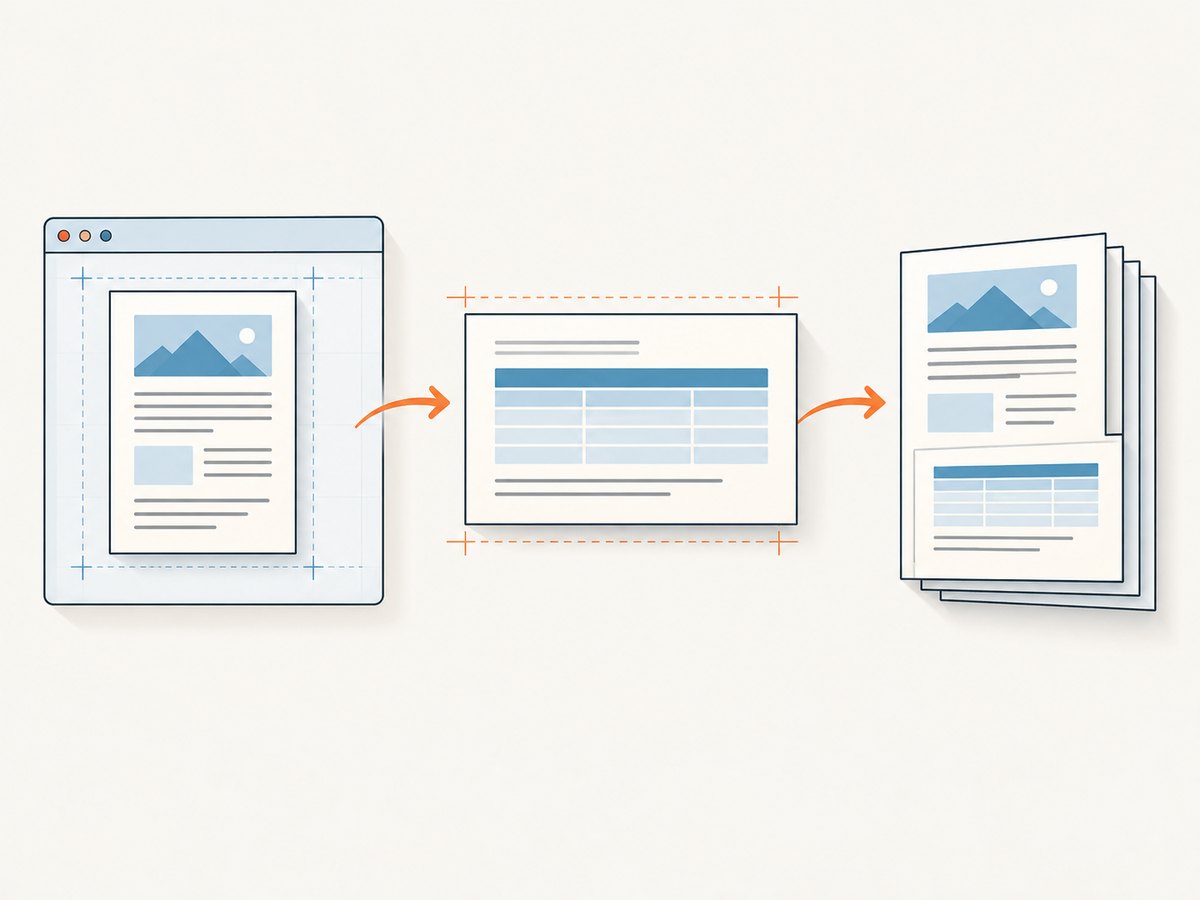
Short answer: Puppeteer’s page.pdf({ landscape: true }) sets orientation for the entire generated PDF. It does not accept page numbers for orientation. For a wide section whose content is known before pagination, use CSS named pages and force page breaks around it, then call page.pdf({ preferCSSPageSize: true }). For exact final page numbers, or when your deployed Chromium does not reliably honor the CSS rules, render portrait and landscape sections separately and merge their PDFs in order.
This distinction matters: a wide table or appendix is content you can identify before the browser lays out the document. “Make pages 3 and 7 landscape” refers to final output page numbers, which can shift when text, fonts, margins, or paper size changes. Puppeteer’s pageRanges can select pages to include; it does not assign an orientation to each page.
1. Choose the approach that fits your document
| Requirement | Approach | What to validate |
|---|---|---|
| A known section, such as a wide table, needs more width | CSS named page style with explicit page breaks | The deployed Chrome/Chromium build applies the named page and page size as expected |
| Specific final output pages must be landscape | Render sections separately and merge pages in order | Final order, dimensions, margins, headers, and footers |
| Every page should be landscape | page.pdf({ landscape: true }) |
Paper size and content fit |
| Only a subset of pages should be included | pageRanges |
That the selected pages are the intended output; this option does not change orientation |
CSS paged-media rules are the natural starting point for content-driven layout because Puppeteer generates PDFs using print CSS. Named pages can associate a page box with a section, but browser support must be verified with the exact renderer deployed in production. The W3C paged-media material also describes page selectors such as :nth(); a draft specification is not evidence that a given Chromium build supports them.
2. Content-driven orientation with CSS named pages
Put the wide content in its own block, assign that block a named page, and make it start and end on page boundaries. Leave ordinary content on the default portrait page. Here is a minimal HTML document you can save as mixed-orientation.html and load in Puppeteer:
<!doctype html>
<html>
<head>
  <meta charset="utf-8">
  <style>
    @page {
      size: A4 portrait;
      margin: 15mm;
    }

    @page wide {
      size: A4 landscape;
      margin: 12mm;
    }

    body {
      font: 12pt Arial, sans-serif;
    }

    .wide-section {
      page: wide;
      break-before: page;
      break-after: page;
    }

    table {
      width: 100%;
      border-collapse: collapse;
    }

    th, td {
      border: 1px solid #555;
      padding: 6px;
      text-align: left;
    }
  </style>
</head>
<body>
  <h1>Quarterly report</h1>
  <p>This introduction should be laid out in portrait.</p>

  <section class="wide-section">
    <h2>Detailed results</h2>
    <table>
      <thead><tr><th>Region</th><th>Q1</th><th>Q2</th><th>Q3</th><th>Q4</th></tr></thead>
      <tbody>
        <tr><td>North</td><td>120</td><td>145</td><td>139</td><td>160</td></tr>
        <tr><td>South</td><td>98</td><td>111</td><td>128</td><td>133</td></tr>
      </tbody>
    </table>
  </section>

  <h2>Conclusion</h2>
  <p>This following content returns to the default page style.</p>
</body>
</html>
Use Puppeteer to print it. Install Puppeteer in your project with your normal package manager, then run this script as an ES module, for example node render.mjs:
import puppeteer from 'puppeteer';

const browser = await puppeteer.launch({ headless: true });
try {
  const page = await browser.newPage();
  await page.goto('file://' + process.cwd() + '/mixed-orientation.html', {
    waitUntil: 'networkidle0',
  });

  await page.pdf({
    path: 'mixed-orientation.pdf',
    format: 'A4',
    preferCSSPageSize: true,
    printBackground: true,
  });
} finally {
  await browser.close();
}
preferCSSPageSize: true lets the CSS @page size take precedence over PDF paper-size options such as format, width, and height. Its documented default is false, which scales content to fit the paper size. It does not turn on page selection or guarantee support for every paged-media feature.
Why breaks and section boundaries matter
A named page associates the section’s content with a different page box. Explicit breaks are useful when the wide content should occupy its own page or pages and subsequent content should return to portrait. If the section is long enough to span multiple pages, inspect all of them: layout and page-style behavior should be confirmed in the PDF produced by the production browser build.
For an element that should begin a new page, break-before: page is the current CSS property. For older stylesheets you may encounter page-break-before: always; prefer the modern break property in new code. Avoid assuming a page boundary will fall exactly where intended if preceding content can grow or shrink.
3. Full Puppeteer PDF options that affect this problem
| Option | Effect | Does it set orientation per page? |
|---|---|---|
landscape |
Boolean: prints in landscape when true | No. It applies to the generated document |
pageRanges |
Limits output to ranges such as 1-5, 8, 11-13 |
No. It controls inclusion only |
preferCSSPageSize |
Gives CSS @page size precedence over PDF paper-size settings |
No. It does not activate a page selector |
format, width, height |
Sets the PDF paper size | No. These are PDF generation size options |
printBackground |
Includes printed background graphics | No. It affects rendering appearance |
For example, this prints the whole PDF landscape, and this prints only selected pages from the generated document, respectively:
await page.pdf({ path: 'all-landscape.pdf', format: 'A4', landscape: true });

await page.pdf({ path: 'extract.pdf', format: 'A4', pageRanges: '1-3, 7' });
Combining pageRanges with landscape: true still makes the selected output pages landscape together; it does not allow page 1 to be portrait and page 2 to be landscape in one call. Puppeteer’s PDF method uses print media. If you deliberately need screen styles instead, emulate screen media before calling page.pdf(), but ensure the screen stylesheet is designed for print-to-PDF output.
4. Exact output page numbers: render and merge
If a downstream contract says “PDF pages 3 and 7 must be landscape,” separate rendering is the dependable fallback when per-page CSS behavior is not reliable or cannot be validated. Divide the document into portrait and landscape sections, render each section with its appropriate page settings, and merge the page objects in the required order using a PDF-processing library suitable for your runtime.
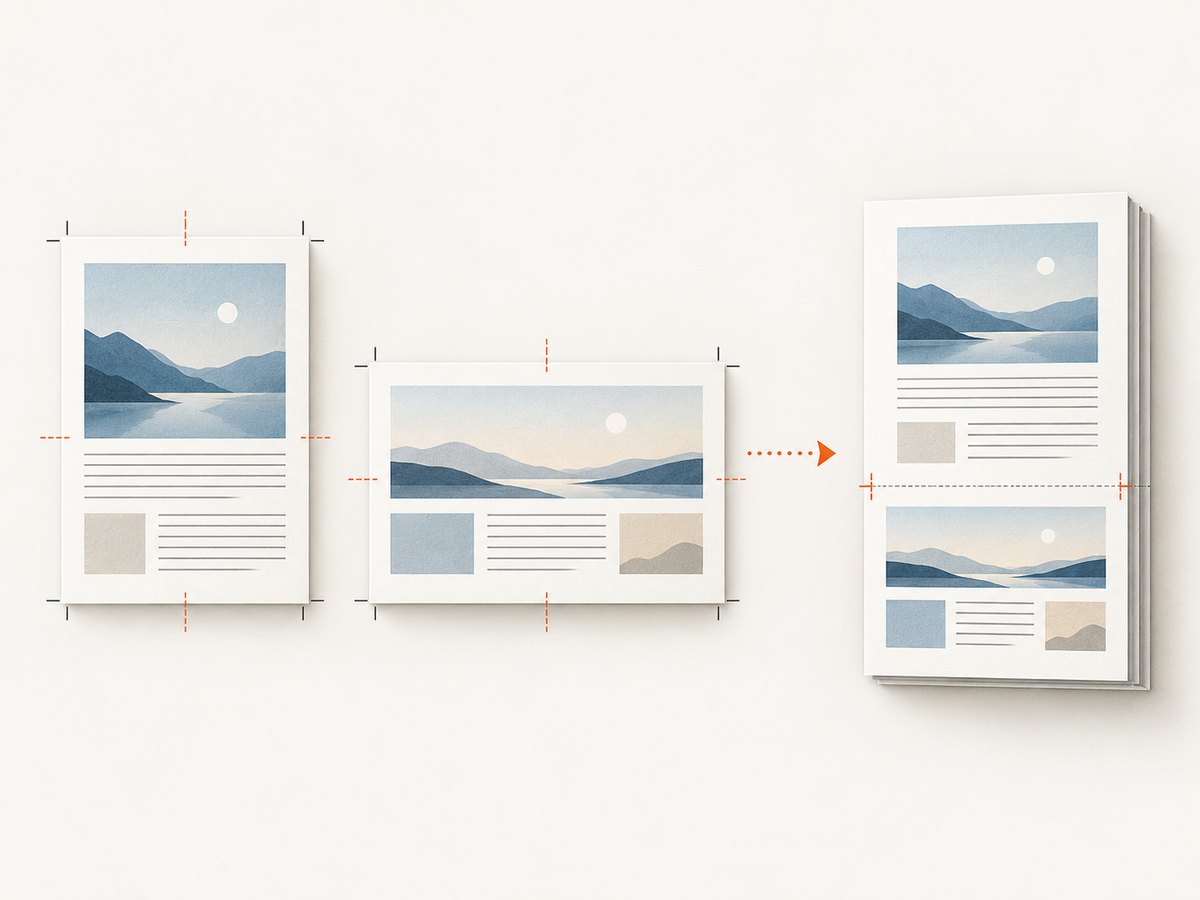
- Determine the required final page sequence and which content belongs on each page.
- Render portrait sections using portrait paper settings and landscape sections using landscape settings.
- Merge the generated pages in the required sequence.
- Inspect the final combined PDF for order, page dimensions, orientation, margins, headers, and footers.
This adds a processing step and requires care with shared document details. Headers, page numbers, and cross-references may need to be generated after the merge or designed to account for section boundaries. Do not assume page numbering from an individual section PDF will match the combined document. The research sources establish Puppeteer’s document-level orientation option and CSS sizing behavior; the merge workflow is an implementation recommendation, and no particular merger library is required by that guidance.
5. Validate the actual browser output
- Record the runtime versions. Puppeteer’s API and bundled or configured Chrome/Chromium version can change. Confirm the package and browser versions in your deployment environment.
- Print a representative fixture. Include portrait text, a wide table, content immediately before and after the wide section, and enough content to make the section span a page if that can happen in production.
- Check page dimensions. Inspect the PDF’s page boxes or open the output in a PDF viewer. Verify that the wide section has landscape dimensions and surrounding content has portrait dimensions.
- Check pagination changes. Repeat with realistic longer text, loaded fonts, and data variation. A named page follows content; it does not mean “whichever page number this content happens to occupy.”
- Keep a regression fixture. When upgrading Puppeteer or changing Chrome versions, render the fixture and compare page count and page dimensions.
These checks are important because W3C CSS Paged Media describes the model and draft features, but it is not a browser compatibility table. A selector such as @page :nth(3) should not be treated as universally supported. Test the exact browser build before depending on page-number selectors.
6. Common errors and fixes
| Symptom | Likely cause | Fix |
|---|---|---|
| Every page is landscape | landscape: true is set in page.pdf() |
Remove the document-wide option and use CSS named pages or render sections separately |
| CSS page size seems ignored | preferCSSPageSize is false, or the renderer does not apply the expected rule |
Set it to true and verify the deployed Chromium output |
| Only some content is clipped or scaled oddly | The paper size is controlled by PDF options or the content exceeds the available page box | Check CSS margins and dimensions, use the intended page size, and inspect the rendered result |
pageRanges produces the right pages but wrong orientation |
Page ranges select output pages; they do not assign orientation | Use content-driven CSS sizing or create and merge separately rendered sections |
| Named page styling works locally but not in production | The local and deployed Chromium builds differ, or the feature is unsupported in the deployed build | Test with the production Puppeteer/browser combination; use separate PDFs and merge if reliable mixed dimensions are required |
| Page numbers shift after a content change | Pagination changed because text, fonts, margins, or paper size changed | Identify sections by content for named pages; if exact final page numbers are mandatory, control pagination and validate the merged artifact |
| CSS screen layout appears absent in the PDF | page.pdf() uses print media by default |
Add print styles or explicitly emulate screen media before PDF generation when that is intended |
7. Performance, reliability, and cost considerations
CSS named pages keep the workflow to one browser render and avoid a PDF merge stage, so they are a compact choice when the content section is identifiable and the target Chromium behavior has been verified. Separate rendering adds work: more PDF generation, a merge operation, and an additional artifact to validate. Its benefit is that orientation is chosen while rendering each section, which is easier to reason about when output page dimensions must be dependable.
Pagination is sensitive to content. A font not yet loaded, a changed table width, different text length, or a margin adjustment can move a section to a different page. Avoid treating output page numbers as stable identifiers unless your document layout is tightly controlled. For reliability, pin the Puppeteer/browser environment used for production and validate actual PDF page dimensions after upgrades.
Cost depends on your deployment: browser runtime, execution time, storage, and any PDF processing infrastructure you choose. No universal benchmark or price follows from the Puppeteer API behavior. Measure representative documents in your own environment if resource cost matters, and account for merge processing when using the fallback.
8. When to use a screenshot API instead
This task is about mixed page sizes in a multi-page PDF, so Puppeteer remains the right tool when you need exact document composition and page-by-page control. A screenshot API is useful when your actual need is a rendered capture of a web page or a PDF capture with configured paper size and margins, rather than custom mixed orientation by final page number. ScreenshotNeo is a website screenshot API and MCP server by Yorker Media; its one-request API can return PNG, JPEG, WebP, or PDF. See the ScreenshotNeo site and its API documentation for supported parameters.
Or skip the browser setup
For a straightforward page capture, a single request can return a file without you launching and managing Puppeteer. This does not replace the mixed-orientation document workflow above; it is an option when a website capture is what you need.
curl -G "https://api.screenshotneo.com/v1/shot" -d access_key=YOUR_API_KEY --data-urlencode url=https://stripe.com -o shot.webpimport requests
r = requests.get(
"https://api.screenshotneo.com/v1/shot",
params={"access_key": "YOUR_API_KEY", "url": "https://stripe.com"},
timeout=90,
)
open("shot.webp", "wb").write(r.content)const q = new URLSearchParams({ access_key: 'YOUR_API_KEY', url: 'https://stripe.com' });
const res = await fetch(`https://api.screenshotneo.com/v1/shot?${q}`);
if (!res.ok) throw new Error(`Screenshot request failed: ${res.status}`);
await Bun.write('shot.webp', res);ScreenshotNeo removes cookie banners, newsletter popups, and chat widgets before the shot. Bot checks, blank pages, and failed loads are never billed, and response headers say the page verdict and billing outcome. Its MCP server lets AI agents use take_screenshot, get_page_info, and capture_pdf. The free plan includes 1,000 screenshots a month with no card; paid plans start at $5 for 3,000. Sign up for 1,000 free screenshots a month, no card required.
FAQ
Can Puppeteer orient only PDF pages 3 and 7 with one option?
No. The documented landscape option controls the generated document. pageRanges only chooses which pages appear in the output.
Will a named page always produce a landscape page in Puppeteer?
Do not assume so across all versions. It is a standards-based CSS approach, but support must be confirmed with the exact Chromium build running in your deployment.
Should I use @page :nth(3)?
Only after verifying support in your target renderer. The selector appears in W3C draft material; that does not establish universal implementation support.
Does preferCSSPageSize mean “orient selected pages”?
No. It makes CSS @page size take precedence over PDF paper-size settings. It does not choose pages or provide an orientation map.
What should I choose for a wide table?
If the table is a distinct section, start with a named page style and forced breaks. If the output must meet strict page-number or mixed-dimension requirements, render and merge sections, then validate the final file.


