How to Use PUPPETEER_SKIP_DOWNLOAD Correctly
Learn what PUPPETEER_SKIP_DOWNLOAD does, when to use it, how to configure system Chrome, and how to fix missing-browser errors in CI and Docker.
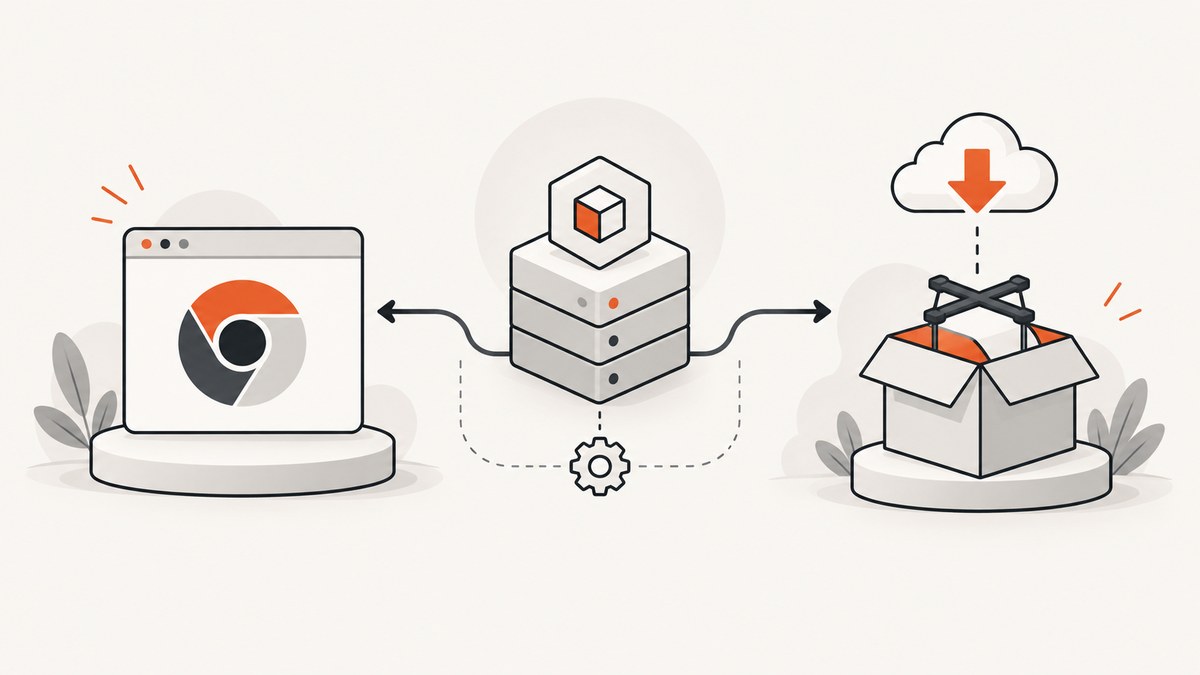
Direct answer: Set PUPPETEER_SKIP_DOWNLOAD=true before installing Puppeteer only when your machine, container, or build image already contains a compatible Chrome or Chromium executable. The variable prevents Puppeteer’s installation-time browser download; it does not install a browser for you. When downloads are skipped, launch Puppeteer with an explicit executable path or channel. If you want Puppeteer to manage Chrome, leave the variable unset and run npx puppeteer browsers install when needed.
The setting is an installation configuration, not a runtime launch option. Changing it after npm install does nothing until you rerun the relevant install or browser-install step. This guide covers local development, Docker, CI, puppeteer-core, cache handling, diagnostics, and alternatives for teams that only need reliable screenshots.
What PUPPETEER_SKIP_DOWNLOAD controls
The skipDownload configuration tells Puppeteer not to download a browser during installation. The environment variable PUPPETEER_SKIP_DOWNLOAD overrides configuration-file values, and browser-specific environment variables can override the general setting for Chrome or Firefox. Environment variables take precedence over configuration files.
Puppeteer and the browser are separate pieces:
| Piece | Responsibility | Typical owner |
|---|---|---|
| Puppeteer package | Node.js API that controls a browser | npm, pnpm, or Yarn |
| Chrome/Chromium executable | Renders pages and runs JavaScript | Puppeteer, your OS image, or your platform |
| OS dependencies | Libraries, fonts, sandbox support, and shared objects | Your image or host administrator |
Skipping the download only changes who supplies the executable. It does not remove the need for a compatible browser or its operating-system dependencies. See the official configuration API and configuration guide for the documented precedence rules.
Choose the right installation pattern
Pattern A: Use Puppeteer’s managed browser
This is the simplest option when the build environment can access the internet and has enough disk space for the browser cache:
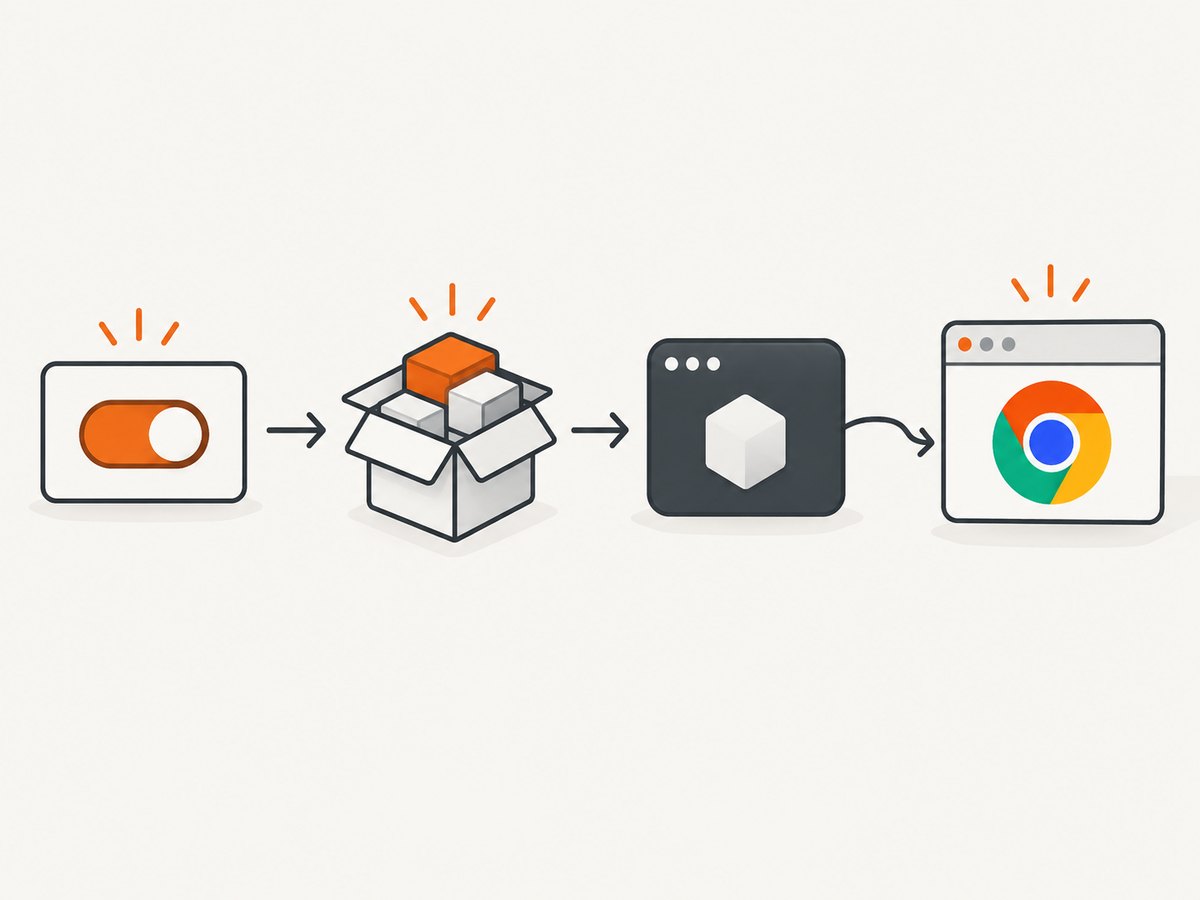
npm install puppeteer
npx puppeteer browsers install
Installing puppeteer normally downloads a compatible Chrome for Testing build. Puppeteer stores downloaded browsers in its cache directory, which defaults to $HOME/.cache/puppeteer in current installations. If a package manager blocks lifecycle scripts, the explicit npx puppeteer browsers install command restores the missing browser.
Pattern B: Use a browser already in the host or image
Set the variable before installation, then point the application at the installed executable:
PUPPETEER_SKIP_DOWNLOAD=true npm install puppeteerimport puppeteer from 'puppeteer';
const browser = await puppeteer.launch({
executablePath:
process.env.PUPPETEER_EXECUTABLE_PATH ||
'/usr/bin/google-chrome-stable',
headless: true,
});
const page = await browser.newPage();
await page.goto('https://example.com', { waitUntil: 'networkidle2' });
await page.screenshot({ path: 'example.png', fullPage: true });
await browser.close();The path must point to a real, executable browser compatible with your Puppeteer version. The PUPPETEER_EXECUTABLE_PATH environment variable is a convenient convention for making the same application work across local machines, containers, and CI.
Pattern C: Use a standard browser channel
On systems with a recognized Chrome installation, you can ask Puppeteer to use a channel instead of hard-coding a path:
const browser = await puppeteer.launch({
  channel: 'chrome',
  headless: true,
});
A channel depends on the browser being installed where Puppeteer expects it. An explicit path is usually easier to audit in Docker and CI.
Set the variable correctly in each environment
One command on macOS or Linux
PUPPETEER_SKIP_DOWNLOAD=true npm ciPersist it in a shell
export PUPPETEER_SKIP_DOWNLOAD=true
npm ci
PowerShell
$env:PUPPETEER_SKIP_DOWNLOAD = "true"
npm ci
Windows Command Prompt
set PUPPETEER_SKIP_DOWNLOAD=true
npm ci
Project configuration
You can put the option in a Puppeteer configuration file, but an environment variable wins when both are present:
// puppeteer.config.cjs
/** @type {import('puppeteer').Configuration} */
module.exports = {
  skipDownload: true,
};
Use configuration files when the choice belongs to the repository. Use environment variables when the same code runs against different build images. Do not assume a configuration change affects an already-installed package: rerun npm install, npm ci, or the browser installer.
Docker: install Chrome, then skip Puppeteer’s download
In Docker, the usual sequence is to install Google Chrome or Chromium in the image, set PUPPETEER_SKIP_DOWNLOAD=true, and launch with that executable. The image must also contain the browser’s runtime libraries, fonts, and a usable sandbox configuration. The official Puppeteer troubleshooting guide documents this arrangement.
FROM node:22-bookworm

ENV PUPPETEER_SKIP_DOWNLOAD=true
ENV PUPPETEER_EXECUTABLE_PATH=/usr/bin/google-chrome-stable

RUN apt-get update \
  && apt-get install -y --no-install-recommends \
     ca-certificates wget gnupg \
  && wget -qO- https://dl.google.com/linux/linux_signing_key.pub \
     | gpg --dearmor -o /usr/share/keyrings/google-linux.gpg \
  && echo "deb [arch=amd64 signed-by=/usr/share/keyrings/google-linux.gpg] http://dl.google.com/linux/chrome/deb/ stable main" \
     > /etc/apt/sources.list.d/google-chrome.list \
  && apt-get update \
  && apt-get install -y --no-install-recommends google-chrome-stable \
  && rm -rf /var/lib/apt/lists/*

WORKDIR /app
COPY package*.json ./
RUN npm ci
COPY . .
CMD ["node", "capture.js"]
Keep the browser installation and the Puppeteer version under deliberate control. A moving system browser can change rendering behavior, while a pinned image makes builds easier to reproduce. If the container runs as a non-root user, verify that this user can execute Chrome and read any shared cache or profile directories. Avoid adding --no-sandbox unless your container security model requires it and you understand the trade-off.
puppeteer versus puppeteer-core
puppeteer is the batteries-included package: its installation process can download a compatible browser. puppeteer-core is intended for applications that manage the browser themselves. It does not download Chrome and does not use Puppeteer’s configuration defaults in the same way.
npm install puppeteer-coreimport puppeteer from 'puppeteer-core';
const browser = await puppeteer.launch({
executablePath: '/usr/bin/chromium',
});With puppeteer-core, always make browser ownership explicit in deployment documentation. If a launch fails, check the path, executable permissions, browser version, and OS libraries before changing application code.
Cache directories and build/runtime users
A common failure occurs when the build downloads a browser as one user, but production runs as another. The runtime user may not be able to read the cache, or the cache may be located under a different home directory. Set a shared cache location when you need predictable paths:
export PUPPETEER_CACHE_DIR=/opt/puppeteer-cache
npm ci
npx puppeteer browsers install
Make the directory readable by the runtime user and preserve it between build stages if you want to avoid downloading again. The same principle applies to CI cache keys: include the Puppeteer version, browser revision, operating-system image, and architecture so an incompatible cache is not restored.
Verify the setup before capturing pages
- Confirm the variable seen by the install process:
node -e "console.log(process.env.PUPPETEER_SKIP_DOWNLOAD)". - Confirm the executable exists:
test -x "$PUPPETEER_EXECUTABLE_PATH". - Print the browser version:
"$PUPPETEER_EXECUTABLE_PATH" --version. - Launch a minimal page and close the browser.
- Only then add authentication, proxy settings, screenshots, PDF generation, or parallel workers.
import puppeteer from 'puppeteer';

const executablePath = process.env.PUPPETEER_EXECUTABLE_PATH;
if (!executablePath) throw new Error('PUPPETEER_EXECUTABLE_PATH is not set');

const browser = await puppeteer.launch({ executablePath, headless: true });
try {
  const page = await browser.newPage();
  await page.goto('about:blank');
  console.log('Browser launch succeeded');
} finally {
  await browser.close();
}
Common errors and fixes
| Error or symptom | Likely cause | Fix |
|---|---|---|
| “Could not find Chrome” | Download was skipped, but no browser is installed or discoverable. | Install a compatible browser and set executablePath, or unset the variable and run npx puppeteer browsers install. |
| Variable changed but behavior is unchanged | The setting was changed after installation. | Run npm ci/npm install again, or run the browser installer explicitly. |
puppeteer-core ignores the setting |
puppeteer-core is self-managed and does not download Chrome. |
Provide executablePath or a supported channel. |
| Works locally, fails in CI | CI has no Chrome, uses another user, or lacks system libraries. | Install the browser in the image, set a stable path, and validate permissions and dependencies. |
| Browser exists but will not start | Incompatible revision, missing shared libraries, sandbox restrictions, or an invalid path. | Run the executable’s version command, inspect container dependencies, and verify the Puppeteer/browser pairing. |
| Repeated downloads in CI | The Puppeteer cache is not persisted or uses a different home directory. | Set PUPPETEER_CACHE_DIR and cache that directory with a versioned key. |
| Install succeeds but runtime user cannot launch | Browser files or cache are owned by the build user. | Copy files with correct ownership or grant read/execute access to the runtime user. |
| Package-manager lifecycle scripts are blocked | The postinstall browser download never ran. | Run npx puppeteer browsers install or explicitly allow the install script according to your package manager policy. |
Performance, reliability, and cost considerations
- Build time: skipping a download can shorten image builds when Chrome is already supplied by the base image. It shifts that work to image maintenance.
- Reproducibility: a pinned browser image gives predictable rendering. An automatically updated system Chrome can introduce changes without a package.json diff.
- Cold starts: keeping the browser in the image avoids a first-run download, but increases image size. A managed cache avoids repeated downloads between jobs.
- Network isolation: skipping downloads is useful in offline or restricted builds, provided the image already contains every required browser file and library.
- Parallelism: one browser process per job is often simpler to operate than launching many processes against a shared profile. Use separate temporary user-data directories when running concurrent jobs.
- Operating cost: the variable itself has no runtime cost. Your costs come from build storage, image transfer, CPU, memory, and the browser service you operate.
When to avoid browser setup: ScreenshotNeo
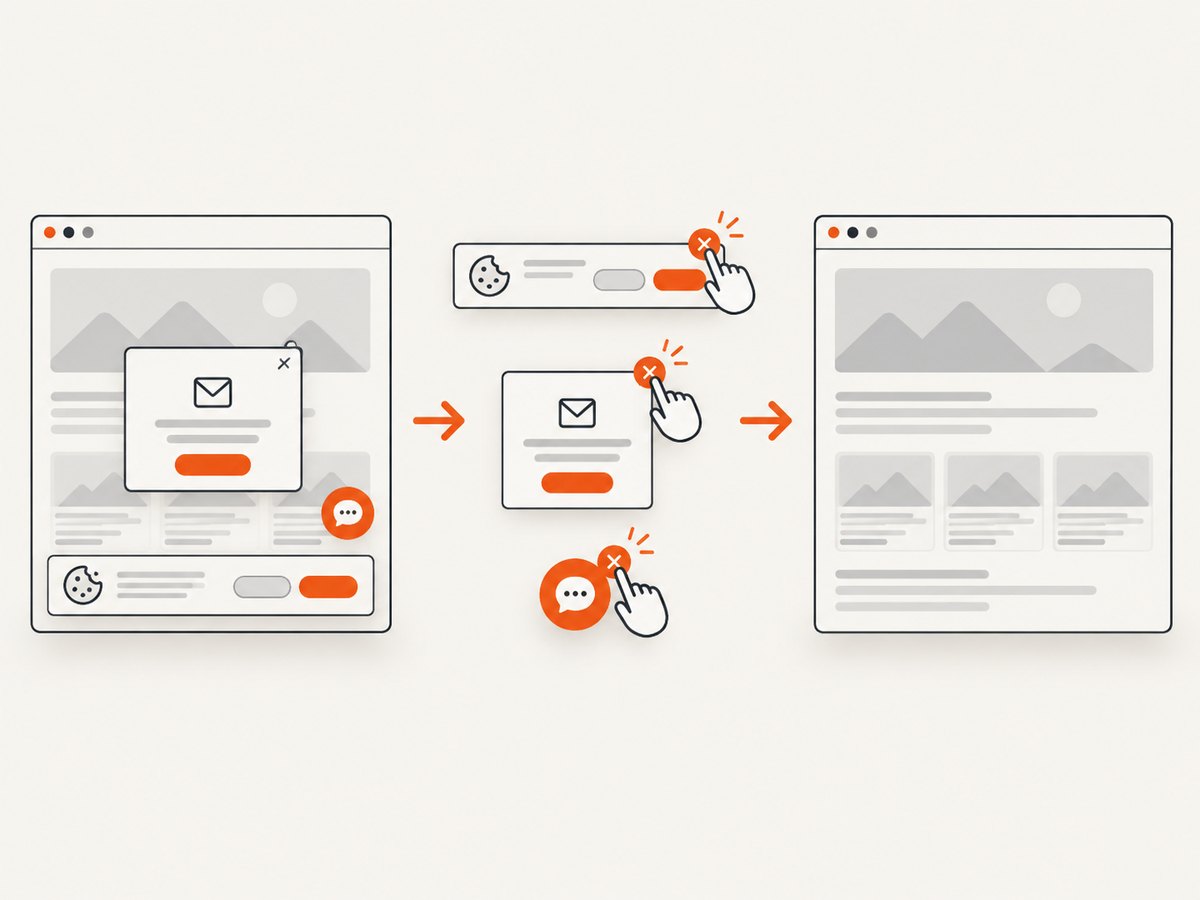
If your goal is a reliable website screenshot rather than maintaining Chrome, ScreenshotNeo provides a single HTTP endpoint. It handles the browser layer for you and returns PNG, JPEG, WebP, or PDF. Before capture, it accepts cookie or consent banners and removes more than 60 known consent platforms, newsletter popups, and chat widgets. Each step can be turned off.
Or skip the browser setup
Use the API documented at ScreenshotNeo docs:
curl -G "https://api.screenshotneo.com/v1/shot" \
  -d access_key=YOUR_API_KEY \
  --data-urlencode url=https://stripe.com \
  -o shot.webp
import requests
r = requests.get(
"https://api.screenshotneo.com/v1/shot",
params={"access_key": "YOUR_API_KEY", "url": "https://stripe.com"},
timeout=90,
)
r.raise_for_status()
open("shot.webp", "wb").write(r.content)const fs = require('node:fs/promises');
const q = new URLSearchParams({
access_key: 'YOUR_API_KEY',
url: 'https://stripe.com',
});
const res = await fetch(`https://api.screenshotneo.com/v1/shot?${q}`);
if (!res.ok) throw new Error(`Screenshot failed: ${res.status}`);
await fs.writeFile('shot.webp', Buffer.from(await res.arrayBuffer()));Cookie banners, popups, and chat widgets are removed before the shot. Bot checks, blank pages, timeouts, failed loads, and cache hits are never billed, and response headers identify the page verdict and billing status with X-Page-Verdict and X-Billed. An MCP server gives Claude, Cursor, and other MCP clients the take_screenshot, get_page_info, and capture_pdf tools. The Free plan includes 1,000 screenshots per month with no card; paid plans start at $5 for 3,000 shots. Create a free ScreenshotNeo account.
FAQ
Does setting the variable install Chromium?
No. It prevents Puppeteer’s installation-time download. You must provide a compatible executable yourself.
Can I set it inside puppeteer.launch()?
No. Download decisions happen during installation. Set the environment variable before installing, then reinstall or run the browser installer.
Should I use a system browser or Puppeteer’s browser?
Use a system browser when your image or platform already manages browser versions and dependencies. Use Puppeteer’s browser when you want the package to select and cache a compatible revision.
Does it affect screenshots after the browser starts?
No. It changes installation behavior. Screenshot rendering is controlled by the browser you launch and your page, viewport, wait, and emulation settings.
What is the safest first diagnostic?
Print the resolved executable path, run that executable’s --version command, and launch a minimal about:blank page before debugging application-specific code.


