How to Capture a Screenshot of a Specific App Window with Puppeteer
Puppeteer screenshots page content and elements, not arbitrary native app windows. Choose the right capture scope, configure the browser window, and troubleshoot reliable captures.
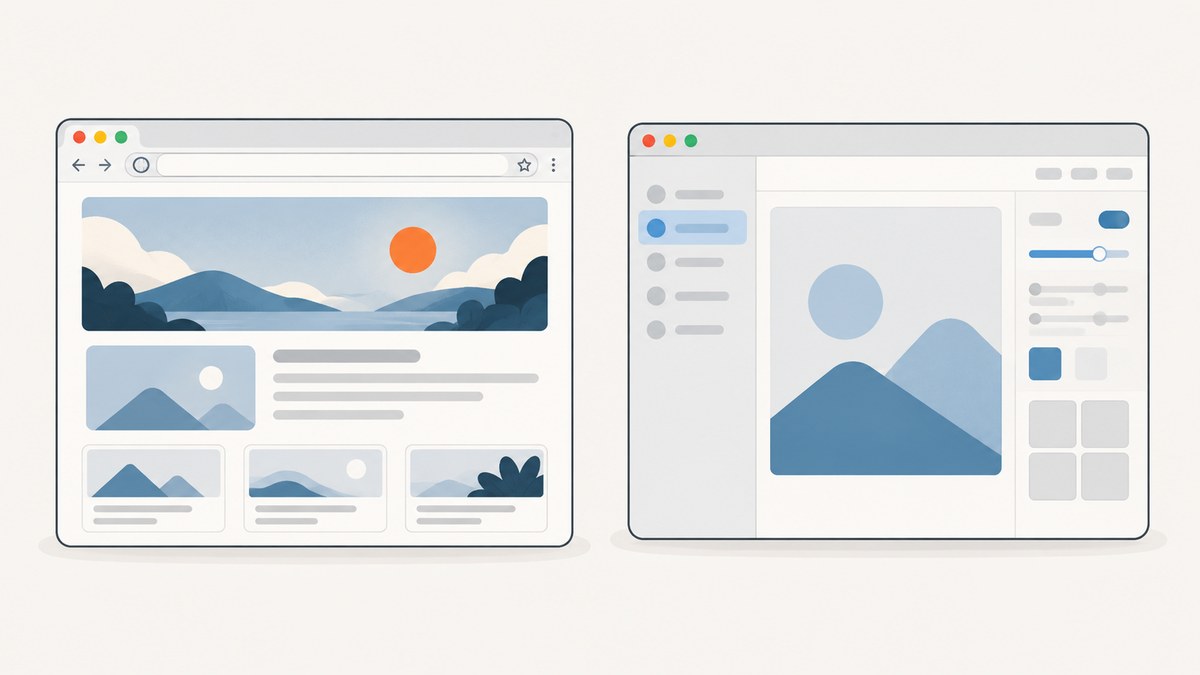
Direct answer: Puppeteer’s documented screenshot methods capture browser page content, not an arbitrary native operating-system application window with its title bar, borders, menus, or surrounding desktop. Use page.screenshot() for a Puppeteer tab’s visible viewport, fullPage: true for the page’s full document, clip for a rectangular page region, or element.screenshot() for one rendered element. Puppeteer can separately control browser-window bounds and position, but those controls are not a documented way to capture the whole native window.
If by “app window” you mean a web app open in Chromium, create or connect to a Puppeteer page and screenshot it. If you mean a desktop application window, use a capture method for the target operating system; the Puppeteer page API does not document that task. See the official Puppeteer Screenshots guide, Page.screenshot API, and Window management guide.
1. Decide what “window” you need to capture
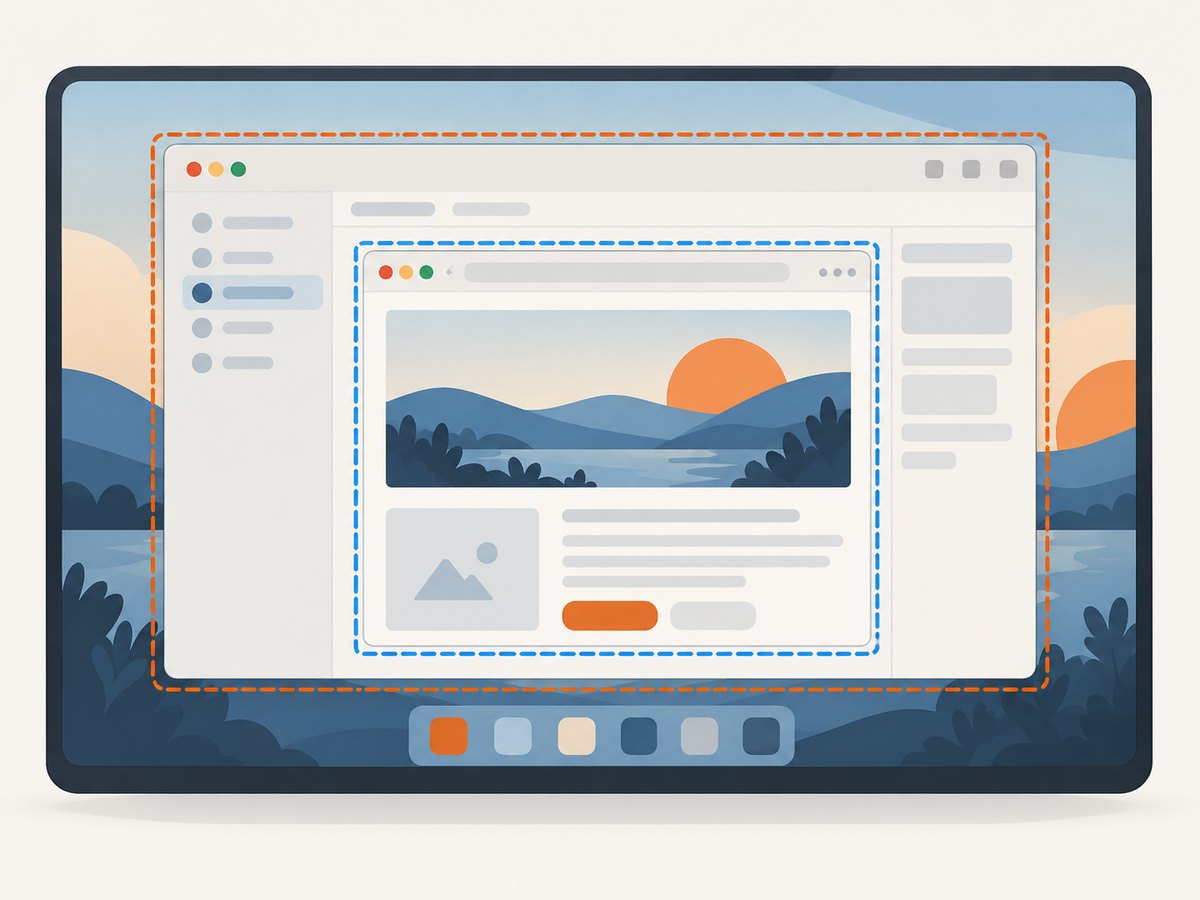
Choose the capture scope before writing code. A page screenshot contains webpage pixels. Browser-window management changes the browser’s bounds or state. Neither should be confused with an operating-system screenshot of a native app and its desktop chrome.
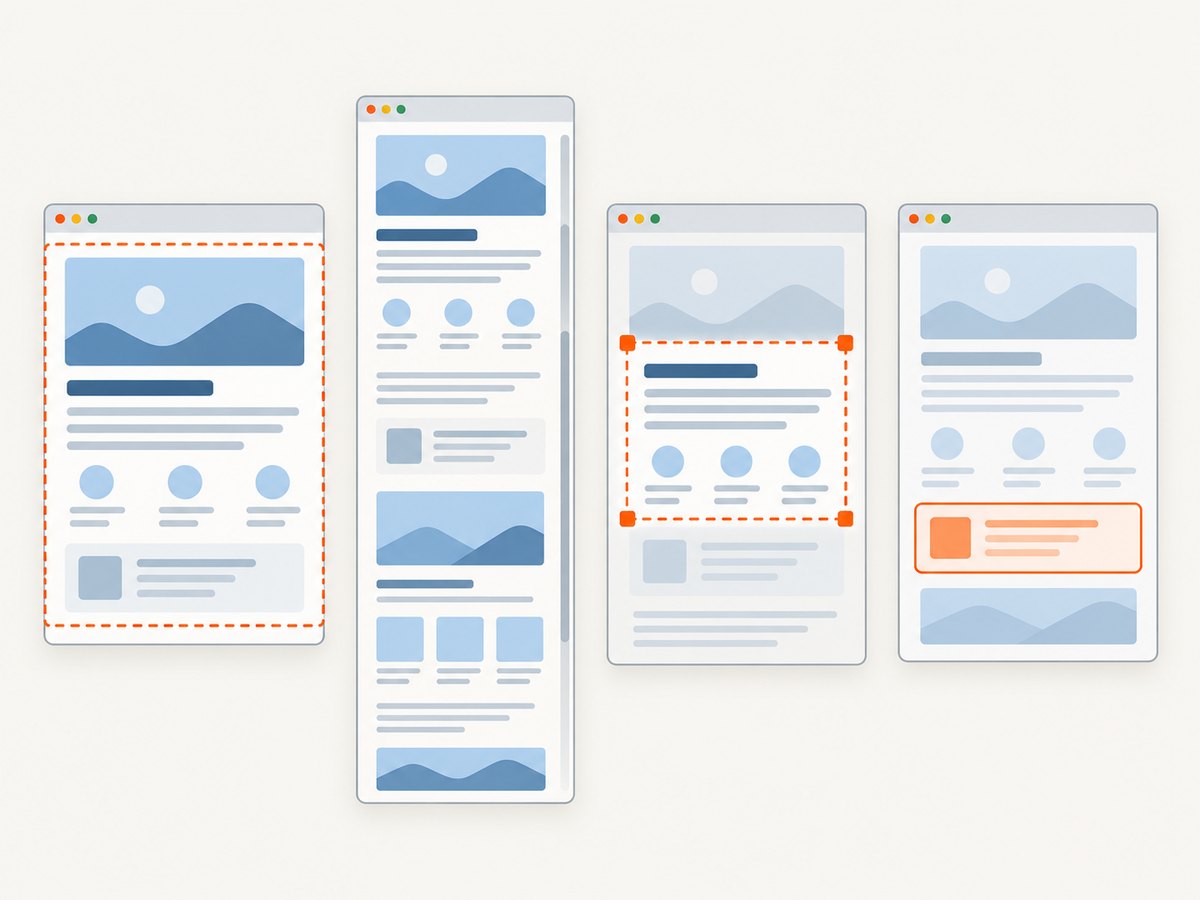
| Goal | Puppeteer approach | What the output covers |
|---|---|---|
| Visible page area | page.screenshot() |
The current page viewport |
| Entire document | page.screenshot({ fullPage: true }) |
The full page content, beyond the current viewport |
| One region | page.screenshot({ clip: { x, y, width, height } }) |
A clipped rectangle in page coordinates |
| One rendered component | element.screenshot() |
The selected element, with Puppeteer attempting to scroll it into view |
| Browser-window placement or size | Window-management APIs | Window position, bounds, or state; capture still uses page screenshot APIs |
| Native desktop application and its chrome | Platform-specific desktop capture | Outside the documented page-screenshot scope |
The official guide recommends Page.screenshot() for screenshot capture. A Puppeteer Page represents a tab or extension background page, so a successful screenshot is a picture of page content, not a guarantee that browser chrome appears in the image.
2. Install Puppeteer and capture a web app page
In a new Node.js project, install Puppeteer using the package manager and setup instructions in the official installation guide. The standard package setup downloads a compatible browser; if your environment supplies its own browser, consult the guide for the matching executable configuration.
npm init -y
npm install puppeteer
Save this as capture-page.mjs and run it with Node.js. It navigates to a web app URL, writes a viewport PNG, and closes the browser even if navigation or capture fails.
import puppeteer from 'puppeteer';

const url = process.argv[2] ?? 'https://example.com';
const browser = await puppeteer.launch();

try {
  const page = await browser.newPage();
  await page.goto(url, { waitUntil: 'networkidle2' });
  await page.screenshot({ path: 'window.png' });
} finally {
  await browser.close();
}
networkidle2 is used in the official screenshot-guide example. It is a navigation wait condition, not a universal promise that a single-page app has finished rendering, fonts have loaded, animations have stopped, or all lazy content is visible. For an application with a known readiness signal, wait for that signal explicitly, as shown below.
3. Capture the scope you actually need
Viewport screenshot
With no full-page or clip option, page.screenshot() captures the visible page viewport. The documented default screenshot type is PNG. If you provide a file path, Puppeteer infers the type from the path extension; for example, viewport.png produces PNG output.
await page.screenshot({ path: 'viewport.png' });Full-page screenshot
Pass fullPage: true to capture the full page rather than only the current viewport. The API documents the default as false. A long document may produce a tall image, so consider whether you need the whole page, a particular section, or a PDF layout instead.
await page.screenshot({ path: 'full-page.png', fullPage: true });Clipped region
Use clip when you want a rectangular page region. Supply the rectangle’s x and y coordinates and its width and height. Choose coordinates relative to the page screenshot area you intend to capture and ensure the requested dimensions make sense for the rendered page.
await page.screenshot({
  path: 'region.png',
  clip: { x: 40, y: 120, width: 800, height: 500 },
});
One element
Wait for a selector, then call screenshot() on the returned element handle. Puppeteer’s screenshots guide says the method attempts to scroll a hidden element into view by default. This is useful for a card, chart, modal, or report section when the rest of the page is irrelevant.
const element = await page.waitForSelector('#report-card');
if (!element) throw new Error('Report card was not found');
await element.screenshot({ path: 'report-card.png' });
Selectors depend on the page’s markup. Prefer a stable ID, test attribute, or application-specific selector over a layout-dependent selector that can change when the UI is redesigned.
Write a buffer instead of a file
When you omit path, the screenshot is not written to disk. The API returns screenshot bytes as a Uint8Array; the API also documents a base64-encoding overload. This lets a script upload, hash, or process the image without first creating a local file.
const bytes = await page.screenshot();
console.log(`Captured ${bytes.byteLength} bytes`);
4. Set the browser viewport and manage the browser window
A page viewport is the browser content area used for rendering. Set its dimensions before navigation or capture when a repeatable webpage layout matters. This is different from setting the outer browser-window dimensions, which include the browser’s own window frame on systems that display one.
const page = await browser.newPage();
await page.setViewport({ width: 1440, height: 900 });
await page.goto('https://example.com');
await page.screenshot({ path: 'desktop-viewport.png' });
Puppeteer’s window-management guide describes browser window position and state controls, including Browser.getWindowBounds and Browser.setWindowBounds. It also describes Page.resize for changing the browser window size to match requested content dimensions. These operations help arrange or size a browser window; they do not change what Page.screenshot() documents as its capture target.
Use window controls when automation needs a visible browser window at a particular position or size. For a stable screenshot of web content, set the page viewport explicitly and use a page screenshot method. If the requirement includes the operating-system frame or other applications behind the browser, choose a desktop capture facility for your OS instead.
5. Wait for the page state that matters
Pages can navigate successfully before their useful content is ready. Network-idle conditions can be a reasonable first wait, but applications with live connections, delayed data, client-side rendering, or lazy content may need a more specific readiness condition. Puppeteer’s Page API provides waitForSelector() and waitForNetworkIdle().
await page.goto('https://example.com/dashboard', {
  waitUntil: 'domcontentloaded',
});

await page.waitForSelector('[data-testid="dashboard-ready"]');
await page.screenshot({ path: 'dashboard.png' });
For an element screenshot, waiting for the target selector is often a better signal than waiting for every network request to stop. For a page whose meaningful data arrives asynchronously, wait for the UI state that signifies that data is present. Avoid arbitrary long sleeps unless the page has no observable readiness signal; they make captures slower and can still be too short or unnecessarily long.
Other factors to consider include lazy-loaded images, web fonts, animations, rotating content, and overlays. A full-page capture does not necessarily cause every application to load all deferred content in the same way a person scrolling through it would. If a particular asset or state matters, verify its presence before taking the screenshot and use the page’s own loading behavior as the guide.
6. Handle errors and edge cases
| Symptom | Likely cause | Fix |
|---|---|---|
| Screenshot is blank or shows a loading shell | Capture happened before the app rendered useful content | Wait for a selector or app-specific ready state before capturing. |
| Target element is missing | Selector is wrong, the element has not rendered, or it is inside a different frame | Check the selector and wait for it. For framed content, identify and operate on the relevant frame. |
| Only the viewport appears | The capture used default page screenshot scope | Set fullPage: true, use an element screenshot, or define a clip rectangle. |
| Output format is unexpected | File extension determines type when a path is supplied | Use an extension matching the desired format and check the screenshot API’s supported options. |
| No output file exists | The code omitted path and received bytes instead |
Supply a path or write the returned bytes yourself. |
| Browser process remains open after an error | Cleanup was skipped on a failing path | Put browser.close() in a finally block. |
| Browser window resized but capture scope did not change | Window management controls browser bounds, not screenshot semantics | Use a page screenshot for page pixels; use OS-level capture for a native window image. |
| Capture overlaps with page management | Another operation is changing or closing the page | Sequence capture and page lifecycle operations. The Page API notes that opening or closing pages in a BrowserContext waits for a screenshot operation to finish, while Page.bringToFront() does not wait for existing screenshot operations. |
When a screenshot fails, log the navigation URL, the last completed wait condition, the target selector if applicable, and whether the failure happened during navigation or capture. This makes timing and selector errors easier to distinguish from browser launch or environment configuration issues.
7. Reliability, performance, and cost
Reliability: Always close the browser in a cleanup path. Use explicit viewport dimensions and app-specific readiness checks when repeatability matters. A network-idle event alone cannot establish that every visual detail is ready. If multiple operations share a page, sequence navigation, waits, and captures so that a second task does not change the page while the first capture is in progress.
Performance: Capture only the pixels needed. A viewport or element image usually contains less content than a very tall full-page image. Reuse a browser process for a batch of pages when appropriate, while giving each task a clearly managed page and ensuring cleanup. Avoid unnecessary fixed delays; waiting for a meaningful selector avoids spending time on a timer when the app is already ready.
Cost: Puppeteer is a Node.js browser automation library; the code itself does not include a per-screenshot service charge. Your runtime still uses compute, memory, storage, and possibly browser infrastructure that you provide. Large full-page captures, concurrent browser processes, and retained image files can increase those resource requirements. There is no published numeric benchmark in the cited documentation, so estimate from your own page sizes, concurrency, and deployment environment.
8. Or skip the browser setup
If your goal is a clean website screenshot rather than controlling a local Puppeteer browser, ScreenshotNeo takes a URL in one API request and returns an image or PDF. Its API base is https://api.screenshotneo.com/v1/shot. See the ScreenshotNeo API documentation for request options and setup.
cURL
curl -G "https://api.screenshotneo.com/v1/shot" -d access_key=YOUR_API_KEY --data-urlencode url=https://stripe.com -o shot.webpPython
import requests

r = requests.get(
    "https://api.screenshotneo.com/v1/shot",
    params={"access_key": "YOUR_API_KEY", "url": "https://stripe.com"},
    timeout=90,
)
open("shot.webp", "wb").write(r.content)
Node.js
const q = new URLSearchParams({
  access_key: 'YOUR_API_KEY',
  url: 'https://stripe.com',
});
const res = await fetch(`https://api.screenshotneo.com/v1/shot?${q}`);
ScreenshotNeo accepts cookie or consent banners like a visitor and removes more than 60 known consent platforms, newsletter popups, and chat widgets before capture; each step can be turned off. Bot checks, blank pages, timeouts, failed loads, and cache hits are not billed, and response headers report the page verdict and billing status. Its MCP server gives AI agents tools for screenshots, page information, and PDF capture. The free plan includes 1,000 screenshots per month with no card; paid plans start at $5 for 3,000 shots. Those are service features, not Puppeteer behaviors.
Sign up for 1,000 free screenshots a month with no card.
9. Frequently asked questions
Can Puppeteer capture the whole browser window, including its toolbar?
The cited Puppeteer screenshot documentation describes capturing page content and elements. Window-management APIs control browser bounds and state separately; the sources do not establish that Page.screenshot() includes browser chrome. Use an operating-system capture method when the frame is part of the required image.
Can I screenshot just one card or chart?
Yes. Wait for the card or chart selector and call screenshot() on its element handle. Puppeteer attempts to scroll a hidden element into view.
Does fullPage: true mean every lazy image will load?
It requests a full-page capture, but readiness and lazy-loading behavior depend on the page. Wait for the content your capture requires and confirm it has rendered.
What should I use when I need an image in memory?
Omit the screenshot path and handle the returned bytes in your script. No file is saved automatically when the path is omitted.


