Sticky Navbar Appears in the Middle of a Full-Page Screenshot Using Puppeteer
Learn why sticky navbars move in Puppeteer full-page screenshots and how to capture faithful viewport or static document images.
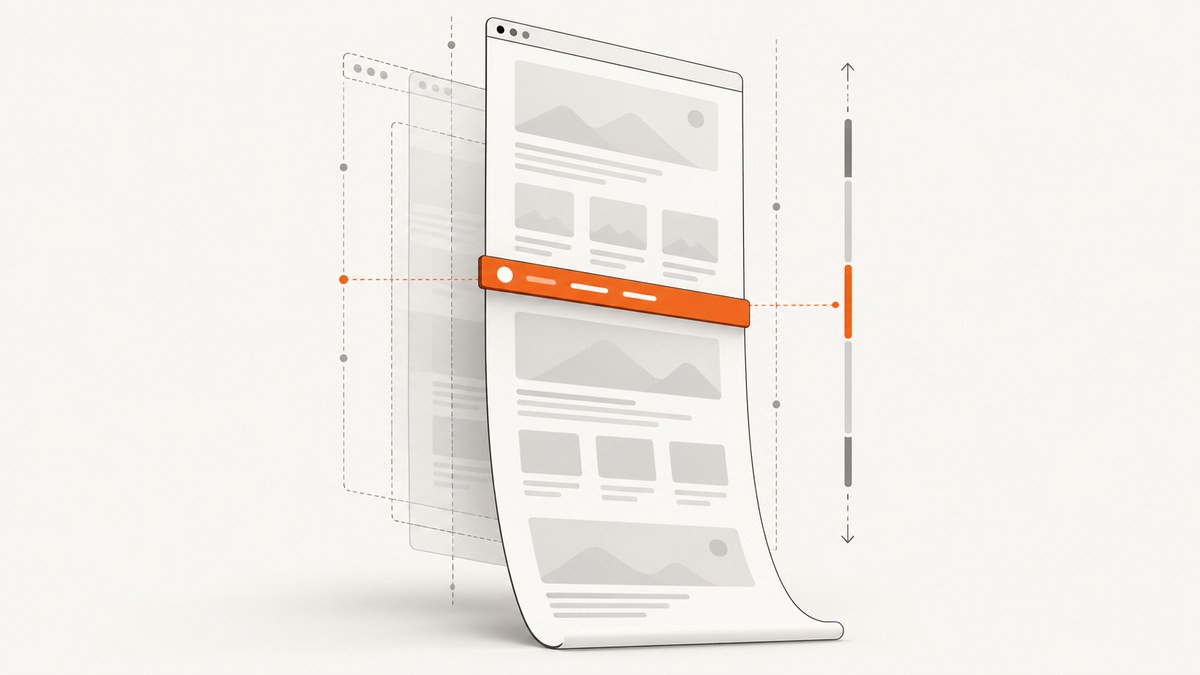
Short answer: Puppeteer’s fullPage: true captures the document’s full extent, but it does not turn CSS position: sticky or position: fixed elements into ordinary document-flow content. A sticky navbar still follows its nearest scrolling ancestor and containing block. When the browser’s scrolling behavior is represented in one tall image, the navbar can appear in the middle of the screenshot.
Check the navbar’s computed position and every ancestor’s overflow settings first. Then choose the output you actually need:
- For the real visible browser view, take a normal viewport screenshot.
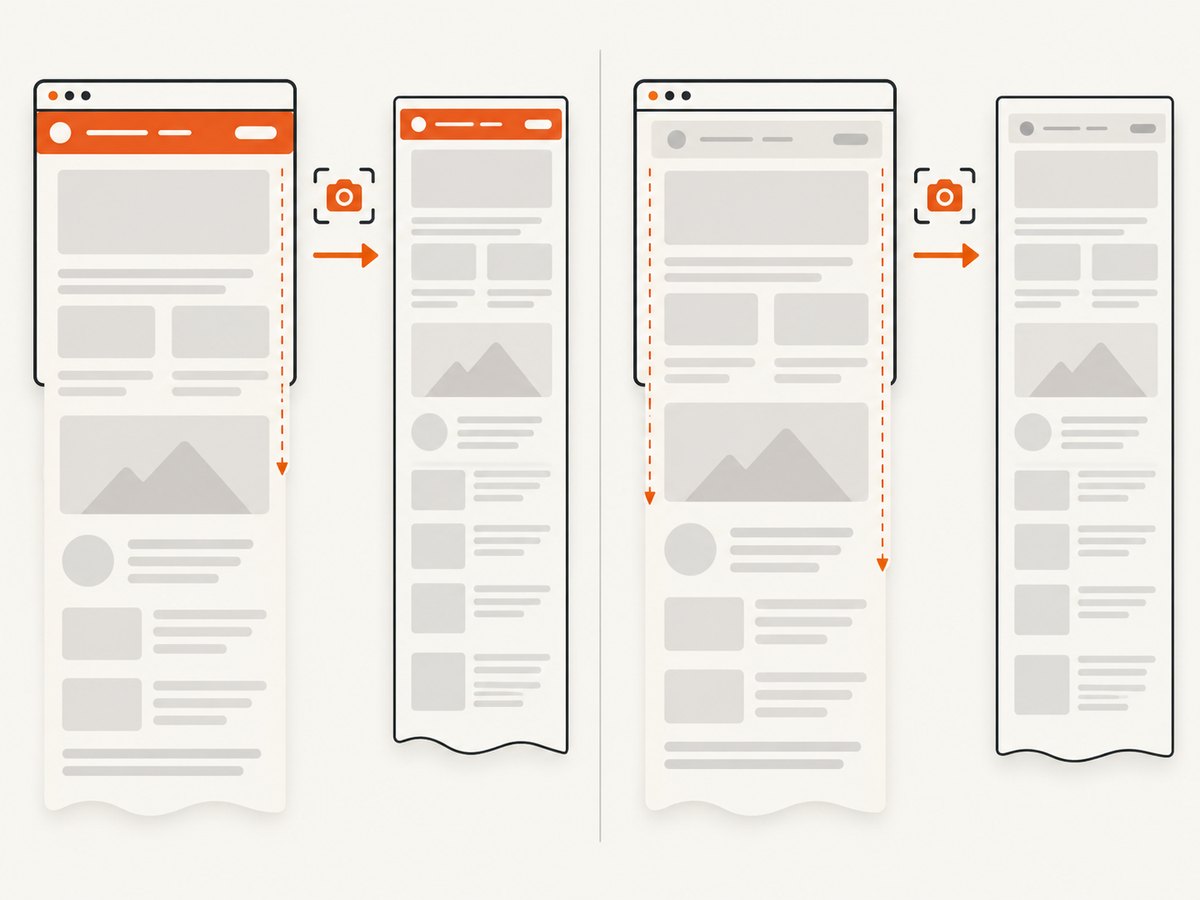
- For one static document image, temporarily override the navbar to normal flow during capture.
- Try
captureBeyondViewportonly as a version-specific experiment; it is a capture-scope option, not a universal sticky-layout fix.
What Puppeteer’s full-page option actually does
Puppeteer’s ScreenshotOptions reference defines fullPage as taking a screenshot of the full page. That describes capture extent. It does not promise that fixed or sticky elements will be rendered as if they were normal-flow elements. See the official ScreenshotOptions reference.
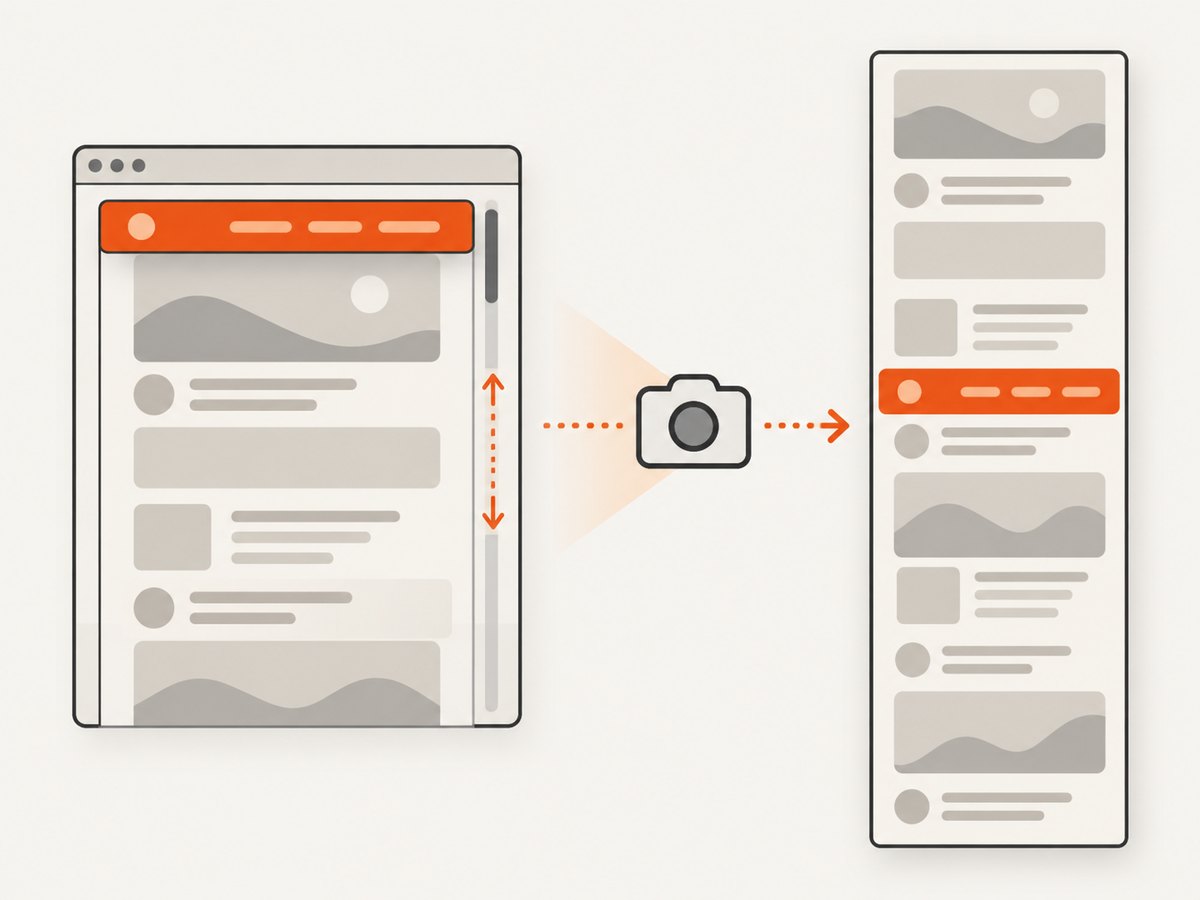
CSS sticky positioning is also independent of Puppeteer’s capture setting. According to MDN’s position documentation, a sticky element behaves like relatively positioned content until a threshold such as top: 0 is crossed. It then sticks within its containing block and nearest scrolling ancestor. An ancestor with overflow: hidden, auto, scroll, or overlay can establish that scrolling mechanism, even when the element that visibly scrolls is not the document.
A full-page capture combines this layout with a tall output. The navbar may therefore be visible at an apparently arbitrary point instead of only at the top edge of your final image. Historical Puppeteer issue discussions also recorded fixed headers appearing in the middle of full-page screenshots, but those reports concern older Puppeteer and Chromium behavior. Record your versions before assuming you have the same bug.
Diagnose the navbar before changing code
1. Inspect computed position and insets
Run this in the page before the screenshot. It reports the navbar’s computed position, inset values, dimensions, and ancestor overflow settings.
const report = await page.evaluate(() => {
  const nav = document.querySelector('nav, header, [role="banner"]');
  if (!nav) return { error: 'Navbar not found' };

  const rows = [];
  let node = nav;
  while (node && node.nodeType === Node.ELEMENT_NODE) {
    const style = getComputedStyle(node);
    rows.push({
      tag: node.tagName,
      id: node.id,
      className: node.className,
      position: style.position,
      top: style.top,
      bottom: style.bottom,
      overflow: style.overflow,
      overflowX: style.overflowX,
      overflowY: style.overflowY,
      height: node.getBoundingClientRect().height
    });
    node = node.parentElement;
  }
  return { navbar: rows[0], ancestors: rows };
});

console.dir(report, { depth: null });
If the navbar reports sticky or fixed, inspect its top, bottom, and height. A sticky element without a useful inset can behave like ordinary relative content. A large header, transformed ancestor, or unexpected containing block can also change where it sticks.
2. Walk all ancestors for overflow
Look for overflow: auto, scroll, hidden, or overlay in the report. The nearest ancestor that establishes scrolling governs sticky behavior. Also check whether that container has a constrained height. A navbar inside a scrolling panel will not follow the document’s scroll position in the way a navbar directly under body does.
3. Confirm what “full page” means for your product
| Required output | Recommended capture | Why |
|---|---|---|
| Current viewport exactly as a user sees it | page.screenshot({ fullPage: false }) |
Preserves the real scroll position and sticky state. |
| One static image of all document content | Capture-only CSS override, then fullPage: true |
Removes viewport anchoring for this image. |
| Scrollable application panel | Scroll that panel and capture it deliberately | The panel, rather than the document, controls sticky positioning. |
| Historical regression investigation | Pin Puppeteer and Chromium versions | Defaults and rendering behavior can change. |
Solution A: capture the real viewport
Use this when the screenshot should represent the browser view, including a navbar that remains stuck at the top.
import puppeteer from 'puppeteer';

const browser = await puppeteer.launch({ headless: true });
const page = await browser.newPage();
await page.setViewport({ width: 1440, height: 900, deviceScaleFactor: 1 });
await page.goto('https://example.com/article', { waitUntil: 'networkidle2' });
await page.screenshot({ path: 'viewport.png', fullPage: false });
await browser.close();
Set the viewport before navigation when the page uses viewport units or responsive breakpoints. If you need a screenshot at a particular scroll position, scroll explicitly and wait for the next animation frame:
await page.evaluate(() => window.scrollTo({ top: 1200, behavior: 'instant' }));
await page.evaluate(() => new Promise(requestAnimationFrame));
await page.screenshot({ path: 'scrolled-viewport.png' });
Solution B: neutralize sticky behavior for one static image
For a single long image, inject a style tag immediately before capture. This changes only the capture page; it does not modify your production CSS.
const override = await page.addStyleTag({ content: `
  /* Capture-only override */
  nav, header, [role="banner"] {
    position: static !important;
    top: auto !important;
    right: auto !important;
    bottom: auto !important;
    left: auto !important;
    transform: none !important;
  }
` });

await page.screenshot({ path: 'document.png', fullPage: true });
await override.evaluate(el => el.remove());
The exact selector matters. If your site has several headers, target the one that is sticky instead of every header. A static header may change the vertical position of all following content, so inspect the output. If the navbar is removed from flow with absolute positioning, use a different override that preserves its space, for example by setting a fixed height on a wrapper.
If a component uses a shadow root, a document-level selector will not reach it. Add the style inside the shadow root or expose a capture mode in the component. If the navbar is inside an iframe, switch to that frame and inject the override there.
Solution C: test captureBeyondViewport carefully
captureBeyondViewport is a separate screenshot option. The current reference gives a default of false when there is no clip and true otherwise. It controls capture scope; it is not documented as a general fix for sticky positioning.
await page.screenshot({
  path: 'experiment.png',
  fullPage: true,
  captureBeyondViewport: false
});
A 2021 issue participant reported that setting this to false solved one case. Treat that as a case-specific observation. Compare both results with your current Puppeteer and Chromium versions, and keep the setting only if it produces the intended layout.
Complete Puppeteer workflow with diagnostics
import puppeteer from 'puppeteer';

const url = process.argv[2] || 'https://example.com/article';
const browser = await puppeteer.launch({ headless: true });
try {
  const page = await browser.newPage();
  await page.setViewport({ width: 1440, height: 900, deviceScaleFactor: 1 });
  await page.goto(url, { waitUntil: 'networkidle2', timeout: 60000 });

  await page.waitForSelector('body');
  const diagnosis = await page.evaluate(() => {
    const nav = document.querySelector('nav, header, [role="banner"]');
    if (!nav) return null;
    const style = getComputedStyle(nav);
    return {
      position: style.position,
      top: style.top,
      height: nav.getBoundingClientRect().height,
      scrollY: window.scrollY,
      documentHeight: document.documentElement.scrollHeight
    };
  });
  console.log(JSON.stringify(diagnosis, null, 2));

  await page.screenshot({ path: 'viewport.png' });

  const style = await page.addStyleTag({ content: `
    nav, header, [role="banner"] {
      position: static !important;
      top: auto !important;
      bottom: auto !important;
      transform: none !important;
    }
  ` });
  await page.screenshot({ path: 'full-static.png', fullPage: true });
  await style.evaluate(el => el.remove());
} finally {
  await browser.close();
}
Common errors and fixes
| Symptom | Likely cause | Fix |
|---|---|---|
| Navbar appears halfway down the image | Sticky or fixed positioning combined with full-page capture | Use a viewport screenshot or apply a capture-only static override. |
| Changing viewport height makes layout worse | vh-based CSS recalculates at the new height |
Do not resize to document height; use fullPage or stitch controlled viewport captures. |
| Override does nothing | Wrong selector, iframe, or shadow DOM | Verify the selector in DevTools or page.$; inject into the correct frame or shadow root. |
| Content is hidden under the header | Removing sticky positioning changed layout or the header was overlayed | Preserve wrapper height, add capture-only top spacing, and compare against the original layout. |
| Page never reaches network idle | Analytics, ads, websockets, or long polling keep requests active | Use waitUntil: 'domcontentloaded' plus an explicit selector or delay. |
| Images are blank in the long capture | Lazy loading depends on scrolling | Scroll through the page or trigger loading before capture, then wait for image completion. |
| Results differ between machines | Different browser versions, fonts, viewport, or device scale | Pin Puppeteer/Chromium, install required fonts, and set viewport and scale explicitly. |
captureBeyondViewport changes nothing |
It controls capture scope, not CSS sticky rules | Return to the position/overflow diagnosis and choose the correct output type. |
Lazy images, fonts, and deterministic timing
Full-page screenshots are sensitive to page readiness. networkidle2 is useful for many pages, but it can still finish before a lazy image enters the viewport. A controlled scroll can activate lazy loading:
await page.evaluate(async () => {
  await new Promise(resolve => {
    let y = 0;
    const step = () => {
      y += 700;
      window.scrollTo(0, y);
      if (y >= document.documentElement.scrollHeight) return resolve();
      requestAnimationFrame(step);
    };
    step();
  });
  window.scrollTo(0, 0);
});

await page.evaluate(() => document.fonts.ready);
await page.waitForTimeout(250);
Use a selector wait when a known component marks readiness. A fixed delay is a fallback, not proof that every resource finished. For reproducible output, keep the same viewport, device scale factor, locale, timezone, font set, and browser build.
Performance, reliability, and cost considerations
- Performance: A full-document image can be very tall and expensive to encode. Prefer viewport captures when a long image is not required. Avoid repeatedly launching browsers; reuse a browser process and create isolated pages.
- Reliability: Log the URL, Puppeteer version, Chromium version, viewport, capture options, and navbar diagnosis. Save a viewport image alongside a failed full-page image so layout errors are easy to compare.
- Memory: Large pages with many images can exceed process or image limits. Capture sections and stitch them only when your output requirements allow it.
- Layout safety: Do not globally disable sticky behavior in production styles. Inject a temporary style and remove it after capture.
- Cost: Self-hosting means paying for browser compute, memory, storage, and maintenance. A hosted API can make costs predictable when you capture many URLs, but compare its billing rules and failure handling.
Or skip the browser setup
ScreenshotNeo provides a website screenshot API and MCP server. It can capture a full page with lazy images loaded, or a selected element, while handling browser setup for you. Cookie and consent banners, newsletter popups, and chat widgets are removed before the shot; each step can be turned off. Bot checks, blank pages, timeouts, failed loads, and cache hits are not billed, and response headers identify the page verdict and billing result.
See the ScreenshotNeo API documentation for all options. A direct call looks like this:
cURL
curl -G "https://api.screenshotneo.com/v1/shot" \
  -d access_key=YOUR_API_KEY \
  --data-urlencode url=https://stripe.com \
  -o shot.webp
Python
import requests

r = requests.get(
    "https://api.screenshotneo.com/v1/shot",
    params={"access_key": "YOUR_API_KEY", "url": "https://stripe.com"},
    timeout=90,
)
r.raise_for_status()
open("shot.webp", "wb").write(r.content)
Node.js
const q = new URLSearchParams({
  access_key: 'YOUR_API_KEY',
  url: 'https://stripe.com'
});
const res = await fetch(`https://api.screenshotneo.com/v1/shot?${q}`);
if (!res.ok) throw new Error(`HTTP ${res.status}`);
const buffer = Buffer.from(await res.arrayBuffer());
await import('node:fs/promises').then(fs => fs.writeFile('shot.webp', buffer));
ScreenshotNeo supports PNG, JPEG, WebP, and PDF output; full-page capture, CSS-selector element capture, dark mode, device presets or custom viewports, retina scale, custom CSS and JavaScript, click and wait actions, blocked resource types, headers, cookies, user agents, authorization, timezone, geolocation, transparent backgrounds, resizing, configurable caching, signed links, asynchronous jobs with signed webhooks, bulk capture of up to 100 URLs per call, usage reporting, and an OpenAPI specification. Parameter names used by other screenshot APIs also work, which can simplify migration.
An MCP server exposes take_screenshot, get_page_info, and capture_pdf to Claude, Cursor, and other MCP clients. Plans include 1,000 screenshots per month free with no card; paid plans start at $5 for 3,000 shots. Yearly billing gives two months free, and every feature is available on every plan. Create a free ScreenshotNeo account.
FAQ
Is this always a Puppeteer bug?
No. The result usually follows CSS sticky or fixed positioning plus the way a full-page image is assembled. Historical browser bugs exist, but inspect CSS and versions before filing one.
Should I always set captureBeyondViewport: false?
No. It helped a reported case, but current documentation describes it as capture scope. Test it with your browser version and keep it only when the output is correct.
Can I keep the navbar sticky and still get one long image?
Yes, if that is the visual you want. Expect the navbar to remain tied to its scrolling context. For a static document image, a temporary normal-flow override is usually easier to reason about.
Why does resizing to the full document height fail?
Changing the viewport can alter vh-based layouts and the behavior of fixed or sticky elements. Use Puppeteer’s full-page capture or controlled stitching instead.
How do I capture only the article?
Use an element screenshot for the article container, and account for any sticky header that sits outside or overlaps that element. ScreenshotNeo also supports capture by CSS selector.


