How to Run Puppeteer with Symfony Webpack Encore
Keep Encore’s browser bundle separate from Puppeteer’s Node runtime, then automate screenshots reliably in Symfony.
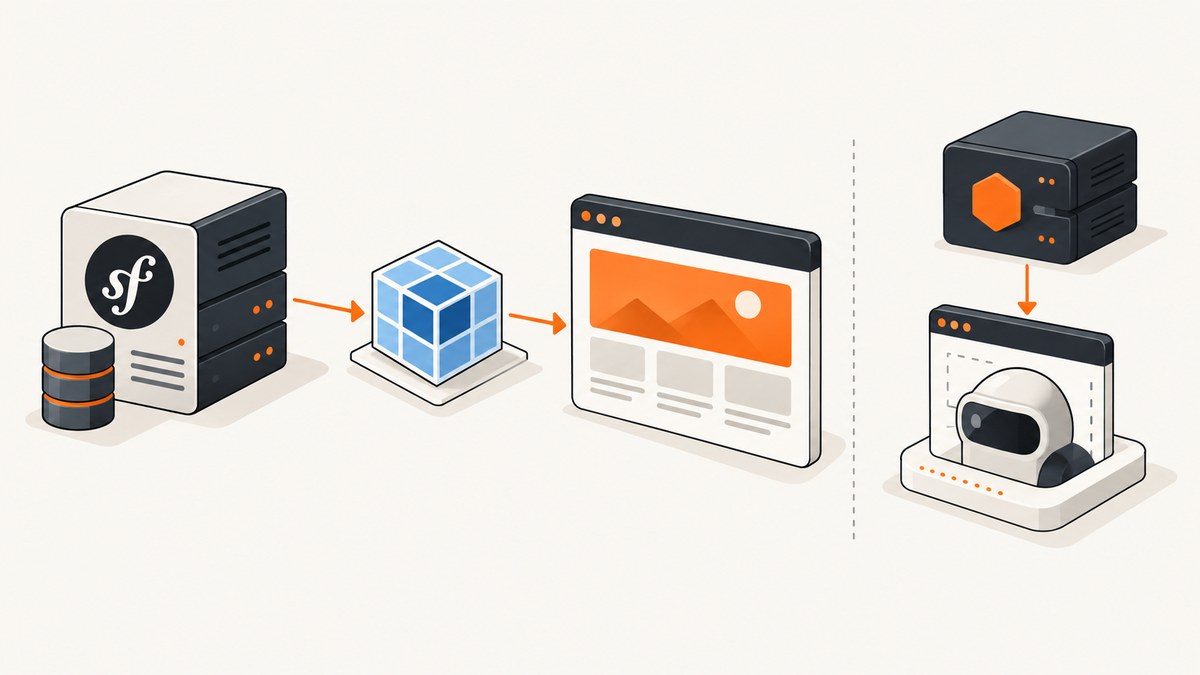
The reliable way to run Puppeteer in a Symfony Webpack Encore project is to keep them in separate execution paths. Encore compiles browser-facing JavaScript and CSS into files under public/build. Puppeteer is a Node.js automation library that launches Chrome or Firefox. Put Puppeteer in a Node script, Symfony command, worker, controller-side service, or separate automation process. Do not import Puppeteer into an Encore entry that is shipped to visitors.
This separation lets your Symfony application build its frontend normally while a server-side Node process opens pages, waits for them to become usable, and captures screenshots or PDFs. The complete setup below covers installation, Encore’s ESM configuration, browser ownership, reusable runners, deployment, troubleshooting, performance, reliability, and a managed alternative.
1. Understand the two runtimes
Encore and Puppeteer solve different problems:
- Webpack Encore: a Symfony integration around webpack. It reads entries such as
assets/app.js, bundles browser dependencies, and writes production assets topublic/build. - Puppeteer: a Node.js library that controls Chrome or Firefox through DevTools Protocol or WebDriver BiDi. It normally runs headless, without a visible desktop window.
- Symfony/PHP: your web application, console commands, queues, and HTTP endpoints. These can start a Node process or dispatch work to one.
The browser delivered to a visitor should receive your compiled Encore bundle. The automation browser should be controlled by Node. Keeping those boundaries prevents browser bundles from containing server-only code, avoids shipping a large Chromium dependency to users, and makes deployment responsibilities explicit. This architecture follows the documented roles of Symfony Webpack Encore and Puppeteer.
2. Install Encore and Puppeteer
From the root of an existing Symfony application, install the Symfony bundle and JavaScript dependencies:
composer require symfony/webpack-encore-bundle
npm install
npm install puppeteer
Symfony Flex creates (or updates) the assets/ directory, webpack.config.js, and related configuration. The puppeteer package downloads a compatible Chrome for Testing build during installation. The current installation guide gives approximate download sizes of 170 MB on macOS, 282 MB on Linux, and 280 MB on Windows; releases can change these figures.
If your package manager blocked lifecycle scripts, the package may be present while its browser cache is empty. Install the browser explicitly:
npx puppeteer browsers installIn CI, make browser installation a deliberate build step and cache the Puppeteer browser directory when your runner supports caching.
3. Configure Encore for your frontend
Encore 7.0 and later are ESM-only. Add "type": "module" to package.json (or rename the configuration to webpack.config.mjs) and use an asynchronous export:
import Encore from '@symfony/webpack-encore';

Encore
  .setOutputPath('public/build/')
  .setPublicPath('/build')
  .addEntry('app', './assets/app.js')
  .enableStimulusBridge('./assets/controllers.json')
  .splitEntryChunks()
  .enableSingleRuntimeChunk();

export default await Encore.getWebpackConfig();
Use only options your project needs; the important detail is the ESM import and await Encore.getWebpackConfig(). A minimal package.json can expose the usual workflows:
{
  "type": "module",
  "scripts": {
    "dev": "encore dev",
    "watch": "encore dev --watch",
    "build": "encore production",
    "render": "node tools/render-page.mjs"
  }
}
Run npm run dev for a one-time development build, npm run watch while editing, or npm run build for production assets. Restart the Encore process after changing webpack.config.js; a running watcher does not reliably reload configuration changes.
4. Put Puppeteer in a Node-side runner
Create tools/render-page.mjs. This complete example opens a Symfony page, waits for network activity to settle, captures a full-page PNG, and always closes the browser:
import puppeteer from 'puppeteer';

const target = process.env.TARGET_URL ?? 'http://127.0.0.1:8000';
const output = process.env.OUTPUT ?? 'var/page.png';

const browser = await puppeteer.launch({
  headless: true,
});

try {
  const page = await browser.newPage();
  await page.setViewport({ width: 1440, height: 900, deviceScaleFactor: 1 });
  await page.goto(target, {
    waitUntil: 'networkidle2',
    timeout: 30_000,
  });
  await page.screenshot({
    path: output,
    fullPage: true,
  });
  console.log(`Saved ${output}`);
} finally {
  await browser.close();
}
Start Symfony’s local server in one terminal, then run:
symfony server:start -d
TARGET_URL=http://127.0.0.1:8000 OUTPUT=var/home.png npm run render
headless: false opens a visible browser and is useful for visual debugging. Return to headless mode for CI and production. Keep the try/finally: a failed navigation should not leave Chrome processes consuming memory.
5. Wait for the page you actually need
networkidle2 means no more than two network connections for a period; it can be a good default but is not a guarantee that an application’s final UI is ready. Prefer an application-specific readiness condition when possible:
await page.goto(target, { waitUntil: 'domcontentloaded', timeout: 30_000 });
await page.waitForSelector('[data-render-ready="true"]', { timeout: 15_000 });
await page.screenshot({ path: output, fullPage: true });
For a known animation or delayed API response, use a bounded delay:
await new Promise(resolve => setTimeout(resolve, 1000));Use a selector for correctness, and a delay only when the page cannot expose a better readiness signal. Avoid indefinite waits. A single-page application that keeps polling may never reach network idle, so combine domcontentloaded with a selector and an explicit timeout.
6. Capture specific elements, devices, and PDFs
Element screenshots
const card = await page.locator('.invoice-card');
await card.screenshot({ path: 'var/invoice-card.png' });
Use a stable class or data attribute. If the selector matches no element, Puppeteer throws a timeout; verify the route and wait for the component first.
Device-like viewports
await page.setViewport({
  width: 390,
  height: 844,
  deviceScaleFactor: 3,
  isMobile: true,
  hasTouch: true,
});
await page.goto(target, { waitUntil: 'networkidle2' });
await page.screenshot({ path: 'var/mobile.png', fullPage: true });
A viewport is not identical to every real handset. Browser version, fonts, operating-system rendering, and device scale can still affect pixels. Record the viewport and browser version alongside artifacts if you compare screenshots.
PDF output
await page.goto(target, { waitUntil: 'networkidle2' });
await page.pdf({
  path: 'var/page.pdf',
  format: 'A4',
  printBackground: true,
  margin: { top: '12mm', right: '12mm', bottom: '12mm', left: '12mm' },
});
Use landscape: true for wide reports, or CSS print rules to control page breaks. PDF rendering uses print media; if your screen and print layouts differ, call page.emulateMediaType('screen') before generating the document.
7. Choose puppeteer or puppeteer-core
Use puppeteer when the project should download and use its compatible browser automatically. Use puppeteer-core when another system, container image, or managed service owns Chrome:
import puppeteer from 'puppeteer-core';

const browser = await puppeteer.launch({
  executablePath: process.env.CHROME_BIN,
  headless: true,
  timeout: 30_000,
});
puppeteer-core does not download Chrome. Set executablePath or a supported channel deliberately and document that path in deployment. The bundled browser gives you a known compatibility pairing; a system executable gives operations teams control over image size and patching.
Launch options you will commonly use include:
headless: headless automation or visible debugging.executablePath/channel: select a managed browser.args: pass environment-specific Chromium flags only when required.timeout: startup timeout; Puppeteer documents a 30-second default.
Do not copy --no-sandbox blindly. On Linux, missing libraries, user permissions, and container sandbox restrictions are common causes of launch failures. Follow the Puppeteer troubleshooting guidance for the base image and understand the security impact before changing sandbox settings.
8. Connect Symfony to the runner
For an occasional administrative capture, a Symfony command can invoke Node with Symfony’s Process component. Keep user-controlled URLs validated and impose a timeout:
<?php
namespace App\Command;

use Symfony\Component\Console\Attribute\AsCommand;
use Symfony\Component\Console\Command\Command;
use Symfony\Component\Process\Process;

#[AsCommand(name: 'app:capture')]
final class CaptureCommand extends Command
{
    protected function execute(\Symfony\Component\Console\Input\InputInterface $input, \Symfony\Component\Console\Output\OutputInterface $output): int
    {
        $process = new Process(['node', 'tools/render-page.mjs']);
        $process->setTimeout(90);
        $process->mustRun();
        $output->writeln($process->getOutput());
        return Command::SUCCESS;
    }
}
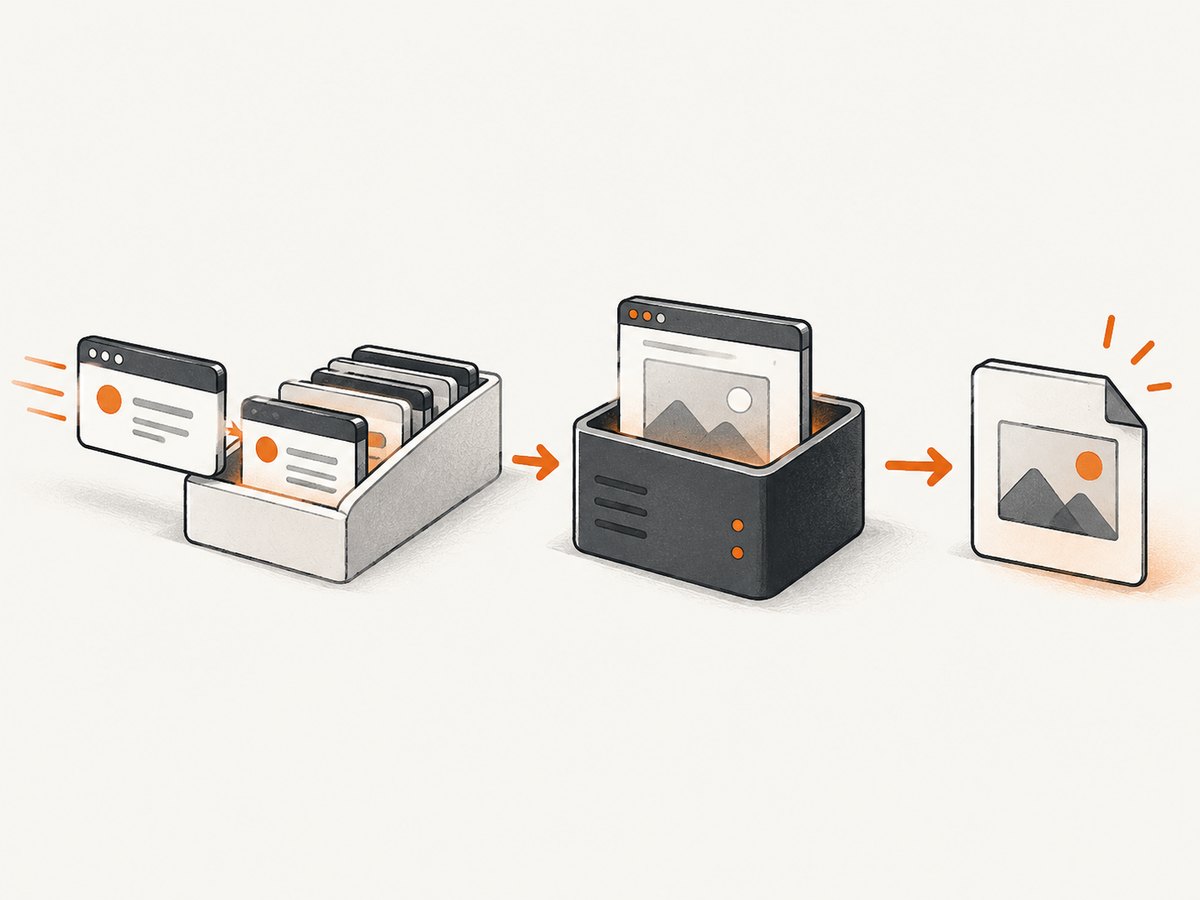
For many captures, dispatch a message to a queue worker instead of starting a browser during an HTTP request. A long-lived worker can reuse one browser and create a fresh page per job, but periodically recycle the browser to contain leaks and stale state. Always close pages in a finally block and isolate cookies or profiles between tenants.
9. Deployment checklist
- Run
npm ciand ensure Puppeteer’s install script runs, or executenpx puppeteer browsers install. - Run
npm run buildto compile Encore assets intopublic/build. - Confirm the runtime user can read the browser cache and write the screenshot output directory.
- Install Linux libraries required by your chosen Chrome image, following Puppeteer’s troubleshooting page.
- Give the process enough shared memory and CPU for the number of concurrent pages.
- Use a fixed application URL reachable from the worker;
127.0.0.1inside a container means that container, not necessarily your web service. - Set navigation and job timeouts, capture stderr, and retain enough logs to identify the URL and failure stage.
- Pin Node, Puppeteer, and the browser image together when reproducible pixels matter.
Symfony’s Encore documentation currently describes Encore as low-maintenance, focused on bug fixes, security patches, and peer-dependency updates, and points new architecture decisions toward Symfony Reprise. Existing Encore applications can continue using the documented workflow; record this maintenance context when planning a new frontend build.
10. Troubleshooting Puppeteer and Encore
| Symptom | Likely cause | Fix |
|---|---|---|
| Could not find Chrome (ver. …) | Install scripts were blocked or the cache is missing. | Run npx puppeteer browsers install, allow the lifecycle script, and check cache permissions. |
| Failed to launch browser on Linux | Missing shared libraries, an incompatible image, or sandbox permissions. | Use the packages and base-image guidance in Puppeteer’s troubleshooting documentation. Change sandbox flags only after reviewing the container security model. |
| Encore changes do not appear | The watcher still has the old webpack configuration. | Stop and restart encore dev or encore dev --watch. |
Cannot use require in webpack.config.js |
Encore 7+ expects ESM. | Add "type": "module", use import, and export await Encore.getWebpackConfig(); alternatively use webpack.config.mjs. |
| Navigation timeout | The page is slow, blocked, polling forever, or unreachable from the worker. | Check the URL from the worker, use domcontentloaded plus a readiness selector, and set a bounded timeout. |
| Blank or incomplete screenshot | Client rendering has not finished, lazy content is below the fold, or fonts failed. | Wait for a known selector, scroll or trigger lazy loading, verify asset URLs, and capture browser console/network errors. |
| Works locally, fails in CI | Different Node version, browser cache, OS libraries, or environment URL. | Pin versions, install the browser in CI, validate permissions, and test the exact container image. |
When diagnosing a failure, temporarily use headless: false, enable screenshots at intermediate steps, and log page errors:
page.on('pageerror', error => console.error('pageerror', error));
page.on('console', message => console.log('browser', message.type(), message.text()));
page.on('requestfailed', request => console.error('requestfailed', request.url(), request.failure()));
11. Performance, reliability, and cost
Performance
Browser startup is expensive compared with opening a new page. For a controlled worker, launch one browser and create pages per job, limiting concurrency to what the CPU and memory can sustain. Reuse pages only if you reset cookies, local storage, viewport, and permissions between jobs. Block unnecessary analytics or third-party requests in your own application when they are not part of the visual result.
Full-page screenshots require layout and rasterization for the entire document. Element captures are usually cheaper. Use a selector-based readiness check instead of waiting for a permanently active network to become idle. Keep output formats and device scale appropriate to the consumer; a high device scale increases pixels and file size.
Reliability
Make jobs idempotent, use unique output names, and retry only transient failures such as a temporary network error. Do not blindly retry invalid selectors, authentication failures, or deterministic JavaScript errors. Close pages and browsers on every path. Store the browser and dependency versions with generated artifacts if visual diffs must be reproducible.
Cost
Puppeteer’s direct costs include CI or server CPU, memory, storage, and browser-download bandwidth. The browser download is also part of build-cache planning. If captures are bursty, a managed screenshot API can avoid maintaining Chrome images, OS libraries, worker pools, and retry logic.
12. Or skip the browser setup
ScreenshotNeo provides a website screenshot API and MCP server. One GET request returns a PNG, JPEG, WebP, or PDF. The API accepts cookie and consent banners like a visitor and removes more than 60 known consent platforms, newsletter popups, and chat widgets before capture; each cleanup step can be disabled. Bot checks, CAPTCHAs, blank pages, timeouts, failed loads, and cache hits are not billed, and response headers identify the page verdict and billing status.

See the ScreenshotNeo API documentation for all options. A minimal cURL request is:
curl -G "https://api.screenshotneo.com/v1/shot" -d access_key=YOUR_API_KEY --data-urlencode url=https://stripe.com -o shot.webpPython:
import requests

r = requests.get(
    "https://api.screenshotneo.com/v1/shot",
    params={"access_key": "YOUR_API_KEY", "url": "https://stripe.com"},
    timeout=90,
)
r.raise_for_status()
open("shot.webp", "wb").write(r.content)
Node.js:
const q = new URLSearchParams({ access_key: 'YOUR_API_KEY', url: 'https://stripe.com' });
const res = await fetch(`https://api.screenshotneo.com/v1/shot?${q}`);
if (!res.ok) throw new Error(`Screenshot failed: ${res.status}`);
const data = Buffer.from(await res.arrayBuffer());
await import('node:fs/promises').then(fs => fs.writeFile('shot.webp', data));
ScreenshotNeo also supports full-page capture with lazy images loaded, CSS-selector element capture, dark mode, twelve device presets or any viewport, retina scale, PDF paper size/margins/landscape/page ranges, HTML/CSS to image, custom CSS and JavaScript, pre-capture clicks, hidden selectors, selector/delay/network-idle waits, request and resource blocking, custom headers/cookies/user agents/Authorization, timezone and geolocation, transparent backgrounds, resizing, selectable-TTL caching, signed public image links, asynchronous jobs with signed webhooks, bulk capture of up to 100 URLs per call, a usage API, and an OpenAPI specification. Parameter names used by other screenshot APIs also work to ease migration.
An MCP server exposes take_screenshot, get_page_info, and capture_pdf to Claude, Cursor, and other MCP clients. Plans include 1,000 shots per month free with no card, Starter at $5 for 3,000, Growth at $15 for 15,000, Pro at $39 for 60,000, Scale at $99 for 250,000, and Business at $249 for 1,000,000; yearly billing gives two months free and every feature is on every plan.
Start with 1,000 free screenshots a month, with no card required.
13. FAQ
Can Puppeteer run inside an Encore entry?
It should not. Encore entries are browser-delivery bundles. Run Puppeteer from Node on the server, a Symfony command, worker, or separate automation service.
Should I use puppeteer-core in Docker?
Use it when your Docker image deliberately supplies Chrome and you set executablePath or channel. Use puppeteer when you want its compatible browser downloaded for you.
Why does networkidle2 never finish?
Persistent polling, analytics, or WebSockets can keep connections open. Navigate with domcontentloaded and wait for an application-specific selector with a timeout.
How do I make screenshots repeatable?
Pin Node, Puppeteer, and Chrome versions; fix viewport, timezone, locale, and fonts; wait for deterministic readiness; and record the versions with each artifact.
When is an API preferable to self-hosting Puppeteer?
An API is useful when you want screenshots without maintaining browser binaries, Linux libraries, worker concurrency, retries, and cleanup. ScreenshotNeo adds consent cleanup, billing only for clean captures, and MCP tools for AI agents.


