How to Fix Puppeteer Table Header Overlap Across PDF Page Breaks
Fix missing table headings and overlapping page headers in Puppeteer PDFs. Diagnose print CSS, table markup, margins, breaks, and rowspans.
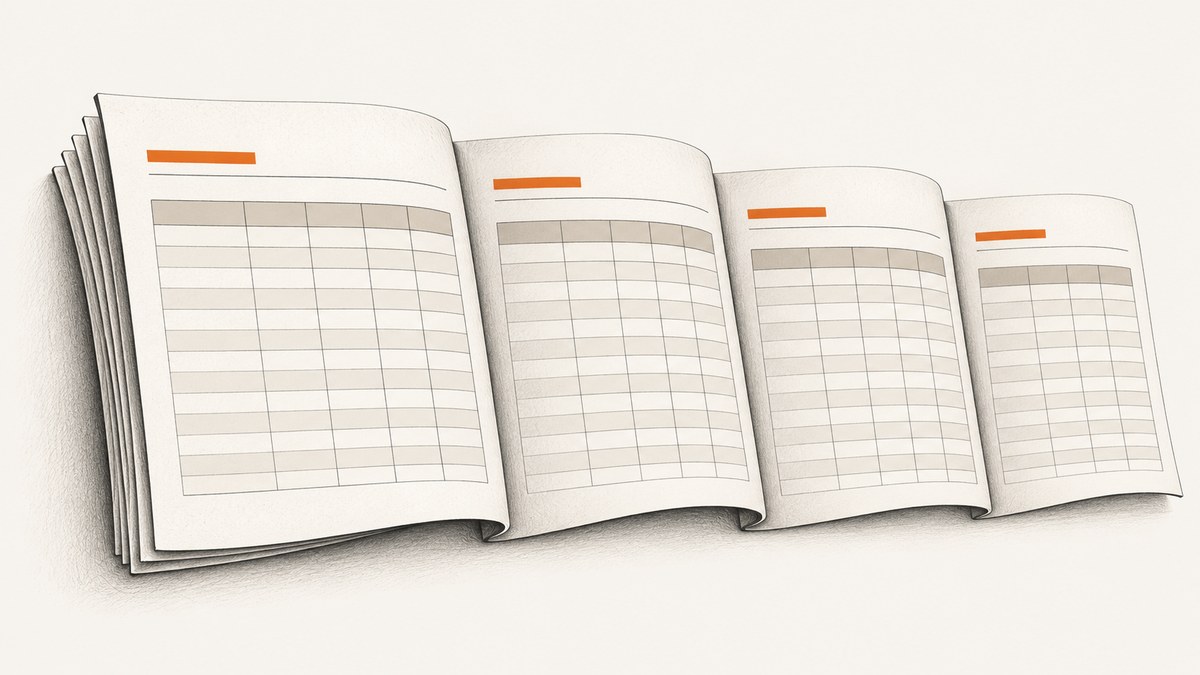
Puppeteer PDF header problems usually mean one of two things: a table’s column headings do not repeat when rows continue on the next page, or a separate page header overlaps the content below it. They have different fixes. For repeated table headings, use semantic <thead> markup and test display: table-header-group in print CSS. For a fixed page header, reserve enough space with the PDF top margin or use Puppeteer’s header/footer templates. In both cases, inspect the generated PDF using the same Puppeteer and Chromium versions, paper size, and options used in deployment.
Puppeteer’s page.pdf() uses print CSS by default. A CSS rule is a starting point, not a guarantee: table structure, rowspans, forced breaks, margins, and runtime details can change the result. This guide separates the symptoms and gives you a runnable diagnostic path.
1. Identify which header is wrong
Before changing CSS, determine what is overlapping or missing. A table heading labels columns such as “Date” and “Amount”; it belongs inside the table’s <thead>. A page header is document furniture—such as a report title or logo—positioned at the top of every printed page. Fixing one does not automatically fix the other.
| Symptom | Likely area to inspect | First step |
|---|---|---|
| Column labels appear only on the first page | Table markup and print table-section styles | Use a real <thead>; try table-header-group |
| Report title covers rows on later pages | Fixed page header and available page area | Measure the header; increase the top margin or use a PDF template |
| Rows, borders, or styles break strangely | Rowspans, forced breaks, oversized rows, conflicting CSS | Reduce the document to a minimal table and inspect pagination |
Keep a copy of the HTML, CSS, Puppeteer options, and PDF from a failing run. A screenshot of the source page in a browser is not enough to diagnose print pagination.
2. Confirm the active media type
page.pdf() renders with print CSS by default. Rules inside @media print therefore apply even if the page looked correct on screen. Inspect the print rules for changed display values, margins, heights, positioning, and overflow. Also check whether your code explicitly selects screen media before generating the PDF.
If you intentionally want screen styles in the PDF, call page.emulateMediaType('screen') before page.pdf(). Otherwise, leave print media active and fix the print stylesheet. Do not toggle media just to hide a symptom without deciding which layout the PDF is meant to represent.
3. Repeat a table’s column headings
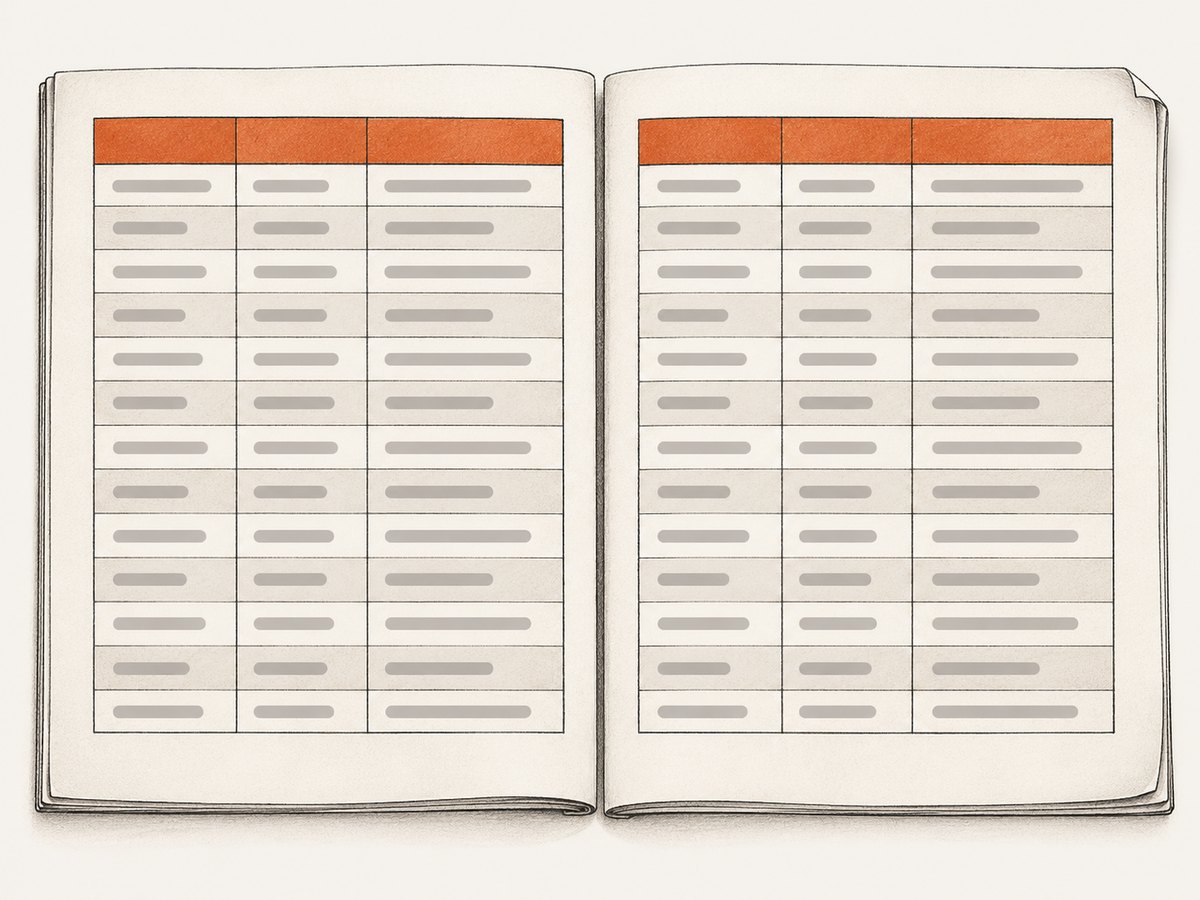
Use one semantic table with its heading row in <thead> and data rows in <tbody>. Avoid recreating the visual table with unrelated divs if the content is tabular. For print, set the table head to the table-header-group display role and, where appropriate, discourage splitting individual rows.
<style>
@media print {
  thead {
    display: table-header-group;
  }

  /* Apply only when each row can fit in the printable page area. */
  tr {
    break-inside: avoid;
    page-break-inside: avoid;
  }
}
</style>

<table>
  <thead>
    <tr>
      <th scope="col">Date</th>
      <th scope="col">Description</th>
      <th scope="col">Amount</th>
    </tr>
  </thead>
  <tbody>
    <tr><td>2026-09-01</td><td>Invoice</td><td>$120.00</td></tr>
    <tr><td>2026-09-02</td><td>Adjustment</td><td>-$10.00</td></tr>
  </tbody>
</table>
The break-inside: avoid declarations are preferences, not absolute commands. The CSS paged-media rules allow a user agent to relax avoidance when necessary to find usable break points. A row taller than the available page area cannot be kept intact. Apply avoidance narrowly to rows or small blocks that can fit; putting it on an entire long table can cause large blank areas or unexpected pagination.
If the heading still does not repeat, check that print CSS or a reset has not changed thead to a generic display type. Confirm that the heading row is really a child of thead, not just a visually styled row in tbody. Then make a minimal reproduction and test it with the exact deployed runtime. A Puppeteer issue reports a non-repeating heading despite table-header-group, but was labeled not reproducible; that report is a reason to validate your case, not evidence of a universal Chromium defect.
4. Keep a separate page header out of the content area
A fixed-position HTML element can be drawn over the page body on each printed page. If you use one, measure its rendered height and reserve space beneath it. Puppeteer’s PDF options accept page margins; the top margin needs to accommodate the header plus any gap you want. Treat this as a measured starting point and inspect later pages, where the overlap may first become visible.
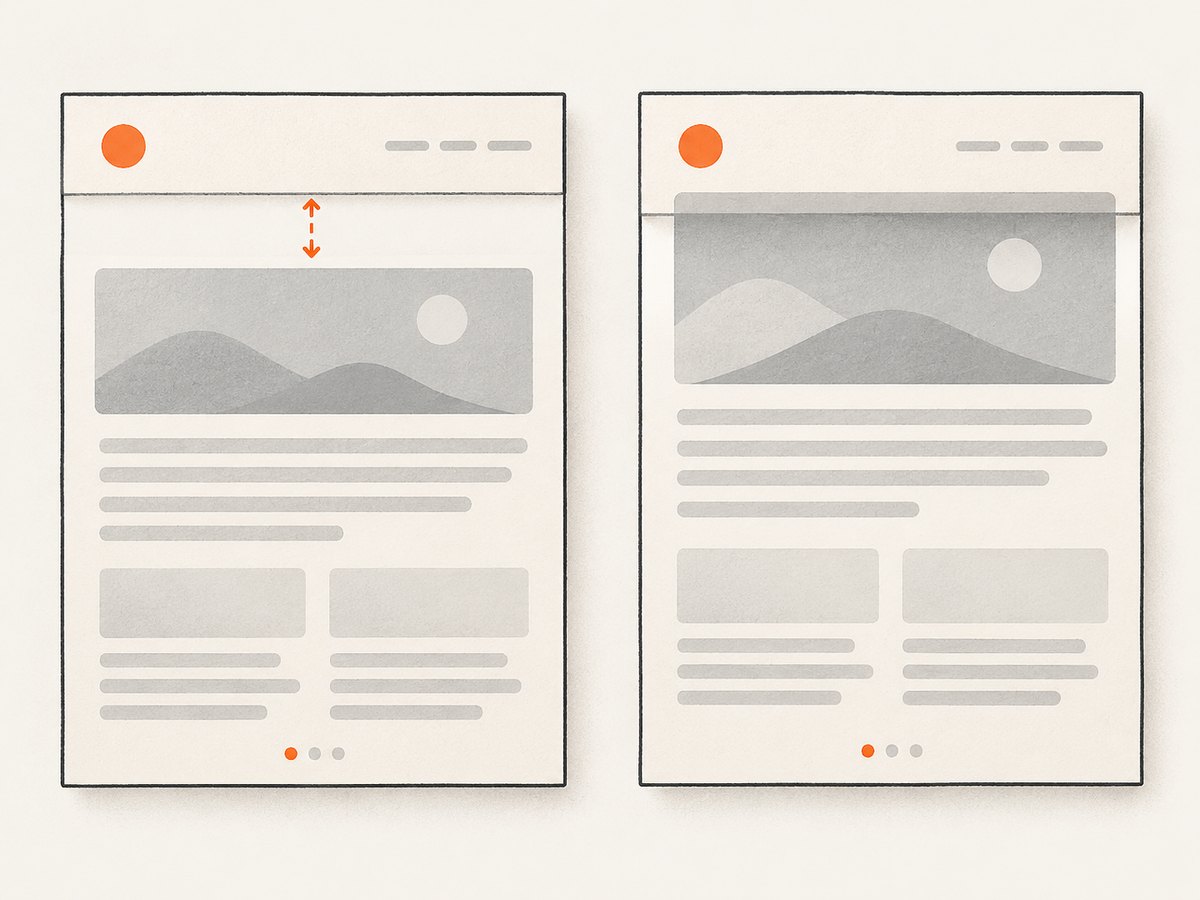
For simple page furniture, compare the HTML fixed-header approach with Puppeteer’s headerTemplate and footerTemplate options. Templates support page-number and total-page fields. Set template display and margins deliberately, and verify the final output because template layout also consumes page space.
const puppeteer = require('puppeteer');

(async () => {
  const browser = await puppeteer.launch({ headless: true });
  try {
    const page = await browser.newPage();
    await page.setContent(`
      <style>
        @page { margin: 24mm 14mm 18mm; }
        body { font: 12px Arial, sans-serif; }
        table { width: 100%; border-collapse: collapse; }
        th, td { border: 1px solid #bbb; padding: 6px; text-align: left; }
        @media print {
          thead { display: table-header-group; }
          tr { break-inside: avoid; page-break-inside: avoid; }
        }
      </style>
      <h1>Monthly report</h1>
      <table>
        <thead><tr><th>Date</th><th>Description</th><th>Amount</th></tr></thead>
        <tbody>
          ${Array.from({ length: 100 }, (_, i) =>
            `<tr><td>Day ${i + 1}</td><td>Example row ${i + 1}</td><td>$10.00</td></tr>`
          ).join('')}
        </tbody>
      </table>
    `);

    // Optional: use screen styles instead of the default print styles.
    // await page.emulateMediaType('screen');

    await page.pdf({
      path: 'report.pdf',
      format: 'A4',
      printBackground: true,
      margin: { top: '24mm', right: '14mm', bottom: '18mm', left: '14mm' },
      displayHeaderFooter: true,
      headerTemplate: '<div style="font-size:9px; width:100%; text-align:center;">Monthly report</div>',
      footerTemplate: '<div style="font-size:9px; width:100%; text-align:center;"><span class="pageNumber"></span> / <span class="totalPages"></span></div>'
    });
  } finally {
    await browser.close();
  }
})();
This example uses both a document title in the body and a PDF header template to illustrate the separate controls. If you use an HTML fixed header instead, set its height and the top margin consistently; avoid duplicating the same header in both places. The exact margin required depends on rendered content, font metrics, paper size, and scale.
5. Inspect breaks, rowspans, and print options
Once the basic structure is sound, look for interactions that make the page break difficult:
- Forced breaks:
break-before,break-after, legacypage-break-before, and page wrappers may force a break near a heading or row. - Oversized rows: long unbroken text, large images, nested blocks, or large padding can make a row taller than the available page.
- Rowspans: a cell spanning rows across a page boundary can produce difficult border and styling artifacts. Simplify the structure or redesign the data so groups do not span the break where possible.
- Position and overflow: inspect fixed or absolute descendants and ancestors with restrictive height,
overflow, or transformed positioning. - Display overrides: print rules that turn table sections, rows, or cells into block or flex elements can disrupt table pagination.
Set PDF paper size, margins, scale, and background printing intentionally. Puppeteer documents that CSS page size can take precedence depending on the preferCSSPageSize option. A CSS @page size that differs from the options can therefore surprise you. Record the options alongside the PDF when debugging, and change one variable at a time.
6. Troubleshooting checklist
- PDF differs from the browser view: check that print media is active by default and inspect
@media print. CallemulateMediaType('screen')only if screen styling is intended. - Table headings appear once: verify a real
thead, a single semantic table, anddisplay: table-header-group. Check print display overrides and test a reduced document. - Page title covers the first row: measure the page header and reserve top space with a suitable margin. Check every page, not just page one.
- Only some rows split or vanish: inspect tall rows, nested content, forced breaks, and narrow use of break avoidance. Avoidance cannot make oversized content fit.
- Borders change around a page break: look for rowspans and complex table styling. A reported Puppeteer issue describes border and row-style artifacts with rowspans; its workarounds did not resolve that particular case, so simplify and validate your structure.
- Local output works, deployed output fails: compare Puppeteer and Chromium versions, fonts, installed resources, paper settings, and launch/runtime configuration. Render in the actual deployment environment.
Keep a small regression fixture with a short table, a table crossing at least one page boundary, and the troublesome row or header. Compare generated PDFs after runtime or stylesheet upgrades. The issue reports cited here describe individual symptoms; they do not establish that every document or version has the same failure.
7. Performance, reliability, and cost
For Puppeteer, the work is browser rendering followed by PDF generation. Keep the page content and external dependencies predictable when repeatable output matters: wait for required fonts and images, avoid unnecessary third-party requests, and use a fixed paper size, margins, and scale. Large DOMs and high-resolution assets add rendering work and memory use. Reuse browser processes carefully for batches, while isolating pages and closing them after use; always close the browser in a cleanup path.
Reliability comes from validating the artifact, not just checking that page.pdf() returned bytes. Confirm expected page count, headings on continuation pages, no content under the page header, and readable rows around breaks. Pin and record the deployed Puppeteer/Chromium versions so a rendering change can be traced. No single CSS declaration guarantees identical pagination for every document.
Self-hosting has infrastructure costs: browser CPU and memory, runtime maintenance, and time spent investigating difficult layouts. Puppeteer itself has no per-screenshot API charge in this workflow, but the browser and its operating environment still need to be run and maintained. If you already control the browser environment and need custom PDF layout, this direct approach offers control. If your task is capturing a URL as a screenshot or PDF without managing that browser setup, the hosted alternative below may be simpler.
8. Or skip the browser setup
For a URL-to-PDF capture, ScreenshotNeo provides a website screenshot API and MCP server. Its PDF options include paper size, margins, landscape, and page ranges. See the API documentation for request options. This is a URL capture service, so it does not replace custom HTML report generation where your application must construct the document itself.
curl -G "https://api.screenshotneo.com/v1/shot" \
  -d access_key=YOUR_API_KEY \
  --data-urlencode url=https://stripe.com \
  -o shot.pdf
import requests
r = requests.get(
"https://api.screenshotneo.com/v1/shot",
params={"access_key": "YOUR_API_KEY", "url": "https://stripe.com", "format": "pdf"},
timeout=90,
)
r.raise_for_status()
open("shot.pdf", "wb").write(r.content)const q = new URLSearchParams({
access_key: 'YOUR_API_KEY',
url: 'https://stripe.com',
format: 'pdf'
});
const res = await fetch(`https://api.screenshotneo.com/v1/shot?${q}`);
if (!res.ok) throw new Error(`ScreenshotNeo returned ${res.status}`);
await Bun.write('shot.pdf', res);- Cookie banners, newsletter popups, and chat widgets are removed before the shot; each cleanup step can be turned off.
- Bot checks, blank pages, timeouts, failed loads, and cache hits are not billed; response headers report page verdict and billing status.
- An MCP server provides
take_screenshot,get_page_info, andcapture_pdftools for Claude, Cursor, and other MCP clients. - The Free plan includes 1,000 shots a month with no card; paid plans start at $5 for 3,000 shots. Every feature is on every plan.
Create a free ScreenshotNeo account to start with 1,000 screenshots a month and no card.
9. Frequently asked questions
Does thead { display: table-header-group; } always repeat the header?
It is the sensible CSS baseline for semantic table markup, but it is not a universal guarantee. Validate the actual table and deployed Puppeteer/Chromium runtime.
Should I use a PDF header template or a fixed HTML header?
Use the approach that fits the document’s layout and styling needs. Templates expose page-number fields and work as PDF page furniture; HTML gives you page content under your stylesheet. In either case, reserve and verify the space it uses.
Can break-inside: avoid keep every row together?
No. It can be relaxed when pagination constraints require a break, and a row taller than the printable area cannot fit intact.
Why do rowspans make the PDF look different at a page break?
They complicate how table borders and row styling meet across pages. Reduce the rowspan structure or adjust the table design, then inspect the resulting PDF in the target runtime.
Primary references
- Puppeteer Page.pdf() documentation
- Puppeteer PDFOptions documentation
- W3C CSS 2.2 paged media specification
- Puppeteer issue #10020: reported non-repeating table header
- Puppeteer issue #10505: reported fixed header overlap
- Puppeteer issue #6388: reported row-span page-break artifacts
- Puppeteer issue #6366: reported break-inside behavior


