How to Fix Puppeteer’s “Target Closed” Error in Docker
“Target closed” means Puppeteer lost a browser target, but the message does not identify why. Use Chrome’s logs and this cause-first checklist to find the fix in Docker.
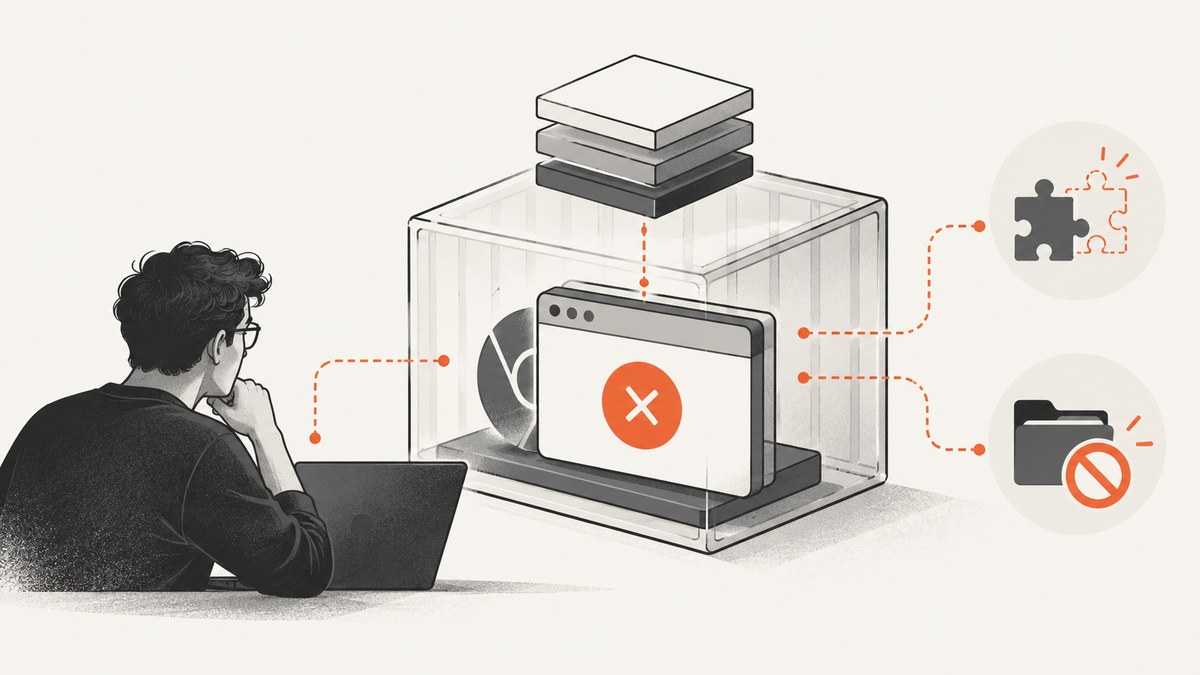
In Docker, Puppeteer’s Target closed error means that Puppeteer tried to communicate with a browser target—a page or browser context—that had already closed. It is a symptom, not a root-cause diagnosis. Chrome may have failed during startup, or it may have exited later during navigation, screenshot capture, or PDF generation.
Start by enabling Chrome’s own output with dumpio: true. Then check missing Linux libraries, browser and Puppeteer compatibility, sandbox configuration, writable directories, and runtime resource limits. There is no single Chrome flag that fixes every instance. Puppeteer’s troubleshooting guide and debugging guide are the primary references for these checks.
1. Locate when the target closes
Before changing the Dockerfile or launch arguments, identify the failing operation. The same message can surface while establishing the DevTools connection, creating a page, navigating, or capturing output. Record the full stack trace and the last operation that completed.
- Record the Node.js and Puppeteer versions from the application’s runtime and lockfile.
- Record the Docker base image, CPU architecture, Chrome or Chromium executable path, and actual browser version.
- Separate startup from job failures: does
puppeteer.launch()reject, doesnewPage()fail, or does a later operation fail? - Keep the complete browser stderr alongside the application error. It may reveal a missing shared library, sandbox problem, unwritable profile path, or crash.
Do not infer the cause from the protocol wording alone. In Puppeteer issue #6258, Chrome could not load libgobject-2.0.so.0, while the surfaced error was Protocol error (Target.setDiscoverTargets): Target closed. That older report illustrates how startup failure can appear as a protocol error; it does not mean the same library is missing in your image.
2. Capture Chrome’s output
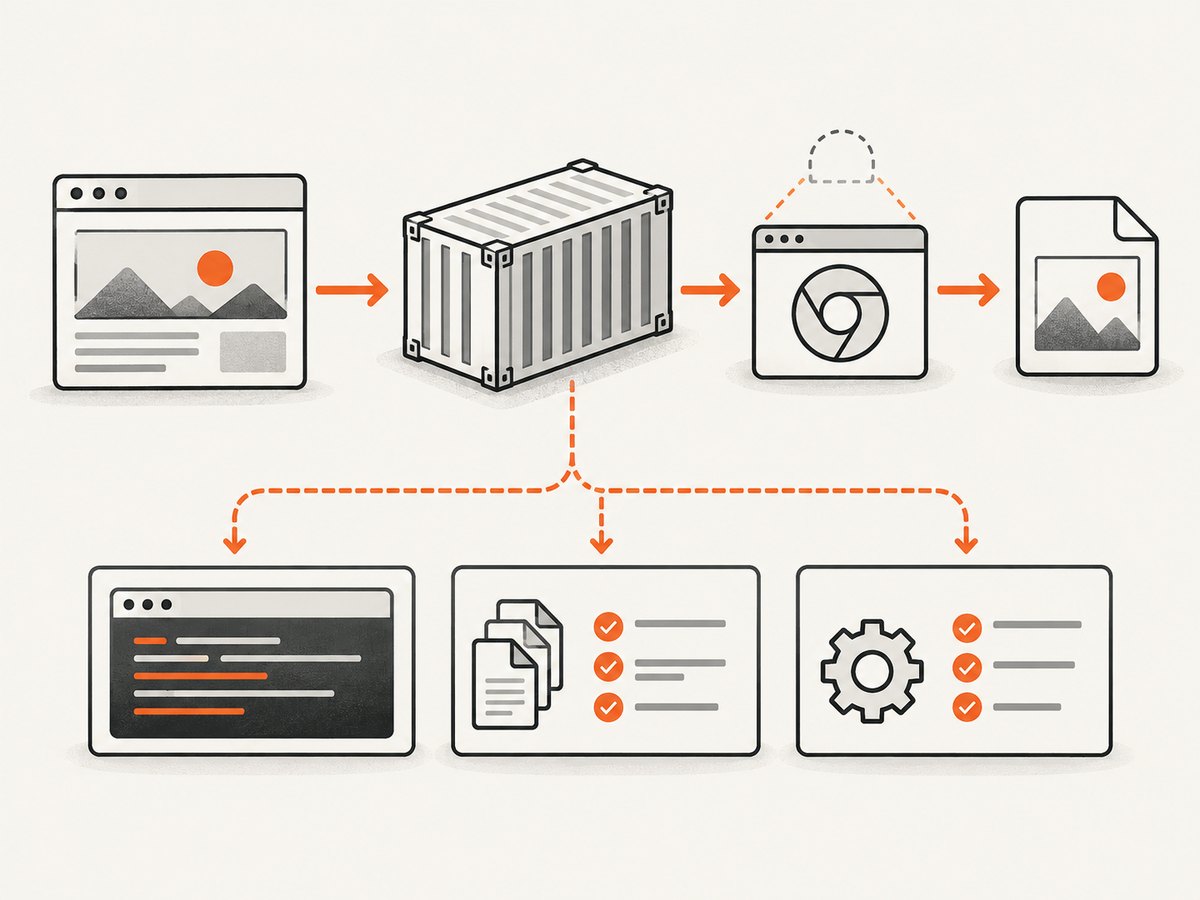
Temporarily turn on browser process output and add logs around each awaited browser operation. This runnable example prints the browser’s output and marks which stage fails:
const puppeteer = require('puppeteer');

async function main() {
  let browser;
  try {
    console.log('Starting Chrome');
    browser = await puppeteer.launch({ dumpio: true });
    console.log('Chrome started');

    const page = await browser.newPage();
    console.log('Page created');

    await page.goto('https://example.com', {
      waitUntil: 'domcontentloaded',
      timeout: 30000,
    });
    console.log('Navigation completed');

    await page.screenshot({ path: '/tmp/example.png' });
    console.log('Screenshot saved');
  } finally {
    if (browser) await browser.close();
  }
}

main().catch((error) => {
  console.error('Browser job failed:', error);
  process.exitCode = 1;
});
Puppeteer documents dumpio: true as a way to forward browser stdout and stderr to the Node process. Look for the first meaningful browser error before the target-closed message. If that output does not locate the failure, Puppeteer also documents NODE_DEBUG="puppeteer:*" for inspecting DevTools protocol traffic. Debug output can contain sensitive URLs or page information, so handle and retain it according to your logging policy.
3. Check Linux libraries in the image
Puppeteer’s bundled Chrome for Testing depends on shared libraries that a minimal custom image may not include. Inspect the executable used by the running application, rather than a different Chrome installed on your workstation:
which google-chrome || which chromium || which chromium-browser
ldd /path/to/chrome | grep not
Replace /path/to/chrome with the actual executable path. If ldd reports a library as “not found,” install the distribution package that provides that library in the image, rebuild, and run the same workload again. Puppeteer’s troubleshooting documentation includes Debian and Ubuntu dependency guidance, but the needed packages depend on the image and browser. Do not paste a Debian package list into Alpine or another distribution without checking compatibility.
For a dependency-related startup failure, the fix belongs in the image build: add the missing package to the Dockerfile, then rebuild the image. Installing a package manually into a running container is not a durable deployment fix. Keep the browser executable path and the result of the dependency check in deployment diagnostics so a base-image change is easier to investigate.
4. Verify browser and Puppeteer compatibility
Puppeteer is tested against its bundled browser. If the application supplies a separate system Chromium or overrides the executable path, verify that browser’s version and compatibility with the installed Puppeteer release. A package upgrade, lockfile change, or base-image refresh can change one side of this pairing without changing the other.
Use the versions installed in the failing container as evidence:
node --version
npm ls puppeteer puppeteer-core
/path/to/chrome --version
The precise package names in the last command depend on the executable installed in your image. Check the installation method and version-specific guidance in Puppeteer’s installation guide. Its troubleshooting guide also notes platform and dependency constraints; in particular, Chrome does not work on Alpine out of the box. Diagnose your chosen base image and browser rather than borrowing a version tuple or Dockerfile from an old issue.
The Puppeteer changelog listed version 25.12.0 on September 23, 2026, with Chrome for Testing 154.0.8037.57. That is a dated snapshot, not a blanket upgrade recommendation. Match the versions your application supports and deploys.
5. Check sandbox configuration
Chrome’s sandbox provides security isolation. If Chrome stderr says “No usable sandbox!”, investigate whether the host and container are configured to support Chrome’s sandbox. Puppeteer’s official guidance recommends a usable sandbox where possible and strongly discourages running with --no-sandbox.
Do not add --no-sandbox just because the error says “Target closed.” Puppeteer describes that option only for cases where the content opened in Chrome is absolutely trusted. It reduces protection and should not be a routine Docker setting. Confirm an actual sandbox error first, then configure sandbox support for the deployment environment or evaluate the security implications of the content and runtime.
6. Make Chrome’s working directories writable
Chrome creates profile, configuration, and cache files. A read-only root filesystem, an incorrectly owned mounted volume, or a restricted temporary directory can prevent startup or cause a later failure. Check browser stderr for profile, crashpad, or file-creation errors, and confirm the directories are writable by the same user that launches Node.
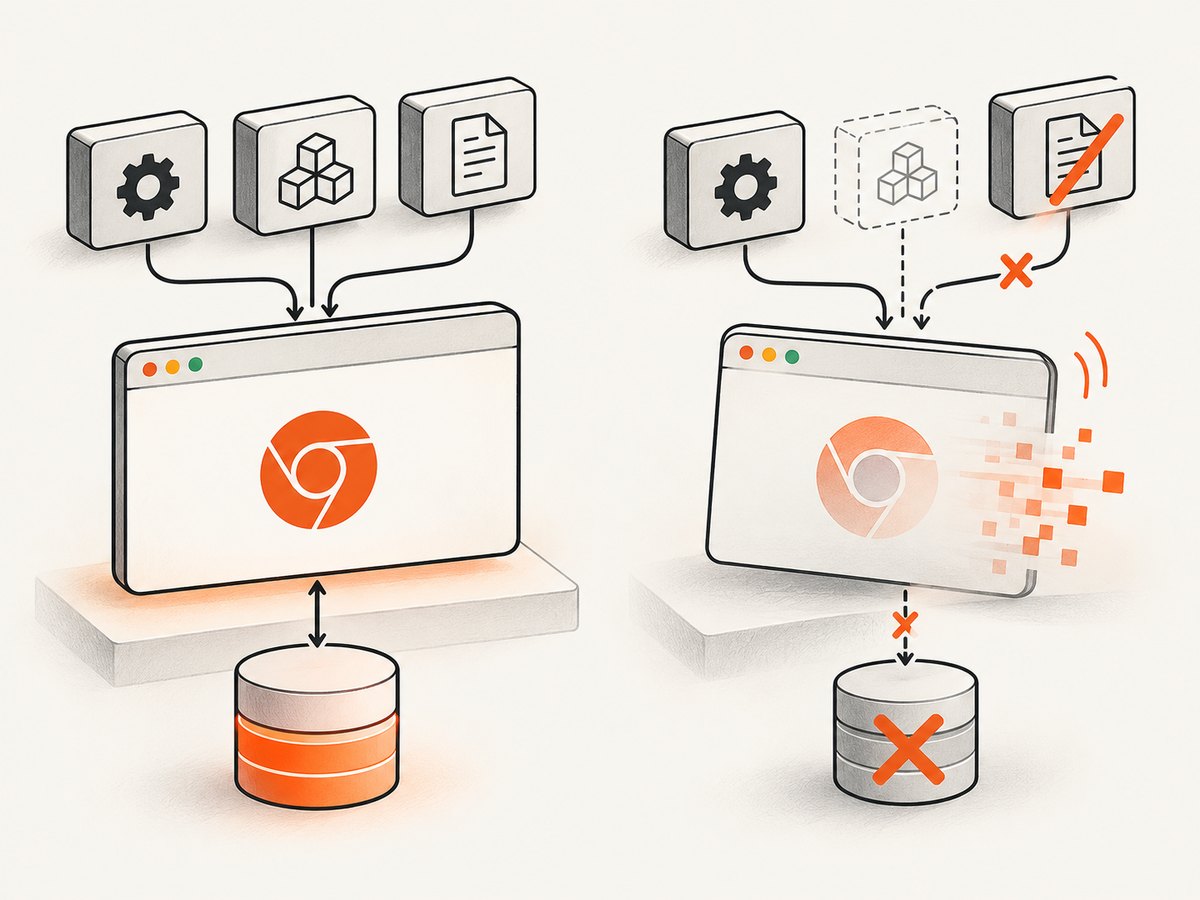
For a container where /tmp is writable, Puppeteer documents directing its configuration and cache there. A temporary user data directory can also keep the browser profile off a read-only application path:
const puppeteer = require('puppeteer');

async function main() {
  const browser = await puppeteer.launch({
    dumpio: true,
    userDataDir: '/tmp/puppeteer-profile',
    env: {
      ...process.env,
      XDG_CONFIG_HOME: '/tmp/.config',
      XDG_CACHE_HOME: '/tmp/.cache',
    },
  });

  try {
    const page = await browser.newPage();
    await page.goto('https://example.com', { waitUntil: 'domcontentloaded' });
    await page.screenshot({ path: '/tmp/example.png' });
  } finally {
    await browser.close();
  }
}

main().catch((error) => {
  console.error(error);
  process.exitCode = 1;
});
These paths are examples; set them to directories that exist and are writable under your container’s filesystem policy. If you mount a volume instead, verify ownership and permissions for the runtime user. A persistent volume can preserve profile state between runs; a temporary directory avoids that persistence. Choose based on whether browser state needs to survive a job.
7. Investigate failures after launch
If launch() and newPage() succeed but the target closes during a job, focus on the operation and workload immediately before the exit. Correlate browser output, application logs, container events, and resource measurements at that time. Memory pressure can terminate a browser process, but “Target closed” by itself does not prove an out-of-memory event.
- Navigation: capture the destination, timeout, and navigation wait condition. A slow or unstable page may need a bounded timeout or a less restrictive wait condition.
- Screenshot or PDF: log requested page dimensions and whether the job uses full-page output. Large pages and parallel captures can increase resource use.
- Concurrency: measure memory and CPU at the failing concurrency. Reduce simultaneous browser work only if measurements or repeatable results point to resource pressure.
- Container termination: check whether the container or browser process was killed while the job ran. Increase resource limits only when observed limits or termination records support that change.
Keep failure handling explicit. Close a browser in a finally block when the application owns its lifecycle, and do not reuse a page or browser context after it has closed. A retry may help with a transient navigation problem, but retrying a deterministic missing-library or permission failure only repeats it.
8. Common errors and fixes
| Evidence | Likely area | What to check or change |
|---|---|---|
Target closed during launch or connection setup |
Chrome did not start or exited immediately | Enable dumpio; inspect stderr, shared libraries, sandbox setup, and writable profile paths. |
error while loading shared libraries or ldd reports “not found” |
Image is missing a runtime library | Install the package for that library in the correct distribution and rebuild the image. |
No usable sandbox! |
Sandbox unavailable in the runtime | Configure sandbox support. Do not make --no-sandbox a default workaround. |
| Profile or crashpad cannot create files | Chrome’s working directory is unwritable | Set a writable profile/config/cache path or correct mounted-volume permissions. |
| Target closes after navigation or rendering begins | Later browser crash, process termination, or job failure | Correlate browser logs and container resource measurements with the operation. |
| Failure began after a browser or dependency update | Version or platform mismatch | Record actual versions and executable path; check the installed Puppeteer release’s guidance. |
9. Choose a Docker setup deliberately
Several operational choices affect the failure surface:
| Choice | Considerations |
|---|---|
| Puppeteer’s bundled Chrome for Testing | Version pairing is the path Puppeteer tests against. The image still needs the browser’s system libraries. |
| System Chromium | Can fit an image’s package management, but requires checking browser compatibility and executable configuration. |
| Sandboxed Chrome | Preferred when the deployment can support it; preserves Chrome’s security isolation. |
--no-sandbox |
Reduced isolation; Puppeteer strongly discourages it except for absolutely trusted content. |
| Temporary writable paths | Useful for ephemeral browser jobs when the container permits writes under /tmp. |
| Mounted writable volume | Can preserve browser files, but requires correct ownership and a decision about retained profile state. |
A lean base image can reduce image size, but it may omit libraries Chrome expects. A larger image may include more dependencies while increasing image transfer and maintenance. Keep the Dockerfile reproducible, pin dependencies according to your release process, and rebuild when browser or operating-system packages change. Avoid copying old package lists without checking the current image’s distribution and architecture.
10. Troubleshooting checklist
- [ ] I know which operation failed: launch, page creation, navigation, screenshot, or PDF.
- [ ] I captured the full stack and temporarily enabled browser output with
dumpio: true. - [ ] I recorded Node, Puppeteer, browser, base-image, and architecture details from the container.
- [ ] I checked the actual browser executable’s shared-library dependencies.
- [ ] I checked stderr for sandbox and profile/cache permission errors.
- [ ] If the target closed later in the job, I correlated logs with container events and measured resources.
- [ ] Any fix is in the image or deployment configuration and was checked against the same workload.
11. Or skip the browser setup
If the goal is to capture a website rather than maintain Chrome in your own container, ScreenshotNeo is a website screenshot API and MCP server from Yorker Media. A GET request returns an image or PDF. Here is the one-call cURL example; the ScreenshotNeo docs cover the API and its options.
curl -G "https://api.screenshotneo.com/v1/shot" \
  -d access_key=YOUR_API_KEY \
  --data-urlencode url=https://example.com \
  -o shot.webp
Python:
import requests

r = requests.get(
    "https://api.screenshotneo.com/v1/shot",
    params={"access_key": "YOUR_API_KEY", "url": "https://example.com"},
    timeout=90,
)
r.raise_for_status()
open("shot.webp", "wb").write(r.content)
Node.js:
const q = new URLSearchParams({
  access_key: 'YOUR_API_KEY',
  url: 'https://example.com',
});
const res = await fetch(`https://api.screenshotneo.com/v1/shot?${q}`);
if (!res.ok) throw new Error(`Screenshot request failed: ${res.status}`);
await require('node:fs/promises').writeFile('shot.webp', Buffer.from(await res.arrayBuffer()));- Cookie and consent banners, newsletter popups, and chat widgets are removed before the shot; each cleanup step can be turned off.
- Bot checks, blank pages, timeouts, failed loads, and cache hits are never billed. Response headers say which page verdict was returned and whether it was billed.
- An MCP server gives Claude, Cursor, and other MCP clients screenshot, page-info, and PDF tools.
- 1,000 screenshots a month are free with no card. Paid plans start at $5 for 3,000 shots, and every feature is on every plan.
Sign up free for 1,000 screenshots a month, with no card required.
12. FAQ
Does “Target closed” mean a page closed, or that Chrome crashed?
Either is possible. The message says Puppeteer lost a target; browser output and the operation that failed help determine whether startup, a page, or the browser process ended.
Should I add --disable-dev-shm-usage?
Do not assume it is the fix from this error alone. The cited Puppeteer guidance does not establish it as a universal remedy. First use the browser output and container evidence to locate the failure.
Is more memory always the answer?
No. A target can close for reasons unrelated to memory. Measure resources and check whether the process was terminated before changing limits or concurrency.
Can I use an old Dockerfile from a GitHub issue?
Use old reports to recognize patterns, not as current image prescriptions. Package names, browser builds, and Puppeteer requirements vary by distribution and version.
Primary references
- Puppeteer troubleshooting: Linux dependencies, sandboxing, and platform notes.
- Puppeteer debugging: browser process output and protocol debugging.
- Puppeteer installation: browser installation and compatibility context.
- Puppeteer issue #6258: historical example of a missing library behind a target-closed message.
- Puppeteer changelog: release history; consult it for the release relevant to your deployment.


