How to Fix Puppeteer’s “Target.setAutoAttach: Target Is Closed” Error in Docker
Diagnose Puppeteer’s Target.setAutoAttach error in Docker by checking Chrome startup, binaries, libraries, sandboxing, and browser lifecycle.
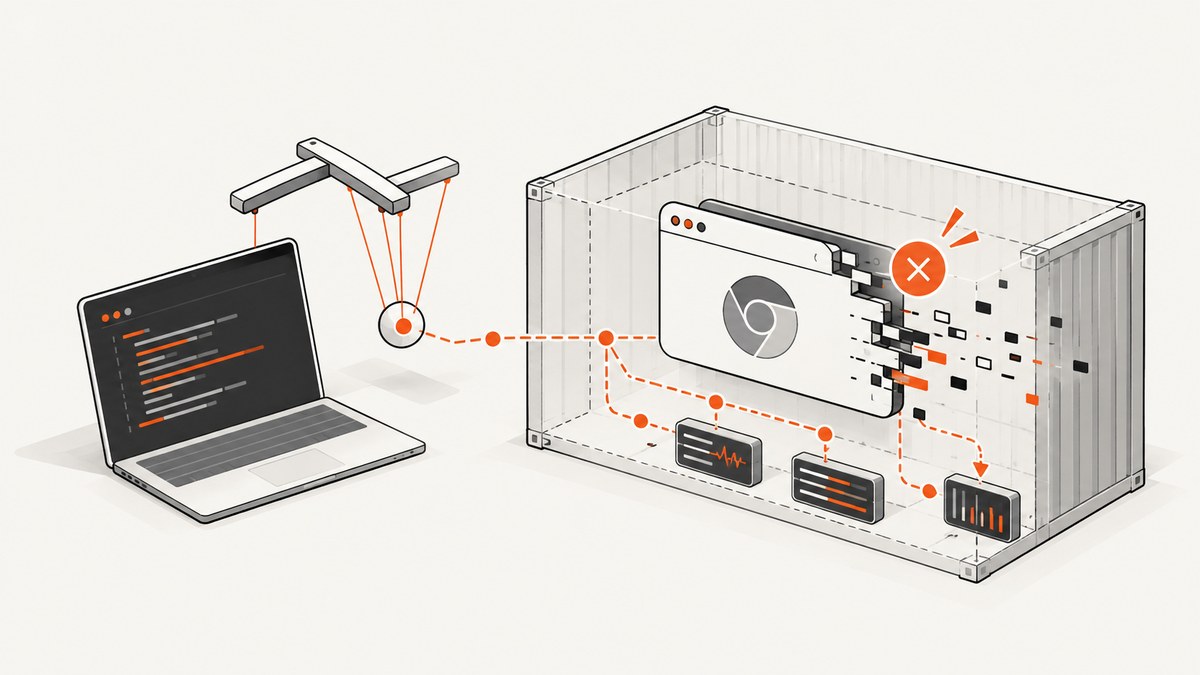
Short answer: Protocol error (Target.setAutoAttach): Target closed means Puppeteer tried to send the DevTools Protocol command Target.setAutoAttach after the Chrome target had already disappeared. The message identifies a browser lifecycle failure, not one universal bug. Chrome may have exited, the configured executable may be missing or incompatible, Linux libraries may be absent, the sandbox may be unusable, or application code may have closed a shared browser too early.
Diagnose it in this order:
- Capture Chromium stderr and Puppeteer launch output.
- Verify that the final image contains the browser binary you intend to launch.
- Check browser and Puppeteer version compatibility.
- Inspect runtime libraries in the final image.
- Check sandbox and container capabilities.
- Use an init process and make page/browser ownership explicit.
This guide walks through each check with runnable examples and Docker patterns. It also explains why common suggestions such as --no-sandbox or --disable-dev-shm-usage are hypotheses for particular deployments, not guaranteed fixes.
What Target.setAutoAttach actually means
Target.setAutoAttach belongs to the Chrome DevTools Protocol Target domain. It controls whether a debugging client automatically attaches to related targets such as pages, frames, workers, or other browser contexts. Puppeteer’s target manager sends this command while it is establishing or maintaining a connection.
If Chrome closes the target before the command completes, Chrome returns a closed-target error. The error does not tell you why the target closed. You must inspect the browser process and container around the failure.
The practical distinction is:
| Observation | What it tells you |
|---|---|
Target.setAutoAttach: Target closed only |
The target was gone when Puppeteer sent a protocol command; root cause remains unknown. |
| Chrome stderr shows “No usable sandbox!” | Sandbox setup or container permissions need attention. |
ldd chrome | grep not prints libraries |
The final image is missing runtime dependencies. |
| Executable path does not exist | Puppeteer cannot start the intended browser binary. |
| Browser exits after a request finishes | Application lifecycle code may be closing a browser still used by another request. |
1. Capture the first failure, not only Puppeteer’s last exception
Start by making browser startup observable. The useful evidence is the Puppeteer version, browser version, launch options, actual executable path, container image, and Chrome’s stderr.
const puppeteer = require('puppeteer');

(async () => {
  try {
    const browser = await puppeteer.launch({
      headless: true,
      dumpio: true,
      // executablePath: '/usr/bin/chromium',
      args: []
    });

    const page = await browser.newPage();
    await page.goto('https://example.com', { waitUntil: 'networkidle2' });
    console.log('title:', await page.title());
    await page.close();
    await browser.close();
  } catch (error) {
    console.error('Puppeteer launch or navigation failed:', error);
    process.exitCode = 1;
  }
})();
dumpio: true forwards the browser process’s standard error and output to your application logs. In Docker, also inspect the container’s complete output:
docker logs --timestamps your-containerLook for the earliest browser message. A later Target.setAutoAttach exception is often just the first Puppeteer operation that notices Chrome has already died.
2. Confirm the executable in the final runtime image
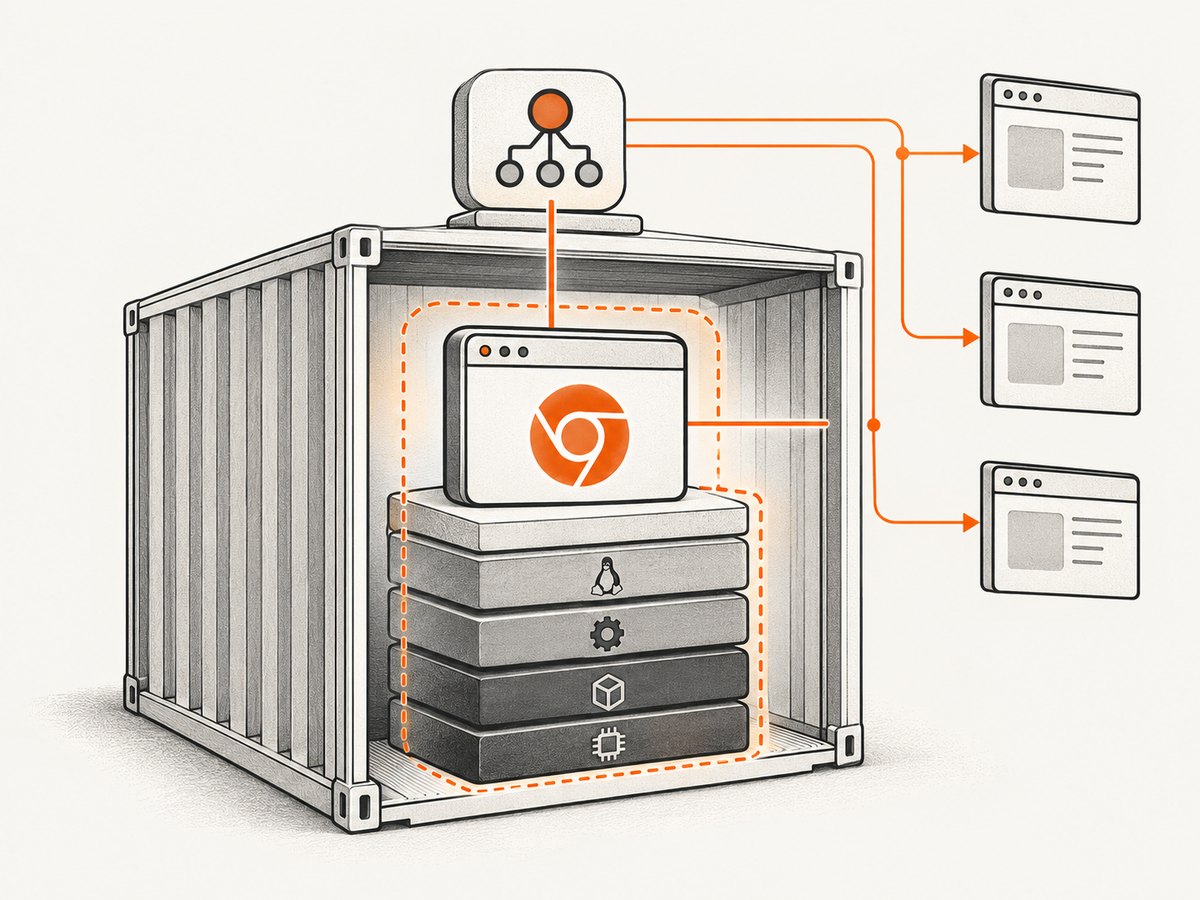
Puppeteer normally installs and selects a specific Chrome version. If you use that default, the browser and package are version-aligned. If your Dockerfile installs distribution Chromium, or if you use puppeteer-core, select the real executable explicitly and verify compatibility.
which chromium || true
which chromium-browser || true
which google-chrome || true
ls -l /usr/bin/chromium /usr/bin/chromium-browser /usr/bin/google-chrome 2>/dev/null || true
node -e "console.log(require('puppeteer/package.json').version)"
A minimal launch with a system browser looks like this:
const puppeteer = require('puppeteer-core');

const browser = await puppeteer.launch({
  executablePath: '/usr/bin/chromium',
  headless: true,
  dumpio: true
});
Use the path that exists in the final image, not only in a build stage. Multi-stage Docker builds frequently copy application files while leaving the browser or its libraries behind.
Puppeteer’s configuration files and environment variables are ignored by puppeteer-core. Pass executablePath in the actual launch() call or in the wrapper that ultimately calls it. Do not assume a framework integration recognizes a setting intended for the full puppeteer package.
For a reproducible baseline, the official Puppeteer Docker image includes Chrome for Testing, required dependencies, and a preinstalled Puppeteer version. A custom image gives you more control over the base distribution, but you become responsible for keeping the browser, package, and libraries compatible. See the Puppeteer Docker guide and configuration guide.
3. Check Linux libraries inside the running container
A browser can exist at the expected path and still exit immediately because a shared library is missing. Run the dependency check in the final runtime image:
CHROME_BIN="$(command -v chromium || command -v google-chrome || true)"
if [ -n "$CHROME_BIN" ]; then
  ldd "$CHROME_BIN" | grep not || true
fi
Puppeteer documents ldd chrome | grep not as a way to find missing Linux dependencies. Package names differ between Debian, Ubuntu, Alpine, and other distributions, so use the dependency list appropriate to your exact base image and current Puppeteer documentation instead of copying a package list from an unrelated image.
When diagnosing a multi-stage build, open a shell in the production stage and check:
docker run --rm -it your-image sh
cat /etc/os-release
command -v chromium || command -v google-chrome
ldd /path/to/chrome | grep not
If the browser binary is dynamically linked and any required library is reported as “not found,” fix the image first. Changing Puppeteer code cannot repair a missing runtime dependency.
4. Check the Chrome sandbox and container permissions
The official Puppeteer container is designed to run Chrome sandboxed. Its documented invocation uses an init process and SYS_ADMIN capability:
docker run --init --cap-add=SYS_ADMIN your-puppeteer-imageThe exact capability requirements depend on your image and runtime configuration. Read Chrome’s stderr for sandbox errors such as No usable sandbox!. Puppeteer strongly discourages running without a sandbox and recommends configuring a usable sandbox instead. The --no-sandbox flag may allow a browser to start in a deployment where the content is absolutely trusted, but it reduces isolation and should not be treated as a routine Docker fix.
Compare these deployment choices:
| Choice | Operational effect | Responsibility |
|---|---|---|
| Official Puppeteer image | Browser and common dependencies are aligned. | Follow its documented init and capability setup. |
| Custom Debian or Ubuntu image | More control over packages and application layers. | Install compatible browser libraries and configure sandboxing. |
System Chromium with puppeteer-core |
Uses the distribution browser. | Set the real executable path and verify version compatibility. |
--no-sandbox |
Can bypass an unusable sandbox. | Accept a security-reducing workaround only for trusted content and a controlled environment. |
5. Give the container an init process
Puppeteer starts child processes. Docker containers should use an init process to reap orphaned children and manage process signals correctly. Puppeteer’s Docker documentation recommends docker run --init or a custom ENTRYPOINT.
docker run --init your-imageWithout init handling, repeated browser launches can leave processes behind, exhaust resources, or receive shutdown signals poorly. These secondary failures can surface later as closed targets.
6. Audit browser and page ownership
A long-running service should normally share a browser carefully while creating and closing pages per job. A request that closes the shared browser can terminate targets belonging to concurrent requests.
let browserPromise;

function getBrowser() {
  if (!browserPromise) {
    browserPromise = puppeteer.launch({
      headless: true,
      dumpio: true
    });
  }
  return browserPromise;
}

async function capture(url) {
  const browser = await getBrowser();
  const page = await browser.newPage();
  try {
    await page.goto(url, { waitUntil: 'networkidle2', timeout: 60000 });
    return await page.screenshot({ type: 'png' });
  } finally {
    await page.close();
  }
}

async function shutdown() {
  if (browserPromise) {
    const browser = await browserPromise;
    await browser.close();
    browserPromise = undefined;
  }
}

process.once('SIGTERM', shutdown);
process.once('SIGINT', shutdown);
The important rules are simple: the code that creates a page closes that page, and only service shutdown closes a browser shared by multiple requests. If you intentionally launch one browser per job, close it after that job and ensure no asynchronous work still references its pages.
Common errors and fixes
| Symptom | Likely cause | Fix |
|---|---|---|
| Target closes immediately after launch | Chrome executable is wrong, missing, or incompatible. | Print the path in the final image, pass executablePath, and check package/browser versions. |
spawn ... ENOENT |
The configured executable does not exist. | Install the browser in the runtime stage or change the path to the installed binary. |
error while loading shared libraries |
Missing Linux runtime dependency. | Run ldd in the final image and install the missing distribution packages. |
No usable sandbox! |
Container or host cannot provide Chrome’s sandbox. | Configure the documented sandbox and runtime capabilities; avoid treating --no-sandbox as a default. |
| Works locally, fails only in Docker | Different base image, binary path, libraries, user, or security profile. | Compare the final image and capture Chrome stderr there. |
| Fails under concurrent requests | One request closes a browser used by another. | Close individual pages per request and close the shared browser only during shutdown. |
| Configuration appears ignored | Using puppeteer-core, whose config files and environment variables are ignored. |
Pass all required launch options directly to launch(). |
| Intermittent exits after many jobs | Orphaned processes, resource pressure, or incorrect signal handling. | Use an init process, bound concurrency, record browser stderr, and recycle the browser deliberately at service boundaries. |
Performance, reliability, and cost considerations
- Reuse with limits: Reusing a browser avoids startup cost, but unbounded page concurrency increases memory and failure impact. Set a queue or concurrency limit appropriate to your workload.
- Keep navigation bounded: Set explicit navigation and operation timeouts. A page waiting forever can consume a browser target and make later failures harder to interpret.
- Close pages in
finally: Cleanup must run on navigation errors, assertion failures, and successful captures. - Log versions: Include Node.js, Puppeteer, Chromium, the base image digest, executable path, and launch arguments in startup logs.
- Measure the first failure: Track browser exits separately from navigation failures. A target-closed exception is a symptom and should not be counted as a single root-cause category.
- Choose the image deliberately: The official image reduces dependency work. A custom image can be smaller or better aligned with your platform but needs more maintenance.
Anecdotal fixes from community reports should be treated as case studies. One Stack Overflow report involved Node 18, Alpine, NestJS, and a wrapper integration; its accepted answer changed several factors at once. That report does not prove that removing the wrapper, adding particular Alpine packages, or changing launch flags is a general fix for current Puppeteer releases.
Or skip the browser setup
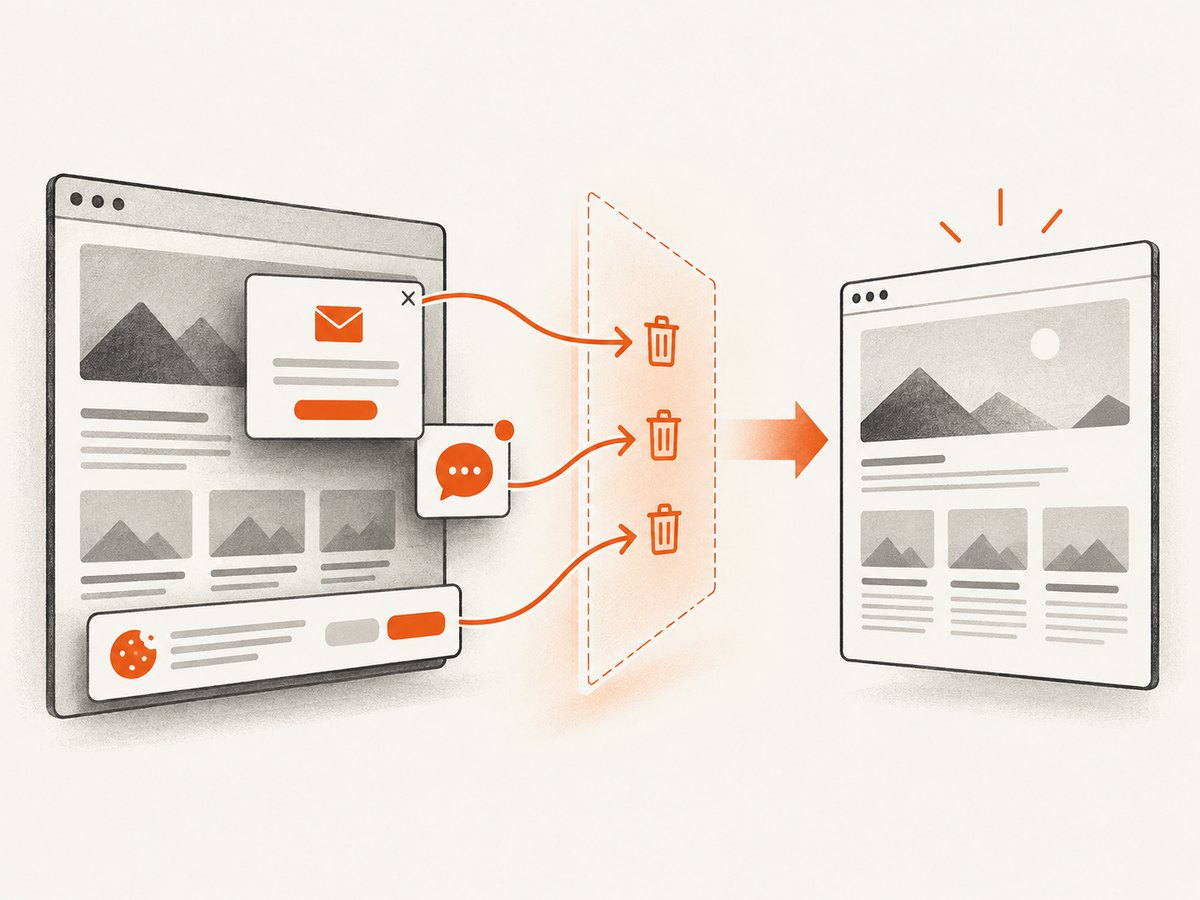
If your goal is a reliable website screenshot rather than maintaining Chrome in Docker, ScreenshotNeo provides a single API request that returns PNG, JPEG, WebP, or PDF. Cookie and consent banners, newsletter popups, and chat widgets are removed before capture. Bot checks, blank pages, failed loads, timeouts, and cache hits are not billed, and the response identifies the page verdict and billing status in X-Page-Verdict and X-Billed headers. ScreenshotNeo also provides an MCP server for AI agents, including Claude, Cursor, and other MCP clients.
See the ScreenshotNeo API documentation for all options.
cURL
curl -G "https://api.screenshotneo.com/v1/shot" -d access_key=YOUR_API_KEY --data-urlencode url=https://stripe.com -o shot.webpPython
import requests
r = requests.get("https://api.screenshotneo.com/v1/shot", params={"access_key": "YOUR_API_KEY", "url": "https://stripe.com"}, timeout=90)
open("shot.webp", "wb").write(r.content)
Node.js
const q = new URLSearchParams({ access_key: 'YOUR_API_KEY', url: 'https://stripe.com' });
const res = await fetch(`https://api.screenshotneo.com/v1/shot?${q}`);
The API supports full-page captures with lazy images loaded, CSS element capture, dark mode, device presets, custom viewports, retina scale, PDF settings, custom CSS and JavaScript, clicks, selector waits, delays, network-idle waits, request blocking, headers, cookies, user agents, authorization, timezone, geolocation, transparent backgrounds, resizing, configurable caching, signed links, asynchronous jobs with signed webhooks, bulk capture for up to 100 URLs per call, a usage API, and an OpenAPI specification. Parameter names used by other screenshot APIs also work, which can simplify migration.
There is a free plan with 1,000 screenshots per month and no card. Paid plans start at $5 for 3,000 screenshots; every feature is available on every plan. Create a free ScreenshotNeo account and try the API with no card required.
FAQ
Is Target.setAutoAttach itself broken?
Usually, the command is only where Puppeteer notices that the target has already closed. Inspect Chrome’s earlier stderr and process exit information before changing application code.
Should I always add –no-sandbox in Docker?
No. Puppeteer strongly discourages running without a sandbox. Configure the container and host for sandboxed Chrome whenever possible.
Does puppeteer-core read my Puppeteer configuration file?
No. Pass the executable path and other launch settings directly to the puppeteer-core launch call.
Can an init process alone fix the error?
An init process fixes child-process and signal-management problems. It cannot repair a missing executable, incompatible browser, absent library, or unusable sandbox.
When should I replace Dockerized Puppeteer with an API?
Consider an API when you need screenshots without maintaining browser binaries, container dependencies, sandbox capabilities, and browser lifecycle code. ScreenshotNeo provides those captures through one HTTP request and includes an MCP server for AI-agent workflows.


