How to Configure Puppeteer to Use a Specific Temp Folder with PM2 on Windows
Set Puppeteer’s temporary directory for a PM2-managed Windows app with PUPPETEER_TMP_DIR, then apply it safely and distinguish temp files from Chrome profiles.
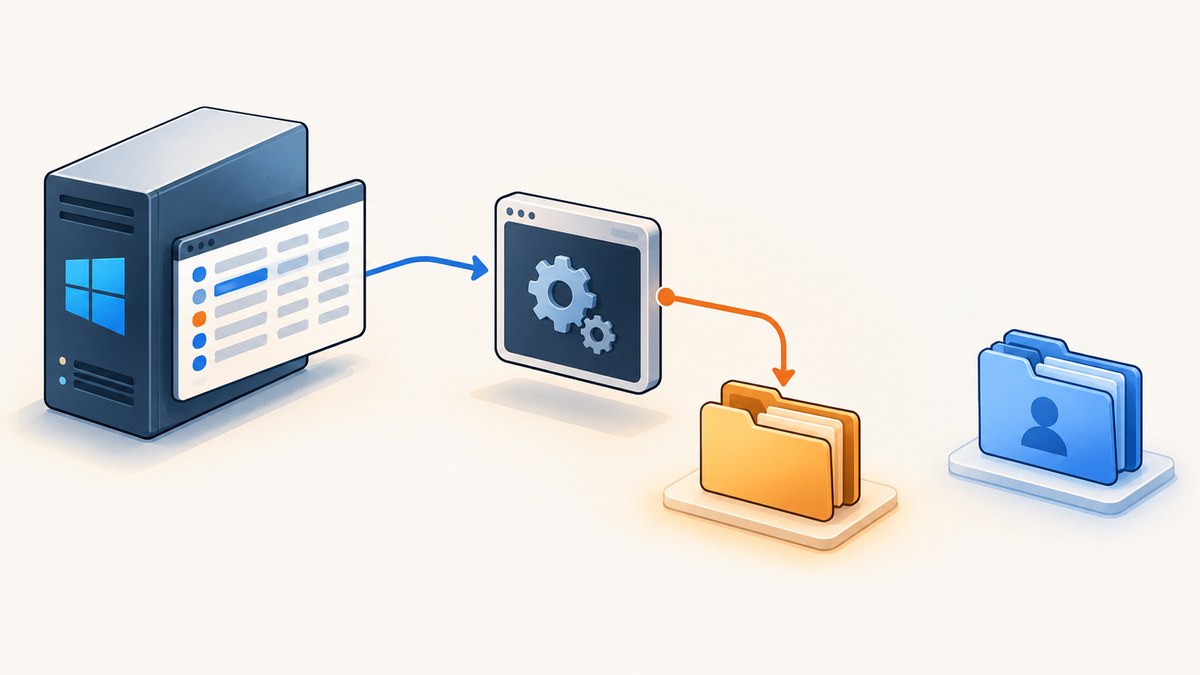
To give a Puppeteer app managed by PM2 a specific temporary directory on Windows, set PUPPETEER_TMP_DIR in that app’s PM2 ecosystem configuration, using an absolute path. Create the directory first and make sure the Windows account running the app can write to it. Then restart or reload the app from the ecosystem file so PM2 starts it with the updated environment.
Puppeteer’s documented temporaryDirectory configuration defaults to Node’s os.tmpdir(); PUPPETEER_TMP_DIR overrides it. This setting controls Puppeteer temporary files. It does not choose Chrome’s persistent user profile directory. [Puppeteer Configuration API]
1. Configure the temp folder in the PM2 ecosystem file
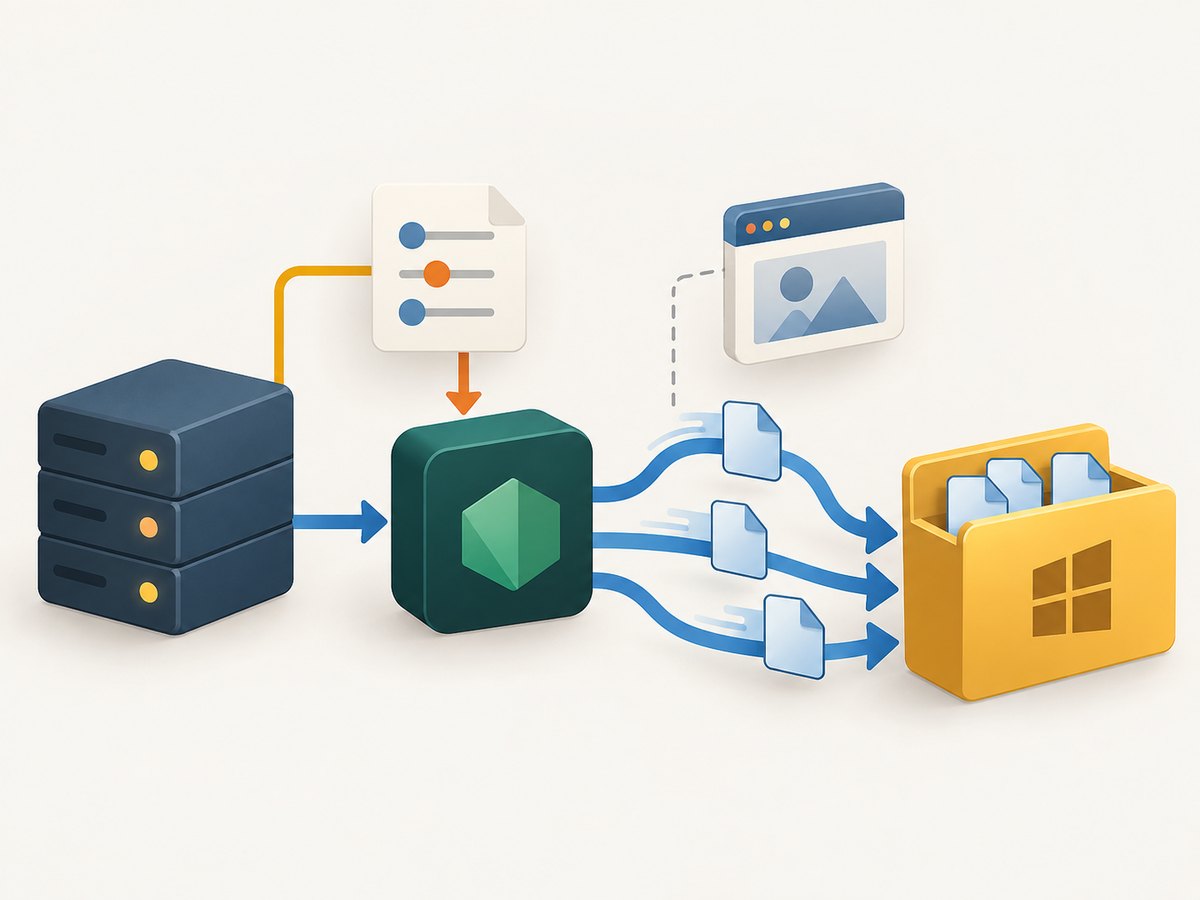
In your project, create or update an ecosystem file such as ecosystem.config.js. Put the variable in the managed application’s env object:
module.exports = {
  apps: [{
    name: 'worker',
    script: './app.js',
    env: {
      PUPPETEER_TMP_DIR: 'D:\\PuppeteerTemp'
    }
  }]
};
The doubled backslashes are JavaScript string escaping: the actual path passed to the process is D:\PuppeteerTemp. An alternative is to use forward slashes in a Windows absolute path:
env: {
  PUPPETEER_TMP_DIR: 'D:/PuppeteerTemp'
}
PM2’s ecosystem file groups application options and environment variables, and its env property supplies environment variables to the app. [PM2 ecosystem file reference]
Prepare the directory and permissions
- Create the directory, for example
D:\PuppeteerTemp. - Identify the Windows account that actually launches the PM2-managed process. A process started interactively and one launched as a service may run under different accounts.
- Grant that account permission to create, read, and remove files in the directory, consistent with your machine’s security policy.
- Keep the path local and absolute. Avoid relying on a mapped drive that may not exist in the process’s logon session.
Those are operational precautions: the official API documents the setting, but the right permissions and service identity depend on your Windows and PM2 setup.
2. Apply the configuration change
When the variable is in the ecosystem file, restart or reload the app using that file. For example, from the project directory:
pm2 restart ecosystem.config.js --only workerOr, if you use reload for your application:
pm2 reload ecosystem.config.js --only workerChoose the command that matches how you run and manage the app. PM2 documents that ecosystem-file environment changes are picked up on restart or reload. If instead you changed an environment variable in the shell and want PM2 to refresh the app’s environment, use --update-env with the restart or reload command. [PM2 environment variables]
pm2 restart worker --update-envDo not assume a running Node process will see an environment edit made after it started. A process receives its environment at launch, so the app needs a new process start for that change to take effect.
3. Confirm the effective value in the app
Log the value during startup while diagnosing the setup. Avoid printing unrelated environment variables, which may contain credentials.
console.log('PUPPETEER_TMP_DIR:', process.env.PUPPETEER_TMP_DIR);On Windows, you can also inspect the PM2 process list and logs:
pm2 list
pm2 logs worker
This confirms the app’s configured value is present, but it does not prove that the directory is writable or that a particular Puppeteer installation consumes the setting. Check the exact package and version in use if the result differs from expectations.
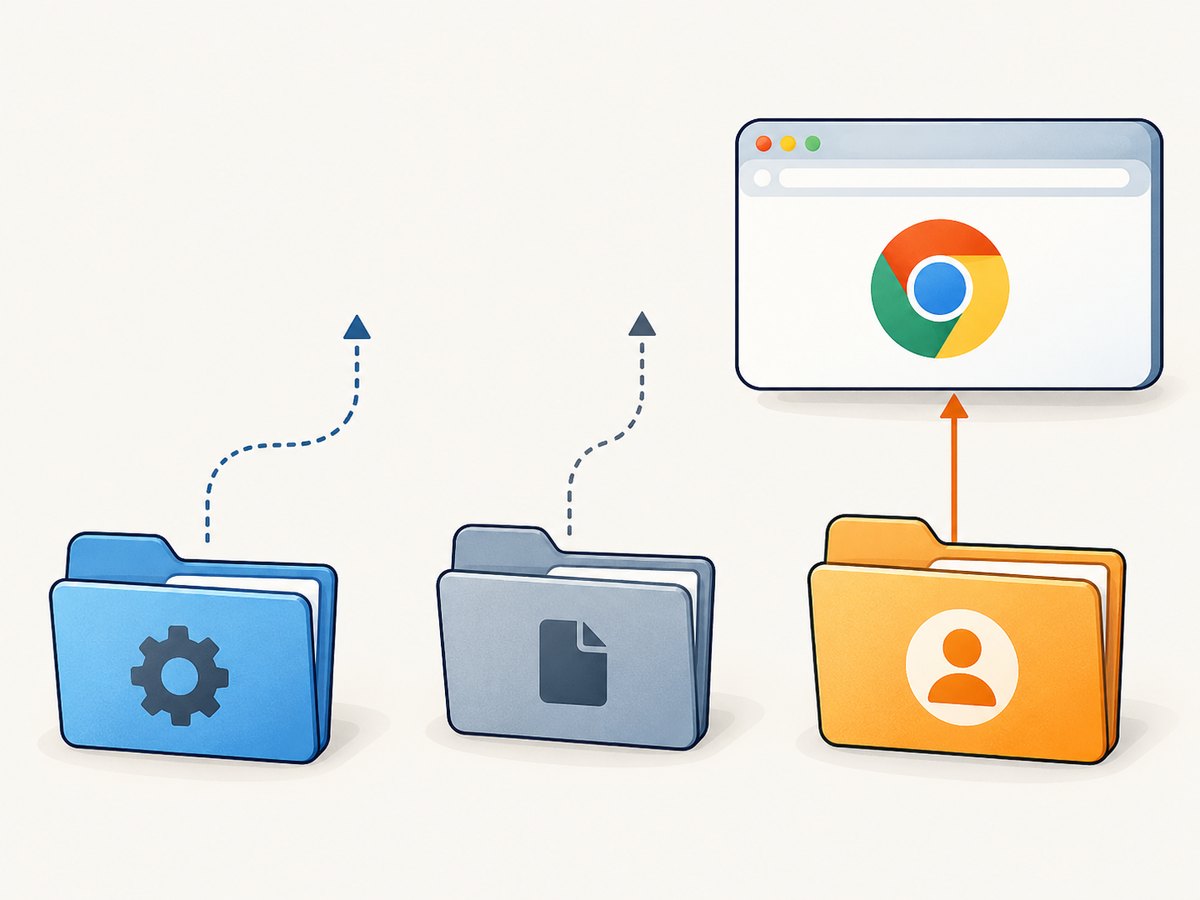
4. Understand the three directory controls
| Setting | Controls | Scope |
|---|---|---|
PUPPETEER_TMP_DIR |
Puppeteer’s temporaryDirectory |
Puppeteer-specific configuration |
TEMP or TMP |
Node’s default temporary directory on Windows, used through os.tmpdir() |
General Node process temp location |
userDataDir |
Chrome’s user-data profile directory | Browser profile, such as persistent profile state or isolation |
Puppeteer’s dedicated setting
For a Puppeteer-managed temporary directory, use PUPPETEER_TMP_DIR. Puppeteer documents this environment override for the temporaryDirectory configuration property, whose default is os.tmpdir(). [Puppeteer Configuration API]
Node’s Windows temp variables
If your goal is to change the default temp directory for the whole Node process, Windows Node’s os.tmpdir() honors TEMP before TMP. This is broader than Puppeteer’s dedicated variable: libraries in the process that use Node’s default temp directory may be affected too. [Node.js OS API: os.tmpdir()]
You could configure those values in PM2 as well:
env: {
  TEMP: 'D:\\NodeTemp',
  TMP: 'D:\\NodeTemp'
}
Use this only when changing the Node process’s general temp location is what you intend. If you set both controls, verify which one is effective for your installed Puppeteer version and other dependencies instead of assuming one overrides every library’s behavior.
Chrome’s profile directory
Puppeteer launch options separately expose userDataDir. Set it when the goal is to choose a Chrome user-data profile, such as keeping profile state in a particular location or isolating browser runs. Changing PUPPETEER_TMP_DIR does not designate a persistent Chrome profile. [Puppeteer LaunchOptions API]
const browser = await puppeteer.launch({
  userDataDir: 'D:\\ChromeProfiles\\worker'
});
Whether a profile should be reused depends on the application’s isolation and lifecycle needs. Do not point concurrent browser processes at the same profile unless your design supports that access pattern.
5. Configuration-file alternative and package caveats
Puppeteer’s guide describes configuration files as the recommended general way to customize defaults, and documents temporaryDirectory there as a configuration property. However, Puppeteer’s configuration files and environment variables are ignored by puppeteer-core. If your dependency is puppeteer-core, do not assume the same configuration layer applies; check the behavior of the exact library and version, and use the relevant Node or Chrome launch configuration for the requirement. [Puppeteer configuration guide]
For a full Puppeteer package, a configuration file is another way to express defaults. The PM2 ecosystem environment approach is useful when you want the value bound to a specific managed app and deployment configuration. Keep one authoritative setting where practical so maintainers can tell which directory is intended.
6. Troubleshooting
| Symptom | Likely cause | What to check |
|---|---|---|
| Files still appear under the old temp path | PM2 has not restarted the process, the wrong ecosystem file was used, or the setting is not read by this package | Restart/reload from the intended file; log only process.env.PUPPETEER_TMP_DIR; verify the installed package and version |
| Error creating a directory or temp file | Target directory is missing, its parent is missing, or the PM2 process identity lacks access | Create the folder and check write permissions for the account running the process |
| Path appears malformed | Backslashes were not escaped in JavaScript, or the value is relative | Use 'D:\\PuppeteerTemp' or 'D:/PuppeteerTemp'; prefer an absolute path |
| Works in a terminal but fails under PM2 | The PM2-managed process may run as another account or with a different environment | Check the actual service/process identity, ecosystem file, and startup logs |
| Chrome opens with an unexpected profile | A temp-directory variable was used to solve a profile-location issue | Configure Puppeteer’s userDataDir launch option for profile storage |
| CLI environment change has no effect | PM2 retained the previously injected environment | Use --update-env for CLI-supplied changes on restart or reload |
Setting appears ignored with puppeteer-core |
The documented Puppeteer configuration layer does not apply to puppeteer-core |
Confirm which package is installed and use a configuration mechanism appropriate to that package |
7. Reliability, cleanup, performance, and cost
A dedicated temp folder makes it easier to control where temporary files land, but it also makes directory lifecycle your responsibility. Confirm the disk has space, the process can write there, and your cleanup policy will not remove files still in use. If multiple app instances share the same temp path, consider whether their temporary files can collide or whether separate directories per instance are appropriate for your application.
Changing the directory alone does not guarantee faster launches or lower memory use; the result depends on the workload, storage, browser lifecycle, and other configuration. Treat a new path as an operational change: check startup errors and available disk space after deployment. No universal performance benchmark follows from the directory setting.
The setup itself has no separate Puppeteer or PM2 price claim in the cited documentation. Operating cost comes from the machine and storage you provision, and from the maintenance needed to keep the directory writable and clean. Keep sensitive browser data and temporary artifacts within the access controls appropriate to your app.
Or skip the browser setup
If the job is simply to capture a website screenshot, ScreenshotNeo provides a screenshot API and MCP server. One GET request returns an image or PDF; see the API documentation for its request options.
curl -G "https://api.screenshotneo.com/v1/shot" \
  -d access_key=YOUR_API_KEY \
  --data-urlencode url=https://stripe.com \
  -o shot.webp
import requests
r = requests.get(
"https://api.screenshotneo.com/v1/shot",
params={"access_key": "YOUR_API_KEY", "url": "https://stripe.com"},
timeout=90,
)
open("shot.webp", "wb").write(r.content)const q = new URLSearchParams({ access_key: 'YOUR_API_KEY', url: 'https://stripe.com' });
const res = await fetch(`https://api.screenshotneo.com/v1/shot?${q}`);- Cookie and consent banners, newsletter popups, and chat widgets are removed before the shot; each step can be turned off.
- Bot checks, CAPTCHAs, blank pages, timeouts, failed loads, and cache hits cost nothing; response headers identify the page verdict and billing status.
- An MCP server offers
take_screenshot,get_page_info, andcapture_pdffor AI agents and MCP clients. - 1,000 screenshots per month are free with no card; paid plans start at $5 for 3,000.
Sign up for ScreenshotNeo’s free 1,000 screenshots per month, with no card required.
FAQ
Does changing the temp folder preserve cookies or login state?
No. The temp directory and Chrome user-data profile are separate controls. Use userDataDir when you need to choose the browser profile location.
Should I set TEMP, TMP, or PUPPETEER_TMP_DIR?
Use PUPPETEER_TMP_DIR for Puppeteer’s documented temporary-directory override. Use TEMP or TMP if you intend to change Node’s general Windows temp directory.
Do I need to restart after editing the ecosystem file?
Yes. Restart or reload the app from the ecosystem file to launch it with the revised environment.
Does the example guarantee the same behavior on every Windows PM2 installation?
No. The example follows the documented configuration pattern, but package version, PM2 launch mode, process identity, and permissions vary. Verify the effective value and access in your deployment.


